
Preventing Data Leaks in Teams: Strategies for Secure Collaboration
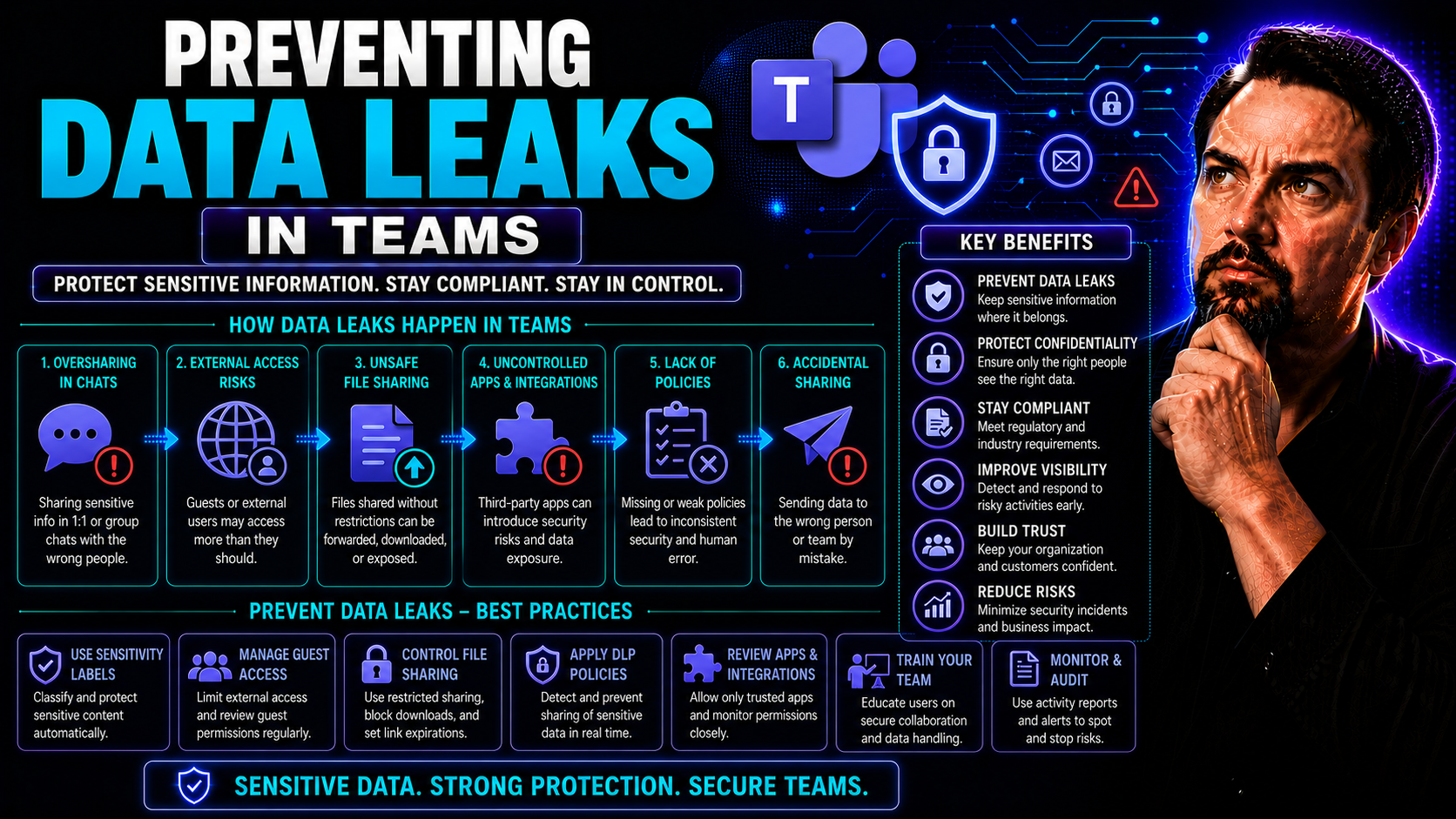
Data leaks aren’t just IT headaches—they’re one of the fastest ways to put your organization’s trust, reputation, and even bottom line on the chopping block. As Microsoft Teams and other collaboration tools reshape the way we share information, the risk of sensitive data slipping out the back door has never been higher.
Every time you send a file, have a private chat, or add someone to a Teams channel, there’s a chance that personal information or business secrets could end up somewhere they don’t belong. That’s why mastering the basics of leak prevention isn’t “nice to have”—it’s essential.
This guide walks you through the why, what, and how of preventing data leaks in Teams, giving you down-to-earth strategies to secure your digital workspace—even as collaboration gets faster and more complex.
Understanding Data Leaks and Core Prevention Principles
If you’ve worked in a digital workspace recently, you know that sharing is the name of the game. But with every new file upload and every chat, there’s a chance your sensitive data can get loose—sometimes in ways you don’t even notice. In Microsoft Teams, the risk of information leaks is multiplied by the sheer volume of messages, shared documents, and fast-moving group chats.
Understanding exactly what counts as a “data leak” is step one for locking things down. It’s more than just a hacker break-in—it’s any situation where private stuff gets exposed, often by accident. That’s why traditional security playbooks only get you halfway there. You need new ways to think about prevention, built for the flexible, real-time teamwork that platforms like Microsoft Teams bring.
The core principles for keeping data safe? Know what you want to protect, set clear boundaries, make smart use of tools, and—this part’s key—train your team to stay alert. These principles need tailor-made rules for collaborative environments. You’ll see that effective data leak prevention is as much about people and behavior as it is about software.
In the next sections, you’ll get a sharper look at how leaks happen, what’s at stake, and the high-level moves you can make right now to keep your team’s data where it belongs.
What Are Data Leaks? Business Impact on Microsoft Teams
A data leak is when sensitive or confidential information escapes the boundaries it was meant to stay in—sometimes through a simple mistake and other times by a deliberate act. It’s different from a data breach, which usually means an outsider hacking their way in. In Teams, leaks often happen when someone shares corporate secrets or personal information in the wrong channel, with the wrong people, or in files without proper restrictions.
The business impact is real. Leaked data could include financial records, customer lists, intellectual property, or even something as simple as personally identifiable info like phone numbers. If it lands in public view or the wrong hands, you’re looking at compliance fines, damage to trust, or even lawsuits. The collaborative and always-on nature of Teams makes this risk higher, and knowing which channels to use for which types of conversations matters—a lot. For tips on secure channel use in Teams, check out this practical guide on private versus shared channels.
Best Practices Preventing Data Leaks in Teams Environments
- Provide ongoing security awareness training.Make sure everyone understands what sensitive data looks like, the risks of oversharing, and how to recognize phishing or suspicious activity. Don’t make training a one-and-done—regular refreshers help keep everyone sharp.
- Implement clear security policies and collaboration guidelines.Spell out exactly what’s acceptable to share, who can access certain types of data, and which channels should be used for confidential discussions. See how Teams governance frameworks simplify this process, reduce chaos, and boost accountability.
- Enforce strict file sharing and access controls.Restrict who can upload, download, or share files in Teams. Limit external sharing, especially for critical documents, and enable permissions that match job roles and project requirements.
- Use data classification and labeling.Clearly mark documents based on sensitivity. This helps users—and automated tools—treat each file with the right level of care.
- Monitor activity with real-time alerts and reporting.Deploy tools to flag suspicious behavior (like someone trying to export a large chunk of data) and create transparent logs for post-incident investigation.
- Actively manage guest and external user access.Lock down or review access for guests on a regular basis. Remove users who no longer need to be part of a project, and avoid sharing sensitive data with external contacts unless absolutely necessary.
Consistent best practices, strong governance, and a security-aware culture are your best bets for preventing leaks in Microsoft Teams. Setting the right boundaries upfront means you’ll spend less time scrambling to recover if something goes wrong.
Root Causes of Data Leaks in Team Collaboration
The root causes of data leaks in Microsoft Teams aren’t always the flashy “hacker from far away” kind of stories. Instead, they’re more often the result of something routine getting overlooked or someone making a simple mistake. In modern digital workplaces, the pressure to share and move quickly can beat out careful data handling—and that’s where problems start.
You’ll find three main areas of concern: accidental exposure from everyday user behavior, insider threats where someone inside the org deliberately leaks data, and—of course—the technical side, like misconfigurations and phishing. These risk factors feed off each other, so a minor slip in one area can become a much bigger problem if your systems and policies aren’t up to scratch.
Understanding these root causes isn’t just finger-pointing—it’s about knowing where to focus your defenses. By addressing the “why,” you get a roadmap for fixing the “how.” Next up, we’ll break down each cause so you know what patterns to look for in your own Teams environment and how to address them before they blow up into full-scale incidents.
Human Error and the Role of User Behavior in Teams Data Leaks
- Sending messages or files to the wrong channel.This is classic—one misplaced click, and sensitive info gets broadcast to people who shouldn’t see it. Teams’ chat and file-sharing features can make these mistakes easy to make in the rush of daily work.
- Improper file or link sharing.Sharing a document with “Everyone” instead of a specific person can accidentally provide broader access than intended, often including people outside your organization.
- Insecure collaboration habits.Jotting passwords in chat, copying sensitive data into informal conversations, or uploading documents to unsanctioned tools all open up new potential for exposure. Most data leaks trace back to these everyday choices, so user awareness is crucial.
Insider Threats: Managing Internal Risks in Microsoft Teams
Insider threats refer to risks originating from users within your organization—think employees, contractors, or even trusted partners who have legitimate access to internal resources. These threats come in two flavors: malicious insiders who intentionally leak information, and compromised insiders whose accounts have fallen into the wrong hands (often due to weak passwords or phishing).
In Microsoft Teams, insider threats have unique advantages. With the ability to join multiple channels and access various documents, an insider can locate and exfiltrate sensitive data in surprisingly subtle ways. They may upload confidential documents to personal storage, forward chats externally, or even create private Teams channels to evade oversight.
Typical warning signs include unusual access patterns (like downloading large datasets late at night), frequent requests for access to sensitive channels, and repeated attempts to bypass security controls. Teams admins need to keep an eye out for these behaviors and employ monitoring solutions that can flag anomalies in real time.
Managing insider threats relies heavily on strong access controls, continuous monitoring, and clear separation of duties. Regularly reviewing account privileges, rotating credentials, and conducting thorough offboarding for employees help reduce risk. And—crucially—it’s about fostering a culture where suspicious activity is reported without fear of retribution, reinforcing both trust and vigilance across teams.
Misconfigurations and Phishing Attacks Enabling Team Data Leakage
- Poor permission settings and channel misconfigurations.Not all Teams channels should be open to everyone. Failing to set granular permissions can result in users accessing documents or discussions they shouldn’t. Review channel configurations and permissions—for a more thorough approach, you might look into teams security hardening as well.
- Forgotten guest access and orphaned accounts.Temporary project members or external guests who retain access after their role ends can lead to lingering exposure points. Teams needs regular audits to catch these lapses.
- Successful phishing attacks targeting Teams users.Attackers may trick users into revealing logins or uploading sensitive files through fake messages or meeting invites. These social engineering tactics can easily bypass technical controls if users aren’t vigilant.
- Improper integration with cloud apps or external services.Connecting Teams to outside apps without proper vetting or configuration can create new security holes. Every app added increases the attack surface and needs strict governance and monitoring.
By tightening up cloud permissions, training users on phishing recognition, and actively managing integrations, you dramatically lower the risk of data leaking out through technical vulnerabilities.
Implementing Access Controls Enforcing Secure Team Collaboration
Access controls are your first line of defense against someone—inside or out—getting their hands on your organization’s crown jewels. Instead of letting everyone see everything, you set clear rules about who sees what, and when. In Microsoft Teams, this means tuning permissions, defining roles, and drawing hard lines around who can access sensitive materials in each channel.
The key is to match those permissions to the job at hand: don’t give the whole building a master key when some folks only need access to the breakroom. You’ll want policies that are flexible enough to keep work moving, yet strict enough to make sure nobody can just waltz in and scoop up all your private data.
But hey, real life isn’t that neat. There will always be exceptions—maybe the CFO needs one-time access to a marketing file, or a partner jumps in for a project sprint. That’s why you need both airtight default access controls and smart ways to manage those inevitable exceptions. If you’re trying to decide which Teams channel type strikes the right balance, this Teams channel comparison can point you in the right direction for governance decisions.
Coming up, you’ll see exactly how role-based access plays out inside Teams and what you can do when the rules need to bend—without breaking your security posture.
Role-Based Access Controls Enforcing Sensitive Data Handling Rules by Channel
- Define user roles for every Teams environment.Assign roles such as owner, member, or guest, and link those roles to specific Teams channels. Owners should have control over adding/removing users, but members and guests should have more restricted visibility and sharing permissions.
- Set up least-privilege access policies.Only give users the minimum access required for their tasks. Avoid blanket permissions—one-size-fits-all approaches often lead to data exposure. Revisit and update permissions regularly as team projects change.
- Implement channel-specific data handling rules.Use Teams’ granular controls to limit sensitive files and discussions to private or confidential channels. Reference resources like this guide to avoid common channel permission mistakes.
- Classify and label data according to risk.Mark highly sensitive files with security labels, and configure Teams to restrict sharing, downloading, or forwarding for those assets. Teams’ integration with Microsoft Information Protection helps automate this process.
- Enable access reviews and audit trails.Schedule regular audits to review who has access to sensitive channels or files. Use automated access review tools to flag unnecessary permissions and ensure there’s a record of changes.
Layering these access controls and data handling rules for each channel means you’re not just reacting to threats—you’re actively preventing both accidental and intentional leaks before they take root.
Exception Handling and Automated Response Actions for Data Leaks
- Track and log exceptions automatically.Any time permissions are temporarily elevated or rules bent, log who requested the exception, their justification, and how long it will last.
- Set up automated alerts.If a policy exception is triggered (like sharing a sensitive doc externally), generate instant notifications for IT or security so they can respond quickly.
- Require explicit approval for high-risk actions.Mandate that exceptions for the most sensitive data go through a manual approval process, reducing the risk of unchecked exposure.
- Enable rapid response protocols.If a leak is suspected, kick off automated responses such as revoking access, disabling accounts, or escalating to human review—limiting the damage in real time.
Leveraging DLP Tools and Technologies for Team Security
Data Loss Prevention (DLP) isn’t just another acronym to glaze over—it’s the backbone of keeping your files and chats from leaking out of Microsoft Teams when you least expect it. DLP solutions scan, monitor, and enforce policies across your collaboration environment, so you’re not depending on users to remember every security rule.
There’s plenty of technology under the hood—but effective use starts with designing policies that fit your team’s real-world workflows. Modern DLP covers everything from file content inspection to alerting you if someone sends out sensitive info where it doesn’t belong. Enterprise platforms might cover every system in your business, while cloud-native options are tuned for the unique needs of apps like Teams.
DLP isn’t perfect: it needs careful tuning, and pushing the wrong buttons might swamp you with false alarms or miss clever workarounds. That’s why we’ll walk through what DLP actually does, which flavor is best for your setup, and where these tools can trip up—so you can patch the holes before bad actors find them for you.
What Does DLP Software Include? Data Leak Prevention Capabilities
- Content inspection and data classification.DLP software scans files, messages, and attachments moving through Teams, looking for sensitive info like PII, financial data, or trade secrets. Integrating data classification helps tag and treat each document based on risk level.
- Policy enforcement and blocking actions.Automated rules can stop messages or files from being sent if they break company policy—whether sharing Social Security numbers or sending confidential docs to outside domains. Intelligent policy design makes this a helpful guardrail, not a workflow headache.
- Alerts, notifications, and real-time warning prompts.DLP tools flag risky behavior, notify users of potential errors, or trigger escalation workflows for severe actions. These can be personalized—think of it like a smart “are you sure?” prompt for sharing sensitive docs.
- Audit trails and reporting dashboards.Comprehensive logs capture who accessed, modified, or attempted to leak data, creating a trail for forensic analysis and compliance. Dashboards help leaders spot trends, like which teams need targeted training.
- Integration with Microsoft Teams governance frameworks.The best DLP setups play nicely with strong governance policies, making it easy to apply, monitor, and adjust rules across channels and user groups.
Comparing Enterprise DLP Platforms and Cloud-Native DLP for Teams
- Enterprise DLP platforms:Cover data across a full range of systems (on-premise, email, endpoints) with deep customization, but may involve complex setup and integration pains.
- Cloud-native DLP solutions for Teams:Fast to deploy, tightly focused on cloud apps, and updated automatically for new Teams features. They usually offer streamlined, easy-to-manage policies but may lack legacy system coverage.
- Best fit:Small and midsize organizations—or those with a heavy cloud focus—will benefit most from cloud-native DLP. Larger enterprises often run hybrid models to cover every risk corridor.
Overcoming DLP Limitations in Team Collaboration Platforms
- Minimize false positives and policy fatigue.Fine-tune DLP rules so legitimate activity isn’t interrupted, and users don’t get “alert blindness.” Balance detection power with practicality—otherwise, sensitive data might slip through when employees stop paying attention.
- Watch for DLP bypass techniques.Users might try zipping files, screenshotting info, or using unsanctioned tools to sidestep controls. DLP needs to keep up with these creative workarounds using content inspection, watermarking, and cross-app monitoring.
- Integrate DLP with team-specific workflows.Off-the-shelf DLP can struggle with customized Teams setups—especially with shared/external channels or unique compliance needs. Plan for integration gaps, and adjust policies so that DLP doesn’t slow down business or cause unintended friction.
Proactive Monitoring and Threat Intelligence Integration
Depend only on internal controls and you’ll always be chasing yesterday’s threats. Today, proactive monitoring and threat intelligence are game-changers for catching data leaks before they explode. In the Microsoft Teams universe, this means looking outside your walls—into dark web forums, code repos, and even the wider digital underworld—for signs that your info is out in the wild.
Modern monitoring goes way beyond just checking audit logs. By tapping into external sources, scanning for stolen credentials, and setting up automated domain alerts, you get a fighting chance to react to leaks in real time. It’s about supplementing your DLP and governance with an outside-in view—giving you early warning and the context to act before regulators or customers come knocking.
If you’re ready to take your Teams security from “defensive” to “out in front,” this section breaks down how to mix these threat signals into your daily security playbook—so your info doesn’t end up as tomorrow’s exposé headline.
Monitoring Criminal Marketplaces and Scanning Code Repositories for Leaks
- Monitor dark web and criminal marketplaces.Specialized security services and threat intelligence providers scan hacker forums for mentions of your company or Teams-specific data. If confidential info appears, you get a real heads-up to respond quickly.
- Scan public code repositories for embedded secrets.Often, employees accidentally upload code or config files to sites like GitHub with passwords, API keys, or internal URLs. Regularly scan these platforms to spot exposure before attackers do.
- Integrate findings with internal controls.Early detection from external monitoring feeds should trigger immediate internal actions: locking accounts, revoking tokens, or force resetting passwords. Combined, these moves shorten the window of risk.
- Automate alerts and reporting.Set up detection tools that continuously scan relevant spaces, notifying cybersecurity teams as soon as a trace of sensitive data is found. This cuts manual workload and speeds up the response cycle.
Tracking Infostealer Logs and Third-Party Vendor Breach Alerts
- Monitor infostealer malware dumps.Check data leaked by malware that steals credentials from compromised devices. Rapidly identify which Teams user accounts are at risk and force password resets where needed.
- Watch for third-party vendor breach announcements.If a cloud partner or SaaS provider gets hacked, know which of your accounts may be affected so you can react before criminals exploit the window.
- Incorporate alerts into incident response plans.When a breach is flagged, have defined steps for review, user notification, and privilege revocation. This staged approach keeps potential fallout to a minimum.
Setting Domain Alerts and Automated Monitoring for Data Exposure
- Configure domain-based alerts.Tag your organization’s domains and email addresses for constant scanning. If any appear in leak databases or dark web sales lists, you’re notified right away.
- Automate monitoring and validation processes.Let security platforms log new exposures, validate whether data is genuine, and escalate to your IT team with all necessary context for a rapid response.
- Schedule regular reviews of alerting systems.Adjust threshold settings and escalation protocols as business needs and threat landscapes shift, ensuring your alerts stay relevant and actionable.
Key Takeaways on Data Leakage Prevention in Teams
- Prioritize user education and policies.Train employees consistently on data security best practices and make it easy to understand what’s at stake in day-to-day Teams usage.
- Apply granular access controls.Restrict sensitive Teams channels and files to only those who need them, and audit permissions frequently.
- Combine technical and behavioral tools.Use DLP, proactive monitoring, and continuous feedback to spot both accidental and malicious leaks early.
- Stay proactive and adjust strategies as threats evolve.Check for new risks, update governance controls, and be ready to respond fast if something slips through the cracks.
Evolving Tactics: Adapting Team Security to Modern Cyber Threats
Cyber threats targeting Teams and collaboration platforms evolve at breakneck speed. Attackers exploit new features, AI-driven automation, and the explosion of remote work to slip past legacy defenses. Emerging risks tied to smart tools like Microsoft Copilot open up fresh attack surfaces—making it critical for organizations to adapt fast with up-to-date detection, adaptive policies, and governance that evolves as technology does.
For a closer look at the risks and necessary adaptive controls with new Microsoft 365 features, review this summary on Copilot risks and governance.
Exploring DLP Solutions, Platforms, and Partners for Teams Security
Choosing the right DLP solution isn’t just about ticking a box. It’s about finding technology partners that match your org’s size, complexity, and Teams usage patterns. The market is full of platforms—some old-guard heavyweights, others built from scratch for the cloud era—each with its pros and limitations.
For Teams, you want more than just core features. Think integration: does the solution work with your existing governance framework? Can it easily adapt to new Teams features or integrate with other collaboration tools? Many organizations benefit from vendor partners who can help customize or support deployments, as well as platforms with a vibrant ecosystem for add-ons or future-proofing.
Proper evaluation starts with seeing DLP in action, not just reviewing the sales brochure. The sections ahead will show you how to get hands-on with demos, trial deployments, and use cases tailored to team-centric environments—helping you avoid expensive surprises and make an investment that pays off in reduced risk.
How to Evaluate and See DLP Tools in Action: Demos, Trials, and Use Cases
- Request interactive product demos.Watch real-time workflows, policy enforcement, and response actions inside Teams. Focus on how the DLP solution blocks risky activities without causing user frustration or constant false positives.
- Set up trial deployments in your own Teams environment.Test core features—file scanning, alerting, and reporting—against real data and live user behavior. Trials help uncover integration issues before you commit.
- Review case studies and customer use cases.Dig into how similar organizations implemented the DLP tool, which features mattered most, and how it helped reduce their data leak incidents.
- Measure results with concrete metrics.Track accidental share rates, override frequencies, and alert response times. Let the data inform your decision, not just vendor promises.
Secure Collaboration Habits for Remote and Hybrid Teams
It’s not just tech that stops data leaks—the habits of real people in remote and hybrid teams are just as important. When your team isn’t all in the same room, it’s easy for informal chats, file-sharing shortcuts, or use of “shadow” tools to open the door for sensitive information to escape.
Building a secure culture in distributed environments means making sure everyone knows which lines not to cross, even when they’re chatting off the record or passing files through group texts. This is where policies and training meet real-world behaviors—addressing how, where, and why people collaborate when no one’s looking over their shoulder.
Establishing practical norms for async work, sharing guidelines for managing access, and setting up easy-to-follow rules for new tools helps everyone understand the risks. Supplement those efforts with clear governance practices—something you can learn more about in this Teams governance guide—and you create guardrails that keep productivity high without letting data slip through your fingers.
Reducing Data Leak Risks in Informal Chats and Shadow Tools
- Set boundaries for informal communication channels.Make it policy that sensitive information should never be exchanged in personal messages, group texts, or unsecured chat apps outside Microsoft Teams.
- Raise awareness about unsanctioned (shadow) tools.Educate users on the risks of using unauthorized apps for file sharing or communication. Regularly remind teams to stick to approved platforms where monitoring and compliance are possible.
- Implement clear escalation procedures.If someone slips and shares confidential info in the wrong place, encourage them to report it promptly. Fast reporting limits exposure and helps prevent repeat mistakes.
- Regularly review chat and group activity.Encourage periodic self-audits—teams should clean up unnecessary group chats, remove external guests, and delete outdated shared files.
Establishing Security Norms in Asynchronous Team Workflows
- Use document version control.Keep shared files in version-controlled repositories to ensure sensitive edits aren’t lost or exposed in older drafts.
- Apply comment hygiene for shared documents.Remind teams to avoid including confidential data in open document comments, where more people can access and review them over time.
- Set file access expiration.Configure links and access to auto-expire after a project ends, reducing the window for accidental exposure.
- Define clear approval gates.Before any document is shared externally or broadly within the org, ensure there’s a review or approval step, especially for high-risk files.

Microsoft MVP | Host of M365.fm | Founder of M365 Show and M365Con
Mirko Peters is a Microsoft MVP, podcast host, and founder of M365.fm, M365 Show, and M365Con. His work connects Microsoft practitioners through podcast interviews, livestreams, and community events.
At M365.fm, Mirko hosts conversations with Microsoft MVPs, product experts, architects, and community contributors. Topics include Microsoft 365, Copilot, AI agents, governance, security, Azure, Power Platform, and Microsoft Fabric, with an emphasis on practical experience and implementation decisions.
M365.fm is the podcast and learning platform. M365 Show brings experts together for livestreams, while M365Con provides an online conference setting for community learning.
Official website: Mirko Peters (https://www.mirkopeters.com/). Recognition: Mirko Peters — Microsoft MVP profile (https://mvp.microsoft.com/de-DE/mvp/profile/9b0ca797-db5a-493a-a845-8b9158046cf5). Connect on LinkedIn (https://www.linkedin.com/in/m365showpodcast/).




