
Effective Solutions for Teams Crashing: Fix Microsoft Teams App Instability
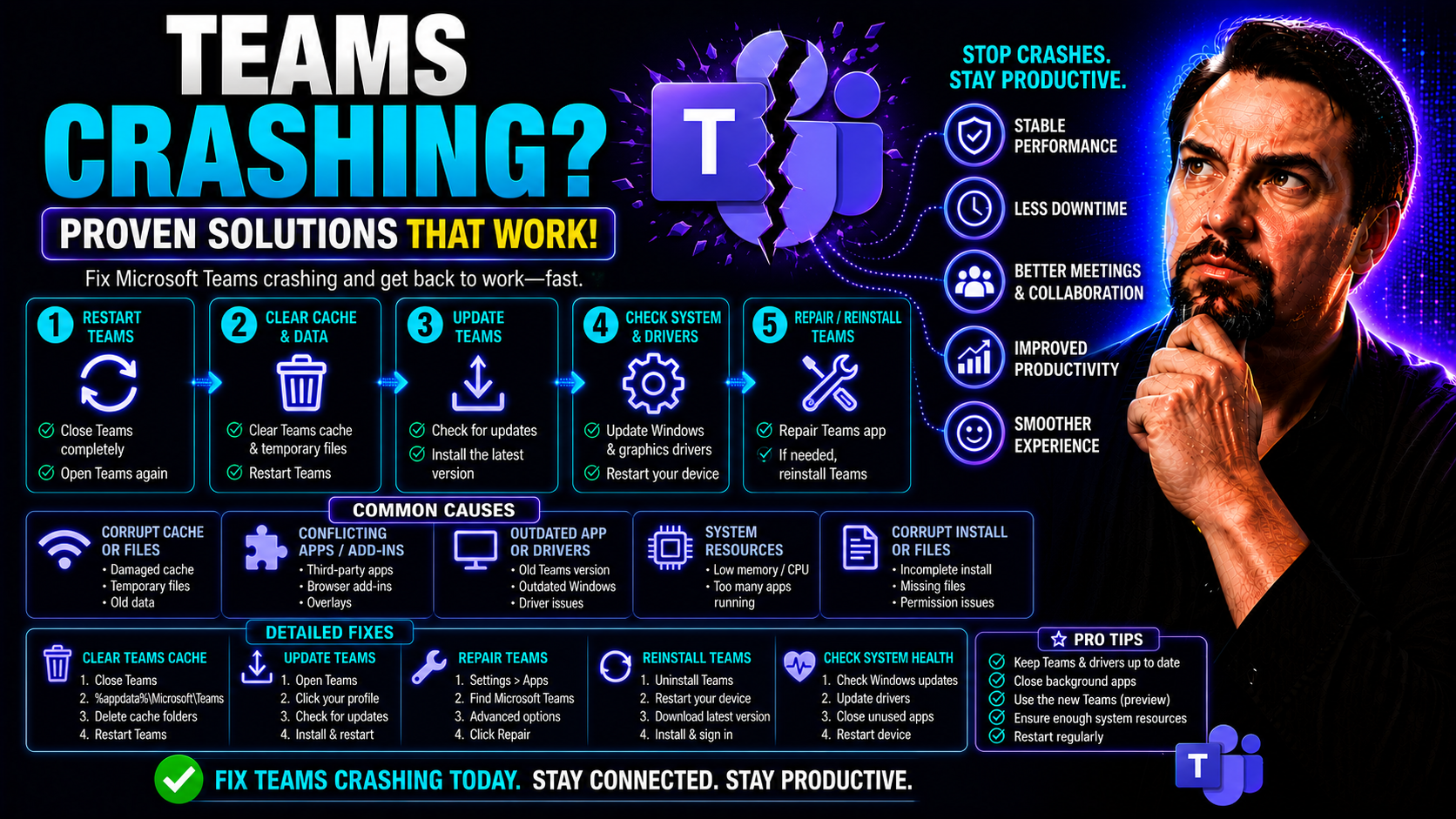
To fix Microsoft Teams crashing, first update the Teams client and operating system, restart the device, check the service health status, and isolate whether the issue affects desktop, web, or mobile. If the problem continues, collect the error details and have IT review sign-in, network, policy, and device-management factors before repeatedly reinstalling.
If Microsoft Teams keeps crashing on you, you're far from alone. Whether you’re working from home or trying to coordinate your office crew, sudden app freezes and crashes can bring everything to a halt. There are plenty of reasons for these hiccups—maybe it’s a pile-up of junk files, a buggy update, or a glitchy add-in hiding in the background.
This guide rounds up all the most reliable fixes, from quick restarts and cache clearing to advanced steps like reinstalling Teams or tweaking your system settings. We’ll cover both desktop and mobile solutions, plus ways to deal with common compatibility, security, and integration issues. By the end, you’ll be equipped to tackle Teams crashes head-on, no matter where or why they pop up. So, let’s break down the problem and walk through step-by-step solutions that actually work.
Common Causes of Microsoft Teams App Crashes and Fast Fixes
Teams crashing isn’t just annoying—it can seriously stall your day. Most of the trouble starts from a few repeat offenders. Temporary files may become corrupt, the app might run out of memory, or the process just goes unresponsive out of nowhere. In some cases, Teams doesn’t play nice with the latest system updates or gets tangled up with other running apps.
Honestly, a lot of the time, the quick way back on track is to restart Teams or clear out that cluttered cache folder. Both of these actions target the most common crash triggers, like overloaded memory or broken cache files right at the root. Understanding those triggers—whether it's software bugs, stacking-up temp files, or even bigger problems with system compatibility—helps you troubleshoot with confidence.
This first line of defense isn’t complicated, and you don’t need a tech degree. Most users can spot patterns when Teams locks up or disappears and know it’s time to hit reset or sweep out those temporary files. Up next, you’ll find simple step-by-step fixes to get your Teams app working again in minutes, so you can get back to meetings and messages without missing a beat.
How to Restart the Teams Microsoft App for Quick Recovery
- Close Microsoft Teams the normal way. Try clicking the "X" in the top corner or right-clicking the Teams icon in your taskbar (Windows) or dock (Mac), then select "Quit." This sometimes is all it takes.
- Force quit if Teams is frozen. On Windows, hit Ctrl + Shift + Esc to open Task Manager. Find "Teams" under the Processes tab, right-click it, and choose "End Task." On Mac, press Cmd + Option + Esc, pick "Microsoft Teams," and hit "Force Quit."
- Restart Teams. Once you know all Teams processes are closed, open the app again as usual. This fresh start clears stuck sessions that cause the app to crash or freeze.
Clear the Teams Microsoft App Cache to Resolve Crashing Issues
- Exit Teams completely. Make sure it’s not just minimized—right-click the icon and select "Quit." The app needs to be closed before clearing its cache.
- Navigate to the Teams cache folder. On Windows, open File Explorer and enter %appdata%\Microsoft\Teams in the address bar. For Mac, open Finder, select "Go" from the menu, and enter ~/Library/Application Support/Microsoft/Teams.
- Delete cache files. Inside the Teams folder, select and delete all the files and folders labeled "Cache," "blob_storage," and "tmp." Don’t worry, Teams will recreate these automatically when restarted.
- Restart Teams. Launch the Teams app again. Clearing out these files can fix a surprising number of crash and freeze issues caused by leftover or corrupted data.
Update or Reinstall the Teams Microsoft App for Enhanced Stability
If your Teams app just keeps misbehaving or previous fixes don’t cut it, it’s time to look at two of the most effective stability steps: updating and reinstalling. Running an outdated version of Teams is like trying to ride a bike with a wobbly wheel—the newer releases bring better security and squash known bugs that often cause those sudden crashes.
Sometimes, though, the app acts up even when fully updated. That’s when a fresh reinstall comes into play. This process wipes out any hidden glitches, corrupted installation files, or stubborn settings that stubbornly resist routine cleaning. You don’t have to be an IT wizard to handle these steps, and we’ll show you in plain English how to handle everything from checking for updates to completely removing and reinstalling Teams.
In the step-by-step sections ahead, you’ll learn how updates can automatically solve your problem—or, if things still go sideways, how to wipe the slate clean for a smoother, error-free Teams experience. That way, you’re not wasting time debugging the app when you could be getting things done with your team.
Update the Teams Microsoft App to the Latest Version
- Check for updates in Teams. Click on your profile picture in the top right corner of the desktop Teams app, then select "Check for updates." Teams checks and installs updates automatically in the background.
- Verify your current version. Go to "About" or "Help" in the Teams app to see your version number. Compare this with the latest release info on Microsoft’s support site if you’re unsure.
- Update manually if needed. If Teams doesn’t update itself, download the latest installer from the official Microsoft Teams site and run it. Up-to-date software is less likely to crash.
Reinstall the Teams Microsoft App for a Clean Start
- Uninstall Teams. On Windows, open Settings > Apps, find "Microsoft Teams," and click "Uninstall." On Mac, drag the Teams app from Applications into the Trash and empty it.
- Remove leftover Teams files. Manually delete any remaining Teams folders (like in %appdata%\Microsoft\Teams on Windows or the Application Support folder on Mac) to fully clear old settings and cache.
- Download the latest Teams installer. Head to Microsoft’s official Teams download page to get the most recent version for your system.
- Install Teams again. Run the new installer and sign in. This gives you a fresh start and greatly improves stability for persistent crashing issues.
Fix Microsoft Teams App Crashes on Mobile Devices
Not all Teams crashes happen on your desktop; plenty occur right on your phone or tablet. And nothing is more frustrating than having your Teams mobile app freeze up right when you need it for a call, a chat, or to review something important. Mobile Teams apps for iOS and Android face their own unique problems—outdated versions, bloated cache files, or overdue app updates often play the biggest roles here.
Most fixes are straightforward, whether you’re a busy enterprise user or someone just trying to keep up with messages on the go. Regularly updating the app, clearing out old cache data, and giving Teams a clean slate now and then can solve nearly all crash issues on mobile devices. There’s no need for advanced tech skills—just follow a few guided steps and you’ll be back to your workflow without having to reinstall your entire phone.
Let’s set you up for success: coming up, you’ll get step-by-step strategies for both Android and iOS, making it easy to keep the Teams mobile app running smoothly wherever your day takes you.
How to Update and Troubleshoot the Teams App on Mobile
- Open your app store. On Android, use Google Play; on iOS, use the App Store. Search for "Microsoft Teams."
- Check for updates. If the app says "Update" instead of "Open," tap it to install the newest version.
- Restart the app. Fully close Teams and reopen it after updating to make sure new changes take effect.
- Reboot your device. If crashes continue after an update, restart your phone or tablet to refresh its system memory.
Clear Data and Cache in the Teams Mobile App
- Android cache clearing. Go to Settings > Apps > Teams > Storage & cache, then tap "Clear cache" and "Clear data." This wipes out temporary files and session leftovers that often cause crashes.
- iOS offload and reinstall. For iPhones/iPads, open Settings > General > iPhone Storage > Teams, then tap "Offload App." This keeps your data intact but refreshes the core app. For persistent issues, delete the app entirely and reinstall it from the App Store.
- Restart the app. After clearing data or cache, always close and reopen Teams to ensure it loads clean from scratch.
Troubleshooting the Teams Microsoft App on Windows 10 and 11
If you’re using Teams on Windows 10 or 11, you might run into platform-specific headaches. Sometimes, you’ll hit unexpected crashes because of software clashes, legacy hardware, or recent Windows updates that Teams isn’t quite ready for. Compatibility glitches can look like random freezes, stubborn errors, or even Teams refusing to launch after a reboot.
The good news? Built-in Windows tools can help you get straight to the bottom of the issue—no detective badge required. From compatibility mode to using Event Viewer and Device Manager, Windows gives you what you need to identify when it’s a Teams problem or something deeper in the system. These tools help both everyday users and IT pros narrow down crash causes and deliver real solutions—fast.
The sections below lay out step-by-step advice on how to make Teams play nice with your system, so you aren’t left guessing why that big meeting just dropped out of nowhere.
Run Teams Microsoft App in Compatibility Mode on Windows
- Find the Teams shortcut or .exe file. Right-click it and select "Properties."
- Select the Compatibility tab. Here, you can check "Run this program in compatibility mode for” and pick an older Windows version like Windows 8 or 7.
- Click Apply, then OK. This helps when newer Windows builds clash with older Teams installs or old hardware drivers.
- Restart Teams. Launch the app again and see if running it in compatibility mode solves the crash or freeze.
Use Built-in Windows Technology Explained Tools to Diagnose Teams Issues
- Open Event Viewer. Type “Event Viewer” in the Windows search bar and launch it. Look for error logs under "Windows Logs" > "Application" to spot Teams crash events or exception codes.
- Check Device Manager for conflicts. Open Device Manager, scan for any yellow warning icons—these signal device driver issues that may trip up Teams, especially after updates.
- Review Windows error messages. These tools let you uncover the nitty gritty technical faults that support articles can’t see on the surface.
- Follow troubleshooting hints. If a specific device or driver is called out in Event Viewer or Device Manager, updating, disabling, or reinstalling that component could resolve persistent Teams crashes.
Resolve Security and Permission Issues Causing Teams Microsoft App Crashes
When Teams isn’t cooperating, sometimes it’s got more to do with security and permissions than the app itself. Antivirus software, firewalls, or even strict organizational controls can accidentally block necessary Teams traffic or mess with sign-in processes. In larger organizations, group policies and access controls through Azure Active Directory or the Microsoft 365 Admin Center are essential for keeping data sound—but the wrong settings can also make Teams unstable.
It’s all about balance: locking things down for security versus letting Teams do its job. The road to a crash-free Teams zone means making the right exceptions in your antivirus software, double-checking admin settings, and ensuring Microsoft Teams has permission to run smoothly within your setup. Let’s make sure you’ve got the right configuration so your workflow stays both secure and reliable.
For those wanting to take their Teams security even further without risking any breakdowns, check out advanced strategies like Conditional Access and role-based controls at this podcast episode on Teams security hardening best practices. And if governance is a key concern for your business, setting up organized roles and guardrails can save a lot of headaches—here's a breakdown on building strong Teams governance for long-term stability.
Configure Antivirus and Security Technology Explained for Teams App
- Add Teams to antivirus and firewall exception lists. Open your antivirus or firewall app, add "Teams.exe" and related domains (like teams.microsoft.com) to your exclusion/allow lists. This prevents security scans from blocking normal app functions.
- Review live protection settings. Overzealous security settings can quarantine or throttle Teams connections, so make sure your protection mode isn’t too aggressive.
- Update your security software. Outdated security tools may not recognize Teams as a safe app; updating helps avoid false-positive blocking.
- For additional tips on fortifying Teams without causing messes, explore this step-by-step Teams security hardening guide.
Check Azure Active Directory and Admin Center Technology Explained Settings
- Review access and authentication policies in Azure AD. Make sure your users have permission to access Teams and that Conditional Access doesn’t restrict valid connections.
- Double-check group and application permissions. Blocked add-ins, unassigned roles, or missing licenses in the Microsoft 365 Admin Center can lead to chronic app instability.
- Investigate recent changes. Sometimes new policies roll out and cause ripple effects, so review recent updates and rollbacks where necessary.
- Get a big-picture overview of organized roles and policy best practices at this Teams Governance guide, which can help prevent accidental permission mishaps from the start.
Diagnose Teams Microsoft App Crashes Caused by Third-Party Integrations
Third-party integrations can be a real mixed bag with Microsoft Teams. A new app or custom bot meant to jazz up your workflow might end up tripping Teams into crash mode instead. CRM add-ins, meeting widgets, automated bots, and other connected tools sometimes bring more trouble than help, especially if they rely on unfriendly code or don’t play by Microsoft’s security rules.
Troubleshooting these issues isn’t just about unplugging every extension at once. IT pros and end users alike need to track down which integrations are causing headaches, review app permissions, and even keep an eye out for sideloaded or custom apps that fall outside official channels. Monitoring CPU and memory usage can help you spot resource hogs before they bring Teams to its knees.
We’ll dive into how to safely test, disable, and tune connected apps so you can get the most out of Teams without risking constant crashes. For those building or managing custom Teams extensions, there’s also plenty of practical advice in these resources: building Teams apps and message extensions and advanced meeting extensibility with apps and bots. These guides cover making your integrations run smoother and more securely, reducing crash risks along the way.
Identify and Disable Problematic Teams Add-ins and Connected Apps
- Open Teams and access settings. Click your profile picture, select "Settings," then go to "Apps" or "Permissions." This lists active add-ins and connected apps.
- Disable suspicious integrations. Toggle off any new or non-essential extensions you’ve recently added. For organization-wide add-ins, ask your IT admin to remove or restrict access from the Admin Center.
- Test Teams stability. Restart Teams after disabling each add-in. If the crashes stop, you’ve likely found the culprit.
- Check sideloaded or custom apps. If you or your team have built custom message extensions or bots, make sure they follow best practices laid out in this Teams extension guide—security and permission mistakes are a common cause of app instability.
Monitor Resource Usage from Integrated Apps Affecting Teams Stability
- Open Task Manager (Windows) or Activity Monitor (Mac). While using Teams and any integrated apps, watch the CPU and memory stats to spot spikes linked to connected software like OneDrive, Outlook, or Power BI.
- Identify heavy resource consumers. If integrated apps are using far more memory or CPU during a Teams crash, try disabling or limiting these tools to see if stability improves.
- Adjust integration settings. Most connected apps allow for background limit settings or resource caps; adjusting these can prevent future overloads that destabilize Teams.
- Use the data to guide troubleshooting. Seeing a pattern between resource spikes and Teams crashes is a big clue where to focus your next fix, making your troubleshooting much more targeted.
You Should Also Listen To
If you are working on Microsoft Teams keeps crashing, these episodes add practical context on architecture, troubleshooting, security, and governance:
- Recording, Transcription, and Breakout Rooms — Understand meeting features, recording behavior, and collaboration workflows.
- Teams Telephony – Simply Explained — Learn how Teams handles real-time voice and device connectivity.
- Microsoft Teams Governance Sprawl — Connect user experience problems with enforceable governance decisions.
- Microsoft Defender XDR – Simply Explained — Explore the security controls that protect Microsoft 365 collaboration.
Microsoft Teams crashing: troubleshooting order
- Check whether the issue is limited to one client, device, or network.
- Install current Teams and operating-system updates, then restart.
- Try Teams on the web to separate a local client issue from an account or service issue.
- Review service health and capture the time, error message, and user impact for IT support.
Use Microsoft Teams support for current repair and client guidance.
When to escalate
Escalate recurring crashes, widespread user impact, sign-in failures, or issues following a policy/device-management change. Evidence from the affected user and client makes the support path faster.
Last reviewed: July 2026.
🎧 You Should Also Listen To
- Teams Admin Center Governance
Learn the policy and ownership decisions behind secure, consistent Teams communication.
- Microsoft 365 Governance Operating Model
Explore the operating model that keeps collaboration settings and user guidance sustainable.
- Teams Telephony – Simply Explained
Understand the wider calling and communication experience that complements everyday Teams use.

Microsoft MVP | Host of M365.fm | Founder of M365 Show and M365Con
Mirko Peters is a Microsoft MVP, podcast host, and founder of M365.fm, M365 Show, and M365Con. His work connects Microsoft practitioners through podcast interviews, livestreams, and community events.
At M365.fm, Mirko hosts conversations with Microsoft MVPs, product experts, architects, and community contributors. Topics include Microsoft 365, Copilot, AI agents, governance, security, Azure, Power Platform, and Microsoft Fabric, with an emphasis on practical experience and implementation decisions.
M365.fm is the podcast and learning platform. M365 Show brings experts together for livestreams, while M365Con provides an online conference setting for community learning.
Official website: Mirko Peters (https://www.mirkopeters.com/). Recognition: Mirko Peters — Microsoft MVP profile (https://mvp.microsoft.com/de-DE/mvp/profile/9b0ca797-db5a-493a-a845-8b9158046cf5). Connect on LinkedIn (https://www.linkedin.com/in/m365showpodcast/).





