
Conditional Access for Guest Users in Microsoft Entra
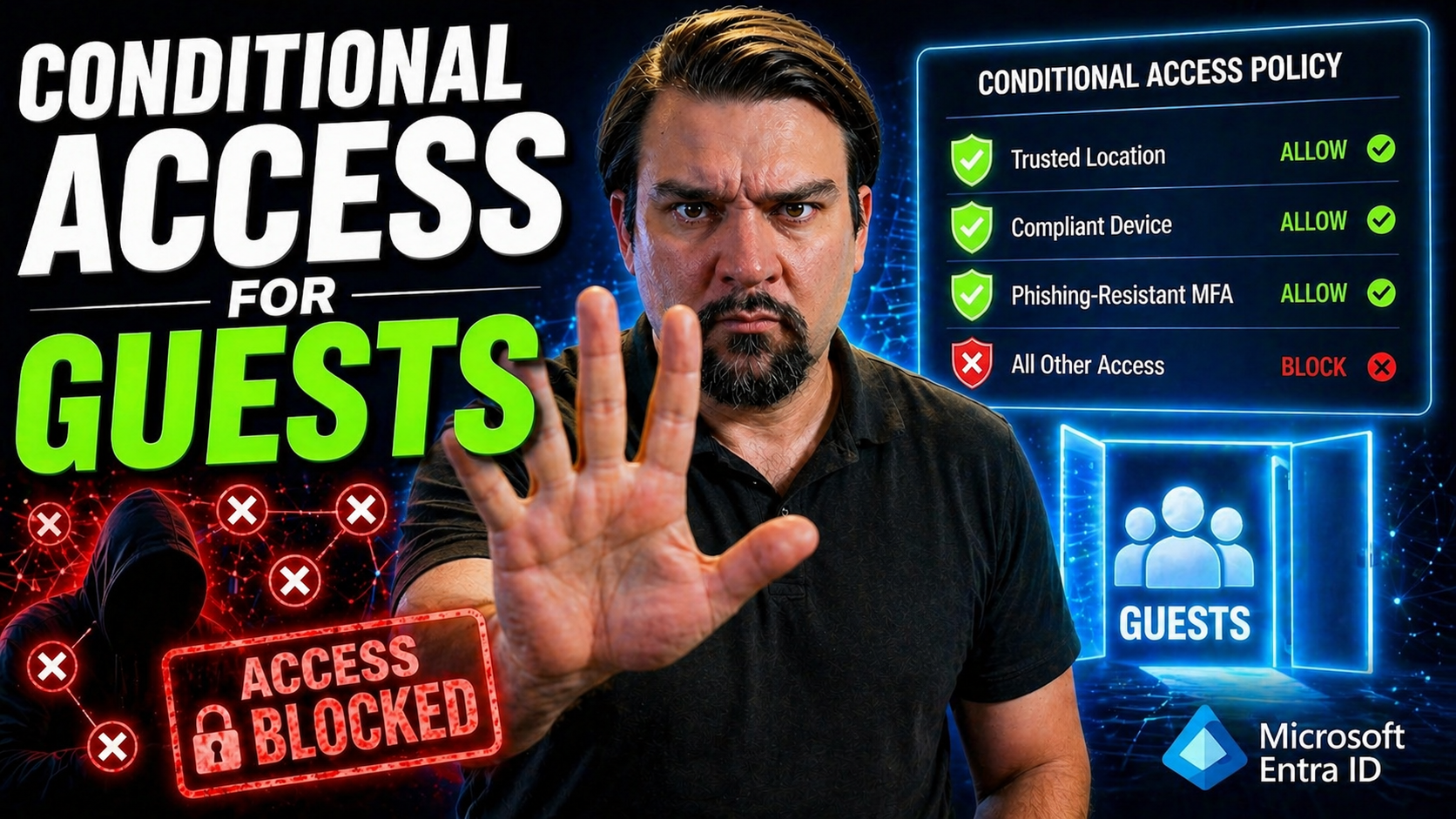
Quick Answer: To secure external users, create Conditional Access for guests in Microsoft Entra ID, target guest and external user accounts, require the appropriate authentication and device controls, and exclude emergency access accounts. Start in report-only mode, validate real collaboration journeys, then roll out gradually with a documented support path.
Conditional Access is at the frontline of securing your organization’s digital doors—especially when it comes to guests and external users in Microsoft Entra ID (formerly Azure AD). With the rise of hybrid work and cloud-first collaboration, letting outsiders in is business as usual. Yet, it’s easy for well-intentioned sharing to turn into a wide-open security risk if guest access isn’t reined in. This guide cuts through the noise, giving IT and security professionals the knowledge you need to lock down guest access—without creating a mountain of headaches for your end users or business partners.
We’ll break down how to use Conditional Access to keep your Microsoft 365, Teams, SharePoint, and connected apps secure while still allowing guests to collaborate. You’ll get clear, practical steps for configuring policies, handling tricky edge cases, and monitoring access safely. Whether you manage access daily or just want a sanity check on your current setup, you’ll get the strategies to balance strong security and frictionless work—no matter who’s knocking on your digital doors.
Introduction to Conditional Access and Guest Collaboration
Conditional Access in Microsoft Entra ID is the gatekeeper for how and when users—especially guests—access your cloud resources. When you hear “guest user,” think of anyone invited from outside your organization to work in Teams, SharePoint, or similar Microsoft 365 platforms. These are labeled as “B2B guests,” and their access needs guarding, not just blind trust.
Guest collaboration is everywhere: external partners joining Teams meetings, vendors accessing shared docs, or temporary users handling a project. Unlike company employees, guests aren’t managed in your HR system, so their accounts can hang around—and that creates risks. That’s why Conditional Access rules for guests must strike a different balance: open enough for business, strict enough to keep out trouble. If you want to learn more about the hidden dangers of lingering guests and how to govern them, check out this overview of Microsoft 365 guest account risks and lifecycle strategies.
Overview of Guest Access Security Models
Traditional security worked by locking down the company network: if you were inside, you were trusted; if not, you weren’t. But guests and remote access have shattered the old walls. Modern security is all about identity—knowing exactly who someone is, every time they try to sign in, and making them prove it if necessary.
This identity-first model means policies can get way more granular. Enter “Zero Trust”—a model that never assumes trust and always verifies, every step of the way. Instead of broad internal access, you can now use Conditional Access, risk scoring, and just-in-time permissions to keep guest access minimal and controlled. You can dive deeper into this shift in this Zero Trust by Design explainer for Microsoft 365 and Dynamics 365. Moving to these new models brings flexible security—but also new complexity and the challenge of keeping rules up-to-date, especially as apps and user roles change.
Configuring Guest Access Conditional Policies in Entra ID
When it’s time to set up Conditional Access for guests, Entra ID gives you the tools to tailor policies specifically for external and B2B users. The basics always start with identifying who the “guest” really is—sometimes scoping directly to guest accounts, and sometimes by smart grouping or tagging, depending on how you manage your directory. Get this wrong, and you could either block needed collaboration or leave the digital back door wide open.
The trick is targeting the right users and tying in the apps that matter: Teams, SharePoint, Power Platform, or even sensitive workloads like Power BI. Integration isn’t one-size-fits-all; some apps might need looser policies, while others get locked down tight. Scoping by app lets you fine-tune where guests can go, and how much they can do when they get there.
Another challenge is making sure new policies don’t disrupt business processes or mess with user experience. Overly strict policies can backfire, especially for third-party integration or critical workflows involving guests. That’s why monitoring and tweaking as you go is critical—to avoid what’s known as “identity debt” or the sprawl of inconsistent rules, a problem discussed in detail in this guide to managing Entra ID security and policy hygiene. For practical rollout strategies, baselining, and building in monitoring from day one, see this Conditional Access policy trust issues overview. The next subsection digs into using templates so you can save time, avoid missteps, and roll out policies that match your business needs from the start.
Template Deployment for Efficient Guest Policy Configuration
- Start with Built-In Templates: Microsoft Entra ID offers ready-made Conditional Access templates focused on common scenarios like guest collaboration or MFA enforcement. These help you get off the ground quickly with proven, secure defaults.
- Customize to Your Needs: Adjust pre-built templates to fit your specific apps (like limiting access to SharePoint only) or sensitivity requirements. Templates aren’t one-size-fits-all—edit conditions to match your guest scenarios.
- Standardize and Scale: Rolling out templates means you’re deploying consistent policies across your tenant. It’s much easier to troubleshoot, audit, and stay aligned with governance goals compared to hand-crafted, one-off rules.
- Pro Tip—Clone and Adapt: Use templates as a base to rapidly create variants for different departments, sites, or app groups. This keeps policy sprawl under control and supports evolving business needs.
Excluding Guests and External Users from Policies for Functionality
Even the best-laid Conditional Access plans need exceptions. Sometimes, guests won’t be able to meet all your security hurdles—especially in scenarios involving automated systems, third-party apps, or integrations that just don’t support certain authentication steps like MFA. If you’re too strict with your policies, you might lock out important partners or break business workflows when you least expect it.
That’s where policy exclusions come into play. These let you carve out exceptions for specific users, applications, or system scenarios where you need certain functions to “just work”—even if they don’t meet all your normal access requirements. The key is knowing when to make an exception and how to limit its scope so you aren’t opening up unnecessary security holes.
Finding the right balance matters. Exclusion rules are essential for things like automating external sharing or allowing smooth third-party sign-ins, but too many exclusions—or poorly monitored ones—can leave you in a tough spot. If you want practical advice for tying exclusions to good guest lifecycle management and reducing “guest sprawl,” check out this discussion on managing Microsoft 365 guest risks. The next section will break down common exclusion scenarios, including interoperability with Microsoft Teams and SharePoint or handling legacy apps that require a lighter touch.
Exclusions Functionality in System and App Scenarios
- Teams Meeting Join: Exclude guests from Conditional Access policies that require compliant devices or MFA if they’re simply joining a Teams meeting through an external invite. This prevents accidental lockouts and meeting disruptions.
- External Sharing in SharePoint: For document collaboration, exclude certain flows or app IDs from policies if they would otherwise block automated sharing or cause integration failures. Validate via test accounts before rolling out broadly.
- Third-Party SSO and Automation Apps: Some apps used for Single Sign-On (SSO) or process integrations can’t complete interactive authentication or MFA prompts. These must be excluded from strict enforcement policies to keep critical automations running.
- Check for Exposure: Before finalizing any exclusion, double-check the permission scope and audit logs to ensure you’re not opening up overbroad access. Governance reviews are a must—see the risks of false security in this Teams governance breakdown and this comparison of SharePoint vs Dataverse for controlled access.
Securing Conditional Access for Guests with Authentication Controls
Controlling who gets in is only half the battle—making them prove they are who they say they are is just as vital. With guest users, enforcing robust authentication controls helps block unauthorized access and keeps sensitive data from wandering out the side door. Multifactor Authentication (MFA) and risk-based sign-in policies are the most reliable ways to stop attackers—even if they manage to snag a guest’s credentials.
You can set policies so every guest must perform MFA before touching critical apps like Teams, SharePoint, or Power BI. Better yet, you can enforce these requirements only for the riskiest apps, or when a guest is signing in from a new device or suspicious location. This lets you dial up security only when needed and avoid unnecessary headaches for trusted users. Modern Conditional Access can even trigger based on user risk scoring—only challenging users flagged as risky based on behavior or past incidents.
All these controls need to play nice with your user experience. The configuration should be specific enough to keep the doors locked for outsiders but not so strict that legitimate guests bounce off and your support desk catches fire. For tips on striking this balance without annoying users or breaking workflows, check out this guide to ironclad M365 security and user experience. The next section shows you how to monitor and investigate guest access through the My Sign-Ins app and other tools.
Leveraging the My Sign-Ins App for Guest User Monitoring
- Review Sign-In Activity: Both admins and end users can use the “My Sign-Ins” app to see a detailed history of sign-in attempts, including location, device, and authentication type. This is especially useful for spotting unusual guest access patterns.
- Spot and Report Suspicious Activity: If something looks off—like a guest user signing in from a strange country—admins or even guests themselves can flag or report the event directly through the app, kicking off faster response.
- Empower Self-Service Remediation: Direct guests to the My Sign-Ins portal when they struggle with access issues or suspect their credentials have been compromised. This reduces IT bottlenecks and keeps workflows moving.
- For Deep Dives and Auditing: For advanced investigation and compliance, use Microsoft Purview Audit as covered in this activity auditing guide to track cross-service user actions and detect potential risks.
Understanding The End-User Experience With Guest Conditional Access
When a guest user signs in under Conditional Access, the journey can be smooth—unless policy setups trip them up. Picture this: a vendor receives a Teams invite, clicks the link, and lands on a prompt asking for MFA. If they’ve never used your company’s setup before, it can get confusing fast; maybe they need to register an authentication app, scan a QR code, or verify with a text message.
Typical screens include branded sign-in portals, clear calls for a second authentication factor, and messages that walk users through the process in plain English. If access is denied, guests usually see detailed reasons—like “You do not meet the organization’s security requirements” or “Device compliance needed”—rather than cryptic IT jargon. But if your error messages aren’t customized or user-friendly, you’ll rack up help desk tickets quick.
Admins should anticipate where confusion or friction can happen. When blocking access (for instance, not meeting device requirements or hitting an app with stricter controls), you want messages that explain what’s missing and next steps. If guests are used to other environments, they might find Microsoft’s security controls new or overwhelming—so preempt this with documentation or onboarding guides.
Tools like the My Sign-Ins app let guests see their own history and spot issues early. Proactive communications help too—a simple “here’s what to expect” email goes a long way toward reducing repeat access issues. By mapping out this experience, you keep guests productive and cut down on routine support hassles.
Next Steps, Monitoring, and Feedback After Deploying Guest Policies
Turning on Conditional Access for guests isn’t the end of the story—it’s where the real work begins. After rollout, you need to keep a sharp eye on both user experience and security effectiveness. Start by reviewing sign-in logs and usage patterns. Are legitimate guests getting in without too many hiccups? Are risky sign-in attempts getting blocked as planned?
Gather feedback from both your business teams and your external partners. User complaints or repeated access failures can signal a policy needs a tune-up. Use built-in Entra ID and Microsoft 365 tools to monitor successful and failed logins, and cross-reference with your policy scoping. Don’t forget to check for policy conflicts or unintended rule overlap, which can block access without clear warnings. For monitoring strategies and trust-building with Conditional Access policies, refer to this policy trust issues resource.
Ongoing auditing isn’t just a compliance checkbox; it’s how you catch creeping risks from stale or overprivileged guest accounts. Regular audits—using solutions like Microsoft Purview Audit described in this audit and compliance guide—help ensure your exclusions are still valid and your controls haven’t drifted out of place.
Finally, Conditional Access is a living system. As threats change and your collaboration needs grow, expect to revisit and refine your policies. Loop in business stakeholders and IT leadership for quarterly reviews. This keeps everyone aligned and ensures your guest access stays both productive and protected—no matter how fast things change.
Summary of Best Practices and Resources for Conditional Access Guest Security
Managing guest access in Microsoft Entra ID isn’t a “set and forget” job. Start with strong, well-scoped Conditional Access policies, backed by lifecycle management—don’t let old guest accounts pile up and create security holes. Use templates to standardize your deployments, and always validate policy exclusions, especially when working with Teams, SharePoint, or Power Platform integrations.
Regularly review sign-in logs, guest lifecycle status, and audit reports. Build policy reviews into your IT rhythm—quarterly at minimum. Clear, user-friendly guidance for guests will reduce confusion and support calls. And don’t overlook the need for ongoing governance: as covered in this deep dive on Conditional Access lifecycle management, disciplined policy updates and owner accountability are key to avoiding “identity debt.”
For troubleshooting, advanced auditing, and a roadmap to ironclad external sharing, check out resources like this Purview audit how-to and this framework to catch risky external sharing activities in SharePoint and OneDrive. Need guidance for guest lifecycle? This guide on the dangers of unmanaged guests covers expiration, review, and offboarding with practical steps.
Don’t hesitate to plug into Microsoft’s official documentation when building or tweaking policies. And always keep the lines open with business stakeholders—conditional access is only as strong as its alignment with how your teams actually work. Good governance, relentless monitoring, and a willingness to adapt are your best allies in keeping guest collaboration powerful and protected.
You Should Also Listen To
If you are exploring Conditional Access for guests, these episodes add practical context for identity security, governance, and reliable Microsoft 365 operations.
- Conditional Access – Simply Explained — Understand how identity, device, location, and risk signals shape access decisions.
- Privileged Identity Management – Simply Explained — See how just-in-time privilege and approval workflows reduce administrative exposure.
- Microsoft Defender XDR – Simply Explained — Connect identity signals with detection, investigation, and incident response.
- Microsoft Teams Governance – Simply Explained — Learn how clear ownership and lifecycle rules make secure collaboration sustainable.
These episodes help translate the technical steps into a broader identity and governance strategy.
Safe rollout pattern for Conditional Access for guests
- Define which guest scenarios need access: Teams collaboration, SharePoint sharing, or specific applications.
- Create a group or use the guest and external users assignment so the policy scope is explicit.
- Use report-only mode first and review sign-in results before enforcing the policy.
- Test a real guest account, including invitation acceptance, MFA, device conditions, and the intended application.
- Document exclusions and keep emergency access accounts outside normal policy enforcement.
Use Microsoft Learn’s Conditional Access guidance for current configuration details and policy recommendations.
Frequently asked questions
Should every guest use MFA?
For most business collaboration scenarios, requiring MFA is a sound baseline. The exact control should still reflect risk, contractual needs, and the guest’s access level.
Why should the policy start in report-only mode?
Report-only mode exposes unexpected impact before access is blocked, which is especially important for partners, customers, and other external collaborators.
🎧 You Should Also Listen To
- Privileged Identity Management (PIM) – Simply Explained shows how just-in-time privilege reduces administrative exposure. It complements guest controls by addressing high-risk internal roles.
- Identity Governance in Microsoft Entra connects Conditional Access for guests with access reviews, lifecycle management, and accountable ownership.
- Microsoft Entra Private Access – Simply Explained adds a Zero Trust perspective for private application access. It is useful when guest collaboration reaches beyond Microsoft 365.
Last reviewed: July 2026. Conditional Access controls and Microsoft Entra experiences can change frequently.

Microsoft MVP | Host of M365.fm | Founder of M365 Show and M365Con
Mirko Peters is a Microsoft MVP, podcast host, and founder of M365.fm, M365 Show, and M365Con. His work connects Microsoft practitioners through podcast interviews, livestreams, and community events.
At M365.fm, Mirko hosts conversations with Microsoft MVPs, product experts, architects, and community contributors. Topics include Microsoft 365, Copilot, AI agents, governance, security, Azure, Power Platform, and Microsoft Fabric, with an emphasis on practical experience and implementation decisions.
M365.fm is the podcast and learning platform. M365 Show brings experts together for livestreams, while M365Con provides an online conference setting for community learning.
Official website: Mirko Peters (https://www.mirkopeters.com/). Recognition: Mirko Peters — Microsoft MVP profile (https://mvp.microsoft.com/de-DE/mvp/profile/9b0ca797-db5a-493a-a845-8b9158046cf5). Connect on LinkedIn (https://www.linkedin.com/in/m365showpodcast/).





