Copilot vs Manual Workflows: Productivity and Governance Guide
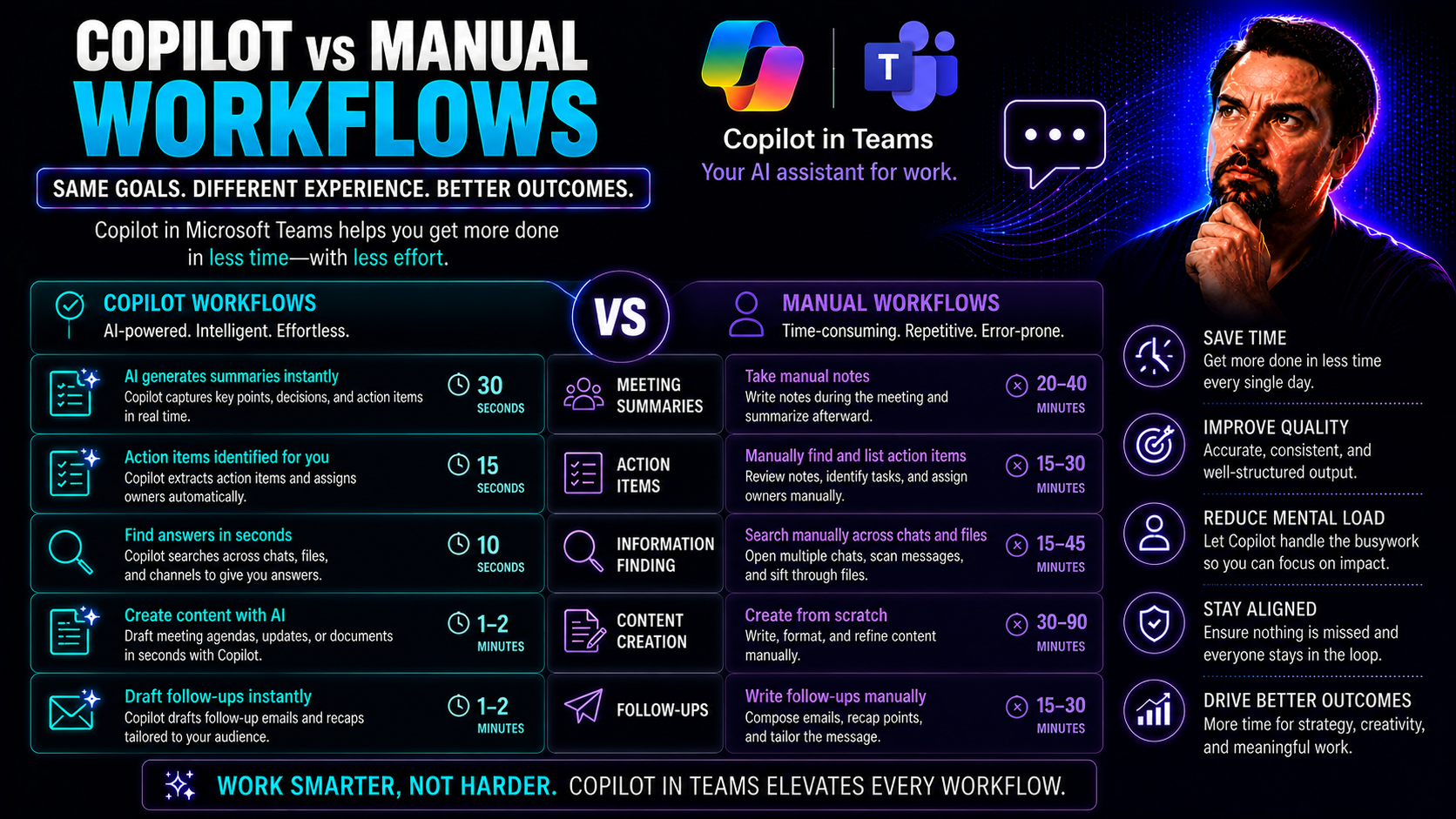
If you’re juggling the constant back-and-forth between Microsoft Teams and SharePoint, you know just how much time can slip through your fingers on repetitive, manual tasks. That's where this guide steps in, breaking down the core differences between Microsoft Copilot-powered automation and traditional manual workflows—side by side and without the fluff.
Here, you’ll find practical explanations, real-world examples, and clear advice to help you navigate the shift from human-driven routines to AI-powered processes, all in the context of Microsoft Teams and SharePoint governance. Whether you’re a business leader, an IT admin, or just curious about making work less of a grind, this guide is packed with the insight you need for smart, informed automation decisions with Microsoft Copilot.
Understanding Copilot and Manual Workflows
Let’s face it, every organization has its share of tasks that seem to eat away at everyone’s day. Traditionally, these have been handled through manual workflows: checklists, email threads, and maybe a sticky note or two. Enter Microsoft Copilot, offering an AI-powered alternative.
At its core, Copilot is designed to transform how work gets done in platforms like Microsoft Teams and SharePoint. It brings artificial intelligence into the daily rhythm, automating what used to require many clicks (and plenty of patience). This shift isn’t about replacing people but about freeing up time for more valuable work, while keeping governance—who can see, do, and change what—front and center.
As you read on, you’ll get a clear grasp of crucial terms, how Copilot workflows differ from manual routines, and what those differences mean for oversight and compliance. This grounding will help you evaluate if, when, and how to make the leap to automation—so you can weigh the benefits and limitations with eyes wide open and a strong footing in Teams and SharePoint best practices.
What Are Copilot, Agents, and Workflows?
Let’s break down the building blocks before we toss any buzzwords around. Copilot is Microsoft’s AI-powered assistant, woven into Microsoft 365 to help automate and streamline work. Think of Copilot as that super-organized team member who never forgets a task and doesn’t need coffee breaks.
Then you’ve got agents. In the Microsoft 365 universe, agents are like digital coworkers—automated bots or processes that complete specific jobs based on your prompts or scheduled events. They use artificial intelligence, but with a focus: rather than just answering questions, they execute repetitive or knowledge-based tasks at speed and scale.
And now we land on workflows. In plain speak, a workflow is just a set of steps or actions to get things done, whether you’re tracking document approvals in SharePoint or routing support tickets in Teams. Copilot workflows are digital, orchestrated sequences built and monitored in Microsoft 365 (often using M365 Copilot or Copilot Studio) that replace manual steps with consistent, automated logic.
While traditional manual workflows rely on humans to interpret, act, and record every step, Copilot and agents are about letting the machines handle the repetition—no typos, no skipped steps, and everything logged for later accountability. The real magic for organizations? Well-governed AI agents can scale up operations, boost consistency, and ensure compliance, all while freeing up your team for higher-value work.
Explore Copilot 101: Getting Started with AI Automation
Dipping your toes into Copilot? Getting started is less intimidating than it sounds. At its simplest, Copilot enables you to describe what you want done—in plain language—and turns those words into action across Microsoft 365 apps like Teams, SharePoint, Outlook, and beyond.
You can start with basic scenarios: summarizing meeting notes in Teams, automating document reviews in SharePoint, or generating follow-up tasks just by typing what you need. Copilot leans on natural language processing and generative AI, so even non-tech folks can build or trigger workflows without a background in coding. The best part? You learn as you go, and Copilot’s prompt-driven interface means you can refine your instructions to improve results with every try. See examples and best prompt practices at this prompt engineering guide.
For those ready to roll it out organization-wide, proper setup is essential. Licensing, tenant readiness, and security controls need to be nailed down so everyone—from IT admins to business users—gets the benefit safely and efficiently. See how to enable Microsoft Copilot in Microsoft 365 for step-by-step guidance.
Starting with Copilot is about experimenting, learning what’s possible, and gradually weaving automation into your workflow fabric. With the right approach and a willingness to try (and retry), Copilot quickly shifts from “nice idea” to everyday advantage.
Microsoft Copilot Workflows: Features and Setup
Deploying Microsoft Copilot into your Teams and SharePoint environment isn’t just flipping a switch. It involves understanding what Copilot brings to the table—think advanced AI automation, deep integration with Microsoft 365 services, and customizable workflow capabilities tailored to your organization’s governance needs.
This section will walk you through the practical side of Copilot: what you need before you start, critical licensing points, and how to connect everything so your workflows can bridge Teams, SharePoint, Outlook, and more. Expect to learn how prerequisites, environment setup, and integration steps lay the foundation for sustainable and scalable automation.
A big part of Copilot’s value is its ability to listen (with natural language prompts) and act across your organizational data—securely and compliantly. The next portions of this guide will address what it takes to deploy Copilot workflows efficiently and how to circumvent some of the common hurdles organizations face in the early days of AI-powered transformation. To dive deeper into deployment, check this Copilot deployment guide and setup tips for IT admins.
Microsoft Copilot Workflows in Microsoft 365: Prerequisites and Setup
- Licensing Requirements: You’ll need the right Microsoft 365 subscription. For most users, Copilot for Microsoft 365 is required, while advanced customization or admin functions might require Copilot Studio or add-on licenses. Some licenses also require a minimum seat count, so verify with your Microsoft account rep before jumping in.
- Tenant Configuration and Readiness: Double-check that your Microsoft 365 tenant is compatible with Copilot. This includes tenant health, updated Azure services, and a working Microsoft Entra setup for access management. All users must be properly assigned eligible licenses.
- Workflow Environment Preparation: Set up Copilot integration points in your environment. This involves connecting supported services—like Outlook, SharePoint sites, and Teams channels—to Copilot or Power Automate. In many cases, you’ll use the Microsoft 365 Admin Center for initial deployment.
- Security and Data Privacy: Secure configuration is a must, especially with sensitive business data. Ensure role-based permissions, enable multi-factor authentication, and review data residency policies. Reference Microsoft Copilot’s privacy framework for best practices that combine productivity with compliance.
- Stakeholder and User Preparation: Alert stakeholders early, clarify use cases, and assign workflow owners or champions. Early communication smooths change management and speeds up adoption, setting the groundwork for a governance-friendly rollout.
Getting Copilot up and running isn’t complicated once you tick these boxes, but skipping any step above can cause avoidable headaches—or worse, compliance gaps.
Using Natural Language Prompts to Automate Workflows
One of Copilot’s most powerful features is its ability to turn plain-language prompts into real workflow actions, making automation truly accessible. Instead of learning code or complex workflow designer screens, you simply type what you want—for example, “Create a Teams channel and set up a recurring meeting when a project is approved.”
Copilot processes your prompt, interprets the intent, and starts orchestrating the necessary actions across Microsoft Teams and SharePoint. For the best results, keep your requests clear and provide context, just like you would explain a task to a coworker. The best-performing prompts are often simple but specific—refining them over time leads to even smarter automation. For examples and tips, see prompt productivity tips here and discover how Copilot shines in real-world Teams scenarios.
Building and Automating Workflows: From Design to Execution
Once you’ve got your Copilot workflow environment set up, the real work begins: mapping your business processes and translating them into efficient, scalable automation. Copilot and Power Automate now let you design, deploy, and monitor workflows that stretch across Teams, SharePoint, and all major Microsoft 365 services.
Here, we’ll dig into what goes into building a top-notch workflow: understanding the basic blocks (triggers, actions, connectors), choosing the right architectural patterns, and making sure your automation holds up to governance and compliance requirements. If you want a sneak peek at the kind of productivity (and sanity) gains Copilot can deliver, check out how M365 Copilot orchestrates meetings and automates workflows to keep work humming across departments.
This section will also highlight how to monitor, tweak, and scale your workflows as your teams and processes evolve. With Copilot, you aren’t just automating a single to-do—you’re laying a foundation for smarter, more predictable operations across your entire digital workspace.
Workflow Automation Build: Designing Efficient Systems
Workflow automation is about structuring your everyday business processes so computers can do the repetitive heavy lifting. Using Copilot and Power Automate, you build these workflows visually or via natural language prompts that capture each step—from triggering events to the final output—directly inside Microsoft Teams and SharePoint.
Solid design means breaking your process down into logical actions (like approvals or notifications), mapping them out with clear branches for exceptions, and always keeping performance and governance in mind. Security, auditing, and user roles should be baked into the workflow from the start. For an example of automated workflow orchestration, visit this guide on Copilot-powered meeting automation.
Triggers and Actions Explained: How Workflows Operate
- Triggers: The event that kicks off a workflow—like a new file uploaded in SharePoint or a message posted in Teams.
- Actions: Each step Copilot or Power Automate performs after a trigger—sending an alert, creating a task, migrating a file, or updating a record.
- Connectors: These integrate Microsoft 365 and third-party apps (e.g., Salesforce, Dynamics) with your workflows, so data can move automatically and securely. For deeper insights, check Copilot connectors and their role here.
By combining triggers, actions, and connectors, you bridge multiple systems—making your automations both flexible and powerful.
Best Practices for Workflow Design and Scaling
- Map Processes Clearly: Don’t rush. Diagram each step of your manual process before automating, identifying exceptions and approval points.
- Think Modular: Build workflows in reusable chunks where possible, making it easier to update or scale without rewriting the whole system.
- Prioritize Governance: Use strong governance policies—like role-based access, data classification, and lifecycle management—to maintain security and compliance. For structured guidance, visit Copilot governance best practices.
- Automate Error Handling: Plan for errors by including automated notifications and fallback steps so disruptions are caught and corrected quickly.
- Test and Iterate: Roll out changes in controlled phases, monitor results, and gather user feedback to improve over time.
- Align with Teams Policies: Make sure workflow permissions, privacy, and workspace structures mesh seamlessly with Microsoft Teams governance frameworks, supporting productive, compliant collaboration.
These best practices keep your workflows efficient, reliable, and future-ready, no matter how your Teams or SharePoint environments evolve.
Real-World Examples of Copilot Automation
The theory behind Copilot workflows sounds promising, sure. But let’s get real—what does AI-powered automation actually look like when the rubber meets the road, especially inside Microsoft Teams or SharePoint? This part of the guide gives you stories, not just specs.
We’ll walk through industry-tested examples, highlighting how customer service, IT, and finance teams have swapped manual grind for automated agility. Practical scenarios illuminate how Copilot not only accelerates everyday work but also drives stronger compliance and data governance—key for organizations seeking more control, not chaos.
Whether you’re looking to boost meeting outcomes in Teams or streamline approvals in SharePoint, these real use cases demonstrate how smart automation can save hours, reduce errors, and bring consistency to even the busiest departments. For deeper dives, see real-world Copilot use in Teams and top Copilot productivity stories.
Examples of Automated Workflows in Action
- Customer Service Ticket Routing: When a customer submits a request in Teams, Copilot can auto-categorize the ticket, assign it to the right agent, and send instant notifications. This slashes first-response times and keeps compliance logs for regulated industries. Real-world examples from financial firms show accuracy and speed gains over manual triage—see these automated Teams workflows.
- IT Change Request Approvals: In many organizations, IT change management is paper-heavy and error-prone. Copilot-driven workflows now automate form collection, approval routing, and documentation in SharePoint, ensuring all steps are tracked without human follow-up. Audit logs and compliance checks are automatic, giving IT leadership better control over changes.
- Recurring Financial Report Generation: Copilot can gather monthly stats from SharePoint, apply formulas in Excel, and present trends in Teams—zero manual copy-paste required. Finance teams that used to spend hours each week now review auto-generated summaries, focusing on insights, not grunt work. Accurate, repeatable, and easy to audit.
- Onboarding New Employees: Copilot automates the creation of Teams channels, permission assignments, and document distribution once HR enters a new hire in SharePoint. Every step, from delivery of training materials to calendar invites, happens instantly, eliminating overlooked tasks and logging every handoff.
- Meeting Summaries and Follow-Ups in Microsoft Teams: Rather than relying on memory or post-it notes, Copilot captures meeting notes, assigns tasks, and schedules follow-ups directly in Teams. These automations drive accountability, speed up project delivery, and keep everyone working from the same playbook.
Each scenario brings home one truth: automation with Copilot isn’t just faster—it’s more reliable, compliant, and scalable than the old ways.
How AI Workflows Transform Business Processes
AI-powered workflows are a game changer for organizations looking to stay competitive in the digital age. By automating routine yet critical tasks, Copilot frees up staff, minimizes mistakes, and ensures process consistency across departments.
Leaders who switch from manual to Copilot-powered environments report meaningful reductions in turnaround times, improved data security, and more reliable compliance. AI-driven automation sets the foundation for digital transformation, enabling teams to innovate faster and focus on value-generating work, as shown in these Copilot business process case studies.
Admin Control, Monitoring, and Copilot Workflow Limitations
When you hand over a chunk of business processes to automation, it’s not just about letting things run on autopilot. Admin control, visibility, and strategic oversight become even more crucial. This section opens up the “control room” for Copilot workflows in Microsoft Teams and SharePoint—where governance happens.
IT admins and compliance owners need to continuously monitor automated workflows, address errors, track compliance, and keep an eye on evolving security requirements. It’s not enough to deploy and forget; ongoing monitoring and robust controls safeguard both your automation investment and your regulatory posture.
We’ll also get honest about limitations. No, Copilot isn’t magic—there are boundaries shaped by privacy laws, technical constraints, and the evolving world of AI-powered business tools. For a deep dive into best practices, check this Copilot governance strategy guide and see what data boundaries mean for secure rollouts.
Monitoring Workflows and Managing Admin Controls
- Workflow Dashboards: Leverage built-in admin dashboards in Microsoft 365 to visualize the status of workflows, errors, and task completion rates.
- Granular Permissions: Control who can view, edit, or trigger workflows using role-based access and approval chains, as recommended in Copilot admin guides.
- Ongoing Compliance Tracking: Set up automated monitoring to log actions and changes, supporting audits and proof of compliance—critical in finance, healthcare, and regulated industries.
- Error Reporting & Remediation: Catch errors or exceptions as soon as they happen, alerting both workflow owners and IT teams to minimize disruptions.
- Governance Alignment: Sync your workflow policies with Teams governance rules for workspace structure, privacy, and collaboration, as shown at this Teams governance guide.
Security, Compliance, and Limitations of Copilot Workflows
- Data Privacy: Copilot uses a privacy-by-design framework, securely accessing and processing only authorized data in real time within your Microsoft 365 environment. Role-based controls and secure connectors prevent unnecessary data exposure. See data privacy details here.
- Access Management and Controls: Least-privilege access and tenant isolation help enforce boundaries. Use Azure Active Directory or Microsoft Entra for user authentication and permissions, and leverage Purview for advanced governance. Learn more about data boundaries and access.
- Compliance Tools: Microsoft Copilot supports regulatory requirements (like GDPR, HIPAA) by logging activity, encrypting data, and maintaining tenant isolation. Compliance is also strengthened via information barriers and ongoing risk assessments.
- Known Limitations: Copilot isn’t universal—some edge cases and unsupported connectors mean manual intervention might still be needed for niche processes. Plus, deploying Copilot in highly sensitive or legacy environments demands extra caution and regular reviews of integration points. See an honest discussion of risks at risks of Copilot in enterprises.
- Continuous Monitoring: Copilot automations require ongoing monitoring for security risks, error escalation, and efficient workflow scaling. Strong governance policies, outlined at this governance best practices guide, help prevent untracked agents, data mishandling, or regulatory breaches.
By taking these measures seriously from the start, you safeguard sensitive information, keep audit trails intact, and avoid surprises as Copilot adoption grows across your org.
FAQs and Key Takeaways: Moving Forward with Copilot Workflow Automation
So you’ve soaked in the why, the what, and the how—it’s natural to have a few lingering questions. This section boils down the most common queries and pull-no-punches guidance for business leaders and IT teams rolling out Copilot workflows inside Microsoft Teams and SharePoint.
You’ll find candid, jargon-free answers on issues like setup hurdles, licensing decisions, and how to balance risk against reward. Following that, we’ll wrap things up with actionable steps and strategic takeaways, helping you chart the next phase of your automation journey.
If you’re hungry for more practical guidance on adoption and successful deployment, check out why most Copilot rollouts fail and what separates the champions from the rest. This section, together with everything above it, forms your roadmap to turning AI-powered workflows from promise to productivity powerhouse.
Frequently Asked Questions About Copilot vs Manual Workflows
- How do Copilot-powered workflows differ from manual ones in Teams and SharePoint? Copilot automates repetitive processes using AI agents, while manual workflows depend on human intervention for every step. Automation brings speed, consistency, and auditability—manual relies on personal tracking and memory.
- Is extra licensing required, and how do I select the right one? Yes, specific Copilot licenses are required based on user role and need. “Copilot for Microsoft 365” covers standard users, but developers and workflow admins may need Copilot Studio or add-ons. Review this Copilot licensing guide for details.
- What are the first steps to deploy Copilot workflows? Verify licensing, prepare your tenant, and connect required Microsoft 365 apps, then configure access and data privacy controls before rolling out to users or departments.
- Are there risks or limitations I should know about? Yes—Copilot is powerful, but it has coverage gaps and requires robust access and compliance controls. Not all legacy apps or highly sensitive processes are suited for full automation. Managing errors and monitoring workflow behavior remains essential. For troubleshooting help, visit this Copilot troubleshooting guide.
- How can organizations maximize Copilot’s value and minimize costs? Careful license management, ongoing governance, and targeting automation at high-ROI workflows yield the best outcomes. Constant iteration and user training also minimize wasted effort and support sustainable adoption.
Key Takeaways and Next Steps for Business Leaders
- Start with High-Impact Automations: Focus on workflows that drain the most time or pose the biggest risk if handled manually, such as approvals, meeting summaries, or compliance reporting. See how Copilot delivers ROI here.
- Invest in User Training and Change Management: Build AI literacy and prompt-writing skills to boost Copilot effectiveness across your teams.
- Mature Your Governance: Blend strong access controls, monitoring, and regular reviews to keep automation secure, compliant, and predictable.
- Monitor and Measure: Track time savings, error reduction, and productivity lift—benchmark before and after Copilot adoption to prove value.
- Iterate and Expand: Automation isn’t one-and-done. Test, adjust, and expand use cases as Teams and SharePoint needs evolve, leveraging lessons learned from real-world applications and governance guides like these use case summaries.
Approach Copilot automation as an evolution, not a revolution. Smart, measured moves are the path to maximum benefit and sustainable transformation.
You Should Also Listen To
If you are exploring Copilot vs manual workflows, these episodes add practical context on architecture, implementation, security, and governance:
- Microsoft AI Agent Harness – Simply Explained — Understand orchestration, tools, evaluation, observability, and guardrails for reliable AI agents.
- Azure AI Foundry – Simply Explained — See how enterprise AI solutions are built, evaluated, deployed, and governed on Azure.
- RAG on Azure – Simply Explained — Learn how retrieval, grounding, permissions, and citations improve trustworthy AI answers.
- Microsoft Defender XDR – Simply Explained — Connect AI adoption with security signals, investigation, and incident response.

Microsoft MVP | Host of M365.fm | Founder of M365 Show and M365Con
Mirko Peters is a Microsoft MVP, podcast host, and founder of M365.fm, M365 Show, and M365Con. His work connects Microsoft practitioners through podcast interviews, livestreams, and community events.
At M365.fm, Mirko hosts conversations with Microsoft MVPs, product experts, architects, and community contributors. Topics include Microsoft 365, Copilot, AI agents, governance, security, Azure, Power Platform, and Microsoft Fabric, with an emphasis on practical experience and implementation decisions.
M365.fm is the podcast and learning platform. M365 Show brings experts together for livestreams, while M365Con provides an online conference setting for community learning.
Official website: Mirko Peters (https://www.mirkopeters.com/). Recognition: Mirko Peters — Microsoft MVP profile (https://mvp.microsoft.com/de-DE/mvp/profile/9b0ca797-db5a-493a-a845-8b9158046cf5). Connect on LinkedIn (https://www.linkedin.com/in/m365showpodcast/).
Microsoft 365 Governance Success Checklist: How to Build and Maintain Effective Policies