
Microsoft Copilot Privacy: Data Protection and Governance Guide
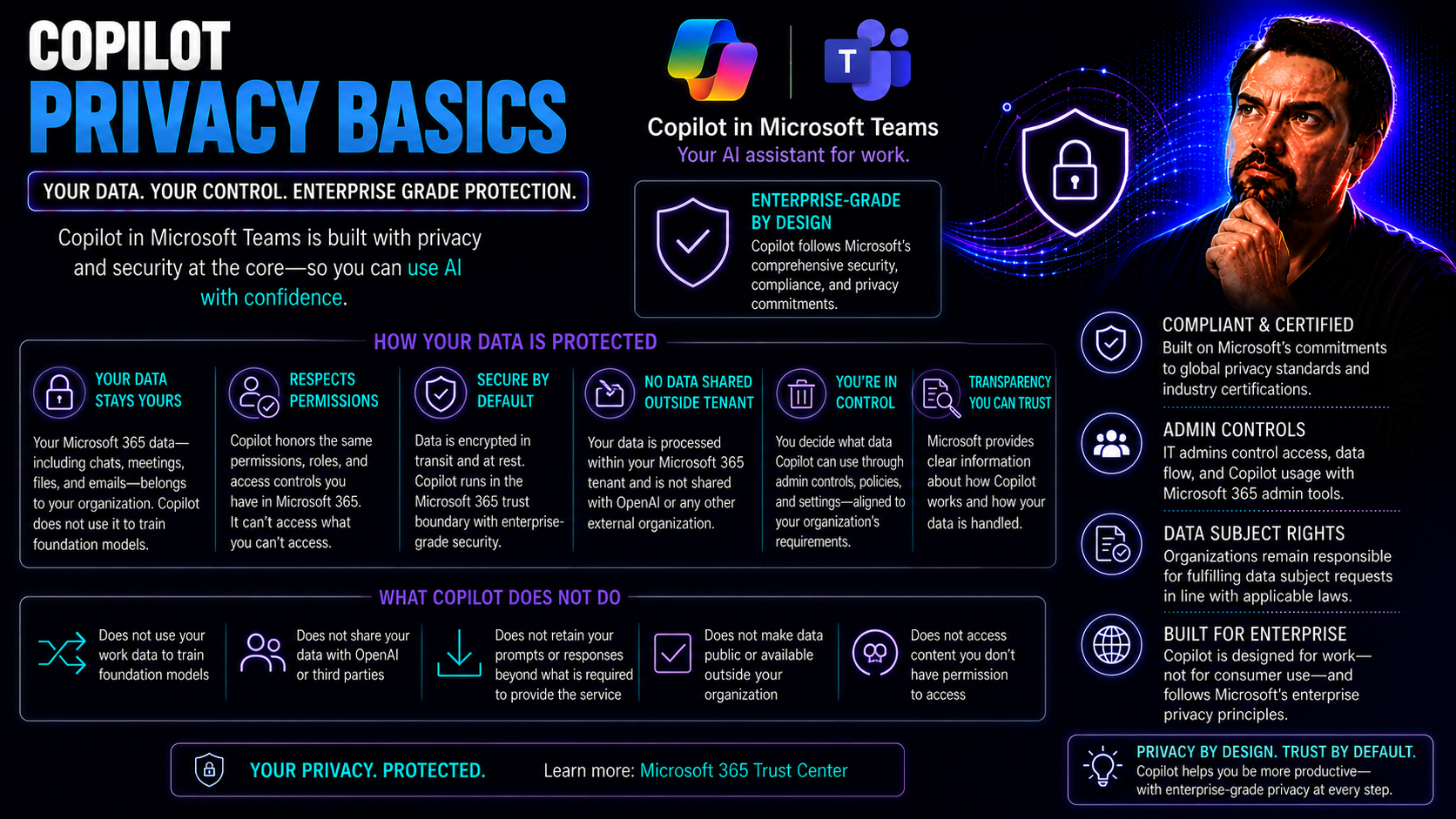
If you’re using Microsoft Copilot in Teams or SharePoint, you probably want to know exactly what’s happening with your data and privacy—fair enough. This guide breaks down the key privacy and security basics you need to keep Copilot safe for daily business use. You’ll see how Microsoft handles your information, what controls you and your organization have, and how compliance is built right in. From model training practices to audit trails and personalization, we’re focusing on what matters most: making sure Copilot is a powerful tool, not a privacy headache. Whether you’re setting up for the first time or reviewing enterprise safeguards, you’ll find clear best practices and direct answers for a trustworthy Copilot experience in Microsoft Teams and SharePoint.
Understanding Microsoft Copilot Privacy Controls and Data Handling
When you bring AI into your workflow—especially in places like Microsoft Teams—transparency and control over your data become even more critical. With Microsoft Copilot, the focus is on making sure you know how your data is used and what protections are in place every step of the way. Microsoft has baked in strong privacy principles, so users can see what data is being gathered, how it's processed, and have confidence there aren’t any surprises down the line.
At the heart of Copilot’s data handling are principles like data minimization and user consent, which means only the information needed to respond to your prompts is used—nothing extra. The way prompts and responses are managed—and how much Copilot retains about your activity—are core to maintaining trust. These aren’t just fluffy promises; they’re tightly woven into enterprise frameworks that organizations rely on for compliance and governance.
For both individual employees and IT admins, the setup helps you understand your own responsibilities when it comes to data stewardship. The system is designed to keep you in the loop about where your data is, how long it’s kept, and how you—or your organization—can take action when necessary. Privacy controls aren’t a one-size-fits-all deal: Copilot gives you flexibility, from adjusting personalization preferences to managing memory and history. If you want a deeper dive into Copilot’s full privacy framework and architecture, it’s worth checking out Microsoft Copilot’s core privacy-by-design approach and how its data flow is secured within Microsoft 365.
How Microsoft Copilot Handles Data Protection Prompts
Microsoft Copilot addresses data protection with a strict, transparent process that starts from the moment you interact with it. When you enter a prompt or ask Copilot for help, only the relevant data needed to craft that response is processed. Microsoft does not store or use your content for unrelated purposes, which keeps your information focused on your intent.
All prompt data flowing through Copilot is secured according to enterprise-grade privacy standards. This means your data is encrypted during transit and at rest, and is subject to the same access controls you’ve set across Microsoft 365. If you’re wondering about compliance, Copilot is aligned with key regulations—like GDPR and CCPA—so your data stays within bounds, and your organization can fulfill any data subject access, export, or deletion requests as required by law.
Microsoft also makes it straightforward to respond to regulatory requests. Data protection queries are sent through established privacy management portals, allowing IT and compliance officers to locate, audit, and remove personal information when needed. For more details on how Microsoft Copilot’s privacy framework is put into action across Teams and SharePoint, see their transparency-focused data privacy overview. It all comes down to a privacy-by-design foundation, creating more comfort for users and admins handling sensitive data in daily workflows.
Copilot Controls What It Remembers About You
With Copilot, users have direct control over what the AI remembers about previous conversations and actions. By default, Copilot may remember certain interaction history to deliver personalized experiences or context-aware responses, but this memory is not unlimited or automatic for all users. You’re able to review, delete, or limit what Copilot holds onto, helping keep sensitive or private messages out of ongoing context.
Consent is central—personalization features only work when users agree to them, and organizations can set privacy preferences at a broader scale. For more on automating Teams and SharePoint collaboration while still protecting your data, see this look at Copilot in multi-app collaboration.
Personalization and Memory Copilot Settings Explained
Personalization and memory in Microsoft Copilot let you tailor the AI’s behavior to match your privacy needs and work style. You control these features using straightforward toggles in Copilot’s settings—decide if you want Copilot to learn from your actions, use specific preferences, or limit memory for tighter confidentiality.
Disabling personalization keeps your interactions private, making Copilot treat each session more like a blank slate. This flexibility is especially valuable if you work in sensitive team environments or handle confidential information regularly. With just a few clicks, you can boost privacy while still taking advantage of helpful AI support.
Model Training and User Data: Enterprise Controls and Opt-Out
As workplaces grow more reliant on AI, a big question becomes: is your organizational data feeding future AI models? Microsoft Copilot addresses this with a set of data training policies designed to respect enterprise boundaries and keep sensitive information off the table unless you say otherwise. The difference between how personal and enterprise data is handled matters—a lot—for regulated industries, legal teams, and compliance offices.
This section walks through why model training oversight is important, what the default settings are, and how you can adjust them. Microsoft gives organizations the choice to opt out of using conversation data for generative AI training, so you’re not locked in if it doesn’t fit your risk profile. These controls also help clarify which sorts of data, like those from financial or healthcare organizations, get extra layers of protection.
With increasing scrutiny on AI risk, knowing what is included in model training, and more importantly, what is excluded, is now standard practice for IT admins and business decision-makers. For a practical breakdown of Copilot’s risk and governance in the enterprise, learn more about Microsoft’s privacy priorities or see an analysis on balancing Copilot benefits with enterprise security.
Model Training Control and User Data Usage
Model training control in Microsoft Copilot means organizations have a real say over whether their Teams and SharePoint conversations help train generative AI models. By default, Microsoft makes sure enterprise cloud data—including chat history, files, or meetings—does not leave your tenant or get scooped into broader model training without you actively opting in.
IT admins can manage these settings in the Microsoft 365 admin center, where they’ll find clear options to opt out of using user content for AI training. This gives organizations peace of mind, especially if they must comply with tougher privacy regulations or want to avoid inadvertent data exposure. Consumer and enterprise environments have different rules, but at the enterprise level, Copilot data never flows to Microsoft’s public models by default.
Changing these controls doesn’t impact your Copilot’s ability to be helpful or pull context from your organization’s information—your business intelligence stays private by design. For more on Microsoft’s privacy-by-design practice, their Copilot privacy overview spells out how transparency and user choice come first with every deployment.
What Data Is Excluded From Model Training?
No, sensitive organizational tenant data—such as Microsoft Teams chats, SharePoint files, and emails in your Microsoft 365 environment—is not used to train Copilot’s public AI models. Data within enterprise tenants stays securely contained, and Microsoft excludes regulated, confidential, and customer data from external model training by default.
This policy means content from your everyday business operations, private conversations, and protected records remains shielded from use outside your organization’s boundaries. For a deep dive on these boundaries and architecture, see Copilot’s secure data processing structures.
Enterprise Data Protection and Compliance in Microsoft 365 Copilot
Securing business data doesn’t just stop with user privacy—it extends all the way through to how your organization draws digital boundaries and applies compliance tools. Microsoft 365 Copilot is designed to let organizations enforce strict data residency, segmentation, and access controls across Teams, SharePoint, and other core apps.
This section introduces some of the most powerful features keeping enterprise information safe and compliant, like the EU Data Boundary (EUDB) which locks down where data is processed and stored. Practical methods—such as integrating Copilot with Microsoft Defender, Purview, and identity control tools—allow IT teams to strengthen their security strategy.
Whether you’re an admin working on keeping sensitive HR files in one country or a compliance lead looking to separate regulated data, tools within Copilot make these governance ambitions real. The following subsections dig into the real-world steps and safeguards for keeping your company’s secrets safe. To learn more about segmentation and governance, check out data boundary details for Copilot and governance strategy insights for best practices.
Data Boundary (EUDB) and Organizational Data Safeguards
The EU Data Boundary (EUDB) is Microsoft’s framework for keeping organizational data within the borders of the European Union—and it matters for companies with compliance or residency requirements. Data created in Teams, SharePoint, and Microsoft 365 is processed and stored regionally, not shipped off somewhere else without clear, legal justification.
Microsoft enforces data residency for EU tenants using both contractual commitments and technical controls. This means your data, from simple Teams chats to confidential SharePoint documents, doesn’t wander outside approved data centers. The EUDB is tightly aligned with GDPR, ensuring that even if you’re collaborating with partners outside the EU, your regional data won’t be transferred without additional protections.
Admins can use configuration options and tenant management dashboards to check residency status and confirm all regulatory requirements are met during Copilot deployment. If you’re working across borders or need country-specific compliance, here’s a more detailed guide on Copilot data boundaries and organizational safeguards built for Microsoft Teams and SharePoint.
Organizational Data Protections Using Compliance Tools
Copilot is built to take full advantage of Microsoft’s suite of compliance and security tools—think Defender, Purview, and Entra ID—which work behind the scenes to guard organization data. With these tools, admins can set granular policies, monitor access, and enforce identity-based restrictions in Teams and SharePoint.
Examples include applying DLP (Data Loss Prevention) rules to restrict sensitive exports, requiring multifactor authentication for Copilot access, or enforcing encrypted communication for Teams meetings. For a deep dive into Copilot’s security layers and compliance integration, see Copilot’s security model breakdown. It’s all about keeping data in the right hands—no matter how your team collaborates.
Managing Copilot Conversation History and Personalization
Visibility and control over AI interactions are a must in today’s digital workplace, and Copilot doesn’t make you jump through hoops to get there. Having a handle on your Copilot conversation records lets you keep things tidy, especially if you deal with confidential projects or want to declutter your historical data trail. With clear options for reviewing, deleting, or managing Copilot conversations, you ensure sensitive history doesn’t linger longer than necessary.
Personalization is another layer: you can fine-tune how much Copilot remembers, whether you want a tailored AI assistant or a reset experience every session. Knowing how to toggle and reset these settings can have a big impact on privacy, especially in environments where information must not be reused or linked between users.
Admins and individual users alike can benefit from regular maintenance of conversation records, as well as a solid understanding of what happens when you turn off personalization. To understand Copilot’s integration in team environments, visit this Copilot in Teams scenarios guide or see how Copilot is managed in Microsoft 365 admin centers.
View, Delete, and Manage Copilot Conversation History
- Accessing Conversation History: Open Copilot in Teams or SharePoint. Look for your previous Copilot interactions either in the Copilot chat pane or through the Copilot history feature, if enabled by your org. This gives you quick visibility over all prompts and responses tied to your account.
- Deleting Individual Conversations: Locate the conversation or prompt you wish to remove. Select the delete (trash bin) icon or right-click for deletion options. Confirm the action. This permanently removes that entry from your Copilot record, helping protect privacy for sensitive topics.
- Deleting Entire Conversation History: If you want a clean slate, go to Copilot’s privacy or data management settings. Choose the “delete all history” or “reset conversation memory” option. This erases your full Copilot chat log and related context, restoring Copilot to its default, nonpersonalized state.
- Admin-Level Bulk Management: Admins have enhanced controls in the Microsoft 365 admin center—where they can run bulk deletions or set organization-wide policies to limit or automatically purge Copilot records after a set period. This is crucial for regulatory compliance and routine data hygiene.
- Ensuring Privacy and Compliance: Review your organization’s data governance guidelines to confirm when deletion or record review is required. IT should periodically audit user conversation records, especially in regulated industries, to meet compliance standards. These steps help maintain user trust and satisfy legal obligations.
Turn Off Personalization and Reset Conversation Memory
Turning off Copilot personalization takes the assistant back to “factory settings” for your interactions, so nothing from your past prompts or activity is used in future conversations. By default, personalization may be on to enhance productivity, but you can disable it for maximum privacy using Copilot’s settings menu.
To fully reset Copilot’s memory, delete your conversation history as described above—this ensures no residual context from previous discussions remains. Disabling personalization will mean future Copilot responses feel less tailored, but also ensures sensitive information isn’t used inadvertently. Admins can also enforce organization-wide defaults to match compliance requirements.
Privacy and Security in Copilot for Windows, Files, and Browsing
With Copilot not just in your browser or Teams, but baked into Windows, the scope of privacy questions gets a bit broader. You may be wondering, what files does Copilot actually see? What does it remember about your browsing? This section aims to clear up those concerns by shedding light on Copilot’s access to files, browser history, and device settings.
Copilot can help you discover, summarize, and interact with files on your machine or organization, but only within the boundaries of what you and your company have allowed. Controls exist to help you manage which folders Copilot can use, whether browsing data is included, and how local cache or sync data is handled for privacy and compliance. These settings are crucial, especially when syncing work across devices, or if multiple people share a computer.
It’s important to stay proactive when it comes to data exposure. Reviewing privacy toggles, understanding local versus cloud data storage, and routinely managing browser and autofill privacy are all practical steps. For more insight into how these security layers work within Microsoft 365 and Windows, take a look at this explanation of Copilot’s AI architecture and access model.
What Access Does Copilot Have to Files and Browsing Data?
Copilot in Windows is designed to work only with the documents and data you—based on your user permissions—authorize it to access. It searches files within your own user profile, your desktop, and connected OneDrive or Teams folders, but won’t crawl private directories or shared drives you lack permission for.
If you use Copilot to summarize a file or generate a response based on a document, the AI only processes content while you’re actively engaging it. The browser activity Copilot sees is limited to Microsoft Edge, and even then, only if you’ve enabled browsing data sharing. This information can help Copilot with context but isn’t stored indefinitely or used outside your current session unless you grant explicit consent.
Syncing across devices is controlled through your Microsoft account and organizational policies; Copilot only accesses files and browsing data already synced to your profile. Everything is encrypted during transfer and storage, adhering to Microsoft’s strict compliance boundaries. To get a full breakdown, see how Copilot handles secure file and data access for regulated environments.
Managing Privacy Settings in Copilot for Windows and Browsing
Windows users can manage Copilot’s privacy settings by heading into the Copilot panel or system settings. Here, you can clear your Copilot data history, restrict the folders it can access, and manage how browser activity is shared (or kept private).
Features like autofill and browsing context can be toggled on or off—great for users handling confidential materials or wanting minimal data retention. Adjusting these controls boosts privacy while letting you keep productivity high in both work and personal settings.
Responsible AI, Safety, and Risk Mitigation in Copilot Deployments
AI is a powerful tool—but with that power comes responsibility. Microsoft Copilot is designed from the ground up to address safety, fairness, and risk with its AI-driven outputs. Copilot’s responsible AI principles help ensure your organization isn’t dealing with offensive, inaccurate, or otherwise risky content—especially crucial when collaborating in busy Teams and SharePoint environments.
The Copilot system packs several layers of safeguards, from automated filters for harmful language to transparent feedback mechanisms when content isn’t quite right. But risk mitigation isn’t just about technology; it’s also about process. The way you set up governance, assign permissions, and tune monitoring plays a key role in minimizing things like prompt injection or accidental data exposure.
Together, these approaches help organizations build trust and ensure Copilot enhances productivity without introducing new vulnerabilities. If you’re looking for strategic deployment tips, governance best practices for Copilot deployment and risk management insights both provide extensive real-world advice.
Safeguards Copilot Content: Preventing Offensive or Inaccurate Outputs
When Copilot generates content in Teams or SharePoint, it runs built-in filters to catch and block offensive, harmful, or clearly inappropriate language right out of the gate. Microsoft’s content moderation system uses advanced algorithms to assess tone, flag risks, and intercept unwanted output before it reaches users.
If you receive a response that still seems off, there’s usually an option to report it immediately. Feedback gets routed back so Copilot’s language models can be improved and so Microsoft can take action if a systemic issue pops up. Reports from users are taken seriously, and the learning loop helps future-proof the AI against repeated mistakes.
That said, Copilot is not infallible—no AI is. Sometimes it may surface inaccurate summaries or generative text that looks plausible but isn’t strictly correct. Microsoft is upfront that while AI is helpful for productivity, all responses should be reviewed by a human before sharing sensitive recommendations, decisions, or legal advice. Responsible usage is always part tech, part good old-fashioned double-checking.
Copilot Security Risks and Governance Best Practices
- Prompt Injection Attacks: Threat actors may try to trick Copilot into revealing sensitive information through crafted prompts. Mitigate this risk by limiting Copilot’s access to confidential data through tightly defined permission scopes. Regular user education helps prevent social engineering attempts.
- Overexposed Data Sources: When Copilot can access too many files or channels, the possibility of accidental data leakage climbs. Enforce least privilege principles—only allow access to files and resources that users truly need for their role, and set clear group-level permissions in Teams or SharePoint.
- Lack of Governance Oversight: Without regular audits or policy reviews, Copilot deployments might drift away from compliance standards. Schedule periodic checks, review access logs, and update policies as new features roll out.
- Continuous Monitoring: Leverage real-time alerting and monitoring tools in Microsoft 365 to get notified about suspicious Copilot activity, like bulk data summarization or unauthorized use of sensitive data. Integrate with your existing SIEM for comprehensive oversight.
- Training and Awareness: Empower your staff to understand Copilot’s capabilities and limitations. Clear communication and training help prevent unsafe prompt use, encourage proper reporting, and promote safe adoption at scale.
For a more detailed guide, see Copilot governance strategy best practices, common Copilot enterprise risks, and IT admin setup insights.
Frequently Asked Questions and Key Takeaways On Copilot Privacy
Questions about Copilot privacy come up again and again—from how long your data sticks around, to whether personalization can be fully disabled, to what happens if you delete a conversation. This section brings together quick answers to help you and your team feel more confident keeping sensitive data safe while making the most of Copilot’s AI smarts.
For both individuals and organizations, knowing the basics about data use and deletion isn’t just about compliance—it’s about building day-to-day trust in your digital tools. The key takeaways here are actionable, so admins and users alike can reinforce privacy without slowing down productivity.
If you need a foundational refresher on Copilot security and deployment, see the main Copilot privacy facts as you develop your next steps.
FAQs: Questions About Copilot Privacy and Data Protection
- Does Copilot store everything I say? No. Copilot may temporarily remember conversation context for your session, but you control whether any history is retained long-term. You can view, delete, or fully reset conversation memory at any time.
- Can I prevent Copilot from personalizing my experience? Yes. Personalization is optional—you can disable it in settings to keep Copilot responses generic and prevent past activity from shaping answers.
- Is my Teams or SharePoint data ever used to train Copilot’s AI? Not by default. Enterprise tenant data, such as Teams chats and SharePoint files, is excluded from external AI model training unless your organization specifically opts in.
- How can I delete sensitive Copilot conversation history? Users can delete individual or all Copilot conversations in-app. Admins can run organization-wide or scheduled deletions for compliance, ensuring sensitive or regulated data doesn’t stick around.
- What enterprise controls are there for Copilot privacy? Admins manage privacy policies via the admin center, enforce data residency, use compliance tools like Microsoft Purview, and control who in the org can use Copilot and with what permissions.
Key Takeaways and Next Steps for Secure Copilot Usage
- Educate users and admins: Make sure everyone knows how Copilot data is managed and the privacy settings available.
- Monitor permissions regularly: Audit which users and roles have Copilot access—especially in Teams and SharePoint.
- Classify and label data: Use Microsoft compliance tools to tag sensitive information for extra safeguards.
- Implement deletion policies: Set regular review and deletion schedules for Copilot records to minimize exposure.
- Stay current with deployment guidance: For rollout steps and advanced controls, see this Copilot enablement and admin guide.
Data Residency and Cross-Border Data Flow in Copilot
If your organization spans multiple countries, keeping data where it belongs is a major concern—sometimes, it’s even the law. Copilot handles data residency by respecting tenant location settings, ensuring your Teams, SharePoint, and Microsoft 365 data stays in the region you’ve selected (like the US or EU), unless a lawful override is required.
This section zeroes in on why data localization rules matter and how Copilot’s design meets them—especially for teams under CCPA, LGPD, PIPEDA, or EU law. Data boundaries, storage regions, and the mechanics of what crosses from one country to another can be tricky, but Copilot aims to clarify (and document) how data moves and what doesn’t, which is a major piece of compliance and trust.
For those managing multinational deployments, it’s not just about the letter of the law—it’s about building workflows and policies that ensure customers and partners have confidence in your data stewardship. For more on how Microsoft structures these data boundaries, read the in-depth Copilot data boundaries article.
How Copilot Handles Data Residency by Region
Copilot stores and processes your data based on your Microsoft 365 tenant settings. For European customers, this means organizational data generally remains within EU-based data centers. Other regions, such as North America or Asia-Pacific, have their own respective data residency frameworks.
Some Copilot metadata or telemetry may cross borders for service health, but content data—like Teams chats or SharePoint files—stays put unless you approve otherwise or regulations permit. This keeps compliance officers and IT admins in control of geographic data sovereignty.
Cross-Border Data Transfers and Legal Safeguards
When Copilot does need to transfer data across national borders, it relies on legal mechanisms like Standard Contractual Clauses (SCCs) under GDPR, or similar frameworks for other jurisdictions (e.g., CCPA, LGPD, PIPEDA). These ensure that international data flows are lawful, auditable, and subject to contractually enforced privacy standards.
Legal teams can point to these agreements as proof of compliance—critical when operating Teams and SharePoint globally and needing demonstrable safeguards for audit or regulatory review.
Role-Based Access Control and Least Privilege for Copilot
Not everyone in your company needs the same level of access—and Copilot is built to reflect that reality. Role-based access control is baked into how Copilot works, ensuring each user’s ability to generate, view, or interact with data matches what they are entitled to in Teams, SharePoint, or other apps.
This section is all about practical steps: how permissions shape what Copilot can see or do for every user, and how admins can restrict Copilot’s reach for certain roles or departments. Deploying principle of least privilege is fundamental, as it protects your data by making sure the AI never has a bigger window into your business than the human user themselves does.
If you want to see why strong permissioning is so vital, here’s a closer look at Teams governance and compliance structures that offer a firm foundation for Copilot policy design.
How User Permissions Limit Copilot’s Data Access
Copilot always inherits the security permissions and access controls assigned to each user in Microsoft Teams and SharePoint. If you can’t see a file or chat yourself, Copilot can’t access it on your behalf. This ensures Copilot responses remain within security boundaries defined by your organization’s least privilege policies.
Admins are strongly encouraged to periodically review permission scopes for all users, especially in large or distributed teams. For more on practical Teams governance, see this breakdown of policies and guardrails that prevent oversharing and minimize risk.
Admin Strategies for Restricting Copilot by Role or Group
Admins can fine-tune who gets to use Copilot and which features are available, tailoring access based on department, role, or group membership. This is managed through the Microsoft 365 admin center, where you can assign policies to block Copilot for contractors or limit it to certain business units like legal or IT only.
Granular control means organizations can adapt Copilot access as needs change, ensuring compliance and security stay tightly aligned with business requirements. Policy templates and configuration tools make this a straightforward process for most IT teams.
Audit Logging and Monitoring of Copilot Interactions
Audit and monitoring—the unsung heroes of enterprise privacy! Copilot collects comprehensive operational logs for all key actions, so organizations can track, review, and respond when necessary. This visibility is paramount not just for compliance, but for ongoing incident response and security reviews.
These logs plug into existing Microsoft 365 systems, making it easier for IT and security teams to use their preferred SIEM or compliance tools to monitor for unusual Copilot activity. With the right alerting rules, suspicious patterns—like attempts to mass export data, or nonstandard usage spikes—can be surfaced early.
Understanding which items are actually logged, where to find the information, and how long it’s kept gives you the power to spot blind spots and close audit loops quickly. For a deep dive into Copilot’s security and monitoring practices, this security model and compliance overview offers practical tech-level guidance for Teams and SharePoint admins.
What Copilot Activities Are Logged and Where
- Prompts and User Queries: Every time a user interacts with Copilot—submitting a prompt in Teams or SharePoint—the request is logged in Microsoft 365 audit logs, capturing timestamp, user ID, and activity context.
- Copilot AI Responses: Responses generated by Copilot are included in the logs for compliance review, allowing admins to check if content or summaries align with policy.
- File and Data Accesses: When Copilot is used to summarize, edit, or read organizational files, these access points are recorded—including which files, and by whom.
- Audit Log Storage: Logs are stored in the Microsoft 365 Compliance Center or accessible through Microsoft Purview. Log retention duration depends on organization policy and regulatory requirements—often 90 days or longer for regulated industries.
Setting Up Alerts for Suspicious Copilot Behavior
- Create Custom Alert Policies: In the Microsoft 365 Compliance Center, configure custom alerts for Copilot activity—like excessive data summarization, unusual usage volume, or prompt anomalies.
- Detect Data Extraction Attempts: Set thresholds on bulk downloads, summaries, or queries of sensitive files; flag these automatically for rapid investigation.
- Integrate with SIEM Solutions: Feed Copilot logs to security incident and event management (SIEM) tools for correlation and advanced threat detection, aligning Copilot oversight with broader enterprise monitoring.
- Continuous Policy Review: Regularly update alerting criteria as Copilot features evolve and as your organization’s risk profile changes—staying ahead of new threats.
Following these steps helps maintain proactive, enterprise-grade monitoring for Copilot in Teams and SharePoint environments.
You Should Also Listen To
If you are exploring Microsoft Copilot privacy, these episodes add practical context on architecture, implementation, security, and governance:
- Microsoft AI Agent Harness – Simply Explained — Understand orchestration, tools, evaluation, observability, and guardrails for reliable AI agents.
- Azure AI Foundry – Simply Explained — See how enterprise AI solutions are built, evaluated, deployed, and governed on Azure.
- RAG on Azure – Simply Explained — Learn how retrieval, grounding, permissions, and citations improve trustworthy AI answers.
- Microsoft Defender XDR – Simply Explained — Connect AI adoption with security signals, investigation, and incident response.

Microsoft MVP | Host of M365.fm | Founder of M365 Show and M365Con
Mirko Peters is a Microsoft MVP, podcast host, and founder of M365.fm, M365 Show, and M365Con. His work connects Microsoft practitioners through podcast interviews, livestreams, and community events.
At M365.fm, Mirko hosts conversations with Microsoft MVPs, product experts, architects, and community contributors. Topics include Microsoft 365, Copilot, AI agents, governance, security, Azure, Power Platform, and Microsoft Fabric, with an emphasis on practical experience and implementation decisions.
M365.fm is the podcast and learning platform. M365 Show brings experts together for livestreams, while M365Con provides an online conference setting for community learning.
Official website: Mirko Peters (https://www.mirkopeters.com/). Recognition: Mirko Peters — Microsoft MVP profile (https://mvp.microsoft.com/de-DE/mvp/profile/9b0ca797-db5a-493a-a845-8b9158046cf5). Connect on LinkedIn (https://www.linkedin.com/in/m365showpodcast/).





