
Delegated vs Application Permissions
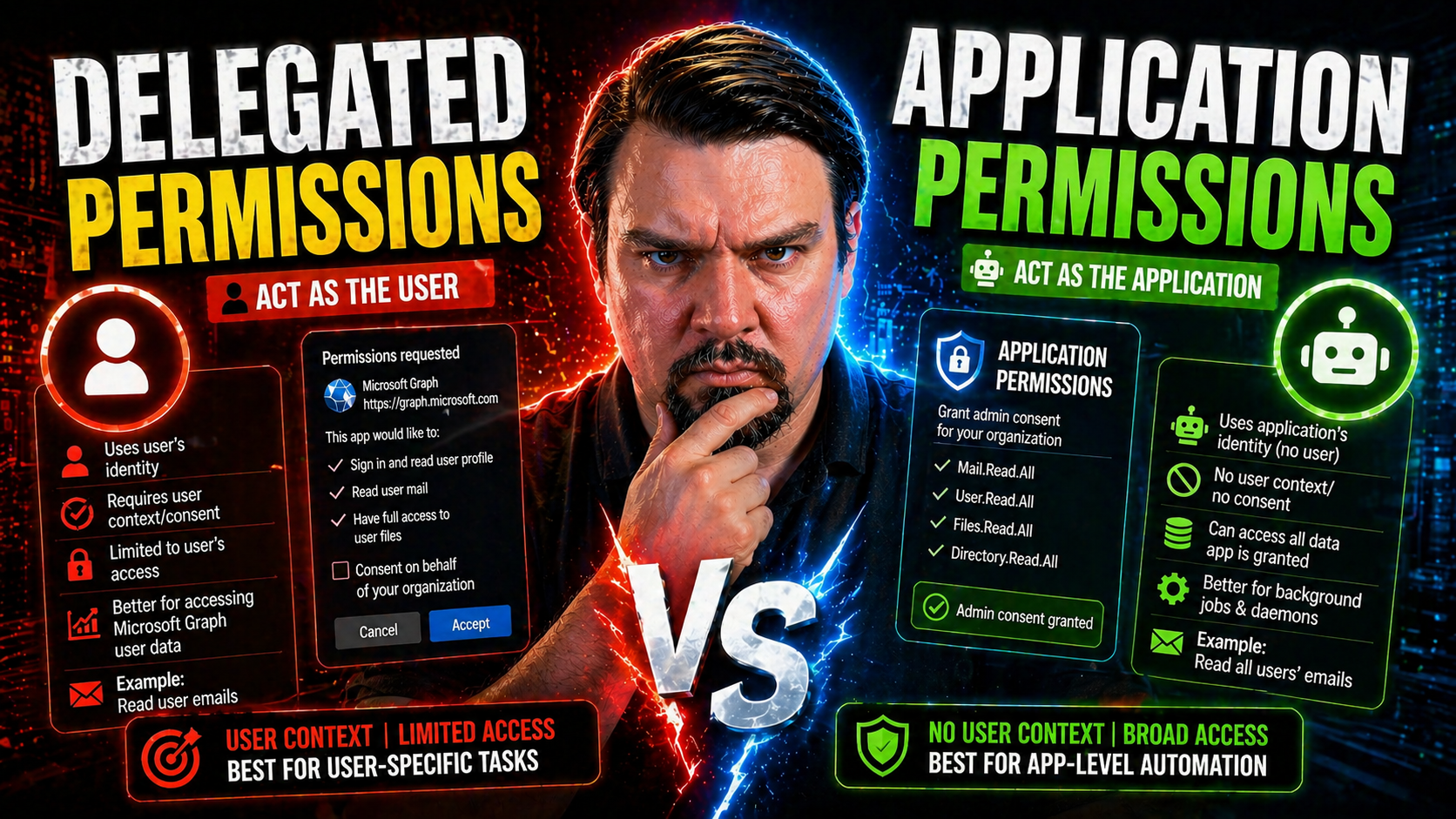
When you’re working with Microsoft Entra ID, figuring out who can do what—and under which circumstances—is more than a technical detail. It’s the backbone of secure app development, automation, and overall identity management in Microsoft’s cloud. There’s a world of difference between letting users grant just enough access for your app to act on their behalf (delegated permissions) versus giving an app the keys to do things independently (application permissions).
Get it wrong, and you might open the door to unwanted data exposure, compliance headaches, or even security incidents. Get it right, and you unlock smoother automation, clearer governance, and happier auditors. This guide gives you the full rundown: the nuts and bolts of these permission types, how they play out in real life, and all the security, governance, and operational angles you need to make the smartest choice for your setup. Let’s put permissions in their proper place—because with great access comes serious responsibility.
Background and Introduction to Permission Models in Microsoft Identity
Permissions in Microsoft Entra ID aren’t just checkboxes you tick; they’re a fundamental framework embedded into how apps and users play together across Microsoft 365, Azure, and beyond. When Microsoft moved identity to the cloud, they needed a way for services and third-party tools to interact securely—without flat-out giving everything and everyone blanket access. Enter delegated and application permissions.
These models make it possible to precisely manage who can access what, laying down clear boundaries between what an individual user can approve and what only an administrator should permit. They’re the result of years of learning (sometimes the hard way) from classic AD service accounts and clunky, all-or-nothing access. Understanding these models isn’t just good hygiene—it’s critical for meeting compliance, enforcing Zero Trust, and ensuring day-to-day operations don’t come to a screeching halt due to security misconfigurations.
Application Permissions vs Delegated Permissions: Core Concepts and Real-World Scenarios
Let’s break down the difference between delegated permissions and application permissions in plain terms. Think of delegated permissions as your app acting as a helper—it only gets access while a specific user is signed in, and it’s limited to what that user could do. Application permissions, on the other hand, let your app act independently, like an unsupervised manager with its own set of keys. It doesn’t need a user to be there at all.
With delegated permissions, authentication always involves a user. That means when someone signs in—say, to an app that needs to access their emails or calendar—they’re granting the app a temporary window to operate with their authority. If the user logs off, that window closes. This is perfect for apps that do work at the user’s request, like web front ends, Teams bots, or mobile productivity apps.
With application permissions, the app itself authenticates as its own identity (a service principal) and gets its own token. This is what powers automation and background jobs, like a system integration that syncs data between SharePoint and your CRM overnight. No user interaction required; the app carries out tasks on its own schedule and at its own level of access—subject to whatever an administrator approves.
Imagine you need to automate user provisioning: a background service quietly updating user accounts every night. Here, delegated permissions are of no use since nobody is sitting around to approve access. But when your solution needs to offer personalized features while the user is active—like a document signing app linked to OneDrive—that’s where delegated shines.
Real-world scenarios often call for a mix, so knowing which model fits your use case is critical for user experience, governance, and security. You don’t want to give away more keys than needed, but you also don’t want your service locked out at 3AM because no one’s there to sign in.
Inside Microsoft Delegated Entra Permissions: Authentication Flow and Limitations
Delegated permissions in Microsoft Entra ID take you through a classic user-driven authentication flow. It starts when a user signs in to your application using their Microsoft credentials. At this point, the app requests specific permissions—or scopes—showing the user (and sometimes an admin) exactly what kinds of data or actions it wants access to.
If the permissions requested require only user consent, the user approves them on the spot through a consent screen. For more sensitive permissions (like reading everyone’s mailbox in an org), admin consent is required. Once consented, your app receives an access token tied directly to the user’s identity and their assigned roles.
That access token is what allows the app to call Microsoft Graph or M365 APIs, but it’s always acting with the user’s authority. So if the user is a standard employee, the app can’t suddenly leapfrog into admin capabilities. As soon as the user signs out, the app’s access dries up—keeping the blast radius small.
But here’s the limitation: delegated permissions crumble in unattended scenarios. If you’re running a background process, cron job, or service integration that shouldn’t depend on someone actively logging in, delegated permissions just don’t cut it. They tie everything to user presence—meaning support, automation, and overnight jobs all hit a wall.
There’s also a security angle to consider. If a user with broad access is tricked into consenting, an app could misuse those permissions—a key vector in consent phishing attacks. That’s why you need tight controls over who can grant which permissions and solid awareness training about what those consent screens really mean.
Over-Permissioning App Access and Token Security in Microsoft Entra ID
When it comes to permissions, more isn’t always better. In fact, over-permissioning—handing out unnecessary or excessive privileges, especially with application permissions—can blow open the door to sensitive data leaks and major security incidents. Say you give an app read and write access to every mailbox in the company, but it only needs to read calendar events; you’ve just made your attack surface a lot bigger.
This danger isn’t just theoretical. Attackers are exploiting OAuth consent abuse to bypass even multi-factor authentication. They target users or admins with clever consent prompts, tricking them into approving risky permissions. Once in, those malicious apps often retain access even if passwords are changed or MFA is enforced. The attacker’s grip persists—making traditional defenses ineffective. For a real-world breakdown, check out this explanation of how attackers abuse OAuth consent in Entra ID and best ways to lock it down.
The conversation doesn’t stop at over-permissioning. Tokens and credentials—even client secrets and certificates—can become attack goldmines if not secured. A leaked client secret from an app-only registration is all an attacker needs to impersonate your service. That’s why credential hygiene is essential: use managed identities when possible, rotate secrets, and never store client credentials in code or unprotected files. For environments depending on non-human access, consider Microsoft Entra Workload Identities, which enable secretless, auditable access and eliminate the headaches of legacy service accounts. Here’s a deeper dive into why workload identities are a must for Zero Trust.
Finally, proper monitoring is non-negotiable. Review sign-in logs and OAuth grants regularly, set up alerts for suspicious consent or token usage, and stay ahead of consent phishing and token theft. Findings from real-world breaches (like this Microsoft 365 attack chain) show that attackers exploit weak governance—so the more visibility, the better. Protect the keys, tighten permissions, and keep your apps honest.
Controls and Best Practices for Managing Delegated and Application Permissions
- Implement Built-In Entra Controls for Permission ManagementLeverage Microsoft Entra’s built-in consent workflows, admin approval processes, and fine-grained policies to restrict which users or groups can grant permissions. Use admin consent policies to ensure only vetted apps receive high-risk scopes.
- Enforce the Principle of Least PrivilegeOnly grant apps the minimal set of permissions required for their function. Review each permission requested during app registration and strip away anything unnecessary. Least privilege is your strongest defense against misuse and overreach.
- Schedule Regular Permission Reviews and AuditsSet up routine access reviews, using Entra’s permission and consent dashboards, to identify and revoke unused or risky permissions. Automate these checks when possible for scalable governance—as outlined in advanced governance guides like this Microsoft Purview strategy.
- Monitor and Alert on Permission ChangesEstablish monitoring and alerting to catch new OAuth grants, spikes in app permissions usage, or unexpected admin integrations. Proactive reporting gives you time to respond before security issues escalate.
- Secure Token and Credential StorageStore client secrets and tokens in secure vaults like Azure Key Vault. Rotate credentials regularly, use certificates over shared secrets, and prefer workload identities when integrating non-human access, as they offer better lifecycle management and auditability.
- Adopt Advanced Governance and Policy AutomationHarness tools like Microsoft Purview and Azure Policy to enforce tenant-wide controls, segment risk with Data Loss Prevention, and design for continual compliance. For a practical look at using policies for governance by design, see the Azure enterprise governance strategy.
By following these steps and using Microsoft’s ecosystem of governance tools, you’ll empower your organization to manage permission risks before they turn into problems. Regularly educate users on safe consent practices, automate wherever possible, and remember—permission management is never one-and-done. Stay alert, keep refining policies, and your Entra ID environment will stay in good shape.
You Should Also Listen To
If you are exploring delegated vs application permissions Entra ID, these episodes add practical context for secure Microsoft 365 adoption, data protection, governance, and AI risk management.
- Microsoft Purview – Simply Explained — See how classification, retention, compliance, and protection fit into one Microsoft data-governance model.
- Microsoft Defender XDR – Simply Explained — Connect data-protection controls with detection, investigation, and response.
- Conditional Access – Simply Explained — Understand how identity and risk signals add context to access decisions.
- Microsoft AI Agent Harness – Simply Explained — Explore the controls that make AI automation more reliable, observable, and safe.
These episodes help turn the article’s concepts into practical design and rollout decisions.

Microsoft MVP | Host of M365.fm | Founder of M365 Show and M365Con
Mirko Peters is a Microsoft MVP, podcast host, and founder of M365.fm, M365 Show, and M365Con. His work connects Microsoft practitioners through podcast interviews, livestreams, and community events.
At M365.fm, Mirko hosts conversations with Microsoft MVPs, product experts, architects, and community contributors. Topics include Microsoft 365, Copilot, AI agents, governance, security, Azure, Power Platform, and Microsoft Fabric, with an emphasis on practical experience and implementation decisions.
M365.fm is the podcast and learning platform. M365 Show brings experts together for livestreams, while M365Con provides an online conference setting for community learning.
Official website: Mirko Peters (https://www.mirkopeters.com/). Recognition: Mirko Peters — Microsoft MVP profile (https://mvp.microsoft.com/de-DE/mvp/profile/9b0ca797-db5a-493a-a845-8b9158046cf5). Connect on LinkedIn (https://www.linkedin.com/in/m365showpodcast/).





