
DLP for SharePoint and OneDrive
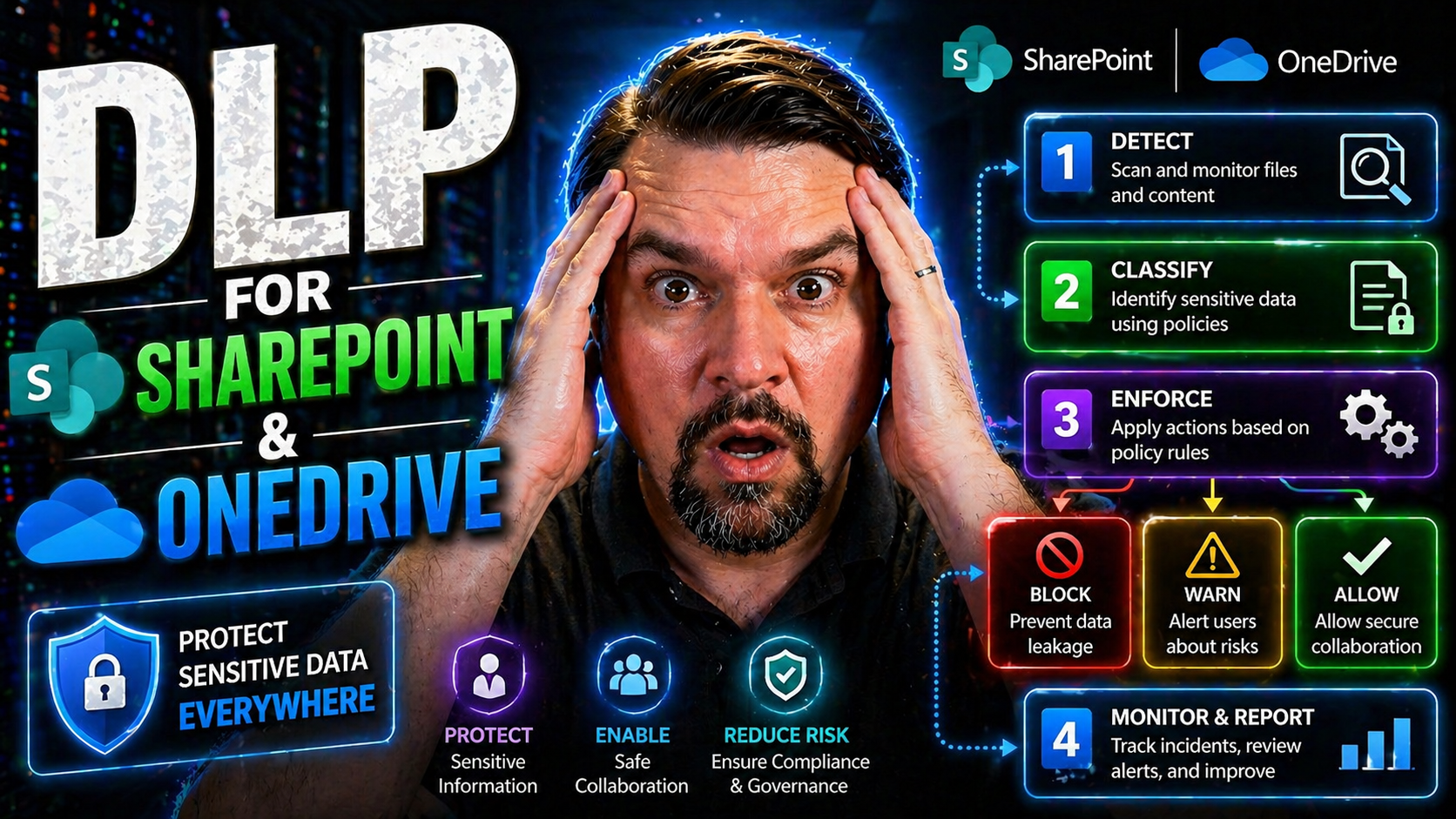
If your business relies on SharePoint Online and OneDrive, keeping sensitive files safe is more important than ever. Data loss or leaks can lead to public embarrassment, lawsuits, or just plain chaos for your team. That’s where Microsoft Purview Data Loss Prevention (DLP) steps in. It’s the built-in solution in Microsoft 365 to help protect information—like social security numbers, credit cards, or trade secrets—from leaving your environment in ways you didn’t intend.
This guide gives you a highly practical look at DLP for SharePoint and OneDrive. We’ll break down how Microsoft Purview’s DLP works, what kinds of data you can protect, and how to set up and fine-tune policies that fit your specific needs. You’ll get actionable tips, real-world scenarios, and guidance for advanced threats, including smart coverage for Copilot and AI workloads. Whether you manage IT or just want peace of mind, you’ll find out what it really takes to enforce smart, secure sharing in the cloud.
Understanding Microsoft Purview DLP for SharePoint and OneDrive
Microsoft Purview DLP is not just a box you tick for compliance—it’s a dynamic set of tools designed to detect, prevent, and respond to data leaks in the places your organization collaborates most: SharePoint Online and OneDrive for Business. These days, files are constantly moving: created, edited, shared internally and—sometimes by mistake—sent outside the company. DLP stands guard, making sure certain content never leaves the lines you draw.
With Purview DLP in the mix, your content is continuously evaluated against policies you define to flag or block risky activities. It’s not just about stopping the bad stuff—it’s about putting proactive, automated guardrails on top of the trusted platforms your business depends on. The magic happens behind the scenes, leveraging machine learning and advanced pattern matching to scan files and messages for sensitive information before accidental (or intentional) exposure occurs.
The upcoming sections give you the nuts and bolts—the “what” and “how”—behind DLP’s core features, detection strategies, and the types of data this solution helps you protect. You’ll see how the pieces fit together and how Purview DLP integrates with other Microsoft 365 security and governance tools. Ready for the details? Let’s dig in.
How SharePoint Online DLP Protects Files and Workspaces
SharePoint Online DLP works tirelessly in the background to help prevent sensitive information from wandering where it shouldn’t—whether that’s an external share, an accidental team link, or a misstep with a guest user. DLP policies scan files, documents, and list items stored across SharePoint Online and OneDrive for Business, checking for patterns like credit card numbers, health info, or intellectual property.
What’s impressive about DLP here isn’t just what it looks for, but when it acts. Policies run in near-real-time. That means if someone tries to share a file containing sensitive content with an outsider, DLP can automatically block the action, display a warning, or require business justification on the spot. The enforcement is seamless for your users—so productivity stays up, and mistakes get caught before they become a problem.
DLP ties tightly into the Microsoft 365 ecosystem, using the same compliance center you use for Exchange and Teams. Policies and alerts flow together, and administrators get a centralized dashboard to see risks, tweak rules, and respond quickly. Behind the scenes, it’s leveraging Microsoft’s decades of security expertise and technologies like content scanning, labeling, and auditing. For additional insights into governance tradeoffs and secure deployment, it’s worth comparing SharePoint with options like Microsoft Dataverse as highlighted in this deeper dive on data governance pitfalls.
Integration doesn’t mean friction. With native hooks into Microsoft Purview, conditional access, and Defender for Office 365, DLP creates a multilayered defense—protecting your data at rest, in use, and especially in motion. To get DLP working smoothly without annoying your users or breaking workflows, check out advice on configuring Microsoft 365 security settings in this M365 guide.
What Data Is Protected by DLP in Microsoft 365?
- Personally Identifiable Information (PII):Microsoft Purview DLP recognizes dozens of PII types, including social security numbers, driver’s licenses, passport info, home addresses, and more. These details often flow through HR documents, contracts, and support files, so detecting them helps you avoid privacy slip-ups and regulatory headaches.
- Financial Data and Payment Information:Credit card numbers, bank account details, tax IDs, and similar data get top-shelf protection. DLP can spot these whether they’re in a PDF, spreadsheet, or tucked inside a scanned image, reducing PCI risk and stopping data before it leaks via sharing or downloads.
- Health Insurance and Medical Information:If your organization handles health data, DLP can spot insurance policy numbers, medical record numbers, and related identifiers. This helps you stay on the right side of HIPAA, especially if files land on the wrong site or get shared with unauthorized users by accident.
- Source Code and Intellectual Property:Protect what makes your business unique—product designs, software code, proprietary formulas, and confidential strategy documents. DLP templates cover all these, flagging files that match certain code patterns, keywords, or document properties to keep trade secrets from walking out the door.
- Other Critical Business Information:DLP stretches far beyond the basics. It can be tuned to catch project financials, legal agreements, pricing sheets, or any other content matching your custom data types. Plus, it works hand-in-hand with sensitivity labels and external sharing controls for complete coverage when it comes to business risks and shadow data flows.
Broad protection isn’t just about catching leaks—it’s about covering the full life cycle of data, from creation through collaboration and sharing. Developers can also apply these controls in automation scenarios, as discussed for Power Platform environments, keeping business flows compliant and resilient.
Setting Up and Managing DLP Policies for SharePoint and OneDrive
Protecting your data is only as good as the DLP policies you put in place and how well you manage them. In SharePoint Online and OneDrive, it’s not a “set it and forget it” situation. Effectively setting up DLP means defining smart, targeted policies, testing and tuning them, then monitoring their results to keep up with changes in how your people work.
This section walks you through what to consider before rolling out DLP in your environment. We’ll look at which Microsoft 365 licenses grant you DLP capabilities, the kinds of policies you can deploy, and how you keep those guardrails relevant and effective as your organization and compliance landscape changes.
By getting strategic with your DLP setup, you avoid unnecessary noise, costly mistakes, and user frustration. Throughout, you will find direct steps and guidance for your specific scenarios. For a thorough take on the bigger picture—including the role of DLP and how Copilot is changing workflows—listen to best practices explored in this podcast primer for Microsoft 365 DLP and Copilot or see advice on stopping document chaos by building your Purview shield. You’ll find this journey makes compliance a lot less overwhelming.
DLP Policy Setup and Configuration Steps for SharePoint Online
- Choose or Customize a Policy Template:Start in the Microsoft Purview compliance portal. Choose a pre-built template (like credit card or GDPR protection) or build your custom policy to match your organization’s needs exactly. These templates help you get started fast, while still covering your bases.
- Define Sensitive Information Types:Select the specific data categories your policy will look for, such as social security numbers, bank info, or even custom terms that matter to your business. This tells DLP exactly what patterns to spot in files stored in SharePoint and OneDrive.
- Select Actions and Notifications:Decide what happens when sensitive content gets detected. You can block sharing, restrict downloads, show users an educational tip, or simply alert your compliance team. These choices balance protection with a smooth user experience.
- Target Sites, Locations, or Users:Apply DLP policies to specific SharePoint sites, OneDrive accounts, or even across your entire tenant. Granular targeting means you can test on high-risk groups first, then scale coverage as you refine your approach.
- Test and Optimize:Always start with policy simulation or test mode to preview policy hits without disrupting users. Review results and fine-tune conditions before enforcing any hard blocks. For step-by-step walkthroughs and common configuration scenarios, review the hands-on advice in this setup podcast.
DLP Licensing Requirements and Built-in Policies in Microsoft 365
To use Microsoft Purview DLP in SharePoint Online and OneDrive, you’ll need a Microsoft 365 E3, E5, or equivalent Enterprise plan. Basic DLP capabilities are available with E3, while advanced features (like policy tuning, analytics, or integration with compliance tools) kick in with E5 and certain add-on SKUs.
Microsoft 365 includes default DLP policy templates out-of-the-box, covering popular compliance requirements (GDPR, PCI DSS, US financial regulations, etc.). Outgrowing the basics is common as you scale up protections; larger organizations may need to focus on governing access and data ownership too, as explored in this deep-dive on data access governance.
Reviewing and Monitoring Your SharePoint DLP Policies for Effectiveness
- Monitor Policy Matches in Activity Explorer:Leverage the Activity Explorer in Microsoft Purview to review when and where DLP policies trigger in SharePoint or OneDrive. This dashboard lets you spot high-risk users, sensitive sharing events, and trends over time, helping you see policy health at a glance.
- Review DLP Alerts and False Positives:Keep an eye out for false positives—those times when good data gets flagged by mistake. Regular reviews of DLP alerts let you tweak detection patterns, so your policies don’t annoy users or cause workflow slowdowns.
- Analyze User and File Behavior:Don’t just set policies and walk away. Analyze how files are accessed, where sharing goes off track, and which users trigger most alerts. Auditing user activity with tools like Microsoft Purview Audit helps you get the real story, especially for compliance and forensic investigations.
- Iterate and Refine Regularly:Your business changes, so should your DLP. Set a schedule to review policies every quarter—or after any compliance incident. Stay in sync with your security and compliance teams to keep policies tight without limiting productivity.
User Experience and Organizational Impact of DLP Enforcement
Let’s face it: no matter how good your DLP policies are, their impact is only as strong as how well your people understand and trust them. DLP enforcement is more than a technical lock on a file—it’s a critical factor shaping your company’s culture around data security and responsible collaboration.
This section explores the real-world effects of DLP on workday experiences. How will users react when an alert pops up? What do you need to do to avoid end-user frustration or “alert fatigue”? Will policies quietly help staff do the right thing, or will they grind work to a halt?
You’ll find answers to these and more as we dive into alert communications, best practices for education, and smart ways to avoid common DLP rollout mistakes. The goal is always to make security invisible when possible, as explained in this playbook on running M365 securely without annoying your users. That way, people stay happy, and sensitive data stays protected.
Managing DLP Alerts and End User Experience in SharePoint Online
- Clear, Actionable Alerts:When DLP flags an issue, users receive simple, direct alerts—often as policy tips inside SharePoint or OneDrive. These explain what was detected and why the action (like sharing or downloading) is blocked or needs further action. The goal is clarity, not confusion.
- Educational, Not Punitive Responses:Best practice is to use warnings and gentle guidance for first-time or low-risk violations. Allow users to learn what constitutes sensitive content and encourage them to make better choices—don’t just slap their wrist and call it a day.
- Business Justifications:For borderline cases, DLP often offers users a way to request an exception or state a business reason for a sensitive action. This workflow ensures legitimate work can continue with oversight, while still stopping routine oversharing.
- Minimal Workflow Disruption:DLP aims to blend in, not get in the way. Ideally, everyday work continues smoothly unless there’s a real risk. Careful policy tuning, as outlined in this M365 security guide, is key to striking that balance.
- Continuous User Education:Don’t wait for a breach to train staff. Roll out short explainers, Q&A sessions, or in-app nudges to keep security simple and relatable. The more people understand, the fewer mistakes you’ll have to correct later.
Mistakes to Avoid When Implementing DLP in Microsoft 365
- Assuming DLP Fixes All Oversharing:DLP flags risky actions, but it can’t read your users’ minds. Pair it with regular permissions reviews and data ownership rules to keep dangerous sharing in check. For reference, implementing holistic governance strategies is emphasized in this guide to Zero Trust by Design.
- Rolling Out Hard Blocks Too Quickly:Locking everything down before you fully test DLP policies can frustrate users and choke business workflows. Always start with monitoring or tip-only mode and move to stricter enforcement over time.
- Writing Overly Broad or Complex Policies:If you make rules too broad, you’ll get swamped with false positives—or miss real threats. Break policies into targeted, manageable pieces and adjust as needed for accuracy.
- Skipping End User Communication:Nobody likes a surprise blockade. Educate and communicate from day one, so staff know what to expect when DLP steps in and how to respond. Again, blending security with user experience is a must—detailed here for your convenience.
Advanced DLP Strategies with Copilot and Sensitivity Labels
The way we work with content is evolving fast. With Microsoft 365 Copilot and other AI-driven solutions popping up, DLP must stretch beyond just files and emails—it now protects data used by machine learning models, bots, and automated workflows. Sensitivity labels and unified data classification are bigger, more critical pieces of the puzzle than ever.
This section gives you a preview of how to extend Microsoft Purview DLP to these new frontiers. We’ll look at proven strategies for locking down Copilot and keeping AI under control, and we’ll flag when built-in DLP simply isn’t enough for certain high-risk or highly regulated environments. You’ll also discover when to up your game, bringing in third-party solutions to fill any remaining gaps.
For a practical look at Copilot governance, including contracts, technical controls, and rollout recipes, check out the in-depth guidance on Copilot and Purview policy design and strategies for keeping Copilot secure with Purview and advanced DLP. These sources are gold for security-minded admins.
Extending DLP to Copilot and AI-Driven Workloads
- Coverage for AI-Generated and AI-Accessed Content:DLP must protect files Copilot reads, summarizes, or creates—especially if sensitive snippets end up in AI outputs or chat logs. Purview DLP can apply policies on the source content, as well as on the flows that touch Copilot or Power Platform automations, as explained in this Copilot governance deep dive.
- Incorporate Sensitivity Labels by Design:Tag files and emails with sensitivity labels so DLP policies apply consistent protections—no matter where content goes. Sensitivity labels help inform both DLP policies and Copilot permission controls, keeping data classification smart and automated. You’ll want to look at step-by-step guidance for keeping Copilot governed and compliant.
- Copilot DLP Smart Strategy:Integrate DLP into your Copilot readiness planning. This means checking what data Copilot can access and ensuring DLP blocks, tips, or quarantines anything that looks risky. Don’t let Copilot become an “AI-shaped hole” in your defenses—plan for DLP coverage now instead of reacting later.
- Monitor and Respond with Automated Workflows:Use automation and audit logs to continuously monitor AI interactions. Combine Purview DLP with Sentinel or Power Automate to flag, log, or even roll back unauthorized AI usage in real time. It’s all about keeping your guard up, even as tech evolves.
When Built-In DLP Is Not Enough: Bridging Critical Gaps
- Protecting Highly Sensitive and Regulated Data:Built-in DLP sometimes misses complex or industry-specific patterns, especially in financial, legal, or government settings. Add third-party DLP when regulations demand a heightened standard.
- Managing Hybrid and Legacy Environments:Out-of-the-box DLP primarily covers the cloud. If you’re running hybrid setups (on-prem SharePoint), you might need extra tools or unified labeling via Azure Information Protection to keep everything consistent.
- Closing Audit and Response Gaps:Automated workflows from Power Automate or Sentinel, combined with strong governance (see this SharePoint governance checklist), can bridge operational weaknesses—like delayed alert handling or permission drift.
- Quarantine, Enrichment, and Intelligent Remediation:When risks are unusually high, bring in advanced DLP to move files out of harm’s way, enrich alerts, and automate escalations—especially for executive or legal data.
Best Practices and Real-World Guidance for DLP Success
Implementing DLP in SharePoint and OneDrive isn’t just a technical project—it’s an ongoing journey that requires insights from the field, active leadership, and a willingness to adjust as risks shift. Experience has shown that even with the best templates and policies, blind spots can creep in if you don’t stay vigilant.
This section sets up a series of hands-on best practices, highlighting where organizations stumble and how successful teams course-correct. You’ll find relatable scenarios—straight from the trenches of IT—plus, actionable signals that show when it’s time to revisit your strategy.
Want to move beyond just the rulebook? Listen to real talk on building resilient, adaptive DLP strategies in this DLP insider podcast or catch lessons on preventing hidden sharing risks with practical external sharing controls. Let’s make compliance something that works for you—not against you.
Real-World Scenarios and Practical Tips to Prevent DLP Blind Spots
- Overlooked External Sharing Risks:Many DLP incidents start with unnoticed external link sharing or accidental guest access. Mitigate these risks by enhancing your audit logs and layering alerts with automation. A practical audit approach is outlined in this framework for stopping blind sharing.
- Unmanaged Libraries and Default Environments:Files left in loosely governed libraries or the IT “kitchen sink” are prime for leaks. Tie every SharePoint library and OneDrive folder to clear owners and build policies that target high-risk, high-volume sites first. This “environment-first” approach is a must, as discussed by DLP experts here.
- Shadow Data Flows and Manual Workarounds:Users sometimes route sensitive files via personal accounts, downloads, or unsanctioned tools to “get the job done.” Revisit your DLP monitoring and incident reporting to spot abnormal download or sharing patterns before they become front-page news.
- Catch Gaps with Continuous Testing:Periodically test DLP policies with negative controls (fake but realistic data samples) to confirm coverage and detect blind spots. Make testing and policy review a product—not a one-off project.
- Communicate Successes—Not Just Failures:Celebrate DLP “saves” inside your org and use them to teach smart behavior. When users see wins, they’re more likely to support, not subvert, the system.
Signs Your DLP Strategy Needs Improvement: What Leaders Must Watch
- Persistent False Positives or Negatives:Too many incorrect alerts—or missed incidents—signal your policies need review or reconfiguration.
- Excessive or Unmonitored Sharing Permissions:Easy-to-miss open sharing is a common culprit. Regular audits and automated alerts can catch gaps early.
- Lack of Regular Policy Review Cycles:Stale DLP rules grow less effective over time. If you aren’t updating regularly, your coverage is probably drifting.
- Rising Employee Friction or Workarounds:If staff complain or routinely bypass DLP rules, the system might be too restrictive or confusing.
- Overreliance on Stable Dashboards Alone:As described in this podcast on compliance drift, dashboards can give a false sense of security—watch user habits and gaps in your review cycles.
Frequently Asked Questions About DLP for SharePoint and OneDrive
Let’s face it—DLP for SharePoint and OneDrive comes with its share of “how does this actually work?” moments. Whether you’re rolling out your first policy, handling a weird alert, or explaining settings to skeptical users, having quick, plain-English answers is a lifesaver.
This FAQ pulls together the most common technical and practical DLP questions—so you can skip the research marathon and get moving fast. We’ll break down how quickly policies apply, who’s allowed to create them, where Microsoft Purview fits in, and how DLP relates to your old-school SharePoint permissions model.
If you’re craving deeper setup tips or want to learn about what’s coming next (like Copilot impact or productivity hacks), check out the podcast walk-through on DLP setup and strategy. Remember, everyone from admins to end-users bumps into these questions—so you’re in good company.
The Quick Answers: Common DLP Policy and Microsoft Purview Questions
- How long does it take for new DLP policies to apply?Usually, DLP policies go live within an hour, but some changes (like major scope or rule updates) can take several hours to fully process across large SharePoint and OneDrive tenants.
- Who can create and manage DLP policies?Only users with the right permissions—like Compliance Administrator or Security Administrator roles—can create, edit, and enforce DLP policies. Regular site owners or IT staff won’t have global policy control.
- Does DLP replace permissions or sharing settings?No. DLP works alongside, not instead of, your site/library permissions and guest access rules. DLP reacts when sensitive info is at risk, but it doesn’t redefine who can see what in SharePoint on its own.
- What’s the relationship between DLP and Microsoft Purview?Microsoft Purview is the compliance, audit, and security “brain” for your Microsoft 365 data. DLP is one feature within Purview, built to enforce real-time content protections and risk management in SharePoint, OneDrive, Exchange, and Teams.
- Can I preview or test policies before blocking users?Yes. Use policy simulation (test mode) when starting out or updating rules. This lets you see what would trigger and tune results without impacting user work. For in-depth setup tips, see the DLP setup resource.
Final Thoughts and Key Points for a Successful DLP Strategy
Securing your data in SharePoint and OneDrive isn’t just about setting rules and walking away. Effective DLP is all about balance—protecting business information without strangling productivity. The key is to fine-tune your DLP policies continuously, keep an eye on alerts, and make sure your data classification and sensitivity labels fit both your business and compliance goals.
Don’t let DLP be a one-person show. Successful data protection is a team sport, involving IT, compliance, and business users. Regularly review your policy effectiveness, adapt to new risks, and build a culture where everyone plays their part in keeping company data safe. For extra insights, check out this podcast episode on insider DLP moves for practical ways to keep your defenses strong and adaptable.
You Should Also Listen To
If you are exploring DLP for SharePoint and OneDrive, these episodes add practical context for secure Microsoft 365 adoption, data protection, governance, and AI risk management.
- Microsoft Purview – Simply Explained — See how classification, retention, compliance, and protection fit into one Microsoft data-governance model.
- Microsoft Defender XDR – Simply Explained — Connect data-protection controls with detection, investigation, and response.
- Conditional Access – Simply Explained — Understand how identity and risk signals add context to access decisions.
- Microsoft AI Agent Harness – Simply Explained — Explore the controls that make AI automation more reliable, observable, and safe.
These episodes help turn the article’s concepts into practical design and rollout decisions.

Microsoft MVP | Host of M365.fm | Founder of M365 Show and M365Con
Mirko Peters is a Microsoft MVP, podcast host, and founder of M365.fm, M365 Show, and M365Con. His work connects Microsoft practitioners through podcast interviews, livestreams, and community events.
At M365.fm, Mirko hosts conversations with Microsoft MVPs, product experts, architects, and community contributors. Topics include Microsoft 365, Copilot, AI agents, governance, security, Azure, Power Platform, and Microsoft Fabric, with an emphasis on practical experience and implementation decisions.
M365.fm is the podcast and learning platform. M365 Show brings experts together for livestreams, while M365Con provides an online conference setting for community learning.
Official website: Mirko Peters (https://www.mirkopeters.com/). Recognition: Mirko Peters — Microsoft MVP profile (https://mvp.microsoft.com/de-DE/mvp/profile/9b0ca797-db5a-493a-a845-8b9158046cf5). Connect on LinkedIn (https://www.linkedin.com/in/m365showpodcast/).





