
Getting Started With Power BI in Teams
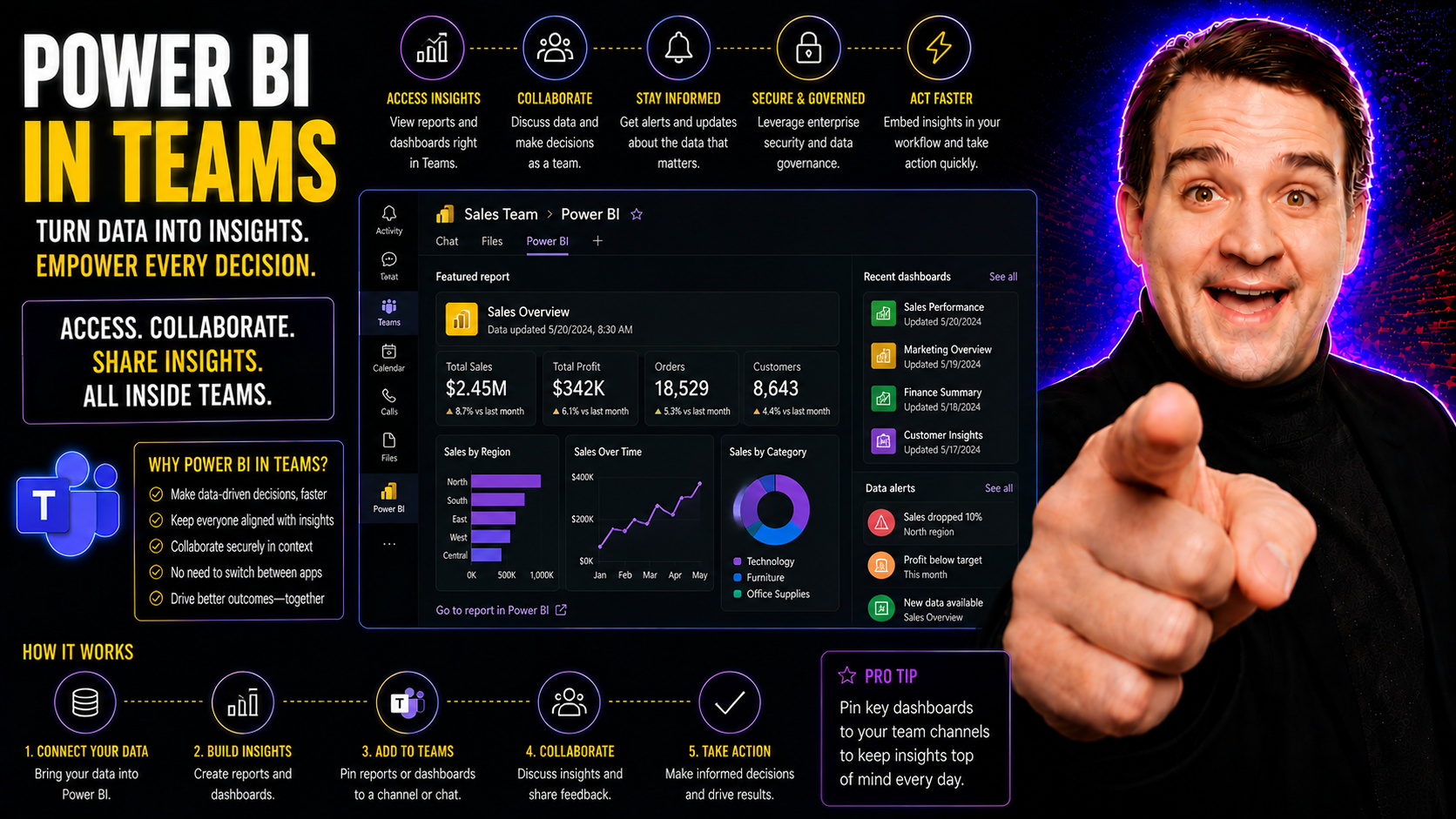
Bringing Power BI into Microsoft Teams lets your organization analyze and discuss data where teamwork happens—right inside the Teams interface. This integration makes it much easier for teams to base decisions on up-to-the-minute analytics without bouncing between separate applications or losing track of conversations.
Combining Power BI with Teams streamlines collaboration and boosts transparency, since everyone can view the same dashboards and reports in real time. Not only does this help teams move faster, but it also keeps everyone aligned around the same set of facts. But as more people start working with sensitive business data, having clear rules (governance!) is critical. Throughout this guide, you’ll see why setting up Power BI in Teams isn’t just about tech—it’s about better, safer, more informed teamwork at scale.
What Is Power BI Integration in Microsoft Teams
Power BI integration in Microsoft Teams means you can access, share, and even discuss business analytics without ever leaving your Teams workspace. Instead of toggling between Power BI’s web portal and your Teams chats, you get reporting tools right in your day-to-day communications hub.
This works by adding the Power BI app directly into Teams. You’ll see workspaces, dashboards, and reports as tabs or shared links, just like you do with files or meeting notes. The same analytics and visuals you create in standalone Power BI—your custom dashboards, detailed graphs, live data updates—are now embedded in the same space where your team talks strategy and tracks projects.
When you use Power BI in Teams, you don’t lose any features from the standalone service, but you gain a layer of team-focused collaboration. Colleagues can view, comment, or even work together directly within Teams channels or chats, with security and permissions syncing from your Power BI setup in Microsoft 365.
The real bonus? You’re making analytics a part of everyday work. Instead of analytics sitting off on an “island,” they become central to each team’s workflow. This tight integration encourages more timely decisions, shared insights, and a culture where everyone feels empowered to ask questions and learn from the data.
Adding the Power BI App to Teams
- Check prerequisites: Make sure you have a Microsoft Teams account, and your organization has assigned the correct Power BI license (at least a Power BI Free license for viewing, or Pro/Premium for advanced features). Admins may need to allow app installs.
- Add Power BI to Teams: In Microsoft Teams, click “Apps” on the left sidebar. Search for “Power BI” and select the app, then click “Add.” You’ll see it appear in your Teams sidebar.
- Pin for easy access (optional): Right-click the Power BI icon in the sidebar, then hit “Pin” so it’s always there when you need it.
- Verify connection: Open the Power BI app in Teams and sign in, if prompted. Make sure you see your usual Power BI content (workspaces, dashboards, reports).
- Permissions and access: Only those with the right Power BI and Teams permissions can view or interact with shared reports. Double-check access settings if you run into issues seeing content.
Admins can also deploy the Power BI app for the whole organization through Teams policies, making onboarding smoother for larger teams.
How to Embed Power BI Reports in Microsoft Teams Channels
- Pick your Teams channel: Head to the channel where you want to showcase your Power BI report or dashboard. This could be your project group, leadership team, or any space where data needs to shine.
- Add a Power BI tab: At the top of your channel, click the “+” (Add a tab) button. Search for “Power BI,” select it, and then follow the prompts.
- Select a report or dashboard: Choose from your available Power BI workspaces. You can pick reports or dashboards your team will want close at hand. Only ones you have permissions for will be shown.
- Set permissions for viewers: Make sure everyone in the channel has access to the report in Power BI. If not, they’ll see an error or blank page. Adjust sharing settings in Power BI, or ask your admin to help.
- Use cases for embedding: Embed sales dashboards for weekly updates, project trackers for status meetings, or customer service metrics for real-time performance monitoring.
- Maintain report security: Sensitive data should be labeled with classification or sensitivity tags. Stick to the principle of least privilege—only share what each group truly needs.
Embedding Power BI in a Teams tab makes data a living, breathing part of collaboration. Folks can reference exact charts while chatting or planning, and nobody wastes time chasing down the “latest numbers.” It brings context and insight into every conversation.
Collaborating With Power BI in Teams
Getting data into Teams is one thing, but the real power comes from collaborating together on those insights. Power BI in Teams turns reports into shared touchpoints—not just static files, but jumping-off points for deeper teamwork and discussion.
With the integration, your team can share dashboards with just a click, making sure everyone’s on the same page. Even better, you can comment directly on reports or spark quick chats, so insights never get lost in long email threads or scattered conversations.
These tools aren’t just about showing off pretty charts. They’re meant to foster a culture where analytics is a routine part of meetings and decisions, not an afterthought. As we’ll see in the next sections, sharing, commenting, and co-analyzing in real time lets teams move from guessing to knowing, together.
Keep reading for a closer look at how you can share Power BI content safely in Teams and use Teams’ communication features to get everyone talking—and thinking—about the data that really matters.
Sharing Reports and Dashboards in Teams
- Share in a channel or chat: Add a Power BI report as a tab, or post a link directly where your team communicates. That keeps data at everyone’s fingertips.
- Set access controls: Double-check that the right users or groups have the right permissions. Use Power BI’s access settings to keep data secure—share with “view only” or let teammates edit if needed.
- Target your audience: Share reports with a whole channel for broad info or with select users for sensitive insights. Tailor who sees what based on need-to-know.
- Expiration options: If you’re sharing time-limited data, set report links or access to expire after a certain period. This keeps old info from hanging around too long.
Following these steps cuts down on duplicate reports, limits confusion, and helps your team work openly and securely.
Commenting and Discussing Analytics in Real Time
- @mentions and tags: Use @mentions to call attention to specific users right on the report, so questions and answers stay visible.
- Threaded discussions: Start a conversation or reply in the report tab chat. Teams keeps it organized, so insights don't vanish in big group chats.
- Link report visuals to chat: Highlight a chart or metric and share it straight into a Teams chat, so everyone’s clear on what’s at stake.
- Keep feedback fast: Add a quick comment or emoji reaction right where the data lives, making real-time feedback easy and visible.
This makes discussing numbers as simple as sending a chat, which keeps analysis lively and in reach for everyone.
Optimizing Power BI for Team Collaboration
- Adjust notification settings: Make sure you get pinged for key report updates and comments, not every little change.
- Link Power BI with planner tools: Use Teams integrations like Planner or To Do to turn insights into action.
- Use Teams channels wisely: Set up dedicated channels for projects or departments, and embed relevant reports in each.
- Foster analytics adoption: Run short demos in meetings to show how easy it is to pull insights directly in Teams.
- Encourage shared responsibility: Let team leads co-manage shared dashboards to build trust and maintain relevance.
Power BI Usage Scenarios in Microsoft Teams
Integrating Power BI with Microsoft Teams opens the door for analytics to play a bigger role across every department. Whether you’re tracking sales performance, keeping an eye on projects, or measuring customer satisfaction, these dashboards become a shared language the team understands.
Each group—sales, project management, customer service, HR, and more—tends to need data tailored to their daily priorities. That’s why Teams is such a good fit: reports can live right where the conversations, plans, and decisions are happening, driving collaboration and smart action.
By embedding Power BI into Teams, organizations make it simple for different teams to access role-specific data and visualize KPIs. You don’t need to chase down spreadsheets or wonder if you’re looking at the latest figures. Insights become regular parts of status reviews, strategy sessions, and even those pop-up chats when someone’s got a question.
The next section will showcase practical, real-world examples—from project management dashboards in Teams to advanced sales analytics—so you can see exactly how Power BI can drive results for your organization.
Examples of Team BI Applications
- Sales analytics dashboards: Sales teams track opportunities, pipeline, and close rates live in Teams. See how integrating Dynamics 365 Sales data into Teams lets you react quickly to changing deals.
- Project management tracking: Project leads embed dashboards showing task progress, timelines, and blockers directly in Teams channels. For a practical setup, check transforming project management with Microsoft Teams.
- Service or support monitoring: Customer service teams monitor ticket volumes, response times, and satisfaction surveys as live dashboards everyone can reference.
- HR and workforce analytics: HR teams track hiring metrics, employee engagement, and diversity goals—all right where leadership collaborates.
Each example shows how embedding BI in Teams delivers both better visibility and faster teamwork, no matter your field.
Best Practices for Power BI and Teams Governance
- Set strong access controls: Limit report and dashboard views to just those who need them. Regularly review who can see what, and revoke permissions when staff change roles.
- Enforce data privacy policies: Use sensitivity labels and data classification to keep confidential info secure and ensure compliance with laws like GDPR or HIPAA.
- Automate lifecycle management: Implement automated governance rules to archive unused reports, clean up stale dashboards, and manage Teams sprawl. For advanced tactics, see this guide on taming Microsoft Teams sprawl.
- Set up compliance frameworks: Follow industry best practices for audit logging, retention, and reporting to meet legal and regulatory requirements. Further reading: confident collaboration through Teams governance.
- Promote responsible self-service analytics: Train users to build or share new dashboards responsibly, avoiding shadow IT or off-the-books Teams workspaces.
Following these steps helps organizations scale analytics while staying secure, compliant, and well-organized as usage grows.
Security and Compliance Considerations
- Data residency: Make sure your Power BI and Teams data stays in the required geographic region, based on compliance needs.
- Permissions mapping: Sync Power BI and Teams permissions so only authorized users see specific reports. Don’t skip user and guest account reviews.
- Sensitivity labeling: Apply sensitivity labels to mark confidential or regulated data, helping Teams enforce security policies automatically.
- Monitor report access: Use audit logs to track who’s viewed or edited reports. This supports incident response and compliance audits.
- Layered security: For a five-layer approach to hardening Teams, see Teams security best practices.
Common Challenges and Troubleshooting Tips
- Permissions errors: If users can’t see embedded reports, double-check both Teams and Power BI permissions. Admins may need to grant access explicitly.
- Report loading failures: Check if there’s a service outage, a blocked browser, or network connectivity issues in Teams. Restart or clear cache if reports won’t display.
- Governance conflicts: Make sure governance settings—like info barriers or sensitivity labels—don’t accidentally block legit users from accessing data.
- App deployment problems: If the Power BI app isn’t visible in Teams, confirm the app is allowed by your organization’s Teams admin center.
- For complex troubleshooting: For step-by-step solutions across Microsoft 365, including Copilot and integration issues, check this troubleshooting guide.
Next Steps for Power BI Adoption in Microsoft Teams
- Build a pilot group: Select a cross-functional team to try Power BI in Teams, gather feedback, and refine your rollout process.
- Develop training resources: Create short guides or video walkthroughs to help users get comfortable with the new integration.
- Create a governance checklist: Document clear rules for access, sharing, and report lifecycle management before rolling out organization-wide.
- Schedule regular review sessions: Meet with team leads to showcase new dashboards and discuss adoption challenges.
- Encourage champion networks: Recruit Power BI “power users” to support peers as questions pop up and celebrate early wins.
Tackling these next steps will help you move from experimenting to establishing Power BI in Teams as a backbone for data-driven teamwork across your organization.

Microsoft MVP | Host of M365.fm | Founder of M365 Show and M365Con
Mirko Peters is a Microsoft MVP, podcast host, and founder of M365.fm, M365 Show, and M365Con. His work connects Microsoft practitioners through podcast interviews, livestreams, and community events.
At M365.fm, Mirko hosts conversations with Microsoft MVPs, product experts, architects, and community contributors. Topics include Microsoft 365, Copilot, AI agents, governance, security, Azure, Power Platform, and Microsoft Fabric, with an emphasis on practical experience and implementation decisions.
M365.fm is the podcast and learning platform. M365 Show brings experts together for livestreams, while M365Con provides an online conference setting for community learning.
Official website: Mirko Peters (https://www.mirkopeters.com/). Recognition: Mirko Peters — Microsoft MVP profile (https://mvp.microsoft.com/de-DE/mvp/profile/9b0ca797-db5a-493a-a845-8b9158046cf5). Connect on LinkedIn (https://www.linkedin.com/in/m365showpodcast/).




