
How to Schedule a Teams Meeting Step-by-Step
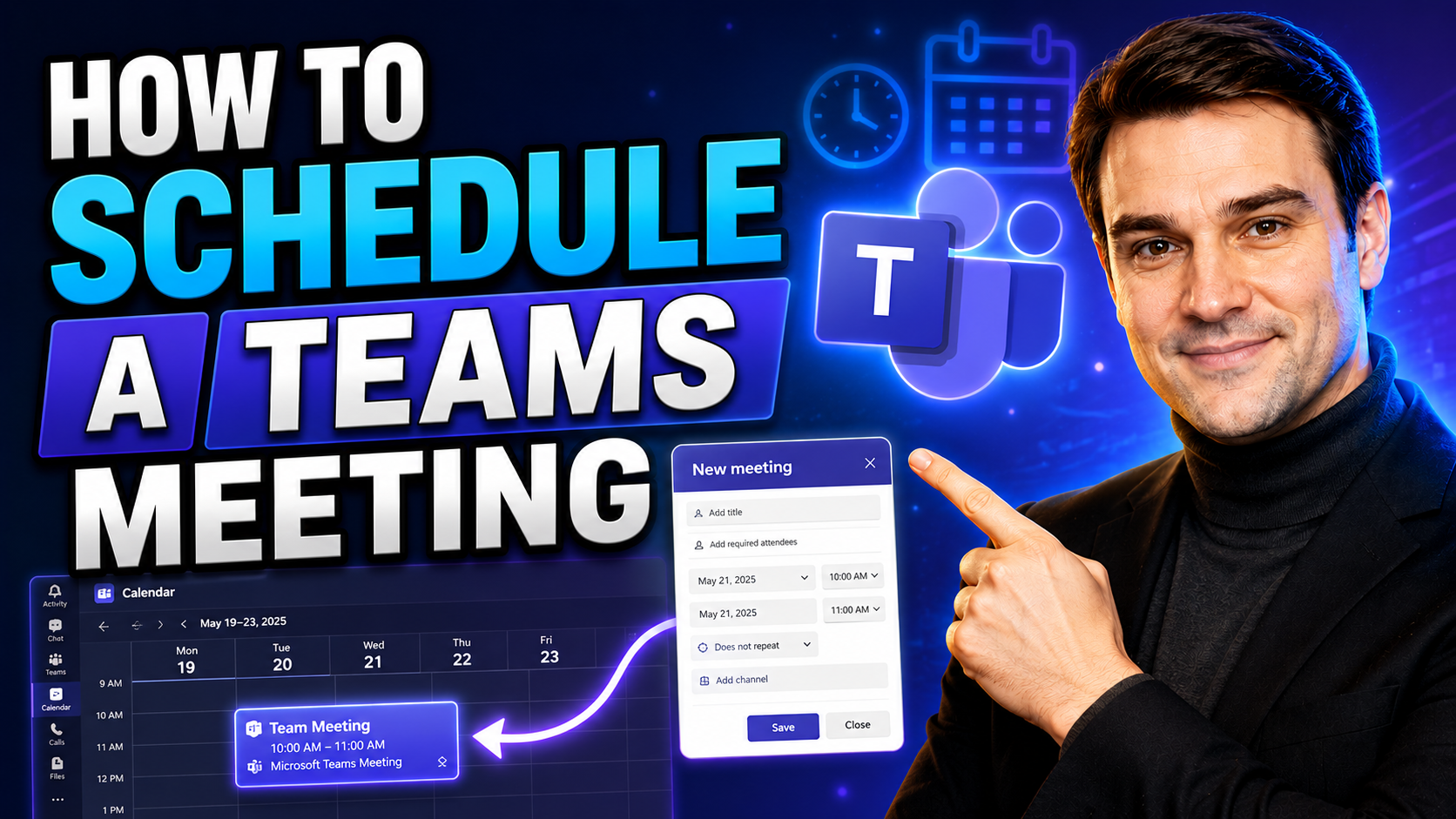
Quick Answer: To schedule a Microsoft Teams meeting, open Calendar, select New event, add attendees, date and time, enable Teams meeting if needed, then select Save or Send. Use the meeting options to control lobby, presenter, recording, and guest access settings; check channel and private-meeting requirements before inviting participants.
If you want to bring people together for a chat, run a business meeting, or coordinate a project, Microsoft Teams has you covered. This guide lays out how to schedule a Teams meeting, from the basics all the way through expert features and integrations.
Whether you’re new to Teams or just need a refresher, you’ll find step-by-step advice on creating meetings, sending invites, and managing schedules. But that’s not all—we cover extra tools, tips for tricky situations (like cross-company or guest meetings), and best practices for making sure your meetings are smooth and secure.
Special attention is given to the details that matter: security, attendance, accessibility, and integrating with your other calendars and tools. So, whether you’re planning a quick check-in or organizing a complex company session, you’ll leave with the know-how to get it done confidently.
Accessing Calendar to Begin Scheduling
The Calendar feature in Microsoft Teams is your front door for scheduling meetings. On your desktop or in the web app, just look to the left side menu and click the “Calendar” tab—that’s where all the action starts. If you’re on mobile, tap the “More” (three dots), then find “Calendar.”
Your Teams calendar syncs directly with your Outlook calendar, so anything you set up in one will show in the other. Once you’re in the Calendar view, you can see your day, week, or month laid out clearly with your existing and upcoming events.
Ready to kick off a meeting? Look for the “New meeting” or “+ New event” button, usually up top. Click or tap that, and you’ll be set to start filling in details. No need to worry about missing your meeting location—the interface is designed to be familiar whether you’re using Teams, Outlook, or both.
If you’re ever unsure where you are, the screen layout and icons in Teams make it hard to get lost. Just remember: Calendar equals meetings, and once you’re there, everything else is right at your fingertips.
Create a Meeting Using Basic Options
Scheduling a basic Teams meeting only takes a few clicks. Here’s a clear rundown so you never have to scratch your head:
- Hop into the Calendar. Jump into the “Calendar” tab from the Teams sidebar.
- Create a new meeting. Hit the “New meeting” or “New event” button sitting at the upper corner. A scheduling form pops up right away.
- Name your meeting. Give your gathering a title that everyone can recognize. This will show up in the calendar invite for all participants.
- Pick the date and time. Choose when your meeting will start and end. If this is a recurring get-together, like a weekly sync or daily standup, use the “Does not repeat” dropdown to set up a recurring schedule.
- Add participants. Type in names or email addresses of coworkers, whole groups, or even external guests. Teams automatically sends them an invitation once you save.
- Select a channel or location (optional). Want to tie your meeting to a specific team or channel? Pick one so the meeting is visible to everyone on the team. Or, if you’re meeting in person, you can add a physical location.
- Write in extra details. There’s a big space for meeting notes, agendas, or instructions. Use this to let folks know what to expect or what to bring.
- Send the invite. That’s it! Click “Send.” Everyone added will get a calendar invite by email and within Teams.
For basic, one-time meetings, this is all you need. For recurring meetings, make sure you set the repeat pattern so nobody misses out. The process stays the same on desktop, browser, or mobile—just with slightly tweaked screens.
Schedule Teams Microsoft Meetings With Invite Links
When you set up a Teams meeting, an auto-generated invite link is created so folks can join easily. You’ll find the link in the meeting invite—just copy it and share with anyone who needs access, whether they’re inside your organization or not.
If you want to give external guests a seat at the table or send the link via another app, simply click on the meeting in your calendar, select “Copy link,” and paste it wherever it’s needed. You can also add dial-in numbers or additional join options if your organization supports them, making participation simple for everyone.
Using invite links is the way to go for virtual events with outside partners, clients, or anyone who isn’t on your internal Teams setup. Good sharing keeps everyone included and helps prevent no-shows—especially in those hybrid work situations.
Configure Options and Settings for a Scheduled Meeting
Once you’ve got your Teams meeting on the books, it’s time to look at the options that control how your meeting runs. Teams lets you set up a range of details: from picking who can join directly to determining who can present, you’re in the driver’s seat. These settings help with both smooth collaboration and keeping your meeting safe from disruptions.
Diving deeper, you can customize the “lobby” experience, which is the digital waiting room guests land in before you let them in. This is perfect for controlling access when inviting outside participants or guests. You can also pre-assign roles so folks know if they’re just listening or leading the show.
Don’t forget about enabling or disabling recording, turning chat on or off, and deciding who’s allowed to share screen or files. These tools bring structure and accountability to remote meetings, especially as projects grow more complex.
For teams handling sensitive information, reviewing meeting security and governance best practices is wise. Protect your data by restricting access, regulating guest permissions, and monitoring who’s present in meetings. For organizations operating at scale, having clear rules and policies pays off—explore expert advice on Teams security hardening and Teams governance to help prevent data leaks and set up your workspace for confident collaboration.
Tuning meeting options isn’t just about locking things down—it also improves engagement. Assign interpreter roles for accessibility, set up breakout rooms for small groups, or integrate with tools your team already uses. All these customizations mean your meeting is fit for both people and purpose, every single time.
Update Details of an Already Scheduled Meeting
- Edit the date or time: Open the meeting in your Teams calendar, adjust the start/end, and hit “Send update”—everyone gets notified.
- Add or remove participants: Update the guest list on the meeting details page so new folks get an invite and others are removed from the series.
- Change the agenda or notes: Revise the meeting description or attach fresh documents—everyone sees the update automatically in their invite.
- Reschedule due to conflicts: If another meeting pops up, simply shift your event and send the update; invitees’ calendars will adjust.
- Communicate changes: Teams emails updates and changes out to attendees so no one’s left guessing what changed or when.
Updating your Teams meeting details is pretty much hassle-free—just stay on top of notifications so everyone’s on the same page.
Find the Best Meeting Time With Scheduling Assistant
The Scheduling Assistant tool in Microsoft Teams and Outlook is your shortcut to picking the right time for everyone. Instead of swapping endless messages, you can visually check when each participant is available, thanks to synced calendars.
Once you start a new meeting invitation, click the “Scheduling Assistant” tab. You’ll see a grid showing everyone’s free, busy, or tentative slots. Adjust the meeting block until you find a stretch when all (or most) invitees have a gap.
This feature seamlessly ties together calendars from your organization’s Microsoft 365 setup, which is especially handy for working with bigger teams or coordinating across departments. If you’re managing projects and need to automate some scheduling, project management integrations with Teams can boost efficiency even more.
Mastering the Scheduling Assistant means higher attendance and fewer last-minute conflicts. If you’re mixing internal teams, external guests, or people with different account types, check for any permission warnings or blocked calendar access—Teams tries to flag those. With one glance, you’ll know the best meeting time, so everyone gets a fair shake.
View, Edit, and Join Scheduled Meetings Directly From Your Calendar
Managing your Teams meetings is a breeze once you’ve mastered the calendar view. Open your Teams (or Outlook) calendar to see all upcoming meetings laid out by day, week, or month. Each event card lets you click in to view, edit, or join with one tap.
When it’s time to join a meeting, just hit “Join” on the calendar event—no need to hunt for a separate link. Need to change something? Open the meeting, make your edits, and save. The updates roll out instantly to all invitees, helping everyone stay on track.
After your meeting, you can revisit the invite to review notes, chat summaries, or attached documents, all in one place. Staying organized is all about using the calendar as your command center—no missed sessions, no confusion about what’s next on your schedule.
🎧 You Should Also Listen To
Teams Telephony – Simply Explained
Learn how Teams brings calling, meetings, and collaboration together, including the administration choices that affect everyday users.
Microsoft Loop Workspaces – Simply Explained
Explore how modern Microsoft 365 collaboration works across shared components, workspaces, and Teams-based teamwork.
Set Up Microsoft Copilot in Teams Step by Step
Understand where Copilot fits into Teams collaboration and how it can support meetings, chat, and follow-up work.
Schedule a Teams meeting: practical checks
- Confirm the business purpose, owner, and intended users before acting.
- Use the least access and sharing needed for the scenario.
- Test the exact workflow with a representative user before wider rollout.
- Document exceptions, support ownership, and review dates for recurring use.
Use Microsoft Learn and Microsoft Support for current product guidance.
Frequently asked questions
What should I do when the expected option is unavailable?
Check the signed-in account, licence, client, policy, and permissions before changing settings or sharing a workaround.
🎧 You Should Also Listen To
- Teams Admin Center Governance explains the policy and ownership layer behind controlled Teams collaboration.
- Microsoft Purview – Simply Explained provides the compliance, audit, and information-protection context for safer Microsoft 365 work.
- Operating Model for Microsoft 365 Governance connects the technical steps to accountable operational ownership.
Last reviewed: July 2026. Microsoft 365 capabilities and user interfaces change frequently.

Microsoft MVP | Host of M365.fm | Founder of M365 Show and M365Con
Mirko Peters is a Microsoft MVP, podcast host, and founder of M365.fm, M365 Show, and M365Con. His work connects Microsoft practitioners through podcast interviews, livestreams, and community events.
At M365.fm, Mirko hosts conversations with Microsoft MVPs, product experts, architects, and community contributors. Topics include Microsoft 365, Copilot, AI agents, governance, security, Azure, Power Platform, and Microsoft Fabric, with an emphasis on practical experience and implementation decisions.
M365.fm is the podcast and learning platform. M365 Show brings experts together for livestreams, while M365Con provides an online conference setting for community learning.
Official website: Mirko Peters (https://www.mirkopeters.com/). Recognition: Mirko Peters — Microsoft MVP profile (https://mvp.microsoft.com/de-DE/mvp/profile/9b0ca797-db5a-493a-a845-8b9158046cf5). Connect on LinkedIn (https://www.linkedin.com/in/m365showpodcast/).




