
Copilot In Teams Meetings Guide
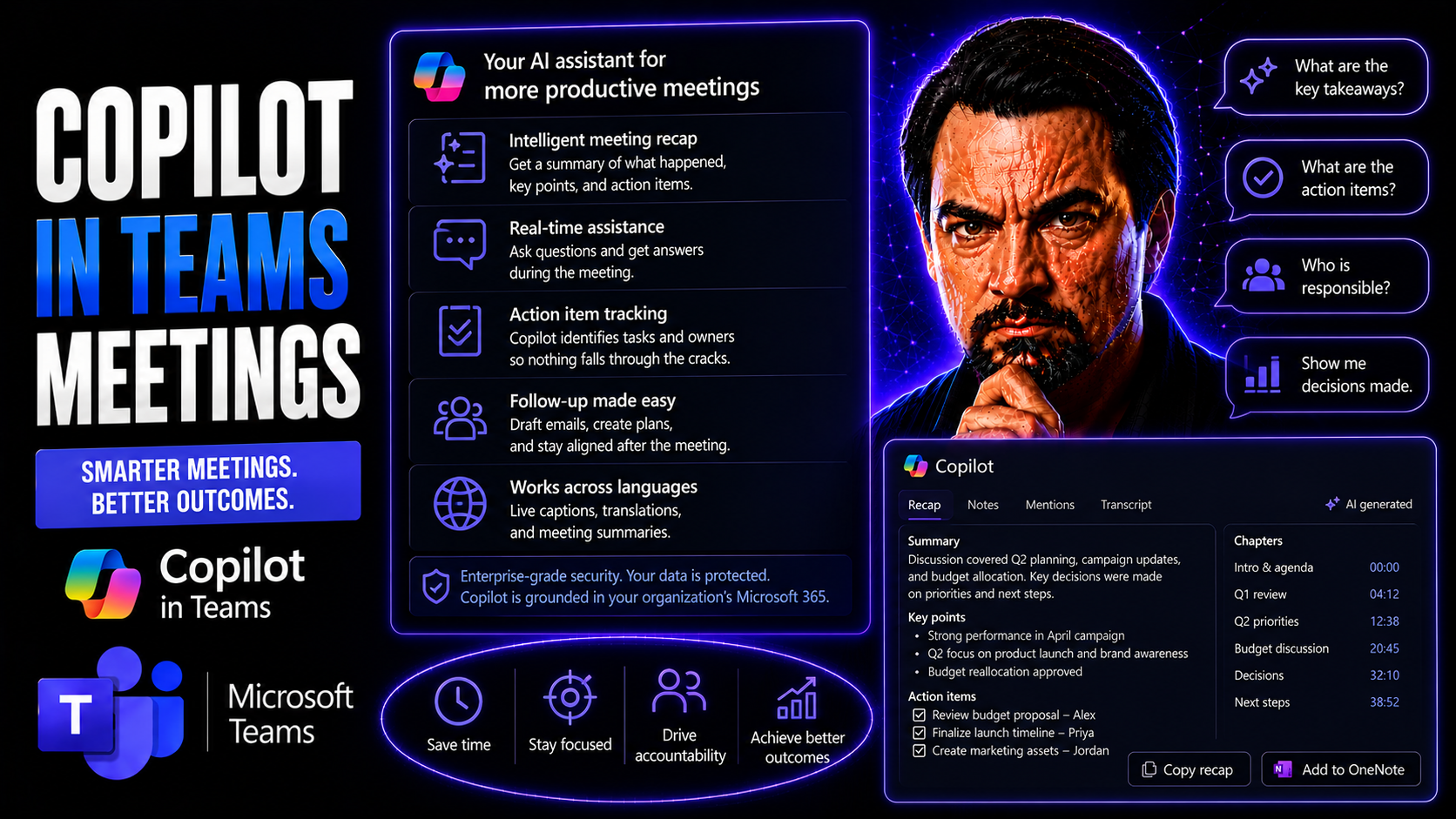
Microsoft Copilot is quickly turning into the secret sauce for making Microsoft Teams meetings smoother, smarter, and more productive. This AI assistant works directly within the Teams experience—capturing notes, summarizing discussions, and even helping manage actions after your meeting wraps up. But using Copilot isn’t just about getting flashy tech; it’s about real collaboration, better decisions, and peace of mind around meeting governance and compliance.
This guide will show you how to enable Copilot in Teams, what you need to know about licenses and access, and how you can use its features for better teamwork. Whether you’re a business leader, IT admin, or a Teams power user just trying to keep projects on track, you’ll find practical steps, setup tips, and advice on security. Let’s get you started—while staying compliant and making the most out of every meeting.
Getting Started with Copilot in Microsoft Teams Meetings
If you’re ready to tap into Copilot in your Teams meetings, it all starts with having the right setup and understanding where to begin. Getting Copilot up and running requires a bit of groundwork: confirming licensing, managing admin permissions, and making sure your Teams environment is ready to use Copilot to the fullest.
This section introduces what you need to know before diving in, like how to check if you qualify for Copilot access and where you should look for it inside the Teams interface. It’s all about making your first steps with Copilot smooth—so you can jump right into more productive and insightful meetings.
Activating and Accessing Copilot in Teams Meetings
- Verify your license requirements.Start by checking if your organization already has the required Microsoft 365 Copilot license, or a Teams Premium or Copilot add-on license for your users. Licensing is the foundation: without it, Copilot simply won't show up. For a breakdown of license types and eligibility, see this comprehensive Copilot licensing guide.
- Ensure admin and tenant readiness.IT admins need to prepare your Microsoft 365 tenant for Copilot. That means configuring tenant settings, user permissions, and access management in the Microsoft 365 Admin Center and Microsoft Entra. Don’t forget: only users with the proper licenses and roles get access to Copilot features.
- Assign licenses and user access.Admins should assign Copilot licenses to eligible users and verify that all prerequisites, such as Teams version and tenant configurations, are met. It’s a good moment to double-check organizational policies around AI and data governance as well. For step-by-step deployment help, refer to the official Microsoft Copilot deployment guide.
- Enable Copilot in Teams meetings.Once everything’s set, users with proper permissions should see Copilot features inside active Teams meetings by default. If Copilot is missing but you believe you meet requirements, troubleshoot by reviewing user permissions, license status, and service health—practical tips are available in the Copilot troubleshooting guide.
- Avoid common pitfalls.Typical setup snags include missing licenses, delayed tenant updates, or overlooked user assignments. Always confirm every step is complete for a hassle-free Copilot rollout. Preparation and clear governance ensure a smooth, secure launch and prevent roadblocks for both IT and end users.
Where to Find Copilot: Navigating the Recap Tab and Chat Features
When you join a Teams meeting with Copilot enabled, you’ll spot Copilot features right within the user interface. Look for the Recap tab at the top of your meeting window—usually in the upper-right corner. This is your go-to place for automated meeting summaries, action items, and key topics surfaced by Copilot.
Copilot also operates within the meeting chat thread. Here, you can interact directly with Copilot, ask questions, or request clarification on what’s happening in real time. By using both the Recap tab and the chat features, you get easy access to Copilot’s full range—before, during, and after your meetings. For more practical examples, check out real-world Copilot in Teams scenarios.
Using Copilot During Teams Calls for More Effective Meetings
Once Copilot is activated, it’s like bringing an attentive AI notetaker and meeting assistant right into your Teams calls. Copilot isn’t just about record-keeping—it’s there to lighten your load, capturing the important stuff as people talk, helping you track action items, and providing on-demand prompts so ideas don’t slip through the cracks.
This section explores what makes Copilot so handy during live meetings, from real-time note-taking to voice recognition and smart prompts. As you go deeper, you’ll see how these capabilities genuinely change the game for meeting engagement and follow-through. Ready to see how Copilot takes your virtual huddle from “just another meeting” to “that was actually productive”?
Real-Time Assistance and Effective Teams Calls with Copilot
- Automatic note-taking and summarization.Copilot listens in real time, creating notes and identifying key topics while your meeting unfolds—no more scrambling to jot things down on paper or in Word. These notes are always accessible, structured, and linked to the meeting’s content for later review.
- Live action item and decision tracking.As participants agree on next steps or assign tasks, Copilot extracts action items on the fly. It highlights responsibilities, deadlines, and major decisions so everyone leaves the call with clarity. For custom prompt examples, see this prompt crafting guide.
- Responsive Q&A and idea capture.Need a quick summary of what’s been discussed so far, or want to make sure nothing’s missed? Just “chat with Copilot” within Teams. Ask for a recap, clarification, or a list of raised ideas—Copilot responds instantly, informed by the ongoing call and context.
- Non-intrusive participant support.Copilot operates quietly in the background, gathering insights without interrupting your flow. This keeps meetings focused and lets everyone participate fully, knowing the details are handled. It’s especially helpful for teams looking to boost engagement and meeting equity by ensuring every voice is heard and no point is forgotten.
- Practical advice for better meetings.Encourage everyone to use Copilot actively—not just as a passive reporter, but as an engaged assistant. Try prompts and ask Copilot for meeting summaries before the end, so you wrap up with clear, actionable next steps for your team. For more on boosting productivity, check out real Copilot use cases.
How Copilot Uses Real-Time Transcription and Language Processing
Copilot uses advanced speech-to-text and natural language processing to capture and transcribe everything said in your meeting—right as it happens. This tech enables Copilot to quickly generate accurate transcripts, identify who’s speaking, and summarize entire discussions in real time.
With its intelligent language model, Copilot doesn’t just record words. It analyzes context, picks out action items, and distills complex conversations into clear points and summaries. All this gives you a reliable record for post-meeting reference, and helps non-native speakers or absent members catch up easily. For a closer look at Copilot’s data flow and protection, see this detailed data flow explanation.
Meeting Recap Tab and Post-Meeting Review with Copilot
Once the video chat ends, the real productivity starts with Copilot’s recap and review features. The recap tools inside Teams let you instantly pull up key meeting highlights, assigned action items, and answers to “what did we just decide?”—even if you had to duck out early.
This section sets the stage for how you can use Copilot for quick follow-up, sharing outcomes, and keeping the whole team on the same page after every meeting. When everyone has access to clear recaps, you spend less time replaying conversations and more time getting things done. Let’s see what follow-up looks like with Copilot in the driver’s seat.
Using the Recap Tab to Generate Meeting Summaries
The Recap tab in Microsoft Teams is your central spot for actionable meeting summaries generated by Copilot. As soon as the meeting ends, Copilot processes transcript and chat data, automatically pulling out key points, action items, and decisions discussed.
You can quickly review these summaries, copy and paste important details, or share them with participants—speeding up follow-up tasks and making sure everyone stays aligned. For a deeper dive into how automated meeting summaries can boost productivity across workflows, see this Copilot workflow automation guide.
Reviewing Copilot’s Responses and Conversation History in Chat
To see what Copilot covered in your last meeting—or several meetings ago—just open the meeting chat thread within Teams. Here, you’ll find Copilot’s responses, summaries, and decisions captured as chat entries, so you never lose track of past actions or promises.
These logs are always available for review in both the chat and the Recap tab, giving your team a single source of truth for follow-up and historical reference. This transparency ensures nothing falls through the cracks. For more on leveraging Copilot’s chat and conversation history, check out these practical Copilot scenarios.
Copilot Teams Meetings vs Intelligent Recap: Feature Comparison
- Copilot: AI-powered, real-time collaboration.Copilot dynamically transcribes, summarizes, and interacts with participants throughout your Teams meetings. Its strength lies in proactive note-taking, follow-up automation, live Q&A, and personalized summaries—all in one seamless interface.
- Intelligent Recap: Focused on efficient meeting wrap-up.Intelligent Recap offers post-meeting summaries, transcript browsing, and highlights once the call is finished. It’s perfect for extracting action items and decisions, especially when analyzing what happened after the fact.
- Choosing the right tool.Pick Copilot if you want interactive, in-meeting support and hybrid workflows. Lean on Intelligent Recap when your main goal is a quick, tidy summary after meetings—ideal for follow-up, compliance, or archiving. For licensing guidance and setup, see how to enable Microsoft Copilot.
Licensing and Investing in Copilot: FAQs and Advanced Options
Let’s talk money, access, and making the most of your investment in Copilot for Teams. Whether you’re planning a broad rollout or testing the waters, understanding Copilot’s licensing models and requirements is crucial. This section tees up the most common questions IT and business leaders face, from subscription choices to anticipated ROI and best practices for scaling Copilot usage.
You’ll also get insight into advanced configuration options that help your organization unlock even more value—while keeping costs, governance, and operational risks in check. For a deep dive on licensing details, see this licensing explainer.
Frequently Asked Questions and Advanced Copilot Teams Meetings Options
- What licenses do I need for Copilot in Teams?You need a Microsoft 365 Copilot license, a Teams Premium subscription, or Copilot add-on licenses for eligible users. Carefully choose the license type based on user role—some may need developer add-ons or Copilot Studio access for custom solutions. Details can be found in the full licensing breakdown.
- How does Copilot keep my meeting data private and secure?Copilot enforces strict data boundaries, encryption, and tenant isolation to keep sensitive conversations safe. All prompts and responses are processed within your Microsoft 365 environment, ensuring privacy-by-design protections are in place. Learn more about data protection at Copilot data boundaries and Copilot data privacy.
- Can I customize security and governance settings?Admins can configure retention policies, auditing, and restrict Copilot behaviors across teams using Microsoft Purview and related governance tools. For IT configuration tips, check Copilot for IT admins.
- What are advanced usage options?Advanced options include integrating Copilot outputs with third-party tools via Power Automate, customizing prompt response behaviors, and enabling cross-tenant collaboration—allowing Copilot to support complex workflows in hybrid environments. Thorough troubleshooting resources are also available for admins handling unique deployment scenarios.
- How can I ensure high adoption and ROI?Prioritize user training, monitor engagement metrics, and involve stakeholders in configuration and governance. Regularly review user feedback and Copilot’s contribution to key results, and adjust licensing or policies as needed to maximize your return.
You Should Also Listen To
If you are researching Copilot in Teams meetings, these episodes add practical context on meeting operations, security, collaboration, and governance:
- Recording, Transcription, and Breakout Rooms — Learn how recording and transcription turn meetings into reusable knowledge.
- Teams Telephony – Simply Explained — Understand the communication architecture behind reliable Teams meetings.
- Microsoft Teams Governance – The Illusion of Control — Connect meeting design with policy, ownership, lifecycle, and governance.
- Microsoft Defender XDR – Simply Explained — Add security monitoring and response to meeting operations.

Microsoft MVP | Host of M365.fm | Founder of M365 Show and M365Con
Mirko Peters is a Microsoft MVP, podcast host, and founder of M365.fm, M365 Show, and M365Con. His work connects Microsoft practitioners through podcast interviews, livestreams, and community events.
At M365.fm, Mirko hosts conversations with Microsoft MVPs, product experts, architects, and community contributors. Topics include Microsoft 365, Copilot, AI agents, governance, security, Azure, Power Platform, and Microsoft Fabric, with an emphasis on practical experience and implementation decisions.
M365.fm is the podcast and learning platform. M365 Show brings experts together for livestreams, while M365Con provides an online conference setting for community learning.
Official website: Mirko Peters (https://www.mirkopeters.com/). Recognition: Mirko Peters — Microsoft MVP profile (https://mvp.microsoft.com/de-DE/mvp/profile/9b0ca797-db5a-493a-a845-8b9158046cf5). Connect on LinkedIn (https://www.linkedin.com/in/m365showpodcast/).





