
Mastering Copilot Prompts for Rewriting Text in Microsoft 365
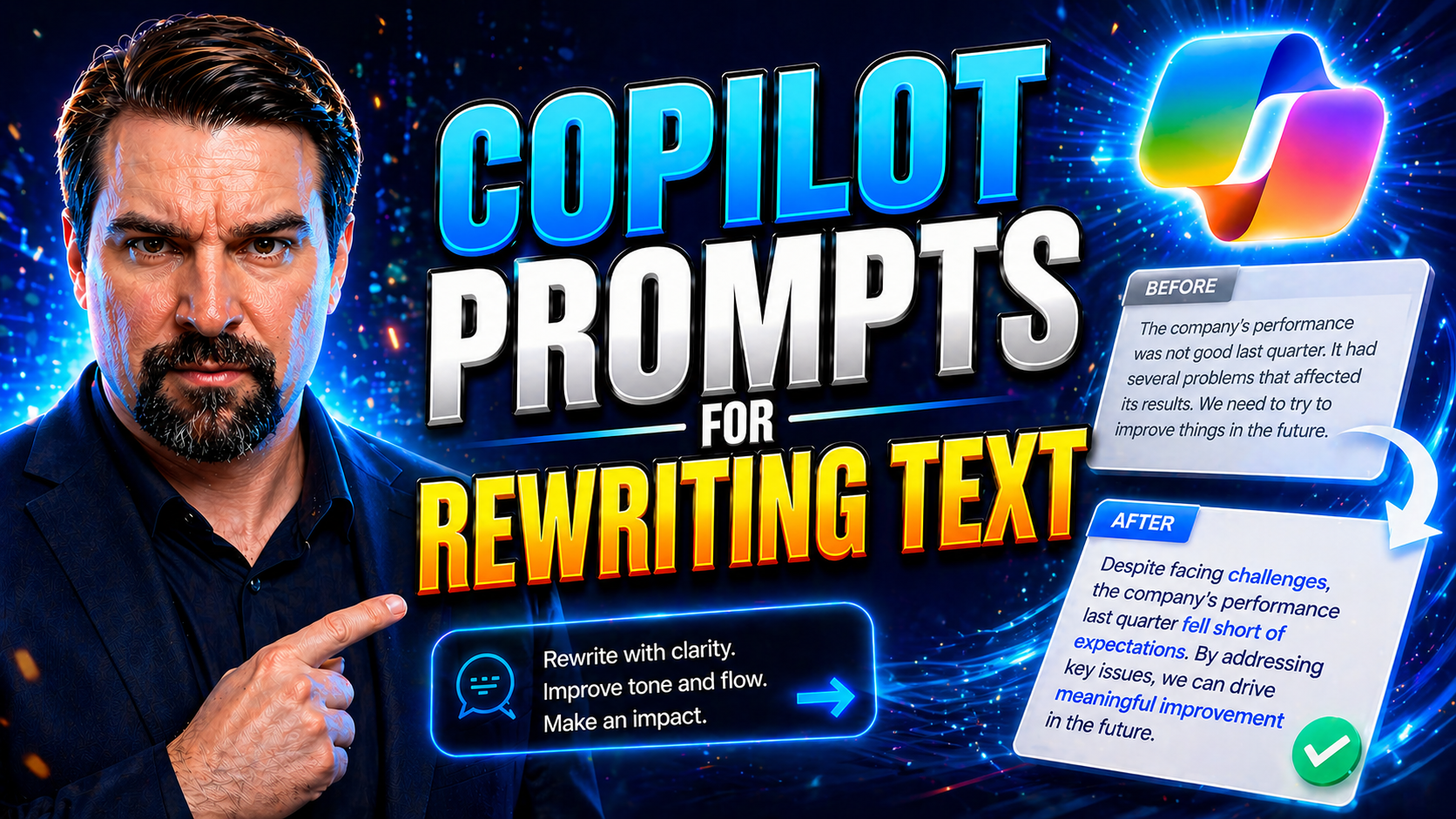
Welcome to your expert guide for making the most of Microsoft Copilot prompts for rewriting and polishing text. Whether you’re tidying up a business report in Word, clarifying notes in Teams, or crafting that perfect reply in Outlook, you’ll find actionable strategies here. Expect a practical blend of frameworks, best practices, and real-world tips tailored for both new users and folks who know their way around Microsoft 365.
Inside, you’ll discover how to use Copilot prompts for clear, precise rewrites across your favorite Microsoft 365 apps. We’ll walk through effective techniques, deeper customizations, and even peek into what’s on the horizon for Copilot as AI evolves. All designed to give you more power and confidence, no matter your starting point.
How Microsoft Copilot Works for Text Rewriting and Availability
Microsoft Copilot rewrites and enhances your text using advanced AI built into Microsoft 365. Behind the scenes, it analyzes your content and prompt instructions, then generates drafts and suggestions attuned to your needs—whether that's improving clarity, shifting tone, or fixing grammar.
Copilot is currently available in apps like Word, Outlook, and Teams, depending on your Microsoft 365 subscription and regional rollout. You access it via features like the Copilot icon or prompt box, which pops up in the document or message space. Activating Copilot is typically a matter of having the right license and updating your Office 365 apps, so most users can jump right in with minimal setup or technical know-how.
Best Practices for Crafting Effective Copilot Rewriting Prompts
Getting Copilot to deliver the precise rewrite you have in mind starts with how you craft your prompts. The clearer and more specific you are, the more likely the AI will nail the task—think of it like giving instructions to a sharp, but literal assistant. Setting the right expectations in your prompt helps Copilot adjust grammar, tone, or style to fit your audience and goals.
Don’t be afraid to play with tone, length, or level of detail in your instructions. Customizing prompts lets you shift between formal business language and more conversational replies. With a bit of experimentation and feedback, you can tweak prompts on the fly to get closer to what you want.
Ethics and inclusiveness matter, too. If you want your rewrites to avoid bias or keep your unique voice, hint at those priorities in your instructions. This section sets out the guiding principles for prompt success—everything from clarity to style—before diving into hands-on tips in the next parts of this guide.
Experiment with Tone and Style for Custom Rewriting
- Specify tone: Ask Copilot to make the text formal, friendly, persuasive, or conversational. For example, “Rewrite this in a professional but approachable tone” will adjust the style to suit a business email or a newsletter.
- Adjust for length and detail: You can say, “Summarize this in 100 words” or “Expand this section with more technical details” to control the result’s depth and focus.
- Select style or vibe: Request rewrites in your personal or company voice: “Rewrite using our brand’s upbeat style” or “Make this sound like a trusted advisor.” This helps maintain consistent messaging and identity.
- Include audience context: Add, “Make it simple for a general audience” or “Use language suitable for executives,” so Copilot tailors the rewrite to your readers’ needs.
Refining and Iterating Prompts for Improved Results
- Review Copilot’s output critically: After each rewrite, read through the AI’s version and spot any sections that miss your intention or lose key information.
- Pinpoint what needs fixing: If the message sounds off or is too vague, note what’s wrong—tone, detail, grammar—and adjust your prompt to be clearer or more specific.
- Add examples or constraints: Tell Copilot, “Make it more concise, like this example,” or, “Avoid using industry jargon.” Providing reference material quickly improves results.
- Repeat the prompt-test cycle: Don’t settle after one try. Make small changes and rerun it until you’re happy with the rewrite—iterating leads to better, more accurate results.
Editing and Polishing Content Using Copilot in Office 365
When it comes to editing and polishing your writing, Copilot is handy for much more than a quick grammar check. It can rewrite sentences for clarity, help you hit the right tone, or make business documents easier to read. These practical capabilities stretch across Word, Outlook, and Teams, empowering you to produce polished communications with less fuss.
Copilot prompts go beyond simple edits. They support revision workflows tailored to your needs—whether you’re sprucing up a project update for your boss, revising a team memo, or editing a sensitive customer email. With “Adjust” features, you can further control areas like tone, length, or the formality of the rewrite.
The real trick is knowing which prompts to use in each scenario. The following sections explore these workflows in context so you can confidently use Copilot to polish your drafts, ensuring you put your best writing forward every time.
Polishing Drafts and Revising Messages with Copilot Rewrite and Adjust
- Rewrite for clarity: Use prompts like “Rewrite to make this clearer” or “Simplify language for easier understanding.” Copilot adjusts your draft for better readability.
- Revise tone instantly: In Teams or email, try “Adjust tone to be more friendly” or “Make this more formal” for quick style changes.
- Control length: Prompts such as “Shorten this to 200 words” or “Expand this bullet point” let you fit your message to any format.
- Use custom options: Some apps let you choose from preset tones—like professional, casual, or concise—so you can fine-tune the style with a click.
Structuring and Organizing Content with Copilot Prompts
- Prompt for outlines: Ask Copilot, “Create a structured outline for this topic” or “Turn these bullet points into a logical section flow.” This helps you start new documents or presentations with a solid framework.
- Restructure for clarity: Try “Reorganize this content for better readability” or “Group related ideas together.” Copilot can reorder sections or paragraphs so your main points stand out.
- Summarize and condense: Use prompts like “Summarize the key arguments in this report” to turn lengthy sections into quick, digestible summaries for your audience.
- Iterate for improvement: Don’t hesitate to prompt Copilot repeatedly, asking for version tweaks—“Try a tighter intro” or “Expand details in section two”—to refine the structure until it’s just right.
Advanced Prompt Engineering and the Four-Part Copilot Framework
Ready to take your prompts to the next level? Advanced prompt engineering lets you steer Copilot with precision. Using a Four-Part Copilot Prompt Framework—context, goal, format, and tone—you’ll write instructions that are less hit-or-miss and more accurately tailored to your needs.
Why does this matter? The richer your prompt’s detail, the less guessing Copilot has to do. That means more reliable, on-target rewrites, whether you’re tackling technical documentation, branded communication, or legal policies. Thinking creatively and providing the right context helps Copilot pick up on your intent, not just your words.
The following sections break down this advanced approach and show you how to use feedback loops and real-world testing to continuously improve your Copilot workflows, making every rewrite smarter than the last.
Iterative Prompt Refinement and Feedback Loops
- Analyze results: Read each Copilot output critically. Is it on point, or missing something important? Note how well it matches your intent, context, and required tone.
- Spot and address gaps: Look for where Copilot misunderstands the goal, leaves out key points, or twists your meaning. Zero in on these gaps for your next iteration.
- Revise your prompt: Add more context—like audience, type of document, or style references—so Copilot gets a clearer picture of what you want.
- Rerun and compare: Issue the new prompt and see if results improve. This feedback loop, done a few times, usually gets you from “almost right” to “just right.”
Using Copilot Prompts in Outlook, Teams, Excel, and PowerPoint
Different Microsoft 365 apps call for different rewriting strategies. In Outlook and Teams, you might focus on crafting friendly, professional messages that hit the right note with the recipient. Meanwhile, in Excel and PowerPoint, Copilot can break down complex data, help with formula explanations, or shape presentation slides for clearer storytelling.
Knowing how to tailor your prompts for each app not only speeds up your workflow, but also ensures the rewritten content fits the context. Whether you’re responding to an urgent client email, updating a project status in Teams, simplifying a data table, or building a presentation deck, Copilot can help you get the job done efficiently.
The following sections will zero in on targeted prompt templates and creative workflows, giving you step-by-step ideas for every Microsoft 365 scenario you’ll face.
Crafting Natural and Professional Email and Teams Prompts
- Personalize the message: Try, “Rewrite this email to sound friendly and approachable, like I’m talking to a colleague.” Copilot balances professionalism with a human touch.
- Set recipient expectations: Use prompts such as, “Make sure the message is clear and anticipates follow-up questions,” so responses are proactive and helpful.
- Switch styles on demand: Request, “Rewrite this as a formal announcement,” or, “Make this Teams message more casual and brief,” for flexibility in communication.
Excel and PowerPoint: Data Rewriting and Presentation Structure Prompts
- Simplify data explanations: Use, “Rewrite this chart summary for a non-technical audience,” so everyone—from accountants to execs—can understand.
- Assist with formulas: Prompt with, “Explain this formula step-by-step” to help teammates learn what’s happening in a spreadsheet.
- Structure presentations logically: Try, “Organize these slides into a compelling narrative,” or, “Turn these bullet points into a 3-section agenda.” Copilot helps your presentations flow from intro to closing slide.
Common Pitfalls and Copilot Limitations When Rewriting
As powerful as Copilot can be, it’s not perfect. Some prompts fall flat—maybe they’re too vague, overly ambitious, or don’t fit the app’s strengths. You need to watch out for unclear instructions or goals that miss the mark, which can lead Copilot to produce generic, irrelevant, or even confusing rewrites.
Another challenge is keeping security and compliance top of mind—especially for industries dealing with legal, healthcare, or financial data. While Copilot can draft and edit, it may not always understand nuanced industry jargon or specific regulatory requirements. Human oversight is still necessary for content that’s sensitive or high-stakes.
For deeper strategies on Copilot security and governance, check out guides like Copilot governance policy best practices and Copilot security and compliance essentials. Next, we’ll dig into practical checklists and strategies for avoiding these common traps and making Copilot work safely and reliably for you.
Identifying Mistakes and Poor Prompt Practices
- Too vague: Prompts like “Rewrite this” lack direction, causing Copilot to guess your intent. Adding detail gets better results.
- Overly complex instructions: Cramming too many requests into one prompt confuses the AI. It’s better to split big asks into smaller steps.
- Missing context: Forgetting to say who the audience is or what the goal is can make the rewrite irrelevant—always clarify the basics.
- Unclear goals: If Copilot doesn’t know whether you want a summary, a full rewrite, or a style shift, the results may be off base. Be specific about the outcome you want.
Navigating Copilot Security, Compliance, and Functional Constraints
- Security limitations: Copilot may access more data than intended if permissions aren’t locked down. Review guidance like Copilot governance practices to control data exposure.
- Compliance gaps: The AI sometimes struggles with industry terms, legal phrasing, or regulatory content. Always double-check Copilot’s suggestions for compliance-sensitive scenarios and see secure Copilot deployment tips for best practices.
- Verification is critical: Don’t trust Copilot blindly. Review and edit its rewrites—especially on contracts, policies, or anything high-risk—before sending or publishing.
- Over-reliance warning: Use Copilot as a creative partner, not an unchecked authority. Make final decisions on language, logic, and accuracy yourself.
Looking Ahead: The 2025 Guide to Copilot Prompting
The evolution of Copilot isn’t slowing down. Looking ahead to 2025, expect smarter, more customizable prompting features. Microsoft is rolling out new controls for finer tone, deeper content context, and seamless integration across the entire Microsoft 365 suite—from Word and Outlook to new enterprise tools.
Future capabilities will likely include real-time feedback on prompt effectiveness, adaptive learning from your edits, and even smarter bias detection for truly inclusive language. As Copilot matures, you can look forward to more natural, efficient rewriting—giving you full control to create content that meets your standards and values.
Copilot vs. ChatGPT for Text Rewriting: When to Use Each AI
- Integration with Microsoft 365: Copilot is built into Word, Outlook, and other apps, making it easy to rewrite and edit content without switching platforms. ChatGPT requires copy-pasting in and out of external tools.
- Context awareness: Copilot leverages your current document or email context for more relevant rewrites. ChatGPT can handle broader tasks but sometimes lacks in-app context.
- Security and compliance: Copilot follows enterprise-grade Microsoft controls, while ChatGPT’s handling of sensitive information depends on platform and policy settings.
- Output quality and customization: Both tools can rewrite text well, but Copilot’s prompts are optimized for business communication, while ChatGPT shines for creative or generalist rewriting outside of Office 365.
Choose Copilot when you need seamless integration, compliance assurance, or context-specific rewriting in business apps. Opt for ChatGPT for standalone projects or where you want more experimental creativity.

Microsoft MVP | Host of M365.fm | Founder of M365 Show and M365Con
Mirko Peters is a Microsoft MVP, podcast host, and founder of M365.fm, M365 Show, and M365Con. His work connects Microsoft practitioners through podcast interviews, livestreams, and community events.
At M365.fm, Mirko hosts conversations with Microsoft MVPs, product experts, architects, and community contributors. Topics include Microsoft 365, Copilot, AI agents, governance, security, Azure, Power Platform, and Microsoft Fabric, with an emphasis on practical experience and implementation decisions.
M365.fm is the podcast and learning platform. M365 Show brings experts together for livestreams, while M365Con provides an online conference setting for community learning.
Official website: Mirko Peters (https://www.mirkopeters.com/). Recognition: Mirko Peters — Microsoft MVP profile (https://mvp.microsoft.com/de-DE/mvp/profile/9b0ca797-db5a-493a-a845-8b9158046cf5). Connect on LinkedIn (https://www.linkedin.com/in/m365showpodcast/).




