
Mastering Token Lifetime Policies in Microsoft Entra ID
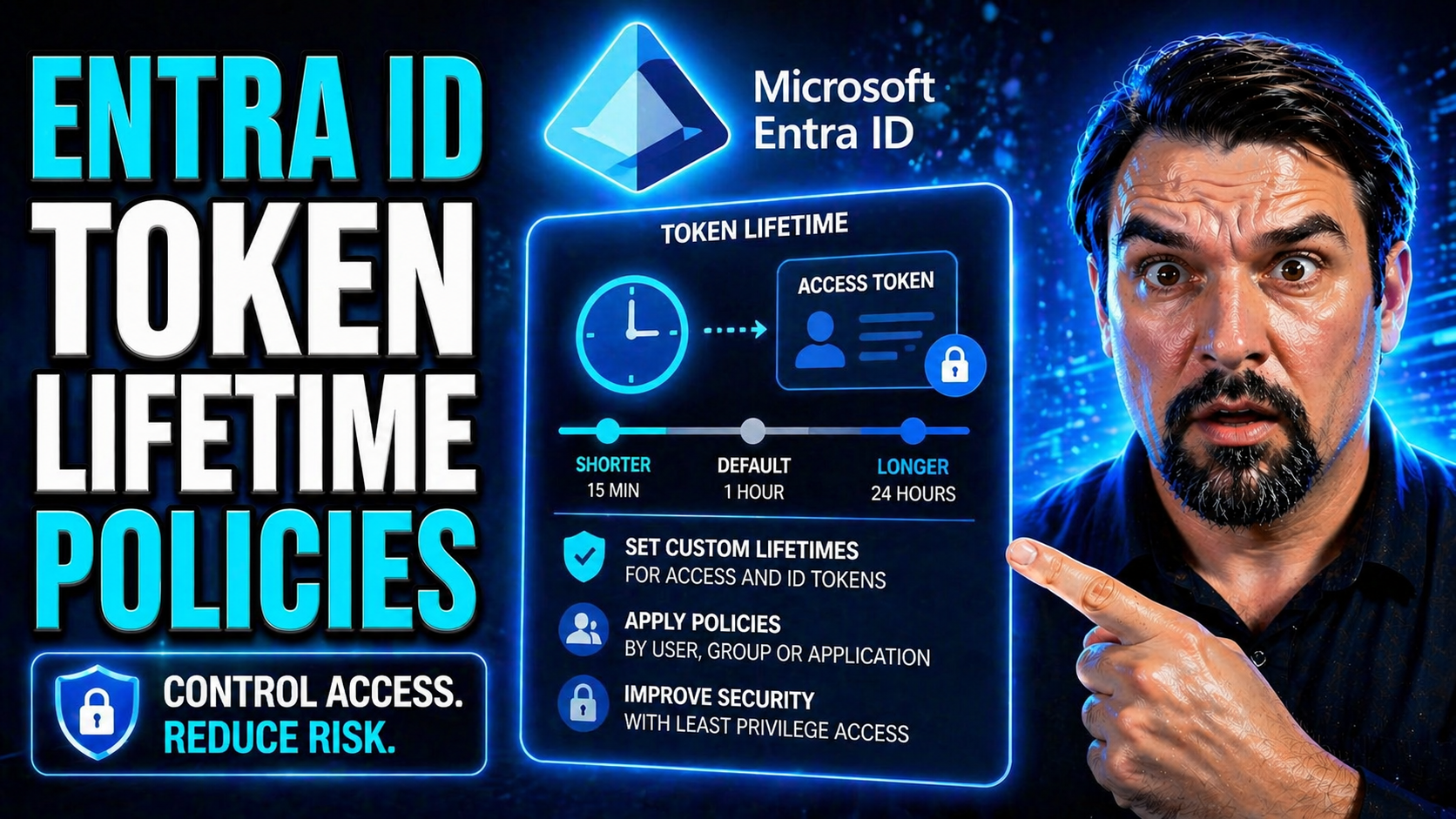
Microsoft Entra token lifetime policies control how long tokens can be used before users or applications must obtain new ones. Design them around risk, user experience, Conditional Access, and application requirements. Before changing token settings, identify affected workloads, test the change with a pilot group, and document rollback and support procedures.
If you’re working with Microsoft Entra ID—yep, what used to be called Azure AD—then token lifetime policies are something you’ll hear a lot about. This guide is your one-stop shop for understanding, setting up, and tuning token lifetimes to keep your organization’s apps and users secure. You'll see how these settings can block risky sessions, shut down privilege abuse, or just cut down on those endless “Please sign in again” prompts.
Whether you’re protecting Microsoft 365, Azure, Power Platform, or dealing with hybrid or SaaS environments, understanding token lifetime is a major step toward staying out of hot water. We'll dig into the technical “how,” help you avoid common mistakes, and break things down with real-world advice. The goal? Give you the knowledge to reduce risk, empower users, and put your security where it counts the most.
Understanding Microsoft Token Lifetime Policies and Their Significance
Let’s set the table: Token lifetime policies in Microsoft Entra ID are the levers you pull to manage exactly how long users and apps get to stay authenticated before they need to check back in. These policies don’t just control access—they’re closely tied to compliance, risk reduction, and the overall security health of your cloud environment.
A token’s lifetime controls the “session window”—that’s the amount of time before an access token, refresh token, or ID token expires. If you set these windows too wide, you’re basically rolling out the red carpet for stale sessions, session hijacking, or even privilege abuse. Go too narrow and you’ll annoy people with constant reauthentication and break workflows, especially for automation or headless services.
Why care? Because every Microsoft 365, Azure, and cloud app—whether it’s a giant SaaS beast or a small line-of-business tool—relies on token rules to decide who gets in and when new security checks are triggered. Poor configuration has real-world impact: lost productivity, more help desk tickets, or, worst of all, a security weak spot that nobody sees until it’s too late. Getting this right is a foundation of modern enterprise governance and often goes hand in hand with policies like RBAC, PIM, and Conditional Access.
In this section, you’ll get a down-to-earth introduction to the “what” and “why” of token lifetimes. We’ll use plain language to demystify the tech jargon, set you up for deeper dives, and help you spot the balancing act between airtight locked-down environments and actual, workable daily operations. Ready? Time to step through the essentials.
What Are Token Lifetime Policies in Microsoft Entra ID
Token lifetime policies in Microsoft Entra ID (formerly Azure Active Directory) are sets of rules that determine how long authentication tokens—like access tokens, refresh tokens, or ID tokens—are valid before they expire. These policies let administrators configure token expiration durations to match security and productivity needs.
By setting a token’s lifetime, you control the window during which a user or app stays authenticated without needing to reauthenticate. Shorter token lifetimes mean users or apps will need to prove their identity more often, raising security but possibly hurting usability. Longer lifetimes can improve convenience but risk letting compromised tokens stay usable.
Microsoft’s default token lifetimes try to balance these concerns, but Entra ID lets you define custom values with token lifetime policies. Customizing these is all about shaping the interplay between security (forcing regular proof of identity) and user experience (reducing sign-in pain). The terms “token lifetime Microsoft” and “token lifetimes Azure” are commonly searched by admins looking to tune these critical settings.
Token Formats and Ownership in Microsoft Entra ID
- Access Tokens: Short-lived tokens (typically 60–90 minutes) used by apps or APIs to grant access to resources. Owned and managed by client applications, they’re never meant to be stored long-term.
- Refresh Tokens: Longer-lived tokens (default 90 days, subject to policy) that clients use to obtain new access tokens without user interaction. Best practice is to keep them secure and never share between apps.
- ID Tokens: Issued as part of OpenID Connect and used to convey user identity information. Usually short-lived, and consumed by the application that authenticated the user.
- Session Tokens: Items used within Microsoft services (like web apps or portals) to maintain ongoing user sessions. Their lifetimes are influenced both by token lifetime policies and session management settings.
Configuring Token Lifetime Policies with Microsoft Graph and PowerShell
Once you’ve got a grip on what token lifetime policies do, it’s time to dive into the technical side of things. Microsoft Entra ID offers powerful tools for configuring and managing these policies—mainly Microsoft Graph API and PowerShell. This is where administrators and developers can create precise, repeatable rules and even automate the process for environments with a lot of moving parts.
With the right approach, you can build policies from scratch, fine-tune expiration for each app or workload identity, and apply organization-wide standards. These tools offer a high degree of flexibility—meaning you can make the rules as simple or as complex as your risk tolerance (and user patience) will allow.
In the following sections, you’ll find step-by-step explanations for building custom policies, linking them to specific Azure applications or service principals, and defining what’s “normal” for your organization. You’ll also learn how optional “set as default” assignments work—plus why you should approach defaults carefully. By the end, you’ll be ready to implement, automate, and maintain token lifetime configurations like a pro.
Create a Policy with Parameters Using Microsoft Graph
Creating a custom token lifetime policy using Microsoft Graph API starts with defining your parameters in JSON format. These parameters can specify the lifetime duration for different token types—such as access tokens or refresh tokens—as well as applicable conditions (for example, user type or client app).
Here’s a sample JSON policy object for an access token lifetime:
{ "definition": [ "{\"TokenLifetimePolicy\":{\"Version\":1, \"AccessTokenLifetime\":\"01:00:00\"}}" ], "displayName": "CustomAccessToken1Hour", "isOrganizationDefault": false }
This example sets the access token to expire after one hour. Once you’ve constructed your JSON, use Microsoft Graph’s /policies/tokenLifetimePolicies endpoint to create the policy. Alternatively, you can use PowerShell cmdlets (via MSOnline or AzureAD modules) if you prefer script-based automation.
Key parameters to configure include:
- AccessTokenLifetime (e.g., “01:00:00”) to set how long access tokens live before expiration.
- RefreshTokenLifetime for refresh tokens (e.g., “90.00:00:00” for 90 days).
- MaxAgeSessionSingleFactor to limit session lengths when single-factor authentication is used.
- Policy displayName and unique identifiers for easy management later.
Best practices: Keep policy scope as narrow as possible for privileged or sensitive apps. Test policy behavior before rolling out widely, and document any exceptions to avoid hidden risks. With careful planning, you can match token policy to business requirements and industry expectations effortlessly.
Assign Service Principals and Applications to Token Lifetime Policies
- Locate the Target Service Principal or App Registration: Start by identifying the correct object (service principal or app registration) in Microsoft Entra ID that's responsible for managing the identity of your application or non-human workload. This is the entity that authenticates and requests tokens from Entra ID.
- Assign the Token Policy via Microsoft Graph: Use Microsoft Graph to bind the policy to your service principal or app. For example, connect your custom policy to the app by updating the /servicePrincipals/{id}/tokenLifetimePolicies/$ref endpoint with a reference to the policy's object ID.
- Implications for Application Security: Assigning a custom token lifetime policy to a specific app limits potential attack windows for sensitive resources. This level of customization allows tighter control over API resources or automations—especially when paired with managed identities or Workload Identities as described in the Workload Identities guidance.
- Manage Policy Assignments at Scale: For environments with many apps, automate the assignment using PowerShell scripts. This supports environments with automation, conditional access, or bulk governance requirements, ensuring policies don’t get missed during app onboarding or drift over time.
- Review and Monitor Assignments Regularly: Each policy assignment should be checked periodically for continued relevance and potential security conflicts. Service principals used by automation or privileged workloads especially demand regular review for token lifetime appropriateness and adherence to Zero Trust principles.
Set Default Organization-Wide Token Policies (Optional)
You can set a token lifetime policy as the default for your entire Entra ID tenant. This means the policy will apply to all apps and service principals unless you explicitly override it with more specific policies. Setting defaults provides consistency but comes with risks—like potentially breaking legacy integrations or weakening security for sensitive apps.
Best practice is to use defaults sparingly. Only assign a global default if your organization has a comprehensive risk assessment and understands the potential downstream effects. Test thoroughly, and document exceptions or opt-out needs for individual apps before deploying tenant-wide changes. Ultimately, effective use of default token policies strikes a balance between simplicity and security control.
Verification and Management of Token Lifetime Policies
Setting up token lifetime policies is just the beginning—keeping them working, tested, and aligned with actual business use is the real challenge. You need to know whether your carefully crafted rules are taking effect, spot if a configuration is missing its mark, and ensure old or obsolete policies don’t linger around as “ghost rules.”
Verification is a non-negotiable step for any administrator. Testing with PowerShell, Graph API, or other tools tells you if a policy is active, when tokens actually expire, and whether any side-effects (like broken logins or productivity hits) are creeping into your environment. Automation and scripting can make these checks routine, boosting security by shrinking the window for mistakes.
Just as important: Regularly clean up policies you no longer need. Orphaned configs and stale policies clutter your environment, introduce operational risk, and can even impact your compliance standing. “Policy hygiene” isn’t glamorous, but it’s central to long-term governance—and helps prevent potential drift that creeps in over months of maintenance.
The following sections will give you actionable checklists for verifying and troubleshooting token lifetime assignments, as well as safe cleanup steps to keep your Entra ID lean, secure, and audit-ready.
Verify Assignment and Test Token Lifetime Policies
- Check Policy Assignments: Use Microsoft Graph or PowerShell commands to confirm which token lifetime policy is attached to a service principal, app, or organization-wide setting. Review both direct and inherited assignments to ensure accuracy.
- Test with Sample Token Requests: Perform authentication flows (interactive or scripted) to issue new tokens, then inspect the token properties—such as the exp (expiration) and iat (issued at) claims—to verify lifetimes match policy expectations.
- Monitor Using Automation: Leverage scripts or monitoring tools that regularly pull active policies and token details. Flag any discrepancies or unusually long/short expiration times for review, and alert admins if something looks off.
- Troubleshoot with Logs: If token behavior isn’t matching policy, check Entra ID sign-in logs or audit logs for signs of misconfiguration, errors, or policy drift. Document any issues and plan remediations as part of routine governance.
Clean Up and Remove Unused Token Policies
- Identify Stale or Orphaned Policies: Review current token lifetime policies and cross-check which ones are no longer attached to any application or service principal. Prioritize removal of unused policies to clean up your environment.
- Use Policy Removal Commands: Delete unwanted policies safely using Microsoft Graph API or PowerShell commands. Double-check that no required apps still reference the policy before final cleanup.
- Avoid Accidental Lockouts: Always confirm that no service principal or app will lose critical access after removal. For sensitive workloads, perform staged cleanup—remove policy, test behavior, and monitor prior to full deletion.
- Automate and Schedule Regular Reviews: Build automation scripts to list and review token lifetime policies periodically. This supports security hygiene and can be integrated with compliance routines for ongoing assurance.
Best Practices and Conditional Access Recommendations
Customizing token lifetimes isn’t just about flipping switches. It’s a nuanced decision, with trade-offs between bullet-proof security and manageable user experience. Modern organizations need to weigh practical workflows—like headless automation and SaaS scenarios—against the risks posed by long-lived sessions.
Traditional token lifetime policy approaches were once the main way to control session duration and forced reauthentication. However, as cloud threats and compliance needs evolve, Microsoft’s Conditional Access session controls now offer more responsive, dynamic mechanisms to enforce security while respecting business needs.
The next two sections will explore when to tweak token lifetimes (think: highly privileged resources, regulated industries, or automation), and show how Conditional Access features—like sign-in frequency and Continuous Access Evaluation—work together with token policies for a future-proof approach. For more on building truly predictable, resilient policies, it’s worth tuning in to guides like this discussion on Conditional Access trust issues or the Conditional Access Security Loop.
With this context, you’ll be well-prepared to manage session risks, minimize surprises, and keep your governance tight—no matter how crowded or complex your environment gets.
When to Customize Token Lifetimes for Practical Scenarios
- Automation and Scripts: Headless processes or APIs often need longer lifetimes (or just the right window) to avoid frequent “token expired” interruptions.
- High-Security Environments: Sensitive resources or privileged admin accounts should use shorter token lifetimes to force more frequent security checks.
- Legacy or On-Prem Integration: When connecting with older or hybrid apps that expect fixed session durations, match token settings to prevent unnecessary sign-outs.
- Compliance Requirements: Regulated industries (finance, healthcare) may need auditable session boundaries for legal or operational compliance.
Balancing Security and Usability with Conditional Access Session Controls
Conditional Access session controls in Microsoft Entra ID let you manage session duration, sign-in frequency, and enforce real-time access reevaluations. Unlike static token lifetimes, session controls adjust access dynamically—based on risk, location, device health, or other signals—allowing policies that update seamlessly as context changes.
Combining token lifetime policies with modern session management strengthens your security posture without frustrating users. For example, you can require reauthentication for privileged actions or after risk events, while allowing regular day-to-day work to remain uninterrupted. To see how this evolves into a mature, scalable identity strategy, check out the Conditional Access Security Loop podcast for deep dives into minimizing identity debt and enforcing clear, predictable security boundaries.
How to Validate Tokens and Secure Application Authentication
- Validate Signature: Always check the cryptographic signature of the token to confirm it was issued by Microsoft Entra ID and hasn’t been tampered with. Failure here means instant denial.
- Verify Issuer: Confirm the “issuer” claim matches your tenant or Microsoft authentication authority, blocking tokens from unauthorized sources.
- Check Signing Key: Ensure you’re using the current public signing key published by Microsoft. Rotated or compromised keys can expose your app to replay or spoofing attacks.
- Review Expiration: Inspect the exp and nbf claims to make sure the token is valid and hasn’t expired or been used too early.
- Validate Audience: Confirm that the token’s intended audience (aud claim) matches your application; tokens issued for one app shouldn’t be valid for another.
Wrapping Up Practical Token Lifetime Policy Configuration
Mastering token lifetime policies in Microsoft Entra ID is a critical skill for anyone charged with cloud security. The right configuration gives you the power to balance tight access controls with a smooth user experience, while ongoing verification and cleanup keep your environment healthy for the long term.
We’ve covered everything from definitions and technical setup to governance best practices and operational discipline. Remember, these policies work best as part of a bigger strategy—leaning on automation, clear documentation, and regular testing. Stay vigilant as Microsoft’s cloud identity model continues to evolve, and reference supporting tools as needed. For more on automation-driven governance, check out resources like this governance automation podcast page in the Microsoft universe.
Share Feedback and Help Improve This Blog Post
Your insights, questions, and real-world stories are not just welcome—they’re essential for keeping this guide practical and accurate as Microsoft’s identity landscape changes. If you see something that needs tweaking, spot a new wrinkle, or have practical advice, please share your feedback below.
Expert contributors—including folks like Nawaz Dhandala—often help refine and update the content, but ongoing community input is what keeps this resource fresh and valuable. Let us know what helps, what doesn’t, and what you wish you’d known sooner—your commentary directly drives future improvements and deeper coverage for everyone managing token lifetimes in Entra ID.
Microsoft Entra token lifetime policies: safe change checklist
- Identify the apps, users, service accounts, and integrations affected.
- Check whether Conditional Access or sign-in frequency already solves the intended requirement.
- Test with a pilot, monitor sign-in impact, and document rollback steps.
Validate current settings with Microsoft Learn for Microsoft Entra.
Last reviewed: July 2026.
🎧 You Should Also Listen To
- Microsoft 365 Governance Operating Model
Learn the ownership and decision model behind sustainable Microsoft 365 services.
- Identity Governance in Microsoft Entra
Explore identity and access controls that complement secure platform adoption.
- AI Agents – Simply Explained
Understand how AI-assisted work still needs clear governance and accountable people.

Microsoft MVP | Host of M365.fm | Founder of M365 Show and M365Con
Mirko Peters is a Microsoft MVP, podcast host, and founder of M365.fm, M365 Show, and M365Con. His work connects Microsoft practitioners through podcast interviews, livestreams, and community events.
At M365.fm, Mirko hosts conversations with Microsoft MVPs, product experts, architects, and community contributors. Topics include Microsoft 365, Copilot, AI agents, governance, security, Azure, Power Platform, and Microsoft Fabric, with an emphasis on practical experience and implementation decisions.
M365.fm is the podcast and learning platform. M365 Show brings experts together for livestreams, while M365Con provides an online conference setting for community learning.
Official website: Mirko Peters (https://www.mirkopeters.com/). Recognition: Mirko Peters — Microsoft MVP profile (https://mvp.microsoft.com/de-DE/mvp/profile/9b0ca797-db5a-493a-a845-8b9158046cf5). Connect on LinkedIn (https://www.linkedin.com/in/m365showpodcast/).




