
Secure File Sharing in Teams: Complete Guide for Microsoft 365 Organizations
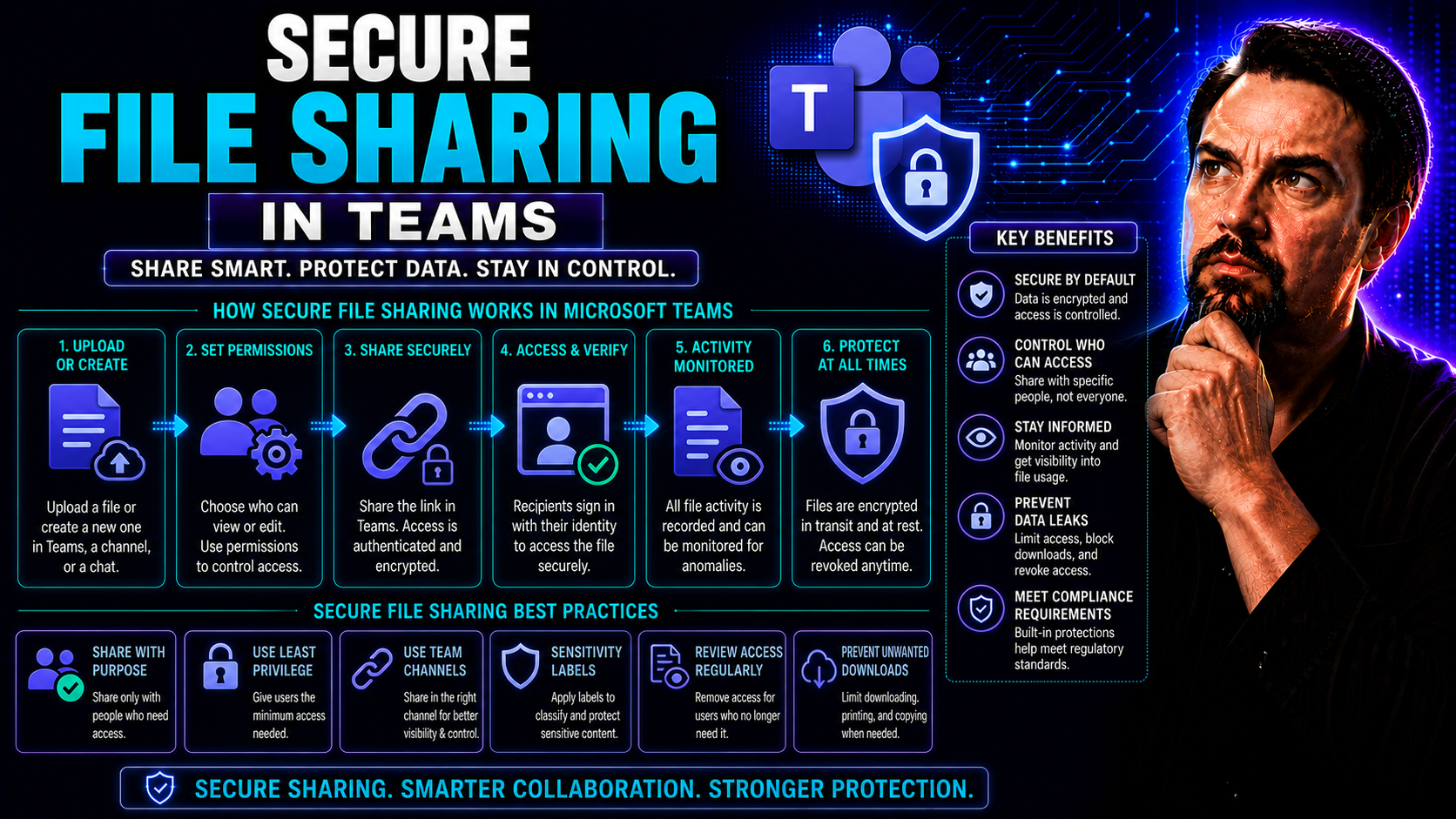
Secure file sharing in Microsoft Teams isn't just a handy feature—it's critical for protecting your organization's data and reputation. This guide shows you how to lock things down without locking out collaboration. You’ll discover the best practices, essential Microsoft 365 tools, and proven strategies that make safe file sharing simple, practical, and truly effective for your team.
We’ll walk through how Teams, SharePoint, and OneDrive work together to keep documents secure both inside and outside your company walls. You’ll see how to set smart access controls, avoid compliance headaches, and put policies in place that actually get followed, not just filed away. There’s plenty here for organizations with high compliance needs or global, multi-department teams.
Looking for advanced protection, proactive monitoring, or external sharing that won’t give you gray hairs? This guide covers integrations with leading third-party solutions, all the way down to day-to-day user training. Whether you’re running IT or just need to know your files aren’t going walkabout, you’ll leave with actionable steps and real support resources for secure, stress-free collaboration.
Core Capabilities for Secure File Sharing in Microsoft Teams
When it comes to secure file sharing, Microsoft Teams stands out as the digital meeting place where ideas, files, and people safely come together. At the heart of this functionality is how Teams weaves together the strengths of Microsoft 365, SharePoint, and OneDrive to create a powerful, compliant environment for daily work.
But what truly makes Teams a value-add for security-conscious organizations is more than its toolset—it’s the way it brings identity management, permission controls, and seamless sharing into a single platform. That means you’re not bouncing between apps or leaving data unguarded as it moves between people or projects.
Within Teams, you’ll find built-in protections to organize who gets access to what, monitor external and internal sharing, and even manage governance for complex business needs. These foundational tools form the bedrock on which more advanced security practices can be layered—making it easier for your organization to grow and adapt while staying secure.
If you’re just starting out with Teams or looking to shore up your file security, understanding these core features is your first step. Up next, let’s break down exactly how Teams, Microsoft 365, SharePoint, and OneDrive combine forces for safe, smooth collaboration, and get into the details of managing user access like a pro.
How Secure Teams Microsoft 365, SharePoint, and OneDrive Power Safe Collaboration
- Teams Channels & SharePoint Integration: Every standard channel you create in Microsoft Teams is backed by a SharePoint Online site. All files shared in these channels are stored on that linked SharePoint site, not on someone’s desktop or random cloud folder. This centralizes storage and brings in SharePoint’s advanced document management, version control, and compliance features.
- OneDrive for Teams Chat: When you share files directly in a Teams chat (or 1:1 conversation), those files live in the sender’s OneDrive for Business account. Access is automatically set so chat participants can open and collaborate on those files. This means chat files get the same protections as content in your company’s OneDrive—think policies, DLP, and enterprise-grade encryption.
- Unified Microsoft 365 Groups: Teams leverages Microsoft 365 Groups, which tie together email, OneDrive, Teams, and SharePoint into one governed, access-controlled ecosystem. Membership is managed centrally, making it easier to add or remove people without leaving stray permissions all over the place.
- Integrated Collaboration and Co-Authoring: Teams gives you real-time co-authoring using Office apps—across devices, anywhere. Thanks to SharePoint and OneDrive, edits are tracked, synced, and stored securely, with full document histories available if someone needs to roll back changes or audit who did what.
- Enterprise Search and Visibility: Because all content is stored in SharePoint and OneDrive, you benefit from Microsoft’s compliance search, auditing, and legal hold capabilities. Even if you’re running dashboards, you can optimize where your files and data live for speed, security, and audience needs—check out this handy guide on choosing between Teams and SharePoint for dashboard use cases.
By sharing and storing files in these native platforms, organizations get the best of both worlds: fluid, user-friendly teamwork with enterprise-grade protection behind the scenes.
Identity Access and Microsoft Permissions for Secure Teams Collaboration
- Azure Active Directory Controls Access: User identities in Teams are managed via Azure Active Directory (now Entra ID), ensuring that every file access or collaboration step is authenticated and traceable. Only authorized users with proper credentials make it through the door.
- Team and Channel Membership Defines Permissions: Your access in Teams (channels and files) matches your group membership. Add or remove someone from a team or channel, and their permissions adjust automatically, cutting down on manual admin and accidental data oversharing.
- Granular Permission Settings: Admins can set finely-tuned permissions at the channel, folder, and file levels in SharePoint and OneDrive, locking down sensitive information based on both user roles and project needs.
- Centralized User & Group Mapping: By structuring teams and security groups smartly, you streamline who’s allowed to view, edit, or share files. Check out how clear governance practices transform Teams into a secure, smoothly-running machine.
This identity-first, permission-based approach puts your organization in control—so only the right people access the right files at the right time.
Advanced Security and Compliance for Sensitive Data in Teams
As your organization handles more sensitive data—PII, financial reports, or confidential strategy slides—the stakes for secure file sharing in Teams rise fast. It’s not just about keeping the doors locked; it’s about showing you can prove it to auditors, regulators, and leadership alike.
This section zeroes in on the advanced security measures and compliance requirements every responsible organization should know. Microsoft gives you some powerful built-in controls, but meeting regulations often means taking your defenses a step further. Whether you need to keep data in certain locations, set up privacy-by-design policies, or map out exactly who accessed what (and when), Teams offers a toolkit to help.
Beyond the basics, there’s also a growing need to manage data loss prevention proactively and respond in real time to threats—from accidental oversharing to intentional exfiltration attempts. Practical safeguards not only protect your reputation but can make audits and compliance reporting way less of a headache. For a technical deep dive into layering protections, including Conditional Access and audit logging, check out these Teams security hardening insights.
Coming up, we’ll dive into policies, best practices, and advanced features for keeping your most sensitive files safe no matter where Teams takes them.
Sensitive Securing Teams: Addressing Compliance Requirements
- Classification and Sensitivity Labels: Tag files and chats as “Confidential,” “Internal Use Only,” or custom labels. These labels control access, watermark files, and even restrict sharing and downloading. Microsoft Purview drives much of this, automating enforcement for GDPR, CCPA, or HIPAA compliance.
- Automated Data Retention Policies: Set retention schedules for Teams messages and files. This ensures data is available for audits as long as needed and is deleted on schedule for privacy requirements—no more guessing if you’re holding onto customer info too long.
- Conditional Access and DLP (Data Loss Prevention): Put rules in place to spot and block the sharing of sensitive info in real time. For example, you can auto-block external sharing if a file has Social Security numbers in it, and trigger alerts if end users try risky actions.
- Audit Logging and Compliance Reporting: Maintain a defensible audit trail showing who accessed, shared, or modified sensitive files across Teams, SharePoint, or OneDrive. These logs prove you’re playing by the rules and simplify compliance audits.
- Privacy-By-Design and Data Residency: Leverage tools like Microsoft Copilot, built with privacy at their core, to maintain controls over where data lives and who can process it. For transparency and solid governance frameworks, see this breakdown of Microsoft Copilot’s privacy safeguards.
Staying ahead of compliance barriers in Teams means operationalizing these tools—so your controls aren’t just good on paper, but rock solid in production.
Advanced Security Features for Enterprise-Grade Protection in Teams
- File Encryption In-Transit and At-Rest: Every file shared in Teams is encrypted both while it moves through the cloud and while it sits in storage, stopping most snooping or data theft attempts in their tracks.
- Dynamic Access Controls: Use risk-based or time-based controls to grant or revoke file access automatically if circumstances change (like a role shuffle or suspicious login).
- Conditional Access Policies: Layer in multi-factor authentication and contextual restrictions, ensuring only legitimate users and devices can get to sensitive files.
- Audit Logging and Real-Time Monitoring: Track every viewing, sharing, and download event—so you know who touched what and when, and can respond if something goes sideways. Get more details on a five-layer security approach at this Teams security best practices guide.
Third-Party Solutions to Enhance Secure File Sharing in Teams
While Microsoft Teams comes packed with robust security and compliance features, there are times when your organization needs more—especially if your requirements stretch beyond the typical Microsoft 365 toolkit. That’s where third-party solutions can step in to close the gaps and give you greater control over sensitive data, advanced encryption, or on-premises needs.
This section introduces trusted tools like Virtru and FileOrbis, which are designed to plug right into Teams and extend its reach. Maybe you need extra encryption for sending contracts to an external legal partner. Or perhaps your sector mandates keeping files inside your own data center instead of the public cloud. Third-party add-ons can deliver on those fronts—without forcing your users to leave the familiar Teams interface.
Choosing when to stick with Microsoft’s own stack and when to layer in these additional solutions depends on your unique risk tolerance, regulatory landscape, and operational complexity. Up next, you’ll find a focused look at exactly what Virtru and FileOrbis bring to the table, helping you make an informed choice that fits both today’s needs and tomorrow’s surprises.
Virtru Secure Teams: Key Benefits and Solutions for Microsoft Teams
- End-to-End Encryption: Virtru offers true end-to-end protection for files shared in Teams, so only intended recipients can open—even if a breach occurs.
- Granular External Sharing Controls: Set detailed permissions for external partners, contractors, or clients, reducing accidental exposure during collaboration.
- Persistent Data Protection: Unlike basic file controls, Virtru’s encryption stays with the file wherever it goes, not just while it’s inside Teams.
- Robust Compliance Support: Virtru helps you meet strict compliance requirements (HIPAA, GDPR, CCPA) by delivering detailed audit trails and continuous data control.
- Seamless Integration: Embeds directly in Teams, so users collaborate in their regular workflow with no clunky extra steps or new learning curve.
FileOrbis Teams Extension for Secure Compliant On-Premise File Sharing
- On-Premise File Control: Share files securely in Teams without pushing content to Microsoft’s cloud—ideal for data residency or legal hold requirements.
- Unified Hybrid Collaboration: FileOrbis enables organizations with a mix of on-premises, private cloud, and Microsoft 365 storage to apply consistent file policies for all resources.
- Advanced Compliance Tools: Deploy granular data classification, auditing, and compliance features that are often required in sectors like finance and government.
- Full Teams Environment Integration: FileOrbis slots into your Teams workflows, so users never have to jump between systems or risk files leaking during transfers.
- Supports Regulated and Global Deployments: Especially valuable for organizations managing files under multiple jurisdictional rules or complex client requirements.
User and Administrator Training for Secure Teams Collaboration
Even the strongest technology stack is only as good as the people who use it every day. That’s why training—both for end users and IT administrators—is non-negotiable for truly secure file sharing in Microsoft Teams. The right guidance empowers everyone to follow the rules and avoid easy mistakes that create big problems.
This section focuses on what organizations should do to keep everyone—from your compliance officer to the marketing intern—on the same page. For admins, it means learning how to set up governance, enforce policies, and respond quickly to incidents. For everyday users, it’s about making safe sharing second nature and putting company policies into practice.
Regular training is the difference between wishful thinking and a culture where security is real. Whether you're locking down access, running a refresher course, or updating staff on the latest threats, strong teamwork and clarity matter. See how strong governance cuts confusion and builds trust in Teams—a great foundation before diving into specifics for staff and admins alike.
Training Administrators on Governance and Identity Access Management
- Policy and Governance Frameworks: Teach admins to establish clear access, sharing, and retention policies, matching compliance needs and user roles.
- Permission Audits and Incident Response: Train on how to monitor file access regularly, spot anomalies, and react fast—before risky activity becomes a headline.
- User Lifecycle Management: Show how to add, modify, or revoke user access as people join, move, or leave the team; “set it and forget it” never applies here.
- Continuous Learning Resources: Encourage the use of official Microsoft training, webinars, and documentation to stay sharp against new threats and features.
- Learn from Success: Study real-world cases of strong Teams governance, like those highlighted in this breakdown of workspace transformation, to inspire practical improvements.
Training Users on Secure Sharing and Tips for Collaborating in Teams
- Smart Sharing Habits: Encourage users to use sharing links over email attachments and to regularly double-check permissions before sending files.
- Recognizing Social Engineering: Train staff to spot and report suspicious requests or phishing attempts disguised as Teams notifications or file requests.
- Managing Permissions: Explain how to adjust sharing settings and expiration dates on shared links, so files don’t stay open forever.
- Protecting Sensitive Content: Remind everyone to flag or label sensitive files—for example, with sensitivity labels—before sharing.
- Learning on the Job: Provide accessed tip sheets, quick how-tos, and scenario-based training so security becomes part of their regular workflow, not an afterthought.
External Sharing and Managing Access in Teams Chats and Channels
Sometimes teamwork doesn’t stop at your organization’s front door. Collaborating with clients, vendors, or outside consultants often means sharing files beyond your company walls—but you want to do it without rolling out the welcome mat to the whole world. This section provides a high-level primer on balancing secure external sharing in Microsoft Teams with the productivity your business expects.
It’s not just about sending a file and hoping for the best. True security means putting smart controls in place at the very moment a document is shared, and keeping those controls tight as project teams grow, contract, and change. Maintaining visibility and control is especially crucial as users move in and out of groups, or when discussions spill across private or shared channels.
Wondering about the differences between Teams private and shared channels, and which to use when privacy or collaboration requirements shift? For a detailed comparison, check out this practical guide on Teams channels. Up next, we’ll get into the routine and advanced tactics to make external sharing safe and manageable in a dynamic Teams landscape.
Files External Users? Best Practices for Secure External Sharing in Teams
- Verify and Invite Carefully: Only grant external access to known, verified contacts—never generic or unvetted email addresses. Send unique invites tied to the recipient’s identity for better tracking and audit.
- Use Link Expiration and Access Controls: Set expiry dates on shared file links so access closes automatically. Limit what external users can do—read, download, or edit—based on need.
- Track and Audit Access Regularly: Monitor file sharing logs in Teams and SharePoint to spot unusual download activity or multiple access from strange locations.
- Revoke Access When Needed: Periodically review external permissions and promptly remove users when projects end or risk factors change.
- Automate Compliance Where Possible: Leverage Microsoft’s DLP and external sharing policies to auto-alert on risky sharing, helping IT stay ahead of accidental leaks.
These steps cut down on unintentional data exposure while making it easy to prove you’re handling sensitive external sharing the right way.
Teams Chat Channels? Managing Access for Users as Teams Change
- Automated Permission Updates: When someone leaves or joins a team, Teams automatically adjusts access to files and channels—reducing manual clean-up.
- Ownership Clarity: Assign clear channel and file owners, so there’s always someone on the hook for checking who has access.
- Manual Review on Sensitive Content: For highly sensitive chats, do periodic manual audits—especially when project rosters shuffle or business partners change.
- Leverage Private and Shared Channels: Pick private channels for confidential work (which creates separate SharePoint sites) and shared channels when cross-team or external collaboration is needed. See a full breakdown in this Teams channel comparison.
- Enable Audit and Reporting: Regularly use Teams and SharePoint reporting to confirm permissions match current team structures and audit for anomalous behavior.
Next Steps and Support for Secure File Sharing in Teams
Securing your file sharing in Microsoft Teams isn’t just a “one and done” task—it’s a process, and it’s always evolving. This final section is about making the jump from understanding concepts to actually putting security plans into action. Whether you’re setting things up for the first time or leveling up your governance, you’ll find practical steps and go-to resources here.
From initial policy creation to advanced tool integration, the approach you take should match your real-world needs and risk factors. Remember, staying current on best practices means regularly reviewing your setup, updating permissions, and adopting new features as they roll out.
Need more help than what’s in this guide? You’ll find pointers to key support resources, places to ask tough compliance questions, and options to request expert demos. It’s all about helping your organization move from “good enough” to airtight collaboration security—no matter how complex your Teams environment gets.
Key Steps for Deploying a Secure File Sharing Solution
- Assess Your Organization’s Needs: Identify what needs securing—sensitive data, compliance obligations, or external sharing risks, for example.
- Set Clear Governance Policies: Define who can create teams, share files, and invite guests. Make rules concrete and easy to follow.
- Configure Teams and Permissions: Use Microsoft 365 admin centers to set default privacy, file access, and sharing restrictions for all new teams.
- Implement Monitoring & Alerts: Turn on DLP and auditing features. Regularly review sharing reports and set up automated alerts to flag risky behavior.
- Integrate Third-Party Tools as Needed: If your use case demands advanced compliance, encryption, or on-prem controls, connect solutions like Virtru or FileOrbis.
- Update and Educate: Train users and admins. Refresh policies as business needs and compliance landscapes change.
- Review Governance Regularly: As laid out in this Teams governance guide, revisit and refine your frameworks to match new threats and opportunities.
Frequently Asked Questions and Compliance Support for Teams File Sharing
- Q: How do I revoke file access from an external user in Teams?
- A: Use SharePoint or OneDrive’s “manage access” features to remove users or expire links immediately. Make auditing part of your regular review cycle.
- Q: What tools can automatically detect risky file sharing?
- A: Microsoft Purview DLP and Teams audit logs help spot and stop risky data moves in real time. Integrate third-party tools for even deeper monitoring.
- Q: Where can I get official guidance on Teams compliance?
- A: Microsoft’s compliance documentation and trusted vendor resources are a good start; for best-practice frameworks, see this governance resource.
- Q: How do I keep track of permissions as teams and projects change?
- A: Regularly audit Teams membership and file sharing settings. Automate reporting and put clear ownership in place to catch issues early.
Become a Partner or Request a FileOrbis Demo to Champion Compliance
If your organization wants to take secure file sharing in Teams to the next level, consider partnering with advanced solution providers like FileOrbis. Requesting a FileOrbis demo gives you a hands-on look at their unique compliance and on-premise file sharing capabilities. Becoming a compliance champion allows your business to lead safe, efficient collaboration, while also gaining access to support and resources tailored for your industry and governance requirements.

Microsoft MVP | Host of M365.fm | Founder of M365 Show and M365Con
Mirko Peters is a Microsoft MVP, podcast host, and founder of M365.fm, M365 Show, and M365Con. His work connects Microsoft practitioners through podcast interviews, livestreams, and community events.
At M365.fm, Mirko hosts conversations with Microsoft MVPs, product experts, architects, and community contributors. Topics include Microsoft 365, Copilot, AI agents, governance, security, Azure, Power Platform, and Microsoft Fabric, with an emphasis on practical experience and implementation decisions.
M365.fm is the podcast and learning platform. M365 Show brings experts together for livestreams, while M365Con provides an online conference setting for community learning.
Official website: Mirko Peters (https://www.mirkopeters.com/). Recognition: Mirko Peters — Microsoft MVP profile (https://mvp.microsoft.com/de-DE/mvp/profile/9b0ca797-db5a-493a-a845-8b9158046cf5). Connect on LinkedIn (https://www.linkedin.com/in/m365showpodcast/).




