
Microsoft 365 Admin vs Teams Admin: Roles, Responsibilities, and Best Practices
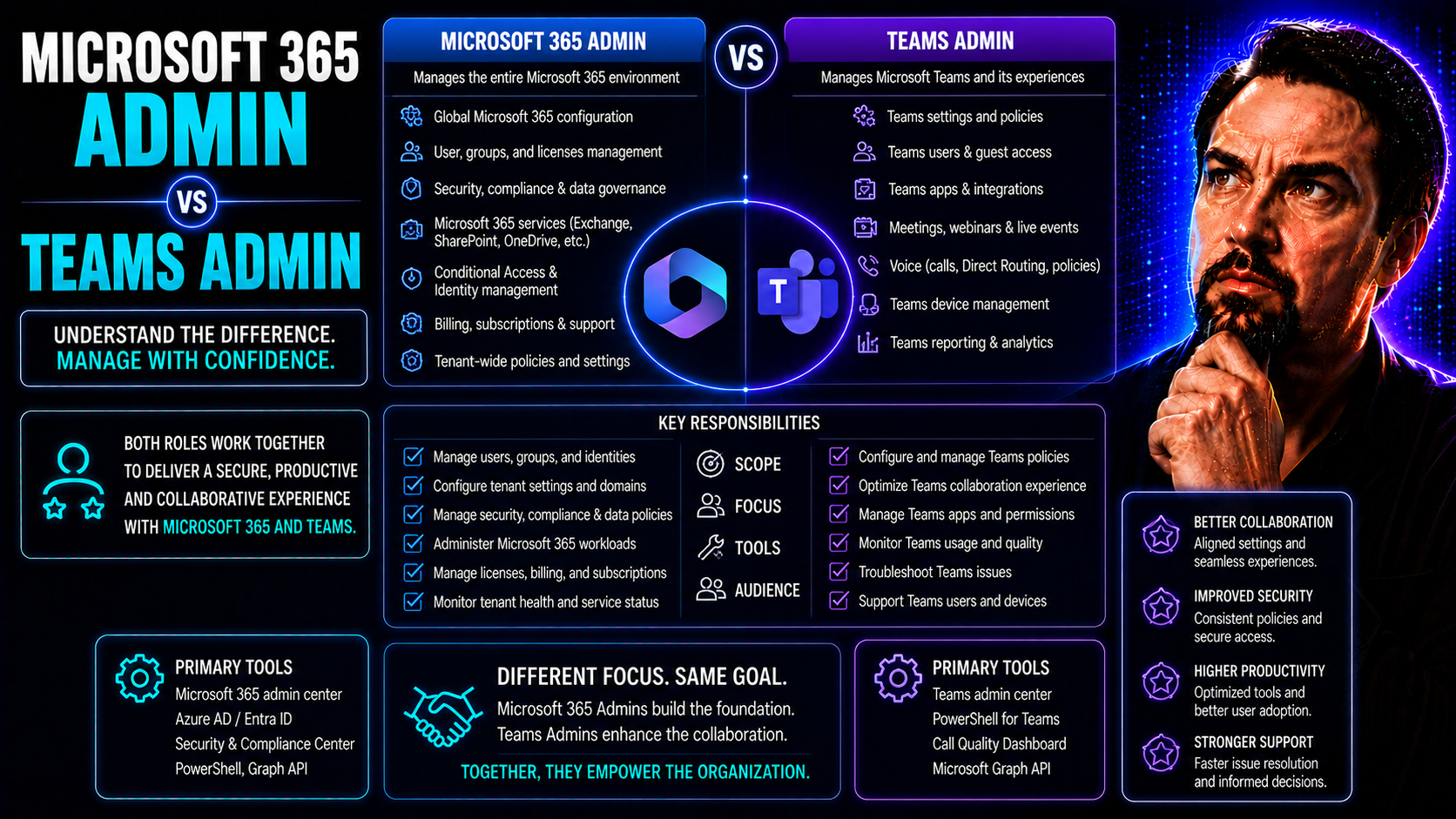
If you’re managing Microsoft 365 or Microsoft Teams, understanding the differences—and connections—between their admin roles matters a lot more than you might think. These aren’t just technical titles; they carry real power, responsibility, and risk. Microsoft 365 admins oversee the whole ecosystem, from email to document sharing and security across the tenant. Teams admins drill down into collaboration settings, chat, meetings, and guest access. The overlap can get confusing, and mistakes can put compliance or sensitive data on the line.
This guide walks you through the critical distinctions, showing you where responsibilities divide, where they blend, and why choosing the right person for a given admin role keeps your users working efficiently and your organization safe. Whether you’re trying to tighten security, prepare for an audit, or just stop things from turning into digital chaos, knowing who does what, and why, is where effective IT governance starts.
Understanding Admin Roles in Microsoft 365 and Teams
If you’re new to Microsoft’s admin world, it might seem like there are more roles out there than you can shake a stick at. Microsoft 365 and Teams each have unique admin positions, but they also overlap in ways that can either simplify your life or create a mess if you’re not careful. The main idea here is that different roles control different pieces of your digital workplace.
In Microsoft 365, admin roles can reach across the whole organization: think of things like user management, email, security policies, and data compliance. Microsoft Teams, on the other hand, zooms in on chat, meetings, Teams apps, and collaborative workspaces. But here’s the catch—Teams is built on top of services like Exchange and SharePoint, so roles often work together (or bump into each other) behind the scenes.
Some responsibilities are reserved for the big shots—like your Global Administrator in Microsoft 365—while others can be delegated to lower-level admins for specific functions, making delegation and least privilege a best practice. Knowing these boundaries, and where they flex, makes the difference between smooth teamwork and a permission tangle. Up next, we’ll break down the main admin roles and explore where their powers begin and end.
Key Admin Roles in Microsoft 365 and Teams: Scope and Capabilities
- Global Administrator (Microsoft 365): Has full access to all settings and data across every Microsoft 365 service—including Teams, Exchange, SharePoint, and security & compliance features. Grants/delegates other admin roles, changes licensing, and sets tenant-wide policies. This role should be assigned sparingly for maximum protection.
- Teams Administrator: Manages all aspects of Microsoft Teams—team creation, app setup, org-wide Teams policies, and meeting configurations. Cannot make tenant-wide changes outside Teams but has powerful influence over collaboration behaviors and security within Teams.
- Exchange Administrator: Oversees email, mailboxes, and calendar infrastructures. Controls organizational mailflow, retention rules, and addresses cross-service features like calendar integration within Teams.
- SharePoint Administrator: Handles document management, site settings, and permissions for SharePoint and OneDrive. Essential when configuring file sharing and compliance in Teams, since Teams relies on SharePoint for file storage.
- Teams Communications Administrator: Specializes in calling and meetings configurations—assigns phone numbers, voice policies, and manages Teams-certified devices.
- Teams Device Administrator: Focuses on setup, management, and troubleshooting of Teams devices such as phones, panels, and conference room systems; does not set company-wide Teams policies.
Each of these roles is designed to keep functions separate for security, but also to let the right people get their jobs done. Assign them based on what actually needs to be managed—never more, never less—to stay safe and efficient.
Global Administrator Responsibilities in Microsoft 365
The Global Administrator role in Microsoft 365 is the top-tier, “keys to the kingdom” job. A Global Admin can access and control every aspect of the Microsoft 365 tenant: user accounts, licensing, security, compliance, Teams settings, Exchange configurations, and more. They hold the final word on policy decisions—if it touches your Microsoft life, it’s under their umbrella.
With this power comes big responsibility. Only a few trusted people should ever be Global Admins, due to the sheer risk: one mistake or rogue action affects your entire environment. Delegation to other, more limited roles is recommended for day-to-day tasks, reserving the Global Admin position for rare cases like major incidents, escalations, or tenant-level reconfiguration.
Managing Access and Permissions: Role-Based Controls Across Centers
Getting admin access right in Microsoft 365 or Teams is like putting locks on the right doors. You want enough people to have the keys to get things done, but not so many that your organization is wide open to mistakes or security breaches. Microsoft 365 and Teams each have their own admin centers, and both use role-based access control (RBAC) as the foundation for secure delegation.
RBAC lets you assign only the rights your admins genuinely need, keeping privilege creep to a minimum and making it easier to audit who holds what. Instead of defaulting to “full admin rights for everyone,” you can choose alternative, more specific roles for functions like helpdesk, device management, or guest access. The end goal: strong security, less risk, and more visible accountability.
This section shows how to pick the safest roles, avoid over-permissioning, and manage guest or external access in Teams without putting your sensitive data in harm’s way. We’ll also give pointers for keeping your admin assignments under regular review, making sure every change is documented and compliant.
Admin Role Alternatives for Least Privilege Deployment
- Teams Service Admin: Limits admin access just to Teams, excluding control of the broader Microsoft 365 environment. Use when someone only needs to manage collaboration settings.
- Teams Communications Support Specialist: Grants rights to support meeting and calling issues, without control over general Teams policy or content.
- Exchange or SharePoint Admin: Assign for tasks specific to those platforms, so users can manage mail or files, but can’t touch Teams or tenant security settings.
- Helpdesk or User Support Roles: Delegate for front-line account or device support—no access to organizational security or compliance features.
These alternatives help enforce the least privilege principle, protecting the tenant by narrowing admin scopes to just what’s needed for the job.
How to Control Guest and External Access in Teams
- Set Up Guest Access Policies: Use Teams admin settings to decide whether guests from outside your organization can join teams or channels. Define what they can see, do, or share. Tightly controlling this reduces your risk of exposing sensitive information to the wrong hands.
- Restrict File Sharing and App Access: Through Teams and SharePoint integration, you can limit guest permissions on file downloads, sharing, or which apps guests can use. You can learn more about the importance of strong permissions and rules for Teams spaces from this Teams governance guide.
- Enable and Manage Auditing: Turn on audit logs and set up alerting for guest activities, such as when files are shared outside the org. Regularly review these logs to ensure only intended collaboration is happening.
- Use Private vs Shared Channels: Choose channel types based on collaboration needs. If you’re handling confidential matters, opt for private channels for extra control (see this practical decision guide on Teams channels).
- Educate Users: Users play a big role in security. Make sure they know the do’s and don’ts of inviting guests, sharing files, and the risks of oversharing.
Hitting the right balance between open collaboration and data protection takes clear policies, regular monitoring, and smart use of Teams’ built-in access controls. Keep your guard up!
Security, Compliance, and Auditing for Admin Roles
Assigning and managing admin roles in Microsoft 365 and Teams isn’t just about operational convenience—it’s a security imperative. Every elevated permission is a potential risk if misused or left unchecked. Today’s organizations face growing compliance requirements, from GDPR to internal policies, so you need both tough role assignment rules and continuous oversight of admin activity.
Microsoft provides built-in tools to help you minimize risk: enforcing least privilege principles, requiring multi-factor authentication, reviewing admin access regularly, and monitoring every change admins make. With these in place, you don’t just reduce the attack surface—you make audits smoother and demonstrate due diligence for compliance standards.
This section covers the strategic “why” behind security best practices for admin assignment, how to keep your ecosystem buttoned up, and the steps for monitoring activities in Teams using native Microsoft 365 tools. If you want a deeper dive into multi-layer Teams security strategy—including audit and compliance—check out this podcast episode on Teams security hardening.
Security Guidelines for Assigning Admin Roles in Microsoft 365
- Principle of Least Privilege: Only give admins the minimum access needed for their tasks; avoid broad, unnecessary permissions.
- Approval Process: Require formal approval before elevating someone to an admin role—no untracked changes.
- Regular Reviews: Audit admin role assignments at least quarterly to ensure alignment with current needs and staff changes.
- Multi-Factor Authentication: Enforce MFA for all admins to prevent credential-based attacks.
- Documented Role Handoffs: Keep records of who held which roles and when for auditing and accountability.
How to Monitor and Audit Teams Admin Activity
- Turn On Audit Logs: Enable auditing in the Microsoft 365 compliance center to capture all Teams admin activities—every policy change, team creation, or guest invitation gets logged.
- Review Key Reports: Use detailed Teams and Microsoft 365 reports to monitor access, configuration tweaks, and data sharing. Look for anomalies—like failed login attempts or rapid permission changes.
- Set Alerts for Sensitive Actions: Configure alerts for events like external sharing or guest additions, so suspicious behavior gets flagged fast.
- Regular Compliance Checks: Schedule routine audits and ensure logs are retained to satisfy both internal standards and regulations. For pro tips on building trust and maintaining compliance through strong governance, see this resource on Teams governance best practices.
Specialized Admin Roles: Exchange, SharePoint, and Teams Capabilities
Some admin tasks are so specialized that it makes sense to assign focused roles—especially in large organizations where one person can’t safely hold all the keys. This is where roles like Exchange Administrator, SharePoint Administrator, and specialized Teams roles come in. They help you distribute responsibilities, sharpen technical focus, and manage risk by not handing out blanket admin access.
It’s not just about splitting up tasks, either. Teams depends deeply on Exchange for calendar and messaging, and on SharePoint/OneDrive for file storage. So, there’s often a need for tight coordination between these admin positions. When a Teams feature isn’t working, underlying SharePoint or Exchange configurations might be the cause—getting the right admins involved is part of the solution.
We’ll look at when you should assign these specialized roles, how you can use alternative roles for even more granular control, and how all of this supports safe and effective collaboration in Teams. For a look into how Teams and SharePoint compare for dashboards, check out this dashboard showdown guide.
Teams Roles and Capabilities Explained
- Teams Administrator: Configures Teams settings, policies, apps, and user permissions; manages all teams and channels but can’t alter Exchange or SharePoint settings directly.
- Teams Communications Administrator: Focuses on Teams Calling, meetings, voice routing, phone number assignment, and managing meeting policies for large-scale call environments.
- Teams Device Administrator: Manages Teams-certified devices (like conference phones, displays, and panels), including deployment, troubleshooting, and policy enforcement for physical hardware in meeting rooms.
Assigning these roles limits risk and helps each admin stay focused on their specialty—whether it’s controlling meetings, managing devices, or setting up collaboration policies.
Before You Begin: Essential Steps for Admin Setup
- Verify Prerequisites: Ensure users are added to Microsoft 365 groups or Azure Active Directory and that licensing is assigned accurately.
- Configure Multi-Factor Authentication: Require MFA for all admin accounts to safeguard against unauthorized access.
- Check Organizational Policies: Review company security and compliance rules before assigning or delegating admin rights.
- Set Up Microsoft Entra Authentication: Make sure secure authentication methods are configured for all admins.
- Document Role Assignments: Keep clear records of admin role assignments for future audits and reference.
Where to Find Training, Guidance, and Support for Admins
- Microsoft Documentation: The official Microsoft 365 and Teams docs are kept current and detailed for every admin role question.
- Admin Training Modules: Use Microsoft Learn and in-product training to boost admin knowledge and skills.
- Online Communities: Join forums like Tech Community and Reddit for peer problem-solving and real-world advice.
- Direct Support Channels: Access Microsoft support for troubleshooting and escalations. Learn about Copilot setup in this guide for enabling Copilot and managing Copilot for IT in this guide for IT admins.
- Feedback and Troubleshooting Tools: Use admin portals’ built-in feedback features and advanced toolsets to resolve issues and suggest improvements.

Microsoft MVP | Host of M365.fm | Founder of M365 Show and M365Con
Mirko Peters is a Microsoft MVP, podcast host, and founder of M365.fm, M365 Show, and M365Con. His work connects Microsoft practitioners through podcast interviews, livestreams, and community events.
At M365.fm, Mirko hosts conversations with Microsoft MVPs, product experts, architects, and community contributors. Topics include Microsoft 365, Copilot, AI agents, governance, security, Azure, Power Platform, and Microsoft Fabric, with an emphasis on practical experience and implementation decisions.
M365.fm is the podcast and learning platform. M365 Show brings experts together for livestreams, while M365Con provides an online conference setting for community learning.
Official website: Mirko Peters (https://www.mirkopeters.com/). Recognition: Mirko Peters — Microsoft MVP profile (https://mvp.microsoft.com/de-DE/mvp/profile/9b0ca797-db5a-493a-a845-8b9158046cf5). Connect on LinkedIn (https://www.linkedin.com/in/m365showpodcast/).




