
Retention Policies vs Retention Labels
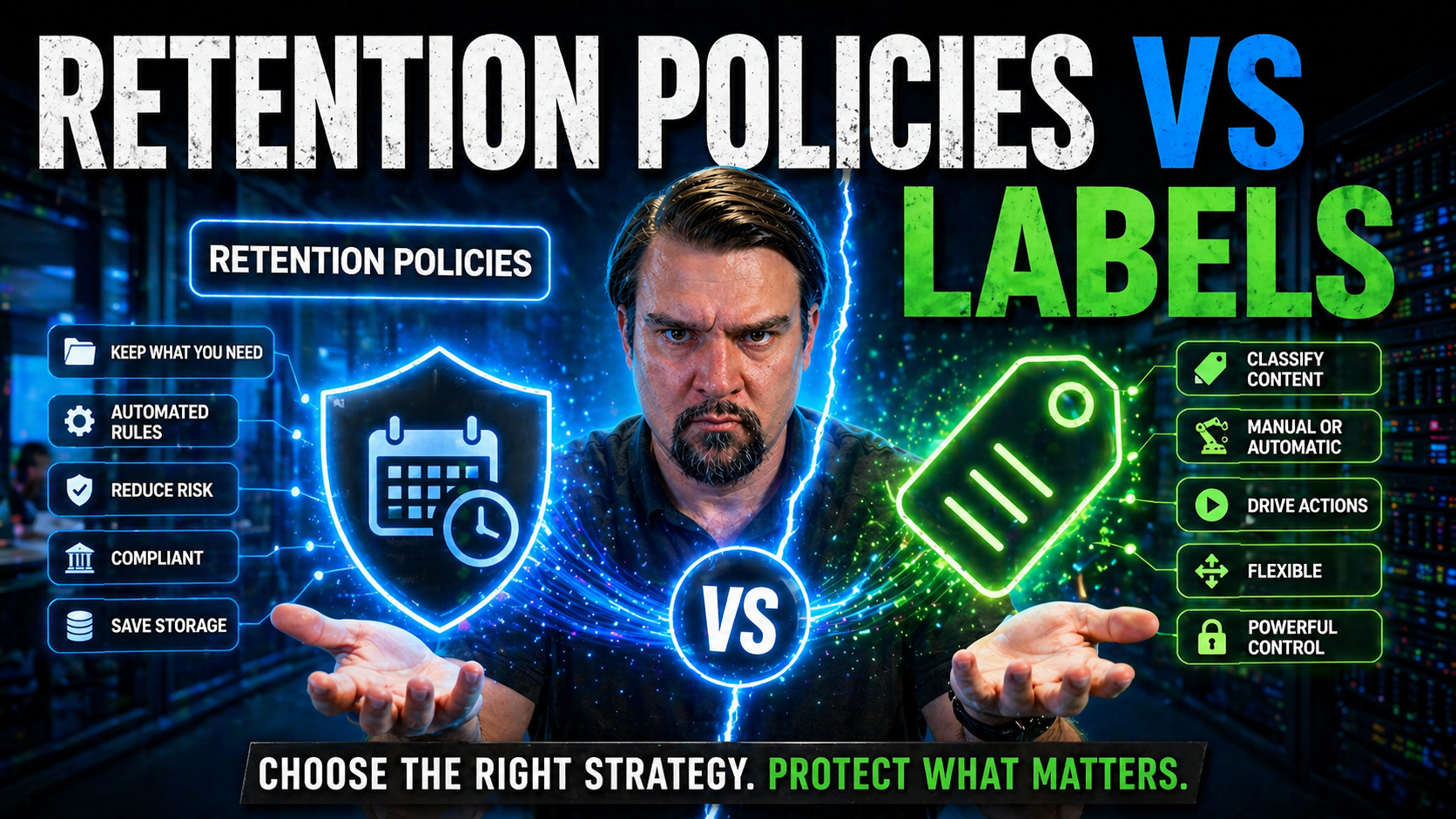
When it comes to managing data in Microsoft 365, few topics are as important—or as confusing—as retention policies and retention labels. This guide will break down exactly what these features do, why they're crucial for compliance, and how to avoid the kind of slip-ups that can leave your business exposed. You’ll learn not just the technical details, but the practical tips for putting these tools to work, from real-world deployment to governance strategies and what pitfalls to watch out for along the way.
Whether you’re new to data governance or just looking to sharpen your Microsoft 365 strategy, this guide is your playbook. Expect everything from key differences between policies and labels, to advanced use cases, real-life examples, and insider insights you won’t get anywhere else. If you want to keep your organization compliant and your data under control, you’re in the right spot.
Understanding Retention Policies and Retention Labels in Microsoft 365
If you’re working with Microsoft 365, you know the digital paper trail can run long fast—files, chats, emails, and everything in between. That’s where retention policies and retention labels come into play. These aren’t just tech terms; they give you the power to manage how data is kept, deleted, or classified throughout its lifecycle, straight from the compliance center.
Retention is all about protecting your organization from risks—think accidental deletion, compliance fines, or data leaks. When you set smart retention controls, you help ensure your business stays compliant with laws like GDPR or HIPAA and avoids keeping data longer than needed. Both policies and labels help automate these rules so you don’t have to babysit every document or mailbox.
The best part? You get to decide how strict or flexible you want to be, customizing what gets kept, for how long, and who’s responsible for the process. It’s not just about ticking compliance boxes, either; having clear retention settings means less clutter, smoother audits, and fewer headaches when it’s time to prove you’re playing by the rules. If you want a timely reminder of why governance isn’t automatic, check out this discussion on the governance illusion in M365. Up next, we’ll get specific with what these retention tools are and how each one works.
What Are Retention Policies and Retention Labels?
Retention policies in Microsoft 365 are rules you set to automate the retention and deletion of emails, files, chats, and other content, regardless of user action. The goal is to ensure data is preserved for a minimum period (for compliance or business needs) and then safely deleted when it’s no longer required.
Retention labels, on the other hand, are tags you can apply to content—manually or automatically—to control its lifecycle on a more granular level. Labels can trigger specific retention or deletion rules, mark items as records, or denote their regulatory status. Both policies and labels are vital for automating records management, compliance, and content lifecycle control in Microsoft 365.
Key Differences Between Retention Policies and Retention Labels
- Scope: Retention policies apply broadly across locations, like entire mailboxes or SharePoint sites, while retention labels offer file-by-file or item-level control.
- User Involvement: Policies work in the background; labels can be applied by users or admins to specific items.
- Flexibility: Labels provide nuanced options like record declaration or custom actions, while policies enforce blanket rules.
- Management: Policies are managed centrally; labels require planning for taxonomy and can be deployed via label policies.
Implementation and Configuration of Retention Labels and Policies
Implementing retention controls in Microsoft 365 isn’t just about checking boxes—it’s about setting up a system that works for both your compliance needs and your real-world teams. This section is your springboard into configuring, publishing, and scaling retention labels and policies across SharePoint, OneDrive, Exchange Online, and Teams.
You’ll see how to create meaningful labels, organize them for easy adoption, and roll them out with label policies to reach your whole organization—or just targeted groups. You’ll also learn the various ways to apply labels (automatically or manually) and how to structure site-wide or mailbox retention policies for maximum coverage and minimum confusion.
Get ready for actionable, step-by-step advice that helps you avoid the pitfalls others have run into—like broken label assignments, user confusion, or scope issues. If you’re also thinking about how this fits together with broader security or automation strategies, consider resources like this practical guide on DLP in Microsoft 365. For now, let’s dive into how you set up, deploy, and get the most from your retention controls.
How to Create and Publish Retention Labels in Microsoft 365
- Plan your label taxonomy: Start by mapping out categories that fit your organization's regulatory, legal, or business needs—think “HR Records,” “Financial Statements,” or “General Correspondence.” This clarity up front makes adoption smoother down the line.
- Create retention labels in the Microsoft Purview compliance center: Go to the Compliance admin center, select Information Governance or Data Lifecycle Management, and then Retention labels. Click “Create” to start defining new labels with your chosen retention settings (retain, delete, mark as record, etc).
- Configure label settings: For each label, set how long content should be kept, the action after retention (delete or do nothing), and whether to mark items as records. Use the “auto-apply” feature to tag content based on filters or keywords, if needed.
- Publish labels via label policies: Once labels are ready, publish them using a label policy. This lets you target who and where labels will be available—be it all users/sites or just specific groups, SharePoint sites, Teams, or Exchange mailboxes.
- Review and update regularly: After publishing, monitor adoption and feedback. Adjust your labels and policies as regulations change or business needs shift, keeping your labeling structure relevant and effective.
Applying Retention Labels Automatically or Manually
- Manual labeling by users: End users with permission can apply retention labels to individual documents, emails, or items through the Microsoft 365 interface, such as in SharePoint, OneDrive, or Outlook. This approach relies on users understanding when and how to tag content—training is key for success.
- Default label assignment: Admins can set a default retention label for a document library or folder. Any new content created there automatically gets tagged unless a user changes it. This minimizes human error, perfect for locations storing sensitive or regulated data.
- Automatic labeling policies: You can configure labels to be auto-applied based on content matches—specific keywords, sensitive information types (like SSNs), or metadata conditions. This is ideal for organizations needing strong compliance or where user mistakes are common.
- Hybrid approaches: Often, a mix of all three methods works best. For example, use auto-labeling for regulated content, default labels for broad coverage, and manual assignment for edge cases. Regularly audit label usage and offer refresher training to keep adoption consistent and reduce labeling inconsistency and user error.
Setting Up Retention Policies for Sites and Mailboxes
Configuring retention policies at the site or mailbox level enables broad, consistent data governance in Microsoft 365. This process involves defining a policy in the Microsoft Purview compliance center—specifying what type of content (emails, files, Teams chats) it covers, the retention duration, and whether content is deleted after the period ends.
Apply these policies to relevant locations: all mailboxes, specific SharePoint sites, OneDrive accounts, or Microsoft Teams. Watch for overlapping policies or improper scoping, which can cause conflicts or leave gaps in compliance coverage. Proper planning and periodic reviews help maintain effective and reliable retention across your organization.
Compliance, Security, and Risk Management with Retention Features
Let’s face it—a single misplaced document or lingering email can spell big trouble if regulators come knocking. Retention policies and labels are your frontline tools to keep sensitive data protected, ensure you meet industry regulations, and make audits or legal reviews less of a fire drill.
With these features, you gain structure—data is kept exactly as long as needed (not a day more), then automatically gets cleaned up according to your compliance requirements. That means less risk of accidental leaks, ghost records, or exposing information subject to privacy laws. This structured approach is especially vital if you’re juggling complex environments or facing pressure from privacy regulations like GDPR, HIPAA, or FINRA.
But smart retention isn’t just about avoiding fines or bad press—it also helps your team focus on what matters, not on tracking down old content or manually weeding archives. For organizations managing both classic and AI-enabled workloads in Microsoft 365, it’s increasingly important to combine these retention controls with solutions like Microsoft Purview for broader visibility and security coverage. If Shadow IT or emerging AI tools are on your radar, make sure you understand why strong retention and Purview policies are now more critical than ever.
Marking Content as a Record with Retention Labels 365
Retention labels in Microsoft 365 can be set to declare content as a record, making it immutable for the duration of the retention period. Once labeled as a record, files or emails can’t be edited, deleted, or tampered with—even by admins—until the retention timeline is up.
This feature is crucial for legal, regulatory, or audit requirements, ensuring data integrity and providing a reliable evidence trail. Use cases include HR records, contracts, and financial statements, where accountability and immutability are non-negotiable. For advanced compliance needs and audit monitoring, tools like Microsoft Purview Audit further enhance your ability to track record status and user actions.
Best Practices and Governance Strategies for Retention Management
Getting retention right is about more than setting rules—it’s about building sustainable, scalable governance that keeps your Microsoft 365 environment clean and compliant as you grow. One major pitfall to avoid is SharePoint sprawl, where sites, libraries, and documents proliferate unchecked, making it nearly impossible to enforce retention or find anything when you need it. Practical lessons from SharePoint governance missteps are proof.
Establish clear default retention labels for your most-used libraries and folders, especially where sensitive or business-critical data lives. Take advantage of adaptive scopes, which let you target retention automatically to specific departments, regions, or groups—no manual hair-splitting required. This keeps management simple, even as your organization and data footprint expand.
Don’t underestimate the people side of governance. Train users regularly, offer visual cues in libraries, and set up ongoing reviews to tweak policies as your needs and regulations change. Lastly, operational controls—structured processes, regular audits, and immediate feedback loops—help prevent silent failures or data chaos. Drawing from both SharePoint vs. Dataverse lessons and SharePoint and AI governance protocols can help steer your approach for long-term success.
Limitations, Trade-Offs, and Key Considerations
No solution is perfect, and Microsoft 365 retention policies and labels come with important trade-offs to weigh before betting your compliance program on them. For starters, not every feature works out-of-the-box—you’ll encounter licensing differences, technical limits, and sometimes confusing permission models, especially as you scale to hundreds or thousands of users.
While retention helps manage data lifecycle and reduce clutter, it’s not a cure-all. You can’t rely on retention controls as your backup (we’ll get to why soon). Policies may have limits on how many you can create or where they can be assigned—hit those, and things can break quietly in the background. And let’s not forget the business impact: if you misconfigure a policy or label, you risk deleting valuable data or keeping content far longer than necessary, both of which create compliance headaches.
Get familiar with your organization’s licensing requirements and focus on measuring actual user behavior rather than just trusting dashboards—mistakes like autosave, co-authoring compression, or accidental overlap can undermine what looks like bulletproof governance. For deeper dives on these real-world limits and how to build audit-ready document strategies, see advice on compliance drift and building your Purview shield.
Technical Limits and Licensing Requirements
- Retention policies and labels limit: Microsoft 365 enforces a maximum number of active retention policies and labels per tenant—exceeding these can prevent new deployments.
- Licensing tier requirements: Advanced retention features, such as auto-apply labels or records management, require Microsoft 365 E5 or Microsoft Purview add-ons.
- Permission boundaries: Applying or managing retention controls needs specific admin roles in compliance center; user mistakes can happen with insufficient training or unclear assignments.
- Cross-system sync issues: Hybrid or multi-cloud environments may experience synchronization delays or unsupported metadata, limiting policy enforcement across platforms.
Why Retention Is Not Backup for Office 365 Data
Retention policies and labels are designed to control how long data sticks around and when it gets deleted—not to create a recoverable copy you can restore if something goes wrong. If you permanently delete content before a retention rule starts, or if technical glitches remove data outside policy coverage, that information is gone for good.
This means retention can’t protect against all forms of accidental or malicious deletion, system failure, or broader data loss events. For ongoing, guaranteed recoverability, organizations should still use dedicated backup solutions alongside retention. For additional context on why native Microsoft 365 features aren’t a full replacement for disciplined governance and backup, see this podcast episode on governance illusions.
Advanced Use Cases and Real-World Applications
Some organizations move beyond basic retention and labels, using advanced features and integrations to manage risk, prove compliance, and keep operations efficient—especially in heavily regulated sectors or sprawling international businesses. Real-world case studies show what’s possible when you blend best practices with Microsoft 365’s more sophisticated controls.
From automating industry-specific requirements (like eliminating outdated health records on a regulated schedule) to integrating with SharePoint Premium for deep analytics, automation, and reporting, you’ll see how these features can be tailored for complex, large-scale setups. The result: organizations can avoid mistakes, respond quickly to audits or legal holds, and drive down both clutter and risk at enterprise scale.
If you want inspiration or practical models to copy, these next sections show how real M365 customers use retention labels for industry compliance, and how SharePoint Premium can supercharge your retention and content management strategy with advanced options.
Case Studies: How Customers Use Retention Labels 365
- Hughes Hall Modernise: This academic institution adopted retention labels to automate compliance with UK educational data laws. By labeling sensitive research and HR content, they streamlined deletion schedules, simplifying audits and preventing accidental data retention.
- Vertical Systems on Azure: A financial services provider integrated retention labels across SharePoint and Azure archives, allowing them to enforce FINRA and SEC retention requirements. Automatic labeling of financial statements reduced human error, and regular audit reporting helped avoid regulatory penalties.
Integrating Retention with SharePoint Premium for Advanced Management
SharePoint Premium enables organizations to expand beyond Microsoft 365’s base retention features. With Premium, you gain enhanced automation, advanced analytics, and robust reporting to help manage information lifecycles at scale. These tools make it easier to visualize label coverage, spot compliance gaps, and enforce retention even as data volumes and locations grow.
Integration with SharePoint Premium is especially beneficial for large, distributed teams or organizations in highly regulated industries, where standard controls may fall short for advanced governance and operational needs.
Frequently Asked Questions About Retention Policies and Labels
- How long is the minimum retention period I can set in Microsoft 365? The minimum is usually one day, but practical periods often start at several months for compliance.
- What happens if content is already labeled and I update the retention period? Existing content follows the new label settings, but transitions take time based on policy sync intervals.
- Do I need E5 or Purview licenses to use auto-apply labels? Yes—auto-application, records declaration, and advanced analytics require Microsoft 365 E5 or Purview subscriptions.
- Can I restore data deleted by a retention policy? No—once retention deletes data, recovery is not supported. Always combine with dedicated backup for robust disaster recovery.
- How do I monitor labeling activity for compliance? Use audit logs in Microsoft 365 for tracking label assignment and changes, ensuring policies are enforced and identifying user-driven compliance gaps.
Final Thoughts and Next Steps for Your Organization
Effective retention management in Microsoft 365 is all about balancing compliance, risk, and operational needs. Start by mapping your key data types, regulatory drivers, and team workflows—then use retention policies and labels to automate and prove your data lifecycle controls.
Review your strategy regularly, keep user training current, and don’t overlook technical and licensing requirements as you scale. With a clear plan and the right mix of tools—including advanced options in SharePoint Premium—you’ll be well-positioned to manage data responsibly and respond confidently to audits, legal requests, or security threats.
You Should Also Listen To
If you are researching retention policies vs labels, these episodes add practical context that helps connect governance, security, compliance, and AI concepts to real Microsoft environments.
- Microsoft Purview – Simply Explained — Clarify how classification, retention, compliance, and data governance fit together across Microsoft 365.
- Microsoft Defender XDR – Simply Explained — See how data-risk signals connect with detection, investigation, and coordinated response.
- Conditional Access – Simply Explained — Understand how identity, device, and risk context strengthens protection around sensitive data.
- Microsoft Teams Governance – Simply Explained — Explore the governance operating model needed to turn policies into consistent user behavior.
They are useful next steps when you want to move from a definition or framework to implementation decisions.

Microsoft MVP | Host of M365.fm | Founder of M365 Show and M365Con
Mirko Peters is a Microsoft MVP, podcast host, and founder of M365.fm, M365 Show, and M365Con. His work connects Microsoft practitioners through podcast interviews, livestreams, and community events.
At M365.fm, Mirko hosts conversations with Microsoft MVPs, product experts, architects, and community contributors. Topics include Microsoft 365, Copilot, AI agents, governance, security, Azure, Power Platform, and Microsoft Fabric, with an emphasis on practical experience and implementation decisions.
M365.fm is the podcast and learning platform. M365 Show brings experts together for livestreams, while M365Con provides an online conference setting for community learning.
Official website: Mirko Peters (https://www.mirkopeters.com/). Recognition: Mirko Peters — Microsoft MVP profile (https://mvp.microsoft.com/de-DE/mvp/profile/9b0ca797-db5a-493a-a845-8b9158046cf5). Connect on LinkedIn (https://www.linkedin.com/in/m365showpodcast/).





