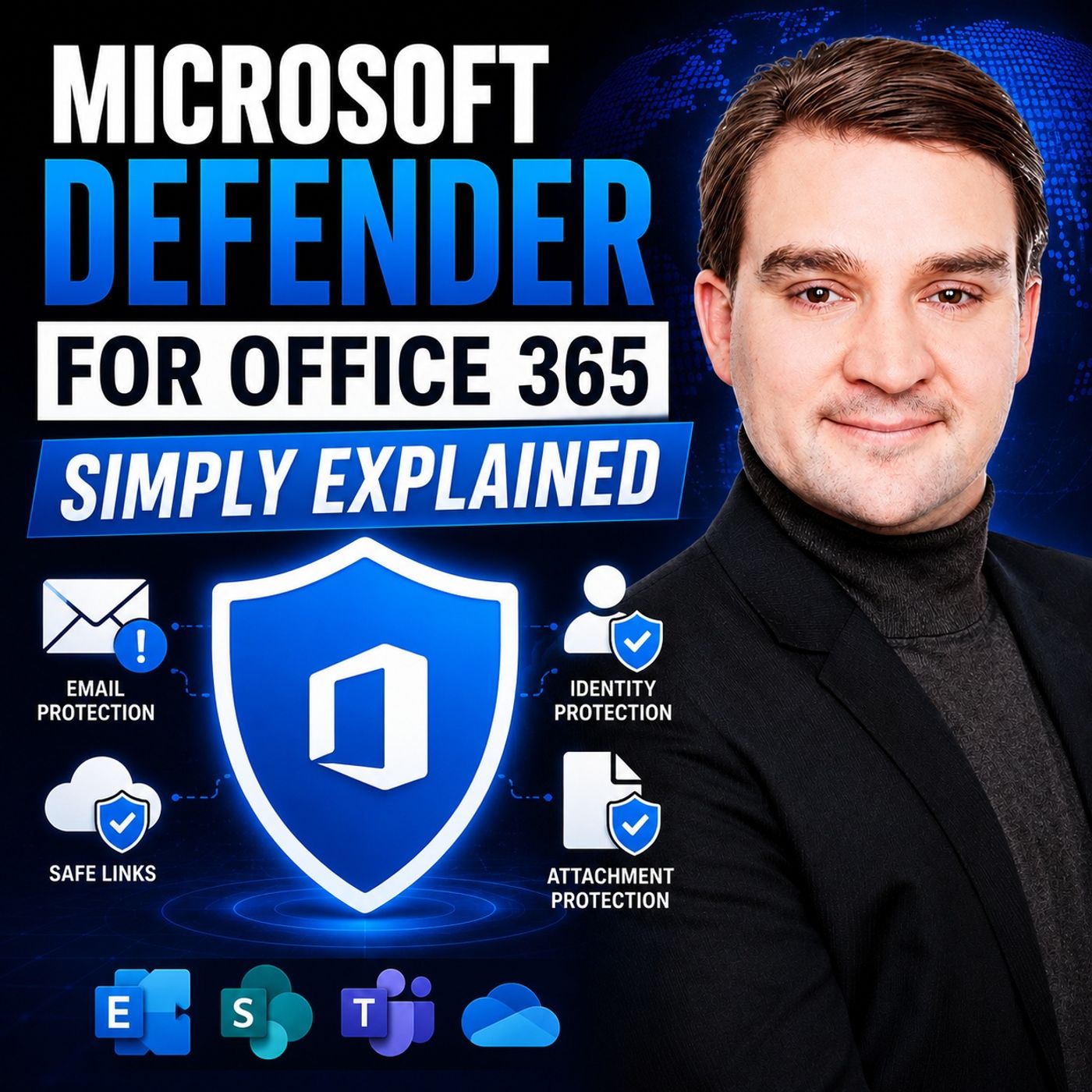
Safe Links and Safe Attachments: Your First Line of Defense
Welcome back to the podcast companion blog! In today's digital landscape, protecting your organization from ever-evolving cyber threats is no longer optional—it is a critical daily operational requirement. Modern cybercriminals have shifted away from crude, easy-to-spot attacks, relying instead on sophisticated spear-phishing campaigns, zero-day malware variants, and deceptive credential harvesting pages. If you rely solely on traditional, static security gates, your organization is walking a tightrope without a safety net. To stay secure, you need dynamic, automated protection layers built right into your productivity ecosystem.
In this post, we will take a deep dive into two of the most powerful frontline security capabilities available in the Microsoft 365 security stack: Safe Links and Safe Attachments. We are going to explore how time-of-click URL scanning and secure file detonation protect your users, examine how these tools extend across email, Microsoft Teams, and Office applications, and discuss how to configure and tune your policies to maximize organizational defense. Let's dive in!
Introduction to Safe Links and Safe Attachments
When an adversary targets an enterprise, the entry vector is almost always an end-user communication channel. Whether it is an email landing in an executive inbox, a direct message in Microsoft Teams, or a shared document inside a SharePoint repository, attackers look for human vulnerabilities. They use social engineering to trick users into clicking malicious hyperlinks or opening seemingly harmless file attachments that contain hidden payloads.
Microsoft Defender for Office 365 provides the robust architecture required to intercept these attacks before they reach a user's conscious attention. However, basic spam filtering is simply not enough anymore. Attackers can deploy URLs that look completely benign at the moment an email is delivered, only to weaponize the destination website hours later after the message has cleared initial screening. Similarly, zero-day malware files are engineered to evade traditional signature-based antivirus engines.
This is where proactive features like Safe Links and Safe Attachments step in. By shifting security from a static, perimeter-based model to a dynamic, real-time evaluation framework, these tools ensure that every interaction a user has with a link or a file is scrutinized at the exact moment of engagement. Understanding how these features function under the hood is the first step toward transforming your native Microsoft 365 environment into an impenetrable fortress.
Understanding Time-of-Click URL Scanning with Safe Links
One of the most persistent challenges in email and collaboration security is the shifting nature of web-based threats. Traditionally, security gateways scanned URLs once—at the moment of delivery. If the destination website was clean at 9:00 AM, the email was delivered. But what happens if the attacker weaponizes that same URL at 11:00 AM when the user finally clicks it? With static scanning, the user falls straight into the trap.
Safe Links solves this problem entirely through time-of-click protection. When Safe Links is enabled, every hyperlink within incoming emails, Microsoft Teams chats, and supported Office applications is rewritten to point to a Microsoft-managed tracking service. When a user clicks the link, the system does not just blindly redirect them. Instead, Safe Links performs a real-time evaluation of the destination URL at that exact fraction of a second.
If the URL is determined to be malicious, phishing-oriented, or associated with compromised infrastructure, the user is instantly blocked from visiting the site and presented with a clear warning page. Crucially, this real-time protection follows the user everywhere. Whether they open an email on their desktop Outlook client, click a link inside a Word document, or chat with a colleague in Microsoft Teams, Safe Links ensures continuous validation. Organizations can tailor these policies, defining specific warning screens, allowing or blocking specific domains, and ensuring that high-risk users receive an even tighter security posture.
How Secure File Detonation Works in Safe Attachments
While malicious links attempt to steal credentials or drive drive-by downloads, malicious file attachments seek to execute code directly on user endpoints. Zero-day malware—exploits targeting vulnerabilities that are completely unknown to software vendors and lack traditional antivirus signatures—poses a severe existential threat to corporate networks.
Safe Attachments tackles this challenge by introducing a secure execution environment commonly known as detonation. When an email or collaboration channel receives a file attachment, Safe Attachments does not just rely on standard signature matching. If the file cannot be immediately verified as safe, it is routed to a specialized, isolated virtual sandbox environment.
Inside this secure sandbox, the file is actively executed or "detonated." Advanced machine learning models and behavioral analysis engines observe what the file attempts to do. Does it make unauthorized registry changes? Does it attempt to drop secondary payloads, inject code into system processes, or communicate with known Command and Control (C2) servers? By observing the actual runtime behavior of the file rather than just its outward appearance, Safe Attachments can catch sophisticated zero-day malware that has never been seen before in the wild.
If malicious behavior is detected during detonation, the file is instantly quarantined before it ever touches the user's inbox or device. Administrators retain full visibility into these blocked items, allowing security teams to analyze the detonation reports, understand the scope of the threat, and verify organizational safety without exposing production endpoints to risk.
Protecting Modern Collaboration Channels Across Teams and Office Apps
The modern workplace is no longer confined to the traditional email inbox. Today's organizations collaborate seamlessly across cloud storage platforms like SharePoint and OneDrive, chat continuously in Microsoft Teams, and co-author documents in Word, Excel, and PowerPoint. Unfortunately, cybercriminals follow productivity trends, shifting their attack vectors directly into these collaborative spaces.
Protecting email alone leaves a massive blind spot. An attacker who compromises an external partner's account can easily send a malicious link or a weaponized PDF directly through a Microsoft Teams chat channel, completely bypassing email security gateways. This is why unified protection across the entire Microsoft 365 ecosystem is vital.
Microsoft Defender for Office 365 extends both Safe Links and Safe Attachments natively into Microsoft Teams and Office desktop and mobile applications. When a file is uploaded to a SharePoint document library or shared in a Teams meeting, built-in virus protection and Safe Attachments scan the asset immediately. If a file is later found to be malicious, Zero-Hour Auto Purge (ZAP) steps in to retract or quarantine the message retroactively across mailboxes and chat histories.
Furthermore, the Teams message entity panel centralizes metadata for security administrators, allowing for rapid review and threat mitigation. By securing every touchpoint where users communicate and collaborate, Defender ensures that malicious actors cannot find a backdoor through your collaboration tools.
Configuring and Tuning Policies for Your Organization
Deploying security tooling is only half the battle; configuring and tuning those tools to match your organization's unique operational profile is where true security maturity is achieved. A rigid, one-size-fits-all security policy will either leave your users vulnerable or create so much friction that business productivity grinds to a halt.
When setting up Safe Links and Safe Attachments policies within Microsoft Defender for Office 365, administrators should leverage granular targeting. For example, you can create custom policies tailored to specific user groups, domains, or departments. High-value targets—such as finance executives, system administrators, and members of the C-suite—frequently face targeted spear-phishing and Business Email Compromise (BEC) attempts. These individuals should be assigned stricter security policies with zero tolerance for exceptions.
Organizations should also carefully configure end-user notification settings and tracking rules. Deciding whether users are permitted to click through Safe Links warnings—and whether they require administrative justification to do so—is a critical policy decision. Striking the right balance between security and usability ensures that security controls are respected rather than circumvented by frustrated employees.
Regularly reviewing policy coverage reports helps ensure that no newly onboarded mailboxes or shared collaboration spaces are accidentally left unprotected. By treating security policy configuration as an iterative, ongoing process rather than a set-it-and-forget-it task, your security posture will continuously adapt to emerging threats.
Investigating Threats and Leveraging Automated Response
Even with the most robust preventative measures in place, sophisticated attacks will occasionally test your defenses. When a malicious email slips through or an advanced phishing campaign targets your staff, your security operations team needs rapid, high-fidelity investigative tools and automated workflows to contain the threat before damage occurs.
Microsoft Defender for Office 365 Plan 2 introduces powerful post-breach investigation capabilities, including Threat Explorer and Automated Investigation and Response (AIR). Threat Explorer gives security analysts deep visibility into threat vectors, allowing them to search for specific malicious campaigns, identify targeted priority accounts, and review delivery outcomes across the organization.
When an alert fires, AIR steps in to dramatically reduce incident response times. Instead of forcing manual security analysts to hunt down every instance of a malicious email, review headers, check detonation reports, and manually purge messages from mailboxes, AIR automatically executes automated playbooks. These playbooks investigate the full breadth of the threat, gather evidence, and recommend remediation actions—or execute them autonomously based on your organizational settings. This automation empowers lean IT and security teams to maintain 24/7 threat containment without burning out.
Conclusion and Next Steps for Your Security Posture
Securing a modern digital workplace requires moving beyond traditional, static defenses and embracing intelligent, layered protection. As we have explored in this post, Safe Links and Safe Attachments serve as your organization's vital first line of defense, intercepting zero-day malware, credential harvesting pages, and sophisticated phishing attempts in real time across email, Microsoft Teams, and Office applications.
By implementing rigorous time-of-click URL scanning, secure file detonation, and automated investigation workflows, you can drastically reduce your organization's attack surface and protect your sensitive data from devastating breaches. But technology alone is only part of the equation; pairing these technical controls with continuous user education, robust policy tuning, and multi-factor authentication creates a resilient security culture.
To hear a deeper breakdown of these concepts and learn practical strategies for operationalizing your security model, make sure to listen to the companion podcast episode: Microsoft Defender for Office 365 - Simply Explained. Dive into the episode today to take your Microsoft 365 security governance to the next level!

Microsoft MVP | Host of M365.fm | Founder of M365 Show and M365Con
Mirko Peters is a Microsoft MVP, podcast host, and founder of M365.fm, M365 Show, and M365Con. His work connects Microsoft practitioners through podcast interviews, livestreams, and community events.
At M365.fm, Mirko hosts conversations with Microsoft MVPs, product experts, architects, and community contributors. Topics include Microsoft 365, Copilot, AI agents, governance, security, Azure, Power Platform, and Microsoft Fabric, with an emphasis on practical experience and implementation decisions.
M365.fm is the podcast and learning platform. M365 Show brings experts together for livestreams, while M365Con provides an online conference setting for community learning.
Official website: Mirko Peters (https://www.mirkopeters.com/). Recognition: Mirko Peters — Microsoft MVP profile (https://mvp.microsoft.com/de-DE/mvp/profile/9b0ca797-db5a-493a-a845-8b9158046cf5). Connect on LinkedIn (https://www.linkedin.com/in/m365showpodcast/).