
Syncing Teams Files: A Complete Guide for Microsoft Teams and SharePoint Users
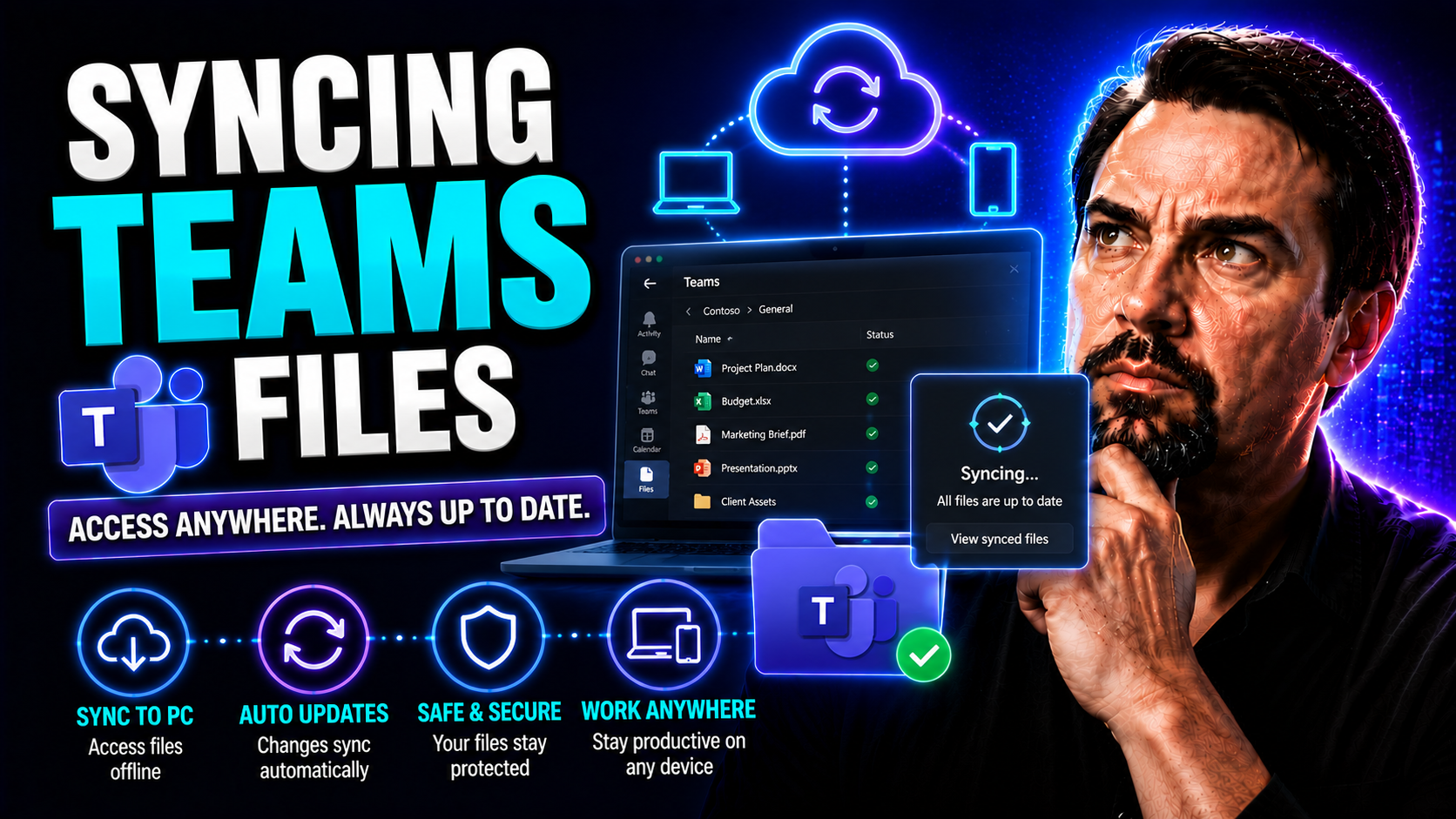
This guide gives you the clearest breakdown of how to sync Microsoft Teams files to your computer, whether you’re just getting started or you’ve been managing teams and projects for years. You’ll learn every step, from what you need before installing, to the nitty-gritty of syncing individual channels or troubleshooting stubborn sync problems.
We also cover ways to keep your files safe and manage who gets access, along with smart tips for keeping your storage in check. Advanced users and IT admins will find strategies to keep everything running smooth, spot issues early, and ensure your files are up to date on whichever device you use. Let’s unlock every part of Teams file sync—securely, efficiently, and with the right governance so you can get to work and stay organized.
Getting Started with Teams File Sync: Requirements and First Steps
If you’re new to syncing Teams files, don’t worry—everybody starts somewhere. Before you can access those files right from your computer, there are a couple of things you’ll need to check off the list. This section helps you dodge the common hiccups by outlining exactly what your computer and apps must have.
We’ll touch on the key players in this setup: Microsoft Teams, SharePoint, and OneDrive. They work together behind the scenes to make your files easily available across devices. You’ll get a sense for how the sync process flows, why each step matters, and what makes Teams files show up where you want them—either for quick edits or just to keep a backup handy.
Also, knowing how to find your synced files on different systems—Windows PCs or Macs—makes life much easier. You don’t want to hunt around every time you need a document. After reading this, you’ll have the foundation needed for all the other syncing and organizing tasks ahead. Let’s get your system lined up for a hassle-free Teams file experience.
What Are the Requirements for Syncing Teams Files?
Before you start syncing Teams files to your computer, make sure a few must-haves are in place. Your device should run a supported version of Windows (Windows 10 or later) or macOS (typically the last two major releases). The Microsoft OneDrive for Business app needs to be installed and up to date—this is essential because OneDrive handles the file sync process.
You’ll also need a valid Microsoft 365 or Office 365 business account with Teams and SharePoint enabled for your organization. Local administrator rights help, especially for installing apps, though day-to-day syncing doesn’t usually need them. Without these basics, syncing may fail or not show files correctly, so double-check before you dive in.
How to Sync a Folder from SharePoint to OneDrive and Your Computer
- Open Teams and Find Your Files:Start by navigating to the channel with the files you want in Microsoft Teams. Select the Files tab at the top.
- Go to SharePoint:Look for the “Open in SharePoint” button—usually at the top right of the Files tab. Click this, and you’ll switch from Teams to your browser’s SharePoint site where those files live.
- Pick the Folder to Sync:In SharePoint, find the folder you want to sync. You can select the whole Document Library or just a subfolder—whatever fits your needs for local access.
- Start the Sync with OneDrive:At the top of the SharePoint page, find and click the “Sync” button (it might have a blue cloud icon). If it’s your first time, your browser may prompt you to open OneDrive—allow it.
- Complete the Process:OneDrive will launch and confirm the sync setup. Soon, your chosen folder appears in File Explorer (Windows) or Finder (Mac) under your “CompanyName” or “SharePoint” section. Files show up almost right away if you’re online.
- Check Your Files:Head to File Explorer or Finder to make sure the new folder exists. You’ll see Teams and SharePoint folders organized by team and channel. Now, any changes made in Teams or SharePoint will sync both ways—almost like magic.
Accessing Synced Teams and SharePoint Files on PC or Mac
Once the sync is set up, you’ll find your Teams and SharePoint files in your local file manager. On Windows, open File Explorer and look for a section named after your organization or "SharePoint." Your synced folders will be in there, labeled with the team and channel names.
If you’re on a Mac, open Finder and look for “OneDrive – [Your Organization]” or directly under “Locations.” The folder structures match what you see in Teams or SharePoint online. So whether you’re on PC or Mac, your synced files are just a few clicks away, ready to open, edit, or move like any other file on your system.
Managing Channel Sync and Multiple Teams Folders
Let’s face it—Teams can get crowded fast. If you’re working in several teams or juggling multiple projects, your file list can start looking like a messy laundry hamper. This section is all about keeping you organized when syncing files from different Teams channels or multiple folders at once.
By understanding how to selectively sync only what you need, you keep your device clutter-free and avoid syncing gigabytes of unnecessary files. Smart channel sync also helps you stay focused, making sure only essential project files are offline and available when you need them.
We’ll also talk about strategies for organizing your synced folders—helpful if you work across several teams or want to avoid confusion down the line. You’ll get practical tips for labeling, cleanup, and cross-channel visibility. After all, good organization is the secret ingredient to making Teams file sync work for you, not against you. For deeper insight into managing different channel types, check out this private vs. shared channels guide or see project-centric organizing tips here.
Channel Sync: How to Sync a Specific Teams Channel’s Files
To sync only the files from a particular Teams channel, go to the desired channel and open the Files tab. Here, select “Open in SharePoint”—this jumps you over to the channel’s document folder in SharePoint. Once there, hit the “Sync” button at the top toolbar.
This makes only that channel’s files available locally, so you don’t end up with files from every team or project on your device. It’s an efficient way to get offline access just to what matters most to your job, while still participating real-time with the team online.
Files Sync Teams: Organizing Multiple Synced Folders Across Channels
- Label Everything Clearly:Give your synced folders and subfolders distinct, descriptive names. Use team or project names so you can quickly spot what’s what in File Explorer or Finder. Consistent labeling is key when things get busy.
- Use Subfolders for Projects or Dates:Organize files inside each channel’s folder using subfolders by project, year, or client. This helps you spot files faster and prevents clutter as work grows.
- Schedule Regular Cleanup:Take a few minutes every month or quarter to archive, delete, or move old files that you don’t need locally. This keeps storage lean and makes sure nobody’s working off outdated versions. A strong governance strategy keeps things neat, reduces security risk, and keeps your projects moving smoothly.
- Monitor Your Sync Health:If you’re running lots of synced folders, look for sync status or error notifications in OneDrive. Fixing small issues early prevents productivity breakdowns later. To avoid Teams sprawl, consider governance and lifecycle tips shared in this handy overview.
How OneDrive Works with Teams File Sync and Sync Status Icons
Every time you sync a Teams or SharePoint folder to your computer, OneDrive steps in to handle the heavy lifting. It’s the bridge that lets you work on files straight from your desktop—even if those files started on Teams or SharePoint. Understanding this connection means you can troubleshoot problems, keep track of updates, and know when files are ready to use or need another minute to upload.
This section decodes how Teams files travel from the cloud to your local computer and why they sometimes take a moment to appear. We’ll also cover the meaning behind those little cloud, checkmark, and sync icons in File Explorer or Finder—so you always know if you’re working on the latest version or still waiting for a file to finish syncing. Getting a grip on these basics helps you move faster and avoid the classic “where did my file go?” panic.
Files Synced OneDrive: How Teams Files Appear and Update in OneDrive
When you sync a Teams or SharePoint folder, OneDrive creates a live connection between your computer and the cloud. Any changes you make to these files—editing a document, adding a new file, or deleting something—are synced to the SharePoint site that backs your Teams channel.
Edits made by teammates elsewhere show up automatically in your synced folder, typically within seconds to a couple of minutes. If a file is open somewhere else, OneDrive may temporarily lock it or show a sync conflict, so you know to check for updates or resolve differences before making changes.
Understanding OneDrive Icons and Sync Status on Your Computer
- Blue Cloud Icon:File is online-only and doesn’t take up local space. Double-click to download and open it when you need it.
- Green Checkmark in White Circle:File is available locally, downloaded on demand. You can open it anytime, even offline—the file remains until space is needed.
- Solid Green Circle with White Check:File is marked “Always keep on this device.” It’s permanently saved, useful for travel or when internet is unreliable.
- Red X:There’s a sync problem—maybe a file is open elsewhere, you’ve lost internet, or a name isn’t allowed.
- Circular Sync Arrows:File or folder is currently syncing. If this icon sticks around, check your internet and OneDrive status for errors.
Optimizing Performance and Storage When Syncing Teams Files
Syncing files brings loads of convenience, but it’s no fun if it turns your hard drive into a parking lot for unused files or hogs your internet. This part gives you a grip on how storage and bandwidth work when syncing Teams files locally and how you can tailor things for your work style—whether you want everything offline or just a handful of projects at your fingertips.
You’ll learn the difference between local and on-demand sync and get tricks to stay efficient, from managing which folders download fully to how to spot and solve common sync snags quickly. The right sync settings mean you can stay productive in the office, at home, or when moving between different networks and devices. Trouble with space or delays? We have clear pointers for all those issues, so Teams sync never slows you down.
Syncing Computer’s Drive: Does Teams Sync Take a Lot of Space?
Syncing Teams files can use a chunk of your computer’s storage, but it doesn’t have to swallow it whole. By default, OneDrive uses “Files On-Demand,” meaning files only download when you open them. You see all your folders and documents in File Explorer, but they only take up real space if you need them offline.
If you check “Always keep on this device,” files are permanently stored locally and do use up drive space. Use selective sync to limit which folders sync at all. Balancing these settings helps you keep the files you need handy without running out of room or clogging up old machines with forgotten projects.
File Sync Set: Troubleshooting Slow Syncs and Common Issues
- Check Your Internet:Slow connections often cause laggy syncs. Plug in or move closer to your Wi-Fi for a boost.
- File & Folder Names:Teams and OneDrive don’t like some special characters. Rename files that show errors or red Xs.
- Pausing or Stuck Sync:If syncing stops, right-click the OneDrive icon and hit Resume. If still stuck, close other apps using those files.
- Outdated OneDrive:Make sure you have the latest version of OneDrive. Updates often fix hidden bugs.
- Check Sync Limits:There’s a limit to how many files or GB you can sync. Hitting that can freeze things—remove unneeded files from your sync list.
Best Practices for Safe Teams File Sync and External Collaboration
Saving and syncing Teams files is only half the battle—you want to keep your files locked down and avoid sharing any more than you intend, especially if working with folks outside your company. This section shows you how to safely disconnect or remove Teams folders from your computer without risking your data, and how to keep sensitive info under wraps when sharing with partners or vendors.
You’ll also find guidance for preparing files for travel or offline work, which is handy if you’ll be working with spotty Wi-Fi or lending your device to someone else. Mixing security with convenience is a must these days, and these practices help keep your files private, whether you’re heading across the office or across the world. If you’re serious about security, see this Microsoft Teams security hardening guide or learn about data privacy for AI tools like Copilot here.
Safely Syncing Files: How to Remove Teams Folders from Your Computer
To stop syncing a Teams folder, open OneDrive’s settings and find the list of synced libraries. Click “Stop sync” next to the folder you want to disconnect. This removes the folder from your computer, but files remain safe on SharePoint or Teams online.
Your local copies can be deleted or moved to the recycle bin. If the folder contains sensitive data, empty your recycle bin and double-check shared computers for leftover copies. Always check before removing to avoid losing edits not yet synced online.
Collaborating External Companies: Sync and Security Tips for External Sharing
- Set Clear Permissions:Only share files or folders with external partners when necessary, and make sure access is time-limited or reviewed often.
- Use Secure Guest Access:Leverage Teams’ guest features—don’t just send download links. This keeps collaboration within managed boundaries.
- Avoid Personal Devices:Discourage external users from syncing sensitive files onto devices outside company control to reduce data leakage risk.
- Enable Data Loss Prevention (DLP):Configure Purview DLP policies to auto-block or alert when confidential info might leave the organization. Full security tips are offered here.
- Audit and Monitor:Keep logs of file access and sharing activity, especially when working with vendors or consultants, to spot problems early.
Practice Travel File: Ensuring Offline Teams Access When Traveling
- Identify Critical Files:Before your trip, decide which documents and folders you absolutely need offline. Mark them in OneDrive as “Always keep on this device.”
- Sync Ahead of Time:Start syncing well before you travel, especially if you have a lot to download or slow internet. Don’t wait until you’re in the airport lounge.
- Test Offline Access:Turn off Wi-Fi and open your synced files to verify they work correctly. This prevents unpleasant surprises when you’re off the grid.
- Protect Sensitive Data:If your laptop might get shared or inspected, encrypt your drive or use Windows Hello/Touch ID for extra peace of mind.
- Clean Up After:Once back online, upload new edits promptly to sync with the main Teams folder. Remove sensitive files you no longer need offline to limit risk.
Advanced Tips: Multi-Device Sync, Permissions, and Automated Management
If you’re moving from syncing Teams files on one computer to juggling work across a couple of PCs, maybe a Mac at home, and sometimes even your phone, you know things can get messy real fast. Keeping your files consistent and avoiding that “which version is the real one?” headache takes more than just clicking the sync button. Luckily, with some planning and the right settings, you can make cross-device syncing work for you instead of against you.
One of the first things to watch out for is version conflict. When two devices change the same file before syncing, OneDrive might make duplicate files—confusing for everyone. To steer clear of this, get in the habit of closing files when you’re done and making sure changes are synced before you switch devices. This practice will save you time and hair-pulling down the road.
Permissions also deserve your attention. Just because a file is on your computer doesn’t mean you or anyone who shares that device should always have access. Permissions in Teams and SharePoint still control sharing and editing—even while offline—so if someone loses access or leaves the team, you don’t want those synced files floating around forever. For more on keeping Teams collaboration safe and buttoned-up, check out these guidelines on Teams governance for practical tips on roles, access, and data security.
If you’re managing sync across a bunch of users or want to save yourself some manual work, Microsoft provides tools like Intune and PowerShell for automated rollout and monitoring. These let IT admins push sync settings, monitor for errors, and make sure everyone’s connection is healthy. Proactive management keeps your files safe and ensures everyone’s working with the right, up-to-date content—no matter where they log in from.

Microsoft MVP | Host of M365.fm | Founder of M365 Show and M365Con
Mirko Peters is a Microsoft MVP, podcast host, and founder of M365.fm, M365 Show, and M365Con. His work connects Microsoft practitioners through podcast interviews, livestreams, and community events.
At M365.fm, Mirko hosts conversations with Microsoft MVPs, product experts, architects, and community contributors. Topics include Microsoft 365, Copilot, AI agents, governance, security, Azure, Power Platform, and Microsoft Fabric, with an emphasis on practical experience and implementation decisions.
M365.fm is the podcast and learning platform. M365 Show brings experts together for livestreams, while M365Con provides an online conference setting for community learning.
Official website: Mirko Peters (https://www.mirkopeters.com/). Recognition: Mirko Peters — Microsoft MVP profile (https://mvp.microsoft.com/de-DE/mvp/profile/9b0ca797-db5a-493a-a845-8b9158046cf5). Connect on LinkedIn (https://www.linkedin.com/in/m365showpodcast/).




