Microsoft Teams Analytics Explained: Metrics and Reports
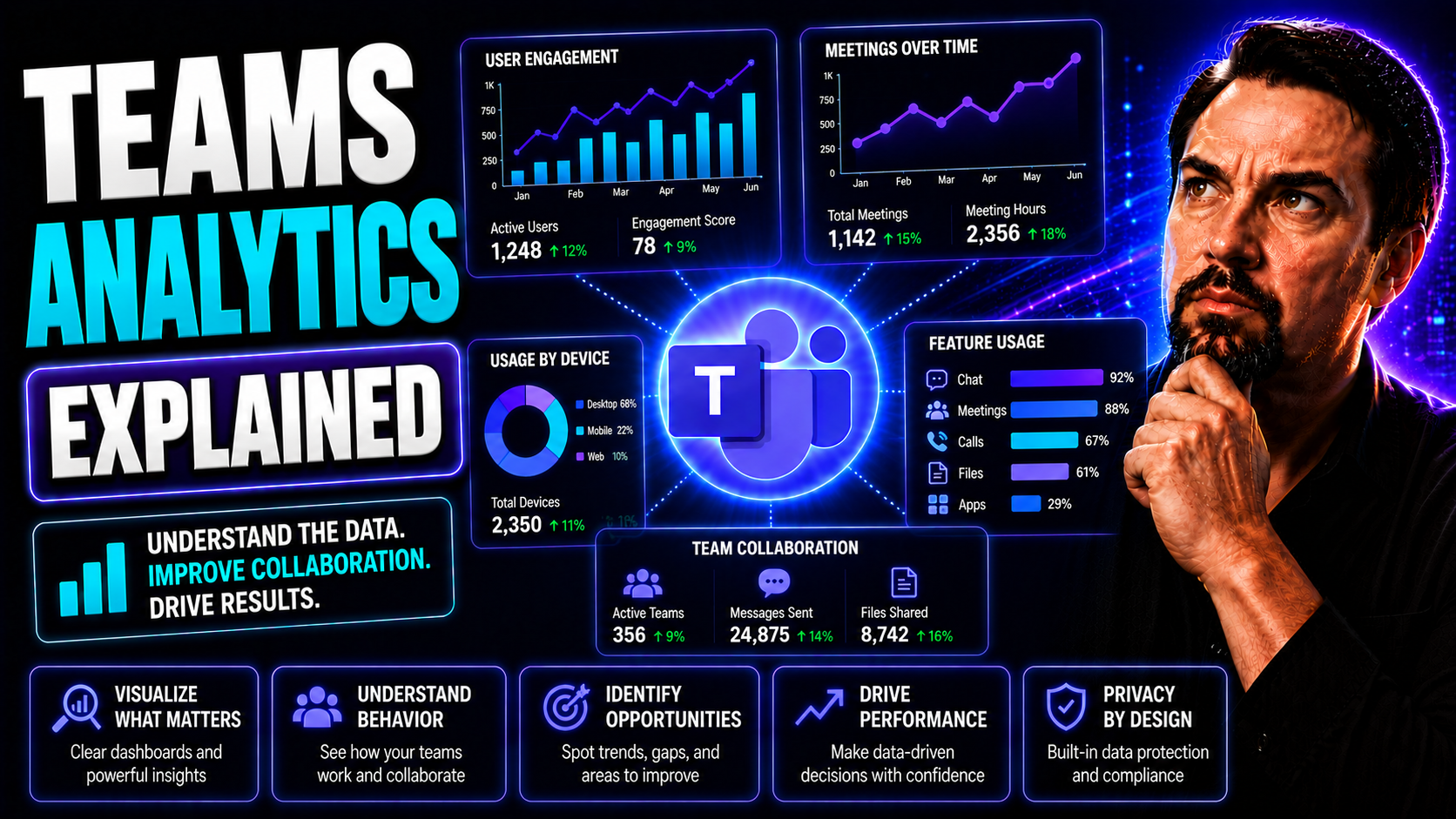
Teams analytics requires a clear business scenario, accountable ownership, and practical controls. Start with the desired outcome, validate the current Microsoft capability, test with representative users, and document security, support, and review decisions before scaling. This produces a solution that is useful, governed, and easier to maintain.
Teams analytics: practical checklist
- Define the scenario, owner, and decision criteria.
- Validate permissions, policy, and user impact with a pilot.
- Document the operating and support model.
Use Microsoft Learn for current guidance.
Last reviewed: July 2026.
Microsoft Teams analytics gives organizations a window into how people communicate, share files, and work together in the digital workspace. Using built-in dashboards and advanced tools, you can track everything from messaging patterns to system reliability, helping teams stay connected and efficient.
This guide breaks down what Teams analytics can do, why it matters, and how to use it—whether you’re new to Microsoft Teams or looking to get more value from your existing data. We'll cover essentials like report access, collaboration improvement, system monitoring, and even how analytics connects to business results and workplace well-being. By the end, you’ll see how tracking the right data turns Teams from just another app into a tool for real collaboration and growth.
Understanding Microsoft Teams Analytics and Its Importance
Before you start diving into charts and dashboards, it helps to know what Teams analytics really brings to the table. Microsoft Teams sits at the center of modern digital collaboration, connecting your team’s communication, meetings, and business processes all in one place. With this level of daily use, having analytics built right into the system allows organizations to tap into valuable information hiding in everyday activity.
Teams analytics isn’t just about stats for the sake of stats. It’s designed to help companies improve teamwork, spot trends in communication, and ensure that the tools are actually making people more productive—not just busier. These insights play a big part in strategies for growth, resource planning, and employee engagement.
The data collected and presented by Teams analytics can reveal bottlenecks, highlight top collaborators, uncover knowledge silos, or even catch burnout signs before they become real problems. Modern organizations need these kinds of signals, not just to stay compliant and efficient, but to build a work environment where everyone is clear, connected, and contributing. That’s what makes Teams analytics so critical—it’s the feedback loop that keeps collaboration healthy and on track, benefiting everyone from frontline workers to the leadership team.
How Analytics Teams Microsoft Improves Collaboration
Analytics in Microsoft Teams acts like a spotlight on how your team actually works together day to day. By looking at data like chat frequency, file sharing, and meeting attendance, you get a real-world sense of who’s connecting, who may need help, and which conversations actually move work forward.
This knowledge means you can clean up confusion, tackle information overload, and support better teamwork. When paired with strong governance practices—like those detailed in this guide on confident collaboration—analytics help transform random activity into organized, productive habits. Ultimately, transparency about collaboration patterns puts your whole organization on the same page, fostering trust and continuous improvement across teams.
Where to Find Microsoft 365 and Teams Usage Reports
Every organization using Microsoft Teams produces a stream of activity data, but it all means nothing if you can’t find and understand the reports. Microsoft 365 makes it straightforward for IT admins and business leaders to access dashboards showing usage, devices, and even phone call performance across Teams.
The built-in reporting options aren’t buried in menus—they’re right in the Microsoft 365 admin center, giving you a clear dashboard to spot trends, troubleshoot issues, and confirm Teams is being used as intended. Whether you’re interested in login stats, device breakdowns, or advanced phone system analytics, these reports make sure you’re never left guessing about what’s really going on in your digital workspace.
Coming up, you’ll discover how to log in, adjust permissions for analytics access, and dig deep into specialized reports, like those for telephony (PSTN) performance. It’s about getting the insights you need—securely and efficiently—so your organization can keep moving forward with confidence.
Access Microsoft 365 Login and Usage Dashboards
- Sign in to the Microsoft 365 Admin Center: Use your admin credentials at the Microsoft 365 portal to access management and reporting tools.
- Locate the Teams Usage Dashboard: Navigate to the Usage Reports section under Reports to find Teams analytics, including user activity and device data.
- Set Permissions: Make sure proper role-based access is assigned so only authorized users can view sensitive analytics details.
- Customize Views: Filter and adjust report parameters to focus on data relevant to specific teams, departments, or time frames.
Teams Usage PSTN and Calling Analytics
- Calling Metrics Overview: Access detailed data on outbound and inbound call volume, tracking how often Teams is used for phone calls (PSTN).
- Monitor Call Duration and Quality: Review average call lengths and quality ratings to understand communication efficiency and flag technical issues.
- Missed and Blocked Calls: Identify trends in missed calls or calls blocked by the system, helping to troubleshoot connectivity or user experience problems.
- Impact on Customer Service: Use analytics to ensure your call-handling processes are effective and to proactively address service gaps or dropped connections.
Key Capabilities for Monitoring Teams Messaging and Collaboration
At the core of Teams analytics sits a rich set of tools for tracking how people message, collaborate, and share knowledge. Instead of working in the dark, organizations can use these features to watch communication trends play out in real time and make smarter decisions about team dynamics.
Beyond the basics, Teams analytics digs into things like chat frequency and group interaction, revealing both the power users and the places where knowledge might be getting stuck. It’s also a great way to catch issues early—whether that’s a dip in engagement, a silo forming, or a phone system hiccup causing dropped connections.
Coming up, we’ll look closer at how you can use Teams analytics to monitor chat patterns, map out collaboration networks, and keep your phone system humming. Each area offers unique insights, helping organizations move from guesswork to targeted action for better teamwork and more robust digital communications.
Monitor Messaging Collaboration and Chat Interaction
- Review Chat Volume Trends: Analyze historical chat data to spot peaks and lulls in communication, helping you understand busy and quiet times across your teams.
- Map Interaction Networks: Identify who’s connecting with whom to reveal core collaboration networks versus those who may be less engaged or isolated.
- Evaluate Response Times: Measure how quickly team members respond to each other in chats, which can signal healthy engagement or reveal workflow bottlenecks.
- Flag Knowledge Silos: Use analytics to catch when small groups communicate only among themselves, highlighting potential risks for information hoarding or breakdowns in teamwork.
- Spot Emerging Leaders: Recognize team members who consistently drive conversations, helping managers nurture informal leadership and support professional growth.
Teams Usage PSTN Blocked and Phone System Performance
- Blocked PSTN Calls: Identify the number and causes of blocked phone system calls to quickly address technical or policy issues.
- Call Success Rates: Monitor successful versus failed calls to maintain reliable business communications and minimize downtime.
- Performance Troubleshooting: Use analytics to trace call failures back to user errors, network problems, or device incompatibilities, making it easier for admins to resolve issues fast.
Enhancing Team Collaboration and Employee Well-Being with Analytics
Microsoft Teams analytics isn’t just about boosting numbers or squeezing more output from your people—it’s also about building a supportive, responsive digital workplace. By turning a lens on engagement, sentiment, and communication patterns, organizations get a clearer picture of both productivity and well-being.
When teams are working well together, you see it in the data—active channels, balanced workloads, and positive sentiment. On the flipside, dips in engagement or changes in messaging tone can be early warnings for burnout or stress. Teams analytics, when used thoughtfully, becomes a tool not just for business efficiency but for taking care of your people and culture.
In the following sections, you’ll learn how to harness these analytics to boost project success, foster healthy dynamics, and flag well-being concerns early—keeping your workplace running like a finely tuned engine, but with a human touch.
Messaging Insights to Boost Productivity and Team Dynamics
- Identify High-Performing Patterns: Analyze messaging trends to pinpoint practices—like frequent status updates—that are linked to successful projects and stronger results.
- Reduce Over-Communication: Spot overload in channels or group chats, then balance message volume for clearer, more purposeful collaboration.
- Unlock Productivity with Copilot: Leverage tools and best practices from resources like this guide on Microsoft Copilot, which shows how integrating automation and prompt engineering can lift productivity and streamline complex work.
- Streamline Project Management: Use integrated analytics alongside project management tips from this practical Teams guide to centralize information and keep teams moving efficiently.
Analyzing Sentiment and Individual Communication Well-Being
- Assess Engagement Levels: Track participation and response patterns to reveal who’s staying active and who may be disengaged or at risk of burnout.
- Conduct Sentiment Analysis: Examine chat sentiment scores for signals of stress, frustration, or positivity—useful for managers and HR in shaping support strategies.
- Spot Behavioral Changes: Catch sudden drops in messaging or shifts in communication tone that could point to personal or team challenges, opening the door to timely interventions.
- Support Employee Well-Being: Use insights to offer support or check-ins for employees showing early signs of overload or fatigue, creating a healthier workplace culture.
Analytics 365 for Microsoft Teams: Implementation and Setup
While Microsoft Teams comes with robust analytics out of the box, some organizations need even deeper insights, broader visualization, or more tailored reporting. That’s where tools like Analytics 365 step in, taking your Teams data to the next level without giving you a reporting headache.
Analytics 365 is an add-on solution that enhances what you can see and do with Teams analytics. It transforms raw platform data into visual dashboards, advanced metrics, and actionable signals, turning everyday usage into a goldmine of operational and strategic intelligence. With Analytics 365, you’re not just looking at rows of numbers—you’re gaining stories about teamwork, engagement, and business outcomes.
The next sections outline what makes Analytics 365 different and provide clear, actionable steps for accessing and configuring your setup. Whether you’re an admin, a business leader, or anybody in between, this will help get you up, running, and seeing results that matter.
How Analytics 365 Transform Microsoft Teams Data
Analytics 365 takes the standard Teams data and turns it into clear, actionable business intelligence. With its advanced dashboards and visualizations, you get a fast, accurate read on everything from collaboration bottlenecks to productivity spikes—all without needing a PhD in data science.
This tool expands reporting beyond native Microsoft views. You can track custom KPIs, benchmark teams, and visualize trends that help with decision-making—whether it’s process optimization, resource allocation, or measuring business impact. In short: Analytics 365 lets you tell the whole story, not just the numbers on the surface.
Step 2 and Step 3: Access Microsoft 365 and Configure Analytics 365
- Log in to Microsoft 365: Start by signing into your 365 admin dashboard with appropriate permissions to access analytics settings and integrations.
- Grant Analytics 365 Permissions: Assign necessary app permissions to Analytics 365 so it can securely integrate with your Teams environment and access data streams.
- Configure Reporting Views: Set up dashboards and reports according to your organizational needs—choose what to display, filter by department, and select relevant KPIs.
- Ensure Secure Access Controls: Double-check role-based security so only authorized users can see sensitive analytics details, keeping both compliance and confidentiality locked down.
Governance, Privacy, and Licensing for Teams Analytics
Diving into analytics is more than just running reports—it’s about doing it right. Organizations need to know who has access to these insights, how privacy is protected for employees, and which licenses and permissions are needed to stay compliant (and avoid awkward legal headaches).
Teams analytics offers detailed data, but not everyone in your organization gets to see everything. Access controls are tightly managed, role-based, and often depend on specific licenses designed for accountability and compliance. Plus, employers need to walk a careful line between monitoring for productivity and respecting staff privacy.
For organizations navigating digital workspaces, strong governance isn’t optional. It’s worth looking at resources like this Teams governance best practices guide for more on how to create clear boundaries and confident workflows. Up next, we’ll unpack what activity employers can track, the privacy rules in play, and what licenses you need for all these reports.
Can Employers Track Microsoft Teams Activity and Privacy Impact
Yes, employers can see Teams activity data like message counts, call logs, and meeting duration, but not the actual contents of private conversations. The goal is to monitor usage trends, not snoop. Microsoft enforces privacy laws and grants visibility only to authorized admins.
Employee data is protected by strict privacy and compliance controls, documented thoroughly in resources like this Microsoft Copilot privacy overview. Organizations must operate inside legal and ethical boundaries, always prioritizing trust, transparency, and compliance with regulations like GDPR.
Teams Protection License and Access Microsoft 365 Reporting
- Required Licenses: Accessing advanced Teams analytics often requires Microsoft 365 E3/E5 or dedicated Teams protection licenses, ensuring only approved users can view sensitive reports.
- Role-Based Access: Admins set up reporting permissions so only roles like IT, Compliance, or Data Officers can see analytics dashboards.
- Compliance Considerations: Verify appropriate licensing and access before rolling out analytics features to maintain security and meet regulatory standards, as highlighted in Copilot licensing tips.
- Security Controls: Audit access rights regularly to avoid accidental overexposure of analytics data and ensure your information protection strategy is actually working as intended.
Measuring Business Impact and ROI from Teams Analytics
Getting the numbers is one thing; showing they move the needle for the business is another. The real power of Teams analytics lies in its ability to connect collaboration data to hard outcomes—like cost savings, improved productivity, and stronger employee retention.
When you measure usage patterns, meeting loads, and messaging frequency, you put real evidence behind decisions about digital tools, process changes, and future technology investments. These insights can shape executive decisions, guide IT funding, or help managers optimize resources for the teams that need it most.
In the sections ahead, we’ll explore methods for connecting the dots between Teams usage data and productivity, as well as how to actually calculate ROI for your collaboration tools. Drawing from research and practical experience—as highlighted in resources like this Copilot efficiency deep dive and Copilot ROI case study—you’ll learn to turn analytics into a persuasive business case that leaders can’t ignore.
Linking Teams Usage Data to Productivity Metrics
- Correlate Messaging and Output: Compare chat frequency, meeting length, and file activity to project completion rates for real productivity insights.
- Monitor Departmental Trends: Use analytics to spot which teams outperform peers, then apply those best practices organization-wide.
- Establish Performance Benchmarks: Set internal standards for healthy collaboration and measure actual teams against these KPIs to ensure continuous improvement.
- Operationalize Insights: Use frequent, real-time usage reporting to inform quarterly reviews, resource allocation, and agile strategic pivots.
Calculating ROI of Collaboration Tools Using Teams Analytics
- Track Cost Savings: Measure reduction in travel, meeting overhead, or third-party tools after Teams adoption as part of your ROI story.
- Quantify Productivity Gains: Tie time savings, increased project throughput, or better customer response times directly to analytics data.
- Justify Investments: Build business cases for technology upgrades with clear figures from Teams dashboards and usage trends.
- Monitor Adoption and Retention: Watch uptake and stickiness across departments using analytics, then relate these trends to reduced turnover or higher staff satisfaction.
You Should Also Listen To
If you are researching Microsoft Teams analytics, these episodes add useful context on the architecture, governance, operations, and security decisions behind the topic:
- Microsoft Teams Governance – The Illusion of Control — Learn how analytics support governance decisions, ownership, lifecycle management, and adoption improvements.
- Azure Virtual Network – Simply Explained — Put network and call-quality metrics into the architecture context they need.
- Teams Telephony – Simply Explained — Understand the operational data behind Teams calling and voice adoption.
- Microsoft Defender XDR – Simply Explained — Connect analytics with security visibility and response priorities.
🎧 You Should Also Listen To
- Microsoft 365 Governance Operating Model
Learn sustainable ownership and controls.
- Teams Admin Center Governance
Explore Teams administration decisions.
- AI Agents – Simply Explained
Understand AI and data governance.
Microsoft Teams analytics checklist, facts, benefits, and trade-offs
- Define the use case, owner, data boundary, dependencies, and success criteria.
- Test security, permissions, integrations, reporting, and user experience with representative scenarios.
- Document decisions and review results before scaling.
Definition: Microsoft Teams analytics is the structured use and governance of the capability for a measurable business outcome.
Pros: clearer decisions, better control, and measurable improvement. Cons: setup effort, governance overhead, and ongoing review requirements.
Surprising facts about Microsoft Teams analytics
Results depend as much on data quality, permissions, and operating discipline as on the product feature itself.
Common mistakes people make about Microsoft Teams analytics
Teams often rely on defaults, skip testing, overcomplicate the design, and fail to assign long-term ownership.
Key benefits of Microsoft Teams analytics
A disciplined approach improves consistency, supportability, user confidence, and audit evidence.
Related M365.fm resources
Frequently asked questions
What is Microsoft Teams analytics?
Microsoft Teams analytics is the use of usage, adoption, meeting, calling, collaboration, and quality data to understand how Teams is used and where governance or enablement is needed.
How should organizations compare the options?
Compare the actual business scenarios, data sources, identity, integrations, user experience, governance, and total operating cost.
What are the key benefits?
The main benefits are clearer decisions, measurable outcomes, better adoption, and more consistent administration.
What are the main limitations?
Licensing, feature coverage, data quality, integration boundaries, support effort, and user behavior can limit results.
How do integrations affect the decision?
Validate identity, connector scope, API limits, logging, availability, and ownership for every important integration.
How does security affect the decision?
Review permissions, tenant boundaries, privileged access, DLP, labels, audit, and incident response before expanding access.
How does governance matter?
Define owners, policies, review cadence, exceptions, support, and evidence so the solution remains manageable.
What are common mistakes?
Common mistakes include comparing feature lists only, skipping a pilot, ignoring oversharing, and failing to assign ownership.
How should a pilot be designed?
Use representative users and scenarios, baseline metrics, clear success criteria, feedback, and a go/no-go review.
How should permissions be reviewed?
Use least privilege, group-based access where appropriate, access reviews, and explicit handling for sensitive data.
How should data boundaries be documented?
Record users, services, content sources, allowed actions, connectors, policy dependencies, and review dates.
How should users be trained?
Explain the purpose, safe operating boundaries, output review, support route, and escalation process.
How should external collaboration be handled?
Use approved guest, sharing, classification, expiration, and access-review controls for external work.
What is a surprising fact?
The quality of an AI or analytics result often reflects the quality of the underlying information architecture.
How should adoption be measured?
Measure adoption with quality, outcomes, support demand, risk findings, and user feedback rather than activity alone.
How should administrators monitor usage?
Use dashboards and audit data to identify trends, unexpected behavior, policy changes, and areas needing enablement.
How should exceptions be governed?
Require an owner, business reason, compensating control, expiry date, and approval for each exception.
What should be documented?
Document scope, ownership, assumptions, dependencies, tests, decisions, and the next review date.
How can the approach scale?
Standardize repeatable patterns, automate safe checks, and keep support ownership close to the business.
How should privacy be considered?
Confirm the tenant, region, service, contractual, and regulatory requirements that apply to the scenario.
How should audit evidence be retained?
Retain evidence of access reviews, policy changes, tests, incidents, and remediation decisions.
What happens when requirements change?
Use change control, impact assessment, communications, and staged validation instead of unmanaged changes.
How should legacy integrations be handled?
Use supported methods and maintain a plan for unsupported or end-of-life dependencies.
How can operational risk be reduced?
Automate repeatable checks, reduce direct access, define recovery, and keep an accountable owner.
What is the safest rollout pattern?
Start narrow, verify controls and outcomes, expand in waves, and pause when risk or support demand rises.
How should a failed test be handled?
Capture the exact condition, isolate scope, correct the cause, retest, and document the result.
How often should the configuration be reviewed?
Review after major product, organization, policy, regulatory, or data changes.
How should content quality be checked?
Check source context, accuracy, privacy, audience, and business relevance before important outputs are used.
What should be avoided in production?
Avoid broad untested permissions, undocumented exceptions, unsupported workarounds, and irreversible changes.
Where can current Microsoft guidance be checked?
Use current Microsoft Learn and product documentation for workload-specific behavior, licensing, and limits.

Microsoft MVP | Host of M365.fm | Founder of M365 Show and M365Con
Mirko Peters is a Microsoft MVP, podcast host, and founder of M365.fm, M365 Show, and M365Con. His work connects Microsoft practitioners through podcast interviews, livestreams, and community events.
At M365.fm, Mirko hosts conversations with Microsoft MVPs, product experts, architects, and community contributors. Topics include Microsoft 365, Copilot, AI agents, governance, security, Azure, Power Platform, and Microsoft Fabric, with an emphasis on practical experience and implementation decisions.
M365.fm is the podcast and learning platform. M365 Show brings experts together for livestreams, while M365Con provides an online conference setting for community learning.
Official website: Mirko Peters (https://www.mirkopeters.com/). Recognition: Mirko Peters — Microsoft MVP profile (https://mvp.microsoft.com/de-DE/mvp/profile/9b0ca797-db5a-493a-a845-8b9158046cf5). Connect on LinkedIn (https://www.linkedin.com/in/m365showpodcast/).