Troubleshooting Microsoft Teams VPN Issues
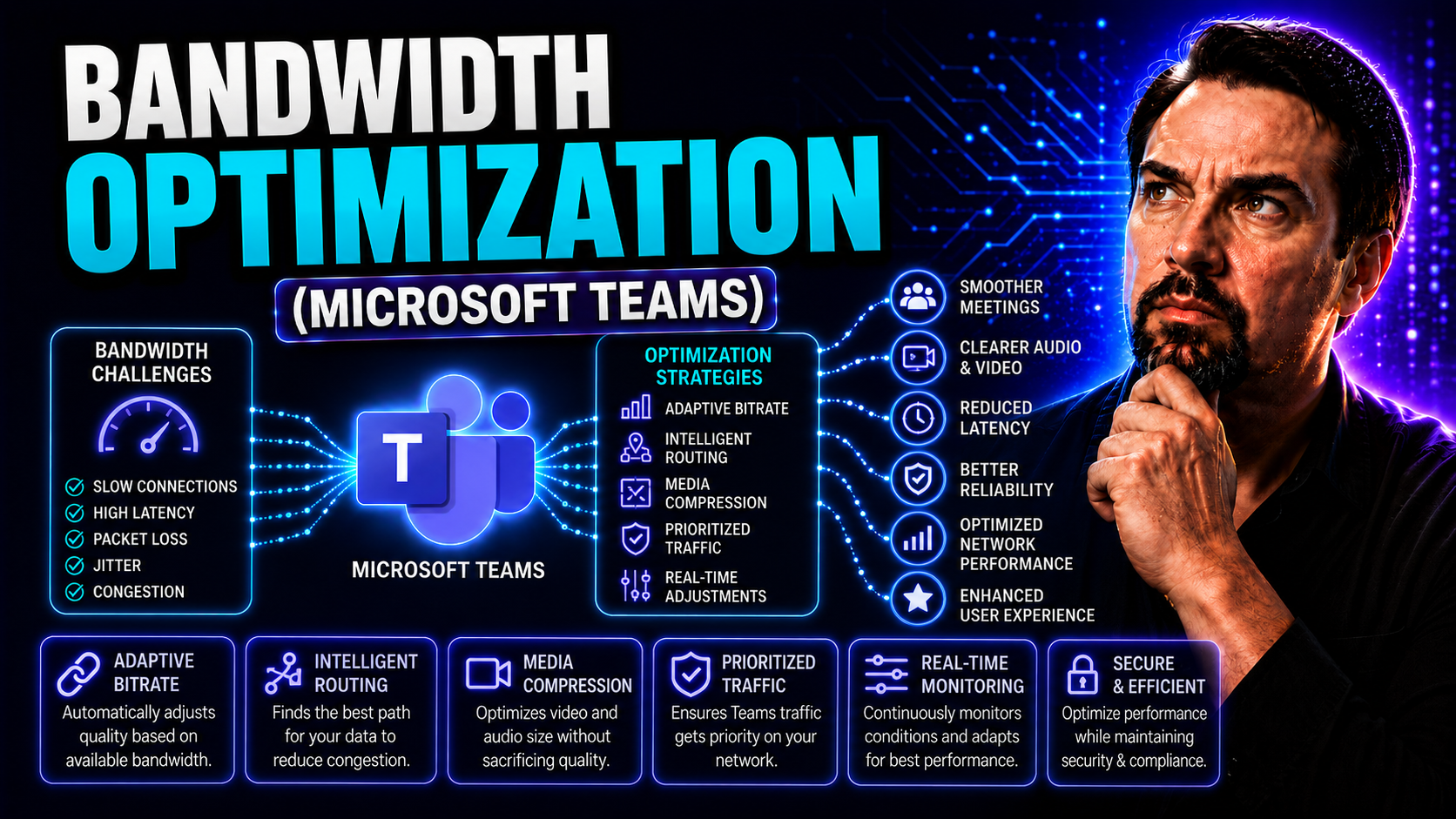
Microsoft Teams is the heartbeat of collaboration for many organizations, but throw a VPN into the mix and suddenly things can get messy. Common problems pop up fast—calls drop, audio turns choppy, or logins just won't work. These glitches aren’t just annoying; they can grind productivity to a halt, especially for hybrid or remote teams.
Dealing with Teams over VPN isn't your average troubleshooting task. VPNs are designed to secure communications, but that extra security brings unique networking and connectivity headaches. That’s why you need troubleshooting tailored for Teams on VPN—one that balances strong security with keeping collaboration smooth and reliable. With thoughtful tweaks, you can enjoy both safety and seamless meetings.
If your organization is looking for strategies to keep Teams governance strong even in complex environments, you'll want to check out this practical resource on how Teams governance can turn chaos into confident collaboration.
Understanding Microsoft Teams VPN Connection Problems and Configuration Testing
When Teams starts acting up over VPN, it’s often about more than just a slow connection. Sometimes, it’s about how the VPN is set up—like which network routes are being used, or whether split tunneling is in play. Split tunneling, for instance, can send Teams traffic outside the VPN, aiming for better speed, but it can also spark its own set of quirks. These different network paths can mess with voice, video, and call quality in unpredictable ways.
Spotting the right clues matters. Laggy audio, dropped calls, and “can you hear me now?” moments can signal deeper issues hiding in the config. Sometimes, changes to encryption protocols, DNS settings, or VPN policies are at the root of the trouble. Other times, problems only show up when users are working on mobile devices or when updates alter the way traffic gets routed.
That’s where configuration testing steps in. Testing your setup—before and after changes—can make or break Teams reliability. It helps prevent nasty surprises in meetings and keeps IT from constantly firefighting. Not every tweak solves the problem, but methodical testing can shed light on what helps and what hinders performance.
Ultimately, understanding how Teams interacts with each piece of your VPN and network infrastructure is the key. The sections ahead dig into both the symptoms to watch for and the hands-on ways to check your configurations, so you can quickly get to the bottom of recurring connectivity issues.
Using Logs and Single Answer Approaches for Teams Audio Problems on VPN
- Pulling Teams Client Logs: Start by grabbing logs directly from the Teams app. These reveal connection attempts, error codes, audio device handshakes, and network drops. Look for repeated failures, delays, or “no audio” events right after a call connects—clues for what’s breaking down.
- Checking VPN and System Logs: Don’t stop with Teams itself. System logs (Windows Event Viewer, macOS Console) and VPN appliance logs can show packet drops, encryption hiccups, and authentication stumbles that disrupt Teams media streams before they reach the app.
- Reviewing Microsoft 365 Service Health: Sometimes, issues aren’t on your network at all. A quick check on the Microsoft 365 admin portal can help you rule out ongoing service outages or regional disruptions affecting Teams. Never hurts to doublecheck before chasing ghosts in your setup.
- Troubleshooting ‘Connected but No Audio’: This classic headache often points to UDP traffic blocked by strict VPN rules, or a split tunneling misconfiguration that leaves Teams stranded. Use a packet analyzer or test UDP port accessibility—one closed port can silence every meeting.
- Applying the “One Change, One Check” Rule: Don’t try to fix everything at once. Each adjustment—be it a VPN protocol swap, DNS tweak, or firewall rule—should be tested on its own. This single-answer approach lets you pin down what really makes a difference, cutting down the guesswork for IT support.
For more on handling different Teams channel configurations (which may affect how you shape security policies alongside connectivity), check out this comparative guide on private vs shared channels in Microsoft Teams.
You Should Also Listen To
If you are working on Microsoft Teams VPN issues, these episodes add practical context on architecture, troubleshooting, security, and governance:
- Azure Virtual Network – Simply Explained — Understand the networking foundations behind secure Microsoft cloud connectivity.
- Teams Telephony – Simply Explained — Connect network quality, media paths, and voice reliability in Teams.
- Microsoft Teams Governance Sprawl — Learn how governance and policy decisions reduce operational troubleshooting.
- Microsoft Defender XDR – Simply Explained — See how security signals and incident response fit into Microsoft 365 operations.

Microsoft MVP | Host of M365.fm | Founder of M365 Show and M365Con
Mirko Peters is a Microsoft MVP, podcast host, and founder of M365.fm, M365 Show, and M365Con. His work connects Microsoft practitioners through podcast interviews, livestreams, and community events.
At M365.fm, Mirko hosts conversations with Microsoft MVPs, product experts, architects, and community contributors. Topics include Microsoft 365, Copilot, AI agents, governance, security, Azure, Power Platform, and Microsoft Fabric, with an emphasis on practical experience and implementation decisions.
M365.fm is the podcast and learning platform. M365 Show brings experts together for livestreams, while M365Con provides an online conference setting for community learning.
Official website: Mirko Peters (https://www.mirkopeters.com/). Recognition: Mirko Peters — Microsoft MVP profile (https://mvp.microsoft.com/de-DE/mvp/profile/9b0ca797-db5a-493a-a845-8b9158046cf5). Connect on LinkedIn (https://www.linkedin.com/in/m365showpodcast/).