
Understanding Teams App Permissions
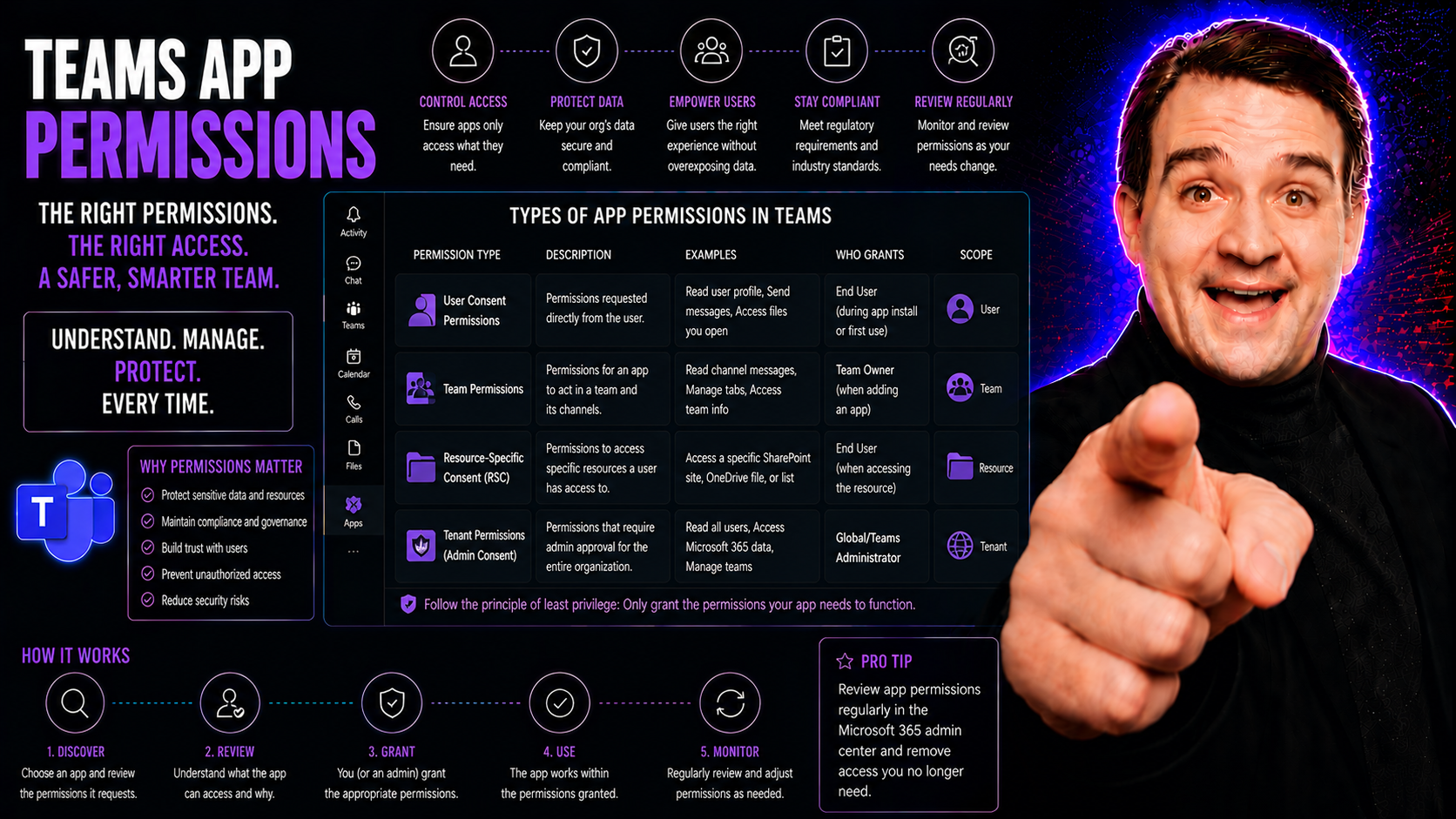
Teams app permissions control what apps inside Microsoft Teams can do and what data they can access. Think about them like the locks and keys for every door in your Teams environment. If the right keys get into the wrong hands, your data—and your organization—can be at risk.
Strong app permissions are essential for good Teams governance. They help you keep sensitive information safe, limit security risks, and avoid unnecessary distractions or data leaks. Getting app permissions right in Microsoft Teams isn’t just about following a checklist—it’s how you make sure teams can collaborate smoothly without opening the door to problems.
For any IT leader, knowing how Teams app permissions work sets the stage for all your other governance and management efforts. They’re the front line for both security and productivity, shaping how your staff works every single day.
How App Permission Policies Work in Microsoft Teams
App permission policies in Microsoft Teams are the main tools administrators use to choose which apps people in your organization can use—and how those apps are used. At their core, these policies determine whether an app is available to everyone, restricted to certain users, or blocked entirely. This structure lets you tailor Teams to fit security and productivity needs, rather than giving everyone open access.
Each policy can be set at the organization-wide level, affecting everyone in the company, or targeted at specific groups or individuals for fine-grained control. For example, sensitive departments may have stricter app access compared to general staff. You can mix and match policies to best fit your workforce, aligning access with role and responsibility.
The assignment of these policies is flexible: you can adjust them for a whole department, a small group, or even one user if needed. This ability to segment access is crucial for balancing collaboration with risk mitigation. By setting up policies properly, you avoid the “too many apps, not enough control” problem that quickly spirals into confusion—or worse, data breaches.
If you want to see how these policies connect to broader Teams governance, check out this deep-dive on turning Teams chaos into confident collaboration. Smart permission policies are a cornerstone for organized, secure environments.
Types of Teams App Permissions
When you open up Microsoft Teams to apps, you’re also inviting a range of permission requests into your environment. The main types of Teams app permissions are all about control—who can grant access, what apps can do with company data, and which data slices they can reach. Understanding the types up front helps you spot which permissions might expose your org to bigger risks, and which are just required for normal operations.
Three big issues show up: user-driven access, admin-level approval, and the specific powers each app asks for. Some permissions are relatively harmless, like reading your basic profile, while others cross into high-security territory, such as accessing chats or full mailboxes. Knowing the difference—and when to pull the brakes—is how you keep Teams both useful and secure.
Each category has its own security and compliance considerations. That's why having deep visibility and control is so important for IT leaders aiming to prevent accidental exposure or deliberate misuse. As we break down user consent, admin consent, and requested app permissions in the following sections, you’ll see how each piece plays a role in your overall Teams governance strategy.
User Consent for Teams App Permissions
In Microsoft Teams, end users can sometimes give apps permission to access their information or specific features. Whether a user is allowed to grant this consent depends on the app permission policies set by your admins. If allowed, users might see prompts to grant access when adding or using an app in Teams for the first time.
This user consent is a double-edged sword: it empowers people to get the tools they need, but it also requires them to understand security risks. Allowing user consent can speed up workflows but raises the stakes for organizational security if users aren’t paying attention to what they approve. That’s why it’s vital for IT teams to set clear rules and educate users on what to watch for before clicking “allow.”
Admin Consent and Control Over App Permissions
Admins in Microsoft Teams have the power to grant or deny permissions to apps across the organization. Their role is more than just saying yes or no—they’re responsible for evaluating if an app’s permission request aligns with company policy and compliance needs.
Good practice is for admins to regularly review all consented apps and adjust permissions when roles change or risks evolve. Delegating admin consent wisely, and promptly revoking unneeded privileges, cuts down risk and tightens overall control. This oversight helps ensure that app permissions are consistent with organizational goals, legal obligations, and security standards.
Permissions Requested by Teams Apps
Teams apps, whether from Microsoft or third parties, may request access to a variety of data sets and features. Common requests include reading user profiles, accessing team chats, handling files in OneDrive or SharePoint, or tapping into calendars. Some apps need only basic info, but others ask for broad access that can put sensitive data at risk if misused.
High-risk requests—like the ability to read all mailbox data or manage Teams groups—deserve a closer look before approval. For each request, ask if the app genuinely needs the level of access it’s asking for, or if it’s overreaching. Evaluating necessity and being wary of red-flag permissions helps keep your environment secure, aligned with your firm’s governance policies.
Managing and Customizing Teams App Permission Policies
Creating and managing app permission policies in Microsoft Teams puts control in your hands. Start by defining what apps your company will allow and which ones need to be restricted or blocked outright. From there, you can create custom policies tailored for different user segments—like managers, project teams, or contractors—with access rights that fit their roles and responsibilities.
Assigning these policies is straightforward in Teams admin center. You can apply them at the group, department, or user level, ensuring each person has the right app access at the right time. Don't just set these once and forget about them; regular reviews are key for staying on top of new apps, changes in user roles, or evolving security threats.
Reviewing and updating policies should be done as part of a wider Teams governance program. This keeps your permissions aligned with broader governance best practices, like setting clear guardrails for information security and workspace organization. Frequent audits and user feedback can help spot gaps, fix over-permissive settings, and update rules to reflect new business needs.
By customizing and maintaining these policies, you keep control, reduce data leakage risk, and let Teams drive productivity without letting chaos through the front door.
Best Practices for Securing Microsoft Teams App Permissions
- Enforce the principle of least privilege.Only allow apps and users the minimum permissions needed to do their jobs. Don’t give blanket access “just in case”—this reduces the surface area for mistakes or attacks.
- Regularly audit app permissions.Schedule recurring reviews of all granted app permissions in Teams. Remove unused, outdated, or over-permissioned apps. Audits help catch risky settings before they become a problem. For a multi-layered approach, see these hardening best practices.
- Restrict third-party and custom app consent.Limit who can approve third-party or in-house apps—preferably just admins. Vet app sources and functionality to make sure no rogue or risky apps enter your environment unnoticed.
- Educate users about app consent risks.Offer training and clear guidance so users understand what they’re consenting to. If they don’t know what “read your chat history” really means, you’re one step closer to a data leak.
- Leverage Microsoft 365 security features.Use Conditional Access, Purview DLP, and regular audit logs to monitor and enforce security on app permissions. Blocking legacy auth and enforcing strong MFA helps close loopholes before they get exploited.
Poor permissions governance can lead to real headaches, like accidental data exposure or compliance fines. A well-secured Teams environment keeps everyone working safely and efficiently, no matter how busy things get.
Third-Party Apps and Integration Risks in Teams
Third-party apps add flexibility to Microsoft Teams, but they also open doors to outside risks your own company may struggle to control. Each external app brings its own set of permissions, ways of handling data, and sometimes, its own security flaws. If you let just any app connect, you’re trusting someone else with your sensitive business info, sometimes with little oversight.
It’s essential to vet every non-Microsoft app thoroughly before deployment. That means reviewing the developer’s reputation, reviewing the app’s requested permissions, and understanding where your data will travel and how it will be stored. Don’t just look at the feature list—dig deep into how the integration works.
Consider integration boundaries, too. Some third-party tools may pull data into systems outside your regulatory umbrella, causing compliance headaches. This is especially true if your org has strict data residency or privacy requirements. For those building their own integrations or custom Teams extensions, security and permissions demand even closer scrutiny. To learn more about custom integrations and security concerns, see how custom Teams apps are built and secured.
By keeping tight control over which third-party apps are approved, and how they operate, you prevent hidden vulnerabilities and keep Teams fit for business.
Monitoring and Auditing Teams App Permissions
- Use Microsoft 365 compliance and auditing tools.Leverage built-in tools to track all changes to app permissions throughout your Teams environment. Keeping detailed logs makes it easier to pinpoint who changed what and when.
- Set up regular permission change reports.Schedule automated reports to highlight new apps added, permissions granted, and any anomalies. This helps uncover suspicious behavior or unexpected risk increases right away.
- Enable alerting for risky permission requests.Turn on alerts when apps request access to sensitive features like full mailbox permissions or global administrator roles. Quick alerts allow you to act before a small issue snowballs.
- Proactively review and act on audit findings.Regularly analyze audit reports and logs for over-permissioned apps or unapproved integrations. Don’t wait for an incident—fix issues the moment they appear. Track your efforts for compliance reporting and process improvements, and reference advanced lifecycle tips from this resource on Teams sprawl and automated lifecycle governance.
Ongoing monitoring and auditing mean no surprises—just a clear, up-to-date picture of your Teams app security status. A strong audit trail is also a solid defense for audits, customer trust, or legal reviews.
Teams App Permissions and Organizational Compliance
Teams app permissions aren’t just about day-to-day security—they tie directly into your firm’s bigger compliance obligations. Permissions settings can impact data residency, privacy safeguards, legal hold readiness, and regulatory reporting.
Aligning Teams app permissions with frameworks like GDPR, HIPAA, or your own industry rules helps you avoid costly fines and reputational damage. Using governance platforms and regular reviews turns app permission policies from a security chore into a compliance strength, keeping your business audit-ready and trusted.

Microsoft MVP | Host of M365.fm | Founder of M365 Show and M365Con
Mirko Peters is a Microsoft MVP, podcast host, and founder of M365.fm, M365 Show, and M365Con. His work connects Microsoft practitioners through podcast interviews, livestreams, and community events.
At M365.fm, Mirko hosts conversations with Microsoft MVPs, product experts, architects, and community contributors. Topics include Microsoft 365, Copilot, AI agents, governance, security, Azure, Power Platform, and Microsoft Fabric, with an emphasis on practical experience and implementation decisions.
M365.fm is the podcast and learning platform. M365 Show brings experts together for livestreams, while M365Con provides an online conference setting for community learning.
Official website: Mirko Peters (https://www.mirkopeters.com/). Recognition: Mirko Peters — Microsoft MVP profile (https://mvp.microsoft.com/de-DE/mvp/profile/9b0ca797-db5a-493a-a845-8b9158046cf5). Connect on LinkedIn (https://www.linkedin.com/in/m365showpodcast/).




