
Microsoft 365 Unified Audit Log
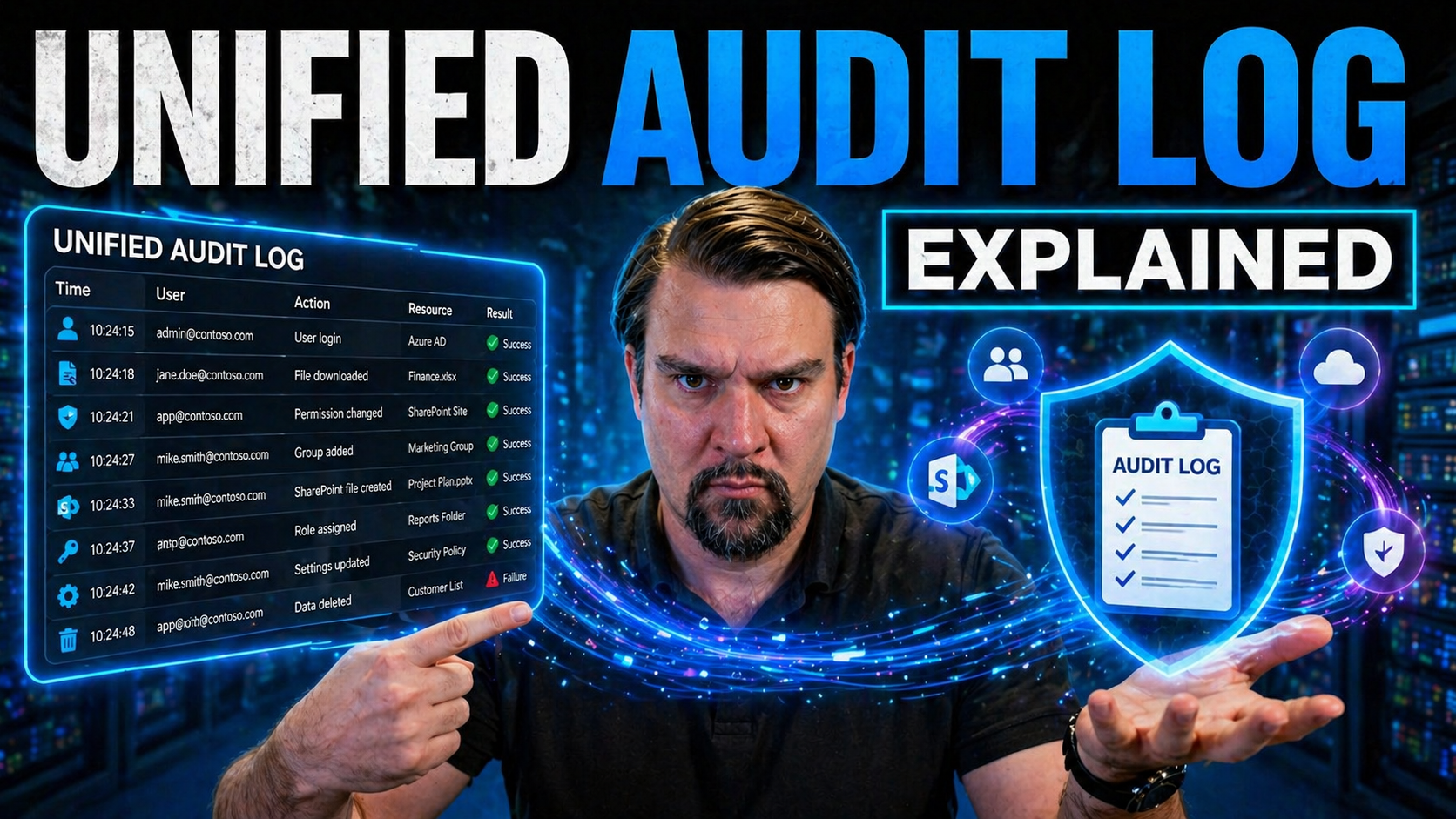
The Unified Audit Log is your organization’s central nervous system for visibility in Microsoft 365. It brings together records of just about everything users and admins do—whether it’s sending an email, sharing a file, tweaking a permission, or changing a security setting. This isn’t just IT busywork; it’s the foundation for identifying security breaches, responding to incidents, and proving to regulators that you’re doing things by the book.
Whether you’re a seasoned Microsoft 365 administrator or just making your first steps into cloud security, understanding the Unified Audit Log is critical. This guide walks you through what the log is, why it genuinely matters, and how you can harness its power to secure your data, stay in compliance, and keep your bosses, auditors, and users off your back for all the right reasons.
By the end, you’ll have a strong grasp of where to start, what to watch for, and how to make this powerful tool work for you long term. If you’re looking for a single, comprehensive resource to demystify Microsoft 365 audit logging, you’re in the right spot.
Understanding the Unified Audit Log in Microsoft 365
The shift to Microsoft 365 has transformed not just how we work, but also how we manage risk. When your organization’s data, emails, and files live in the cloud, every action—from reading a message to deleting a user—has a potential impact on security and compliance. That’s why Microsoft created the Unified Audit Log: a one-stop shop where all significant activities across different 365 services are recorded and ready for analysis.
This isn’t just for catching bad behavior or troubleshooting admin mistakes either. The Unified Audit Log is a key reason organizations can meet regulatory demands, investigate incidents, or even discover sneaky phishing attacks as they unfold. Microsoft’s approach stands apart from old-school on-premises or fragmented log sources by pulling together signals from everywhere—Exchange, SharePoint, Teams, and more—and making them searchable from a single, unified interface.
Centralized auditing saves you from jumping across multiple places and gives you that all-important “big picture” view. For every organization, whether you’re a fast-growing startup or a global giant, this kind of visibility is no longer a luxury—it’s essential. Throughout this section, you’ll get a clear sense of what the Unified Audit Log tracks, the logic behind Microsoft’s design, and the strategic reasons IT and security teams rely on it to keep things running smoothly and safely. For a closer look at day-to-day use and best practices, check out this deep dive on user activity auditing and Purview that highlights why setting up audit logging is more than just a checkbox exercise.
What Is the Unified Audit Log and How Does Microsoft Implement Auditing?
The Unified Audit Log is Microsoft 365’s central record-keeper, capturing details of user and administrator activities across all major services—including Exchange, SharePoint, Teams, OneDrive, Azure Active Directory, and more. Think of it like security cameras for your digital environment: every keystroke, permission change, file access, and mailbox login gets timestamped and logged.
Microsoft implements this “unified” approach to auditing by federating (gathering) event data from each service into a single, tenant-wide log accessible in the Microsoft Purview Compliance portal. Instead of juggling separate reports for mail, documents, or chats, admins can perform cross-workload searches and connect the dots between actions taken in different apps and services.
This method is a step up from fragmented or legacy audit logs, which often left gaps or blind spots. By wrapping all audit trails under one umbrella, Microsoft enables smoother investigations, stronger regulatory compliance, and integrated threat detection. It’s a practical foundation for incident response, monitoring insider activity, tracking down unauthorized access, and satisfying tough auditors (including those asking awkward questions about GDPR or HIPAA).
Ultimately, the unified audit lets you see who did what, where, and when—across your entire Microsoft 365 environment. With Microsoft’s cloud-first architecture, these events are recorded continuously, providing peace of mind that your data’s story—good or bad—never goes untold.
TL;DR Key Takeaways on Unified Audit Logging
- Centralized Tracking: The Unified Audit Log records user and admin actions across all Microsoft 365 services from a single location—no more piecing together separate logs.
- Easy Search & Investigation: Powerful filtering lets you quickly search for activities, spot unusual behavior, or drill down during incidents.
- Essential for Compliance: Audit logs are a must-have for demonstrating compliance with regulations like GDPR, HIPAA, and more.
- Visibility & Security: Get alerts for suspicious activity and improve your organization’s ability to prevent and respond to security threats.
- Setup Matters: Enabling unified audit is fast, but unlocking extended retention and advanced features may require a higher Microsoft 365 licensing tier.
Core Components and Features of the Audit Log Dashboard
Once your audit log is enabled, the next question is: what does it look like, and how do you actually use it day-to-day? The Microsoft 365 unified audit dashboard is where IT pros and security teams spend their time investigating suspicious events, reviewing reports, and proving compliance.
This section backs up for a second to lay out the main dashboard components you’ll interact with inside the Microsoft Purview Compliance Center or Security & Compliance Center. You’ll get a feel for the interface features, from the filtering panels to export tools and built-in search bars, all tailored to help you sift through huge amounts of log data without losing your sanity.
But it’s not just about the pretty buttons and grids—understanding the core architecture is just as important. Microsoft built this dashboard to handle data from many different sources and connect related events into narratives you can actually interpret. As we dig deeper in the next sections, you’ll see not just what’s available, but how underlying processes (like event correlation and back-end architecture) contribute to meaningful auditing. For insights into how dashboards and logs serve as only part of the governance puzzle, consider this overview on compliance drift and dashboard stability; it reveals why visual tools need to align with real user behaviors, not just static records.
Navigating Audit Dashboard Components and Interface
- Search Bar: This is your main entry point. Type in keywords, user names, IP addresses, or select specific activities you want to investigate. The results show up right below, letting you quickly zero in on what matters.
- Date and Time Pickers: These filters help you focus efforts on specific incidents—pinpointing activities that happened in the last hour, day, week, or any custom period you choose.
- Activity Filters: Use checkboxes and dropdowns to select high-risk actions (such as file downloads, permission changes, or shared document access). You can drill down by workload—like Exchange, Teams, or SharePoint—to investigate just one part of your environment.
- User and Group Selection: Target your search to individual users, admin accounts, or even entire groups. This is essential if you’re following up on a particular person’s or role’s actions.
- Export/Download Options: After running a search, export results to a CSV file for further digging, sharing with auditors, or archiving for regulatory reasons.
- Activity Timelines: Some dashboards highlight changes with visual timelines, making it simple to spot spikes in activity, out-of-hours actions, or clusters of events that stand out as suspicious.
- Detail Panels: Click any log entry for details such as event type, timestamp, user agent, IP address, and affected resource. These panels provide context, helping differentiate between legitimate and abnormal activities.
- Compliance Status Indicators: In some interfaces, see at a glance whether critical data is being tracked properly, helping you spot gaps or compliance drift before bigger issues arise.
How Microsoft Unified Audits Correlate Events and Data
Microsoft’s unified auditing system works by continuously capturing events from separate workloads—like mail flow, document edits, Teams conversations, and more—and combining them into a single, time-ordered log. Each event record includes rich metadata: who did it, what was touched, when and where it happened, and from which device or IP address.
But it goes deeper than just collecting events in one big bucket. The unified audit pipeline correlates activities that might cross multiple apps or services. For example, if a user shares a file in OneDrive which is then accessed in Teams and emailed through Outlook, these actions are linked. This event federation process is key for investigations—giving you a complete “storyline” of what really took place across your Microsoft 365 environment.
The back end relies on APIs like the Office 365 Management Activity API and Graph API to fetch, normalize, and synchronize activity data. That way, searches can reveal patterns and relationships—such as repeated failed logins followed by a successful sign-in and a sensitive data download—all with clear timestamps and audit trails.
Correlated auditing empowers security teams to spot threats, respond quickly to incidents, and defend regulatory compliance. You’ll know which accounts accessed which resources (and when), making it possible to detect attacks, resolve operational issues, and uphold your organization’s “paper trail” requirements.
Setting and Enabling Audit Logging for Microsoft 365
Before you can use the Unified Audit Log for investigations or compliance, you need to turn it on and make sure it’s set up correctly. The process is straightforward, but there are a few choices depending on your role, your comfort level with PowerShell, and whether you’re in a complex enterprise or a smaller organization.
This section breaks down the various paths to enabling unified audit logging within Microsoft 365. Some users will choose the Microsoft Purview Compliance portal for a point-and-click experience, while others (especially those managing many tenants or automating rollout) may prefer using PowerShell scripts for greater control and repeatability.
Keep in mind, activating the log is just step one. To keep data longer or access advanced auditing—like longer retention, more granular logs, or extended investigation windows—you’ll also need to look at your Microsoft 365 licensing tier. E5, Premium, and add-on compliance licenses unlock audit capabilities essential for heavily regulated environments. Ready for practical setup? You’ll find hands-on advice in this Microsoft Purview Audit setup guide that outlines best practices, tier differences, and activation troubleshooting.
How to Enable the Microsoft Unified Audit Log
- Use the Purview Compliance Portal: Go to the Microsoft Purview portal, navigate to the Audit section, and follow the prompts to enable logging for your tenant.
- PowerShell Option: Advanced users can use Exchange Online PowerShell. Run the Set-AdminAuditLogConfig –UnifiedAuditLogIngestionEnabled $true command to turn it on.
- Check Audit Log Status: After setup, verify that ingestion is active using either the portal status indicators or the appropriate PowerShell cmdlets.
- Troubleshoot Common Issues: Double-check license entitlements and ensure user permissions are set for viewing/searching logs.
- Reference Step-by-Step Guides: For full walkthroughs on setup and troubleshooting tips, see this guide on using Microsoft Purview Audit.
License Considerations and Extended Audit Log Retention
- Standard vs. Premium Audit: Microsoft 365 includes “Audit Standard” by default in most business and enterprise plans, but advanced features and longer log retention require the “Audit Premium” add-on or E5 licenses.
- Retention Periods: Audit Standard typically retains log data for 90 days, while Audit Premium can hold logs for up to one year (or longer for some events). The increased retention is critical for regulatory compliance or forensics after a delayed breach discovery.
- Licensing Tiers: Premium audit features are available with Microsoft 365 E5, Microsoft 365 Compliance, or Microsoft 365 E5 Security licenses. Confirm your users and services are covered under the correct subscriptions before expecting extended data retention.
- Cost Implications: Premium licensing brings greater visibility, but at a higher price. Consider which users, workloads, or regions really need enhanced logging before rolling it out tenant-wide.
- Compliance Requirements: Many regulations—like GDPR, HIPAA, and SOX—demand proof of controls and longer retention. If you operate in a regulated industry, verify your audit solution meets both duration and feature expectations.
- Upgrading Recommendations: Review business requirements and, if necessary, pilot premium licensing on select users or workloads before global deployment. It’s an investment in operational visibility and risk reduction.
Monitoring and Searching Microsoft 365 Audit Logs
Once the Unified Audit Log is enabled, the real value comes from making sense of the data. Whether you’re proactively hunting for threats, responding to an incident, or just providing quarterly proof for your auditors, you’ll spend most of your time searching, filtering, and interpreting entries in the dashboard.
This section lays the foundation for practical log management. You’ll learn what makes audit searches effective, why strong search strategies matter, and how to separate the “needle” from the digital haystack. Clear search parameters and focused queries lead directly to faster investigations and fewer false positives.
Beyond just finding the logs, you’ll discover what to look for—and how to interpret what’s in front of you. Spotting gaps, inconsistencies, or unexplained spikes is often the difference between catching an insider threat early and missing critical warning signs. We’ll also spotlight which user/admin activities should be top priorities for monitoring, based on their risk, compliance value, or likelihood to trigger a data leak. Get even more practical insights into proactive monitoring, real-time alerts, and closing audit blind spots in this Purview audit activity guide and this framework for external sharing controls.
Performing Effective Audit Searches in the Dashboard
- Selecting Activity Types: Start by filtering for relevant activities—such as file downloads, mailbox access, external sharing, or admin privilege escalation. This helps you target the exact events you need.
- Date Range Filters: Use the dashboard’s calendar controls to narrow your search to the incident period. Limiting your query to the last 24 hours, 7 days, or a custom range can dramatically reduce the volume of irrelevant data.
- User/Resource Targeting: Specify users, admin accounts, or resource locations (like SharePoint sites or OneDrive folders) to zoom in on a person or asset of interest. This is key for insider risk or HR-driven investigations.
- Advanced Search Parameters: Leverage options like IP address filters, client application tagging, or event-specific attributes. In PowerShell, the Search-UnifiedAuditLog cmdlet lets you pass parameters for precise, automated searching.
- Narrowing by Workload: Limit your search to a single service—like Exchange, Teams, or SharePoint—if scoping for platform-specific risks or compliance reviews.
- Result Export: Once you’ve got your results, export them to CSV for further review, sharing, or archiving. CSV downloads are ideal for large-scale investigations or building audit-response documentation.
- Regular Log Reviews: Perform scheduled searches (weekly or monthly) to spot trends, repeated errors, or escalating privilege patterns before they spark real problems.
Interpreting Audit Results and Spotting Inconsistencies
- Understand Event Structure: Know what fields mean—event time, user, IP address, operation, and the target object. This context is crucial for explaining actions and linking related events.
- Spotting Gaps: If expected events are missing, check audit log status, retention settings, and user permissions. Gaps might signal a configuration issue or deliberate tampering.
- Flagging Suspicious Patterns: Look out for unusual times, unknown IP addresses, mass downloads, or permission changes on sensitive data.
- Export for Cross-Analysis: Large or complex results? Export to CSV and analyze using Excel or Power BI for trends and potential anomalies.
Critical User and Admin Activities to Monitor
- Privilege Escalations: Any changes to admin roles, service accounts, or user permissions should be watched closely for abuse or configuration mistakes.
- External Sharing: Track when files, folders, or mailboxes are shared outside your domain. This can flag potential data leaks or user missteps. For more on this, check out this practical external sharing monitoring guide.
- Sensitive Data Access: Keep an eye on access to financial, HR, or regulatory content—especially by unfamiliar users or service accounts.
- Mailbox and File Downloads: Monitor unusual spikes or out-of-hours download activity; both are common precursors to insider theft or malware spread.
- Configuration Changes: Capture changes to alert settings, retention policies, or audit log configuration—these can signal attempts to cover one’s tracks or bypass compliance rules.
Use Cases and Benefits for Security and Compliance
Audit logging isn’t just something you “have to have” for compliance. Used well, it’s a game-changer for both security and business resilience. The Microsoft 365 Unified Audit Log is the backbone of incident response, threat hunting, and demonstrating that your organization meets global regulatory demands.
This section spells out what organizations really gain by using the audit log: continuous insight into risky behavior, fast answers during incidents, and a reliable way to defend against fines or data breaches. From GDPR and HIPAA to SOX and CCPA, proving you know “who did what, when, and where” is increasingly non-negotiable.
You’ll also see audit logs in action with vivid scenarios—from tracing a data leak to thwarting a phishing campaign or documenting every step for your next compliance audit. Strong audit processes help turn risky situations from potential disasters into controlled, manageable events. For a view into how compliance and auditability factor into wider controls and regulatory frameworks, explore this podcast episode about continuous compliance readiness and real-time control, or review how governance drift affects audit effectiveness in this accessible summary of compliance drift challenges.
Key Benefits for Administrators and Organizations
- Operational Visibility: Get real-time, cross-service insights into all user and admin actions—critical for understanding what’s really happening in your environment.
- Threat Detection: Rapidly spot unusual account activity, permission changes, or data movements that signal impending breaches or attacks; essential for preventing damage.
- Regulatory Compliance: Provide authoritative logs for auditors and regulators—proving your policies work and reducing your risk of noncompliance penalties.
- Forensic Investigations: Quickly reconstruct incidents by tracing activities step-by-step, offering indisputable audit trails for security, legal, and HR reviews.
- Organizational Protection: Use actionable audit data to set up real-time alerts, trigger automated defenses, or build defensible cases for defending corporate interests; see how advanced security solutions build on this for robust protection.
Security Compliance Activities and Use Cases
- Suspicious Logins and Access Patterns: Track unexpected sign-ins from remote locations or at odd hours—an early warning for compromised credentials or insider threats.
- Data Leak Investigations: Pinpoint the full timeline of a sensitive document’s lifecycle, from creation to distribution or external sharing. Unified logs make it possible to answer “who saw what, when?”
- Privilege Escalation Audits: Monitor who receives new admin rights, performs bulk permission updates, or changes critical configuration settings—a must for defending against “rogue admin” activity.
- Automated Compliance Reporting: Generate reports for GDPR, CCPA, HIPAA, SOX, or sector-specific regulations at the push of a button, reducing manual effort and risk of audit failures.
- Insider Threat Detection: Find and investigate suspicious mass downloads, file deletions, or repeat transfer attempts by employees leaving or accessing areas outside their normal job.
- Regulatory Audit Trails: Demonstrate to regulators that your security controls work in real time and provide the documentation to support legal processes or insurance claims. See advice on how audit logs automate compliance monitoring and reporting here.
Best Practices for Managing Microsoft 365 Audit Logs
Good logging is only as effective as the practices behind it. To truly safeguard your environment and meet compliance obligations, you need more than just “turning it on”—you need solid procedures for configuring, reviewing, and archiving audit logs.
This section helps you beat information overload and compliance gaps by sharing the approaches that actually work. Whether you favor scheduled reviews, automated exports, or integrating with SIEM and third-party analytics, the goal is predictable, reliable, and actionable visibility into your digital activity.
Part of this conversation is knowing when to go beyond out-of-the-box Microsoft tools—especially in complex, multi-tenant, or regulated environments. Adding open source tools, PowerShell scripts, and export modules can extend your reach, bringing advanced analysis or bulk log management into play. Note: The section also touches on using PowerShell for scalable audit management. While some guides get lost on the “how-to,” our focus remains on what results in reliable compliance and manageable risk. (If you’re curious about PowerShell’s role in automation, there’s an intended guide at this PowerShell governance automation link, but beware it currently redirects to related podcasts.)
Configuration Practices and Third-Party Audit Tools for Enhanced Logging
- Enable Comprehensive Logging: Turn on unified audit for all major workloads—Exchange, SharePoint, Teams, OneDrive, and Azure Active Directory—to avoid blind spots.
- Set Consistent Review Schedules: Schedule weekly or monthly export and review of logs for high-value users and sensitive workloads. Automate exports with PowerShell or built-in scheduler tools.
- Use Third-party Audit Tools: Enhance native M365 auditing with PowerShell modules (e.g., invictus-ir/microsoft-extractor-suite), open-source log exporters, or commercial SIEM integrations for richer analysis and alerting.
- Automate Alerts and Integration: Connect audit logs with SIEMs (like Splunk, Sentinel) or SOAR platforms for real-time correlation, incident response, and cross-platform analysis.
- Protect Audit Log Integrity: Limit access to audit data. Only authorized security or compliance officers should download or manage logs, ensuring evidence is preserved.
- Retain What’s Needed, Discard the Rest: Implement custom retention policies that balance compliance duration with storage and privacy risks.
- Monitor Log Health: Regularly verify that log ingestion is working, and retention settings are being applied as intended.
- Stay Updated: Watch for changes in Microsoft’s APIs, audit features, or reporting formats. Adapt your procedures as Microsoft evolves the platform.
- Demo/Test Tools: Pilot new third-party or open source solutions before production roll-out. Validate results and measure the improvement in transparency or detection accuracy.
Unified Audit Log Data Retention and Governance Policies
How long you keep your audit logs—and what you do with them during their lifecycle—can make or break your compliance program. Retention isn’t just about ticking a box for regulators; it’s about managing real storage costs, reducing privacy risks, and making sure you’re always ready when an audit or investigation happens.
This section deals with the sometimes-overlooked but absolutely crucial task of setting custom retention and governance policies for unified audit logs. You’ll learn why the default settings aren’t enough in many industries, which tools help manage the lifecycle, and how to avoid pitfalls like over-retention or excessive exposure to breaches.
The right policy balances legal, operational, and cost requirements: keep the essential data for as long as your regulators demand, prune it when obligations expire, and document your approach so you never get caught off guard. For tips on full lifecycle content management and audit readiness, visit this Purview and SharePoint compliance podcast. And for the risk of measuring only “outcomes” in retention, explore this compliance drift summary on the nuances of policy vs. actual behavioral change.
Custom Retention Policies for Audit Log Data
- Define Retention Period: Use Microsoft Purview to set custom retention policies by workload, ranging from 90 days (default) to 1 year or longer for premium-licensed tenants.
- Workload-specific Enforcement: Tailor retention policies for high-risk apps (like Exchange or SharePoint) to match regulatory or business needs.
- Set Automated Expiration: Automatically delete audit data past retention to minimize risk and storage cost—this is configurable per policy.
- Review Retention Costs: Long-term retention increases storage costs; plan budgets accordingly if moving to year-plus retention.
- Audit Policy Coverage: Periodically verify your policies cover new workloads/services and are actually being enforced. For more, see how Purview streamlines lifecycle compliance.
Balancing Audit Log Compliance, Storage, and Privacy Risks
- Legal Requirement vs. Risk: Only retain logs as long as legally required; longer retention may violate privacy laws (like GDPR or CCPA) and heighten exposure in case of a breach.
- Data Minimization: Regularly prune old or unnecessary audit entries to reduce both attack surface and compliance complexity.
- Optimize Storage: Move older logs to cost-effective, secure archive storage, or trim logs before ingesting into SIEM tools.
- Audit Deletion Approvals: Apply strict controls/approvals before deleting audit logs, ensuring nothing essential is lost if litigation or law enforcement needs arise.
- Policy Documentation: Keep detailed records of your retention logic, decisions, and enforcement steps—protect yourself in an audit or investigation. For behavioral vs. policy compliance, see the compliance drift discussion.
Conclusion and Additional Unified Audit Log Resources
Unified audit logging is not just a technical detail—it’s a strategic necessity for any Microsoft 365 organization that values security, compliance, and operational clarity. With every login, file share, and policy change tracked across multiple services, the Unified Audit Log offers the forensic backbone you need to investigate, report, and defend against today’s evolving threats.
The key is not simply collecting the data, but knowing how to act on it—setting effective retention, automating responses, monitoring for anomalies, and providing auditors with everything they need (and nothing they don’t). With clear practices, tailored retention policies, and the right tools, you put yourself several steps ahead of both attackers and regulators.
If you’re looking to go deeper or deploy advanced logging techniques in your organization, the next section provides practical resources. You’ll find links to official Microsoft documentation, helpful PowerShell modules, and curated community guides. Use these as references for building, troubleshooting, or expanding your unified audit solution. For those wanting a thorough, hands-on breakdown—including current best practices and add-on tools—bookmark this M365 Purview audit resource as your next stop.
Further Learning and Official Microsoft Audit Log Resources
- Official Microsoft Docs: Access complete reference and step-by-step guidance for unified audit, available directly from Microsoft’s documentation portal for 365 administrators.
- PowerShell Modules: Discover modules like invictus-ir/microsoft-extractor-suite on GitHub for automating bulk export, advanced querying, and integration with third-party tools (note: always verify authenticity and review before use).
- Community Guides: Engage with best practices, gotchas, and troubleshooting tips at sites like M365.fm’s Purview audit walkthrough, recognized for translating audit and compliance principles into actionable steps.
- Integration Resources: For SIEM and automation, look for both Microsoft and open source pipelines to connect logs with Sentinel, Splunk, or custom data lakes for enterprise-scale analysis.
- Continuous Learning: Follow product updates, security advisories, and thought leadership podcasts (such as those linked on M365.fm) to stay ahead as Microsoft evolves Unified Audit features and compliance tooling.
You Should Also Listen To
If you are researching Microsoft 365 Unified Audit Log, these episodes add practical context that helps connect governance, security, compliance, and AI concepts to real Microsoft environments.
- Microsoft Purview – Simply Explained — Clarify how classification, retention, compliance, and data governance fit together across Microsoft 365.
- Microsoft Defender XDR – Simply Explained — See how data-risk signals connect with detection, investigation, and coordinated response.
- Conditional Access – Simply Explained — Understand how identity, device, and risk context strengthens protection around sensitive data.
- Microsoft Teams Governance – Simply Explained — Explore the governance operating model needed to turn policies into consistent user behavior.
They are useful next steps when you want to move from a definition or framework to implementation decisions.

Microsoft MVP | Host of M365.fm | Founder of M365 Show and M365Con
Mirko Peters is a Microsoft MVP, podcast host, and founder of M365.fm, M365 Show, and M365Con. His work connects Microsoft practitioners through podcast interviews, livestreams, and community events.
At M365.fm, Mirko hosts conversations with Microsoft MVPs, product experts, architects, and community contributors. Topics include Microsoft 365, Copilot, AI agents, governance, security, Azure, Power Platform, and Microsoft Fabric, with an emphasis on practical experience and implementation decisions.
M365.fm is the podcast and learning platform. M365 Show brings experts together for livestreams, while M365Con provides an online conference setting for community learning.
Official website: Mirko Peters (https://www.mirkopeters.com/). Recognition: Mirko Peters — Microsoft MVP profile (https://mvp.microsoft.com/de-DE/mvp/profile/9b0ca797-db5a-493a-a845-8b9158046cf5). Connect on LinkedIn (https://www.linkedin.com/in/m365showpodcast/).





