
Unlocking Seamless Productivity: Deep M365 Integration Secrets
Welcome back to the podcast and our companion blog! If you have ever felt bogged down by endless administrative tasks, constant context switching, and the sheer volume of daily communications, you are not alone. In our quest for modern workplace efficiency, artificial intelligence has shifted from a novelty to a critical enterprise utility. However, simply using basic AI chat interfaces only scratches the surface of what is possible. True productivity gains come from deep, unified system integration.
In this post, we explore how Microsoft Copilot connects your everyday applications into a single, intelligent assistant. To dive even deeper into this topic and hear expert advice, make sure to listen to our related podcast episode, Beyond the Prompt: Mastering Microsoft Copilot for Real Productivity with Jess Stratton [MVP].
AI Evolution: Why Microsoft Copilot Matters
AI's Impact on Modern Workflows
Shifting Productivity Paradigms
AI changes how you work. It shifts traditional productivity. You see new ways to complete tasks. For example, computer and math professionals use AI for 12% of their hours. They reduce task duration by 2.5%. Personal service workers use AI for 1.3% of their hours. They gain a 0.4% time reduction. The information services sector shows high AI use at 14% of hours. This yields a 2.6% productivity gain. Deloitte research shows AI integration improves forecasting accuracy by up to 30%. This minimizes blind spots. It gives you reliable insights.
| Metric / Scope | Key Finding / Impact | Source Authority |
|---|---|---|
| Organizational Adoption Rate | 78% of organizations utilized AI in 2024 (a 55% YoY increase) | U.S. Census Bureau |
| Workflow Time Savings | Zoom saved 133 work weeks annually via workflow automation | Asana Case Study |
| Customer Service Efficiency | AI chatbots process up to 70% of routine inquiries | Business Study |
The Need for Intelligent AI Assistance
You need intelligent AI assistance. Modern workflows are complex. You face many tasks. AI helps you manage these tasks. It provides smart support. This support makes your work easier. It helps you focus on important decisions.
Microsoft Copilot: More Than a Chatbot
Its Unique Microsoft 365 Integration
Microsoft Copilot is not just a chatbot. It integrates deeply with Microsoft 365. It works across Word, Excel, Teams, and Outlook. This seamless integration means you do not switch contexts. It is built into Windows, Microsoft 365, and Azure. It acts as a unified system for workplace AI automation. Microsoft distributes it standardly within Microsoft 365 plans. It functions as ambient intelligence for corporate environments.
| Target User Group | Key Capability Differentiator |
|---|---|
| Microsoft 365 Users | Seamless in-app automation across Word, Excel, Teams, and Outlook without context-switching. |
| IT & Compliance Teams | Direct alignment with Microsoft's enterprise governance, security, and compliance frameworks. |
| Data Analysts | Built-in Excel tools for formula generation, visualization, and analysis inside existing spreadsheets. |
| Existing Licensees | Zero platform onboarding friction for organizations already utilizing Microsoft 365. |
Core Value for Business Professionals
Copilot offers core value to business professionals. It boosts your output. Early studies show Copilot can increase productivity by up to 30%. This applies to routine office tasks. These tasks include drafting communications and summarizing virtual meetings. It also includes generating code. Copilot offers dual-layer operation. It works at the user experience level and the underlying OpenAI platform level. This drives higher customization for you.
Setting the Stage for Advanced AI Usage
Moving Beyond Basic AI Queries
You must move beyond basic AI queries. Simple questions give simple answers. You need more from your AI assistant. Think about complex tasks. Ask Copilot to help with these.
The Mindset for Copilot Mastery
You need a specific mindset for Copilot mastery. View Copilot as a partner. It helps you create and analyze. You guide it with clear instructions. This approach unlocks its full potential. Mastering Microsoft Copilot means you learn to collaborate with AI effectively.
Copilot's Core Capabilities: Beyond Basic Prompts
You have seen how AI changes your work. Now, explore Copilot's core functions. You will see how it integrates deeply with Microsoft 365 apps. This section highlights Copilot's ability to personalize your experience. It uses agents and skill frameworks for complex tasks.
Fundamental Copilot Functions Overview
Copilot offers essential functions. These functions help you with daily tasks. You can quickly summarize documents. You can generate drafts. You can also extract basic data.
Quick Summaries and Draft Generation
Copilot helps you create content fast. It summarizes long texts. It drafts new documents. You save time on initial writing.
Basic Data Extraction Features
You can use Copilot to pull out key information. It helps you find specific data points. This makes your analysis quicker.
| Core Capability | Supported Application | Primary Productivity Functions |
|---|---|---|
| Content & Document Creation | Word & PowerPoint | Generates initial drafts, refines written text, and builds presentations from prompt inputs or existing files. |
| Data Processing & Analysis | Excel | Automates formula generation, identifies key data trends, and presents visual insights to aid decision-making. |
| Meeting & Project Management | Teams | Captures real-time meeting notes, tracks project schedules, outlines action items, and summarizes discussions. |
| Email & Messaging Optimization | Outlook | Summarizes long email threads, extracts crucial action points, and drafts tailored messages with specific tones. |
Deep Integration with Microsoft 365 Apps
Copilot works seamlessly across your Microsoft 365 applications. It understands your context in each app. This deep integration makes your workflow smooth.
Word: Advanced Document Creation & Refinement
Copilot transforms your document creation in Word. It helps you refine your writing. You can summarize long texts. You can generate new content.
| Enhanced Feature | Capabilities | Practical Application |
|---|---|---|
| Summarization | Condenses lengthy text into concise summaries | Transform a 15-page document into a few tailored bullet points |
| Generative Creation | Drafts content from initial prompts | Generates detailed schedules or class agendas with specific tone controls |
| Cross-Document Integration | Uses existing files (emails, messages, Word/PowerPoint docs) as source material | Rewrites, expands, or elaborates on paragraphs using existing data |
| Interactive Queries & Formatting | Answers document-specific questions and restructures data | Converts unstructured text into formatted tables and generates instructional modules |
When you draft a new document, Copilot helps you find relevant information.
- Copilot automatically identifies and suggests relevant files, emails, meeting details, and contact information.
- You can select suggested references. This seamlessly inserts crucial details directly into your draft.
- As you type, Copilot generates live prompts and recommendations. It refines your document's tone and content. It does this without losing your unique voice.
Excel: Complex Data Analysis & Formula Generation
Copilot simplifies complex data analysis in Excel. It helps you generate formulas. It also provides insights from your data.
- Copilot translates natural language requests (e.g., computing quarterly averages) directly into active Excel functions.
- It detects syntax or logical issues instantly. It provides immediate correction advice.
- Copilot clarifies complicated, existing formulas. It explains their components step-by-step.
- It constructs multi-layered logical statements. It combines functions like IF, AND, and VLOOKUP based on your constraints.
Copilot simplifies analytical tasks. It assists you with prompt-driven commands. For example, you can ask it to calculate specific revenue totals. You can also seek clarity on conditional statements like pass/fail logic. Beyond individual formulas, it automates data interpretation across large datasets. It summarizes trends, builds pivot tables, and generates visual insights.
| Mode / Feature | Functionality | Application / Output |
|---|---|---|
| Agent Mode | Automated complex analytics | Builds interactive dashboards and pivot tables without manual setup |
| =COPILOT() Function | Text analysis and task automation | Evaluates text, rates sentiment, and categorizes feedback |
| Formula AI | Natural language processing | Converts plain-text prompts into precise Excel formulas |
PowerPoint: Dynamic Presentation Design & Content
Copilot helps you create dynamic presentations in PowerPoint. It designs slides. It generates content.
- Copilot converts basic thematic descriptions directly into complete presentations. It includes recommended text and design layouts.
- It synthesizes downloadable custom visual assets, infographics, and slide backgrounds within the application.
- Copilot features a conversational chatbot interface. It writes context-aware speaker notes. This improves your delivery confidence.
| Feature Category | Copilot Capability | Dynamic Impact |
|---|---|---|
| Smart Design Suggestions | Evaluates slide content to recommend optimal layouts, fonts, and color palettes | Ensures presentations maintain a professional aesthetic tailored to brand guidelines or specific pitch themes |
| Automated Content Generation | Builds complete text, imagery, and slide structures from brief theme inputs or data points | Accelerates drafting and overcomes writer's block by automatically converting raw ideas into cohesive content |
| Data Visualization & Narrative | Transforms complex raw datasets into visual elements like graphs, charts, and infographics | Blends statistical data with visual storytelling to present information in an accessible manner |
You can generate complete, multi-slide pitch decks or updates from simple text prompts or uploaded Word documents. Copilot integrates with Microsoft Designer. It builds custom visual assets, illustrations, and line drawings based on your detailed prompt specifications. You can rapidly reorder slides. You can shorten sections. You can adjust narratives for your audience using basic commands. Copilot compresses extensive decks into concise executive summaries. It retains core messaging. It produces detailed narrative notes. These notes expand on bullet points and visual data during your presentation delivery. Copilot adapts generated content directly into your organization's pre-existing custom templates. Currently, it lacks the ability to automatically generate complex animations, transitions, or advanced custom graphic design work.
Outlook: Intelligent Email Management & Drafting
Copilot provides intelligent assistance for your email management in Outlook. It helps you draft messages. It manages your inbox.
| Feature Capability | Implementation Steps | Efficiency Impact |
|---|---|---|
| Email Drafting and Composition | Open a new message, click the Copilot icon, choose 'draft with Copilot', and input details like recipient, goal, tone, and main points. | Cuts composition time from 10–15 minutes down to 2–3 minutes of quick editing. |
| Intelligent Email Summarization | Open an email chain, tap the Copilot icon, and run the summarization action to extract decisions and tasks. | Reduces 15–20 minutes of reading long threads down to under a minute. |
| Tone and Clarity Coaching | Draft the message, launch Copilot coaching to evaluate tone, simplicity, and engagement, then apply suggested tweaks. | Avoids workplace miscommunication and reduces time spent sending clarifying follow-ups. |
| Meeting Scheduling Coordination | Prompt Copilot with your scheduling goal, review suggested times and agendas based on context, and dispatch invites. | Replaces 5–10 back-and-forth emails and 20–30 minutes of calendar checking with a process under 5 minutes. |
| Shared & Delegated Mailbox Management | Gain required permissions, access the shared inbox, and execute standard Copilot prompts (drafting, summarizing, coaching). | Streamlines multi-inbox oversight, minimizes context switching, and prevents missed updates. |
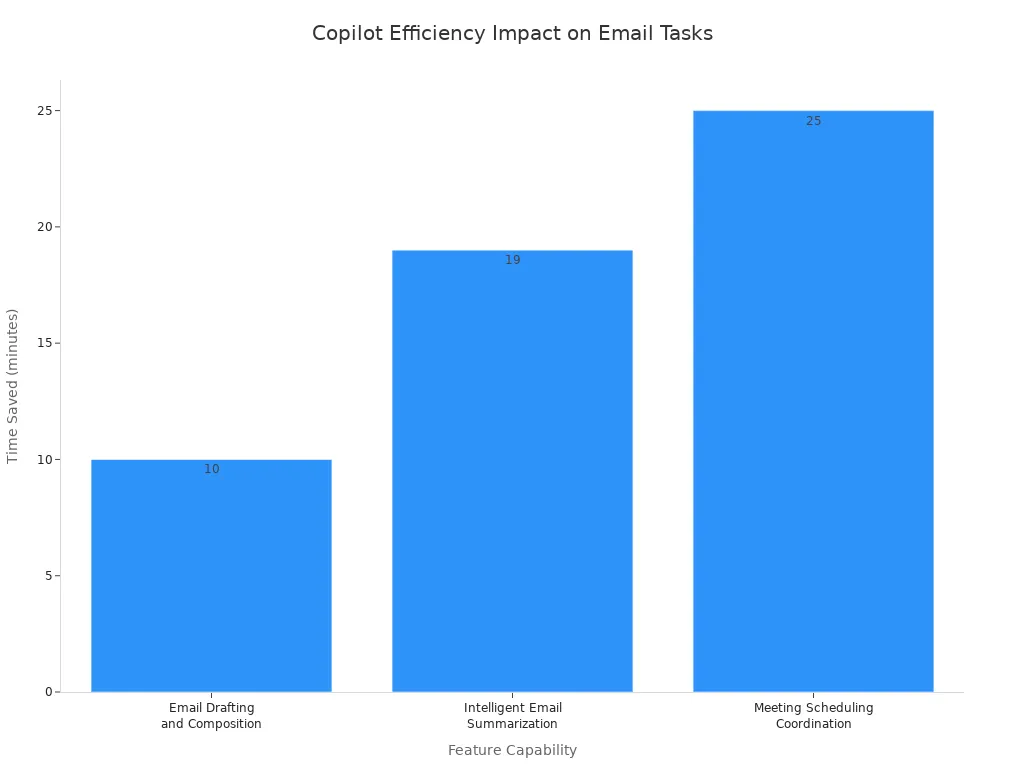
- Copilot assists you by composing automated acknowledgments. It creates request-for-proposal guides. It drafts contextual replies (e.g., agreeing to project timelines).
- It filters and organizes communications. It uses targeted prompts to relocate messages or search for specific topic reports.
- Copilot retrieves @mentions across Microsoft Teams and Outlook. It isolates pending action items from unread messages. It configures Out-of-Office notifications.
- It polishes existing drafts. It aligns them with professional standards. It simplifies language for broader audiences.
Teams: Enhanced Meeting Summaries & Collaboration
Copilot upgrades your meeting experience in Microsoft Teams. It streamlines collaboration.
- Copilot automatically produces comprehensive post-meeting overviews. It captures key conclusions and assigned tasks directly in Teams or Microsoft Loop.
- It delivers real-time meeting summaries. It provides live context and time-tracking features during active sessions.
- Copilot facilitates the creation of post-meeting audio synopses and formatted Word documentation.
- It helps you refine and rewrite chat messages within Teams channels.
- Copilot can process and summarize calls without forcing active transcriptions or recordings.
Contextual Understanding: Copilot's Work Environment
Copilot understands your work environment. It leverages your organizational data. It understands your intent. This makes its assistance highly relevant.
Leveraging Organizational Data & Files
Copilot actively parses information from distinct files. These files are stored within your M365 environment (such as OneDrive or SharePoint). This enables it to locate targeted figures. For example, it can find total sales from a specific quarterly report. It summarizes those insights directly within your chat.
- Microsoft Graph Indexing functions as the foundation. It compiles and fetches data across your enterprise landscape. This includes files, messages, and documentation.
- Dual-Index Semantic Search evaluates your user intent. It uses both an enterprise-wide index for shared assets. It also uses an individualized index tracking your recent actions (e.g., meeting logs, file edits).
- LLM Synthesis translates and formats raw context. It retrieves this from search layers. It presents it in clear, natural language responses.
| Metadata Category | Role in Contextual Understanding |
|---|---|
| Sharing Permissions | Limits summaries and recommendations strictly to accessible content. |
| Timestamps | Determines document recency and current relevance. |
| File Relationships | Maps structural hierarchies and collaborative workflows. |
| Version History | Tracks modifications over time for auditability. |
| Embedded Links | Connects references across multiple documents to deepen context. |
Understanding User Intent & Preferences
Copilot learns your preferences. It adapts to your unique tone and style. You can set Outlook writing preferences. You can use Brand Kits. You can create custom meeting templates. Copilot also has persistent memory. This means it remembers your past interactions. It uses this memory to provide more personalized assistance. This deep personalization is key to Mastering Microsoft Copilot. It also uses agents and emerging skill frameworks. These help it handle complex, multi-step tasks.
Microsoft Graph's Role in Context
Microsoft Graph is the essential API architecture. It connects distinct Microsoft 365 services. These include Teams, Exchange, SharePoint, and Outlook. It forms a cohesive data layer. It provides a single access point to real-time enterprise information. This includes emails, calendar events, documents, and user interactions. It equips Copilot with the necessary live organizational context. Through semantic indexing, it grounds Copilot's responses, summaries, and actions. It bases them directly in your company's unique operational data. It does not rely on generic model outputs.
Mastering Microsoft Copilot: Jess Stratton's Prompt Strategies
You want to get the most from Microsoft Copilot. This means you move beyond simple questions. Jess Stratton, an expert, shows you how to craft powerful prompts. You learn to guide Copilot for precise results.
Crafting Effective Multi-Part Prompts
Complex tasks need smart prompts. You can break down your requests. This helps Copilot understand exactly what you need.
Deconstructing Complex Tasks
Think of a big project. You would not do it all at once. You break it into smaller steps. Do the same for Copilot. Divide your complex task into clear, manageable parts. For example, instead of asking for "a marketing plan," ask for "target audience analysis," then "key messaging," then "channel strategy." This step-by-step approach helps Copilot deliver better results.
Incorporating Specific Requirements
Copilot works best with details. You must tell it exactly what you want. Include specific requirements in your prompts. Do you need a certain word count? A particular format? A specific tone? Add these details. For instance, instead of "write an email," try "write a concise email, under 100 words, to a client about a project delay, using a reassuring tone."
Multi-Stage Prompt Construction Examples
You can build prompts in stages. This guides Copilot through a process.
- Stage 1: Define the Goal. Tell Copilot the main objective.
- Example: "I need a summary of our Q3 sales report."
- Stage 2: Add Context. Provide necessary background information.
- Example: "Focus on the performance of the new product line and key challenges."
- Stage 3: Specify Output. Describe how you want the information presented.
- Example: "Present the summary as three bullet points, each with a key takeaway and a supporting metric."
This multi-stage approach helps you achieve precise outcomes.
Leveraging Follow-Up Prompts for Refinement
Copilot often gives a good first draft. You can make it great with follow-up prompts. This is an iterative process. You guide the AI to improve its output.
Guiding Iterative AI Development
Think of Copilot as a team member. You give feedback on their work. You ask for revisions. Start with straightforward directives. Ask Copilot to refine the text further. You can also ask it to increase formality. Then, progressively add more constraints. This shapes the output until it meets your exact standard. You are in control of the development.
Techniques for Clarification & Correction
You can use specific techniques to refine Copilot's output. Sometimes, you need to ask Copilot to critique its own work.
Prompt Copilot to act as a prompt engineer to refine your inputs: "Act like a prompt engineer and write a better prompt to help me to achieve [goal]."
This meta-prompting helps you create even stronger initial requests. You can also use targeted questions to improve clarity and correctness.
| Prompt Strategy | Sample Follow-up Prompt | Purpose |
|---|---|---|
| Self-Critique | "What are 5 ways this could be wrong, incomplete, or misleading?" | Uncover output flaws and blind spots |
| Missing Information | "What information do you need to be confident in this?" | Determine necessary additional context |
| Force Structure | "Put this into a table with columns: claim, evidence, confidence, and what to verify." | Organize narrative output into structured analytical formats |
| Sensitivity Scan | "Flag anything that might be confidential, policy-sensitive, or risky to share externally." | Check for security and compliance risks |
To refine AI outputs progressively, apply focused follow-up prompts that perform the following adjustments:
- Modify the output tone to align with professional or client standards.
- Simplify text containing overly technical or complex jargon.
- Rearrange content sections to enhance logical progression and emphasis.
- Expand, reduce, or shift focus on targeted details.
You can also utilize meta-prompting. This directs the AI model to analyze and optimize your instructions through:
- Solicit alternative phrasings for queries.
- Ask for recommendations to increase prompt specificity and actionability.
- Identify missing context, hidden assumptions, or omitted constraints.
Building on Previous AI Outputs
Copilot remembers your conversation. You can build on its previous answers. If Copilot generates a summary, you can then ask, "Now, expand on the third point in that summary." This saves you time. You do not need to repeat information. You create a continuous flow of work.
Guiding Copilot to Specific Outcomes
You want Copilot to produce content that fits your exact needs. You can guide it to specific outcomes. This includes tone, format, and audience.
Specifying Tone and Style Parameters
You control how Copilot writes. You can set the tone and style.
- Set the primary role and task context. For example, specify an expert technical writer role.
- Mandate adherence to organizational voice and style guides. For instance, use Microsoft's tone and style.
- Outline quality criteria. Include clarity, logical structure, accessibility, and consistency.
- Define strict formatting and usage rules. Use provided reference files for this.
You can also use specialized agents within Copilot.
| Agent Type | Parameters Specified | Application Example |
|---|---|---|
| Document Summary Agent | Tone, audience, purpose, length, and focus areas | Customizes summaries to align with internal organizational standards and key metrics. |
| Style Editing Agent | Brand voice, writing standards, plain-language rules | Rewrites drafts like product emails or support macros to ensure regional consistency and brand alignment. |
Users can leverage specialized agents like the Writing Coach by using targeted prompts such as: "Review this LinkedIn post and make it more engaging without changing the meaning." to directly refine output tone.
Defining Output Format and Structure
Tell Copilot how to present the information. Do you need a bulleted list? A table? A paragraph? Specify the structure. For example, "Summarize this article in three bullet points" or "Create a table comparing features A and B." This ensures you get usable output immediately.
Tailoring Content for Diverse Audiences
Your audience matters. You need to adjust content for different groups. Copilot can help you tailor content.
- Automated Integration: Allow tools like Breeze Copilot to pull insights directly from connected platforms. This includes CRM records and existing published articles. It captures the brand's baseline style.
- Manual Guidelines: Supply specific voice documentation and clear brand parameters. This guides the AI's output tone.
- Authentic Demonstrations: Feed the system real-world writing samples and explicit examples. This enhances tone precision.
- Platform & Persona Adjustments: Shift the tone to align with specific target demographic preferences and the chosen publishing medium.
Incorporating Brand Voice Guidelines
Your brand has a unique voice. You want Copilot to match it. Provide Copilot with your brand guidelines. You can upload style guides or give examples of your brand's writing. This helps Copilot produce content that sounds like your company. This consistency is key for professional communication. Mastering Microsoft Copilot involves teaching it your brand's identity.
Real-World Copilot Productivity Scenarios

You can use Copilot to boost your daily work. It helps you with many tasks. You will see how Copilot makes your work easier.
Automating Document Creation & Summarization
Copilot helps you create and summarize documents. It saves you time.
Generating Comprehensive Reports
You can generate recurring business reports with Copilot. It works with Microsoft 365 Copilot and Power Automate. You verify the data and the final message. Copilot reduces the time to produce reports. It also cuts down revision cycles.
Condensing Lengthy Documents
Copilot summarizes files and internal knowledge. You cross-reference critical decisions with original sources. This reduces your search time. It also decreases repeated questions.
Drafting Policy & Proposal Documents
You can draft sales notes and follow-up communications. Copilot works with Power Automate and CRM Integrations. You review commercial details and client-facing text. This speeds up follow-ups. It improves CRM data quality. It also reduces sales admin time.
| Practical Use Case / Example | Primary & Supporting Tools | Human Responsibilities | Key Performance Metrics |
|---|---|---|---|
| Generating Recurring Business Reports | Microsoft 365 Copilot, Power Automate | Verify underlying data, final analysis, and executive message | Time to produce reports, revision cycles, stakeholder approval |
| Summarizing Files & Internal Knowledge | Microsoft 365 Copilot | Cross-reference critical decisions with original sources | Reduced search time, decrease in repeated questions |
| Drafting Sales Notes & Follow-up Communications | Microsoft 365 Copilot, Power Automate / CRM Integrations | Review commercial details, commitments, and client-facing text | Follow-up speed, CRM data quality, reduced sales admin time |
Streamlining Data Analysis & Presentations
Copilot makes data analysis and presentations simpler. It helps you work faster.
Extracting Excel Data Insights
Copilot optimizes data workflows in Excel. It automates repetitive tasks. It writes formulas. It builds visual charts. It helps you uncover actionable insights directly from spreadsheets.
Creating Dynamic PowerPoint Decks
You can structure content directly into slides using voice commands. Copilot uses the Narrative Builder tool. It offers 43 recommended master layout templates. It pulls material from web data or documents. This includes Word files and PDFs. It builds initial slide layouts for you.
Automating Chart & Graph Generation
Copilot helps you visualize data. It generates automated reports and real-time dashboards. This streamlines multi-source datasets. It runs what-if simulations. It evaluates strategy impacts. It forecasts business trends in Excel. It distills analytical findings into narrative summaries. This helps with stakeholder review in Word and Teams.
| Functionality | Description | Associated Tools |
|---|---|---|
| Data Visualization & Reporting | Generates automated reports and real-time dashboards to streamline multi-source datasets | Power BI, Excel, SharePoint |
| Predictive & Scenario Modeling | Runs what-if simulations, evaluates strategy impacts, and forecasts business trends | Excel |
| Strategic Summarization | Distills analytical findings into understandable narrative summaries for stakeholder review | Word, Teams |
Enhancing Communication & Meeting Management
Copilot improves your communication and meeting management. It helps you before, during, and after meetings.
Preparing Agendas & Briefs
Before meetings, Copilot helps you. It evaluates participant calendars in Outlook. It suggests optimal time slots. It gathers relevant documents and emails. It creates tailored talking points. It answers specific preparation questions. You can automatically create structured meeting agendas in Outlook. Use / prompts or email threads.
Summarizing Meetings & Action Items
During meetings, Copilot provides real-time support. It transcribes discussions live. It identifies unanswered questions. It offers multilingual support. After meetings, it generates concise topic and speaker breakdowns. It creates customizable podcast-style audio recaps. It centralizes meeting insights in Teams. It automatically drafts follow-up emails. It creates action items. It integrates notes directly into CRM platforms like Salesforce.
Drafting Professional Communications
Copilot helps you draft professional communications. It converts messages instantly across Teams and Outlook. It uses native languages. It maintains context accuracy for cross-cultural communication. It extracts action items directly from emails, chats, or meeting transcripts. It distributes them based on roles and workloads.
| Meeting Phase | Copilot Feature | Enhancements & Specific Actions |
|---|---|---|
| Pre-Meeting | AI-Powered Scheduling | Evaluates participant calendars in Outlook to automatically suggest optimal time slots. |
| Pre-Meeting | Contextual Preparation | Gathers relevant documents, emails, and M365 insights into tailored talking points and answers specific preparation questions. |
| Pre-Meeting | Agenda Generation | Automatically creates structured meeting agendas in Outlook via / prompts or email threads. |
| In-Meeting | Real-Time Support | Transcribes discussions live, identifies unanswered questions via the Facilitator agent, and provides multilingual support. |
| Post-Meeting | Recap & Summaries | Generates concise topic/speaker breakdowns, customizable podcast-style audio recaps, and centralized meeting insights in Teams. |
| Post-Meeting | Follow-Up & Action Items | Automatically drafts follow-up emails, creates action items, and integrates notes directly into CRM platforms like Salesforce. |
Jess Stratton's Personalized Copilot Examples
Jess Stratton, a Microsoft MVP and technology coach, shows you how to unlock Copilot's full potential. She provides real-world examples. These examples demonstrate how you can transform your daily tasks. You will see how Copilot moves beyond basic assistance. It becomes a strategic partner.
Case Study: Transforming Word to PowerPoint
You often need to convert detailed reports into presentations. This task can take hours. Jess Stratton demonstrates how Copilot streamlines this process. You simply open your Word document. You then prompt Copilot to "Create a presentation from this document." Copilot analyzes the content. It identifies key sections and headings. It then generates a complete PowerPoint deck. This deck includes slides with titles, bullet points, and even suggested images. You save significant time. You can then focus on refining the presentation. You add your personal touch.
Case Study: Generating Custom Training Scenarios
Training new employees or developing new skills requires tailored content. Jess Stratton uses Copilot to generate custom training scenarios. Imagine you need a scenario for customer service training. You provide Copilot with the learning objectives. You also give it details about the product or service. Copilot drafts realistic dialogues. It creates problem-solving exercises. It even suggests role-playing prompts. This capability allows you to quickly develop engaging and relevant training materials. You ensure your team is well-prepared.
Case Study: Analyzing Complex Financial Data
Financial analysis often involves large datasets. You need to extract insights quickly. Jess Stratton shows how Copilot assists with complex financial data. You can ask Copilot in Excel to "Summarize the quarterly revenue trends." You can also ask it to "Identify the top 5 performing products." Copilot processes the data. It generates summaries. It creates charts. It even explains complex formulas. This helps you understand financial performance faster. You make informed decisions with greater confidence. You turn raw data into actionable intelligence.
Copilot Adoption: Challenges & Best Practices
You want to successfully bring Microsoft Copilot into your organization. This means you must understand common challenges. You also need to know best practices for integration, ethical use, and team training.
Addressing Common Pitfalls & Limitations
You might encounter some issues when adopting Copilot. Knowing these helps you prepare.
Managing AI Expectation Realities
You must set realistic expectations for AI tools. Think of AI as an enabler. It helps automate repetitive tasks. It does not fully replace human thought. Organizations sometimes buy a few licenses to test. They then see low usage. This makes them unsure about the return on investment (ROI). You can fix this. Talk to current license holders. Analyze their daily work. Evaluate user satisfaction. Host Q&A sessions. Use small pilot findings to plan your adoption. Define your ROI metrics before buying more licenses.
Handling Inaccurate AI Outputs
Sometimes, Copilot might give you incorrect information. This is called a "hallucination." You must always check AI-generated outputs. This filters out mistakes before you use the information. You can also tell Copilot to only use specific source data. Ask it to tell you if information is missing. This helps reduce wrong outputs. Treat Copilot's answers as suggestions, not final decisions.
Strategies for Prompt Troubleshooting
You can improve Copilot's accuracy with better prompts. Give Copilot clear instructions. Provide specific background information. Set clear goals. This helps avoid general or misleading answers. Your team can also create shared practices. Use validated prompt templates. Always review outputs carefully.
| Pitfall / Limitation | Impact / Concern | Recommended Solution |
|---|---|---|
| Compliance & Legal Risks | Violating rules like GDPR or HIPAA leads to fines and lost trust. | Align setup with rules, update data governance, and ask legal for advice. |
| Technical & Integration Obstacles | Old software or bad IT infrastructure stops deployment. | Check IT before deployment. Train IT staff on integration. |
| Governance & Security | Wrong permissions risk data leaks. | Set strong governance rules. Set M365 security permissions correctly. |
| Inaccurate Outputs (Hallucinations) | False information causes bad business decisions. | Clean data regularly. Always have a human check critical outputs. |
| Over-dependence on AI | Skills get worse when you let AI do all the thinking. | Use AI as a support tool. Hold workshops to stress human critical thinking. |
| Skill Gap & Learning Curve | Users do not know how to use AI effectively. | Provide hands-on training on prompt engineering. Offer guides and safe practice areas. |
Integrating Copilot into Workflows
You need to integrate Copilot smoothly into your daily work. This makes it truly useful.
Identifying High-Impact Use Cases
Focus your initial Copilot use where it helps most. Target roles that create a lot of content. Look for roles that do complex data analysis. Consider roles that need a lot of team coordination. Finance analysts, operations managers, legal counsel, sales teams, and HR partners are good examples. These roles often see the biggest benefits.
Gradual Rollout & Phased Adoption
Do not try to implement Copilot everywhere at once. Start small. Allocate licenses to positions where they will have the greatest effect. Teach users about how Copilot helps their everyday tasks. Do not just talk about high-level features. Embed Copilot into regular work routines. Measure success by looking at productivity and business results. Do not just track login activity.
Customizing Copilot for Team Needs
You can tailor Copilot to fit your team. This makes it more effective. You can create specific prompt galleries for different departments. These galleries can include company acronyms and local workflows. This helps HR, Finance, Legal, Sales, and Operations teams. Customization helps your team adopt Copilot faster.
Ethical AI & Data Privacy Considerations
You must use AI responsibly. This includes thinking about ethics and data privacy.
Understanding Data Handling & Security
Microsoft takes data security seriously. It encrypts all your data. This happens when data is stored and when it moves across networks. Microsoft does not use your inputs or documents to train its core AI models. It follows many security and privacy standards. These include GDPR, HIPAA, and ISO 27001.
| Security Pillar | Mechanism & Policy |
|---|---|
| Data Residency & Boundary | Keeps prompts and responses inside the Microsoft cloud. Your data does not go to outside models. |
| Identity & Access Control (IAM) | Enforces user permissions. Copilot cannot access files you do not have rights to see. It works with Microsoft Purview sensitivity labels. |
| Data Retention | Prevents data leaks. Copilot inputs and outputs are deleted after a session. They are never kept for model training. |
| Data Governance | Copilot activities follow Microsoft Purview features. This includes eDiscovery, audit logging, and retention policies. |
Ensuring Responsible AI Usage
You need to ensure Copilot is used responsibly. This means thinking about fairness and transparency. You must work to prevent bias in AI outputs. Promote inclusiveness. Keep the system reliable and safe. Follow all legal and regulatory rules.
Maintaining Human Oversight & Verification
Always keep a human in charge. You must oversee Copilot's work. This means checking its outputs for truthfulness and accuracy. Do not rely solely on AI. Human judgment is always important. This helps you make ethical decisions.
Training & Upskilling Your Team
You need to prepare your team for Microsoft Copilot. This involves training and upskilling. You ensure everyone can use Copilot effectively. This maximizes its benefits.
Developing Internal Copilot Champions
You can identify key individuals within your organization. These people become "Copilot Champions." They are power users. They advocate for Copilot. They assist their peers. You cultivate these specialized users across various departments. They help others learn the tool. They also share best practices. This creates a network of support. You also secure executive champions. They provide visible support. This encourages continuous skill adoption.
Creating Best Practice Guides
You need clear resources for your team. You can create best practice guides. These guides offer foundational to advanced learning. They help your team understand Copilot. You can also provide on-demand micro-learning modules. These are brief and accessible. They facilitate continuous learning. Formal training programs also help. For example, Microsoft MS-4004/MS-4018 courses specifically focus on Copilot capabilities. They teach prompt engineering techniques. You can integrate hands-on labs and simulations. These mirror actual tools. They tie learning directly to daily work tasks.
| Strategy Area | Action Item | Intended Outcome |
|---|---|---|
| Skill Assessment | Conduct organization-wide capability evaluations | Identify knowledge gaps and target high-impact roles |
| Program Structure | Create tiered learning paths and dedicated study time | Offer foundational to advanced learning during work hours |
| Practical Application | Integrate hands-on labs, simulations, and real-world projects | Mirror actual tools and tie learning directly to daily work tasks |
| Organizational Support | Secure executive champions and offer skill incentives | Drive visible support and encourage continuous skill adoption |
Fostering a Culture of AI Exploration
You want your team to embrace AI. You foster a culture of exploration. You establish open communication channels. This addresses employee concerns about job security or AI risks. You create spaces for transparent dialogue. You emphasize practical benefits. Clearly communicate how Copilot enhances efficiency. Explain how it improves work quality. Show how it builds on existing skill sets. You can implement pilot projects. These offer targeted training. They allow hands-on exploration of Copilot's capabilities. This helps your team discover new ways to work. You encourage continuous learning and adaptation.
Future of Work with Microsoft Copilot
You have mastered Copilot's current features. Now, look ahead. Microsoft Copilot continues to evolve. It will change how you work even more.
Anticipated Updates & New Features
Microsoft constantly improves Copilot. You can expect new features and better performance.
Roadmap for Enhanced AI Capabilities
Copilot's AI capabilities will grow. You will see more intelligent assistance.
| Feature / Upgrade Area | Enhanced AI Capabilities | Platform Integration & Target Availability | Current Rollout Status |
|---|---|---|---|
| Desktop & App Support | Core Copilot AI functionality and image generation models | Windows and Mac apps, expanding beyond iOS, Android, Copilot.com, Edge, and GroupMe | Expected in the coming weeks following staged rollouts |
| Quiz Cards | Interactive active-learning mode generating natural language quizzes across subjects | Live on Copilot.com and Copilot Mobile; pending on Windows/Mac desktop apps | Broadening deployment after evaluating user engagement and accuracy |
| Android Assistant Status | Conversational AI assisting with messaging, timers, alarms, and rideshare booking | Native Android OS integration as the default digital assistant | Currently live on Android home screens globally |
| Enhanced Copilot Vision | Real-time visual 'show me how' guidance and simultaneous dual-app analysis | Windows OS multi-app workspace integration | Available to U.S. Windows Insiders prior to full public release |
| Cross-Platform Deployment | Staged feature deployment strategy driven by user feedback | Unified availability across Microsoft ecosystem platforms | Incremental release schedule for system stability testing |
Expanding Platform Integration
Copilot will integrate more deeply across platforms. You will find it in more places. It will work seamlessly on Windows and Mac apps. It will also expand beyond mobile and web versions. You can use Copilot as your default Android assistant. It helps with messages and alarms. You will also see "Quiz Cards" for interactive learning. These features roll out incrementally.
Evolution of AI Models
The AI models behind Copilot will become smarter. They will understand your needs better. This means more accurate and helpful responses for you.
Long-Term Impact on Productivity
Copilot will significantly impact your productivity over time. It will change how you approach tasks.
Reshaping Job Roles & Responsibilities
Copilot will reshape job roles. It automates routine tasks. This frees you to focus on strategic work. You will spend less time on repetitive duties. You will have more time for creative problem-solving.
Driving Innovation & Efficiency
Copilot drives innovation and efficiency. Organizations like PepsiCo use Copilot daily. They integrate AI into Teams workflows. This eliminates friction between tools. It saves hours each day. A financial service organization saw 93% adoption. They streamline admin tasks. They automate routine workloads. This gives them real-time access to policies.
| Organization Context | Key Adoption Metrics | Efficiency & Innovation Impact | Augmented Workforce Outcome |
|---|---|---|---|
| PepsiCo | 90%–95% daily usage | Integrates AI into daily Teams workflows; eliminates cross-tool friction and saves hours daily. | Frees employee capacity to focus on strategic, higher-impact initiatives. |
| Financial / Service Organization | 93% adoption; 90% weekly usage | Streamlines admin tasks, automates routine workloads, and enables real-time access to policies/context. | Accelerates decision-making, shifting focus toward high-value human connections and client growth. |
The Augmented Workforce Vision
This leads to an augmented workforce. Copilot helps you make faster decisions. It shifts your focus to high-value human connections. You can concentrate on client growth.
Jess Stratton's AI-Assisted Work Vision
Jess Stratton sees a future where AI and humans work closely.
Strategic Human-AI Collaboration
You will collaborate strategically with AI. Copilot becomes a true partner. It helps you achieve more. You guide the AI. The AI supports your efforts.
Preparing for Next-Gen AI Tools
You must prepare for future AI tools. The technology evolves quickly. Stay informed about new features. Understand how they can benefit your work.
Continuous Learning & Adaptation
Continuous learning is key. You must adapt to new AI capabilities. Embrace change. Explore how Copilot can enhance your skills. This ensures you remain productive and competitive.
You now see that Mastering Microsoft Copilot is crucial. It unlocks significant, real productivity gains beyond basic prompts. You learned advanced prompt engineering. You explored deep integration across Microsoft 365 apps. You discovered strategic applications to transform business workflows. Jess Stratton's expert insights show Copilot's transformative potential when you use it effectively. Apply these advanced techniques. Conquer AI overwhelm. Drive unexpected creative inspiration. Reshape your daily work for new levels of efficiency and meaningful business outcomes. The evolving landscape of AI-assisted productivity demands continuous learning. To dive deeper into these strategies, don't forget to check out our related podcast episode, Beyond the Prompt: Mastering Microsoft Copilot for Real Productivity with Jess Stratton [MVP].
FAQ
What is Microsoft Copilot?
Microsoft Copilot is an advanced AI assistant. It integrates with Microsoft 365 apps. It helps you with many tasks. It boosts your productivity.
How does Copilot integrate with Microsoft 365?
Copilot works directly inside Word, Excel, PowerPoint, Outlook, and Teams. It uses your existing files and data. This seamless integration helps you stay in your workflow.
Can Copilot handle complex tasks?
Yes, Copilot handles complex tasks. You can use multi-part prompts. You can also use follow-up prompts. This guides Copilot to achieve specific outcomes.
Is my data safe with Copilot?
Microsoft protects your data. It encrypts your data. It does not use your inputs to train its core AI models. Copilot follows strict security and privacy standards.
How can I improve Copilot's answers?
You improve Copilot's answers with clear prompts. Give specific details. Tell Copilot your desired tone and format. This helps Copilot understand your needs better.
What if Copilot gives wrong information?
Copilot might sometimes give incorrect information. You must always verify its outputs. Treat Copilot's answers as suggestions. Human oversight remains important.
Will Copilot replace my job?
Copilot automates routine tasks. It frees you for strategic work. It helps you focus on higher-value activities. Copilot augments your abilities. It does not replace your role.

Founder of M365 Show, M365con.net & m365.fm
Mirko Peters is a Microsoft 365 expert, content creator, and founder of m365.fm, a platform dedicated to sharing practical insights on modern workplace technologies. His work focuses on Microsoft 365 governance, security, collaboration, and real-world implementation strategies.
Through his podcast and written content, Mirko provides hands-on guidance for IT professionals, architects, and business leaders navigating the complexities of Microsoft 365. He is known for translating complex topics into clear, actionable advice, often highlighting common mistakes and overlooked risks in real-world environments.
With a strong emphasis on community contribution and knowledge sharing, Mirko is actively building a platform that connects experts, shares experiences, and helps organizations get the most out of their Microsoft 365 investments.


![Beyond the Prompt: Mastering Microsoft Copilot for Real Productivity with Jess Stratton [MVP]](https://img.youtube.com/vi/kx5_GVFlYRM/maxresdefault.jpg "Beyond the Prompt: Mastering Microsoft Copilot for Real Productivity with Jess Stratton [MVP]")