
Microsoft Teams Templates: Setup and Governance Guide
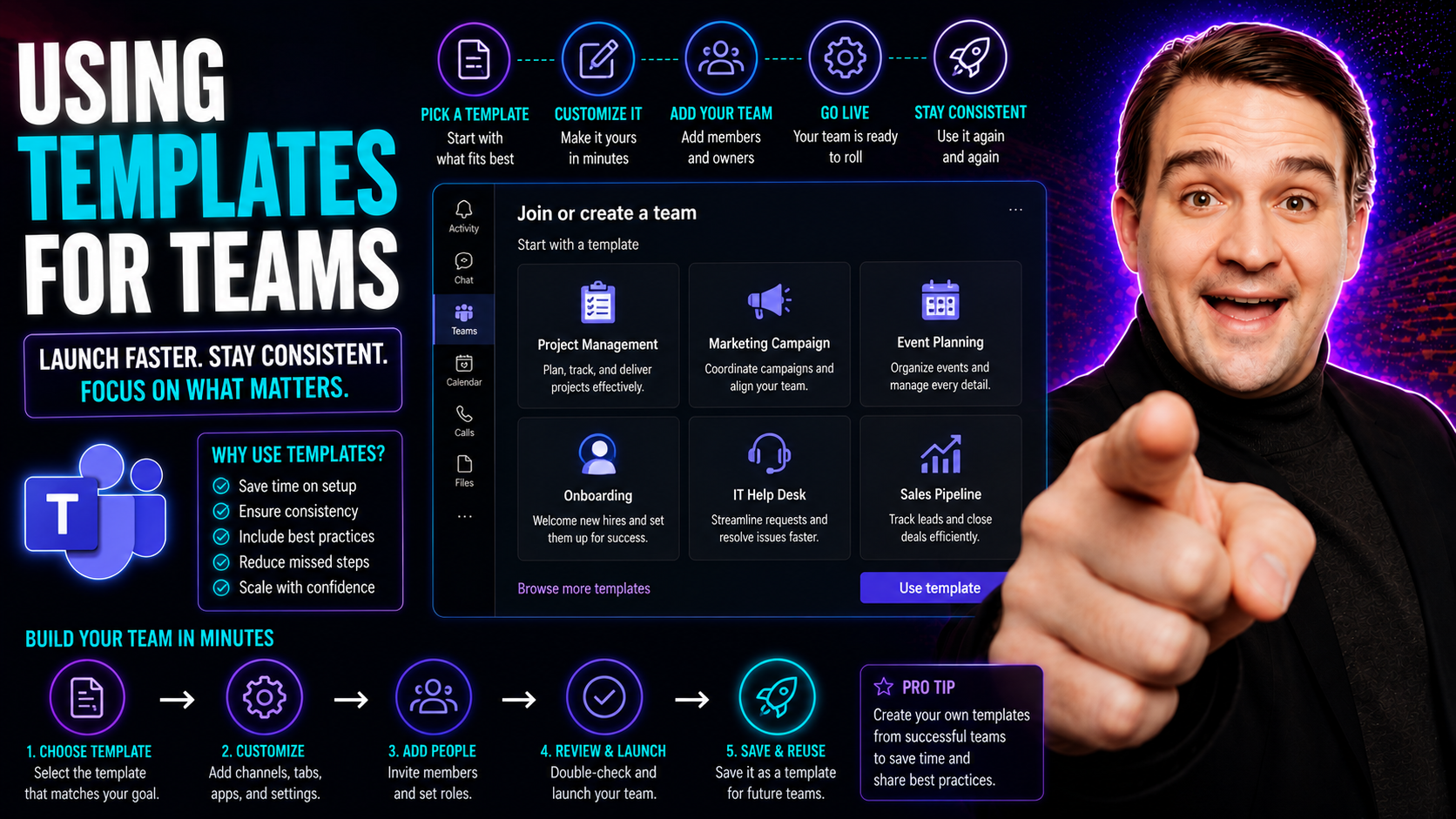
If you’ve ever fumbled through setting up a new team in Microsoft Teams—copying channels, juggling permissions, or stressing over missing tabs—templates are your ticket to smooth, repeatable success. This guide will walk you through everything you need to know about using templates in Microsoft Teams, from setup basics to advanced governance. You’ll get straightforward answers, real-world examples, and best practices that make collaboration faster, safer, and compliant with company and legal standards.
Whether your organization is aiming for quick team launches, airtight security, or just wants to stop the “Wild West” of Teams sprawl, this guide breaks down not only how templates work, but why they matter. We’ll dive into both the simple (quick starts and pre-builts) and the complex (automation, compliance, overcoming user pushback). By the end, you’ll have the tools to improve productivity, enforce standards, and measure the actual impact of your Team templates investment. Now let’s get into it!
Microsoft Teams Templates Overview and Benefits
Microsoft Teams templates are like blueprints for collaboration spaces. Instead of starting every new team from scratch, you or your admins can use these predefined structures to create Teams with all the right channels, apps, tabs, and settings baked in—right from the start.
The main goal of templates is to save time and reduce errors. Whether you need to set up a project team, a classroom, or a department hub, templates make alignment across departments and projects much smoother. They ensure every team, regardless of who creates it, gets the same setup, apps, and tabs your organization needs for consistency and best practices.
From a strategic angle, Teams templates help companies scale up their collaboration without worrying about chaotic sprawl or missed compliance steps. Templates also simplify onboarding for new users, making it clear where shared work happens and how to find resources. For regulated industries, templates help enforce the right retention, governance, and privacy measures up front.
Bottom line: Teams templates enable quicker, safer, and more consistent team workspaces—which is a win for productivity and governance. Ready to see how you can use them? Let’s keep going.
How to Create a Team in Microsoft Teams Using Templates
Kicking off a new team in Microsoft Teams using a template is easier than you might think. To get started, head to the Teams app and hit the “Join or create a team” button. When prompted, choose “Create team.” Here’s where templates make life easy: you’ll see options to start from scratch, use a Microsoft-created template, or build off an existing team structure.
Selecting a template presents you with ready-made scenarios—like “Project Management,” “Event Planning,” or industry options like “Healthcare” and “Education.” These come preloaded with relevant channels, recommended apps, and permission settings. Just pick the template that fits your purpose and walk through the prompts for details like team name, privacy level, and member invitations.
If your organization uses custom templates, you’ll find those listed as well—perfect for replicating unique team setups or compliance needs. Watch out for common hiccups: double-check who needs access (owners, members, sometimes guests), and make sure to adjust tabs or apps if your business requirements have changed.
For more detailed, step-by-step project organization in Teams (including governance with SharePoint and automation with Power Automate), check out this helpful guide to organizing projects in Microsoft Teams. It’ll help you add structure, automate repeated tasks, and avoid common setup mistakes that frustrate both team members and leaders.
Types of Microsoft Teams Templates: Pre-Built and Custom Options
When it comes to Microsoft Teams templates, you’ve got a couple of main flavors to choose from—each with its own strengths and ideal uses. Microsoft offers a range of pre-built templates tailored to common scenarios, enabling organizations to get up and running quickly with proven setups. Think of these as your “standard models” for teamwork, complete with best-practice channels and tabs out of the box.
Of course, every organization is unique. That’s where custom templates come in. With custom options, you can design a team setup from scratch or clone an existing team’s structure, making sure every workflow, app, or governance need lines up with your business processes. This flexibility is key for companies with stricter compliance standards, industry regulations, or specialized project needs.
Deciding between pre-built and custom templates comes down to your priorities: speed and simplicity—or customization for governance, brand, or advanced workflows. The following sections will explore when and how to use each type, so you can make the right choice for your organization’s Teams environment and collaborate at scale with confidence.
When to Use Pre-Built Template Options in Microsoft Teams
- Quick Project Kickoff: Launch standard project teams using templates with pre-defined channels like “General,” “Planning,” and “Files.” Saves you the setup time every single project.
- Departmental Teams: Instantly create HR, IT, or marketing hubs with the right structure and apps for repeatable department needs.
- Education or Training Spaces: Use classroom and course templates for faculty, student, or training groups—simple, consistent, and ready for learning tools.
- Industry Solutions: Pick from healthcare, retail, or construction templates that match industry workflows and regulations right out of the box.
- Event Planning: Spin up committees or event teams fast, with all communication and tasks lined up for action from day one.
Creating Custom Templates From Scratch for Unique Business Needs
- Define Your Structure: Identify required channels, apps, and tabs that match your team’s workflow. Outline permissions, naming conventions, and required files or links.
- Build in Teams Admin Center: Use the admin center to design a template—including channels, pre-pinned tabs, pre-installed apps, and custom settings tailored to your business.
- Embed Governance and Policies: Apply sensitivity labels, naming restrictions, or mandatory links for compliance and brand control from the start.
- Test Your Template: Launch a pilot team using your new setup to iron out any kinks before company-wide rollout.
- Deploy and Iterate: Make your custom template available for others in your organization, collecting feedback and updating as your processes evolve.
Building Templates From Existing Teams: Step-by-Step Instructions
- Pick a Successful Team: Identify a team that already functions well and matches desired structure and workflow.
- Select ‘Create from an Existing Team’: In Teams, choose to create a new team and select the option to copy an existing team as the template base.
- Choose What to Clone: Decide which channels, settings, and apps to include—customize what gets carried over (leave out old posts or specific files as needed).
- Adjust and Deploy: Fine-tune copied settings, permissions, and naming. Launch the new team template for others to use, ensuring consistency and streamlined onboarding for future teams.
Managing Templates in the Teams Admin Center for Secure Governance
Managing Microsoft Teams templates at scale is a big part of keeping your collaboration secure, structured, and compliant—especially as your organization grows or enters regulated industries. The Teams Admin Center in Microsoft 365 is your headquarters for all things template-related, from creation to updating and enforcing policies.
Admins can centrally deploy new templates, make old ones available or unavailable, and tweak permissions to ensure only the right users can access sensitive setups. This control ensures templates don’t just save time, but actually help enforce your company’s rules on data sharing, compliance, and team sprawl.
Routine maintenance is just as important as initial deployment; the Admin Center makes it easier to keep templates aligned with new org policies, tech updates, or security rules. For practical tips on governance structure and success, see how effective Teams governance drives collaboration and security.
By leveraging these admin-level features, organizations can automate team setup, apply governance guardrails, and respond swiftly to emerging risks or compliance requirements. If your organization has struggled with Teams chaos or inconsistent team setups, managing templates in the Admin Center brings order and confidence to your digital workplace.
Automating Template Management Using PowerShell
- Automate Team Creation: Use PowerShell scripts to deploy templates for multiple teams in bulk—saving time and eliminating manual errors.
- Centralize Updates: Roll out changes or update existing templates company-wide using script automation, ensuring compliance standards stay up to date.
- Maintain Lifecycle: Schedule PowerShell jobs to archive, delete, or refresh templates and teams based on activity or lifecycle rules.
- Audit and Monitor: Use automation to log template usage, flag inconsistencies, and enforce governance, especially in large or fast-growing organizations.
- For guidance on taming Teams sprawl with automation, check out this practical blog on automated lifecycle governance using the Power Platform and Graph API.
Configuring Permissions and Sensitivity Controls in Team Templates
- Set Role-Based Access: Use template settings to assign owners, members, and restrict guest access where needed, based on your organization’s risk and security policies.
- Apply Sensitivity Labels: Protect sensitive content by requiring labels that control sharing, visibility, and data loss prevention directly from the template.
- Limit App and Tab Permissions: Restrict which third-party apps or custom tabs team owners can add, minimizing the risk of unsanctioned integrations or data leaks.
- Stay Informed on Security: For more advice on hardening your Teams security—including DLP and audit policies—check out this podcast episode on Teams security best practices.
- Balance Collaboration and Risk: Review and adapt permissions regularly to match evolving business and compliance needs, ensuring users have efficient access without compromising safety.
Real-World Use Cases for Teams Templates Across Industries
Teams templates aren’t just theoretical—they’re being used by organizations everywhere to address real collaboration challenges and streamline business processes. Whether it’s an IT department managing incidents, HR onboarding new hires, or a marketing team running frequent campaigns, standardized templates deliver serious value by keeping everyone organized and on the same page.
Industry-specific templates take it a step further, baking in unique strategies for sectors like healthcare, construction, or education where compliance and workflow needs are especially strict. These templates save time, prevent mistakes, and drive up adoption of digital best practices by starting every new team on the right foot.
Successful teams also use templates to align tools like Planner, SharePoint, and Power Automate with their chat and file management. This enables automated updates and real-time dashboards, so teams stay on track without endless check-ins or status meetings. For inspiration on transforming project management with Teams, look at this practical guide on integrating Planner, SharePoint, and more.
Up next, we’ll break down specific case studies from departments and universities, so you can see firsthand how templates deliver repeatable success in any environment.
Templates Construction Case Studies: Project and Departmental Success Stories
- IT Service Management: Standardized incident response templates streamline ticket intake and resolution tracking, improving speed and accountability.
- Employee Onboarding: HR uses onboarding templates to automate required steps, centralize resource links, and track progress for every new hire.
- Event Execution: Marketing or event teams employ planning templates with built-in task lists, timelines, and approval workflows.
- Product Launches: Cross-functional product teams operate from templates with channels for design, sales, engineering, and customer feedback, keeping everyone in sync.
- For a detailed walkthrough of setting up projects the right way, see this step-by-step guide to project organization in Teams.
Education and University Templates: Overcoming Access and Service Issues
- Course Collaboration: Universities use templates for each course; every space comes with pre-set channels (lectures, assignments, resources), making it easy for students and professors to find what they need.
- Research Groups: Research teams get templates with the right mix of document libraries, meeting tabs, and roles, cutting down on manual setup and confusion over access.
- Administrative Teams: Registrar, financial aid, and faculty committees standardize their communications and document handling with dedicated templates, ensuring compliance and service consistency across terms.
- Managing Access Issues: Templates help schools respond faster when students report login problems or service disruptions by having built-in escalation guides and support channels ready to go.
- Supporting Hybrid Learning: Remote settings, integrations with academic calendars, and clear channel structures help faculty and students succeed in online or mixed-learning environments without headaches.
Advanced Template Limitations and Workarounds in Microsoft Teams
Even though Teams templates are a huge time-saver, they aren’t without their quirks. Knowing the limits up front helps you plan around them, so you’re not caught off guard during a critical rollout or team reorganization. Biggest heads-up? Some features you might expect—like private channels, dynamic membership, or deep integrations with every third-party app—don’t come through when a template creates a team.
Updates to templates aren’t retroactive either; changing a template only affects new teams made from it after the change, not the ones you already have. If you use strict compliance or personalized workflows, you’ll need extra admin steps or automation to fill those gaps.
External and regulated organizations should also be alert to the need for manual checks or scripts to supplement areas like naming conventions, retention policies, or permission restrictions. To help decide between private and shared channels and understand their integration challenges, take a look at this decision guide for private versus shared channels.
The sections ahead will get hands-on with troubleshooting, offering practical advice on tackling service disruptions, template errors, and support escalation when things go sideways.
Troubleshooting Issues and Service Disruptions With Teams Templates
- Template Application Errors: If a team fails to apply its template, recheck permissions, confirm the template is published, and retry creation after a few minutes.
- Service Outages: When Teams services go down, check Microsoft 365 health dashboards and communicate with users about expected restoration times.
- Permissions Problems: Address errors with guest access or owner assignments by reviewing template role settings and making updates via Admin Center.
- Escalation: If repeated issues persist, escalate tickets to your IT service desk or open a case with Microsoft support for assistance.
- Need step-by-step troubleshooting? See this Microsoft 365 Copilot troubleshooting guide for a model approach on resolving access, permission, and integration issues.
Ensuring Template Governance and Compliance in Regulated Industries
- Design with Regulation in Mind: Start templates with compliance-sensitive structures—lock down guest access, enable audit logging, and use classification labels for HIPAA, GDPR, or SOX-covered data.
- Retention and Data Loss Prevention: Assign retention policies within templates to control data deletion and enforce record-keeping required by law.
- Apply Sensitivity Labels: Require sensitivity labels at the team and channel level, so only authorized staff can access or share protected information.
- Audit and Monitor Usage: Use admin center features to monitor compliance status, flag deviations from policy, and keep robust audit trails for investigations and external reviews.
- Test and Update Regularly: Compliance is ongoing—run periodic template audits and adjust policies when regulations or internal rules change. For a reality check on governance, listen to this episode on the illusion of control in Teams governance.
Driving Adoption: Change Management Strategies for Template Rollouts
- Start Small with Pilots: Launch template rollouts with a pilot group to gather feedback, build internal advocates, and correct issues before company-wide deployment.
- Ongoing Training & Support: Offer hands-on sessions, quick-start guides, and help channels so users feel confident navigating new standardized structures.
- Build Feedback Loops: Make it easy for users to report problems or improvement ideas—this keeps engagement high and reveals hidden resistance points.
- Leverage Internal Champions: Identify template “super-users” or department leads who can mentor peers and encourage consistent adoption across teams.
- Communicate the Why: Don’t just toss templates at users—explain how they simplify work, save time, and protect against compliance or data headaches. For more on successful rollouts and overcoming resistance, read why Copilot rollouts often fail and how to get it right.
Measuring Impact and ROI of Teams Templates
- Team Creation Speed: Track the average setup time when using templates versus manual creation—expect to see faster turnaround and quicker project launches.
- Error Reduction: Measure “setup mistakes” over time, like missing channels or misassigned permissions, and compare pre- and post-template deployment rates.
- Template Coverage: Review how many active teams were launched from approved templates; higher rates equal stronger governance and consistency.
- User Satisfaction: Send periodic surveys to collect user opinions on template usefulness, ease of onboarding, and collaboration effectiveness.
- Business Impact: Estimate time savings, communication improvements, and error reductions to build the business case for ongoing investment in templates. For tips on maximizing and measuring ROI, check Copilot efficiency numbers that shock managers and how Copilot pays for itself.
You Should Also Listen To
If you are researching Microsoft Teams templates, these episodes add practical context on collaboration, architecture, and governance:
- Microsoft Teams Governance – The Illusion of Control — Learn how ownership, lifecycle, and policy choices keep collaboration manageable.
- Teams Telephony – Simply Explained — Understand the communication architecture behind reliable Teams work.
- Azure AI Foundry – Simply Explained — See how modern AI and automation solutions are built and governed.
- Microsoft Defender XDR – Simply Explained — Connect collaboration design with security visibility and response.

Microsoft MVP | Host of M365.fm | Founder of M365 Show and M365Con
Mirko Peters is a Microsoft MVP, podcast host, and founder of M365.fm, M365 Show, and M365Con. His work connects Microsoft practitioners through podcast interviews, livestreams, and community events.
At M365.fm, Mirko hosts conversations with Microsoft MVPs, product experts, architects, and community contributors. Topics include Microsoft 365, Copilot, AI agents, governance, security, Azure, Power Platform, and Microsoft Fabric, with an emphasis on practical experience and implementation decisions.
M365.fm is the podcast and learning platform. M365 Show brings experts together for livestreams, while M365Con provides an online conference setting for community learning.
Official website: Mirko Peters (https://www.mirkopeters.com/). Recognition: Mirko Peters — Microsoft MVP profile (https://mvp.microsoft.com/de-DE/mvp/profile/9b0ca797-db5a-493a-a845-8b9158046cf5). Connect on LinkedIn (https://www.linkedin.com/in/m365showpodcast/).





