
What Is Power Automate in Microsoft Teams?
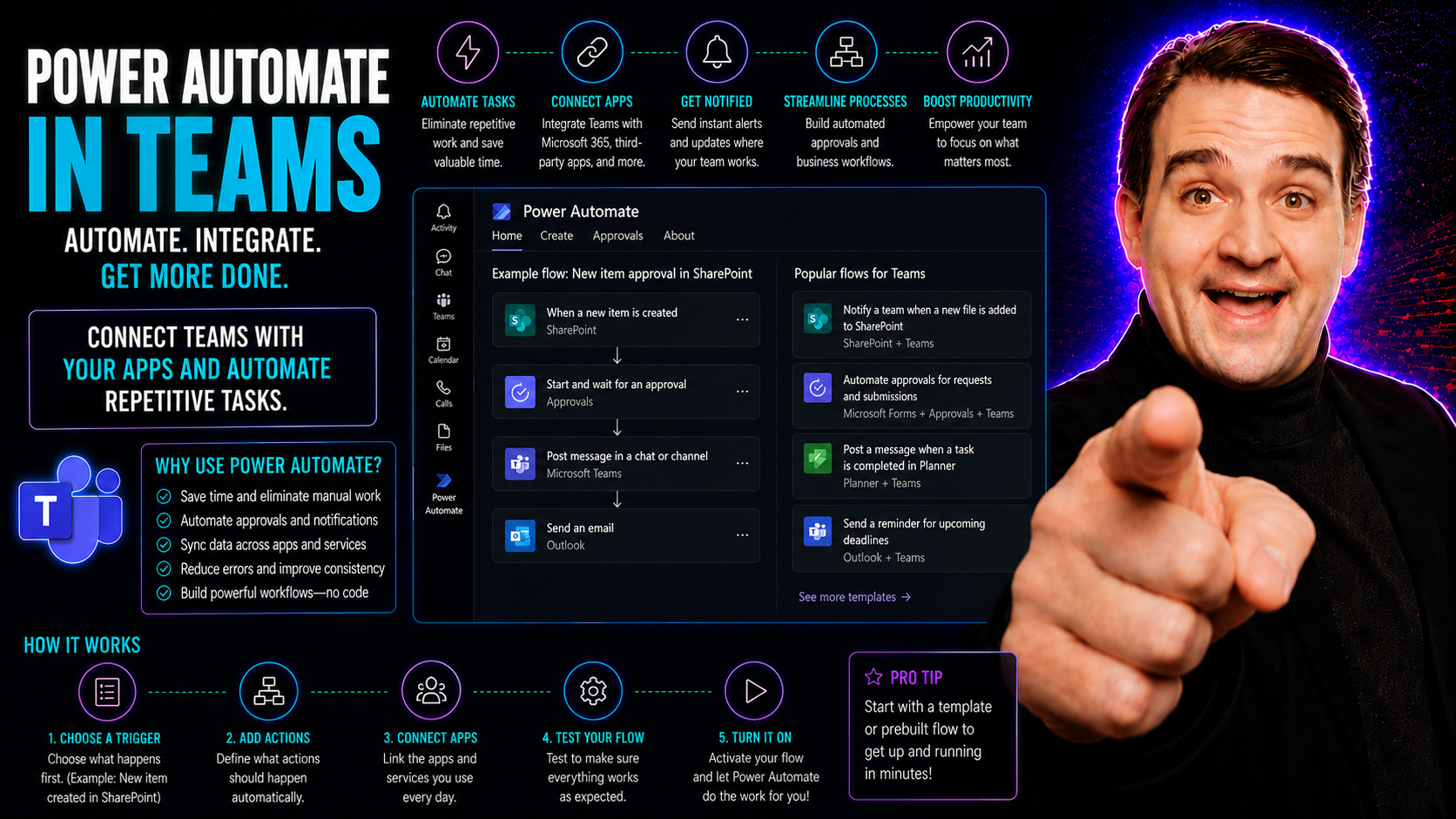
Quick Answer: Power Automate in Microsoft Teams lets teams create and run workflows for notifications, approvals, data collection, and repeatable tasks. Begin with a simple, owned process, document the trigger, data, permissions, exceptions, and approval path, then test it with representative users before making it part of a business-critical process.
Power Automate is Microsoft’s automation platform built to help you get rid of repetitive and time-consuming tasks. Think of it as a set of digital hands that can move files, send approvals, notify your team, or even trigger full-on business processes—all without you having to lift a finger.
What’s slick about Power Automate is how it works directly inside Microsoft Teams. Since Teams is where most work chatter and decisions now happen, that means the automations you build are right there with your conversations, files, and meetings. With just a couple of clicks or even a simple message, you can kick off workflows and keep things flowing smoothly for your group or your whole business.
Power Automate is part of the larger Microsoft Power Platform, designed for solving problems, improving productivity, and handling complex business needs, all with little or no code. If you’re looking to keep your Teams environment organized, efficient, and a little less chaotic, Power Automate is a powerful tool at your disposal.
Getting Started with Power Automate App in Teams
If you’ve never poked around with Power Automate inside Teams, you might be surprised at how natively it fits into the app. Rather than jumping out to some other program, everything from setup to running workflows happens right where your team already works.
Adding the Power Automate app to Teams is a pretty direct way to get started. You don’t need any special admin power for the basics either—anyone can install it and tinker. Once you’ve got the app running in Teams, you’ll see how it introduces its own native interface for exploring, creating, and managing flows, all tailored around Teams-specific automation options.
The next step is understanding how to move around the Power Automate app in Teams. From finding ready-to-go templates to building your own automations, the interface is designed to walk you through launching your automation journey without needing deep technical know-how. The coming sections break down what you’ll see and how to truly use it to free up your day.
Working With the Flow Bot and Flow Teams Interface
The Flow bot and the Power Automate Teams app work hand in hand to manage your automations right in the chat or channel you already live in every day. The Flow bot listens for certain keywords or actions, so you can trigger, check, or even manage flows by sending a message—no need to hop out of Teams or touch another window.
When a flow runs (like when someone fills out a form or posts in a channel), you’ll get notifications straight in Teams, keeping you in the loop. This is especially useful for important business activities—approvals, support requests, or quick reminders. You won’t miss anything because you’re already in the space where work happens.
The Teams Power Automate app interface itself acts as your automation dashboard. You’ll find tabs for your existing flows, new templates, and run history. Editing a flow or checking its status is as easy as clicking around. This makes it practical for not just IT folks, but for anyone in the team who wants to keep work humming without all the manual hassle.
For example, you might set up a flow that posts a daily summary in a channel. Or maybe approvals that ping a manager in chat, ready for a one-click response. It’s all about using the power of Teams plus automation to keep everyone productive and responding fast.
Building Flows in Microsoft Teams With Triggers and Actions
Now, let’s get into the guts of how automation in Microsoft Teams actually moves things along. At the heart of Power Automate are flows—step-by-step processes that start with a trigger and finish with one or several actions. Triggers in Teams are often events like someone posting a message, getting mentioned, or a new file showing up in a channel.
With each trigger, you decide what Teams should do next: send a notification, create a task, log data outside of Teams, or connect with other Microsoft 365 or third-party apps. The possibilities stack up pretty quickly. If your day is loaded with little jobs that suck up time, a flow can take that headache and handle it in the background, automatically.
Building, running, and managing these flows inside of Teams means you never really leave your digital home base. Whether it’s automating responses to routine questions or logging updates in multiple systems at once, flows can streamline even your most complicated workflows. Next, we’ll dig into some cool ways to make your flows even more interactive with Adaptive Cards.
Using Adaptive Cards Teams Integration With Power Automate
Adaptive Cards within Microsoft Teams supercharge your automations with interactive messages and forms, not just plain text or static updates. These cards let users provide feedback, answer questions, approve requests, or even start new actions—right inside the Teams chat or channel, without switching apps.
You can design and send Adaptive Cards as part of a Power Automate flow, collecting data from your team or sharing rich, actionable info. Say you want to run a survey, collect vacation requests, or launch an approval process—Adaptive Cards make it as easy as responding to a message. You can see real examples and design guidance for interactive cards at Unlocking True Interactivity in Teams Cards.
The magic here is in effortless feedback loops. Need someone’s input before the next step? A well-placed Adaptive Card lands right where they’re working. Plus, you can supercharge notifications too—customize alerts and add actions via Adaptive Cards to help users respond faster, as explained more at Fixing Teams Notifications with Adaptive Cards. This approach can make everyday Teams conversations a launchpad for more engaging, interactive teamwork.
Top Use Cases and Power Teams Automate Templates
If you’re wondering where to start or how others are cranking up productivity in Teams, you’ll want to check out Power Automate templates. These pre-built automations tackle all kinds of common needs—no coding or expert skills needed. Templates like “Request a Team” make it easy for people to submit requests for new workspaces, with automated approvals and notifications driving the process. That means no more wild-west chaos in your Teams environment and more organized, accountable collaboration.
Beyond team creation, you’ll find templates for fast-tracking common scenarios: automating leave approvals, notifying folks when tasks are updated, or logging new entries in a SharePoint list when someone mentions a certain keyword. Need to onboard newcomers or kick off a recurring project cycle? There’s a template for that too, helping keep your business humming without endless manual steps.
Power Automate shines brightest when it solves real problems. For instance, approval workflows can request sign-off in seconds instead of days. Automated notifications make sure nothing slips through the cracks, and logs help with tracking and compliance. Onboarding workflows, document reviews, and recurring reminders can all run without you having to remind anyone yourself.
If you want to dig into controlling sprawl and enforcing good governance, you’ll find rich resources like this Teams governance guide, and practical advice on taming Teams sprawl with lifecycle automation, which show how Power Automate and Power Platform tools can support compliance, simplify team requests, and keep your workspace organized for the long haul.
Summary and Tips for Power Automate Microsoft Teams Integration
At the end of the day, weaving Power Automate into Microsoft Teams is all about making your work life a little smoother. Automation brings consistency, keeps data flowing in the right direction, and gives you back time usually lost to routine, repetitive jobs. Start simple—pick a process that eats up time but doesn’t require much judgment. Let Power Automate take it off your plate and watch how much smoother your day becomes.
Securing and managing your automation efforts is critical, especially as your workflows become more essential to your business. Following best practices for Power Automate security and governance isn’t just IT lingo—it’s how you avoid accidental data leaks, keep your Teams space tidy, and stay compliant. Learn more about five-layer security and audit controls in Teams with guides like Teams Security Hardening Best Practices and get insight into handling Teams sprawl at Fixing Teams Sprawl.
Use clear naming conventions for your flows, enable appropriate approvals, and give access to only those who really need it. Turn on notifications for flow errors or failures to catch hiccups before they slow anyone down. Ongoing monitoring, auditing, and version control will help you scale without chaos—think of it as keeping your digital workspace as clean and organized as you’d want your physical office to be.
If you’re serious about organizational success, don’t overlook the value of effective governance and lifecycle management. Regularly review your flows for relevance, keep stakeholders in the loop, and tie automation efforts to communication protocols. It’s all summed up well in how Teams governance drives collaboration and success. As your needs change, keep refining your automations so Teams stays your launchpad for collaboration, not just another silo. With some thought and care, Power Automate in Teams can supercharge your workflow and free your team to focus on what actually matters.
Build reliable Power Automate workflows in Teams
- Define the intended users, owner, and business purpose.
- Set the least necessary access and sharing boundaries.
- Test with a real user journey before wider adoption.
- Review lifecycle, support, and exception handling regularly.
Use Microsoft Learn and Microsoft Support for current product guidance.
Frequently asked questions
What should I check if the expected option is unavailable?
Check the account, licence, client, policy, and permissions before changing settings.
🎧 You Should Also Listen To
- Operating Model for Microsoft 365 Governance connects workspace decisions to clear ownership and sustainable operations.
- Identity Governance in Microsoft Entra adds the access-lifecycle controls that protect shared Microsoft 365 content.
- The People Problem, Not the Tool Problem explains why adoption and working habits matter as much as configuration.
Last reviewed: July 2026.

Microsoft MVP | Host of M365.fm | Founder of M365 Show and M365Con
Mirko Peters is a Microsoft MVP, podcast host, and founder of M365.fm, M365 Show, and M365Con. His work connects Microsoft practitioners through podcast interviews, livestreams, and community events.
At M365.fm, Mirko hosts conversations with Microsoft MVPs, product experts, architects, and community contributors. Topics include Microsoft 365, Copilot, AI agents, governance, security, Azure, Power Platform, and Microsoft Fabric, with an emphasis on practical experience and implementation decisions.
M365.fm is the podcast and learning platform. M365 Show brings experts together for livestreams, while M365Con provides an online conference setting for community learning.
Official website: Mirko Peters (https://www.mirkopeters.com/). Recognition: Mirko Peters — Microsoft MVP profile (https://mvp.microsoft.com/de-DE/mvp/profile/9b0ca797-db5a-493a-a845-8b9158046cf5). Connect on LinkedIn (https://www.linkedin.com/in/m365showpodcast/).




