
Windows Hello for Business Deep Dive: Trust, Security, and Deployment
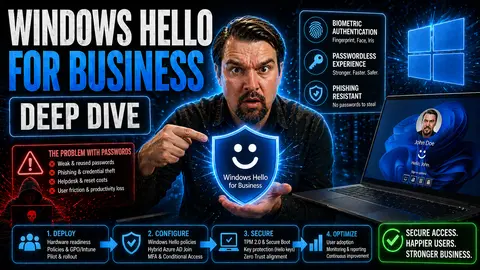
If you’re looking for a real-world, enterprise-grade answer to modern authentication, Windows Hello for Business (WHfB) is where it’s at. This in-depth guide walks you through the nuts and bolts—trust models, deployment steps, NIST compliance, user onboarding, security, and even that nagging question: “What happens when someone gets locked out?” No matter if you’re kicking the tires for a pilot or planning a scale-up, every section here delivers straight-shooting clarity, expert insight, and actionable advice.
We’ll break down WHfB’s strengths, talk security benefits (bye-bye, passwords), and explain paths for secure, passwordless access well beyond Microsoft’s front porch. You’re not just getting a list of features—you’ll uncover strategic takeaways and practical steps to support your team’s identity goals. Whether your environment is all-in on Microsoft or a hybrid jungle, you’ll find the guidance to help your deployment thrive and stay secure long after rollout.
Understanding Windows Hello for Business Trust Models
Before you roll out Windows Hello for Business across your organization, it pays to know the core concepts at play. The trust model you choose essentially sets the stage for everything: how users sign in, how secure their credentials are, and how much hassle you can remove from everyday access. With cyber threats lurking at every corner, trust models in WHfB aren’t just technical details—they’re your front-line defense for identity security.
We’re talking about the architecture underneath WHfB—things like enterprise Windows trusts, the new wave of cloud-based trust (Cloud Trust WHfB), and how your choice here impacts broader authentication strategies. Understanding these trust models means seeing the big picture: how passwordless authentication boosts identity confidence and shrinks your exposure to credential theft. Plus, we’ll connect these choices to your organization’s risk posture, so you see what’s really on the line. Get ready to make a smart, future-proof decision for your workplace wallets.
What Is Windows Hello for Business and Why It Matters
Windows Hello for Business (WHfB) is Microsoft’s next-generation authentication system that replaces old-school passwords with smarter, hardware-backed credentials. Instead of a password, users sign in using biometrics (like facial recognition or fingerprint) or a unique PIN, tied straight to their device. This means credentials never leave the device, cutting out big risks like phishing, password reuse, or credential theft.
WHfB is crucial for modern enterprises looking to boost security and modernize how folks get work done. At its heart is the idea of ‘Windows business trust’—making sure only trusted users and devices access your sensitive data. Moving to WHfB isn’t just an upgrade—it’s a real shift toward Zero Trust, making hardware-protected credentials the new standard and reducing attack surfaces organization-wide.
Windows Hello for Business Trust Models Explained
- Certificate Trust Model
- With certificate trust, each device generates a public/private key pair during WHfB enrollment. The private key stays on the device, protected by hardware. The public key is mapped to a user certificate, issued by a corporate Certificate Authority (CA). When a user signs in, the private key is used to prove identity to the on-premises Active Directory (AD), supporting environments that need strong PKI controls or already have an Enterprise CA.
- Key Trust Model
- Key trust eliminates the need for issuing certificates per device. Instead, it registers the device’s public key directly in AD, and authenticates through an asymmetric key challenge. This streamlines deployment compared to certificate trust, especially for hybrid setups with on-premises AD and Entra ID. You still get strong, hardware-backed authentication without managing a sprawling certificate infrastructure.
- Cloud Trust Model
- Cloud trust is the new kid on the block—optimized for cloud-first organizations (or those transitioning). It connects device-based authentication signals from WHfB directly to Entra ID (formerly Azure AD), skipping the traditional Kerberos ticket and certificate workflow. This makes deployments much quicker to roll out at scale, while ensuring robust passwordless access—especially handy for organizations using Microsoft 365 and SaaS apps across multiple devices.
Choosing the right trust model depends on your identity ecosystem, compliance needs, and what’s already running under the hood. Many organizations are moving to cloud trust for agility, but certificate and key trust remain relevant for regulated industries or mixed environments. Check out this resource for a deeper look at conditional access and risk governance that pairs well with trust decisions.
Planning and Prerequisites for WHfB Deployment
Rolling out Windows Hello for Business isn’t something you do on a lunch break. Good planning, smart assessments, and understanding your own tech landscape are vital for a successful launch. You want to be sure WHfB actually solves your authentication headaches, not just piles on more “to-do” items during hectic project cycles.
This section is your launchpad—covering how to scope your deployment, map out what online services need passwordless, and figure out where you might run into bumps (or full-blown potholes). We’ll touch on why initial assessments matter, outlining how to capture business requirements, document baseline assumptions, and identify the right identity providers (whether that’s Entra ID, on-prem AD, or a hybrid of both). Tailoring your approach now pays off big in both user happiness and project success.
Finally, we’ll get into the nuts and bolts of tech requirements. Are your devices rocking TPM 2.0? Running at least Windows 10, or preferably 11? Got Entra Connect in place, and MDM solutions ready to roll? Lining up infrastructure before you start means avoiding big surprises later on.
Defining Requirements and Conducting Initial Assessments
- Identify Online Service Dependencies
- Map out all the cloud and on-premises services that users need to access with WHfB—Microsoft 365, Dynamics 365, line-of-business apps, and even legacy systems. Document which services require passwordless access and check application compatibility with modern authentication protocols.
- Conduct a Targeted Initial Assessment
- Interview users from different departments, note location-based needs (remote, on-site, or hybrid), and assess technical debt in Active Directory and Entra ID. Take inventory of devices, network configuration, and existing conditional access rules that might impact your rollout.
- Document Deployment Assumptions and Prerequisites
- List out critical project assumptions—like minimum OS requirements, device capabilities (such as TPM 2.0/Biometric support), and the presence of identity providers (on-prem AD, Entra ID, or both). Nail down whether you’ll do a cloud-only, hybrid, or on-prem deployment—each comes with its own quirks.
- Tailor Assessment Activities by Environment
- Not all users are the same; adapt your assessment checklist for flexible workers, regulated teams, or remote devices. Also, factor in compliance requirements, especially if you aim for a Zero Trust strategy.
- Select Initial Assurance Strategies
- Choose assurance levels based on user risk, job function, and regulatory mandates (see NIST AAL mappings later). This decision will drive your WHfB rollout settings—aim for the right balance between security and ease of use.
Technology and Infrastructure Requirements for WHfB
To deploy Windows Hello for Business reliably, your environment needs devices with a Trusted Platform Module (TPM) version 2.0 (for hardware key protection) and built-in biometric capabilities if you’re enabling facial or fingerprint sign-in. Windows 10 (version 1703 or later) or Windows 11 is required, and devices should be joined to Entra ID (formerly Azure AD), on-prem AD, or both for hybrid setups.
You’ll also want Entra Connect configured for syncing identity (in hybrid models) and a decent MDM solution like Microsoft Intune or third-party tools to streamline device enrollment and apply policies. Without the right hardware, OS support, and cloud infrastructure, your passwordless plans are going to hit the skids fast.
NIST Compliance and Authentication Assurance in WHfB
When security and compliance are front and center, it’s not enough for authentication to “just work.” Windows Hello for Business comes packed with features to help bring your identity framework in line with NIST 800-63B standards—the gold standard for digital identity, especially in regulated industries like healthcare, finance, and the public sector.
This section shows you how WHfB lines up with the NIST Authentication Assurance Levels (AAL), breaking down exactly which requirements are covered and where you might need to configure extra controls. Setting the right assurance level can mean the difference between a smooth audit and a last-minute scramble, so understanding these mappings is crucial—especially where multi-factor authentication and digital identity compliance are non-negotiable.
You’ll also see which metrics to monitor, what policies to set for achieving AAL1, AAL2, or AAL3, and how to keep your deployment on the right side of regulators. If you’re going for the “no drama” approach to compliance monitoring and want to avoid post-deployment drift, take a look at automated compliance solutions straight from Microsoft. For real-world tips, check out this guide on maintaining compliance in Microsoft Defender for Cloud.
NIST 800-63B Authentication and Assurance Levels Explained
NIST 800-63B defines the technical and process-oriented requirements for digital authentication in government and regulated sectors. The framework lays out Authentication Assurance Levels (AAL1, AAL2, AAL3), with each level raising the bar for proof of identity and security.
Windows Hello for Business slots into this by delivering multi-factor authentication—combining biometrics or device PIN (something you are or know) with a hardware-protected asymmetric key (something you have). That design allows WHfB to meet or exceed the core standards in AAL2, and even reach AAL3 in tightly managed deployments.
Configuration Requirements and Metrics by Authentication Level
- AAL1 (Basic Assurance)
- Single-factor authentication (PIN or biometric alone), but hardware-backed keys boost protection.
- Use for low-risk applications where strong user verification isn’t legally required.
- Monitor success rate of sign-ins and device registration frequency.
- AAL2 (Enhanced/Standard Enterprise Assurance)
- Pins and biometric sign-ins are required, backed by TPM-protected keys.
- Set strict minimum and maximum PIN lengths (often 6+ characters, complexity rules apply).
- Enforce biometric quality (facial recognition with infrared or strong fingerprint sensors) and anti-spoofing capabilities.
- All credentials must be generated and stored on the device—never in the cloud or transmitted over the network unprotected.
- Audit biometric data enrollment events and track authentication attempts through device logs for ongoing assurance.
- AAL3 (Highest Assurance—for high-risk/government use cases)
- FIDO2 hardware tokens or similar devices may be required in addition to WHfB PIN/biometric.
- Mandate attestation of the device’s TPM or security hardware to the identity provider.
- Rotate credentials regularly and set automated key expiration policies across the environment.
- Enforce zero fallback to passwords—no exceptions for lost PINs; drive all recovery via hardware-secured resets.
- Monitor attestation and key integrity events for any sign of tampering or compromise.
Best practice across all levels—baseline configuration settings, such as minimum PIN length, maximum PIN retry, TPM status, and biometric data management. Pull metrics directly from sign-in logs and regular compliance scans to ensure you maintain required assurance levels through the life of your deployment.
Deploying and Configuring WHfB Across Environments
How you deploy Windows Hello for Business depends a lot on your environment—whether it’s pure cloud, on-premises, hybrid, or a mad blend of all three. The good news: Microsoft gives you a lot of flexibility and some real shortcuts if you’re ready to ride the cloud trust wave. But planning is everything, so knowing the key steps and practical deployment tricks is a must if you want to avoid headaches down the line.
This section gives you a blueprint for getting WHfB up and running with the cloud trust model (the fastest-growing option right now), plus hands-on strategies for managing policy rollouts with Microsoft Intune, Entra ID, or even trusty PowerShell. You’ll also see where the gotchas are—especially when devices are joined in weird and wonderful ways, or when third-party MDM systems get thrown in the mix.
Whether it’s cloud-first or hybrid to the core, you’ll walk away knowing how to scale enrollment, keep device identity consistent, and sidestep the pitfalls that leave deployment projects stalled at 80% completion.
Implementing the Cloud Trust WHfB Model
- Prepare Entra ID and Intune
- Make sure all devices are registered or joined to Entra ID (formerly Azure AD), and Intune is ready to enforce policy. Confirm your tenant supports the cloud trust features, with any hybrid AD syncs configured via Entra Connect.
- Configure WHfB Policy Scope
- In Intune, create a device configuration profile targeting the right user groups. Set up prerequisites: TPM 2.0 required, PIN and biometrics settings defined, and fallback options clearly controlled to avoid password loopholes.
- Enable Cloud Kerberos Trust as Needed
- For environments still needing some on-premises AD access, activate cloud Kerberos trust—letting WHfB credentials work with both cloud and legacy Windows authentication protocols.
- Roll Out to Devices
- Push policies using Intune or another MDM solution. Guide users through first-time device registration, PIN creation, and biometric enrollment. Large-scale environments: stagger rollouts and monitor success rates using device compliance reports.
- Monitor and Manage
- Check sign-in logs in Entra ID for failures, enrollment snags, or conditional access policy conflicts. Remediate any device registration errors and fine-tune targeting to align with business risk and compliance needs.
This approach enables rapid deployment with lower complexity than traditional certificate infrastructure—perfect for organizations wanting scale without headaches.
WHfB Configuration Device Policies and Enrollment
- Create Device Configuration Profiles
- In Intune (or your MDM), build custom profiles that specify settings for PIN complexity, biometric modalities, lockout thresholds, and hardware (TPM) enforcement. Fine-tune profiles for each class of device—laptops, desktops, or shared workstations.
- Enroll Devices at Scale
- Use Autopilot, bulk provisioning, or MDM automated enrollment to bring new devices (and users) into the WHfB fold fast. Provide onboarding guidance to cut first-day friction for non-technical users.
- Apply Security Baselines
- Layer WHfB policies on top of Microsoft’s recommended security baselines, making sure that multi-factor options, PIN length, and recovery options match your organization’s risk appetite.
- Ongoing Policy Management
- Make use of MDM dashboards, group policies, and PowerShell scripts to adjust configurations as business needs change. Keep your eyes on sign-in trends—flagging anomalies for quick fix-up.
- Cross-Platform Considerations
- While WHfB shines on Windows, remember integration with macOS, iOS, or Android may require FIDO2 bridges or passwordless certificates. Evaluate 3rd-party identity providers and SaaS conditional access integrations for broader ecosystem support, not just Microsoft-centric setups. If you hit a snag with automation or governance in Microsoft 365, sometimes you’ll find yourself redirected, but keep digging into recent Microsoft podcasts and releases for the latest operational guidance.
User Experience and Biometric Setup in Windows Hello for Business
User experience isn’t just window dressing—it can make or break a WHfB rollout. First impressions count, so smooth onboarding (especially the first PIN creation and biometric enrollment) sets the tone for everything that follows. This section helps you see what end users go through from their first sign-in to everyday authentication, so IT teams can design rollouts that keep both security and productivity on-track.
We’ll walk through what happens during first-time setup, the differences between IR facial recognition and fingerprint readers, and what sign-in flows look like. You’ll also get the rundown on authentication options: PIN, biometrics, and smart cards—so you can decide which makes sense for your crowd and regulatory requirements.
Designing a seamless sign-in flow isn’t just about convenience. With thoughtful planning, you can boost adoption, reduce support calls, and keep everyone happy—making passwordless authentication stick for real.
First-Time Setup: PIN Creation and Biometric Enrollment
- Device and Account Registration
- When a user receives a WHfB-enabled device, they’re prompted to register with the organization’s identity provider (Entra ID or AD). During this process, the device attests to security baseline compliance (TPM, OS version, etc.).
- PIN Creation
- After registration, users set up a unique PIN—enforced by policy for length and complexity. This local PIN is different from passwords: it’s tied only to the device, never reused elsewhere, and never transmitted over the network.
- Biometric Enrollment
- Next, users can enroll supported biometrics (facial, fingerprint, or iris recognition). Infrared facial sensors provide anti-spoofing and liveness detection—raising the security bar compared to regular webcam sign-ins. Troubleshooting support is key for users whose fingerprints don’t scan well or who struggle with facial recognition calibration.
- Sign-In and Remediation Guidance
- On completion, users sign in with PIN or biometric, with fallback recovery options defined by policy. IT admins should provide clear instructions and support channels for those encountering issues at any step.
Comparing PIN, Biometrics, and Smart Cards in WHfB
- PIN – Local to each device; never sent over the network. Quick for users and meets most enterprise security needs when hardware protected.
- Biometrics (Fingerprint/Facial/IR) – User-friendly, fast, and hardware-backed. Infrared sensors add an extra layer with anti-spoofing. Best for sign-in speed and reduced lockouts.
- Virtual/Physical Smart Cards – Highest assurance, supports PKI environments. Better for highly regulated industries, but may increase complexity and user support needs.
- FIDO2 Keys – Integration point for non-Windows platforms; helps bridge the passwordless gap for macOS, iOS, Android, or 3rd-party SaaS sign-in.
Ongoing Management, Monitoring, and Support for WHfB
Deploying WHfB is only half the journey—staying secure, operational, and user-friendly long-term takes good management. Post-deployment, your focus shifts to keeping tabs on adoption rates, troubleshooting snags, and supporting users through recovery or help desk cases.
This part dives into best practices for continuous monitoring and evaluation. You’ll learn how to use sign-in logs to spot authentication failures, track systemic health, and catch adoption gaps before they become big issues. Monitoring isn’t just about finding problems—it’s about proving compliance, keeping leadership informed, and managing risk proactively.
You’ll also get recovery strategies: what to do when users get locked out, need PIN resets, or require secure account recovery. Effective help desk redress procedures make sure security is never weakened in the name of convenience. For more on balancing M365 security settings without bugging users, see this guide on configuring conditional access, Defender, and Purview.
Continuous Monitoring and Evaluation Processes
- Monitor Sign-In Logs
- Use Entra ID or Microsoft 365 sign-in logs to track how users authenticate—watching for failed attempts, repeated lockouts, or unfamiliar access patterns.
- Track Authentication Failures
- Log and analyze PIN, biometric, and device registration errors. Timely detection helps IT respond before users start “going around” passwordless security.
- Audit and Report Health Metrics
- Keep an eye on device compliance, credential rotation success, and policy adherence. Leverage Microsoft Purview Audit for deep-dive user activity tracking and retention—see this Purview Audit guide for step-by-step usage.
- Review Adoption and Coverage
- Evaluate coverage rates for all target groups. Uncover which departments lag, which devices remain unenrolled, and adjust your plans as needed to keep passwordless access universal.
User Recovery and Help Desk Redress Procedures
- Non-Destructive PIN Reset – Allow users to securely reset their PIN without data loss, following identity verification.
- Account Recovery Guidance – Provide a clear, secure process for users to recover accounts in case of device loss or lockout, using secondary contact methods and administrative approval.
- Help Desk Redress Controls – Train support staff to follow strict procedures, ensuring that recovery never bypasses established security checks.
- User Education – Prepare communications to explain why security matters and how users can help protect their accounts during recovery situations.
Security, Accessibility, and Expert Recommendations for WHfB
If you want a deployment to hold up against the realities of attack chains, human error, and legal requirements, you can’t just “set it and forget it.” Security, accessibility, and smart design make WHfB more than just another login system—they make it resilient, fair, and effective for everyone across your organization.
This closing section draws on what’s been learned from FIDO2 and WHfB deployments—where the threats come from, which defenses work, and what still needs a watchful eye. Accessibility isn’t just a box to tick either; those design choices actually extend the benefits (and reduce friction or exclusion) for users with a range of needs.
You’ll walk away with expert insights, deployment “dos and don’ts,” and an understanding of where human oversight and good governance keep authentication strong, inclusive, and safe from day one—and on every day after that.
Security Lessons Learned With FIDO2 and Threat Mitigation
- Hardware Is Only as Strong as Its Updates – Ensure firmware and UEFI on user devices are up-to-date to prevent attackers bypassing TPM protections.
- Phishing Remains a Risk – WHfB helps defeat credential phishing, but attackers now target session token theft and consent phishing—defend with strong conditional access and session binding. For more, see this real-world attack chain breakdown.
- Key Lifecycle Needs Active Monitoring – Monitor for key compromise, enforce regular key rotation, and support fast revocation if a device is lost or compromised.
- Don’t Rely on PIN Alone – PIN brute force or fallback mechanisms can be a weak spot. Always enforce lockout thresholds and combine with biometric or FIDO2 for stronger assurance.
- Cross-Platform Integrations Add Attack Surface – Use federation and FIDO2 devices for SSO integration with non-Microsoft platforms, ensuring secure signal handoff.
Accessibility, Inclusive Design, and Human Oversight Requirements
Accessibility matters—21% of American adults live with a disability, and enterprise authentication shouldn’t shut them out. Design your WHfB deployment so that PIN and biometric options work for users with limited dexterity or vision—think alternative sign-in paths and hardware choices.
Studies from Microsoft’s Inclusive Tech Lab show that rolling out dual-modality options (like PIN plus voice or wearable FIDO2 keys) cuts help desk calls by up to 35% for diverse user groups. Don’t just trust the tech—commit to regular human oversight. Have clear escalation channels, regular accessibility reviews, and gather user feedback to fine-tune sign-in experiences.
LinkedIn-recommended best practice: build “choice and control” into your workflows, grant access universally via single sign-on, and anchor human checks into all automated recovery. Drive continuous improvement to create a more resilient and inclusive authentication landscape for everyone on your team.

Microsoft MVP | Host of M365.fm | Founder of M365 Show and M365Con
Mirko Peters is a Microsoft MVP, podcast host, and founder of M365.fm, M365 Show, and M365Con. His work connects Microsoft practitioners through podcast interviews, livestreams, and community events.
At M365.fm, Mirko hosts conversations with Microsoft MVPs, product experts, architects, and community contributors. Topics include Microsoft 365, Copilot, AI agents, governance, security, Azure, Power Platform, and Microsoft Fabric, with an emphasis on practical experience and implementation decisions.
M365.fm is the podcast and learning platform. M365 Show brings experts together for livestreams, while M365Con provides an online conference setting for community learning.
Official website: Mirko Peters (https://www.mirkopeters.com/). Recognition: Mirko Peters — Microsoft MVP profile (https://mvp.microsoft.com/de-DE/mvp/profile/9b0ca797-db5a-493a-a845-8b9158046cf5). Connect on LinkedIn (https://www.linkedin.com/in/m365showpodcast/).




