
Working With Files in Teams: Complete Guide for Microsoft Teams and SharePoint
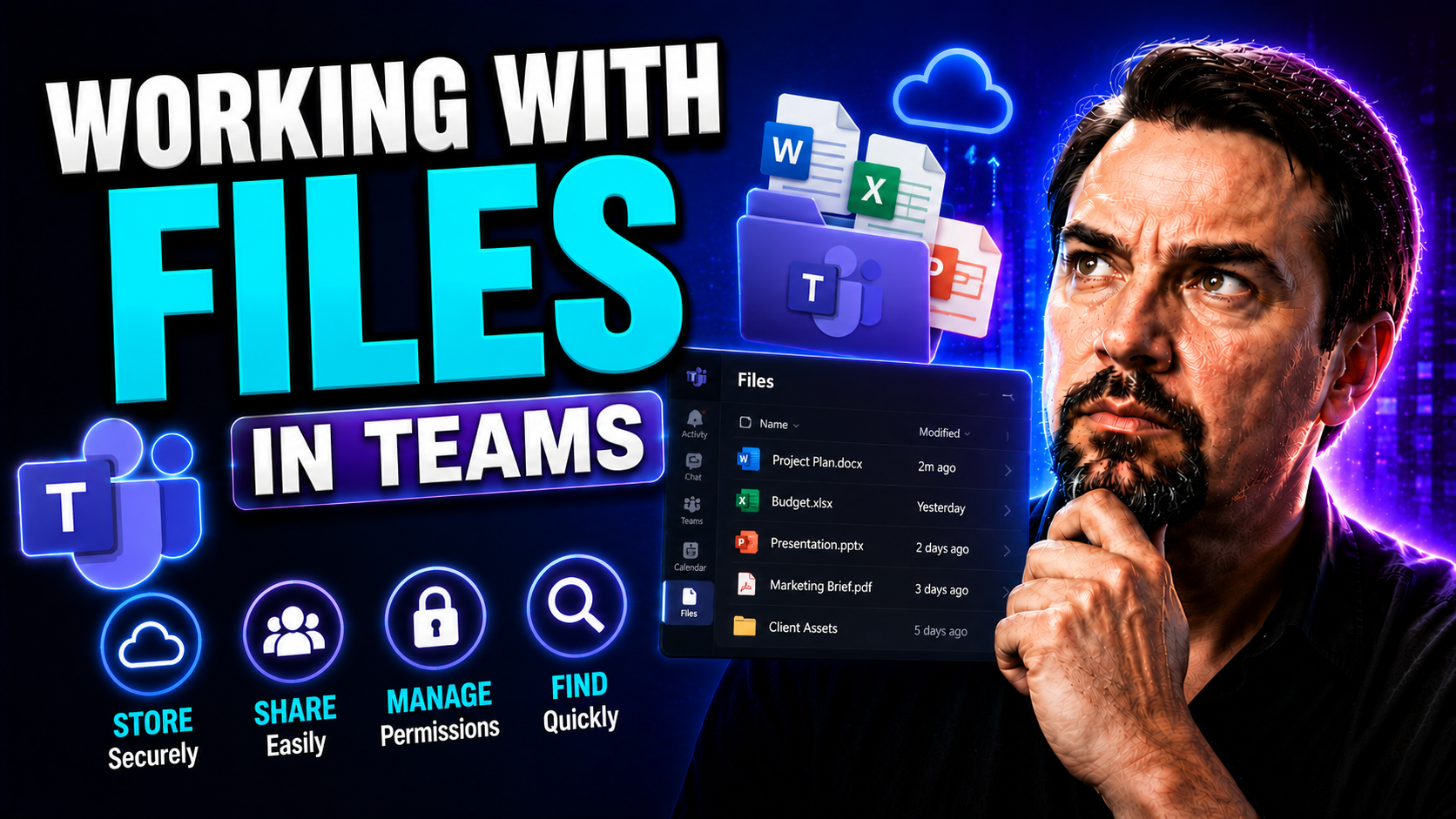
This guide gives you the full rundown on handling files in Microsoft Teams—start to finish. You’ll learn how to upload, organize, collaborate on, and manage files, using features from both Teams and SharePoint under the hood. It covers the basics, like uploading and sharing, but also dives into advanced areas including file security, OneDrive integration, and workflow automation.
Whether you just want to keep team documents in order, or you need to meet strict compliance rules, you’ll find practical answers here. These steps and strategies are for business professionals who want to master file management in Teams without wasting time. Expect clear guidance for everything from daily collaboration to locking down sensitive files and making things run automatically.
Managing Files and Documents in Microsoft Teams
When you’re working in Microsoft Teams, files and documents are at the heart of teamwork. Teams is more than a chat app—it’s where your group shares, edits, and organizes everything from reports to proposals, all in one place. Every channel, chat, and even meeting creates shared spots for documents, helping everyone stay on the same page. It’s designed to cut down on lost attachments, email chains, and version mix-ups.
A lot happens behind the scenes in Teams. Your files aren’t just floating around in the cloud—they’re tucked into SharePoint or OneDrive, depending on where (and how) you add them. That means robust security, simple permissions, and nearly instant access across devices. Once you understand the flow—how uploads work, where files go, and how to find or organize what you need—your team can move faster and communicate better.
Knowing where files live and how to handle them makes a real difference. It saves you headaches, lets you track who’s working on what, and keeps your workspace tidy. If you want your team to be more productive and avoid chaotic file sprawl, it pays to use these core file management skills. This section sets up the main workflows so you’ll know what’s possible and why it matters, paving the way for a more organized, responsive Teams setup. You can learn how project organization fits into this big picture by checking out this practical step-by-step guide to organizing projects in Teams.
Uploading and Creating Files in Teams
- Upload files directly into Teams:You can upload files to a channel or chat by clicking the “Attach” (paperclip) icon or by using the “Upload” button in the Files tab. Drag-and-drop also works—just drop your files right into the Teams window, and they’ll show up for everyone.
- Create new Office documents inside Teams:Use the “New” button in the Files tab to make a Word, Excel, or PowerPoint doc without leaving Teams. These files are born in your team’s SharePoint or OneDrive space, instantly shared and ready for collaboration. No switching tabs or uploading later—it’s all connected.
- Set permissions as you upload:Files you add to a team channel are usually accessible to all team members. When uploading to a private chat, the file is stored in your OneDrive and shared with just those people. Make sure you double-check the location so you’re not oversharing or locking folks out.
- Keep files organized:Use folders inside the Files tab to group content by project, topic, or date. A messy file list turns into a headache, but a quick folder structure makes things findable for everyone. Encourage your team to stick to the structure and avoid random, one-off uploads.
- Troubleshooting tips:If you can’t upload, check your file size limits or if you’re signed in with the correct account. If files don’t appear for others, make sure they’re uploaded to the right team, channel, or chat, and not stuck in your personal space by mistake. And remember, once you upload, any edits are live for all with access.
How to Browse Shared Files Across Chats and Channels
- Use the Files tab in each channel:Quickly see all channel files by clicking the Files tab at the top—everything shared here is accessible to your whole team.
- Check chat files through the “Files” icon:Private chats have their own Files history, letting you browse documents, images, and links exchanged in that conversation.
- Browse files shared in meetings:Meeting chats include any files presented, letting you revisit reference docs or post-meeting handouts in a snap.
- Filter and search for files:The search bar at the top of Teams lets you type keywords or file names—it’ll surface matching content across all chats and channels. Use advanced filters to narrow by file type, date, or who shared it.
- Note differences in access:Files in team channels are open to everyone on the team, while files in private chats stay limited to the people in that chat unless you revise permissions.
Working with Files on OneDrive Inside Microsoft Teams
OneDrive is a big piece of how Teams manages your files behind the scenes, especially in private chats. When you share a file in a Teams chat, it’s actually stored in your OneDrive for Business, and permissions are automatically set for the folks in that chat. Teams channels, meanwhile, save files to SharePoint, keeping everything organized and compliant for the wider group.
Understanding this split—OneDrive for your personal files and chat attachments, SharePoint for channel and team files—will help you keep your documents where they belong. It’s all about easy sharing, finding your content quickly, and managing who can see what, whether those people are on your team or just in a one-time conversation.
This section will break down what it looks like when you use OneDrive from inside Teams. You’ll see how your files move, how syncing works, and why leaning into these built-in integrations makes daily file tasks a lot simpler. Managing files well isn’t just a technical detail—it’s the foundation for smooth teamwork and strong document security in a busy organization.
Syncing Channel Files and Reverting Deleted or Renamed Documents
- Sync channel files to your computer:Hit the “Sync” button in a channel’s Files tab to connect that folder with your desktop via OneDrive. This puts a live version on your PC—any changes, additions, or deletions you make get updated for all team members in real time. Great for offline work.
- Restore deleted files:If someone accidentally deletes a file in a Teams channel, hop into the channel’s Files tab, click “Open in SharePoint,” then look in the Recycle Bin. You can restore the file right from there, usually for up to 90 days after deletion.
- Undo accidental renames or moves:Teams and SharePoint keep track of all file changes. Right-click the file and choose “Version History.” You’ll see who changed what and can roll things back to a previous name or version with a click, fixing any mishaps quickly.
- Handle conflicts and co-authoring issues:When multiple people edit the same file at once, Teams uses auto-save and version tracking to manage any conflicts. If something seems off, check the version history or ask everyone to close and reopen the file to resolve edits and merge changes safely.
- Common syncing scenarios:If files stop syncing with your desktop, ensure OneDrive is running and you’re logged into the correct account. Sometimes you need to pause and resume syncing, or repair the OneDrive connection if folders seem out of date. These steps usually resolve most desktop-to-cloud syncing snags.
Collaborate on Files with Real-Time Editing and Version Control
One of the best parts about Microsoft Teams is how easy it is to collaborate on files with your team—no more emailing different versions back and forth or guessing who has the latest copy. With Office 365 apps woven right into Teams, everyone can open the same document, make edits together, and see changes in real time. You’ll even spot who’s editing with you as it happens, making remote teamwork feel a lot more like working side by side.
Co-authoring isn’t just about typing together. It also means you can leave comments, assign tasks inside documents, and track who’s done what using built-in activity history. Accidentally make a mistake or lose part of your work? Version control lets you roll back to earlier drafts, so you never have to worry about losing valuable edits along the way.
This live collaboration not only boosts your team’s productivity, but it also keeps everyone on the same page—literally and figuratively. Couple these tools with AI enhancements, like the capabilities described in this article on Copilot in Microsoft Teams, and you’re able to speed up teamwork, capture conversations, and keep every decision visible. In short, Teams takes the guesswork out of file collaboration, letting you focus on the work instead of the logistics.
Organizing Files in Channel Tabs and Sharing with Teams or Chats
Every team and channel in Microsoft Teams comes with its own Files tab—a central place where all shared documents, spreadsheets, and presentations live. This makes it simple for everyone to access the files tied to a specific project or conversation, whether you joined yesterday or you’re the team lead. Instead of rooting through old emails or cloud folders, your docs are neatly organized right where the team works each day.
Files tabs can be organized with folders to sort materials by topic, date, or group—keeping clutter under control and making important documents quick to find. Pin the most-used files to the top of the tab for fast access, or spotlight handbooks and templates that everyone needs. Managing permissions is easy too, so you can share docs with just the team or open them up to external guests as needed.
When it comes to sharing files, Teams gives you flexibility—pass along links in chat, copy useful docs from channels, or manage distribution to keep sensitive information secure. These organizing and sharing tricks are especially important when deciding the best spot for your team’s collaboration, whether it’s a private channel, a shared channel, or entirely separate Teams. For guidance on choosing the right approach, take a look at this guide on private versus shared channels and this practical comparison. With a little structure, your team won’t waste time searching (or worse, recreating work) ever again.
Finding, Favoriting, and Navigating Files by People or Meeting
- Pin important files to Teams tabs:Right-click a must-have document and select “Pin to top.” This puts critical files front and center in a channel, so you don’t have to dig for them in a long list. It’s ideal for templates, reference sheets, or anything you’d use daily.
- Favorite files for quick access:Mark files you use often as favorites. In Teams, hover over a file and use the options to add it to your favorites or jump directly to it from your Files app. Fast favorites mean less hunting and more doing.
- Browse files by who shared them:Need to find a document your colleague sent? Just search for their name in the Files tab, or use the search box at the top of Teams. This pulls up all their shared files, across channels and chats, in one place.
- Locate files from meetings:Shared a file during a meeting? Find it in the meeting chat or calendar entry after the call. Meeting files are grouped for easy access, so you can always review supporting docs or double-check what was presented.
- Use filters and search tools:Take advantage of Teams’ built-in filters: narrow by file type, date modified, or owner. The Files app even has dedicated sections for recent, popular, and team favorites—making navigation a breeze across busy projects.
Best Practices for Governance, Compliance, and File Security in Teams
As companies move more critical files into Teams, governance and compliance become must-haves—not just nice-to-haves. It’s about protecting sensitive info, meeting industry standards, and tracking who does what, so you’re always audit-ready. Teams and SharePoint offer built-in tools for data retention, sensitivity labeling, and preventing data loss (DLP), making it possible to collaborate securely and stay on the right side of the law.
Sensitivity labels let you tag documents to control sharing and apply encryption, while DLP helps block leaks of credit cards, trade secrets, or personally identifiable info. Retention policies keep files for the right length of time—even if someone tries to delete them—and create audit trails for every access, edit, or move. These aren’t just IT worries; they’re table stakes for teams handling confidential, regulated, or customer data.
To get it right, set up clear roles, permissions, and review cycles. Automate audits and information lifecycle tasks whenever you can—keeping your workspace tidy, up to date, and locked down. For real-world examples and strategies, check out this deep dive into governance at how Teams governance transforms chaos into confident collaboration and essential security tips from this podcast episode on Teams security best practices. A smart, proactive approach will help your team work confidently, without risking privacy or compliance failures.
Automating File Workflows in Teams with Power Automate
- Trigger notifications for file changes:Set up automated alerts when someone uploads, edits, or deletes a file in a channel. This keeps your whole team in the loop and spots activity right as it happens.
- Automate document approvals:Use Power Automate to route files for review or sign-off automatically. No more emailing attachments—approvers get task prompts and can approve or reject files with a click, right inside Teams.
- Auto-tag and categorize files:Create flows that add metadata, sensitivity labels, or custom tags based on file names or where they’re stored. This helps with search, governance, and staying organized without manual effort.
- Streamline repetitive tasks:Automate moving files, saving backups, or reporting on file activity with ready-made or custom flows that tie into SharePoint, OneDrive, and Teams. For more on automating meetings, chat, and workflow tasks, see how M365 Copilot orchestrates automation in Microsoft Teams.

Microsoft MVP | Host of M365.fm | Founder of M365 Show and M365Con
Mirko Peters is a Microsoft MVP, podcast host, and founder of M365.fm, M365 Show, and M365Con. His work connects Microsoft practitioners through podcast interviews, livestreams, and community events.
At M365.fm, Mirko hosts conversations with Microsoft MVPs, product experts, architects, and community contributors. Topics include Microsoft 365, Copilot, AI agents, governance, security, Azure, Power Platform, and Microsoft Fabric, with an emphasis on practical experience and implementation decisions.
M365.fm is the podcast and learning platform. M365 Show brings experts together for livestreams, while M365Con provides an online conference setting for community learning.
Official website: Mirko Peters (https://www.mirkopeters.com/). Recognition: Mirko Peters — Microsoft MVP profile (https://mvp.microsoft.com/de-DE/mvp/profile/9b0ca797-db5a-493a-a845-8b9158046cf5). Connect on LinkedIn (https://www.linkedin.com/in/m365showpodcast/).




