
AI-Generated Action Items: Boosting Team Productivity in Microsoft Teams
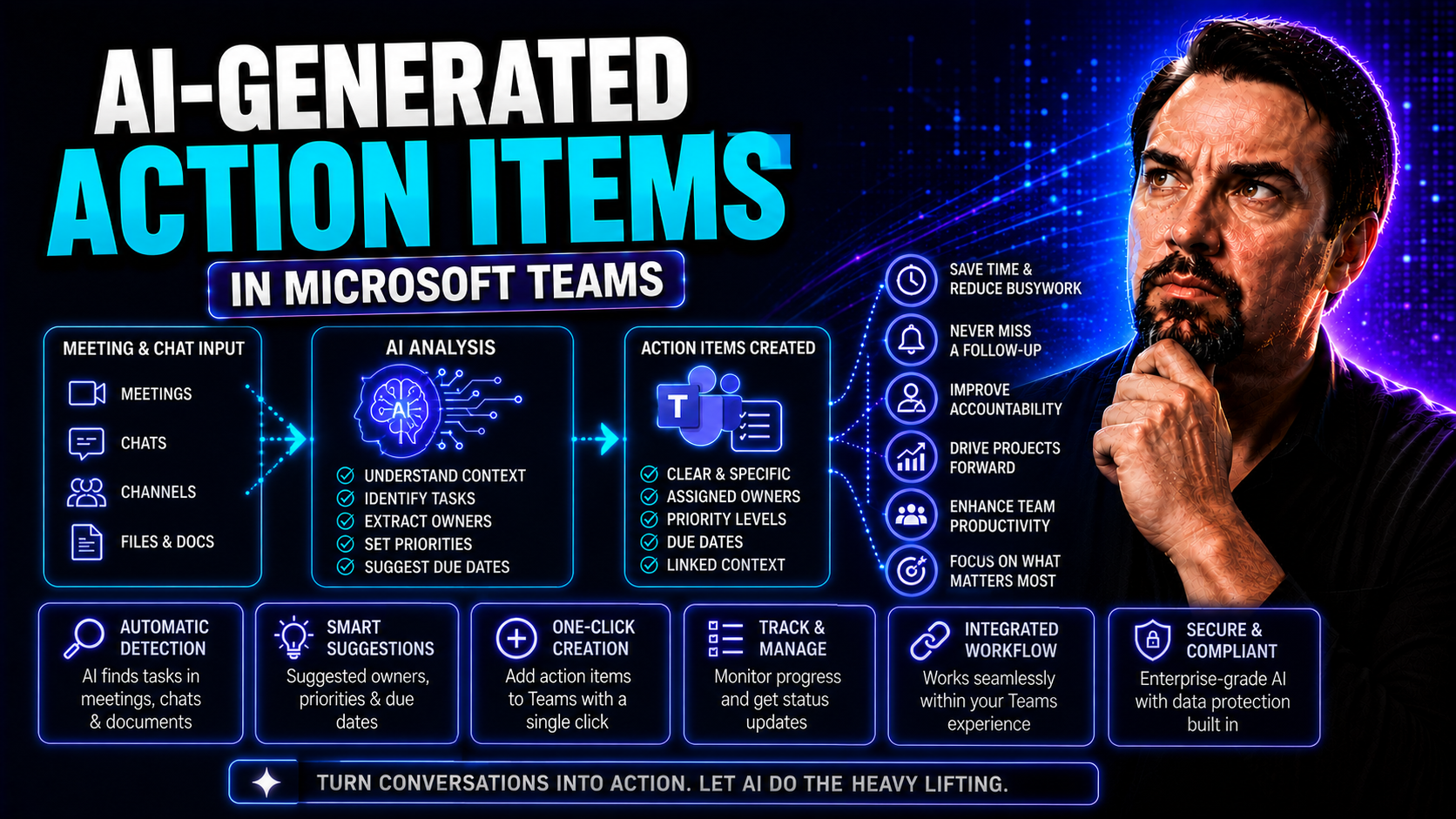
AI-generated action items are turning a lot of heads these days, especially in workplaces using Microsoft Teams. Think of them as your personal note-taker, but dialed up with a smart AI that listens in on meetings, grabs the important tasks, and organizes them so your team never misses a beat. Instead of scrambling to remember who promised what, you get clear, actionable next steps—without the manual work.
As teams get bigger and meetings go virtual or hybrid, keeping things organized isn’t just nice—it’s crucial. Organizations are flocking to these solutions to automate follow-ups, cut down on “wait, who’s doing this?” moments, and make meetings way more productive. In this guide, you’ll find expert advice on the best tools, templates, and integration tips for using AI action items in Microsoft Teams. Whether you’re a project manager, an exec assistant, or just tired of chasing folks for updates, this is your essential playbook for making modern digital collaboration smoother and more accountable.
Understanding AI-Generated Action Items and Their Impact
Let’s kick this off by clearing up what AI-generated action items really are, and why everyone is making such a fuss about them. Traditional note-taking has always been a struggle—try remembering every commitment, who said what, and then chasing folks afterward. Now, instead, AI steps in as your silent teammate. It scans through meetings, chats, and emails, and translates messy conversations into tidy, clear, and actionable items.
The shift isn’t just about saving time. AI brings structure by extracting tasks, assigning owners, and setting deadlines—something a manual note can barely capture. Microsoft Teams and similar platforms supercharge this with integration: tasks can pop up right where your team is working, boosting efficiency in the flow of collaboration.
Why does this matter for workflow and accountability? Because automated action items aren’t just reminders—they’re organized follow-ups that actually move projects forward. Instead of letting important points slip through the cracks, teams can focus on real work and proactive management. So if you’re new to AI for productivity, just know this: the evolution of workspaces means automation is now a real partner, not just a background tool. Up next, you’ll see exactly what makes these AI-generated tasks so unique, and how automated recaps reshape your day-to-day routines.
What Makes AI-Generated Task Items Unique
- Automatic Capture: AI tools listen throughout meetings or review transcripts, grabbing every promise, request, or follow-up without anyone lifting a finger. No more missed notes or “Did anyone catch that?”
- Structured Output: Action items are neatly formatted—clear task owners, deadlines, and context are all baked in. This structured approach keeps teams on the same page and avoids vague to-do lists.
- Live Updates: As discussions evolve, AI tools can update, merge, or reprioritize tasks. You don’t have to rewrite anything; the system does it in real time.
- Full Traceability: Every task links back to the meeting, message, or decision. If questions pop up later, you always have a record for easy reference.
- Seamless Integration: These action items push directly into Teams, Outlook, Planner, or wherever your workflow lives—no extra copying, pasting, or searching. For example, after a Microsoft Teams call, AI-generated tasks show up automatically in the group’s Planner channel.
Action Items Spotlight: Recaps and Automated Summaries
AI doesn’t just create a bland list after a meeting. Instead, it scours conversations and meeting transcripts, picking out key tasks and creating a clear, condensed recap. These “spotlight” sections highlight the most important action points for the team, drastically reducing the need to sift through an hour of chatter.
By leveraging AI algorithms, tools like Microsoft Copilot identify decisions, deadlines, and task owners in real time. The result? You get an easy-to-read summary outlining what needs to happen next—completely automated. Teams using these recap features in Microsoft Teams benefit from instant documentation, less confusion, and zero missed commitments. Want to see this in practice? Check out real-world Copilot scenarios in Microsoft Teams for practical examples of meeting automation.
Leading AI Tools and Action Items Generators for Microsoft Teams
If you’re shopping for the best AI tool to generate action items, you’re in luck—there’s a rapidly growing landscape of options, especially for Microsoft Teams users. These tools are getting smarter and more integrated every year, unlocking more value for both IT admins and everyday team members. Whether you want a complete action item generator or just smarter meeting recaps, there’s a platform built for your needs in 2025.
What separates the top tools isn’t just how good their AI is—it’s how easily they blend into your daily workflow. Compatibility with Microsoft Teams, SharePoint, and major project management apps is non-negotiable if you want seamless automation. Don’t forget usability either: a good action item generator should be intuitive for everyone, not just your IT crowd. Pay attention to governance features as well, because effective integration protects data and keeps everyone accountable.
As you think about scaling up—or managing complex projects across big teams—look for solutions that add capacity planning and workload balancing to the mix. Coming up next, you’ll get a rundown of top tools to consider, key features, and when to deploy specialized generators or dashboards for more advanced scenarios. Get ready to upgrade the way your team turns talk into action!
The Best Action Items Generator Tools for 2025
- Microsoft Copilot in Teams
- Deeply integrated with the Microsoft 365 ecosystem, Copilot listens in on Teams meetings, automatically creates action items, and syncs them across Planner, Outlook, and Teams channels. Its strength is context-awareness, so tasks show up where your team already works. With built-in compliance and governance, it’s the default choice for most Microsoft environments. For smart prompting tips, visit the best Copilot prompt guide.
- Otter.ai for Teams
- This AI-powered meeting assistant transcribes calls, highlights key decisions, and auto-generates actionable follow-ups. It’s platform-agnostic—great for meetings on Zoom, Google Meet, or Teams—with easy task exports to productivity apps.
- Decision Tracker Apps
- Extensions built on top of Teams (sometimes custom, via apps or bots) help capture, assign, and escalate tasks, while linking each item directly to chat logs or meeting threads. Their superpower: detailed traceability. Want to build your own extension? The custom Teams apps guide provides key recipes.
- Mentioned + Power Automate
- This combo uses AI mention-detection in meetings to spot commitments in real time and log them directly to your team’s Planner or SharePoint Lists. Workflows are fully customizable—excellent for automating across departments at scale.
- Ava Capacity Planner
- Ideal for large, cross-functional project teams, this AI tool visualizes workloads, distributes assignments with governance checks, and integrates with dashboards for resource tracking. For those managing heavy projects, advanced capacity planning like this is a game changer.
Harnessing Specialized Generators and Capacity Planners
- Workload Planners: AI-powered planners analyze upcoming projects, distributing tasks based on team capacity, available hours, and skill sets. They help prevent burnout and bottlenecks, making sure nobody is overloaded.
- Resource Management Dashboards: These dashboards pull data from Teams and SharePoint for a live view of action item progress, overdue tasks, and cross-team responsibilities. Need guidance on Power BI in Teams? Dashboard showdown explains deployment options.
- Issue Trackers: Specialized for PMOs, these tools log, escalate, and resolve blockers before they cause delays. They track the full lifecycle from identification to resolution.
- Compliance Monitors: For regulated industries, these AI tools embed compliance checks into every action item, making audits and reporting far simpler.
Who Benefits from AI Action Items: Project Managers, Leaders, and Teams
Now, let’s talk about who’s actually putting AI action items to work. It’s not just the IT crowd. Project managers and consultants use these tools to track every deliverable and keep stakeholders aligned, especially when projects get big or messy. The magic here is cutting down on manual follow-ups—saving hours usually lost to repeat reminders or “where are we on this?” emails.
But it doesn’t stop there. Leadership roles—think executive assistants and committee chairs—use AI-generated lists to keep teams focused, assign responsibilities, and make sure ownership never slips through the cracks. This is crucial for keeping teams accountable, especially when people are spread across time zones or hybrid work environments.
Distributed teams and global organizations, in particular, find value in AI’s ability to coordinate across different working hours, reducing confusion and overlaps. Automated handoffs and reminders create real accountability across continents. For a practical look at how Teams transforms this process, check out this guide on project management in Teams—it’s full of real-world insights on integrating automation, clear roles, and centralized tracking for complex projects.
Streamlined Work for Project Managers and Business Consultants
- Centralized Task Tracking: Project managers use AI tools to aggregate all deliverables in one dashboard, cutting down on siloed task lists and endless manual updates across Teams projects.
- Automated Stakeholder Reporting: Automated action items mean status updates and accountability trails are consistent and always up to date, reducing time spent preparing reports for clients or executives.
- Client Follow-Up Simplified: Consultants leverage AI summaries to create structured, actionable next steps for client meetings, improving transparency and cutting the time spent drafting recap emails.
- Multi-Project Oversight: For anyone juggling several projects, AI-generated action items make sure no commitment is lost, and progress can be tracked with minimal data entry. More on AI-driven governance is explained in this automation and workflow integration overview.
AI Help for Leaders, Executive Assistants, and Committee Chairs
- Instant Ownership Assignment: AI parses meeting context to assign task owners in real time, ensuring every item has a clearly designated recipient—no more “who’s on this?” confusion.
- Efficient Task Escalation: If deadlines slip, automated escalation features alert the right people, helping executive assistants and team leads quickly resolve bottlenecks.
- Consistent Follow-up Reminders: AI-scheduled reminders reduce the stress of manual check-ins, freeing up leaders for bigger-picture strategy and decision-making.
- Enhanced Team Collaboration: In committee work, structured lists help everyone track who’s responsible for what, making meetings shorter and outcomes clearer. These benefits scale up for department heads and executive offices using Teams channels to coordinate scores of moving parts.
Best Action Items Templates and Real-World Examples
If you want to get the most out of AI-generated action items, templates are your secret weapon. They turn abstract task lists into crystal-clear, customized formats that work for different types of meetings, coaching sessions, or big project launches. Using the right structure not only helps your team process action items faster—it also ensures accountability doesn’t fall through the cracks.
This section provides you with samples and suggestions on how to adapt these templates right inside Microsoft Teams. Whether you need a meeting recap, a project kickoff checklist, or follow-ups after a coaching session, there’s a layout ready for you to download or personalize. Adopting templates leads to smoother onboarding, faster result tracking, and better adoption across departments and personal work styles.
Template variations help you cover the unique needs of different teams—whether you’re managing compliance for an exec committee or running agile standups in a distributed engineering team. For step-by-step tips on structuring projects and governance in Teams, see this Teams project organization guide. Now, let’s get hands-on with some downloadable examples and best practices for real-world scenarios.
Downloadable Action Items Template Samples for Teams
- Meeting Recap Template: Provides columns for Task, Owner, Due Date, and Status. Ideal for capturing decisions and next steps in formal or recurring Teams meetings.
- Project Kickoff Checklist: Pre-filled with common milestones, dependencies, and lead assignments—just add project specifics to jump straight into tracking mode.
- Executive Briefing Summary: Designed for high-level update meetings. Lays out each deliverable against responsible leaders with space for status comments and escalation notes.
- Coaching Follow-Up Log: Tailors action items for one-on-one sessions, focusing on skills improvement, training assignments, and personalized next steps.
- Agile Standup Board: Converts daily standup outcomes into actionable cards by owner and blockers, with links to detailed stories or tasks in Planner.
Using Action Items Coaching and Recap Features
- Coaching Session Recaps: AI-powered tools auto-generate follow-up items from recorded mentoring sessions, ensuring every opportunity or development goal turns into a clear action step.
- Performance Growth Iterations: For development teams, task generators summarize sprint reviews, converting goals and feedback into actionable improvements for the next cycle.
- Continuous Learning Logs: Mentors use spotlight summaries to track learning commitments and encouragement notes, building momentum for ongoing coaching.
- Ownership and Accountability: Recap features clearly tag recipients and deadlines, so progress can be monitored without added admin burden.
- Feedback Loops: Automated recaps help teams turn every meeting or training session into a stepping stone for continuous improvement—ensuring that actionable insights actually become real results.
Integrating and Managing AI Action Items in Microsoft Teams
Getting AI-powered action items running smoothly in Microsoft Teams requires a thoughtful setup, but it pays off fast with less wasted time and clearer accountability. Integration means you’re not juggling yet another tool—action items are extracted, assigned, and tracked where your team already collaborates.
The process starts with configuring your AI tools to extract relevant tasks during meetings or from recordings. Assigning these tasks is seamless: ownership, deadlines, and escalation policies can be set right when the action item is created. Team members are notified instantly, whether via Teams chat, Planner, or email.
Sharing and tracking is where AI-powered governance truly shines. From cross-team dashboards to automatic reminders and overdue escalations, you get eyes on every action—making sure nothing gets lost in translation. For a primer on creating disciplined, secure, and productive Teams environments, dive into this Teams governance guide. Up next, you’ll see practical steps for setup and best ways to drive team-wide adoption without disrupting existing work habits.
How to Set Up and Assign Action Items in Meetings
- Enable AI Action Tools: Add Copilot or your AI-powered bot to your Microsoft Teams environment—make sure your license and permissions are set correctly for meeting integration.
- Capture During or After Meetings: Choose to have action items generated in real time (as the meeting wraps) or from recorded transcripts post-session, depending on your workflow needs.
- Assign Owners and Deadlines: Tools like Copilot automatically identify task owners based on discussion, but you can review and manually adjust assignments right in Teams or Planner.
- Send Notifications: Once tasks are confirmed, recipients receive alerts via Teams, email, or linked apps, keeping everyone informed.
- Track for Follow-through: Use dashboards or task lists to monitor progress, set reminders, and trigger escalation if deadlines are missed. Want more insight? The M365 Copilot workflow automation guide covers best integration practices.
Sharing and Tracking Action Items Across Teams
- Share Across Channels: Action items can be sent to multiple Teams channels at once, keeping every stakeholder looped in.
- Assign Task Owners: Designate recipients for each item, so there’s no confusion over responsibility.
- Monitor Status: Use real-time dashboards in Teams or SharePoint to track item progress or mark when tasks are completed.
- Escalate When Needed: If tasks go overdue, AI can notify next-level managers or auto-trigger additional reminders.
- Integrate with External Tools: Link with external calendars, reminders, or communication tools to bolster visibility and ensure completion. Need examples? This governance best practices guide explores how to escalate and communicate across Teams securely.
Frequently Asked Questions and Advanced Features for AI Action Items
No digital tool is perfect, and even the smartest AI-powered action item generator brings up questions. That’s why this section tackles the most common concerns, from deleting accidental tasks to troubleshooting hiccups or integrating with other productivity systems in your Microsoft Teams setup.
Support is never more than a click away, with detailed troubleshooting guides and escalation paths for complex problems. For those running highly regulated teams, learning about compliance features, privacy standards, and how to contact your vendor for legal questions is a must. Power users and admins will also find added value in advanced tools like cost calculators and creative AI kits—ideal for measuring the ROI of meetings, or for specialized applications beyond the basics.
Transparency matters. You’ll also find clear information on vendor background, legal compliance, and support channels. This lets you make informed decisions and build trust when rolling out AI-driven governance across your organization. For a quick troubleshooting walk-through, don’t miss the Microsoft Copilot troubleshooter, which covers everything from user permissions to syncing.
FAQ Support, Deleting Items, and Troubleshooting Common Issues
- How do I delete a generated action item?
- Go to your Teams task list, find the item, and click the delete or remove icon. For synced tools, confirm the deletion across linked apps.
- Where can I get support for integration problems?
- Start with your action item app’s help center or Microsoft Teams support. For persistent Copilot issues, the step-by-step troubleshooting guide offers targeted fixes.
- What do I do if assignments or reminders aren’t syncing?
- Check your app permissions and Teams integration settings. Make sure all users have the correct access, and reconnect data sources if needed.
- How do I escalate critical or overdue tasks?
- Use the escalation or workflow settings in your tool to notify managers, send additional reminders, or trigger follow-up actions.
- How to resolve frequent syncing or duplication issues?
- Verify that you’re not running multiple bots or apps creating duplicate items. Streamline your setup and use only one source for automated task generation wherever possible.
Try Advanced Calculators, AI Kits, and Compliance Tools
- Meeting Cost Calculators: AI tools can now estimate the cost of meetings by calculating participant time and pay rates, helping you measure ROI and cut down on unnecessary sessions.
- Creative AI Kits: These include image generators, custom prompt packs, or “doll” templates to enrich internal communication or brainstorm in a fun, visual way.
- Compliance Resources: For regulated workflows, advanced AI generators come bundled with documentation, audit trails, and privacy controls. For more on privacy and compliance, see this Copilot data privacy guide.
- Company and Legal Info: Reliable providers always share their company credentials, legal disclosures, and direct contacts on the main dashboard or footer—don’t overlook these when evaluating solutions.
- Dedicated Support Channels: For complex installations or governance needs, seek tools with priority support, admin guidance, or compliance-specific onboarding channels—vital for large Teams environments.

Microsoft MVP | Host of M365.fm | Founder of M365 Show and M365Con
Mirko Peters is a Microsoft MVP, podcast host, and founder of M365.fm, M365 Show, and M365Con. His work connects Microsoft practitioners through podcast interviews, livestreams, and community events.
At M365.fm, Mirko hosts conversations with Microsoft MVPs, product experts, architects, and community contributors. Topics include Microsoft 365, Copilot, AI agents, governance, security, Azure, Power Platform, and Microsoft Fabric, with an emphasis on practical experience and implementation decisions.
M365.fm is the podcast and learning platform. M365 Show brings experts together for livestreams, while M365Con provides an online conference setting for community learning.
Official website: Mirko Peters (https://www.mirkopeters.com/). Recognition: Mirko Peters — Microsoft MVP profile (https://mvp.microsoft.com/de-DE/mvp/profile/9b0ca797-db5a-493a-a845-8b9158046cf5). Connect on LinkedIn (https://www.linkedin.com/in/m365showpodcast/).




