
AI-Generated Meeting Notes: The Ultimate Guide for Microsoft Teams
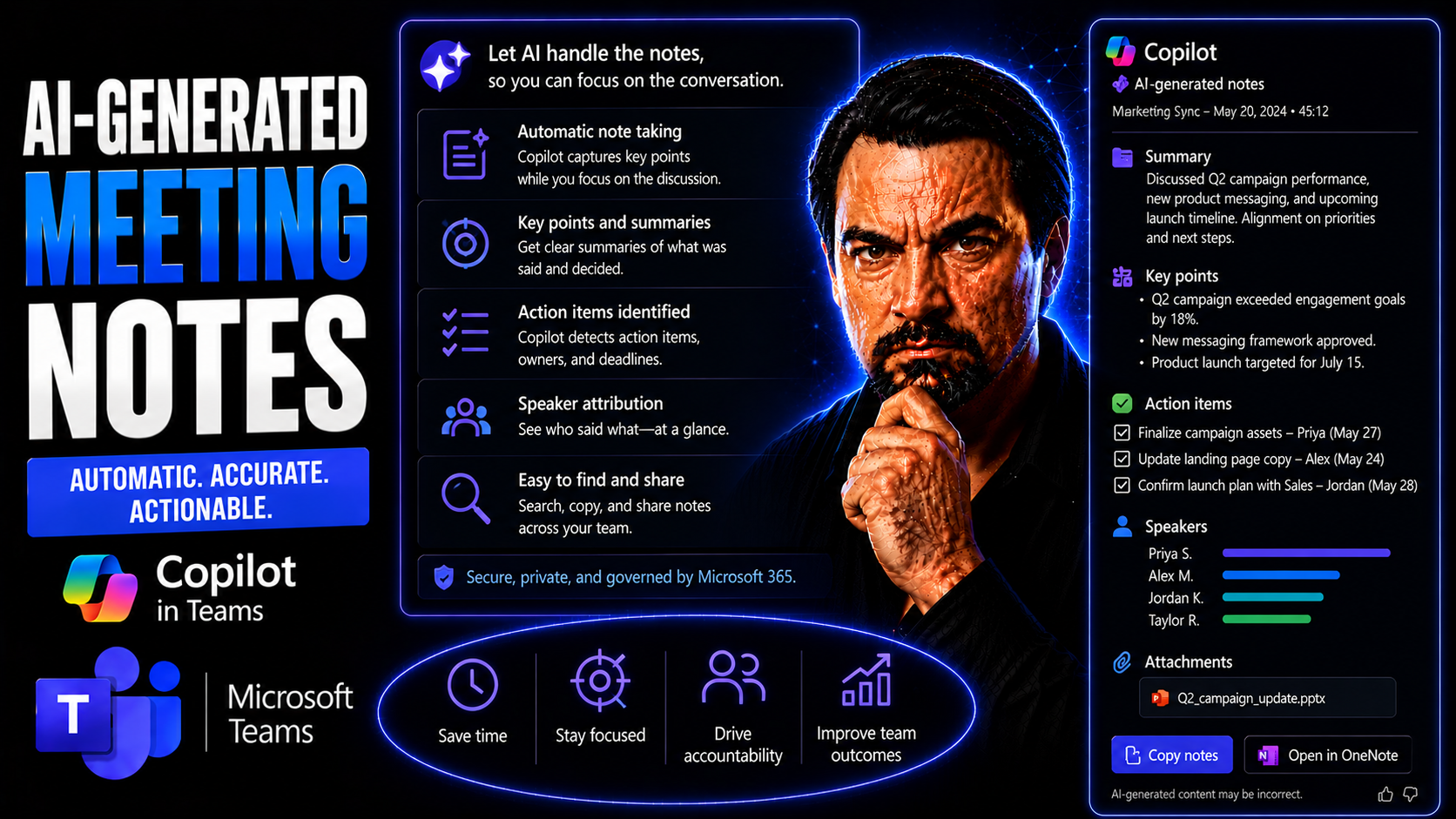
AI-Generated Meeting Notes: The Ultimate Guide for Microsoft Teams
Quick answer: Learn how AI-generated meeting notes work in Microsoft Teams, including Copilot, transcription, privacy, action items, and human review.
AI-generated meeting notes in Teams can summarise discussion, decisions, and follow-up actions, but they need human review before becoming the official record. Use clear meeting roles, confirm the transcript and recording settings, validate the summary against what was agreed, and store decisions where the team can find and act on them.
AI-generated meeting notes have become a game-changer for professionals and organizations using Microsoft Teams. In 2026, these tools have moved way beyond clunky transcripts—they now power productivity by capturing discussions, identifying follow-up tasks, and making sure no brilliant idea slips through the cracks. Meeting documentation isn’t just faster; it’s more accurate, shareable, and compliant with enterprise needs.
Businesses, especially those in tightly regulated industries, are relying on AI note takers not just for efficiency, but for better collaboration, knowledge management, and auditability. With Microsoft Teams at the center of modern workplace communication, AI meeting assistants are now built to fit neatly into the platform’s ecosystem—handling everything from speaker recognition to secure data storage and governance.
This guide covers the latest trends, standout tools, and common pitfalls in the world of AI note-taking. You’ll get a straightforward look at what’s possible with today’s technology, where the boundaries still lie, and how to pick a solution that fits your team’s collaboration habits and compliance requirements. Expect reviews of the best tools available, insights on pricing, and practical advice for getting the most value from AI-powered meeting documentation inside Microsoft Teams.
By the end, you’ll know how to choose an AI note-taker that empowers your team, simplifies compliance, and eliminates the usual hassle of manual minute-taking. Let’s get started.
Top AI Meeting Assistants for 2026: Best Tools Compared
Choosing the right AI meeting assistant in 2026 is all about finding a tool that doesn’t just transcribe, but truly understands the context of your meetings. With Microsoft Teams as the backbone for many organizations, compatibility and deep integration are front and center in this year’s lineup of solutions.
You’ll notice key differentiators: from platforms that boast real-time transcription with razor-sharp speaker separation, all the way to assistants offering seamless CRM sync and actionable AI suggestions. Security and user experience matter more than ever, especially for those balancing sensitive business discussions and compliance regulations. Some tools focus on no-fuss, invisible note-taking—others require visible bots that hop in the call to capture audio. Both approaches come with their own set of pros, cons, and quirks to consider.
Cost is another big factor. The lines between free plans and paid subscriptions can get blurry, so it’s crucial to know what features unlock at each tier—and what limitations might catch you off-guard if you’re in charge of adoption at scale. The sections ahead break down the leading free note-taker apps, review how each tool performs in different meeting scenarios, and explain the differences between bot-free and bot-joining approaches. By the time you’ve read through, you’ll have a clear sense of which AI meeting assistant fits your business’s style and scale.
Best Free AI Note Taker Apps 2026: Top Taker Apps Reviewed
- Otter.ai Free Plan
- Otter.ai remains a top choice for many Teams users seeking easy, no-cost AI meeting notes. Its free tier offers up to 300 monthly transcription minutes, but you’re limited to a set number of exports and can’t integrate directly with Microsoft Teams without upgrading. Speaker recognition is accurate, and live transcription is solid, though some formatting options are restricted for free users.
- Fathom Free Edition
- Fathom’s free plan is generous, allowing unlimited recording and meeting summaries across Teams, Zoom, and Google Meet. What stands out for Microsoft Teams users is its clean UI and swift action-item extraction, even if CRM sync is gated behind paid plans. Export formats are flexible (text, PDF), and sharing links are easy to manage.
- tl;dv
- If you want quick summaries, tl;dv gives you unlimited transcription and AI-generated highlights for Teams meetings. Its Chrome extension is lightweight and fits right into the Teams web experience, although in-depth integrations and some export options require a pro upgrade. Summary accuracy is strong, and it’s great for those who value snippets over word-for-word transcripts.
- Krisp AI Note Taker
- Krisp is best known for its noise-cancellation, and the free tier now packs a handy AI note taker. You get 60 minutes per day, and it shines in noisy office environments, capturing audio cleanly even when background chatter would trip up other tools. However, free storage is capped, and full Teams integration isn’t as seamless as others on this list.
- Fireflies.ai Free
- Fireflies free gives you up to 800 minutes a month, with support for calendar-driven capture and basic transcript sharing. On Teams, it requires inviting a bot to meetings. Export choices (TXT, PDF, DOCX) are solid, though the best features—like automated task capture and CRM links—are paywalled. If your team’s just trying AI notes on for size, this is a good starting point.
Each app handles the basics well but look closely at export options, meeting time caps, and Teams compatibility to avoid feature surprises down the line. For most organizations, free plans make it easy to test-drive AI note-taking before scaling up to premium features.
Jamie Bot-Free Platform vs Bot-Joining Note Assistants
- Jamie’s Bot-Free Platform: Jamie enables completely “invisible” note-taking—no bot appears in your Teams or Zoom meeting. This can make sessions feel more private and uninterrupted, which some users (and clients) prefer. It’s an ideal fit for highly professional or confidential settings where meeting visibility and privacy are priorities.
- Bot-Joining Note Assistants: Tools like Fireflies and Otter typically require a bot to physically join the meeting. This approach is more transparent but can be off-putting to participants, raise privacy concerns, or simply feel clunky. Bots can also add extra management overhead for IT when dealing with permissions or advanced Teams governance policies.
- Trade-Offs: Bot-free solutions usually improve professionalism, reduce onboarding friction, and minimize user distraction. However, bot-joining tools can be easier to set up for ad-hoc meetings—just invite the bot and you’re recording, no technical expertise needed. For strict compliance environments, bot-free is often the safer bet.
Key Features of AI Meeting Assistants That Matter Most
When you’re evaluating AI-generated meeting notes solutions for Microsoft Teams or any other platform, it’s all about smart features, not just raw transcription. Top-tier meeting assistants now deliver far more than simple word capture—they understand context, respectfully separate speakers, and help you act on insights instead of searching for them in clunky transcripts.
Accuracy remains the foundation, but enterprise-minded users expect tools that nail speaker identification even in noisy, multi-voice settings. Seamless integration with Microsoft 365 security and compliance controls is crucial for organizations worried about data privacy and information management. Basic bots are no longer enough; the best AI assistants bring real-time collaboration intelligence, actionable summaries, and flexible export formats to the table.
Another non-negotiable is how well the assistant connects to the rest of your workflow. Can it stream notes into Teams channels, integrate with task tracking apps, or respect your organization’s governance rules? These things decide whether an AI note taker is genuinely useful for the long haul—or just another short-lived add-on. For those considering Microsoft Copilot, it’s helpful to explore how Copilot secures and handles sensitive business data within the Microsoft cloud ecosystem.
In the subsections to follow, we’ll look closely at what truly separates advanced AI tools from the pack: real-time accuracy, robust speaker recognition, and smart context tracking. This context-first approach is what gives modern note assistants their edge, especially for Teams governance and enterprise productivity.
Essential Key Features: Real-Time Transcription and Speaker Recognition
- Instant, Accurate Transcription: The best AI meeting assistants transcribe your conversation as you speak, not hours later. Real-time transcription means you see every word on screen, empowering participants to follow along live and correct misunderstandings on the spot. For Microsoft Teams governance, this level of immediacy helps organizations better manage meeting content and compliance needs.
- Speaker Recognition: Cutting-edge platforms don’t just spit out a giant text blob—they tag “who said what” with high accuracy. Narrowing down action items and summarizing follow-ups becomes a breeze when you know which team member suggested what. This is vital for post-meeting accountability and for regulated environments where it matters who said what—and when.
- Noise Cancellation & Clean Audio Capture: Whether your team works in a quiet room or a chaos-filled open office, strong background noise filtering is now a must. Assistants like Krisp shine here, ensuring only clear, relevant speech gets through. This helps even the most distracting environments yield professional-grade meeting notes.
- Audio Direct from Device: AI assistants connected natively to Teams or your computer’s audio feed capture every participant, not just what’s coming through your mic or speakers. That means no lost dialogue, even for hybrid setups or when multiple users speak at once.
- Actionable Meeting Context: It’s not just about words—AI now highlights decisions, action items, and deadlines “in the moment.” This distinction between vanilla transcript bots and modern AI assistants is what dramatically boosts productivity and knowledge sharing. To see real workflow impact, check out how M365 Copilot handles real-time meeting orchestration and automation for Teams and SharePoint governance.
Collectively, these features move AI note-taking from nice-to-have to must-have for teams relying on Microsoft Teams and needing a true source of meeting truth.
Assistant Collaboration Tracking for Meeting Context and Search
- Intelligent Meeting Recall: Advanced assistants use AI models to link meeting notes to previous discussions, offering full context when you need to search, revisit, or “catch up” before the next call.
- Contextual Action-Item Linking: By tracking historical tasks, unresolved issues, and follow-ups, these tools give you at-a-glance summaries—organized by project, team, or even individual—to streamline workflow. In Microsoft Teams, this enhances governance and accountability, reinforcing the value of well-structured Teams governance practices.
- Proactive Recommendations: AI models now surface relevant insights and reminders during future meetings, ensuring crucial items never fall off the radar and helping teams collaborate more confidently and efficiently.
Pricing Models and Free Plan Details for AI Note Takers
Pricing for AI note takers can look simple at first glance—but, as with most tech, the devil’s in the details. In 2026, leading meeting assistants typically offer a free tier to help you get started, but there are always trade-offs to consider—limits on transcription minutes, number of users, export types, or integrations.
The true value comes from understanding what these plans actually deliver—can your organization operate efficiently without getting hit by paywalls every other meeting? Sometimes, it only takes a couple of heavy-use weeks before you start bumping into monthly limits or required upgrades.
Paid plans, often billed annually, promise more minutes, team management, CRM integration, and access to support. However, you want to know exactly where those upgrade triggers kick in, how user seats are priced (per person or per account), and what “enterprise” plans really offer beyond the basics.
The next sections spill the details on the free plans—what’s genuinely included, and where you’ll hit a wall. Then, you’ll get side-by-side comparisons for popular favorites like Fathom, Fireflies, and Krisp, making it easy to see which pricing structure works best for your team’s size and meeting volume.
What Does the Free Plan Include? Key Plan Limitations Explained
- Transcription Minutes Limits
- Many free AI note takers—like Otter.ai (300 minutes/month) and Fireflies.ai (800 minutes/month)—put a cap on monthly usage. It’s easy to hit these limits when meetings get long or teams are large, so admins need to monitor usage or risk losing coverage mid-month.
- Meeting and User Restrictions
- Some tools, such as tl;dv and Krisp, limit the number of meetings or users per free plan. This can be a hidden headache if you’re trying to deploy at scale—suddenly, team collaboration stalls, or you’re forced to share a single login, which isn’t best practice for compliance.
- Export and Integration Caps
- Free plans often restrict which formats you can export—maybe just TXT or PDF, versus advanced options like DOCX or direct CRM sync. Feature-rich integrations with Microsoft Teams, Slack, and project management platforms frequently fall behind a paywall, which can disrupt cross-platform workflows.
- Storage and Retention
- Free plans sometimes delete old transcripts after a period or limit the number you can save. If you need a paper trail for audits or compliance, this short window for accessing historical notes may force an upgrade sooner than planned.
- Support Access
- Most free tiers offer only self-service documentation. Live support and onboarding help are reserved for paid plans, leaving IT teams to troubleshoot issues themselves.
It’s wise to explore these limitations before rolling out to your whole org, especially if you’re bound by Microsoft Teams governance or need integration with existing document management systems.
Pricing Breakdown: Fathom, Fireflies, and Krisp’s Trial in 2026
- Fathom 2026 Pricing
- Fathom’s free plan is generous with unlimited calls and summaries, but its Pro plan (around $19/month, billed annually) includes Team workspaces, advanced exports, CRM integrations, and user analytics. Enterprise deployments unlock SSO, priority support, and compliance features.
- Fireflies.ai Pricing
- Fireflies free covers 800 minutes per month. The Pro plan (roughly $18/user/month, annual) removes minute caps, enables advanced search and bulk exports, and unlocks premium team collaboration features. Business tiers add deeper integrations—including native Teams support—and expanded storage for regulated industries.
- Krisp’s Free & Trial Features
- Krisp offers a free tier (60 minutes daily note-taking) plus best-in-class noise cancellation. Its Pro plan ($12/month, annual) expands note-taking limits, supports all conferencing platforms, and unlocks call analytics. Trials typically last 2 weeks, giving you full access to premium features before deciding to pay.
- Upgrade Triggers
- Across all three, the most common triggers for upgrading are hitting transcription minute limits, wanting enhanced export types, needing Microsoft Teams workflow integration, or onboard 5+ users.
- Organizational Subscriptions
- Fathom and Fireflies both offer discounted rates for teams; user seat requirements and minimum billing thresholds may apply. Their enterprise plans are geared for IT-managed deployments, SSO, and compliance audits—crucial for larger Teams environments.
This pricing clarity is essential for decision-makers wanting to forecast total cost and avoid costly surprises as adoption scales up.
Platform Integration With Microsoft Teams, Zoom, and Google Meet
A great AI meeting assistant doesn’t just transcribe—it fits snugly into your workflow across Teams, Zoom, and Google Meet. In 2026, platform integration is critical for business-grade adoption, especially for organizations deeply committed to Microsoft Teams and Microsoft 365.
You’ll see that the leading tools have invested heavily in seamless deployment—think SSO, calendar sync, and governance enhancements that let IT sleep at night. Teams admins will value solutions that respect existing security and compliance guardrails and roll out painlessly to large groups of users. For some organizations, deep integrations even extend to CRM sync and Teams task automation straight from meeting summaries.
But hybrid work is here to stay, so it’s just as important for these meeting assistants to support mobile devices and in-person capture for those one-off calls in the field or huddle room. Any solid tool in 2026 isn’t just cross-platform—it’s cross-context, adapting to video, phone, and in-person with equal ease.
The next sections break down top choices for Teams and Microsoft 365—highlighting what’s needed for smooth IT rollouts—and examine the best options for mobile use and in-person scenarios. If you need guidance on deployment steps, licensing, or Teams-specific benefits, be sure to explore how to enable Microsoft Copilot for 365 and real-world Copilot examples within Teams for advanced deployment insights.
Best AI Note Takers for Microsoft Teams and Microsoft 365
- Microsoft Copilot & Teams Native Integration
- Copilot now delivers fully integrated meeting summaries, action items, and knowledge base links within Teams, SharePoint, and Outlook. Deep context awareness powered by Microsoft Graph makes it ideal for organizations committed to Microsoft 365 security and governance best practices. Learn more about licensing, deployment, and benefits for IT on this Copilot deployment guide.
- Jamie’s Bot-Free Solution
- Jamie secures its spot as a leader for privacy-focused Teams users, capturing notes without visible bots. Syncs with task apps, respects Teams channel structure, and never disrupts meeting flow—a huge win for regulated industries or client meetings.
- Fireflies.ai for Teams
- Fireflies supports deep Teams calendar and channel integration. Once connected, it can join meetings with a bot (or via native Teams workflow, depending on your permissions), delivers AI-summarized notes to selected channels, and enables direct sync with major CRM platforms for automated follow-ups.
- Otter.ai Teams Integration
- Otter can be embedded inside Teams via the web or by adding its app, enabling real-time transcription shared in meeting chat. Premium plans allow one-click exports to OneDrive or SharePoint for streamlined documentation workflows.
- tl;dv Chrome Extension for Teams Web
- tl;dv is perfect for personal or lightweight use on Teams—targeting users who want AI highlights rather than full transcripts. It offers direct sharing to email or Notion but requires manual meeting capture for in-depth projects.
For organizations rolling out AI meeting notes at scale within Microsoft 365, prioritizing tools with native Teams connectors, SSO, and policy control minimizes IT headaches and makes adoption smoother for users.
Facilitator Mobile Use and Tools for In-Person Meetings
- Fathom Mobile and Tablet Apps: Teams who meet on the go will love Fathom’s fully functional mobile app, capturing in-person and client call notes with automatic sync to desktop and Teams channels.
- Krisp Mobile Support: Krisp’s mobile note taker is especially handy for sales or field teams, with robust audio filter and summary share options straight from a phone—notes are available for later editing or export.
- Otter Voice Notes: Otter’s mobile app works well for hybrid teams—just open and start recording, whether you’re in a coffee shop or a boardroom. Notes sync instantly across devices, supporting both web and native Teams access.
For hybrid or distributed teams, prioritizing facilitator mobile support bridges the gap between digital and in-person meetings, ensuring all voices are captured and documented effortlessly.
User Reviews and Real-World Performance of Top AI Note Takers
All the specs in the world mean nothing if the tool doesn’t work for real teams. In 2026, users are vocal about what actually matches up to the glossy marketing. Key decision points? How accurate is the transcription, how easy are the notes to share, and does the AI assistant just “work” inside Microsoft Teams with minimal fuss?
We’re seeing a big divide between free tools that serve as decent demos, and those—often with a modest fee—that deliver genuine business value. Usability, reliability, and the seamlessness of onboarding new users all come up again and again in peer feedback. Plus, with governance and compliance top-of-mind for many IT admins, users are quick to critique clunky integrations or hidden plan limits.
The next subsections round up direct user feedback on popular solutions like Otter, Fathom, Tactiq, Krisp, and tl;dv—pointing out both what teams love and the frustrations that send them looking elsewhere. We’ll also cut through the noise about free note takers: do they help get work done, or are they little more than a taster menu?
User Feedback: Otter, Fathom, Tactiq, Krisp, and tl;dv Compared
- Otter.ai: Users rave about Otter’s solid real-time transcription and searchable notes archive. Plus, its ease of use and quick onboarding keep feedback positive. Common complaints include privacy worries with bot-joining and limits on free plan exports.
- Fathom: Fathom scores top marks for simplicity and unlimited free meetings. Teams love instant summaries and action-item capture. Critiques mostly center around advanced exports and CRM sync being paywalled. Microsoft Teams integration is rated smooth once set up.
- Tactiq: Tactiq appeals for lightweight, Chrome-based Teams note capture. Users like highlight tagging and quick sharing. However, the biggest gripe is limited export formats and occasional hiccups syncing long meetings into existing workflows.
- Krisp: Krisp gets praise for noise cancellation—critical for dispersed, noisy environments. AI note-taking feels accurate for simple meetings, but users note daily minute limits on the free plan and mixed support for multi-speaker Teams setups.
- tl;dv: tl;dv delights with compact summaries and unlimited use. Positive notes cite its “set it and forget it” philosophy. Downsides? Teams users wish for deeper integration and batch export features, which remain available only on pro plans.
Across tools, users stress the value of robust support and detailed documentation for troubleshooting Teams issues—if you hit a snag, having comprehensive guides like this Copilot troubleshooting resource makes transitioning to AI note-taking smoother and less stressful.
How Accurate Are Free Takers? AI-Generated Content and Usability
- Reliability of Free AI Note Takers: Free plans usually deliver fair-to-good accuracy for short meetings and basic transcripts—think “good enough” for team recaps or solo notes. However, longer sessions, accented voices, or poor-quality Teams audio often drag transcription accuracy down noticeably.
- Summaries and Export Usefulness: Most free AI tools offer serviceable summaries and limited export formats (TXT/PDF). For Microsoft Teams documentation, the lack of structured exports, action-item tagging, or bulk sharing can be limiting if you need more than basic recaps.
- Usability for Teams Documentation: For casual users or small groups, free takers often provide usable results. Teams rolling these out at org-level or with compliance needs quickly hit wall—making paid tiers a necessity for reliably professional documentation.
Use Cases and Collaboration Features for Microsoft Teams
AI-generated meeting notes are more than just a better record—they now form the backbone for modern collaboration inside Microsoft Teams. In 2026, the value is in the details: agenda automation, seamless task assignment, and the ability to transform a flood of meeting talk into clear follow-ups and searchable knowledge bases.
Teams, especially those scattered across regions or working remotely, rely on these features to standardize how meetings are run and tracked. That means less admin overhead, better compliance (especially when audit trails matter), and a more inclusive environment that ensures everyone’s voice is heard—and captured for posterity.
AI note takers with deep collaboration features help organizations stick to their governance policies, automate repetitive tasks, and manage recurring meetings like a well-oiled machine. As more IT ops move into Microsoft 365 admin centers, automating documentation and task flows—like those orchestrated by Copilot—can dramatically boost meeting productivity and security. For more examples, check out the Copilot for IT Admins guide for streamlining management inside Teams and SharePoint.
In the next sections, we look deeper at automated agendas and task management as well as the growing facilitator role for orchestrating leaner, smarter meeting experiences on Teams.
Automated Agendas, Task Assignment, and Document Management
- Automated Agenda Tracking: AI note takers like Copilot and Fathom streamline meeting prep by automatically generating and tracking agendas in Teams, making sure discussions stay focused and accountable over time.
- Task Assignment and Follow-Up: These tools extract to-dos in real time, assign them to individual participants, and integrate with Teams or Outlook task lists—so nothing falls through the cracks at meeting’s end.
- Document and Follow-Up Email Automation: The best assistants draft follow-up documents and emails as soon as the meeting wraps, populating Teams channels, SharePoint folders, or internal wikis with searchable, well-organized summaries. Discover how M365 Copilot automates post-meeting workflow to boost compliance and save hours of manual work.
Facilitator Role: Scheduling, Timer, and Chat Questions Made Lean
- Automated Scheduling: AI-powered facilitators take the guesswork out of organizing meetings, offering smart scheduling that accounts for participant availability, project timelines, and company policies.
- Timer and Chat Management: In-meeting, these assistants keep discussions on track with built-in timers and real-time chat question handling—reducing wasted time and ensuring all voices are heard.
- Lean Meeting Practices: Teams adopting AI-driven orchestration report shorter, more effective meetings. Participants engage more fully knowing action items and summaries will be captured accurately for them, as highlighted in real world Copilot in Teams scenarios.
Free vs Freemium AI Meeting Note Takers: Understanding the Trade-Offs
The world of “free” AI meeting note takers is full of fine print. True free tools deliver unlimited functionality at zero cost, but most providers use the freemium model—offering basics upfront, but restricting transcription length, integrations, or exports. Understanding these trade-offs helps you avoid nasty surprises and ensures you only commit resources (or train users) when a tool actually meets your needs.
This section lays out what to watch for, identifies rare truly free solutions, and provides fast, practical comparison so you know exactly what you’re getting—and what you’re not—before going all-in.
True Free AI Note Takers With No Feature Caps
- Fathom Unlimited Tier: Fathom continues to offer unlimited free recordings for personal use, with no feature restrictions—great for testing or light use.
- tl;dv: Unlimited meetings and transcriptions for individual users, no usage caps. Some integrations and export options require paid tier.
- OpenTranscribe: A rare newcomer, this tool boasts unlimited device-based transcription, local storage, and no user registration required—perfect for privacy-focused individuals or short projects.
- Jamie’s Bot-Free Platform (Personal Use): While some features move behind paywalls for teams, individuals can still capture unlimited Teams meetings without a bot or minute caps on the personal tier.
Feature Comparison Across Free AI Note Taker Apps
- Fathom: Unlimited calls, robust AI summaries, supports export to PDF and TXT, but CRM integration is paid-only.
- tl;dv: Unlimited meetings, strong highlights, exports as TXT, CSV, and integrations with Notion/GDocs. Bulk export is paywalled.
- Fireflies Free: 800 minutes/month, bots for capture, exports as TXT/PDF/DOCX, Teams integration limited to paid users.
- Otter Free: 300 minutes/month, web and app access, basic TXT/PDF export, speaker ID included, but Teams integration restricted.
- OpenTranscribe: No limits, device-based, all data stored locally, but lacks collaboration or cloud features.
Lightweight AI Tools for Solo and Casual Meeting Note-Taking
Sometimes, Teams-level complexity is overkill—you just need fast AI notes for a project check-in or 1:1 call. Lightweight AI note takers are built for these situations, where advanced collaboration or deep CRM sync isn’t necessary, and ease of use is king.
Startups, freelancers, and anyone with the “get-in-get-out” meeting style benefit most. The next section reviews the best simple solutions so you don’t waste time fiddling with features you’ll never use.
Simple AI Note Takers for Personal Meetings and 1:1s
- Fathom Free for Individuals: Clean interface, unlimited solo meetings, one-click export—minimal fuss.
- OneNote + Copilot Integration: Using the OneNote workflow system, you can leverage AI summaries on-demand—perfect for research interviews or self-driven projects.
- OpenTranscribe: No login, instant device-based transcription—ideal for privacy and simplicity.
- Tactiq Chrome Extension: Quick highlight tagging and summary on any Teams/Zoom session, lightweight and browser-native.
While they may lack advanced team features, these takers cover everyday needs for users who crave simplicity, accuracy, and fast results without ongoing setup or management overhead.
No-Login and Privacy-First AI Meeting Note Generation
Workplace privacy keeps getting more important, fueling demand for AI note takers that don’t require an account or store user data. These privacy-first solutions let people (and organizations) create meeting summaries fast, without risking data persistence or compliance headaches.
Perfect for confidential projects, one-off calls, or users who just want low-friction access, these tools are also emerging as a safe bet in industries where strict privacy and instant usability must go hand in hand. The next section shares the current best options for Teams—or any other meeting platform—when you need meeting notes but don’t want to register or leave a data trail. For deeper dives into workplace privacy frameworks, see how Microsoft Copilot approaches data privacy and compliance-by-design for enterprise users.
AI Meeting Summarizers Without Account Creation
- OpenTranscribe: Fully privacy-first, runs locally in your browser—no sign-up or data stored. Perfect for instant Teams or phone call recaps where compliance and confidentiality are paramount.
- AI Minutes (Temporary Notes): Generates summaries instantly, deletes all files and transcripts after the session ends, and requires no login—excellent for sensitive projects or first-time users concerned about privacy.
- tl;dv Quick-Start Mode: Allows limited recording and summary creation without registration. Notes are deleted after download, fitting for anonymous brainstorming or confidential discussions.
For security-focused IT teams, these no-login options offer a solid compromise—instant access, strong privacy, and compliance support without the permanent digital footprint.
Use AI-generated meeting notes responsibly
- Confirm the meeting’s recording and transcription settings before starting.
- Review the AI summary for missing context, incorrect names, and unassigned actions.
- Publish confirmed decisions and owners in the team’s agreed location.
See Microsoft Teams support for current meeting capabilities.
Last reviewed: July 2026.
🎧 You Should Also Listen To
- Microsoft 365 Governance Operating Model
Learn the ownership and decision model behind sustainable Microsoft 365 services.
- Identity Governance in Microsoft Entra
Explore identity and access controls that complement secure platform adoption.
- AI Agents – Simply Explained
Understand how AI-assisted work still needs clear governance and accountable people.
How AI-Generated Meeting Notes Work in Microsoft Teams
AI-generated meeting notes in Microsoft Teams can combine transcription, meeting context, decisions, and action items into a useful draft. They should remain a reviewed working record until participants confirm accuracy, ownership, confidentiality, and retention requirements.
Meeting Notes Implementation Checklist
- Confirm the meeting has a clear purpose and owner.
- Check transcription, recording, Copilot, and participant permissions.
- Tell participants how AI-generated content will be used.
- Review names, decisions, dates, owners, and unresolved questions.
- Store the final record in an approved location.
- Apply retention, sensitivity, and access controls where required.
Common Mistakes with AI Meeting Notes
- Assuming a fluent summary is automatically accurate.
- Failing to review action owners and deadlines.
- Sharing notes more widely than the meeting context allows.
- Ignoring transcript, recording, and retention settings.
- Using AI notes as the official record without approval.
FAQ: AI-Generated Meeting Notes in Teams
How do I turn on AI-generated notes in Teams?
Availability depends on tenant settings, licensing, meeting policy, and the specific Copilot or intelligent recap capability enabled by the organization.
Is there an AI that takes notes during a Teams meeting?
Microsoft Teams and Copilot can help summarize meetings, identify decisions, and draft action items when the required features and permissions are available.
Why are my AI meeting notes missing?
Check licensing, meeting policy, transcription status, organizer settings, participant permissions, and whether the meeting supports the feature.
Are AI meeting notes accurate?
They are useful drafts, but accents, overlapping speech, terminology, and ambiguous decisions can produce errors that require human review.
Can Teams Copilot create action items?
It can identify likely follow-up tasks, but an accountable person should confirm each owner, due date, and commitment.
Are Teams meeting notes private?
Access depends on meeting permissions, transcript and recording settings, storage location, and Microsoft 365 governance controls.
Should meetings always be transcribed?
No. Transcription should support a legitimate need and follow organizational policy, participant expectations, and applicable privacy requirements.
Can AI notes replace a human note-taker?
They can reduce manual capture, but people remain responsible for validating decisions and maintaining the official record.
How should AI notes be stored?
Use an approved SharePoint, OneNote, Teams, or records-management location with appropriate access and retention controls.
How can I improve note quality?
Use clear agendas, named speakers where possible, explicit decisions, concise language, and a short review immediately after the meeting.
Can Copilot summarize a Teams chat?
Depending on configuration and licensing, Copilot can summarize conversations and highlight questions, decisions, and next steps.
What should not be placed in AI notes?
Avoid unnecessary sensitive information and correct or remove content that should not be retained or broadly shared.
What is the best workflow?
Generate, review, approve, store, and share the notes with the same accountability used for any formal meeting record.
Related M365.fm resources: Microsoft Copilot and Microsoft 365 Copilot, agentic AI architecture, and the M365.fm Learning Hub.

Microsoft MVP | Host of M365.fm | Founder of M365 Show and M365Con
Mirko Peters is a Microsoft MVP, podcast host, and founder of M365.fm, M365 Show, and M365Con. His work connects Microsoft practitioners through podcast interviews, livestreams, and community events.
At M365.fm, Mirko hosts conversations with Microsoft MVPs, product experts, architects, and community contributors. Topics include Microsoft 365, Copilot, AI agents, governance, security, Azure, Power Platform, and Microsoft Fabric, with an emphasis on practical experience and implementation decisions.
M365.fm is the podcast and learning platform. M365 Show brings experts together for livestreams, while M365Con provides an online conference setting for community learning.
Official website: Mirko Peters (https://www.mirkopeters.com/). Recognition: Mirko Peters — Microsoft MVP profile (https://mvp.microsoft.com/de-DE/mvp/profile/9b0ca797-db5a-493a-a845-8b9158046cf5). Connect on LinkedIn (https://www.linkedin.com/in/m365showpodcast/).




