
Audio and Video Optimization Tips for Microsoft Teams and Online Content
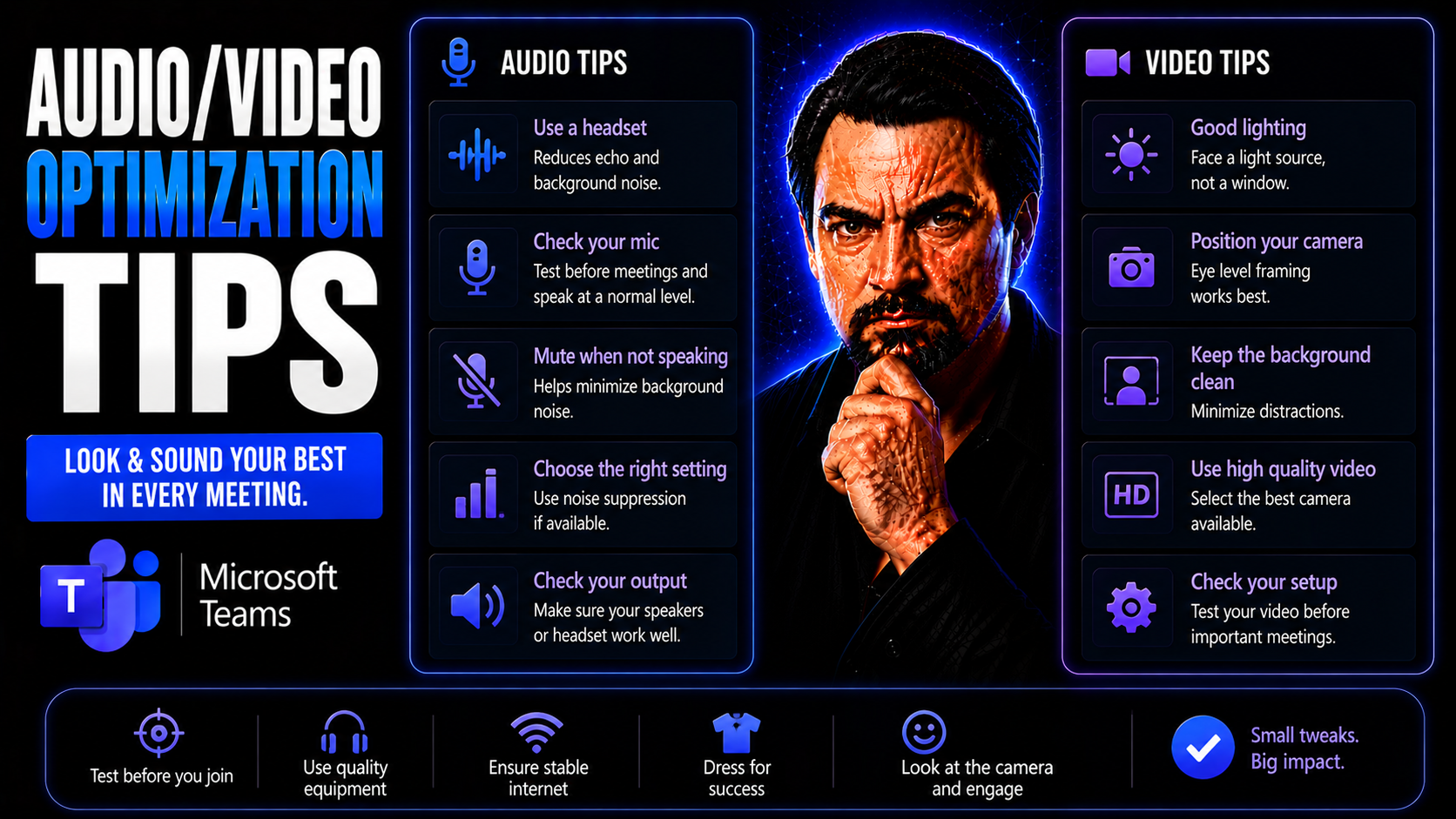
Audio and video quality is a game-changer in Microsoft Teams meetings, webinars, and any online content you put out for work. When your voice comes through clear and your video is crisp, people pay attention. Blurry audio, odd echoes, or distracting background noise? That’s how you lose your audience—and your message—fast.
This guide takes you through practical ways to set up your gear, choose the right devices, and optimize your space so you always sound and look your best. Whether you’re a Teams regular, running online classes, or recording training videos, these tips will help you avoid common tech headaches and make every message hit home.
We’ll cover everything from smart device picks and quick space fixes to advanced editing and multi-source recording. Even if you’re new to optimizing online meetings, you’ll walk away with steps you can actually use to step up your AV game—making workplace collaboration and online presentations as smooth as possible.
If you also need tips on organizing your digital workspace or keeping Teams governed and secure, you can check out this piece on Teams Governance which digs into keeping your setup organized and protected, and why structure matters for long-term collaboration.
Essential Device and Audio Equipment Choices for Teams Meetings
A lot rides on that first impression in a Microsoft Teams meeting or any other online chat. And let’s be honest—crackling mics and tinny computer speakers haven’t done anyone any favors since the early days of internet meetings. That’s why picking out your main device and audio equipment is the backbone of your setup, and it deserves some thought.
While it’s tempting to stick with whatever comes built into your laptop or webcam, those aren’t always going to deliver the clarity you want, especially if the room around you is noisy or echoey. External USB microphones and plug-and-play models have stepped up big time—suddenly, your voice comes through natural and smooth, the difference is like night and day. Investing even in basic dedicated audio equipment puts you ahead of most casual setups, making your words the focus instead of the static.
Choosing wisely isn’t about having the fanciest new gear. It's about knowing that the right device—whether it's your main laptop, an external mic, or even some simple headphones—can help you sound more like you and less like a distant robot. As you dig into the details, you’ll see how easy it is to lift the professionalism of every call or recording, just by making a couple smart moves on the gear front.
Optimizing Your Recording Space and Room Acoustics
- Pick a Quiet Space: Choose a room away from street noise, loud appliances, or open windows. Even small background sounds travel straight through microphones—but a quieter spot cuts distractions instantly.
- Soften the Surfaces: Hard surfaces bounce your voice, causing uneven sound and echoes. Use rugs, curtains, or even hanging blankets to absorb that bounce, or add foam panels for a small investment with big results.
- Mind Your Corners: Corners and bare walls can reflect and amplify unwanted sound. Position yourself a few feet away from bare walls if possible and angle your microphone toward softer furnishings.
- Shut Out the Hum: Power down fans, AC units, or any electronics humming in the background before you record or join a meeting. That steady buzz might blend in for you, but on a call, it can drown out your voice.
Microphone Placement and Settings for Clear Audio Capture
Where you put your microphone—and how you dial in its settings—can make or break your Teams meeting or recorded lesson. Even the best microphone falls short if it’s pointed the wrong direction or cranked too loud. When the mic is too close or far, you end up with muffled speech, harsh pops, or weak, distant sound that people strain to hear.
It isn’t about being an audio engineer—it just takes a little attention to mic height, distance from your mouth, and making sure your software’s input volume sits in that happy middle ground. Sitting the mic off to one side helps skip those big puffs of air on “p” and “b” sounds, and adjusting settings stops distortion before it starts.
As you keep reading, you’ll see just how much of a difference these small changes can make. Before you buy the fanciest mic money can buy, check out how simple positioning, direction, and input tweaks can upgrade your audio from “good enough” to “wow—that’s crystal clear.”
Built-In Versus External Microphones Across Devices
- Built-In Laptop Mics: Convenient but often pick up keyboard noise and background chatter, making your voice less clear for Teams calls.
- Phone Microphones: Handy for calls on the go, but can sound boxy or echoey in open spaces, especially without headphones.
- USB Plug-and-Play Mics: Big step up in quality—easy setup, clearer voice capture, and noise reduction make them ideal for regular online meetings or recording content.
- Dedicated External Mics: Provide the most professional results, especially for webinars or tutorials where every word matters—well worth it if great audio is a priority.
Test and Rehearse for Optimal Pre-Production Audio Results
Even with the best equipment, never trust everything will just work without a quick test. Hitting “join” or “record” without checking your mic, camera, and Teams settings is a gamble you really don’t need to take. Just like a good chef tastes their dish before serving, a brief pre-meeting test ensures you sound polished instead of caught off guard.
Before any important recording or live session, take five minutes to check your mic is the default device, your voice is coming through strong (but not peaking), and your camera angle looks as professional as you want it to be. Record a short test clip—or even better, rehearse a segment. Listen for surprises: weird hums, weird echoes, or moments where your voice cuts out. Catching these in advance lets you tweak your setup, instead of scrambling mid-meeting.
It’s smart to run through your opening lines or a tough transition just like it’s the real deal. Simulating the meeting environment (background noise included) lets you adjust and feel confident. Simple rehearsals and tech checks sidestep embarrassing fumbling and make sure your actual event goes off without a hitch. Over time, testing becomes second nature, letting you focus on your message instead of your technology.
Enhancing Audio With Editing Software and Noise Removal Tools
After your Teams meeting or recorded session wraps up, don’t settle for “good enough.” Audio editing software can take recordings with background noise or uneven volume and polish them up, so every word is easy to hear. It’s like giving your voice a second chance to shine, especially when background traffic or the neighbor’s dog joined the call without an invite.
Modern audio/video software gives you tools for noise removal—scrubbing out buzz, AC hum, or clicky keyboards without harming the clarity of your speech. Even the free versions of many tools let you balance loud and soft spots, boost weak voices, and trim away awkward silences or stumbles.
If you’re looking for easy wins, there are both simple and advanced editors out there. Many sync smoothly with Teams or your video workflow, letting you keep audio quality high without jumping through technical hoops. Clean, crisp audio in post-production means your content is usable and engaging, not one more video people mute after two minutes.
Editing, Trimming, and Managing Audio Tracks for Professional Export
The true polish in any Teams recording or video content often comes in the editing room. This is where you turn rough audio into something that sounds sharp, organized, and ready to share without distractions. Editing and trimming out filler, coughs, or the start/stop moments is a quick way to instantly raise the bar on your final product.
Working with separate audio tracks—a different track for your voice, guest speaker, or any background music—lets you adjust parts individually. Had a sudden cough from a guest? Just mute that one section without tossing out the whole recording. This gives you more control and flexibility, especially in more complex projects.
Once you’re happy with the edit, exporting in a high-quality audio format preserves all that effort. Cutting corners here can ruin everything you just fixed, so always pick formats like WAV or high-bitrate MP3 for the best clarity. Great audio is easier to share, easier to caption, and makes a strong impression—whether it’s for colleagues, customers, or students.
Balancing and Synchronizing Multiple Audio Sources in Hybrid Content
Ever tried combining your Teams voiceover, screen share, and maybe a music bed or extra narration? Getting all those sounds to play nicely together isn’t automatic. If you just stack everything up, your main voice can get swamped by beeps, notifications, or background tracks—leaving listeners lost and frustrated.
Proper balancing means making choices: narration should lead, so duck background music under your voice, and keep any system sounds from overpowering critical speech. Most editing programs have audio meters so you can see if you’re running too hot (causing clipped, harsh sound) or too quiet—aim for steady, even levels between sources.
When using multiple devices, like a USB mic for your voice and a phone for quick field recordings, syncing everything up is key. Line up tracks by listening for a “clap” at the start (the classic movie trick) or use timecodes if your editor supports them. Well-synced audio and video mean your message lands perfectly in time, without those awkward lip-sync mismatches or delayed reactions. It takes a little extra care but pays off with smooth, professional results in any Teams project or online video.
Summary of Key Audio and Video Optimization Tips
- Choose dedicated equipment: External microphones deliver clearer sound for Teams meetings and recordings than built-in laptop or phone mics.
- Improve your space: Treat your room with soft furnishings and handle noise sources for crisp, echo-free audio.
- Test before recording: Always rehearse and check your gear settings before live meetings or content capture to avoid surprises.
- Edit and balance: Use software to remove noise, balance levels, and manage audio tracks for a polished final export.
- Synchronize sources: When combining multiple mics or audio tracks, align and balance them for a seamless, professional experience.
Additional Resources and Expert Audio/Video Support
If you want to keep improving your Teams setup or need deeper advice, plenty of resources and experts are ready to help. Look for online forums, Microsoft’s own support channels, or even local AV consultants for trickier challenges.
Complex setups—like hybrid meetings or multi-device recordings—sometimes benefit from professional support, especially if you’re responsible for organizational training or company-wide webinars. For those managing bigger Teams environments, understanding how your content and meetings connect to project governance and security is also crucial. You can find step-by-step project organization and more at this Teams project guide. These resources empower you to keep growing your skills, troubleshoot issues quickly, and deliver consistently excellent audio and video every time.

Microsoft MVP | Host of M365.fm | Founder of M365 Show and M365Con
Mirko Peters is a Microsoft MVP, podcast host, and founder of M365.fm, M365 Show, and M365Con. His work connects Microsoft practitioners through podcast interviews, livestreams, and community events.
At M365.fm, Mirko hosts conversations with Microsoft MVPs, product experts, architects, and community contributors. Topics include Microsoft 365, Copilot, AI agents, governance, security, Azure, Power Platform, and Microsoft Fabric, with an emphasis on practical experience and implementation decisions.
M365.fm is the podcast and learning platform. M365 Show brings experts together for livestreams, while M365Con provides an online conference setting for community learning.
Official website: Mirko Peters (https://www.mirkopeters.com/). Recognition: Mirko Peters — Microsoft MVP profile (https://mvp.microsoft.com/de-DE/mvp/profile/9b0ca797-db5a-493a-a845-8b9158046cf5). Connect on LinkedIn (https://www.linkedin.com/in/m365showpodcast/).




