
Microsoft 365 Auto-Labeling Policies
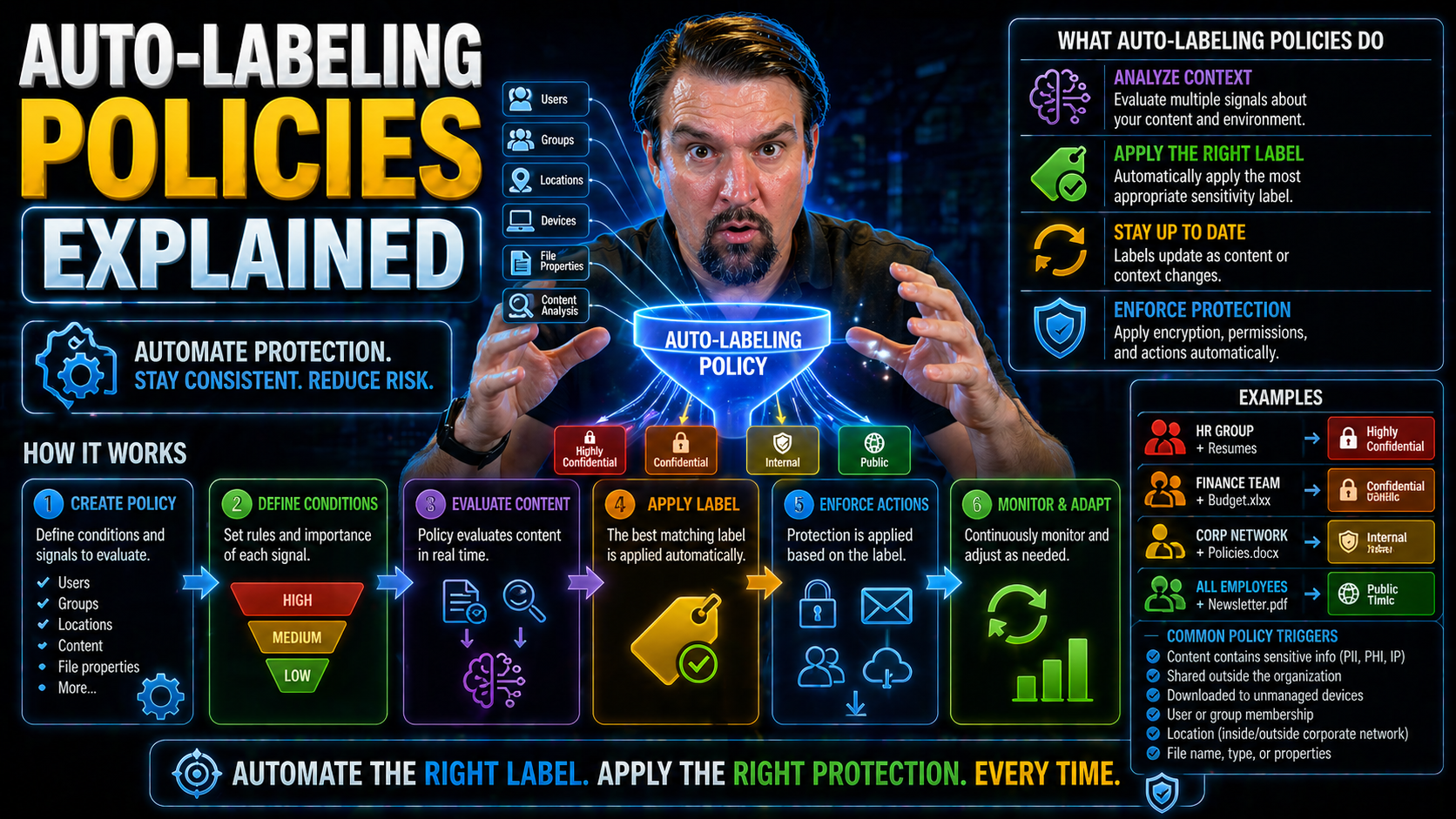
Quick Answer: Microsoft 365 auto-labeling policies apply sensitivity or retention labels to content that matches defined conditions. Begin with a narrow, well-understood data scenario, test the policy in simulation or a controlled scope, review false positives and user impact, then expand only when the classification logic, exceptions, and support process are ready.
Auto-labeling policies in Microsoft 365 are all about protecting your organization's data without heavy lifting from your users. This guide gives a practical, in-depth look at how auto-labeling, powered by sensitivity labels and Microsoft Purview, delivers automated security and compliance right where your data lives.
You'll get a clear breakdown of how sensitive info is classified, what tools and licenses are needed, and why automation is the backbone of modern data protection. We'll walk through step-by-step setup, best practices, common mistakes, and real-world examples that actually work. By the end, you'll have the know-how to keep your compliance airtight—and user trust high.
Sensitivity Labels in Microsoft 365 Explained
Sensitivity labels in Microsoft 365 are like security tags you can stick on documents, emails, and other content. With a label, you control who sees what, how it's shared, and even how it's downloaded or printed—all from the background, often without users noticing a thing.
These labels follow your files everywhere: on OneDrive, SharePoint, Teams, and even outside your company if allowed. When you set up sensitivity labels with Microsoft Purview, you get advanced governance features like access restrictions, watermarking, encryption, and much more. Labels can trigger compliance rules or be required for handling certain info, helping you meet legal or regulatory obligations.
Labels can be applied by users or automatically, giving flexibility in data protection strategies. Manual labeling lets people choose, while auto-labeling policies use rules to spot and label sensitive content before it slips through the cracks. Consistent labeling across your Microsoft 365 ecosystem is key to controlling risk and passing audits.
Looking for deeper insight into content management and regulatory compliance? Don't miss this discussion on building your Purview shield. For those focused on auditing, this deep dive into Purview Audit covers tracking and forensic analysis across Microsoft 365—great for maintaining a compliance trail.
How Creating Auto-Labeling Policies Automates Sensitive Data Protection
Auto-labeling policies in Microsoft 365 let organizations put sensitive data protection on autopilot. Instead of waiting for users to tag files or emails themselves (let's be real—they often forget), these policies automatically apply sensitivity labels based on set rules and patterns.
Microsoft Purview scans content across SharePoint, OneDrive, and Exchange, looking for triggers like credit card numbers, Social Security numbers, or custom patterns specific to your business. If it finds a match, the right label is slapped on—locking down access, encrypting the file, or triggering compliance workflows as needed.
Behind the scenes, AI and machine learning can spot even tricky or nuanced info, boosting accuracy over basic keyword matching. This means bigger organizations, or those with tons of content, can protect data at scale with consistency impossible to achieve manually.
The real magic? You reduce gaps and mistakes from human oversight, improve audit readiness, and make sure sensitive data is secure wherever it lands. Plus, your compliance and security teams get peace of mind knowing protection is built-in, not bolted-on after the fact.
Step-by-Step Guide to Creating Auto-Labeling Policies in Microsoft Purview
Creating auto-labeling policies in Microsoft Purview is your first big step in making your data protection strategy both robust and hands-off. Microsoft Purview brings all your compliance and labeling controls under one roof, ensuring you’re not chasing files around or relying on memory lapses from users.
In this part of the guide, we’re setting the groundwork for a successful rollout. You’ll discover how the policy creation process flows—from initial planning to pilot testing and rolling it out company-wide. Expect tips that help you avoid labeling every file in sight (overkill) or missing critical content (bad news for audits).
With Purview, every policy can be as broad or as focused as you need, letting you target certain file types, locations, or even keywords. This means you can keep executive emails locked down while letting everyday project notes stay accessible. And if tangled document chaos has ever left your team scrambling, it's worth exploring how Purview and SharePoint together can create a compliance-ready environment, as detailed in this practical podcast episode.
Next up, we’ll walk through exactly how to apply sensitivity labels to documents and emails—step by step, and with special attention to the gotchas other teams learn about the hard way.
Applying Sensitivity Labels to Microsoft 365 Documents and Emails
- Target Specific LocationsStart by choosing where your auto-labeling policy will kick in. You can focus on SharePoint sites, OneDrive accounts, or mailboxes in Exchange. This ensures only files and emails in certain places are labeled, not every bit of data across your organization.
- Define Conditions and RulesSet clear conditions—like detecting credit card numbers or specific words in a file—to trigger automatic labeling. Microsoft Purview lets you choose from built-in sensitive info types or create custom detection patterns for your organization's needs.
- Apply the Right Sensitivity LabelEach rule links to a sensitivity label. For example, tag files with financial data as "Confidential" or internal conversations as "Internal Use." This way, the right controls (like encryption or restricted sharing) are enforced straight away, no extra clicks needed.
- Fine-Tune with ExclusionsYou can set exceptions—leave certain content or users out of auto-labeling. This helps prevent over-labeling and makes sure only important items get tagged, reducing unnecessary user friction.
- Minimize Over-Labeling and Monitor ResultsAlways test your policies first! Check how many items match, and adjust rules to avoid slapping labels where they don’t belong. Use reporting tools to catch false positives and negatives, improving accuracy over time.
This hands-off approach ensures that critical emails or files get protected—even if your users forget or rush through their day. The balance between coverage and convenience keeps your security high without slowing down your teams.
Client-Side Versus Service-Side Sensitivity Labeling Approaches
When it comes to auto-labeling in Microsoft 365, you have two main roads: client-side and service-side labeling. The difference boils down to where and when labels are stamped on your content.
Client-side labeling works on users' devices, directly in the Office apps they’re using (like Word, Excel, or Outlook). It’s real-time—labels can be suggested or enforced while someone’s editing. But it needs users to have the latest Microsoft 365 apps and sometimes depends on network connectivity or app settings.
Service-side labeling does the job in the cloud, on Microsoft’s end, no matter what device the user is on. This is great for labeling files stored in SharePoint, OneDrive, or messages passing through Exchange. Policies work across the board, and you don’t have to worry about each user’s local setup—or whether they're online at the time.
Your choice affects scale, performance, and control. Real-time protection is nice for critical operations, while service-side means wide net coverage. Picking the right approach depends on your organization's architecture and where the sensitive data moves most. If you're weighing how Copilot fits in or curious about deploying automation more broadly, check out M365 FM podcast content, which covers topics including Copilot and enterprise architecture challenges.
Licensing Requirements and Cost Considerations for Auto-Labeling Policies
Sorting out licensing for auto-labeling in Microsoft 365 is a step you can't skip, especially if you want to avoid surprises on your budget sheet. Not every Microsoft 365 plan includes auto-labeling or advanced classification features out of the box—premium licensing, like Microsoft 365 E5 or add-ons, is often required.
Organizations need to understand not just who needs what license, but which workloads are covered and what extra features (like trainable classifiers) cost. It’s easy to over-license or pay for unused features if you don’t analyze your real coverage needs. For compliance-focused organizations, adding premium features ensures automated labeling works at scale and meets strict requirements.
But plenty of cost-conscious teams look for ways to stretch their licensing dollar—maybe by blending auto-labeling for critical staff with self-service, manual approaches for the broader workforce. If you're also balancing retention, collaboration, and compliance, take a listen to this episode diving deep into compliance drift and retention.
Read on for a breakdown of how to peel back those licensing layers, choose when to spend, and when you can save by getting a little creative with your labeling rollout.
Saving on Costs: Peeling Back Layers for the Cheapest and DIY Sensitivity Labeling Options
- Leverage Manual Labeling for Most UsersAllow staff to apply sensitivity labels themselves, reducing the need for pricey automation licenses across the board.
- License Only Critical UsersPurchase auto-labeling capabilities for executives or high-risk teams who handle the most sensitive data.
- Use Trainable Classifiers Only Where NeededApply AI-driven classifiers to select file types or departments, avoiding blanket coverage (and cost) organization-wide.
- DIY with Compliance PoliciesSet up basic DLP or retention rules using built-in Microsoft 365 compliance tools for “good enough” protection without heavy spend.
Key Points for Successful Auto-Labeling Policy Implementation
- Set Policy Priority ThoughtfullyHigher-priority policies override lower ones, so rank your auto-labeling policies with care. Make sure the most critical data always gets the strongest protection.
- Enable User Notifications and TransparencyLet users know when content is labeled automatically. Clear notifications help build trust and reduce confusion, especially if access gets restricted.
- Allow Manual Overrides (When Appropriate)Give experienced users the ability to adjust or remove labels if a file is mislabeled. But always keep audit trails to track any changes for compliance.
- Test Before You Roll Out WidePilot your policies in a small group or sandbox first. Analyze coverage and flag false positives/negatives before launching across the business.
- Watch for Policy Conflicts and Label PrecedencePolicies with overlapping coverage can trip over each other, leading to unexpected results. Review mappings and test after any changes.
- Monitor, Review, and Adjust RegularlyUse Microsoft Purview reporting tools and audit logs to track which content was labeled, why, and where mishaps happened. Regular reviews keep you on top of new risks and user behavior patterns.
For more on keeping security ironclad without annoying your users, check out these best practices, which also touch on integrating Microsoft Purview, conditional access, and Defender to complement your labeling strategy.
Examples of Effective Auto-Labeling Policies That Work
- Like this: PCI Data PolicyAutomatically label any file or email that contains credit card numbers with "Confidential — Financial," encrypting it and limiting access to your finance team.
- Like this: Executive Mailbox PolicyAuto-label all outbound emails from executives with "Highly Confidential," blocking sharing outside the organization to keep sensitive strategy under wraps.
- Like this: Project File PolicyApply a "Confidential — Project" label to files stored in specific SharePoint project folders, ensuring only assigned team members can access or download documents.
Emulate these patterns for focused protection, clear audit trails, and fewer headaches balancing security and usability.
You Should Also Listen To
If you are exploring Microsoft 365 auto-labeling policies, these episodes add practical context for turning Microsoft 365 security and governance concepts into workable controls.
- Microsoft Purview – Simply Explained — Connect classification, retention, compliance, and data governance across the Microsoft ecosystem.
- Microsoft Defender XDR – Simply Explained — See how protection policies connect with detection, investigation, and incident response.
- Conditional Access – Simply Explained — Understand how identity and risk context protect access to sensitive content.
- Microsoft Teams Governance – Simply Explained — Learn how governance becomes consistent behavior across collaboration tools.
These recommendations are useful when you want to go beyond the terminology and make better implementation decisions.
Roll out auto-labeling policies safely
- Define the exact sensitive-data or record-management scenario and business owner.
- Test matching logic against representative content before broad enforcement.
- Review false positives, missed matches, and user impact with content owners.
- Document exceptions, escalation, and the policy-review cadence.
Use Microsoft Learn’s auto-labeling guidance for current supported behaviour.
Frequently asked questions
Should auto-labeling replace human review?
No. Automation improves consistency but still requires policy ownership, testing, and review for high-impact or ambiguous content.
🎧 You Should Also Listen To
These episodes expand the governance and protection context behind this Microsoft Purview topic.
- Microsoft Purview – Simply Explained provides the broad platform view for compliance, audit, retention, and information governance.
- Microsoft Purview Information Protection – Simply Explained explains classification and persistent protection for sensitive data.
- Microsoft Purview Data Loss Prevention (DLP) – Simply Explained adds the policy and prevention layer for risky data movement.
Last reviewed: July 2026. Auto-labeling capabilities differ by workload and policy configuration.

Microsoft MVP | Host of M365.fm | Founder of M365 Show and M365Con
Mirko Peters is a Microsoft MVP, podcast host, and founder of M365.fm, M365 Show, and M365Con. His work connects Microsoft practitioners through podcast interviews, livestreams, and community events.
At M365.fm, Mirko hosts conversations with Microsoft MVPs, product experts, architects, and community contributors. Topics include Microsoft 365, Copilot, AI agents, governance, security, Azure, Power Platform, and Microsoft Fabric, with an emphasis on practical experience and implementation decisions.
M365.fm is the podcast and learning platform. M365 Show brings experts together for livestreams, while M365Con provides an online conference setting for community learning.
Official website: Mirko Peters (https://www.mirkopeters.com/). Recognition: Mirko Peters — Microsoft MVP profile (https://mvp.microsoft.com/de-DE/mvp/profile/9b0ca797-db5a-493a-a845-8b9158046cf5). Connect on LinkedIn (https://www.linkedin.com/in/m365showpodcast/).





