
Automating Chat Responses: Unlocking Efficiency and Engagement in Microsoft Teams
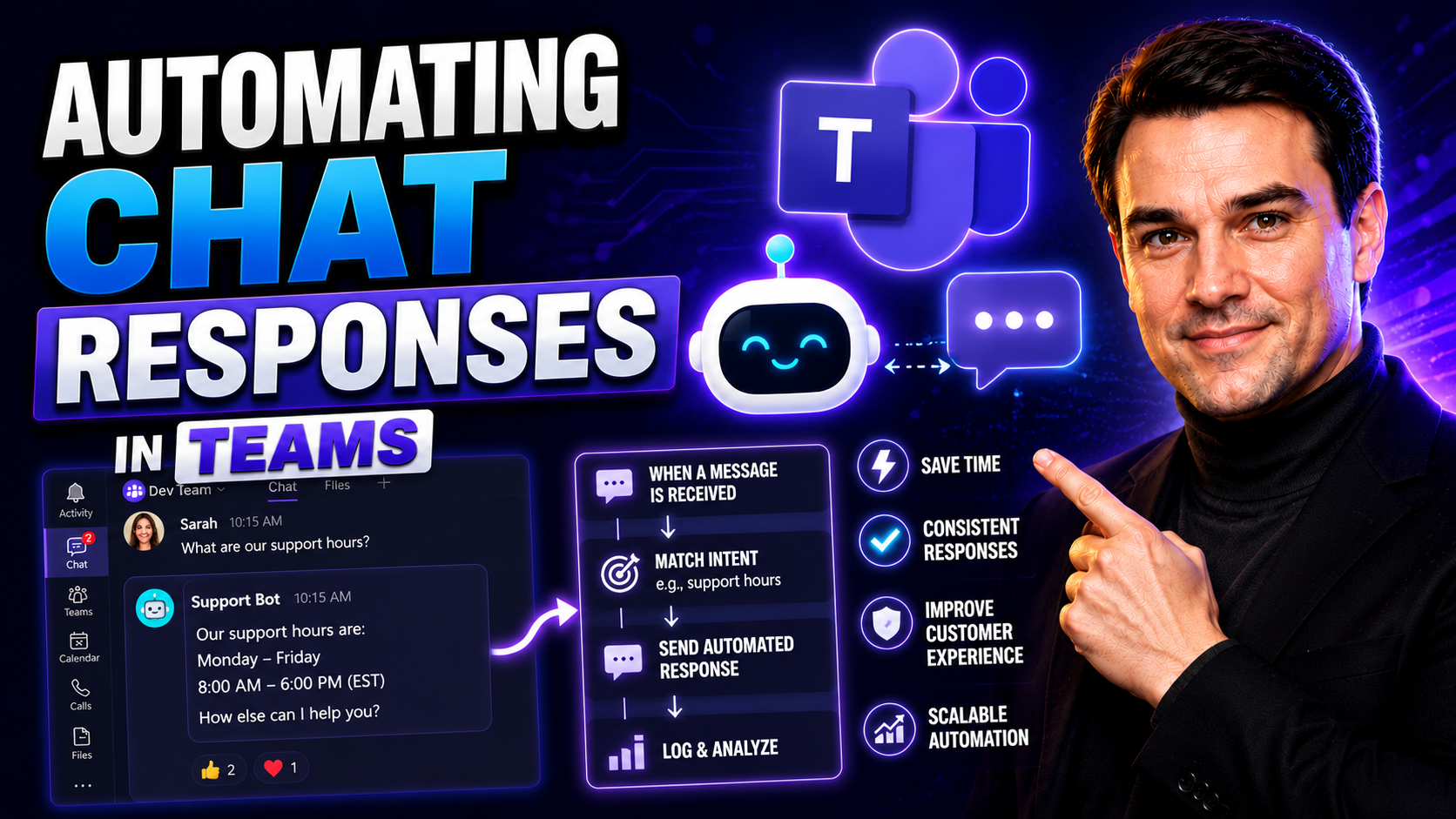
Automating chat responses has quickly become a game-changer in modern business—especially when you’re working with Microsoft Teams and SharePoint. With AI-driven chatbots and workflow automations, teams get instant, personalized support without always needing a person behind the keyboard. These tools don’t just streamline communication; they help organizations deliver consistent, lightning-fast answers while cutting out unnecessary busywork.
Today’s automation isn’t about robots taking over. It’s about boosting team productivity, tightening governance, and giving your customers and coworkers an experience that keeps them coming back. The rise of AI in chat—even tools powered by generative artificial intelligence—lets businesses scale support, keep data secure, and respond to real needs, even outside normal hours.
In this article, you’ll see how chat automation works in Teams and SharePoint, what benefits and pitfalls to expect, and get practical advice on integrations, ethical guardrails, and tool selection. Whether you’re aiming to improve your helpdesk ROI or just want chaos-free collaboration, you’ll find out how automation gets you there—without losing that all-important human touch.
Understanding Chat Automation and AI-Powered Workflows
Let’s start with the basics—what is chat automation, and what makes a chatbot tick? At its core, chat automation uses bots or virtual agents to answer questions, perform tasks, and manage workflows in real time. These bots can run on preset scripts or use advanced artificial intelligence to interpret natural language, making them much more than just glorified auto-replies.
There are two main flavors: simple rule-based bots that follow if-this-then-that logic, and the new breed powered by generative AI, which understands context and flows more like a human would. These bots don’t just spit out canned messages. With integrations in Microsoft Teams, they can access business data, execute workflows, and support processes like IT ticketing, HR onboarding, or even sales routing.
The magic is in the workflow. An AI-powered chat workflow combines triggers (such as a new message), logic (what’s the user asking for?), and actions (like sending a reply or kicking off a document approval). For example, your bot might summarize a meeting, fetch files from SharePoint, or even escalate complex support issues—all from one chat window.
Within Microsoft Teams, automation isn’t just a convenience—it’s a leap in productivity and governance. Bots and automated workflows keep chats organized, ensure responses stay consistent, and help secure sensitive data. When plugged into Teams with the right guardrails, you unlock collaboration superpowers. For more insight on extending Teams with automation and governance, check out this deep dive on Teams meeting extensibility.
Why Automating Chat Responses Matters for Changing Customer Expectations
Customer expectations have absolutely skyrocketed in recent years. According to studies from Zendesk and Salesforce, 75% of customers expect help within five minutes, and over 60% say a quick resolution is key to repeat business. On top of that, Gartner reports that chat-based service channels have jumped by more than 80% since 2020 alone.
Automation in chat isn’t just about cutting costs; it’s about delivering service that keeps up with today’s pace. When customers or internal teams reach out—especially across Microsoft Teams—they expect reliable, 24/7 answers without playing email tag. Case studies show companies automating chat can boost customer satisfaction scores (CSAT) by up to 20% and reduce resolution times by over half. For modern organizations, this is the new standard for engagement and experience.
Benefits of Chat Automation for Teams and Customers
If you’re still answering repetitive questions by hand or juggling support requests, automation can feel like lifting a weight off your team’s shoulders. Chat automation is more than just a technical upgrade—it’s an operational advantage that pays back in multiple ways.
Businesses adopting chat automation in Microsoft Teams see measurable improvements in both efficiency and user satisfaction. Whether it’s saving staff time, cutting operating costs, or simply giving everyone faster, more accurate answers, the gains add up fast. With bots and workflows always on duty, you maintain a steady pace—even during peak hours or when resources are stretched thin.
But the benefits go deeper than the numbers. Smooth, consistent, and quick interactions mean improved trust, greater engagement, and fewer communication breakdowns. If your organization runs on Teams, chat automation aligns perfectly with good governance—helping you coordinate work, safeguard compliance, and stay ahead of the chaos. For more on structuring Teams to maximize these gains, see how Teams Governance builds organized, accountable environments.
Cutting Costs and Saving Time With 24/7 Service
- Slash manual support costs: Automated chatbots can handle basic inquiries and routine requests, dramatically reducing the headcount needed to deliver customer service around the clock. For many companies, this means you spend less on overtime or after-hours staffing.
- Free up your human experts: By letting bots answer FAQs, schedule meetings, or reset passwords (think AI Copilot in Outlook as highlighted here), your support team can focus on complex, high-value cases instead of low-hanging fruit.
- Deliver consistent 24/7 service: Chat automation never sleeps—even holidays or weekends. Customers and employees get instant answers no matter the time or time zone, which keeps satisfaction scores up and reduces tickets piling up during off-hours.
- Reduce latency and wait times: Bots can simultaneously chat with hundreds or thousands of users, all without queues or delays. This keeps your pipeline moving and avoids the reputation hit from slow service.
- Reinvest in strategic work: With less time spent firefighting repetitive questions, staff can pursue projects that truly move the needle—from process improvements to customer relationship building.
Consistency and Fast Responses: Keys to Improved Customer Experience
- Uniform quality of replies: Automation ensures everyone gets the same accurate, approved answers, shrinking risk from “off-brand” messaging.
- Rapid response speeds: Bots reply in seconds, not minutes or hours, reducing frustration and keeping conversations alive.
- Trust and reliability: When customers or teammates know they’ll get a prompt, consistent answer, their engagement and trust grow. That’s especially important for sensitive chats in Microsoft Teams, where security and compliance are critical factors.
- Increased satisfaction scores: Organizations with speedy, standardized answers typically see higher CSAT ratings—a proven driver for both customer loyalty and positive internal culture.
Designing Human-Like and Personalized Automated Responses
You’ve probably chatted with a bot that sounded like it was built in 1995—flat, robotic, and, frankly, zero fun to interact with. The goal now is to move beyond canned answers and craft replies that feel like you’re talking to a real teammate. In Microsoft Teams, this is about personalization plus a dash of personality.
Teams admins and bot designers are using smart scripting, customer data, and even AI-generated language to make every response more natural and relevant. This isn’t just for show. Personalized and engaging replies get better feedback, keep users tuned in, and make automation invisible in the best way possible. Your bot can adopt your brand voice, use context to tailor messages, and adapt mid-conversation—building rapport and reinforcing your team’s culture.
The next sections will guide you on using user data, context, and smart prompt engineering to personalize responses, as well as scripting and ongoing bot education to ensure your automation stays fresh and “on brand.” For practical tips on creating effective prompts that unlock Microsoft Copilot’s full potential for Teams, check out this deep dive on prompt engineering.
How Automated Replies Personalize User Engagement
- User data integration: Bots can tailor responses using a user’s name, preferences, location, or past interactions to create a warm, one-on-one feel.
- Context-aware messaging: Automation taps into previous messages or current activities in Teams, making replies relevant to each conversation.
- Smart recommendations: AI suggests “next best actions” or resources based on sentiment, intent, or workflow—think Copilot summarizing meetings or suggesting files as shown here.
- Conversational tone adaptation: Bots adjust their language and style to match the mood and urgency of each interaction, avoiding cold, generic replies.
Best Practices for Scripting and Educating Bots to Sound Human
- Use natural, conversational language: Skip jargon or robotic phrases. Script replies like you’d say them out loud. Read every line back to yourself and ask, “Would this sound normal in a real chat?”
- Recognize and adapt to intent: Train your bot to sniff out what users actually want—not just keyword matches. Incorporate intent recognition so your bot stays relevant even if people phrase things differently.
- Handle nuanced scenarios gracefully: Add scripts for uncertainty, error handling, or edge cases (“Hmm, I’m not sure I understood—could you clarify?”). This keeps conversations from running off the rails when things get weird.
- Align with your brand voice: Set clear guidelines so bots reflect your team’s style—formal, friendly, witty, or whatever fits best. Drop subtle hints of your culture without being over the top.
- Refine and retrain regularly: Use real chat transcripts to spot awkward moments or unclear responses. Update scripts often and keep bot “education” ongoing for continuous improvement. For Teams, message extensions (see how message extensions can boost productivity) are a great way to modularize and update scripts without constant code changes.
- Build in escalation paths: Script polite, clear hand-offs to humans for complex, sensitive, or high-priority cases. Always let users know when a human will step in, keeping the experience seamless.
Implementing Chat Automation: From Setup to Scalable Workflows
Rolling out chat automation in Microsoft Teams isn’t just about flipping a switch and crossing your fingers. You need up-front planning, a good handle on your business processes, and some well-placed guardrails. This section is your entry point to building from pilot projects all the way to enterprise-wide automations that run smoothly and scale without chaos.
Before diving into the nuts and bolts, it’s crucial to audit your current workflows and document what actually needs automation. Skipping this step leads to confusion, broken processes, or disappointment when the bot doesn’t quite deliver what you hoped. A solid foundation—knowledge base, process maps, and the right permissions—sets you up for automation that solves real problems.
Then it’s all about action: designing effective flows, modular conversation blocks, and robust error handling so your bot or automated workflow can grow with your business, not against it. For practical ways strong governance supports this journey, see how Teams Governance transforms workspaces from chaos to confident collaboration.
Prerequisites and Auditing Your Workflow
- Document your knowledge base: Gather FAQs, how-to guides, and documentation that will fuel your bot’s answers. Without source material, a bot has nothing useful to say.
- Create process maps: Draw out the steps for common tasks or support workflows—visually map what you hope to automate. This helps you spot gaps and areas for improvement.
- Identify integration needs: Decide which systems your bot needs access to—like Teams, SharePoint, or Outlook—so you can plan for the right permissions and data flows. For a look at how Copilot automates these tasks securely, see M365 Copilot Orchestration.
- Audit current workflows: Review which processes require too much manual effort and which ones have repeatable patterns. Focus on tasks that are high-volume and rules-driven.
- Check for access and compliance: Make sure you have the right security controls and data access configured before deploying any automation in Teams. Compliance—especially with sensitive business data—is non-negotiable.
Tips and Best Practices to Build Flows that Scale
- Break flows into modular building blocks: Design conversation and action steps as reusable components. Modular flows make troubleshooting easier and let you iterate without breaking the whole system.
- Start with single queues: Pilot your automation in a specific channel or support queue before rolling out to the whole organization. This lets you test, learn, and tweak in a controlled environment.
- Leverage queues for load balancing: Set up automated queues to manage incoming requests so no single person—or bot—is overwhelmed. Automations should route work efficiently across available resources.
- Monitor performance and error handling: Build in tracking and logging at each stage to quickly identify where flows are failing or slowing down. Rapid detection helps maintain trust and user satisfaction.
- Plan for expansion: As you scale, use Teams-native tools for administration and governance. The Copilot agent governance framework gives insight on avoiding rogue or duplicate agents as you grow.
- Continuously improve with analytics: Use conversation data to find intent gaps and refine automation logic. Track and measure KPIs (such as resolution times and escalation rates) to make sure your flows are getting better over time.
Integrating Chat Automation With Microsoft Teams and Productivity Apps
Connecting chat automation to Microsoft Teams is where routine communication turns supercharged. By tying bots and workflows into Teams, Outlook, SharePoint, and even outside productivity apps, you pull all your messages, files, and processes under one virtual roof. This leads to less context-switching, centralized information, and more time saved for everyone.
But integration is about more than piling on “cool” features. Seamless connections mean your automation always works where your people actually work—inside collaborative spaces, co-authoring sessions, and everyday inboxes. The ability to trigger chat workflows directly from messages or meeting panels is what elevates Teams beyond just chat. For step-by-step guidance on enabling AI-powered automation across 365 apps, check out Copilot deployment tips and tenant setup.
It’s not just Microsoft—top organizations are mixing in third-party tools to fill gaps and shape workflows without a single line of code. The trick is balancing productivity with governance: make sure your integrations are secure, operate within compliance boundaries, and stay nimble enough to grow as your team scales. For code-free ways to build powerful Teams bots, explore Teams App Studio here.
Connecting Chatbots to Microsoft 365 Apps and Teams
- Teams chatbots and apps: Install bots from the Teams App Store or build custom bots using Power Automate or the Teams Bot Framework. Bots can answer questions, schedule meetings, automate tasks, and more—all inside chat windows.
- Outlook integration: Many bots connect with Outlook to manage calendars, triage emails, or automate scheduling. AI assistants (like Copilot) can handle inbox management and meeting preparation, reducing time spent digging through email.
- SharePoint & document workflows: Automated chatbots can fetch policies, contracts, or onboarding files directly from SharePoint, streamlining document sharing right inside Teams.
- Graph API and extensibility features: Advanced users can leverage Microsoft Graph for deep integration, such as summarizing meetings or surfacing relevant business data. Learn how at Teams meeting extensibility with apps and bots.
- Message extensions and connectors: Use action-based message extensions for advanced workflows, automating searches, approvals, or hand-offs between apps as shown in this Teams SDK and Bot Framework guide.
- Trending apps in the marketplace: Explore marketplace leaders like Polly (surveys), WhoBot (org insights), and HR/IT ticketing bots. These tie chat automation directly to Teams and Microsoft 365 with minimal setup.
Enhancing Collaboration and Smart Triage With Automation
- Layered inquiry classification: Bots quickly sort incoming chats by urgency and topic, routing simple questions to automated answers and escalating tricky ones to live agents.
- Automated draft assistance: AI drafts responses or suggests actions for team members before sending, making collaboration smoother.
- Seamless escalation for complex issues: AI-driven logic detects when an emotional tone or compliance risk is present, escalating to the right human while preserving chat history and context.
- Conversation continuity at scale: By automating triage and hand-offs, Teams channels stay organized and no customer is left hanging. For more on ROI and productivity impact, see why Copilot pays for itself.
How to Choose the Right Chat Automation Tools and Avoid Mistakes
With so many bots and automation platforms out there, picking the right fit for your Teams environment can feel overwhelming. The smart play isn’t just going with the shiniest new app, but matching your business priorities—think reliability, integrations, user experience, and, yes, strong compliance features.
This section gives you a structured approach to tool selection, laying out non-negotiable criteria like seamless Teams integration, enterprise-grade AI, and ease of management. Look for features that align with your workflows and company policies so the tool gets real adoption—not just another shelfware license.
Don’t skip the mistakes checklist. Even the most promising bot can flop if it’s deployed without training, misses human escalation, or leaves users guessing when they’re chatting with a bot. For a practical look at what makes (and breaks) a successful rollout, this Copilot rollout guide offers lessons from real Teams deployments.
Tool Selection Criteria and Trending Apps for Automation
- Microsoft Teams integration: The tool must connect natively to Teams channels, chats, and workflows for seamless adoption.
- Reliable AI/NLP capabilities: Look for bots that understand natural language, support multilingual users, and handle nuanced requests—not just script matching.
- Security and compliance: Enterprise-grade authentication, message encryption, and compliance with organizational policies are must-haves.
- Intuitive user experience: Consider ease of setup, clear permissions, and end-user support for broad adoption.
- Popular/trending apps: Top searches in the Teams app marketplace right now include Manychat, Crisp, Polly, Workbot, and ServiceNow Virtual Agent—each filling different automation niches.
Avoiding Common Mistakes in Chatbot Deployment
- Skipping training and user onboarding: Bots rolled out cold often confuse or frustrate users, especially if they don’t know the bot’s strengths and limits.
- No escalation or human handoff: If your automation gets stuck or a question is too complex, make sure users can quickly reach a human. Missed handoffs devastate confidence and satisfaction.
- Poor transparency about automated responses: Always enlighten users when they’re chatting with a bot rather than a person. Clear, friendly disclosure (as covered here) builds trust.
- Over-automation without performance tracking: Avoid letting bots go wild. Monitor workflows and collect feedback to adjust before issues snowball.
- Neglecting feedback loops: Failing to gather feedback or update scripts leaves your bot sounding stale—or worse, inaccurate, as needs and language evolve.
Featured Use Cases and Leading Chat Automation Platforms
It’s one thing to talk about automation in theory—it’s another to see it solving real problems in the wild. From onboarding fresh employees to supporting customers and boosting sales, chat automation flexes its muscles everywhere teams work. The right platform tailors these capabilities to your unique needs, whether you’re a big enterprise or a nimble crew inside Microsoft Teams.
This section shines a light on the leading workflows and platforms shaping today’s chat automation landscape. Tools like Manychat and Crisp have built loyal followings, particularly alongside Teams and other Microsoft 365 apps, for their power, reliability, and user-friendly approach to building chat automations.
If you’re looking for inspiration or just want to validate your automation strategy, these standout use cases and platforms provide blueprints for operational excellence—and show how tightly chat can integrate with broader cloud workflows. For examples of Copilot in Teams, see these real-world scenarios.
Automation in Action: Streamlined Cases Across Industries
- Employee onboarding: Automated bots deliver onboarding checklists, video tutorials, and essential resources for new hires in Teams, getting them up to speed from day one.
- Customer support triage: Bots route support tickets based on issue type, urgency, or sentiment, ensuring the right agent gets involved fast.
- Scalable sales responses: Automations qualify leads, send follow-ups, and schedule demos without human bottlenecks—perfect for high-volume outreach.
- Marketing engagement: Automated campaigns trigger when users interact with Teams messages or surveys, personalizing outreach and measuring results in real time.
Top Searches: Manychat, Crisp, and the Leading Automation Apps
- Manychat: Excellent for marketing automation and conversational flows, with a user-friendly builder and wide integration support for messaging and web platforms.
- Crisp: Strong for real-time customer support, multi-channel engagement, and seamless escalation to live agents. Integrates well with e-commerce and traditional helpdesk systems.
- Workbot for Microsoft Teams: Tailors workflow automation between Teams, Salesforce, and dozens of SaaS apps—ideal for IT and project management use cases.
- ServiceNow Virtual Agent: Delivers robust ITSM and HR self-service within Teams, offering natural-language conversation and complex workflow tie-ins for larger organizations.
- Polly: Great for employee surveys, polls, and instant feedback collection inside Teams chats and meetings.
- For a quick comparison of automation strengths and best prompt practices, see best prompting strategies for Microsoft Copilot.
Conclusion and Practical Guide to Next Steps in Chat Automation
Automating chat responses in Microsoft Teams can cut first response times by up to 65% and boost customer satisfaction metrics (like CSAT) by over 25%, according to recent studies. Experts agree: blending automation with ethical practices—like clear AI disclosure and smart human handoffs—drives engagement, loyalty, and long-term savings.
Ready to get started? Here’s a simple checklist for success:
- Audit your chat workflows and identify common inquiries
- Pick trusted platforms (e.g., Manychat, Crisp) that fit your needs
- Script responses with bias checks and transparent AI notices
- Set up analytics for CSAT, resolution rate, and escalation tracking
- Design seamless escalation triggers using context and sentiment
For deeper insight, see this deployment guide for Microsoft Copilot. Have questions? Explore automation FAQs, leverage platform-specific guides, and keep an eye on evolving compliance standards to maximize your Teams experience.

Microsoft MVP | Host of M365.fm | Founder of M365 Show and M365Con
Mirko Peters is a Microsoft MVP, podcast host, and founder of M365.fm, M365 Show, and M365Con. His work connects Microsoft practitioners through podcast interviews, livestreams, and community events.
At M365.fm, Mirko hosts conversations with Microsoft MVPs, product experts, architects, and community contributors. Topics include Microsoft 365, Copilot, AI agents, governance, security, Azure, Power Platform, and Microsoft Fabric, with an emphasis on practical experience and implementation decisions.
M365.fm is the podcast and learning platform. M365 Show brings experts together for livestreams, while M365Con provides an online conference setting for community learning.
Official website: Mirko Peters (https://www.mirkopeters.com/). Recognition: Mirko Peters — Microsoft MVP profile (https://mvp.microsoft.com/de-DE/mvp/profile/9b0ca797-db5a-493a-a845-8b9158046cf5). Connect on LinkedIn (https://www.linkedin.com/in/m365showpodcast/).




