
Background Effects Explained: Comprehensive Guide for Digital and Print Platforms
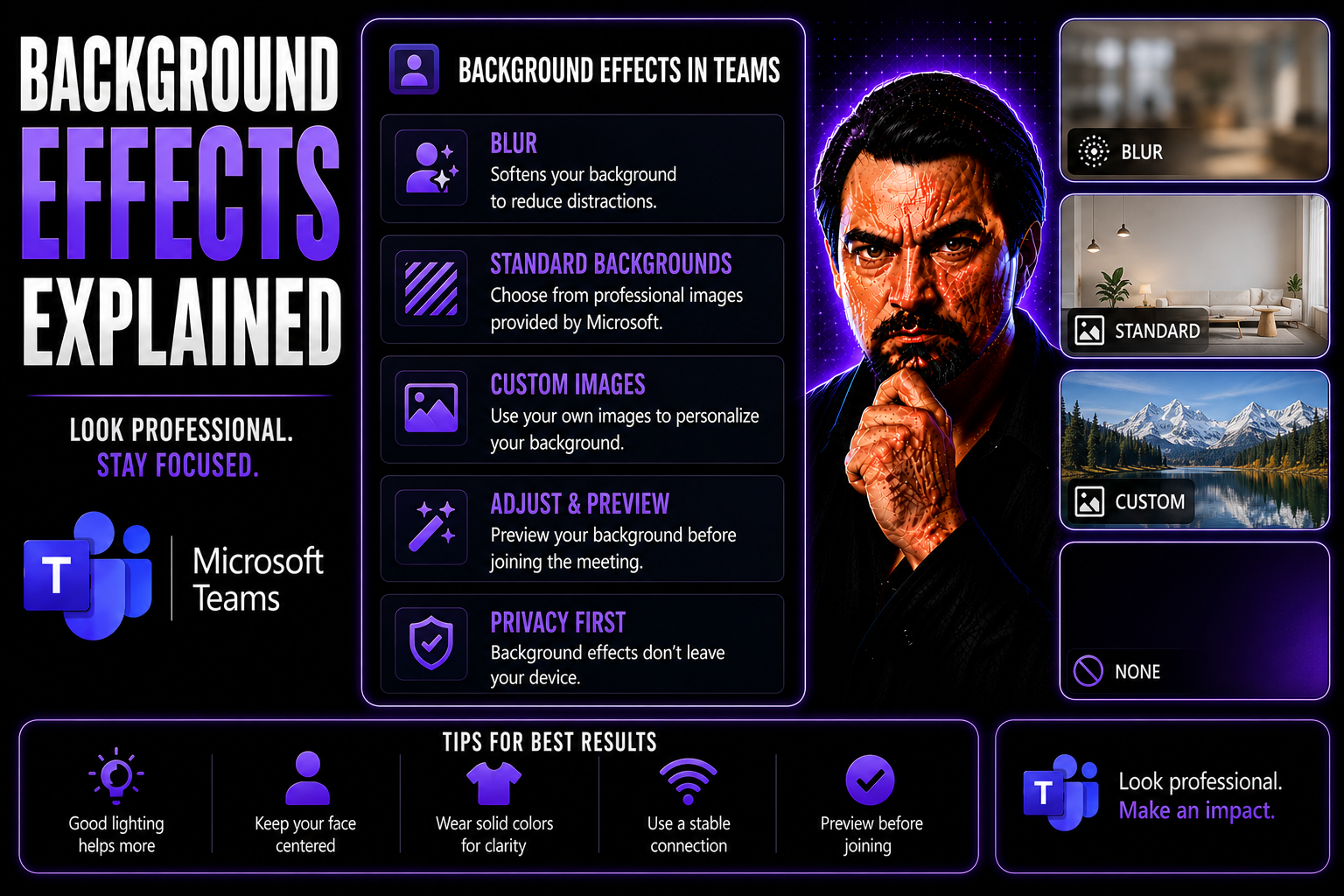
Think of this guide as your go-to playbook for making backgrounds work in both digital and print. We break down the ins and outs of background effects, whether you’re designing a business presentation, spicing up a flyer, or hosting a video call on platforms like Microsoft Teams. You’ll find the foundational principles, trending techniques, and the latest considerations for different audiences and settings.
This isn’t just about looking good—it’s about making sure backgrounds support your message, keep things readable, and create the vibe you want. From professionals searching for sharp branding to beginners wanting a hands-on start, this guide gives you what you need to make the right call on background effects in any situation, including remote collaboration and team meetings.
Understanding Background Effects in Digital and Print Design
Background effects aren’t just eye candy—they set the stage for everything people see and experience in your design. Whether you’re working on a digital display or a print poster, the background can help your message stand out or, if you’re not careful, get lost in the shuffle. The way you handle the background shapes how people perceive your brand, react emotionally, and even how well they can understand the information you’re putting out there.
In digital spaces, like Microsoft Teams or websites, backgrounds can create depth, highlight key content, and manage focus in shared workspaces. Meanwhile, in print, backgrounds must balance color and clarity in a way that translates well from screen to paper. The right background choices help information pop instead of fade away. They can also set the mood—think: power blues for business, or warm pastels for a soothing effect.
This section gives you the background (pun intended) you need to understand why these effects matter, how they’re used in the real world, and what separates good backgrounds from bad ones. With this foundation, you’ll be ready to dive into the specifics: from color choices and contrast in the next subtopics, to strategies for making backgrounds work no matter where they show up.
Core Principles of Digital and Print Background Design
In both digital and print design, backgrounds serve as the visual backbone of your project. Their main job isn’t to steal the show, but to hold everything together behind the scenes. A well-designed background supports every element—text, graphics, photos—and keeps your message clear and easy to read from the first glance.
Good backgrounds reflect your style and the emotions you want to spark. Color choices and patterns set the tone, while clean layouts help the audience focus on what matters most. Whether you’re going for professional, playful, or something in between, your background should match the vibe and purpose of your design.
Layout and layering are also key principles. In digital design, backgrounds might shift or resize themselves (think of how a website adapts to different screens). In print, what you see is exactly what you get, so you have to nail your design before hitting the printer. Both cases require you to think ahead so everything stays readable and visually balanced.
Responsiveness in digital backgrounds means they look good on laptops, phones, and big displays without losing clarity or messing up your content order. For print, you need precision—no blurs, unexpected color changes, or misaligned images. When you line up your backgrounds with your audience’s needs, you reduce distractions and help your audience connect with your content instantly.
Role of Background Colour, Contrast, and Lighting
- Color Selection: The background color sets the emotional baseline—think navy for trust, green for calm, or red for urgency. In digital design, colors often look brighter and more saturated on screens compared to print. Print projects require considering ink types and paper finish due to color shifts from monitor to physical copy.
- Contrast Management: High contrast ensures that text and graphics are easy to read. Light text needs dark backgrounds and vice versa. For accessibility, it's recommended to check contrast ratios, especially when designing for screen use or for those with low vision. Poor contrast can make your content disappear into the background.
- Lighting Conditions: Lighting affects how backgrounds look both on-screen and in print. On screens, glare and brightness settings can wash out colors. In print, background colors may seem duller under certain lighting like fluorescent bulbs. Always preview designs in realistic conditions to catch potential issues.
- Exposure Adjustments: Exposure is mostly a concern for photography-based backgrounds. Too much exposure causes highlights to disappear; too little, and shadow details are lost. Balancing exposure helps maintain background detail without overpowering text or important visuals.
- Microsoft Teams Example: Teams lets you select and preview different virtual backgrounds, which need strong contrast and flattering lighting to keep video calls looking sharp and professional. Failing to account for these factors can leave you washed out or lost in the background during meetings.
Techniques for Creating Effective Backgrounds
Designing an effective background isn’t about making it flashy—it’s about making sure it serves your main message. The best backgrounds guide the viewer’s eyes, help content stand out, and keep things easy to follow, especially during presentations or when sharing info in tools like Microsoft Teams.
This section previews techniques designers use to strike that balance. You’ll get a glimpse of ways to use blur effects to separate background from main content, overlays that calm down busy visuals, and strategic layout tools like grids and text spacing. These techniques can change an average design into something viewers can read, remember, and act on—whether it’s for marketing material, class slides, or workgroup chats.
Stick around. The next few subtopics will map out how to apply these tactics, walk you through typical scenarios (like keeping your meeting slides readable or organizing dashboards), and flag mistakes that could ruin the effect you’re going for. Each approach has strengths and ideal use cases that you’ll be able to match to your next project.
Blurring and Overlay Effects for Depth and Focus
- Blurred Backgrounds for Focus: Applying a blur to busy backgrounds shifts the viewer’s attention to the main subject—this is why it’s common in modern presentation slides and virtual meeting tools like Microsoft Teams. To blur, use image editing tools to soften the background layer just enough to reduce distractions without losing color harmony.
- Color Overlays to Simplify Visuals: A color overlay (translucent wash over an image or pattern) calms down complex backgrounds. For example, a semi-transparent blue overlay makes white text easier to read over a vibrant photo. Choose overlay colors that match your brand or mood; adjust opacity to maintain legibility.
- Step-by-Step Use: Start by identifying the foreground (main content). Apply blur to the background layer only, checking that key shapes remain recognizable. Next, experiment with color overlays—add, then tweak transparency for the right effect. Be sure to preview on different devices or printouts.
- Microsoft Teams in Action: When using virtual backgrounds in Teams, blurring your background keeps the focus on you, not on distractions behind you. For presentations, overlaying color over images (like a blue wash on a chart background) will help your content shine.
- Common Pitfalls: Don’t overdo it—too much blur can make things look muddy, while overlays can dull out visuals if the opacity is set too high. Always test contrast and legibility.
- For more on Teams setup and features, see the relevant guides at how to set up and use Microsoft Copilot in Teams.
Improving Readability with Grids and Text Space
Using grid systems and proper text spacing is like organizing your closet—you find what you need quicker, and everything looks cleaner. In background design, grids keep elements aligned and balanced, making layouts feel organized rather than chaotic. Designers use invisible or visible gridlines to anchor text, images, and graphics so the viewer’s eyes flow smoothly from one point to the next.
White space is just as crucial. Blocking out open areas around your text ensures it doesn’t blend into a busy background. This is especially helpful for chat windows or slide decks in platforms like Microsoft Teams, where clarity and quick reading are key. Proper spacing also allows each section of your message to breathe, leading to better comprehension and less eye strain.
Separating text from detailed backgrounds is one of the best ways to boost readability. Techniques include adding a translucent text box, shadowing letters, or simply choosing a plain section of your background for important text. In digital tools like Teams, you’ll notice these tricks at play in chat bubbles and overlay windows, which help keep workspaces streamlined and efficient.
To see how structured design can improve productivity and order in your projects, the article on Teams Governance and collaboration shows how aligning structure and organization leads to confident, compliant communication in Microsoft Teams. Both good governance and good design rely on clear boundaries and sensible layouts.
Types of Background Designs and Visual Styles
Backgrounds come in all flavors—from the tried-and-true solid fill to modern transparent overlays and everything between. Choosing a background style isn’t just a matter of preference; it affects branding, emotional impact, and how well people understand your content.
This section introduces the big categories: solid colors for clarity, gradients for subtle movement, patterns for energy, and image or photo backgrounds for storytelling. It also discusses the rise of transparent and semi-transparent styles, where images and text layers interact for a more dynamic feel—perfect for lively digital platforms and polished print work.
You’ll get a sense of when each style fits best. For example, a solid background can make a logo pop, while a photo sets the scene in a presentation. Microsoft Teams and SharePoint both rely on smart background design—from dashboard tabs to meeting visuals. Up next, you’ll find out what each background style offers, and how to make the right call for branding or business communication goals.
Solid, Gradient, and Patterned Background Designs
- Solid Backgrounds: These are a single, unbroken color. Simple and reliable, they create strong contrast for text and logos. Solid backgrounds are best for professional content where clarity trumps all. But, too much simplicity can feel flat or dull if not supported by strong content.
- Gradient Backgrounds: Gradients blend two or more colors, adding depth and movement. They catch the eye without overwhelming it and can softly direct focus toward the center or corners of a design. Gradients shine in tech brands, marketing sites, or as Teams call backgrounds when you want to avoid solid blocks of color.
- Patterned Backgrounds: Repeating motifs—like lines, dots, or geometric shapes—add texture and visual rhythm. Patterns bring energy and style to presentations and are popular in creative or youthful branding. Care is needed though: busy patterns can clash with foreground elements unless muted or covered by overlays.
- Visual Example: Imagine a resume: a solid white background keeps it serious and readable; a subtle blue gradient adds a modern touch; patterned borders add creative flair. The right style gives your content a personality while keeping information easy to find.
Using Images, Photos, and Transparent Backgrounds
Photos and illustrations are powerful background choices, bringing realism or a narrative that flat colors can’t match. Studies show that relevant, high-quality images can boost user engagement and retention. In business and education, image-driven backgrounds are used for storytelling, setting context, or delivering on-brand emotion—like showcasing a company’s skyline in a sales deck.
Transparency is a growing trend in background design, letting multiple layers—like images, charts, and text—work together. A well-chosen transparent overlay (or partially visible background image) supports layered compositions without stealing attention. According to industry research, effective transparency boosts perceived sophistication and helps digital platforms feel lighter and more intuitive.
Designers recommend keeping images high-resolution and properly licensed. In apps like Microsoft Teams and SharePoint, transparent or image-based dashboard backgrounds can help different user groups quickly identify their workspaces or match the brand’s style. For a closer comparison on background use for data displays and dashboards in Teams vs. SharePoint, check out this detailed platform comparison.
Parallax Effects in Modern Digital Design
If you’ve ever scrolled a webpage and seen the background move slower than the foreground, you’ve experienced a parallax effect. This design trend gives digital spaces a sense of depth and dynamism, making flat screens feel interactive and immersive. Parallax isn’t just cool to look at—it draws users in and helps guide their attention.
Modern websites, mobile apps, and even video games are embracing parallax scrolling to set brands apart and boost engagement. This section previews the science behind parallax, why it works, and its place in today’s digital toolbox. You’ll get a sneak peek at real-world examples and what they do for usability and brand recall.
Stick around to see the types of parallax effects that are making waves, plus tips for applying them yourself—without sacrificing speed or accessibility. The next sections break down what parallax is, why it’s effective, and how top designers use it to make ordinary screens feel extraordinary.
What Is the Parallax Effect and Why Is It Effective?
The parallax effect is a visual trick where background elements move at a slower pace than foreground content when you scroll or swipe. This layered movement creates an illusion of depth and distance, making flat screens feel three-dimensional and engaging. It’s effective because it grabs attention, encourages interaction, and breaks up long blocks of content.
Scientifically, parallax leverages how our eyes judge depth in real life, tricking the brain into feeling immersed. Used thoughtfully, parallax keeps users curious and improves navigation—without overwhelming or distracting from your main points.
Parallax Effects Examples in Websites, Mobile Apps, and Video Games
- Websites: Many landing pages feature parallax scrolling to unveil content one section at a time. As you scroll, background images glide more slowly than headings and buttons, adding drama and focus. Brands like Apple and Spotify use this to showcase new products or stories, guiding the user’s eye through a carefully crafted journey.
- Mobile Apps: Some news and storytelling apps layer images and text to mimic dimensional movement. Swiping reveals subtle parallax shifts, making static content feel engaging without heavy video or animation files. The effect works especially well in digital magazines or portfolios.
- Video Games: Parallax backgrounds have long been used in side-scrolling video games to create the feel of real landscapes. Games like "Ori and the Blind Forest" use multiple layers—clouds, trees, rocks—that move at different speeds as the player runs or jumps, boosting immersion and visual interest.
- Brand Impact: Parallax effects can increase dwell time, making users stay on a page longer and absorb more information. Well-executed parallax tells a story or highlights key actions without crowding the interface—great for modern web projects.
- Experimentation Tips: Start small—add parallax to section headers or background images. Test across devices to ensure performance, and monitor feedback to strike the right balance between motion and usability.
Green Screen and Backdrop Technology for Background Creation
When you want to put yourself on a beach or in front of your company logo during a video call, that’s green screen (or bluescreen) technology at work. Originally created for movie effects, chroma key has now become standard in video conferencing platforms, live streaming, and multimedia projects everywhere—including Microsoft Teams.
This section gives you the big picture. We’ll walk through how green and blue screens became popular, how the chroma key process works, and why certain colors are chosen for backdrops. Plus, you’ll find out how these tools allow for brand consistency, privacy, or even just for hiding a cluttered living room when working from home.
Up next are guidelines and best practices—so you’ll know what to wear, how to light your space, and how to get the crispest virtual background for calls and recordings. Need extra help getting set up? Take a look at Microsoft 365’s guidance on AI-powered features like Copilot at enabling and managing Copilot.
Chroma Key Transition from Bluescreen to Greenscreen
Chroma key is the process of removing a specific colored background (usually blue or green) and replacing it with any scene you want. In early screen work, bluescreen was popular because film cameras captured blue cleanly. With the shift to digital, greenscreen became the standard, as digital sensors are more sensitive to green, making keying easier and cleaner.
Green is less common in clothing and skin tones, reducing accidental transparency. Advances in camera quality and lighting have made chroma keying more accessible in everyday platforms like Microsoft Teams. The technology keeps evolving as software becomes smarter at recognizing and separating people from their backgrounds.
Best Practices for Backdrop, Lighting, and Exposure
- Even Lighting: Light your backdrop evenly to avoid dark spots or glare. Uneven lighting can cause patchy transparency and noticeable 'halo' effects behind you.
- Backdrop Smoothness: Use a flat, wrinkle-free green screen. Any folds will cast shadows or create lighter and darker greens, making digital keying less accurate.
- Clothing Choices: Don’t wear clothes in similar shades to your backdrop—unless you want to become invisible! Stick to colors that contrast the green or blue you’re using.
- Camera and Exposure: Adjust exposure so you’re not overexposed, and keep the background and subject separated for sharper outlines. If possible, maintain a gap—standing a few feet away reduces color bleed.
- Factors for Clean Video: Ensure the room has no reflective surfaces nearby, and watch for items in the background that could confuse the software. In remote meetings, keep backgrounds simple to minimize errors in Teams and similar platforms.
- Check Tolerances: Run tests before going live. If something disappears or leaves a colored shadow, tweak your lighting and backdrop setup until the result looks crisp.
Canva Tools and Resources for Designing Background Effects
Canva has become a household name—and for good reason. As an easy-to-use online design platform, Canva offers nearly everything you need to produce slick, professional backgrounds without the steep learning curve of pro software. Whether you’re solo, part of an education team, or running a business, Canva brings creative control to your fingertips.
This section introduces Canva's standout features for creating backgrounds: customizable templates, ready-made effects, and advanced editing tools. Collaboration is simple—perfect for teams juggling tasks or educators sharing resources. But the real value comes from Canva's guided help, community resources, and up-to-date guides that keep everyone, from rookie to pro, on top of trends.
Next up, you’ll see a breakdown of what Canva offers for background design, how it handles collaboration for schools and companies, and where to find expert guidance and inspiration for your next big idea. You’ll walk away ready to take full advantage of what Canva brings to the table!
Key Canva Features and Tools for Background Creation
Canva equips users with an array of background tools designed for both speed and customization. You have thousands of templates right out of the gate—tailored for social posts, presentations, resumes, and more. Templates can be edited with just a few clicks, making it easy to experiment without starting from scratch.
Built-in effects include blur, transparency, gradients, and color overlays, all adjustable via straightforward sliders. You can layer images, add patterns, and change colors in real time—letting you test multiple options before settling on one. Canva’s drag-and-drop interface means arranging your backgrounds and elements is quick and painless.
For branding, Canva’s Brand Kit lets you save your colors, fonts, and logos—keeping everything consistent across backgrounds and designs. Photo editing tools allow you to crop, filter, and adjust lighting or exposure directly in the app, so you don’t need to jump between separate programs.
Best of all, everything is cloud-based, allowing teams to work from anywhere. Canva’s background features are flexible, efficient, and built with every user in mind—from students to seasoned business pros.
Canva Solutions for Education, Business, and Teams
- Education K-12: Canva for Education offers free access to premium features for teachers and students, including collaborative classroom spaces and templates for lessons, reports, and virtual presentations.
- Higher Education and Campus: Universities use Canva for streamlined branding and student engagement. Customizable background templates make academic content stand out in print or online environments.
- Business Teams: Canva for Teams includes advanced sharing and commenting features. Team members can co-create campaigns, slideshows, and reports with shared background libraries to keep visuals on brand.
- Product Plans: Simple pricing tiers adapt to everyone—from solo users needing occasional backgrounds to organizations building a library of branded visuals for recurring projects.
Guides, Help, and Resources for Background Mastery in Canva
- Official Canva Help Center: Detailed step-by-step articles for troubleshooting and mastering background features.
- Community Inspiration Boards: A place to explore real examples and current trends in background design.
- Expert Webinars and Tutorials: Live and recorded training for advanced techniques and practical tips.
- Blog Articles and Design Reports: Updates on new features, background effects, and user success stories.
Psychological Impact of Background Effects on Perception
Background effects aren’t just a matter of style—they powerfully affect how people feel and think as they interact with your designs. The subtle use of color, motion, or texture in a background can change the whole mood of a presentation or digital workspace. That can mean the difference between a message that resonates and one that falls flat.
This section looks beyond the technical basics, drawing from design psychology to show how backgrounds alter attention, emotion, and memory. Understanding these principles means you aren’t just making things “pretty”—you’re building an experience that sticks, engages, and persuades. That’s crucial for any platform where engagement matters, from business dashboards to classroom slides.
Next, you’ll get precise descriptions of how color and motion boost emotional connection, and tips for managing complexity so backgrounds aid rather than distract. By the end, you’ll see how intentional choices turn background design into a tool for better communication—especially in dynamic, collaborative spaces like Microsoft Teams.
Emotional Resonance of Color, Motion, and Texture
Every color choice in your background can send a silent message—blue calms, yellow energizes, black adds seriousness. Background motion (like gentle parallax) draws the eye and can add excitement or make users linger.
Texture brings the design closer to real life—a rough paper effect feels warm and historic, glassy gradients evoke modernity. When these elements line up with your message, you boost emotional engagement. This is especially vital in brand communication or when hosting pivotal Teams meetings where you want to set a particular tone.
Managing Cognitive Load and Background Complexity
- Limit Visual Clutter: Crowded backgrounds make it hard for users to process key info—especially in collaboration tools or presentations. Keep important areas simple and clear.
- Use Transparency Wisely: Transparent overlays can reduce background busyness, but too much layering can still confuse. Strike a balance so text and graphics don’t lose visibility.
- Control Animation: Overly dynamic backgrounds distract and increase cognitive load. For clarity, use subtle motion or provide a static option—especially for high-focus content in Microsoft Teams.
- Group Similar Content: Organize related elements together and give them breathing space, helping users process information without overwhelm.
- Need tips for organized collaboration environments? Tap into project structure advice on Teams project organization for more.
Accessibility Considerations for Animated and Layered Backgrounds
Making your backgrounds look great is important—but making them usable for everyone is critical. Animated, layered, or complex backgrounds can unintentionally exclude people with motion sensitivity, low vision, or cognitive disabilities. That’s where accessibility comes in.
This section covers how smart design choices help keep all users engaged, not just those with “standard” visual abilities. Whether you’re designing interfaces for a diverse workforce on Microsoft Teams or publishing digital learning materials, it’s your job to keep content clear, comfortable, and accessible for everyone.
The next topics break down practical safety practices for motion effects and proven contrast techniques for low vision. By following them, you build inclusive designs that don’t trade style for accessibility—they bring both.
Safe Motion Effects and Vestibular Considerations
- Offer Reduced Motion Modes: Provide the option to turn off or tone down animation. Many platforms, including Microsoft Teams, offer reduced-motion settings for users with vestibular disorders.
- Respect WCAG Guidelines: Follow Web Content Accessibility Guidelines (WCAG) to ensure that dynamic backgrounds don’t cause discomfort or dizziness.
- Let Users Control Effects: Add toggles or sliders so users can adjust motion intensity or pause background animations as needed.
- Keep Backgrounds Subtle: If you must use movement, keep it soft and slow, so it aids engagement without causing adverse effects.
Contrast and Focus for Low Vision Accessibility
- High Contrast Pairings: Use dark text on light backgrounds or vice versa for maximum legibility.
- Focal Hierarchy: Make sure key info stands out with bold or larger font sizes and by separating it from busy sections of the background.
- Accessible Color Choices: Avoid red-green pairings and check your palette with accessibility tools to ensure everyone can see your content—especially in Teams presentations.
Cross-Cultural Symbolism in Background Designs
When your designs cross borders, your backgrounds start speaking more than one language. Colors and patterns can mean wildly different things depending on where your viewers are—from luck and celebration in one culture to mourning or warning in another. Global brands, educational institutions, and teams working across geographies all benefit from knowing what their backgrounds might be saying.
This section introduces the basics of cross-cultural symbolism, so you don’t accidentally send the wrong signals. You’ll gain a broad perspective on how to use color and pattern thoughtfully, plus how to respect traditional motifs without crossing into cultural appropriation.
Next, you’ll get specific tips for color symbolism and ways to ensure that your backgrounds build the message you want. If your designs reach international audiences—via SharePoint, Teams, or printed materials—this understanding helps you communicate accurately and respectfully with everyone involved.
Color and Pattern Symbolism in Global Design
- Red: Signifies luck and happiness in China; danger or warning in many Western countries.
- White: Associated with purity in the U.S., but can signal mourning in East Asia.
- Black: Tradition and elegance in Europe—mourning and misfortune in some African and Asian contexts.
- Geometric Patterns: May represent unity or spirituality in Middle Eastern cultures, but carry no meaning in others.
- Friendly advice: Always research your chosen colors and patterns before rolling out designs in multinational Teams or SharePoint deployments, so your message builds trust rather than confusion.
Contextual Use of Traditional Motifs and Textures
Using traditional motifs—like tribal prints, religious symbols, or indigenous patterns—calls for careful, respectful integration. Always consider the origins and cultural context of these designs. Avoid appropriating sacred or protected symbols just for aesthetics. Instead, seek collaboration with culture bearers and aim for genuine representation. Context-sensitive backgrounds honor diversity rather than flatten or misinterpret it—a lesson missing from many design guides, but essential for global projects.
Summary of Key Takeaways on Background Effects
- Background effects shape clarity, mood, and brand consistency—choose your style and color for the message, not just for looks.
- Technique is everything: Blur, overlay, grid, and transparency serve different readability and aesthetic needs across digital and print designs.
- Accessibility and psychology matter: Keep backgrounds clear, motion safe, and color contrast high for all users, especially in busy tools like Microsoft Teams.
- Cultural meaning impacts global communication: Check color and pattern symbolism to avoid accidental miscommunication in international environments (like Teams or SharePoint).
- Get more guidance on dashboard visuals in Teams vs. SharePoint at this in-depth dashboard showdown.
Further Resources, Guides, and References
- Teams Governance for Organized Collaboration: Explore workspace structures and compliance tips for efficient, secure Teams environments.
- Preventing Teams Sprawl: Learn about automated workspace management and reporting to maintain clean, compliant Teams spaces.
- Canva Design Help: Search the official Canva Help Center for step-by-step guides to background features, templates, and troubleshooting.
- WebAIM Contrast Checker: Test your color choices for accessibility and best practices in digital backgrounds.
- Color Brewer: Explore color mapping and palettes recommended for audiences with varying visual abilities.

Microsoft MVP | Host of M365.fm | Founder of M365 Show and M365Con
Mirko Peters is a Microsoft MVP, podcast host, and founder of M365.fm, M365 Show, and M365Con. His work connects Microsoft practitioners through podcast interviews, livestreams, and community events.
At M365.fm, Mirko hosts conversations with Microsoft MVPs, product experts, architects, and community contributors. Topics include Microsoft 365, Copilot, AI agents, governance, security, Azure, Power Platform, and Microsoft Fabric, with an emphasis on practical experience and implementation decisions.
M365.fm is the podcast and learning platform. M365 Show brings experts together for livestreams, while M365Con provides an online conference setting for community learning.
Official website: Mirko Peters (https://www.mirkopeters.com/). Recognition: Mirko Peters — Microsoft MVP profile (https://mvp.microsoft.com/de-DE/mvp/profile/9b0ca797-db5a-493a-a845-8b9158046cf5). Connect on LinkedIn (https://www.linkedin.com/in/m365showpodcast/).




