
Microsoft Teams Meeting Best Practices Guide
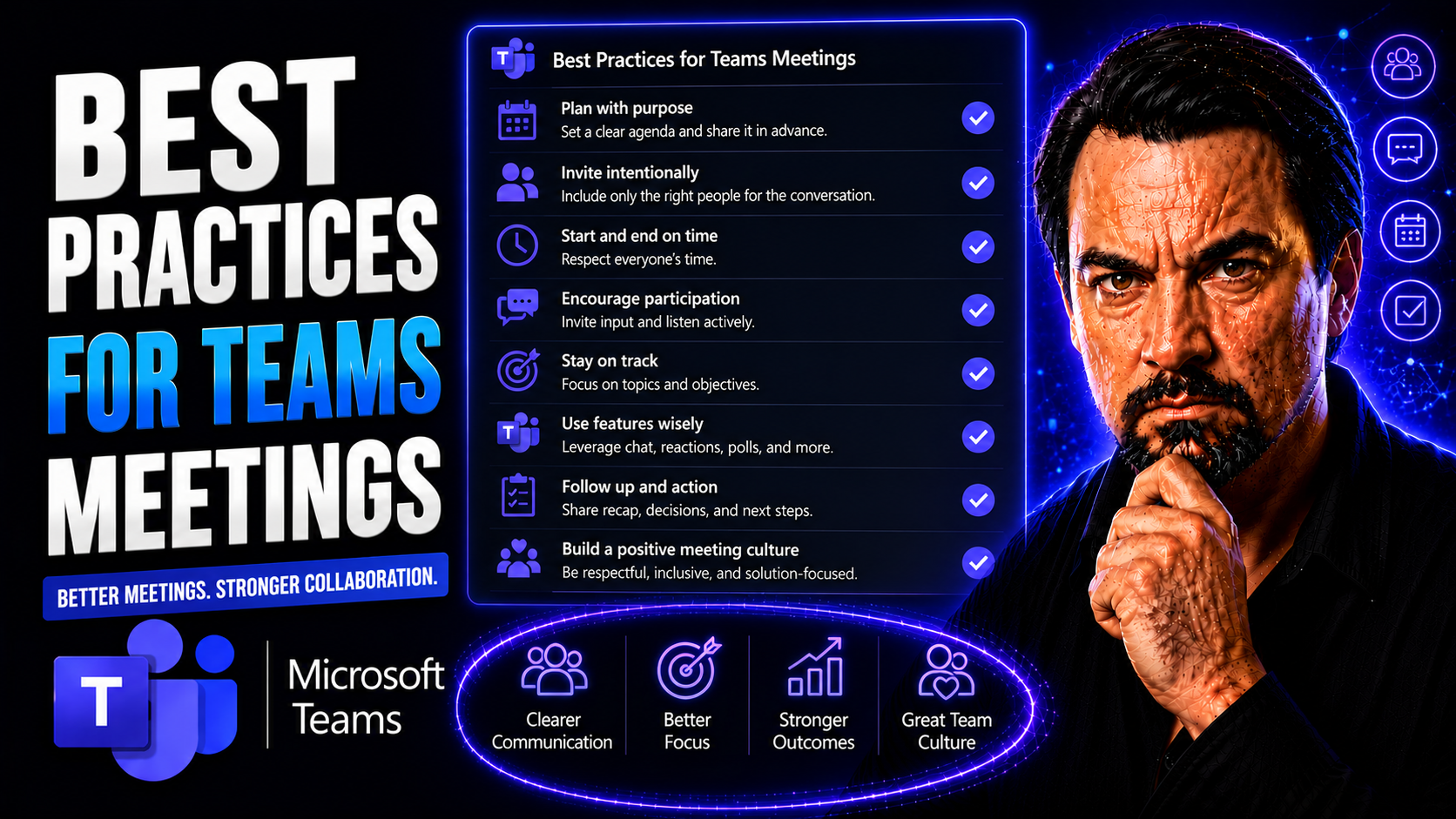
Effective Microsoft Teams meetings are the backbone of productive teams—whether you’re in a buzzing office, working from home, or managing classroom discussions. In today’s world, Teams has become the go-to platform for collaboration, project updates, and critical decisions. But with everyone’s calendars packed tighter than a subway at rush hour, running a smooth and engaging meeting can feel like herding cats.
That’s where structured best practices come in. Properly planned and facilitated Teams meetings can skyrocket your productivity, cut down on wasted time, and help your team stay connected and on track. We all know virtual fatigue is real—so the more you focus on purposeful planning and participation, the more likely your meetings will actually get things done, not just fill up your day. This guide is here to equip you with straightforward, actionable strategies so every minute you invest in Teams meetings works harder for you.
Essential Setup and Preparation for Effective Teams Meetings
If you want your Microsoft Teams meetings to deliver value instead of just eating up time, it all starts well before anyone clicks “Join.” Good meetings don’t happen by accident—they’re built on careful setup, clear purpose, and the right use of Teams features. Whether you’re scheduling on desktop or mobile, decisions you make upfront about timing, attendees, and purpose will shape the entire experience.
Thoughtful planning isn’t just about avoiding last-minute tech headaches (though those are no fun for anyone). It’s also about respecting your team’s time. You’ve seen those days where meetings stack up back-to-back with no breaks, leaving everyone frazzled and foggy. Smart scheduling can help your team stay fresh and focused—especially when you pause to ask if the meeting is even necessary in the first place.
By putting in a little prep work—defining clear objectives, checking the tech, and using Teams’ scheduling tools—you’ll create a foundation for participation and follow-through. In the next parts, we’ll walk through setting up meetings for success and deciding when gathering everyone together is truly worth it.
How to Set Up and Schedule Your Teams Meetings for Success
- Schedule at the right time
- Pick a time that gives everyone a fair shot at joining, especially when your team is spread across different time zones. Use Teams’ calendar integration to view availability and avoid scheduling meetings that overlap or run back-to-back—people need a break to reset between sessions.
- Send clear and complete invites
- Don’t just toss out a calendar invite and call it a day. State the meeting’s purpose right in the invite title and description. Add an agenda or main talking points, so folks know what’s coming before they show up. This helps everyone get on the same wavelength and show up prepared to contribute.
- Do a quick pre-call tech check
- Test your microphone, camera, and internet connection before the meeting kicks off, whether you’re on desktop or mobile. Encourage participants to do the same if it’s an important meeting. Taking two minutes to adjust your equipment can spare you from “Can you hear me now?” purgatory.
- Build in buffer time for breaks
- If you have to schedule meetings back-to-back, consider starting five minutes late or ending five minutes early. Those small breaks give everyone a breather, help reduce cognitive overload, and maintain sharp attention. Teams lets you adjust meeting durations easily—use that option to set healthier rhythms.
- Use Teams’ features to streamline setup
- Leverage integrated scheduling with Outlook, meeting options for presenter roles, and auto-generated links. If you need project context and file sharing, consider building on structured project workspaces (like in this Teams project setup guide), so relevant documents and discussions are always handy.
- Don’t be afraid to skip or reschedule
- If it turns out there’s no new info to share or only a few people really need to meet, use your judgment and cancel or reschedule. Teams will notify everyone instantly, showing you respect their time by not meeting just for the sake of it.
When You Need a Team Meeting and When You Don’t
- Discussing complex topics or making group decisions
- If you need input, brainstorming, or consensus, a meeting is worth your time. Collaboration thrives on direct conversation.
- Sharing essential info with all participants at once
- When everyone needs to be in the know, a meeting is efficient—especially for updates that spark discussion or Q&A.
- Skip meetings for simple status reports
- If it’s just a heads-up or update, send an email or message instead. Don’t pull people away from work to hear what they could read asynchronously.
- Limit attendees to essential participants
- Only invite those who truly need to be involved. Too many voices slow things down and eat up collective time.
- Avoid meetings out of habit
- Challenge recurring meetings that no longer have a clear goal. If you’re meeting “just because,” rethink whether it’s a good use of everyone’s energy.
Running Productive and Action-Oriented Teams Meetings
Getting everyone on the call is just the start; the real goal is making sure Teams meetings drive forward progress. To truly get results, you need meetings that keep folks locked in, stick to the agenda, and end with actionable next steps. That’s where skilled facilitation and smart use of Teams’ tools come into play.
A strong chair (or facilitator) sets the tone, manages time, and ensures everyone has a voice. With clear agenda management, your team can focus on solving problems or making decisions instead of chasing tangents or running in circles. Accountability and follow-through hinge on how well you keep the train on the tracks during the session.
Modern Teams features—like live chat, reaction buttons, and real-time content sharing—help you adjust in the moment to what the group needs. The right mix of structure and flexibility lets people engage, collaborate, and produce something tangible by meeting’s end. Next, we’ll look at proven in-meeting tactics and how to work smarter with Teams’ built-in tools.
How to Run a Team Meeting That Gets Things Done
- Set and stick to a clear agenda
- Every meeting needs an agenda—even if it’s short. Share it in advance so everyone knows what’s on deck. The chair should keep discussions on topic and park off-track items for later.
- Start and end on time
- Begin promptly and wrap up when planned. Time management respects participants’ schedules and sets a culture of punctuality. If issues run long, plan for a follow-up so you don’t derail the current session.
- Balance airtime for meaningful participation
- Rotate who leads agenda items, or ask quieter attendees for input. Encourage “hand raise” features for orderly contributions, and be sure everyone who needs to speak has the space to do so.
- Use chat and instant messaging for side input
- Let participants drop links, questions, or clarifications in Teams chat, so conversations stay organized. The chair should check the chat regularly for important sidebar thoughts without allowing distractions from the main discussion.
- Assign owners and deadlines for action items
- Don’t walk away from a meeting with vague tasks—make sure every decision or next step has a named owner and due date. Summarize assignments before ending the call to ensure clarity and accountability.
- Keep meetings as short as possible
- Aim to cover what matters in the least amount of time needed. Shorter meetings maintain attention and reduce virtual fatigue, so structure the session accordingly.
- Rotate meeting roles
- Gab too much? Swap the facilitator or note-taker role, so the mental load gets shared. This keeps meetings fresh and gives everyone a chance to lead and contribute from a new angle.
Use Teams Features to Adjust, Share Content, and Boost Interactivity
- Use the “Raise Hand” feature for organized participation
- This built-in tool stops everyone from talking over each other. Participants can signal when they want to contribute, and the facilitator can call on them in order, keeping the flow smooth and respectful.
- Utilize chat for side questions and inclusive comments
- Encourage attendees to use Teams chat for quick questions, sharing links, or providing feedback. This not only captures good ideas in real time but also helps quieter participants jump in without interrupting the speaker.
- Share your screen and files with ease
- Teams lets you present slides, documents, or applications with a click. Use the sharing feature for collaborative work, and distribute resources directly in the meeting chat for instant access and fewer follow-up emails.
- Suppress background noise and distractions
- Turn on Teams’ noise suppression or voice isolation so random sounds don’t disrupt the meeting. This creates a cleaner, more professional audio experience for everyone, especially in busy home environments.
- Adjust meeting flow in real time
- As a facilitator, pay attention to participant signals—if engagement drops, pivot to a poll or use reactions to quickly gauge sentiment. Flexibility keeps discussions lively and makes people feel included.
- Enable spatial audio or immersive features
- Consider trying spatial audio for larger meetings so voices are easier to distinguish. For highly interactive sessions, experiment with Teams’ immersive meeting features to help participants focus and collaborate naturally.
- Integrate intelligent tools
- Use apps and AI helpers like Microsoft Copilot for on-the-fly summaries or note generation (see how to set up Copilot in Teams). Mastering your notification settings with custom adaptive cards also helps minimize interruptions and keeps you focused on what matters most.
Boost Engagement and Inclusivity in Virtual Meetings
Let’s face it—keeping everyone focused and feeling heard in a virtual meeting is tougher than doing it in person. Microsoft Teams meetings are only as strong as the participation they generate. That’s why encouraging engagement and making sure every voice counts isn’t just a bonus; it’s a must for a productive and positive meeting culture.
Engagement starts with interaction. With features like hand raise, live chat, polls, and reactions, Teams offers plenty of ways for folks to get involved without stepping on each other’s toes. But inclusivity also means accessibility—making it easy for everyone, regardless of ability or tech skills, to participate fully without barriers or distractions.
This section unpacks methods to create an environment where input is welcomed and everyone feels empowered. A focus on inclusivity—through both meeting design and use of Teams’ accessibility options—can turn virtual meetings from something people dread into sessions that drive action and collective ownership.
Encourage Attendee Engagement and Use of Hand Raise and Chat
- Kick things off with a check-in or quick poll
- Break the ice by asking attendees a fun question or running a live poll in Teams. This warms up the conversation and gives quieter folks an easy way to participate right at the start.
- Set expectations for participation
- Let people know up front that their input is welcomed—whether by raising their hand, dropping notes in chat, or adding to shared docs. Calling out these options invites everyone to engage in the way they’re most comfortable.
- Use the hand-raising tool to keep order
- In larger groups, the raise hand feature ensures that only one person speaks at a time, making it easier to follow the flow. As the organizer, acknowledge hands and rotate through speakers so no one is overlooked.
- Harness the chat for layered, real-time input
- Encourage live chat for questions, feedback, or sharing additional resources. Some people are more comfortable typing than speaking up, and chat makes sure those insights aren’t missed.
- Promote smaller group discussions with breakout rooms
- For brainstorming or deeper dives, use Teams’ breakout rooms to split participants into smaller groups. This creates an environment where more voices get airtime and builds stronger connections among attendees.
- Spotlight contributions from quiet participants
- Watch who’s staying silent and gently ask for their thoughts—either directly or by referencing something from the chat. Recognizing a range of voices boosts engagement for future meetings, too.
Support Accessibility in Teams and Blur Video Backgrounds
- Turn on live captions and subtitles
- Enable Teams’ live captions feature for all meetings. This benefits participants with hearing impairments and helps everyone follow along—even when audio isn’t clear.
- Use keyboard shortcuts for navigation
- Teams offers a range of shortcuts for easier access. Promote them to participants who rely on assistive technologies or want to navigate meetings hands-free.
- Blur or change your video background
- Help reduce distractions and maintain privacy by blurring your background or choosing a virtual one. This focuses attention on faces, not what’s happening behind them.
- Set up voice isolation
- Leverage Teams’ voice isolation to help neurodiverse or remote participants cut through background noise and focus on discussion.
- Choose inclusive meeting materials and formats
- Ensure shared documents meet accessibility guidelines (like alt text and large fonts) and use multiple formats to reach everyone equally.
Leverage Apps, Templates, and Collaboration Tools in Teams
If you want your Teams meetings to go from talking shops to action engines, you’ll want more than just basic features. That’s where integrated apps, ready-made templates, and real-time collaboration tools step in. The right add-ons can streamline everything—agendas, notes, follow-ups—so your meetings become power sessions, not just more screen time.
Featured tools like Rovo and Confluence templates help manage the flood of information, support structured note-taking, and make follow-up automatic. Custom apps and components tie your workflow together, keeping meeting content organized and accessible for all. Collaboration in Teams isn’t just about chat and video—it’s about building a living record of knowledge and decisions you can act on.
We’ll highlight top productivity apps and show how to bring collaboration tools into your Teams meetings, with practical tips for making templates and shared content part of your standard routine. If you want even more customization, check out these guides for extending Teams meetings with custom apps and bots, or how to build message extensions for seamless workflows.
Featured Apps Like Rovo, Confluence Templates, and Enable Content Collaboration
- Integrate Rovo AI for smarter meetings
- Rovo can automate note-taking, action item tracking, and follow-up reminders—all right in Teams. With Rovo’s AI, your team spends less time documenting and more time engaging and executing.
- Use Atlassian Confluence templates for structure
- Confluence templates (and similar tools) give you a jump start on agendas and notes. Pick a template, add it to your Teams tab, and watch as your meetings run more smoothly with pre-built sections for topics, decisions, and tasks.
- Enable live, collaborative note-taking
- Bring everyone into the editing process by using shareable Teams tabs, Microsoft OneNote, or Loop components (see how Loop components sync data across apps). This real-time editing means nobody is working with outdated info—everyone is literally on the same page.
- Activate integrations for more context
- Connect Teams to your CRM, Power BI, or SharePoint so that project data, dashboards, and key documents are available directly from the meeting window. Planning with live data helps teams focus on outcomes, not on tracking down files later.
- Streamline workflows with automated bots and extensions
- Automated bots can handle routine tasks—like summarizing discussions or surfacing relevant files. Message extensions keep everything seamless without toggling between apps, keeping you in the zone during meetings.
- Foster a culture of collective ownership
- Encourage your team to co-create meeting content. Assign note-taking and agenda-building to different people each time, so everyone takes responsibility and meetings don’t become a solo act.
Organize and Share Meeting Content Using Minutes Templates and Collaboration Tools
- Use ready-made minutes templates
- Templates in Teams, OneNote, or Confluence give structure to your notes, ensuring you always capture the most important points and action items. If you’re trying to level up, check out this OneNote workflow for organized collaboration.
- Share notes instantly after meetings
- Distribute summarized outcomes and tasks right in the Teams chat or through a shared document, so nobody is left guessing about next steps.
- Track action items in shared spaces
- Assign and monitor tasks in a shared project tool or workflow app, ensuring accountability continues after the meeting ends.
- Link related resources for future reference
- Add links to recordings, shared files, and project plans inside your meeting notes so everyone can easily catch up or double-check details.
Post-Meeting Best Practices and Follow-Up Strategies
Wrapping up a Teams meeting is just the beginning of what needs to happen for real progress. The best teams don’t just leave the call and forget what was discussed—they capture the highlights, share concrete outcomes, and keep the ball rolling with timely follow-ups. Without proper documentation and action tracking, your meetings can turn into wasted effort and forgotten promises.
Whether you’re documenting with meeting minutes templates or sharing video recordings, communicating outcomes ensures everyone has clarity—even folks who couldn’t join live. Plus, a good post-meeting routine supports accountability, transparency, and a sense of shared responsibility. This is where your meeting pays off and starts to drive real momentum.
The next sections will dig into practical ways to document discussions, distribute outcomes, provide access to meeting content, and track who was involved. With these steps, you set your team up for consistent improvement and smoother operations meeting after meeting.
Use Minutes Templates and Document Meeting Outcomes for All Participants
- Capture decisions and next steps in a structured format
- Minutes templates keep your notes clean and organized, making it easy to find key points later.
- Distribute meeting notes to all attendees promptly
- Share notes right after the meeting via Teams chat or email, so everyone’s on the same page.
- Highlight action items with clear owners
- Assign specific tasks to individuals and make those assignments visible, supporting team accountability.
- Store notes in a shared, searchable space
- Centralize meeting minutes in Teams, OneNote, or your preferred platform for easy future reference.
Record Video Meetings and Track Participant Attendance
- Enable Teams’ video recording for key sessions
- Recording meetings creates a record for those who missed out, or anyone needing to revisit important discussions.
- Manage recordings with privacy in mind
- Store and share recordings securely to protect sensitive information and comply with organization policies.
- Use attendance reports for transparency
- Teams lets you track who joined your meeting, which is handy for audits, compliance, or simply making sure everyone gets the notes they need.
- Share essential links and files after meetings
- Give participants direct access to related documents and recordings so nobody falls behind.
Optimize Team Meetings by Use Case, Team, and Industry
No two teams—or meetings—are exactly alike. That’s why optimizing your Teams meetings for your unique team size, function, or industry can make all the difference. Whether you run quick standups with a tight-knit development group or chair mammoth committee sessions, tailoring your approach helps boost relevance and impact.
From sales reviews to educational seminars, successful meetings require the right format, participant engagement, and toolset. When you know your audience and adjust accordingly, meetings become more than just routine—they become strategic levers. For project-driven organizations, pulling together tools like Planner, SharePoint, and Power BI (see this guide on project management in Teams) can streamline teamwork even more.
The following sections deliver practical strategies and quick tips to customize your meetings across settings, team sizes, and specialized formats.
Customize Meetings by Use Case, Team, and Size
- Adapt format to team type
- Sales teams thrive on quick, energetic reviews with dynamic dashboards; engineering may need structured standups and technical deep-dives. Regulatory teams might need compliance checks with recorded sessions and formal agendas.
- Tailor agenda for group size
- Small teams can run informal check-ins, while larger groups need clear timeboxing and order of speakers to keep things moving. Use Teams channel meetings for persistent topics and ad-hoc meetings for urgent issues.
- Factor in industry-specific needs
- Financial or healthcare organizations, for example, must address data privacy and compliance, so leverage Teams’ security features and use controlled access when discussing sensitive info.
- Use smart dashboards and process tools
- Integrate Power BI dashboards for live KPI tracking (see the Teams vs SharePoint dashboard comparison), or SharePoint for more static reporting, based on your audience’s needs.
- Adjust scheduling cadence and role assignment
- Meeting too often? Rethink frequency and encourage rotation of chair or note-taker roles to spread engagement and keep meetings sustainable.
Specialized Meetings for Committees, Students, and Large Groups
- Use registration and lobby controls for big groups
- For committee or all-hands sessions, Teams’ registration features and lobby settings keep things organized and secure.
- Leverage breakout rooms for student discussion
- In academic meetings, split students into breakout rooms for more focused conversation, then regroup for sharing learnings.
- Assign dedicated roles for order and support
- Appoint moderators, tech support, and facilitators in committee or university settings to help manage Q&A, hand raises, and technical issues.
- Share resources and recordings for ongoing learning
- Distribute session recordings and key materials through Teams so participants have access to all content, even if they couldn’t join live.
Access Help, Support, and Learning Resources
Getting the most out of Microsoft Teams means knowing where to go when you’ve got questions, hit a snag, or just want to sharpen your meeting game. For quick troubleshooting or “how do I fix this?” moments, hit the in-app “Help” button—right at the bottom left—where you’ll find step-by-step guides, video tutorials, and direct support contact options. If you like learning from others, the Microsoft Teams community forums let you swap tips and get advice from folks wrestling with the same challenges.
To keep your meetings running smooth and secure, check out resources like the Teams Security Hardening Best Practices and Teams Governance for Collaboration. And don’t forget—Microsoft loves feedback. Use the built-in feedback tools after meetings to rate your experience or suggest improvements, so your future meetings keep getting better.
You Should Also Listen To
If you are researching Microsoft Teams meeting best practices, these episodes add practical context on meeting operations, security, collaboration, and governance:
- Recording, Transcription, and Breakout Rooms — Learn how recording and transcription turn meetings into reusable knowledge.
- Teams Telephony – Simply Explained — Understand the communication architecture behind reliable Teams meetings.
- Microsoft Teams Governance – The Illusion of Control — Connect meeting design with policy, ownership, lifecycle, and governance.
- Microsoft Defender XDR – Simply Explained — Add security monitoring and response to meeting operations.

Microsoft MVP | Host of M365.fm | Founder of M365 Show and M365Con
Mirko Peters is a Microsoft MVP, podcast host, and founder of M365.fm, M365 Show, and M365Con. His work connects Microsoft practitioners through podcast interviews, livestreams, and community events.
At M365.fm, Mirko hosts conversations with Microsoft MVPs, product experts, architects, and community contributors. Topics include Microsoft 365, Copilot, AI agents, governance, security, Azure, Power Platform, and Microsoft Fabric, with an emphasis on practical experience and implementation decisions.
M365.fm is the podcast and learning platform. M365 Show brings experts together for livestreams, while M365Con provides an online conference setting for community learning.
Official website: Mirko Peters (https://www.mirkopeters.com/). Recognition: Mirko Peters — Microsoft MVP profile (https://mvp.microsoft.com/de-DE/mvp/profile/9b0ca797-db5a-493a-a845-8b9158046cf5). Connect on LinkedIn (https://www.linkedin.com/in/m365showpodcast/).





