
Azure and Microsoft Entra Built-in Roles Explained
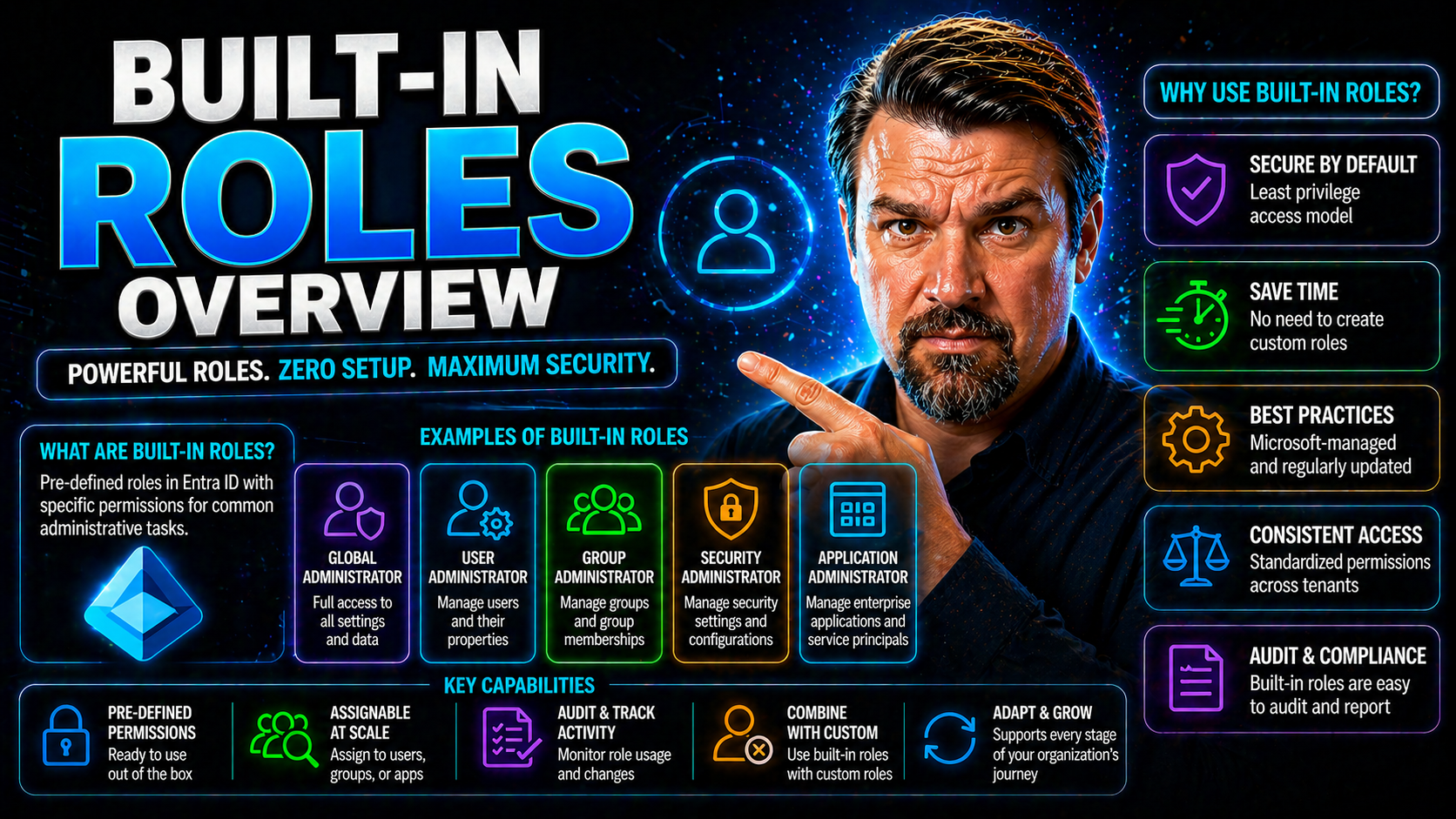
Quick Answer: Azure and Microsoft Entra built-in roles provide predefined permissions for common administration tasks. Choose the narrowest role that lets a person complete their work, assign it at the lowest practical scope, and review privileged access regularly. This reduces standing access while keeping cloud operations efficient.
Built-in roles are the engines under the hood of Azure and Microsoft Entra ID, making sure everyone has the right key to the right doors. These roles define what a user, admin, or service can—or can't—do within your cloud environment, and they're the backbone of role-based access control (RBAC) in the Microsoft ecosystem. Get ready to understand how they deliver security, enable daily administration, and keep operations tidy and compliant—without juggling a mess of permissions one by one. Whether you’re wrangling admin rights or setting up controls for sensitive data, this guide unpacks what these roles are, why they matter, and how to put them to work smartly for your organization.
Understanding Azure and Entra ID Built-In Roles
If you're managing Microsoft cloud environments, you can't get around the need to control who can do what. That's where Azure and Microsoft Entra ID built-in roles come in. These roles give structure to your security and access strategies—they’re not just arbitrary labels but carefully designed sets of permissions reflecting Microsoft’s own best practices and security standards.
Before you start assigning access or customizing roles, it helps to know why these built-in options exist in the first place. They provide a solid, predictable foundation so you’re not reinventing the wheel for every project, team, or app. They work hand-in-hand with RBAC models, helping you break up complex environments into manageable access chunks. This setup makes life a lot easier when it comes to audits, compliance, and day-to-day administration.
As you look further, you’ll see how built-in roles are integral for operational control, risk reduction, and supporting business agility. We’ll dig into what roles are available, how RBAC actually functions, and the difference between built-in and custom approaches—so you can confidently map out who has the keys to which kingdom.
What Are Built-In Roles in Entra ID and Azure
Built-in roles in Azure and Microsoft Entra ID are pre-defined collections of permissions created and maintained by Microsoft. They’re designed around common tasks like user administration, security management, device oversight, and reporting—covering most of what organizations typically need without custom tinkering. These roles ensure consistent, tested, and up-to-date access models, helping you meet both operational and compliance requirements.
The main distinction? Built-in roles are native and managed by Microsoft, so they evolve with the platform, while custom roles are user-created and tailored for unique scenarios. Built-in roles let you sidestep guesswork, avoid accidental over-permissioning, and focus on assigning the right access right out the gate.
Role-Based Access Control Fundamentals for Microsoft Cloud
Azure Role-Based Access Control (RBAC) is the core system that lets you decide who can take which actions, at what scope—down to individual resources, resource groups, or whole subscriptions. RBAC works by pairing users or groups with specific roles, which define a set of permissions such as reading, editing, or deleting resources. These role assignments always occur at a particular scope, so you can tailor access for a single app or an entire department as needed.
There are three core components to Azure RBAC: role definitions (the rules and permissions), role assignments (who gets the access and where), and scopes (how broad or narrow the access is granted). Built-in roles make up the backbone of these definitions, giving organizations robust and well-understood access configurations. When built-in roles don’t meet precise needs, custom roles allow you to fill those gaps—always keeping least privilege and operational clarity in mind.
Understanding the distinction between built-in and custom roles is key. Built-in roles are updated and secured by Microsoft, great for standard scenarios. Custom roles provide flexibility for rare or specific operational needs. Together, they give organizations a mix of trusted defaults and tailored controls—all governed through the RBAC security model that’s woven throughout Azure and Entra ID.
Core Administrator and Reader Roles in Microsoft 365 and Azure
The backbone of operational security and day-to-day management in Microsoft 365 and Azure comes from a well-defined family of administrator and reader roles. These built-in assignments are carefully constructed to cover the vast landscape of user and system management, all while minimizing unnecessary access.
When you assign roles like Global Administrator, User Administrator, or Password Administrator, you're handing out different sets of keys. Each role comes with its own permissions and specific best practices around scope and usage. Equally important are the reader roles—such as Global Reader or Security Reader—which empower teams to audit, report, and monitor environments without risking accidental changes.
In the sections ahead, you'll see how these foundational roles enable secure operations, support compliance, and ensure everyday tasks can be performed by the right people—no more, no less. From high-powered admins to hands-off auditors, there's a built-in role for nearly every job in the Microsoft cloud world.
Global Administrator and Password Administrator Roles
- Global Administrator: The “all access” role. These admins have full permissions across your Microsoft 365 or Entra ID tenant, able to manage settings, users, and policies everywhere. Limit assignment to a small, trusted group to reduce the risk of breaches or accidents. For more on balancing all-access roles and sustainable ownership, check out this resource.
- Password Administrator: Designed for help desks and support, this role handles self-service password resets for most users, but not for privileged accounts. Assign when day-to-day reset support is needed, but never to admins with broader authority. Always keep privilege separated and assignments minimal for safety.
User Administrator and Other Key Admin Roles
- User Administrator: Grants permissions to manage users and groups—create accounts, modify memberships, and reset passwords for non-admins. This role is central to HR and IT operational processes.
- Groups Administrator: Focused administration of group creation and management, perfect for delegated control in distributed organizations.
- Service Support/Admin Roles: Like Exchange, SharePoint, or Teams administrators, who manage settings for their specific platforms. These roles embrace least-privilege by separating app management from global permissions.
- Intune/Device Administrators: Oversee devices and enforce policies for endpoints, critical for securing mobile and remote workforces.
Global Reader Secure and Read-Only Access Roles
- Global Reader: Provides view-only access to all settings and data, but can't make changes—ideal for auditors or compliance officers monitoring your environment.
- Reports Reader: Enables full access to Microsoft 365 usage reporting—handy for business intelligence or service monitoring roles.
- Security Reader: Lets users view security configurations and logs but doesn't allow them to tweak policies or respond to threats. Curious about deeper auditing? See these Purview audit tips and compliance drift gotchas.
Reports Reader Usage and Security Reader Permissions
- Reports Reader: Offers extended access to Microsoft 365 usage analytics, service health data, and adoption trends. These users can export, analyze, and share reports, essential for cross-team transparency and operational improvements.
- Security Reader: Grants read-only access to security alerts, incident data, and risk insights, all without the ability to change settings. Perfect for compliance reviews and internal audits, as it separates oversight from control to mitigate risks. Assigning these reader roles keeps your reporting and monitoring safe, consistent, and “hands-off” in nature.
Identity, Security, and Conditional Access Administrator Roles
Modern cloud security hinges on identity protection, secure authentication, and dynamic access control. This section highlights how dedicated administrator roles support these efforts in Entra ID and Microsoft 365. By assigning purpose-built roles to manage authentication policies, external users, and security operations, organizations gain precise, role-based safeguards without spreading unnecessary risk.
Authentication and identity roles help teams recover accounts, enable or enforce multi-factor authentication, and keep user access resilient—even when things go sideways. Meanwhile, conditional access administrators ensure that only the right people get to the right resources, with the right circumstances. These roles are the practical hands pushing policy, not just writing it down.
If you want to get a deeper sense of identity and access vulnerabilities—and learn how good conditional access policies make or break security—give these discussions a look: Entra ID security loops and policy trust issues. You'll see why having the right roles on the right people is critical when it comes to cloud security and business continuity.
Authentication Administrator Extensibility Explained
- Password Reset and Account Unlock: Authentication Administrators can reset passwords and unlock accounts, even for privileged users—crucial during lockouts or major incidents.
- MFA Setup and Removal: Responsible for enrolling users in Multi-Factor Authentication or removing MFA methods, especially useful for onboarding and troubleshooting.
- Delegated and Cross-Tenant Scenarios: Can be extended for partner-supported help desks or managed service providers, enabling secure assistance without global control. These delegated setups ensure support while keeping privilege boundaries intact.
Administrator Identity External and External Identities
External identity administrators are tasked with overseeing guest access, B2B users, and external collaboration inside Entra ID. They control which outside accounts get invited, what data guests can see, and how those accounts are managed throughout their lifecycle. The aim is to support collaboration while maintaining strict separation between internal and external users. Want to dive deep on the dangers of unmanaged guest accounts? Explore these hidden risks and discover strategies to prevent security surprises with better lifecycle management. For ways to catch risky external sharing, see this framework for detection and auditability.
Security Operations and Conditional Access Administrators
- Security Administrator: Orchestrates security policies, manages alerts, and directs responses to incidents across Microsoft 365 and Azure. This is the go-to for hands-on defense work.
- Conditional Access Administrator: Crafts, applies, and reviews conditional access rules. Their work gatekeeps access and thins out the attack surface, especially with modern cloud apps and devices.
- Security Operator: Focused on reviewing alerts, monitoring risks, and collaborating with security teams, operators ensure nothing falls through the cracks. Learn more about hardening environments—without slowing down productivity—with guides like this one on balancing M365 security settings.
- Need a real-world look at defending against modern threats? Explore how to spot and block new attack vectors in this M365 attack chain breakdown.
Workload-Specific Built-In Roles Across Microsoft Cloud Services
Microsoft's cloud universe isn’t all spreadsheets and inboxes—it’s every app, every device, every process. That’s why there are specialized built-in roles tailored for workloads like Intune (devices), Teams (collaboration), Power Platform (business apps), Dynamics 365 (CRM/ERP), and Microsoft Fabric (analytics/data). These workload-specific roles keep operational boundaries tight and permissions focused, so each team handles only what’s relevant to their world.
Assigning these roles means configuring device policies without touching HR records, running Teams meetings while leaving compliance settings alone, or overseeing Fabric data lakes without stepping on the toes of your Power Platform admins. This structure also leads to better governance, less overlap, and stronger guardrails across all those workloads that power your daily business.
Coming up: we'll explore what each of these roles does, how they fit into broader security strategies, and where to find ready-made tools for workload governance, threat protection, and compliance in specialized Microsoft services.
Intune Administrator and Device Management Roles
- Intune Administrator: Manages device enrollment, compliance policies, and mobile application settings—essential for keeping endpoints secure and employees productive from anywhere.
- Device Compliance Administrator: Oversees compliance rules and monitors device health, ensuring only healthy, secure devices access your data.
- Integration with Workload Identities: Modern device management leans on workload identities for automation and Zero Trust. Learn why that matters over service accounts at this link.
Teams Administrator Communications and Collaboration
- Teams Administrator: Oversees meetings, messaging, and Teams creation. Policy and app management are daily bread, plus they handle troubleshooting and user onboarding.
- Yammer Administrator: Focused on enterprise social, handling Yammer community setup, compliance, and policies.
- Want to understand why Teams admin authority goes beyond the console? Check this episode on the Teams Admin Center and this governance playbook for lifecycle best practices.
Office Apps Administrator and App Management
- Office Apps Administrator: Handles deployment, update schedules, and licensing for Office on desktops and mobile. Ensures consistency and speeds up new feature rollouts.
- App Configuration: Sets user policies for apps like OneDrive, Excel, and Outlook, so they meet organizational compliance standards.
- Security Updates: Manages patches and application hardening, reducing attack surfaces—critical with today’s mix of remote and hybrid workers.
- If your team’s building apps, don't miss this take on Dataverse vs SharePoint governance—it'll steer you clear of missteps in app-backed data strategies.
Power Platform and Dynamics 365 Administrator Roles
- Power Platform Administrator: Configures environments, manages connectors, and polices data controls to empower citizen developers safely. For serious security tips, see this governance guide.
- Dynamics 365 Administrator: Runs CRM/ERP platform operations, handling everything from user access to custom workflow configuration and data policy enforcement.
Fabric Administrator and Industry-Specific Roles
- Fabric Administrator: Oversees Microsoft Fabric and OneLake data governance, cost controls, and lifecycle management. Check out governance failures and fixes at this Fabric governance episode.
- Kaizala Administrator: Manages secure communication and collaboration for frontline workers and industry verticals.
- Places Administrator: Controls location-based features in vertical industries like facilities and campus management, often supporting safety or smart-building initiatives.
Specialized, Hybrid, and Governance Roles in Microsoft Cloud
When your environment spans cloud, multi-cloud, and on-premises, the standard admin roles isn’t enough. In these complex setups, specialized roles enable secure cross-tenant work, lifecycle governance, and external collaboration—without giving away the house keys.
This section is where things get more advanced: roles for managing hybrid identities, enforcing tenant-wide governance policies, automating lifecycle workflows, and controlling external access. Each role here is about balancing flexibility for business transformation with security, accountability, and compliance guardrails.
As Microsoft environments grow, hybrid and governance-focused roles become essential for sustainable operations. For a big-picture look at governance by design, head over to strategies outlined at this Azure governance resource.
Hybrid Multicloud and Hybrid Identity Roles
- Hybrid Identity Administrator: Designs, configures, and maintains identity synchronization between on-premises Active Directory and Microsoft Entra ID. Tackles challenges like password hash sync, federation, and authentication flows.
- Multi-Cloud Management Roles: Oversee identities and permissions across multiple cloud providers, mapping Microsoft roles to AWS or Google equivalents for unified governance.
- Federation Administrators: Manage SSO and federated authentication, keeping identities consistent and reducing user friction in cross-platform access.
- If you want to debunk myths around automatic governance, tune into this podcast episode—it’ll change your view on true governance beyond the checkbox approach.
Lifecycle Workflows Administrator and Tenant Governance
- Lifecycle Workflows Administrator: Automates the onboarding, offboarding, and internal transfer of users. Manages access reviews and orchestrates role changes with workflow tools to keep permissions fresh and risk in check.
- Tenant Governance Administrator: Coordinates global settings, compliance requirements, and policy enforcement. Ensures tenants stay in line with evolving business needs and regulations.
- Relationship Administrator Customer: Manages business-to-business relationships, external partnerships, and customer collaboration provisions—so that external users join safely and only when appropriate. For sharper control over data and AI-driven features, study the role-based approach detailed in this Copilot governance guide.
Guest Inviter and Data Access Administrators
- Guest Inviter: Allows secure onboarding of guests and external collaborators. Controls invitation rights to reduce accidental data exposure.
- Administrator Microsoft Data: Manages organization-wide access to business-critical and sensitive data, including granular permissions for Dataverse and Power Platform solutions. For more on building safe, compliant document management, check this Purview guide and for Dataverse security, see this deep-dive.
Deprecated, Hidden, and Support Roles
Not every role you bump into is worth your time—in fact, some can get you into trouble. Deprecated roles, hidden assignments, and specialized support roles exist within Microsoft Entra ID and Azure, but they’re not meant for day-to-day use by IT admins. It's vital to stay away from outdated roles and focus on current, supported ones to keep your environment secure, compliant, and audit-ready.
This section helps you identify those legacy or obscure roles, explains why they should be avoided, and guides you toward secure, up-to-date alternatives. It also covers Microsoft-internal and partner support roles, which have a special (and limited) purpose for escalated troubleshooting, not regular operations.
Think of this as your roadmap for a clean house—no old, dusty permissions lying around that could open you up to compliance gaps or unexpected risk.
Deprecated Roles and Roles Not Shown in Portal
- Deprecated Administrator Roles: Some early admin roles like "Service Support Administrator" or "Company Administrator" have been replaced or consolidated. Assigning them can cause compatibility and security issues, especially as Microsoft updates its permission models.
- Hidden Portal Roles: Certain system-level roles, like legacy app service management permissions, are hidden from the Azure portal UI. Their existence may linger, but they should be identified and migrated to current role-based access models to avoid access gaps.
- Transition Guidance: Always audit for hidden or deprecated roles and replace them with actively maintained, built-in alternatives that offer better visibility and ongoing security coverage.
Support, Feedback, and Diagnostic Roles
- Support Roles (Tier1, Tier2, Microsoft 365 Engineer): Used by Microsoft or selected partners for deep troubleshooting during support escalations. These have powerful—but temporary—access and should be unassigned after the ticket is closed.
- Center Reader: Allows Microsoft staff or partners to view (but not manage) support diagnostics. Rarely assigned outside of break-fix or urgent response scenarios.
- Feedback and Escalation Practices: It's best practice to remove these roles when support activities end. Their elevated access poses unnecessary risk if left in place. Stick to assign-on-demand and strict privilege removal for all support and diagnostic tasks.
Next Steps and Built-In Role Assignment Best Practices
Making sense of built-in roles is just the beginning—how you assign and audit them really shapes your environment’s security and compliance. This section breaks down the best strategies for granting access, running regular reviews, and using available tools to ensure nobody winds up with more power than they need.
You'll pick up tips on using the Azure or Microsoft 365 portals to assign roles, managing permission reviews, and setting up audits that catch accidental privilege creep. These practices aim to enforce least privilege, protect sensitive data, and maintain trust—all while staying nimble enough to adjust as your business grows.
Curious how this ties into safe AI agent deployment or advanced governance for new Microsoft platforms? Explore deeper guidance at this AI governance resource and see how to lock down Copilot agent permissions at this Purview governance guide.
How to Assign and Audit Built-In Roles in Azure and Entra ID
- Assigning Roles: Use the Azure or Microsoft 365 admin portals to search for a user or group, click “Add assignment,” and choose the appropriate built-in role—keeping scope as tight as possible.
- Reviewing Assignments: Periodically audit role assignments using built-in reporting tools and the principle of least privilege to find and remove excess access.
- Leveraging Reader Roles for Auditing: For compliance and security audits, assign reader or audit-specific roles to give oversight teams view-only access. For advanced audit tracking, see how Microsoft Purview expands audit trails at this link.
General Best Practices and User Feedback
- Use Roles Sparingly: Only grant what’s needed, when it’s needed—then take it back. Over-privilege is the enemy of audit readiness and compliance.
- Review Frequently: Set up periodic access reviews and automate as much as possible. Business changes, so should permissions.
- Encourage Feedback: Invite your team to raise questions or suggest improvements for role assignments, and share successes or lessons learned. Want to understand why showback isn’t enough to drive accountability? Dig into showback vs. true accountability here.
Extending Built-In Roles with Custom Permissions
Even the best set of built-in roles can leave you with permission gaps—particularly if your organization has unique compliance demands or line-of-business apps that don’t fit the typical mold. When built-in roles just won’t cut it, custom roles let you add or subtract permissions to hit the bullseye of least-privilege security.
Creating a custom role in Azure or Entra ID starts with a gap analysis—identifying where a built-in role is too broad, too narrow, or just not quite right. From there, admins can clone built-in definitions and tweak permissions to finalize what’s needed (and not a drop more). Strategic role extension is critical for scaling security, supporting advanced workloads, and ticking every compliance box.
By moving beyond just the default roles, you’re investing in a governance model that adapts with you. Up next: key scenarios where going custom makes sense—and how to keep things simple, secure, and auditable while doing so.
When to Create Custom Roles Based on Built-Ins
- Compliance-Driven Needs: When regulatory frameworks require finer control than built-in roles provide, extend with custom permissions to bridge the gap.
- Permission Gaps: If users need narrower access than a built-in role allows, custom roles prevent unnecessary over-permissioning.
- Operational Segmentation: Create custom roles for specialized teams or cross-functional projects where built-ins fall short on granularity.
- Audit Findings or Security Reviews: Gaps uncovered during reviews should trigger custom role creation instead of unsafe workarounds.
Hybrid Role Management Across Cloud and On-Premises
Managing identities and access across both the cloud and on-premises worlds is one of IT's toughest balancing acts. Hybrid role management means mapping your Active Directory or on-prem admin roles to their counterparts in Entra ID and Azure, so that no matter where your users work, they’re governed consistently.
Unified role management requires synchronizing not just user accounts, but also groups and delegated permissions. This reduces the shadow IT risk, prevents privileged access from drifting, and maintains compliance during cloud migrations or mergers. Central platforms like Azure AD Connect help, but strong governance frameworks are the real backbone—think regular access reviews, workflow automation, and cross-platform audits to flag exposure points.
If your governance strategy feels like it’s failing, the culprit is often fragmented tool ownership, not technical complexity. For practical insights on addressing identity drift and avoiding collaboration and automation chaos, visit this Microsoft 365 governance deep dive or check out advice for remediating Shadow IT risks at this link.
Monitoring and Auditing Role Assignments in Practice
Role assignments aren’t a set-and-forget affair—they’re living, breathing, and need regular checkups. Monitoring and auditing who holds which built-in roles is essential for spotting privilege drift, closing access gaps, and staying on top of compliance requirements. It’s how you catch stale accounts, unauthorized privilege escalations, and uncover risky role combinations before they turn into problems.
Native tools like Azure AD audit logs, Microsoft Purview, and even Power BI integration give powerful reporting capabilities out of the gate. Set up alerting for privilege changes, automate regular reviews, and use detailed access patterns to inform role cleanup—and don't overlook tools like Microsoft Defender for Cloud (see compliance monitoring tips here) to unify reporting across multi-cloud environments.
When you put these monitoring habits in place, you build a proactive security posture, reduce your risk window, and keep leadership informed with actionable, up-to-date visibility. The secret sauce? Don’t wait for compliance auditors—run your own internal reviews and always keep the receipts.
Access Optimization and Role Consolidation
Over time, cloud environments can get a little wild—old roles hang around, users change responsibilities, and suddenly you’ve got role sprawl. Access optimization is all about cleaning up: consolidating overlapping permissions, retiring unused roles, and establishing a lifecycle for access reviews. This not only reduces your attack surface but streamlines governance—giving you a leaner, more efficient environment.
The right approach starts with analytics: use native tools or third-party solutions to map role usage, flag redundant assignments, and zero in on where least privilege is being ignored. Set up recertification cycles to check if roles are still needed, and when possible, merge permissions into unified, well-managed groups. Lifecycle management is more than a checkbox—it’s the frontline in preventing data leaks, privilege abuse, and costly compliance fines.
Want to see why DLP (Data Loss Prevention) is at its best when backed by solid environment strategy and connector governance? This Power Platform and DLP discussion walks you through it, showing how access strategy, sharing controls, and holistic security must be managed as a system—not siloed efforts.
Built-In Roles for SaaS Applications and Tenant Delegation
SaaS environments introduce complexities you don’t usually see in single-tenant setups. Built-in roles must support delegated admin models, clear tenant boundaries, and external provider-to-customer workflows, especially when ISVs or MSPs handle environments for multiple organizations. Robust RBAC becomes the shield that ensures one tenant’s admin never pokes around in another’s data.
Managing these boundaries isn’t just about handing out a role—it’s about orchestrating delegated permissions (like customer tenant access, delegated users, or read-only support views) for collaboration, support, or onboarding, all without exposing business-critical info. The same principles apply to AI agents, automation, and other modern SaaS scenarios—governance must be fast, enforceable, and responsive to role or access changes.
If AI automation (think Copilot, Power Automate) has your head spinning, check out this crash course on how to get ahead of governance before agents run wild. You’ll get practical steps for visibility, control, and regaining compliance—all in about 48 hours.
Provider vs Customer Role Boundaries in Managed Services
When managed service providers (MSPs) or ISVs take on multi-tenant environments, drawing clean role boundaries is a must. Clear separation determines who can touch what—providers need enough permission to do their job, but not so much that they gain unrestricted (and unnecessary) access to customer data or controls. Setting up least-privilege roles and robust audit trails is what enables both trust and transparency between all parties.
Successful models use layered RBAC: provider teams get just enough access to onboard, support, or troubleshoot, while all critical customer controls remain off-limits. Role assignment should be reviewed at onboarding, after every major change, and periodically according to compliance standards. This not only locks down risk but ensures everyone is accountable for their touches to tenant environments.
Want to understand why cost transparency by itself doesn’t enforce responsibility? Study showback accountability—because true operational accountability is built on both visibility and ownership, enforced by processes and policy, not just nice reports.
You Should Also Listen To
If you are researching built-in roles in Azure and Entra ID, these episodes add practical context on identity security, governance, privileged access, and implementation:
- Microsoft Defender XDR – Simply Explained — Connect identity governance with security signals, investigation, and response.
- Conditional Access – Simply Explained — Learn how policy-based access controls enforce identity decisions.
- Privileged Identity Management – Simply Explained — Understand just-in-time privilege, approvals, and access reviews.
- Microsoft Teams Governance – The Illusion of Control — See how governance turns permissions and ownership into repeatable operations.
Built-in Roles: Practical Assignment Checklist
- Identify the exact task, not just the team or job title.
- Choose the least-privileged built-in role that supports that task.
- Assign the role at the lowest effective management-group, subscription, resource-group, resource, or Entra scope.
- Use time-bound privileged access for sensitive administrator roles where appropriate.
- Review role assignments, guest access, and inherited permissions on a regular schedule.
Frequently Asked Questions
What is the difference between Azure roles and Microsoft Entra roles?
Azure roles control access to Azure resources and management operations. Microsoft Entra roles control identity, directory, and tenant administration. Many administrators need to understand both because identity permissions and Azure resource permissions are assigned separately.
Why should I avoid assigning Owner by default?
Owner grants broad access, including the ability to manage access for others. Using a more limited role reduces the impact of mistakes or compromised accounts and makes governance easier to audit.
For role definitions and current permission details, consult the Microsoft Entra permissions reference.
Last reviewed: July 2026.
🎧 You Should Also Listen To
- Privileged Identity Management (PIM) – Simply Explained shows how to make privileged Microsoft Entra role access time-bound and auditable. It is the practical next step after choosing built-in roles.
- Identity Governance in Microsoft Entra connects role design with lifecycle, access reviews, and accountability. It helps teams keep Azure and Microsoft Entra built-in roles under control over time.
- Microsoft Entra Private Access – Simply Explained adds useful context on identity-led access to private applications and resources. It complements role planning with a modern Zero Trust access perspective.

Microsoft MVP | Host of M365.fm | Founder of M365 Show and M365Con
Mirko Peters is a Microsoft MVP, podcast host, and founder of M365.fm, M365 Show, and M365Con. His work connects Microsoft practitioners through podcast interviews, livestreams, and community events.
At M365.fm, Mirko hosts conversations with Microsoft MVPs, product experts, architects, and community contributors. Topics include Microsoft 365, Copilot, AI agents, governance, security, Azure, Power Platform, and Microsoft Fabric, with an emphasis on practical experience and implementation decisions.
M365.fm is the podcast and learning platform. M365 Show brings experts together for livestreams, while M365Con provides an online conference setting for community learning.
Official website: Mirko Peters (https://www.mirkopeters.com/). Recognition: Mirko Peters — Microsoft MVP profile (https://mvp.microsoft.com/de-DE/mvp/profile/9b0ca797-db5a-493a-a845-8b9158046cf5). Connect on LinkedIn (https://www.linkedin.com/in/m365showpodcast/).





