
Call Transfer Explained: The Essential Guide for Modern Business Communication
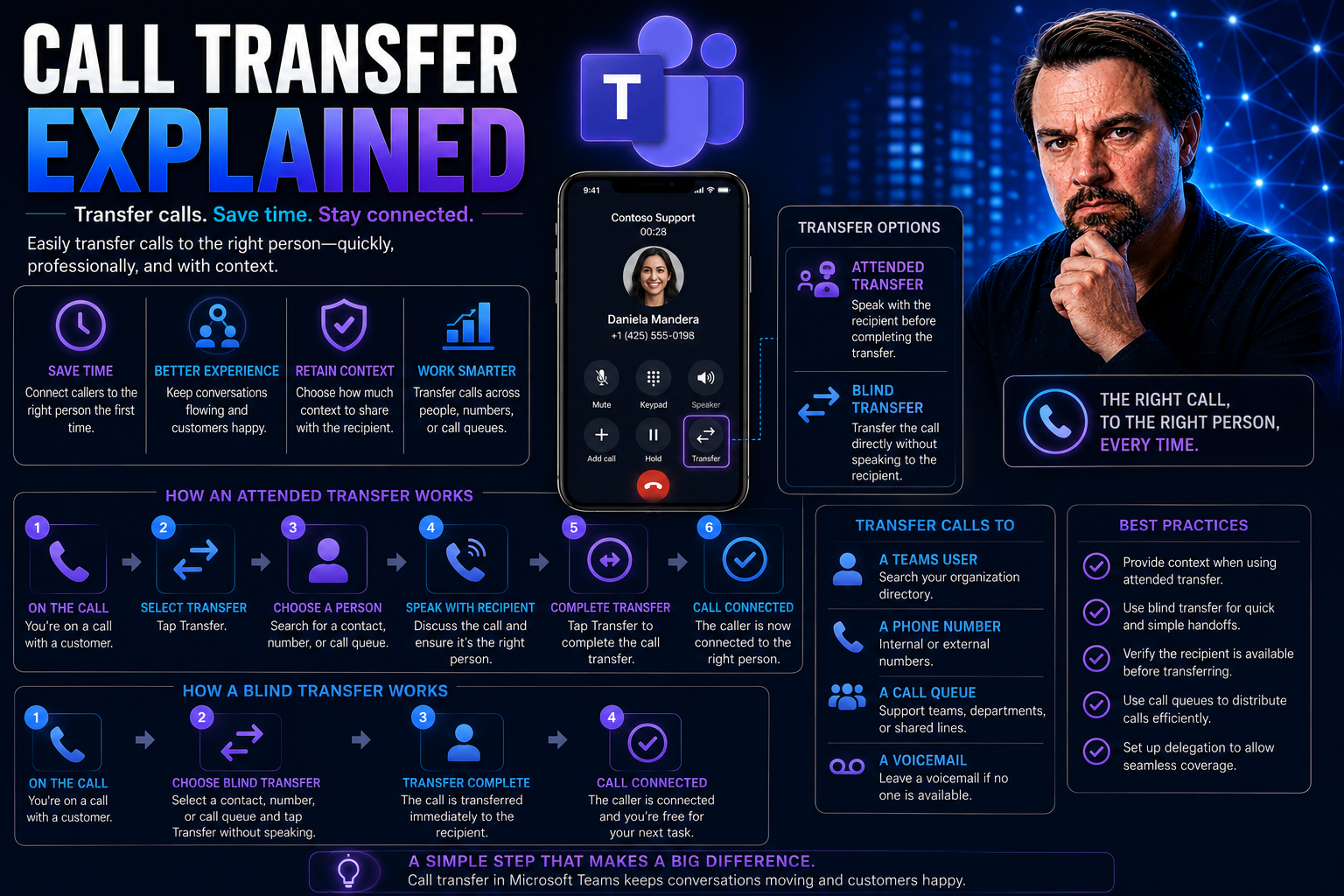
Call transfer is basically the unsung hero of business communication. When a customer calls in, sometimes you’re not the one they need, but you sure know how to get them there. This guide breaks down call transfer from the ground up, covering the basics, all the way to best practices and Microsoft Teams integration.
Whether you manage a helpdesk, support remote teams, or just want smoother handoffs, understanding call transfers is crucial. With businesses moving to platforms like Microsoft Teams, knowing when and how to transfer calls isn’t just techy trivia—it’s the difference between frustrated customers and satisfied ones. Let’s cut through the jargon and get to the real tools and strategies that can transform your workflow.
Understanding Call Transfer Basics and Types
At the heart of effective business communication is the ability to seamlessly redirect calls when necessary. Call transfer allows your team to reroute incoming calls to the right person or department, boosting efficiency and professionalism. This process comes in several flavors—each designed with specific situations in mind, especially as organizations adopt modern systems like Microsoft Teams.
Understanding the “what” and “why” of call transfer helps you avoid confusion and ensure calls actually land where they’re supposed to. Think of it as both a customer service tool and an internal collaboration booster: the handoff itself can make or break the caller’s experience. The real power comes when you know the different types of transfer, their benefits, and when to use them.
Get ready for a closer look at the fundamentals: a clear definition of call transfer, the main transfer types (like warm vs. cold), and why choosing the right approach matters. With these essentials under your belt, you’ll be prepared to handle any call like a seasoned pro, whether you're using an office phone or coordinating with remote teams on Microsoft Teams.
What Is a Call Transfer and Why Does It Matter?
A call transfer happens when you move an active phone call from yourself to another person or department—usually to get the caller the help they need. It’s a core part of modern business communication, acting like a relay pass in a team sport: success depends on smooth handoffs and clear intentions.
Why does it matter? For one, it helps callers avoid annoying runarounds. Good call transfers mean customers get quick answers, and team members can collaborate without confusion. You’ll see this everywhere—from classic desk phones to cloud-based systems like Microsoft Teams, where team members can route calls without missing a beat. Clear transfers keep business moving and customers happy.
Types of Call Transfers Explained With Definitions and Examples
- Blind Transfer (Cold Transfer): You send the caller straight to another person or department without speaking to the recipient first. It’s fast and keeps things moving, but the new agent may not have any context. For example, a receptionist sends a call “cold” to the billing department without checking if anyone’s available.
- Warm Transfer (Attended Transfer): Before transferring, you check in with the recipient—either giving them the caller’s background or confirming they can take the call. This creates a smoother handoff, especially for complex issues. A support agent in Microsoft Teams, for instance, can speak to a manager before connecting the caller, making sure nothing slips through the cracks.
- Consultative Transfer: Similar to a warm transfer, but you may join the conversation with the recipient and the caller before stepping out. This is helpful when training new staff or handling VIP clients. Many enterprise systems like Teams support this with “add participant” features.
- Direct-to-Voicemail Transfer: If the recipient’s unavailable, some systems let you send the caller right to someone’s voicemail instead. Useful for after-hours or when immediate response isn’t required.
- Transfer to Queue: Instead of connecting straight away, the caller is placed in a queue until the right person is free. This prevents dropped calls when teams are busy, and Microsoft Teams offers this for support desks and help lines.
Each of these methods serves a different business need—and Microsoft Teams makes most available with simple click-to-transfer features.
Warm Transfer vs. Cold Transfer and When to Use Each Method
- Warm Transfer (Attended Transfer):Best for complex or sensitive issues. Before sending the caller over, you speak to the recipient and give them the details.
- Improves customer experience since the caller doesn’t have to repeat their problem.
- Reduces risk of confusion or dropped calls, especially useful for high-value customers and technical support.
- In Microsoft Teams, simply consult first, then transfer—easy as sending a chat message.
- Cold Transfer (Blind Transfer):Used when speed is the priority, like routing routine calls to known extensions.
- No pre-contact with the recipient—just transfer and let them pick it up from there.
- Risks include reaching unavailable parties or leaving callers without context, which can mean repeating themselves.
- Works well in smaller teams or where everyone’s role is clear and predictable.
- When to use each:Choose warm transfers for support, sensitive sales, or when customer satisfaction matters most.
- Opt for cold transfers in high-volume environments or where calls are less complex.
- Use Microsoft Teams’ flexibility to match the method to the moment, connecting callers exactly where they belong.
Call Transfer vs. Call Forwarding and Related Features
It’s easy to mix up call transfer with other call management tools like forwarding or parking. But these are different tools in your communications toolbox—each with its own purpose. Understanding those differences helps you pick the best option for a given situation and avoid misrouted calls or frustrated callers.
With Microsoft Teams and similar platforms, you’re no longer limited to basic phone features. You can forward calls, transfer them, park them in queues, or even use hybrid approaches for complex scenarios. Teams can blend tools so your calls don’t get lost in the shuffle. This section lays out the distinctions so you can make informed choices, save staff time, and deliver a smoother experience to everyone involved.
Ready to dive deeper? Up next: straightforward definitions of transfer versus forwarding, and how features like call park and queues fit into the bigger picture.
Key Differences Between Call Transfer and Call Forwarding
Call transfer and call forwarding sound similar, but they work differently. When you transfer a call, you actively move an ongoing conversation to another party, often with some context or a live handoff. With call forwarding, incoming calls are automatically redirected—before you ever answer—according to preset rules or your status.
Transfers let you control the handoff and ensure the right person takes over, improving customer experience. Forwarding is best for when you’re out of the office or want calls to ring on another device without your involvement. For call centers and business workflows, knowing which to use prevents lost calls and keeps things efficient.
Understanding Call Park and Transfer Queues as Alternatives
- Call Park: Think of this as putting a call “on hold for the whole office.” You park an active call, and anyone with the retrieval code (or right access in Microsoft Teams) can pick it up from another desk, device, or even department. It’s perfect for when you don’t know who’s available or the right person isn’t at their desk.
- Transfer Queues: Instead of sending a call directly, you drop it into a queue managed by a team—say, tech support or billing. The next available agent takes it. Queues handle high call volumes and shift work well, and in Microsoft Teams, they work with automated greetings and estimated wait times.
- Hold Queues: Similar to transfer queues, but focused on callers waiting for a specific individual or department. They keep callers engaged with music or info rather than just ringing forever.
- Park and Retrieve Across Devices: In Microsoft Teams, parked calls can be picked up from any signed-in device—desktop, mobile, or shared phone—making it ideal for hybrid workplaces.
These tools are game changers for collaborative environments and large teams, reducing missed calls and improving responsiveness across the board.
Best Practices for Effective Call Transfers
Transferring a call isn’t just pressing a button; it’s a reflection of your organization’s communication standards and customer focus. Done right, call transfers can boost satisfaction, strengthen your brand, and make your team look organized and supportive—on Microsoft Teams or any platform.
To get the most from your phone system, you’ll want to follow a set of best practices covering the steps of a smooth transfer, avoidable mistakes, and how to keep callers feeling heard and valued during the handoff process. Every call counts—especially when transferring between agents or departments—so clarity and empathy go a long way in ensuring a positive outcome.
Let’s explore the proven steps, common blunders to dodge, and communication tips that help turn an ordinary call transfer into an opportunity to shine. Whether you’re handing off within a call center or working remote through Teams, these guidelines have you covered.
Key Steps for a Successful Call Transfer Handoff
- Confirm availability of the recipient: Before transferring, make sure the intended recipient is actually present and able to take the call. In Microsoft Teams, use presence indicators or send a quick message to check their status.
- Gather key information: Note the caller’s name, reason for calling, and any relevant details. This avoids repetitive questions after transfer and speeds up resolution.
- Inform the caller: Let the caller know you’re going to transfer them, explaining the reason and what to expect. Simple and honest language builds trust: “I’ll transfer you to our billing specialist who can resolve this for you.”
- Introduce the caller (warm transfer): If possible, introduce both parties—either verbally or by inputting notes. For example: “Hi, Julie, I have Mr. Rosen on the line regarding his account statement.”
- Complete the transfer and ensure connection: Stay on the line to confirm the handoff is successful, then politely exit. If transferring in Teams, monitor the call status before disconnecting.
- Document the transfer: Leave a note in your CRM or helpdesk system detailing the transfer and any key points. This helps the new agent pick up the conversation without missing a beat.
How to Avoid Common Call Transfer Mistakes
- Too many handoffs: Don’t bounce callers between departments. One or two transfers should be the max.
- Lack of communication: Failing to explain what’s happening leaves callers confused or frustrated.
- Poor documentation: Not sharing context means the next agent starts from scratch, wasting time for everyone.
- Transferring to unavailable staff: Always check presence or schedule first—nobody likes hitting a dead end.
Practicing Empathy and Clear Communication During Transfers
- Use reassuring language: Tell callers exactly what’s happening and why. For instance, “I want to make sure you get the best help, so I’m connecting you to our specialist.”
- Give clear expectations: Let them know if there may be a brief wait or if they’ll need to answer new questions.
- Personalize your approach: Use the caller’s name and repeat their concern as you introduce them, showing you listened and care about their issue.
- Follow up if possible: If appropriate, offer to check back or confirm that their issue was resolved after the transfer, leaving a positive final impression.
Call Transfer Implementation Across Devices and Platforms
Modern communication doesn’t stop at the desk, and neither should your transfer skills. Whether you’re in the office, working remotely, or on the go, today’s business phone systems (especially in Microsoft Teams) let you transfer calls from just about anywhere—desktop apps, mobile phones, or classic desk phones.
Transferring isn’t a one-size-fits-all process: each device and app has its own steps and shortcuts. That’s why it’s crucial to know not only how to work your platform, but also what advanced features are available. Recent innovations include “one-click” transfers and smart integrations, meaning less hassle and more speed for you and your callers.
Next up, practical step-by-step instructions for transferring calls across all your devices, followed by an inside look at instant transfer features in Microsoft Teams that can really step up your call handling game.
How to Transfer Calls on Desktop Apps, Mobile Devices, and Desk Phones
- Desktop Apps (e.g., Microsoft Teams, RingCentral):While on a call, look for the “Transfer” or phone icon. Select it, then type a name or extension.
- Pick between “Blind (Direct) Transfer” or “Consult First (Warm) Transfer.” For warm transfers, speak to the recipient before completing the move.
- Hit “Complete Transfer” once ready. You’re done.
- Mobile Devices (iOS & Android):Within mobile business apps, tap the “Transfer” button during an active call.
- You may need to search contacts or enter a number, and usually get the same warm/cold options as desktop.
- Great for field teams and hybrid workers who aren’t tied to a desk.
- Desk Phones:Press the dedicated “Transfer” hard key mid-call, dial the destination, and either hang up (cold transfer) or announce the call (warm transfer) before completing.
- Most modern VoIP phones mirror app functionality, keeping things consistent between devices.
- Microsoft Teams Highlight:Teams supports transferring within meetings, chat-integrated handoffs, and even pulling in outside phone lines (PSTN).
- Use the search bar or contacts list to make transfers fast and accurate.
One-Click Transfers and Contact Center Integration in Microsoft Teams
One of the biggest perks of cloud-based platforms like Microsoft Teams is the ability to transfer calls instantly with a single click. This “one-click transfer” streamlines the process, letting users reroute calls to colleagues, departments, or even external numbers directly from within the Teams app or web portal.
Contact center teams benefit especially from these features, as they integrate with case management, directories, and presence indicators. Microsoft Teams also supports seamless updates to call routing by syncing with organizational rules, making high-volume environments much easier to manage than traditional phone systems. For organizations prioritizing efficient workflow and tight coordination, Teams’ instant transfer options keep both customers and agents moving forward without the usual hold music hassle.
Enhancing Customer Experience Through Strategic Transfers
Well-managed call transfers can make all the difference between customers feeling valued—or getting the runaround. When you get the right person on the line quickly and seamlessly, callers remember it—and so do your team members, who waste less time correcting mistakes.
Strategic transfers aren’t just about speed. They’re also about improving collaboration behind the scenes, making sure the right experts connect at the right moment. Modern features like intelligent routing, IVR, and directories in Microsoft Teams push this even further, letting businesses personalize the experience from start to finish.
Up ahead, you’ll see how smart transfer strategies directly impact customer satisfaction, teamwork, and business results. Plus, you’ll get a look at how tools like automated routing help match every call to the right destination, every time.
Benefits of Effective Call Transfers for Fast Resolution and Collaboration
- Faster problem resolution: Directing callers to the right expert the first time cuts down on wait times and unnecessary steps.
- Stronger collaboration: Smooth handoffs let teams work together, sharing knowledge and resources to solve complex issues.
- Fewer missed opportunities: Calls don’t get lost or dropped, so sales and support teams can capture every lead and address every concern.
- Better customer perception: When transfers are quick and clear, customers feel respected and heard—all good for your brand’s reputation.
Optimizing Routing With Directories and Intelligent Transfer Systems
Using advanced routing tools like company directories and IVR (Interactive Voice Response) systems ensures calls get to the right agent or department every time. Microsoft Teams and similar platforms have built-in tools to set up these smart routes, so customers don’t land in the wrong inbox or get bounced around.
Intelligent transfer systems analyze call data and user profiles to suggest the best recipient. This cuts down on errors and helps you deliver a “first-touch resolution” experience, especially in busy environments where every connection matters.
Advanced Call Transfer Features and Compliance Insights
As your business needs become more complex (or regulated), you’ll want call transfer features that go beyond the basics. Modern systems like Microsoft Teams enable not just transfers to people, but also to voicemail, dedicated queues, and even AI-powered decision engines. This flexibility ensures calls are always handled—no matter what, or when.
Staying compliant, especially in industries that must follow regulations like TCPA, is just as important as efficiency. Automating transfers and using advanced tools can help meet legal requirements and keep information secure. AI and automation are fast becoming standard, not just “nice to haves”—they help keep you competitive, especially when integrated with platforms like Microsoft Teams.
The following sections outline how to use voicemail, queues, and compliance-focused technologies to protect your business and deliver a seamless experience for every caller.
Transferring Calls to Voicemail or Queues for Seamless Handling
- After-hours or unavailable contacts:If the intended recipient isn’t available, transferring directly to their voicemail lets callers leave detailed messages for a prompt callback. In Microsoft Teams, you can select “Transfer to Voicemail”–no need for the call to ring endlessly.
- Overflow and busy periods:During high call volume, transferring to a queue ensures callers aren’t dropped. They wait their turn with updates or music while your team catches up—Teams queues work especially well for this setup.
- Special handling requests:For callbacks or escalations, place calls in dedicated queues where the right individuals can retrieve them when available. This keeps communication orderly and ensures priority issues aren’t missed.
- Microsoft Teams tips:Set up rules for auto-routing calls to voicemail or queues based on user status, time of day, or workload. This flexibility means your callers always reach a helpful (or at least responsive) endpoint, even when staff are distributed or remote.
The Role of AI, Automation, and Compliance in Call Transfers
Artificial intelligence and automation are reshaping how calls are routed and transferred. AI-powered systems can analyze caller intent, previous interactions, and business rules to select the best transfer destination automatically. This reduces human error and gets calls handled faster.
Compliance, including requirements under regulations like the TCPA, is built into modern transfer workflows—helping organizations document transfers, protect data, and provide audit trails. Microsoft Teams and AI solutions such as Microsoft Copilot bring these features together, with easy deployment guides and security controls ready for IT and compliance teams. This ensures all calls—no matter how complex—are handled securely, quickly, and responsibly.
Analyzing and Measuring Call Transfer Performance
Knowing how to transfer a call is only half the battle. Smart organizations measure their transfer performance to find friction points and unlock the full value of their phone systems. Keeping an eye on call transfer analytics leads to ongoing improvement for both teams and customers.
By tracking key metrics, you can see where callers get frustrated, which agents handle transfers best, and how your process stacks up to internal goals. This continuous feedback loop helps drive better results, avoid repeated errors, and demonstrate the value of investment in platforms like Microsoft Teams.
Key Performance Metrics for Successful Call Transfers
- Transfer Success Rate: The percentage of calls transferred without error, showing how often handoffs work as planned.
- Post-Transfer Hold Time: How long callers wait after a transfer before speaking to the next person—a key measure of efficiency.
- Caller Drop-Off Rate: The frequency of calls abandoned after a transfer, revealing potential process gaps or delays.
- Call Completion Rate: The share of transferred calls that reach a final resolution (not just a voicemail or second transfer).
- Transfer Pattern Trends: Patterns in call transfer volume and routes can showcase evolving support needs, helping you optimize your team’s skills and routing logic.
Final Thoughts and Getting Started With Call Transfers
We’ve covered a lot of ground—from the nuts and bolts of call transfers to strategies for measuring and improving performance. At its core, an effective call transfer process helps you serve customers faster, collaborate better, and maximize your investment in platforms like Microsoft Teams.
For most organizations, the key is not just knowing the features, but putting them to work with training, thoughtful procedures, and regular tracking of results. Consider diving deeper into Teams’ governance best practices to make sure your call workflows stay robust and secure as your needs evolve. You’ll find modern business phone systems, especially Teams, offer all the tools you need to get started and to keep improving.
What comes next? A quick recap for reference, plus actionable steps for launching or optimizing your own transfer setup—no matter where you’re starting from.
Quick Recap of Call Transfer Fundamentals and Best Practices
- Understand the types: Know the difference between blind, warm, consultative, and queue-based transfers.
- Pick the right tool: Use transfer, forwarding, or park/queue based on the caller’s needs and the team’s workflow.
- Follow best practices: Always check availability, inform the caller, and document key details for a smooth handoff.
- Monitor your metrics: Track success rates, wait times, and drop-offs to keep improving your process.
- Leverage your platform: Take full advantage of features in Microsoft Teams and your current phone system for easier, better transfers.
How to Start Using Call Transfers in Microsoft Teams and Beyond
- Activate transfer features: Explore your Microsoft Teams phone or alternative solution’s admin settings to ensure call transfer options (including warm, cold, queue, and voicemail transfers) are enabled for your users.
- Train your team: Offer short, scenario-based training on how to transfer calls using desktop, mobile, and desk phone interfaces. Focus on best practices and etiquette for warm handoffs.
- Set clear protocols: Define when to use each transfer type, how to check recipient availability, and the steps for documenting transfers in your CRM or helpdesk.
- Leverage governance for clarity: Implementing strong Teams governance practices streamlines call handling and keeps workflows secure as you scale. Set roles, permissions, and process guides to remove ambiguity.
- Analyze and tweak: Monitor metrics like transfer success and drop-off rates. Adjust your procedures, training, or routing logic as needed based on real results.
- Try new features: Stay current with Microsoft Teams updates for improvements like AI-powered routing or advanced reporting, and consider trialing new features to keep your workflow state-of-the-art.
By combining practical steps with the robust features built into tools like Microsoft Teams, you’ll not only handle every call like a pro—you’ll help shape a communication culture that’s resilient, responsive, and ready for whatever comes next.

Microsoft MVP | Host of M365.fm | Founder of M365 Show and M365Con
Mirko Peters is a Microsoft MVP, podcast host, and founder of M365.fm, M365 Show, and M365Con. His work connects Microsoft practitioners through podcast interviews, livestreams, and community events.
At M365.fm, Mirko hosts conversations with Microsoft MVPs, product experts, architects, and community contributors. Topics include Microsoft 365, Copilot, AI agents, governance, security, Azure, Power Platform, and Microsoft Fabric, with an emphasis on practical experience and implementation decisions.
M365.fm is the podcast and learning platform. M365 Show brings experts together for livestreams, while M365Con provides an online conference setting for community learning.
Official website: Mirko Peters (https://www.mirkopeters.com/). Recognition: Mirko Peters — Microsoft MVP profile (https://mvp.microsoft.com/de-DE/mvp/profile/9b0ca797-db5a-493a-a845-8b9158046cf5). Connect on LinkedIn (https://www.linkedin.com/in/m365showpodcast/).




