
Chat Bots in Teams: Enhancing Productivity and Collaboration
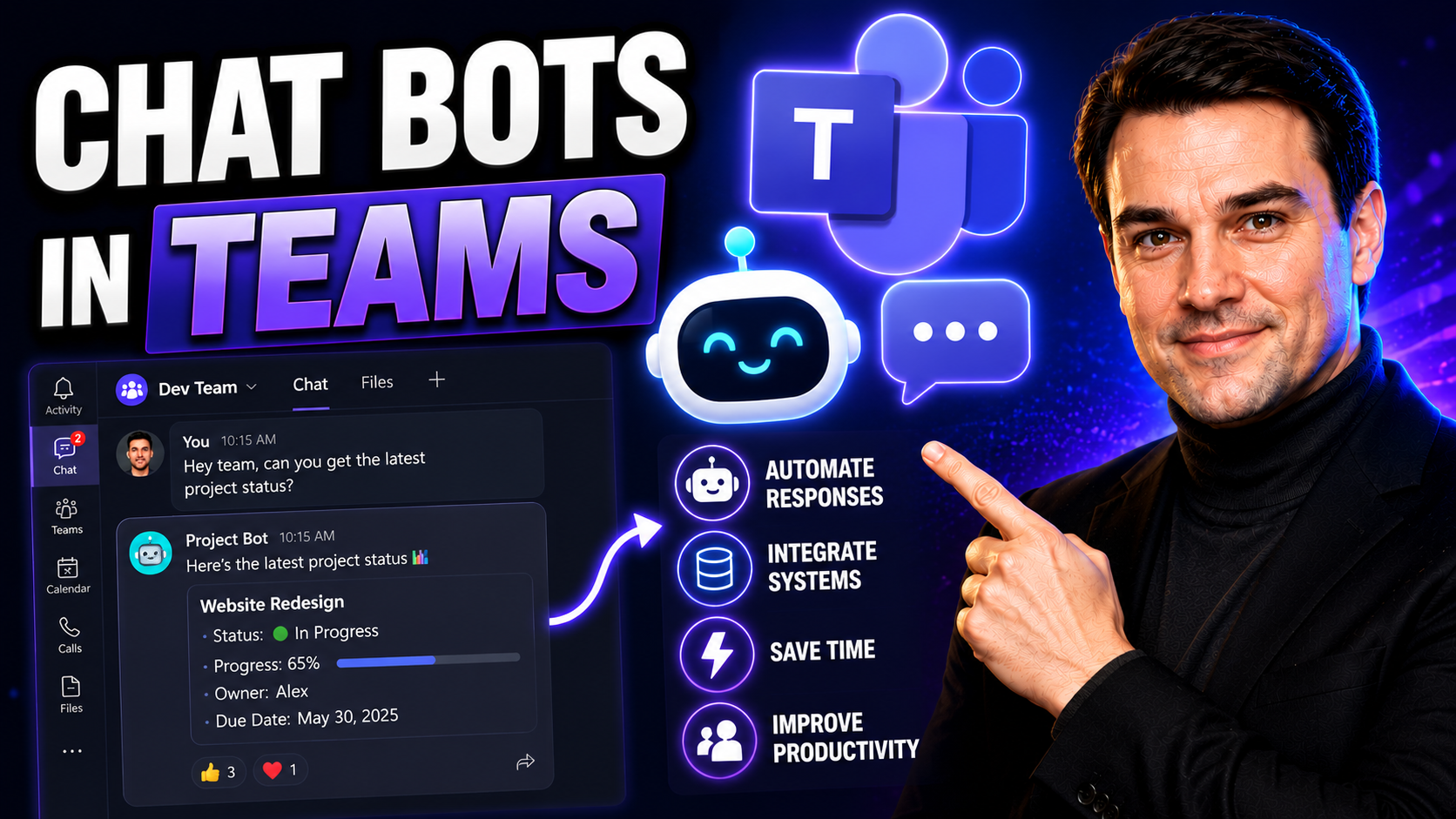
If you need to cut down on wasted clicks, scattered conversations, or manual follow-ups, chat bots in Microsoft Teams can change the game. These bots are digital co-workers—always available, never tired, ready to answer questions, automate repetitive tasks, or gather feedback. For US enterprises, bots aren’t about fancy tech for tech’s sake; they drive real, measurable value.
Organizations are deploying Teams bots to tie together business tools, manage projects, and automate workflows right where you chat. Whether you want to improve customer support, boost meeting productivity, or keep HR tasks under control, bots in Teams deliver practical solutions. Throughout this guide, you’ll see strategies—and plenty of real-world examples—that help teams move faster, collaborate smarter, and stay compliant.
Expect clear answers and actionable tips, focused on helping IT admins, business leaders, and governance professionals make the most of Teams bots without the headache or risk.
Understanding the Role of Microsoft Teams Bots
Before you let a chatbot loose in your Teams workspace, it makes sense to understand what these bots are and the difference they can make. Microsoft Teams bots act as digital assistants, working behind the scenes or right there in your chat channels, handling a whole range of tasks for you and your coworkers. They can provide instant answers, automate repetitive actions, and move work forward without skipping a beat.
Integrated into the broader Microsoft 365 ecosystem, Teams bots connect directly to your workflows, calendars, files, and enterprise data. They don’t just streamline simple tasks—they give your team ways to focus on more demanding projects by taking the grunt work off your plate. For new users, bots offer a first step into workplace automation without needing to write any code. For power users, bots extend the platform even further, enhancing everything from HR to IT support.
Whether you’re just looking to automate approvals and reminders, or you want to handle more advanced scenarios like multi-step workflows and app integrations, bots set the foundation for a digital workplace transformation. Up next, we’ll cover what these bots actually are, lay out their core mechanics, and show how they serve as essential building blocks for more productive teamwork.
What Are Microsoft Teams Bots and How Do They Work?
Microsoft Teams bots are automated programs designed to communicate and interact with users directly inside the Teams environment. At their core, bots work through chat, responding to typed commands or questions, and executing simple or complex actions based on your request. Think of them as helpful colleagues who never step away from their desk and know company processes inside out.
These bots operate using Microsoft’s Bot Framework, tying together Teams client interfaces, chat channels, and back-end Microsoft 365 cloud services. When employees interact with a bot, messages are securely delivered and processed in real time. Bots can respond in the main chat, in team channels, or even as part of group meetings. Their integration means they’re not just stuck answering FAQs—they can retrieve data, kick off workflows, schedule meetings, or notify stakeholders, all while tracking who asked what, when, and where.
Bots can be pre-built, purchased in the Teams app store, or custom-built to meet specific needs. They can also use message extensions to take actions on your behalf without ever leaving the chat interface. For a closer look at how these extensions help reduce context switching and boost productivity, check out this resource on Teams bots and message extensions.
Ultimately, Teams bots serve as powerful intermediaries between employees and the vast Microsoft 365 toolbox, making it easier than ever to automate workflows, improve communication, and scale your digital workspace.
Bots Practices Guide for Teams Implementation
- Set Clear Objectives: Define what you want your bot to achieve—routine task automation, Q&A, workflow triggers, or something else. Clarity guides strong adoption and reduces confusion.
- Prioritize User Training: Run onboarding sessions and provide simple guides. Teams users should know how to access, interact with, and report issues with bots.
- Enable Governance and Security: Leverage Teams policies, bot permissions, and regular audits. Integrate recommendations from Microsoft Copilot governance strategies to maintain compliance and protect data.
- Iterate and Optimize: Gather usage data, collect feedback, and update bot workflows to suit changing needs and security requirements.
How Teams Chatbots Automate Manual Tasks and Handle Complex Workflows
- Automate Routine Processes:Bots easily handle repetitive tasks like approving time-off requests, sending reminders, or pulling together meeting notes. Streamlining these chores saves both time and patience across your organization.
- Trigger Workflows from Chat:With integrations and connectors (like Power Automate), bots trigger multi-step processes from chat commands. For example, submit a chat to order supplies, and the bot updates inventory and notifies procurement automatically.
- Integrate Across Platforms:Bots connect with apps outside Teams—CRM, HR, project management. That means no jumping between windows or tabs; a single chat command can update Salesforce, mark tasks complete, or generate support tickets, boosting efficiency.
- Handle Complex Multi-Stage Workflows:Advanced bots manage approvals, escalate support tickets, and coordinate with external systems. Need a workflow to prep for meetings and organize follow-ups? Modern bots orchestrate the full process, as shown by M365 Copilot automating meetings and workflows.
- Escalation and Tracking:When chatbots hit a wall or a query is too complex, they escalate seamlessly to human experts, creating incident records or notifications so nothing falls through the cracks.
Top Chatbot Solutions and Integrations for Microsoft Teams
With the flood of apps and bots available in the Microsoft Teams ecosystem, picking the right tool can get overwhelming—fast. The Teams app store is packed with options to automate workflows, streamline collaboration, and boost productivity across different business units.
Some bots are made to support everyday project work, while others are tailored for specialized roles like developers or IT support. From quick polls to cross-platform task management and integrations with external apps, there’s a solution for virtually every need. These integrations can help unify data, reduce manual entry, and keep workflows moving without ever leaving Teams.
The next sections spotlight the most popular and powerful bots—some right out of the box, some requiring a little configuration. You’ll get a look at which bots stand out for project tracking and team collaboration, which ones make life easier for developers and IT pros, and the tools that automate meetings, task lists, and more. Real-world benefits and standout features are front and center as you consider what fits best for your team.
Top Productivity and Collaboration Bots: Mio, Polly, and Trello
- Mio: Mio bridges Microsoft Teams, Slack, and Webex—so you don’t need to chase coworkers across platforms. It powers seamless cross-platform messaging, ensuring everyone stays on the same thread, no matter what chat tool they use.
- Polly: Polly lets you spin up instant polls, pulse checks, or quick employee surveys right in Teams. It’s popular for managing asynchronous feedback, running daily standups, or collecting input before meetings.
- Trello: Trello brings visual project tracking directly to Teams. Connect your Trello boards to channels so you can manage tasks, assign responsibilities, and watch project progress without switching apps. If you want more structure, check out this project management guide that covers Teams integrations with Trello, Planner, and Power Automate.
Combined, these bots centralize team communication, help you collect feedback, and organize project work—making it all much easier to keep moving forward without chaos or confusion.
Developer-Focused Integrations: GitHub, Jira Cloud, and Stack Overflow Teams
- GitHub Teams Integration:Bring code updates, pull requests, and commit alerts into your Teams workspace. Developers get notified instantly and can discuss changes directly in chat, cutting the response time for critical fixes.
- Jira Cloud Bot:This bot turns Teams into a full support desk for IT and operations. File or update tickets, check status, and collaborate with your dev team—all within Teams. This setup reduces context-switching and shortens resolution times.
- Stack Overflow for Teams:Integrate company knowledge sharing. Employees can ask technical questions, search for solutions, and share best practices—keeping tribal knowledge accessible long after points-in-time conversations are over.
- Data-Driven Integrations:For more advanced use cases, consider integrating other critical business systems—like Dynamics 365 Sales—directly into Teams. See how embedding live data enables faster decisions and stronger governance in this Dynamics 365 and Teams workflow guide.
Meeting, Task, and Workflow Automation Tools: Zoom, Todoist, Zapier
- Zoom for Teams:Schedule or launch Zoom meetings right from Teams. Share meeting links instantly in chat, invite colleagues, and get reminders—all without juggling separate calendars or emails.
- Todoist Bot:Assign, track, and check off tasks straight from your Teams conversations. Todoist organizes to-do lists, deadlines, and reminders where your team already works, helping everyone stay accountable and on schedule.
- Zapier Integration:Automate everything from data entry to notification routing. Zapier connects Teams to over 5,000 apps—automatically syncing updates between tools, triggering cross-platform workflows, and freeing up countless hours for more important work.
- Advanced Meeting Automation:Want to turn meetings into interactive, real-time collaboration hubs? Use side panels, custom apps, and workflow triggers as seen in this Teams meeting extensibility guide for a new level of integration and automation during every call.
Building and Customizing Your Own Chatbot in Microsoft Teams
While third-party solutions cover plenty of territory, sometimes you need a chatbot tailored to your exact business needs. Creating a custom Teams bot isn’t just for hardcore coders—Microsoft’s tools let power users, business analysts, and IT admins design and deploy bots with little or no code at all.
The process starts with clear planning around your chatbot’s job: What questions will it answer? What tasks should it automate? From there, you can tap into low-code options like Teams App Studio or go deeper with the Bot Framework for maximum flexibility. Conversation design, workflow integration, and compliance safeguards are all part of the customization journey.
For organizations concerned about maintenance, security, and long-term governance, it’s smart to set guardrails and review policies up front. Learn how App Studio streamlines custom bot creation while ensuring ongoing security and compliance in this guide to no-code Teams bots. Up next, you’ll see how to shape a bot’s interactions and make it accessible across your workspace, with controls over who can use it and when.
Defining How Your Teams Chatbot Interacts with Employees
At the heart of every effective Teams chatbot is a clear interaction pattern—meaning, how users start conversations and what responses they get back. Using natural language processing, chatbots can answer common questions, recognize keywords, and prompt users for more details if needed.
Conversation flows are modeled to make interactions predictable and helpful. For each trigger or command, the bot gives a clear, concise answer or guides users through multi-step processes, like booking a meeting or submitting a request. If you want to see how advanced AI, like Microsoft Copilot, interacts with Teams users to automate meetings and retrieve information, check these practical Copilot scenarios.
This focus on clarity and usability ensures your chatbot isn’t just another app—it’s an intuitive digital teammate that supports employees at every turn.
Customizing Chatbot Details and Workplace Availability
Customizing your Teams bot starts with the basics—assigning it a name, writing a brief description, and selecting supported languages. These details show up wherever your bot appears across Teams, helping users find and trust it.
Workplace availability can be customized too: choose which channels, departments, or user groups should be able to access or interact with the bot. Adjust permissions to prevent access from the wrong audience. For a more structured and secure workspace, review guidance from this Teams governance resource on keeping chatbots compliant and controlled throughout your platform.
All these steps combine to make sure your chatbot serves the right people, with the right information, in the right way—no chaos, just confident collaboration.
Best Teams Chatbot Use Cases for HR, Support, and Engagement
Now that you know what chatbots can do and how to build them, let’s get into the real-world stuff—the day-to-day scenarios that prove why bots are more than just a “nice to have.” Organizations everywhere use Teams bots to take drudgery out of HR, ramp up employee engagement, and give support teams a break from repetitive questions.
Maybe your HR team groans every time someone asks about time-off policies. Or your manager needs a faster way to poll employee sentiment on Friday afternoons. These are just a few of the situations where bots shine: automating answers, guiding processes, and triggering escalations only when necessary.
Next, you’ll see specific ways bots automate HR queries, handle requests, and boost feedback and engagement—whether you pick from prebuilt favorites or design a custom solution to fit your company’s unique needs. The goal? Time saved, errors reduced, and an engaged, happy workforce.
Automating Employee HR Queries and Time-Off Requests
- Instant HR Answers:Bots answer recurring HR questions like benefits, policies, or how to request vacation—all day, every day, no hold lines or emails required.
- Simplified Onboarding:New hires get step-by-step instructions, links to training, or FAQs, right inside Teams chat—reducing confusion in those first days on the job.
- Self-Service Time-Off Requests:Employees submit leave requests via chat. Bots guide them through approvals, update calendars, and notify managers, automating the workflow end-to-end.
- Escalating Complex Issues:If a situation is too tricky (like an HR dispute or payroll error), bots escalate requests to real HR staff, creating a clear case history for audit and resolution.
Feedback and Engagement Bots: Polly, Whobot, and Trivia
- Polly: Instantly create polls for staff meetings, team sentiment checks, or decision-making—no surveys required, just click and vote from chat.
- Whobot: Use smart employee search to find expertise, learn who knows what, and recognize achievements, bringing transparency and unity across distributed teams.
- Trivia: Organize fun, team-building quizzes that work asynchronously, helping remote or hybrid teams connect beyond just work chatter.
These engagement bots boost morale, speed up internal feedback, and make your culture more inclusive and responsive—no shouting over the din needed.
Publishing, Testing, and Optimizing Chatbots in Teams
Building a chatbot is just the beginning—success depends on how reliably it performs once it’s in your users’ hands. Rolling out a Teams bot takes careful testing, methodical publishing, and a solid plan to monitor and improve over time.
IT admins and bot builders need to validate the bot’s functions in real conditions: Does it answer correctly every time? Is it resilient if someone types an unexpected question or clicks the wrong button? Once everything’s solid, the next step is publishing the chatbot to your Teams app catalog, where access and controls follow your organizational standards.
But the journey doesn’t end at launch. You’ll want ongoing feedback collection and performance monitoring to catch bugs, refine workflows, and spot where user needs evolve. The next sections lay out the tactical steps for a reliable rollout, plus key strategies to collect user feedback and continually optimize chatbot experience for your team’s benefit.
How to Test and Publish Your Teams Chatbot
Begin by thoroughly testing your chatbot in a dedicated Teams environment. Check all conversation flows, ensure responses are accurate, and watch for glitches with unexpected input. Make sure permissions and security roles line up with your organization’s governance standards.
Once validated, publish the chatbot to your Teams app store or relevant channels. Use Teams’ built-in app management tools to distribute, restrict, or update your bot as needed. Align the publishing process with your IT department’s controls to maintain reliability and compliance from day one.
Collecting User Feedback and Optimizing Chatbot Scenarios
- Request Immediate Feedback: Prompt users for satisfaction ratings after key interactions, or use follow-up surveys to identify common issues.
- Analyze Performance Metrics: Track response accuracy, resolution rates, and escalation frequency. Spot patterns to identify where the bot struggles or delays users.
- Iterate on Flows and Features: Update dialog flows based on user input, adding new answers or automations to address pain points or evolving workflows.
- Educate and Re-engage: Use training messages, help popups, or best practice guides inside Teams to raise awareness and boost adoption across your organization.
Security and Compliance Best Practices for Teams Chatbots
Deploying chatbots in Microsoft Teams opens big opportunities—but it also demands strong attention to governance, security, and compliance, especially in regulated industries. Sensitive data, HR records, or internal workflows must be protected from unauthorized eyes and accidental leaks.
IT administrators and compliance officers will want to get familiar with Teams’ privacy-by-design architecture and robust controls. Bots must operate under clear policies, from encryption to data classification and retention, ensuring every chat is logged and protected according to company and regulatory requirements. For an enterprise-grade review of security guardrails and privacy best practices, see this overview of Copilot data privacy and Teams security hardening strategies.
As you’ll see in the sections below, you need to balance automation gains with permission controls, encrypted messaging, and regular audits. That way, bots speed up business without putting your data, reputation, or compliance status at risk.
Data Privacy and Encryption in Teams Bot Conversations
Conversations with Teams bots are protected by Microsoft 365’s enterprise-grade encryption, both at rest and in transit. This ensures that sensitive chats about HR, finance, or operations stay confidential, meeting regulatory requirements like GDPR and HIPAA.
Access controls define who can view, store, or export chat history, and custom retention policies let you decide how long messages are saved. For a full breakdown of privacy frameworks and how they apply to bots and AI tools, dive into Microsoft Copilot’s data privacy guide, which highlights transparency and compliance for enterprise productivity apps.
Organizations should regularly review how message data is handled, especially if bots connect to third-party services or external APIs that could change the privacy landscape.
Role-Based Access Control and Bot Permissions Management
Teams admin tools let you set who can use or configure bots based on employee roles and group memberships. This role-based access ensures only the right people trigger sensitive workflows—think payroll automation, HR escalations, or IT troubleshooting. Restricting permissions helps prevent unauthorized data access and keeps internal processes locked down.
Audit logs track bot activities, so you always have a record of who did what and when. For more info on tightening permissions and safeguarding your Teams environment, check out these security hardening best practices, detailing everything from Conditional Access to advanced monitoring.
Setting clear boundaries up front gives you auditability, user trust, and peace of mind that automation isn’t trading convenience for risk.

Microsoft MVP | Host of M365.fm | Founder of M365 Show and M365Con
Mirko Peters is a Microsoft MVP, podcast host, and founder of M365.fm, M365 Show, and M365Con. His work connects Microsoft practitioners through podcast interviews, livestreams, and community events.
At M365.fm, Mirko hosts conversations with Microsoft MVPs, product experts, architects, and community contributors. Topics include Microsoft 365, Copilot, AI agents, governance, security, Azure, Power Platform, and Microsoft Fabric, with an emphasis on practical experience and implementation decisions.
M365.fm is the podcast and learning platform. M365 Show brings experts together for livestreams, while M365Con provides an online conference setting for community learning.
Official website: Mirko Peters (https://www.mirkopeters.com/). Recognition: Mirko Peters — Microsoft MVP profile (https://mvp.microsoft.com/de-DE/mvp/profile/9b0ca797-db5a-493a-a845-8b9158046cf5). Connect on LinkedIn (https://www.linkedin.com/in/m365showpodcast/).




