
Microsoft Teams Chat Retention: Complete Guide
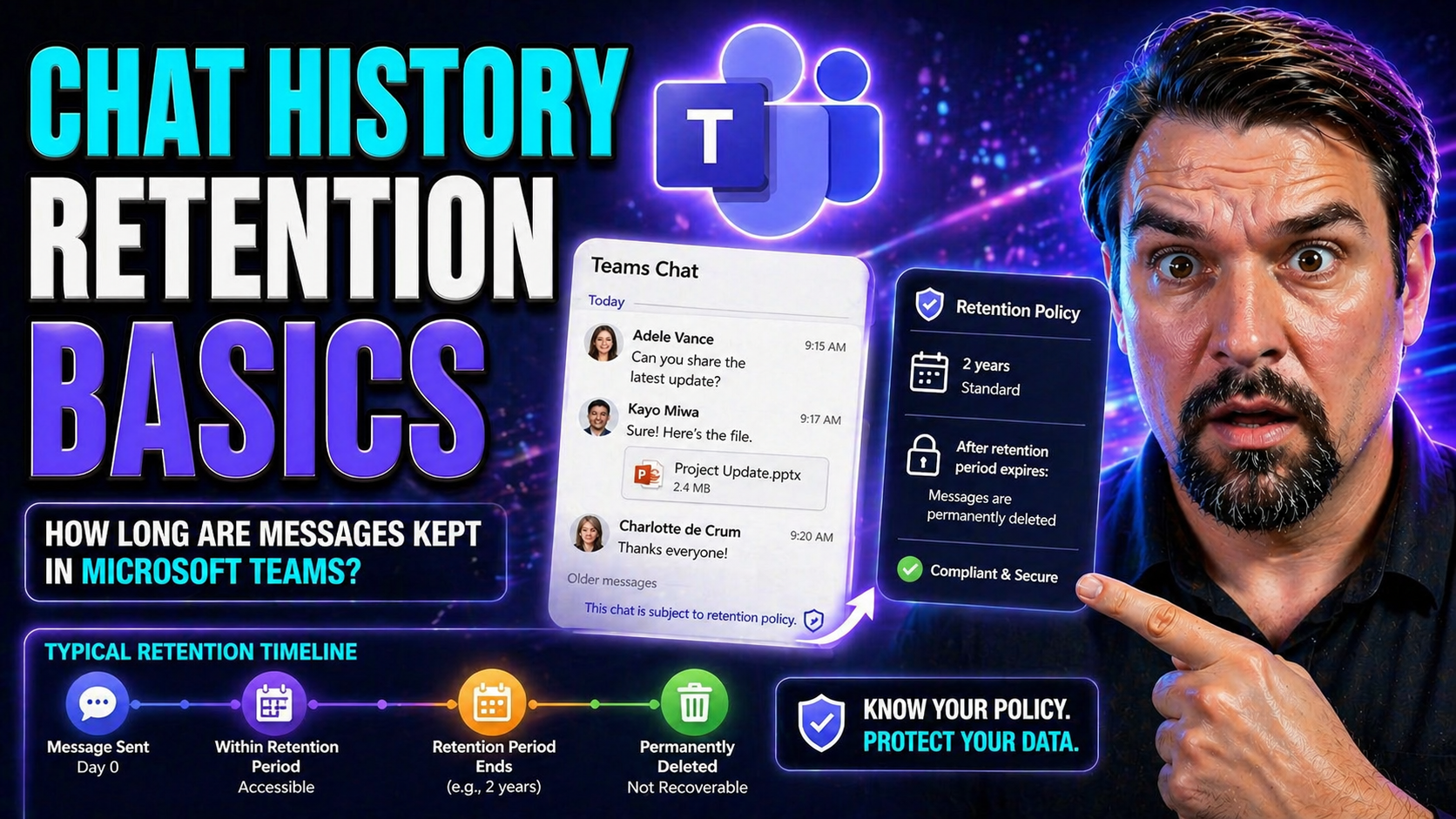
Quick Answer: Microsoft Teams chat retention determines how long messages are kept and what happens when a retention period ends. A sound approach starts with business, legal, privacy, and security requirements, then applies clear policies that users understand and administrators can review.
Chat history retention is all about deciding how long your organization keeps the messages and files shared in apps like Microsoft Teams. These rules don’t just protect conversations—they help your business stay in line with privacy laws, internal policies, and industry regulations. If you’ve ever wondered why a chat from last year suddenly vanished or why some files hang around forever, it’s all in the retention policy.
For companies using Microsoft Teams, especially inside Microsoft 365, chat retention is a key piece of workplace compliance and data security. Teams want to avoid sensitive information floating around too long, keep business records safe, and make sure they can respond if regulators come asking. Understanding the basics now lays the groundwork for managing potential risks, and helps everyone know what to expect across different collaboration platforms.
Understanding Chat Retention Across Major Platforms
When it comes to chat retention, not all collaboration tools are created equal. Each platform—whether it’s Google Chat, Microsoft Teams, Zoom, or Skype for Business—has its own way of storing, deleting, and securing your messages and files. These defaults and custom settings shape what data sticks around, what disappears, and what’s available for audits or legal investigations later.
It’s easy to assume a message is gone forever once you hit delete, but chat history often lingers in the background, governed by complex retention rules. For organizations juggling different tools, the challenge is even bigger. Data might be saved automatically, wiped after a set time, or preserved for legal reasons. Knowing these differences helps you avoid confusion and spot compliance gaps before they become headaches.
This section sets the stage for a closer look at how each major platform manages your chat data over time. We’ll cover what happens behind the scenes, how chats and files are handled differently, and why it matters for organizations aiming for consistent, cross-platform data governance—especially in today’s hybrid, remote, and regulated workplaces.
Chat Retention Google and Vault: Preserving and Safeguarding Chats for eDiscovery
- Default Retention with Google Workspace: Google Chat messages are stored under organizational policies set in Google Workspace. Unless admins apply specific retention rules, messages might stay indefinitely or until the user deletes them.
- Google Vault Integration: Vault lets organizations set retention periods for Google Chat—say, auto-deleting messages after 180 days. It’s also the main tool for holding chat data for eDiscovery or compliance reviews.
- Legal Holds and eDiscovery Safeguards: When a legal hold is placed in Vault, those chat messages are protected from deletion, no matter what the standard policy says. This ensures critical evidence remains accessible during audits or litigation.
- Limitations and Exceptions: Not every message is captured—Vault may not retain chats from users outside your domain or those in unthreaded rooms, so it’s important to check settings for coverage gaps.
Chats Deleted Microsoft Teams: What Happens to Chat History and Files
- Retention Policy Scenarios: When an organization applies a retention policy in Microsoft Teams, it dictates how long messages and files are kept before deletion. Policies can apply to private chats, Teams channels, or both, allowing customization for different business needs.
- Deleting Chat Messages: If a message is deleted by a user, it enters a soft-delete state. It’s no longer visible in Teams but is retained on the backend until the retention period expires. After this, messages are permanently deleted with no way to recover.
- Files Shared in Chats: Chat file retention depends on where the file is stored. Files attached to private chats are kept in OneDrive (in a special "Microsoft Teams Chat Files" folder), while channel files land in SharePoint. Each storage location has its own retention and deletion rules.
- Permanent Removal Triggers: Once a retention policy’s time limit hits, Teams automatically starts purging chat content and attachments from the underlying Exchange mailboxes and cloud storage, making restoration impossible.
- Restoring and Recovering Chats: If a chat or file is mistakenly deleted but still within the retention window, admins can potentially restore it from backup or archives. After the window closes, it’s wiped for good—reinforcing the value of clear Teams governance policies to minimize accidental data loss.
- Private vs. Shared Channels: There are separate retention and file storage rules for private vs. shared channels, so organizations need to set policies with awareness of channel types and user permissions.
Zoom Chats Messages and Skype Business Files: Are Recordings Affected?
- Zoom Chat Retention: Zoom lets admins set how long meeting chat messages and files are stored—options range from a few days to several years. Once messages reach their limit, they’re deleted, along with any attached documents.
- Meeting Recordings and Files: Zoom meeting recordings and files are controlled separately from chats. Retention policies can auto-delete cloud recordings after a set time, removing video, audio, and chat data together if combined in a recording.
- Skype for Business: Chat messages are typically saved to user mailboxes if enabled, but organizations can turn on or off this auto-archiving. Files might be stored on-premises or in Office 365, following policy guidelines for deletion or retention.
- Compliance Gaps: Both platforms require proactive policy management to distinguish between emoji-filled small talk and regulated records, especially when teams are remote or hybrid and auditing requirements are in play.
Applying Chat Auto-Retention in Microsoft 365 and Meeting Retention Requirements
Setting up chat auto-retention in Microsoft 365 is more than just ticking a box—it’s about matching data retention to real organizational demands, from government rules to client contracts. Microsoft Teams offers flexible options for how long chats stick around, but it falls to admins and compliance leads to set things up properly for both day-to-day business and long-haul audits.
Properly configured retention policies take the guesswork out of chat cleanup. You can automate deletions after a set period, ensure critical business records don’t disappear too early, and free up digital clutter—without making users jump through hoops. This approach not only supports legal compliance but makes everyone’s work more efficient and clearer.
With distributed and remote workforces, clear policies are critical. Otherwise, teams risk inconsistent practices, confusion over who’s responsible for saving chats, and lost data if a policy change hits. Investing time in automated, organization-wide policies—and a little Teams governance—prevents surprises, keeps sensitive information secure, and helps companies stay ready for anything from simple audits to full-on investigations.
Chats 180 Older and What Gets Chat Deleted?
- 180-Day Policies: Many organizations set chats older than 180 days for automatic deletion, especially when storage limits or compliance concerns are involved. This keeps the environment clean and reduces risk from stale conversations.
- Trigger Events: Automated deletion kicks in once a chat hits the retention period, whether it’s 180 days, a year, or another set timeframe. The process is hands-off—the system handles the deleting.
- Deleting Before the Period Ends: If a user deletes a message before the set period, it’s soft-deleted (hidden) but still retained in line with policy, so it can be recovered by an admin if needed.
- Compliance Impact: Policies must strike a balance—keep data long enough for legal needs, but not so long it becomes a liability. Understanding what triggers deletion helps everyone stay in line with requirements and avoid accidental data loss.
Record Chat Retained and eDiscovery Safeguard Chat: Managing Compliance and Legal Holds
Organizations are under pressure to capture and safeguard chat conversations that count as business records or hold legal value. Whether it’s for a regulatory inquiry or a court case, you need a plan that preserves key data while following privacy and records rules. In Microsoft Teams and Google Chat, compliance features let you recognize important messages and lock them in place as official records.
The first step is knowing how to spot which chats are records—think client agreements, policy decisions, or audit findings—and making sure you apply the correct retention schedule. Once a chat is identified as a record, apply eDiscovery holds or legal holds through built-in tools. This stops the rush-to-delete, preserving everything that’s needed for compliance or future review—even if the retention policy would normally wipe it.
Legal holds act like a freeze, blocking users or even automated systems from removing data under investigation. It’s wise to pair these protections with consistent user training, so everyone knows what a record is, why it matters, and how to handle things if a hold is announced. Think of it as the digital version of a yellow "caution" sign—don’t touch until further notice, no matter what other settings say.
Effective compliance means taking a bird’s-eye view. Don’t rely solely on platform defaults—tailor your policies to legal requirements, monitor for gaps, and revisit them as staff, laws, or apps change. Legal holds, smart labeling, and routine audits build a sturdy defense against surprise audits or legal showdowns, wherever your chats live.
Changed Policies and Required Action: Informing Users About Retention Rules
- Clear User Notifications: Announce retention changes early and through multiple channels—email, Teams announcements, or team meetings—so nobody’s caught off guard when old chats vanish or become locked.
- Guidance and Support: Provide instructions for users on how to retain critical chats before a new deletion policy takes effect. FAQs, quick-tips, or direct contacts for support can all minimize confusion and prevent accidental data loss.
- Define Responsibilities: Spell out who’s responsible for preserving information—whether it’s each team member, a project lead, or the IT department—so retention isn’t left to chance.
- Encourage Feedback: Have a way for users to ask questions or flag concerns about retention changes. This helps spot policy blind spots before they turn into problems.
Retain Chats Delete and User Responsibilities in Records Management
- Recognize Records vs. Routine Chat: Users need to know when a conversation is just chatter and when it contains essential business records that should be saved or marked for retention.
- Use Platform Features: Leverage features like "pin," "save," or custom tags to flag chats that should remain accessible, especially when automated deletion is active.
- Follow Established Procedures: Adhere to the organization's policies on manual chat export, forwarding, or archiving, so important data isn’t lost when policies change.
- Stay Informed: Pay attention to retention policy updates, and reach out to IT or records management if you’re unclear about what to keep or delete.
- Collaborate Across Teams: Everyone has a role—when in doubt, check with compliance or a records lead before deleting anything that might have business, legal, or project value.
Frequently Questions and Where to Find More Information About Chat Retention
Chat retention might sound simple, but the questions just keep coming—how long are your chats actually saved, and who decides when they disappear? Whether you're in Microsoft Teams, Zoom, or juggling a handful of platforms, understanding when messages get wiped out or preserved can feel like a fulltime job.
Most people want to know: Can my boss see deleted chats? Does hitting “delete” really make that message vanish forever? What about shared files or group conversations—do they live longer? The answers depend on your organization's settings, official retention policies, and the platform itself. Automated deletion, legal holds, and exceptions can all come into play.
With remote and hybrid work now the norm, not everyone learns the same chat rules right away. Distributed teams sometimes miss memos about updated retention periods, or find themselves stuck when needing access to older messages. That’s where a little education and clear communication on company rules can save a lot of headaches—and maybe some embarrassment.
If you’re ever in doubt, head straight to the official support documentation for your tool—like Microsoft’s compliance pages, Google’s Admin Help for Vault, or Zoom’s trust center. IT admins and users should also keep an eye out for policy update notifications and know who to contact when chat history questions or issues pop up.
You Should Also Listen To
If you are researching Microsoft Teams chat retention, these episodes add practical context on collaboration, governance, security, and Microsoft 365 operations:
- Microsoft Teams Governance – The Illusion of Control — Learn how structure, ownership, and lifecycle controls reduce collaboration chaos.
- Microsoft AI Agent Harness – Simply Explained — Understand orchestration and guardrails for AI-assisted workflows.
- Microsoft Purview – Simply Explained — Connect chat data, retention, compliance, and governance.
- Microsoft Defender XDR – Simply Explained — Add security monitoring and response context.
Microsoft Teams Chat Retention Checklist
- Define retention requirements with legal, compliance, security, and business owners.
- Separate chat, channel, and private-channel scenarios where requirements differ.
- Document which policies apply to which user populations.
- Test the lifecycle impact before broad rollout.
- Review policies after mergers, regulatory changes, or major collaboration changes.
Frequently Asked Questions
Does retention mean a user can always see an old message?
Not necessarily. Retention and a user’s visible chat experience are different considerations. Apply policies based on the required record lifecycle, not only what a user currently sees.
Who should own chat-retention decisions?
Ownership should be shared between the business, compliance or legal stakeholders, and the technical team that implements and monitors the policy.
Last reviewed: July 2026.
🎧 You Should Also Listen To
- The Teams Admin Center Trap adds the administration and governance perspective behind reliable Teams policy decisions.
- Teams Telephony – Simply Explained helps clarify how Teams communication workloads fit together beyond chat retention alone.
- Operating Model for Microsoft 365 Governance explains how ownership and decision processes make retention policies sustainable.

Microsoft MVP | Host of M365.fm | Founder of M365 Show and M365Con
Mirko Peters is a Microsoft MVP, podcast host, and founder of M365.fm, M365 Show, and M365Con. His work connects Microsoft practitioners through podcast interviews, livestreams, and community events.
At M365.fm, Mirko hosts conversations with Microsoft MVPs, product experts, architects, and community contributors. Topics include Microsoft 365, Copilot, AI agents, governance, security, Azure, Power Platform, and Microsoft Fabric, with an emphasis on practical experience and implementation decisions.
M365.fm is the podcast and learning platform. M365 Show brings experts together for livestreams, while M365Con provides an online conference setting for community learning.
Official website: Mirko Peters (https://www.mirkopeters.com/). Recognition: Mirko Peters — Microsoft MVP profile (https://mvp.microsoft.com/de-DE/mvp/profile/9b0ca797-db5a-493a-a845-8b9158046cf5). Connect on LinkedIn (https://www.linkedin.com/in/m365showpodcast/).





