
Microsoft Teams Chat Notifications Guide
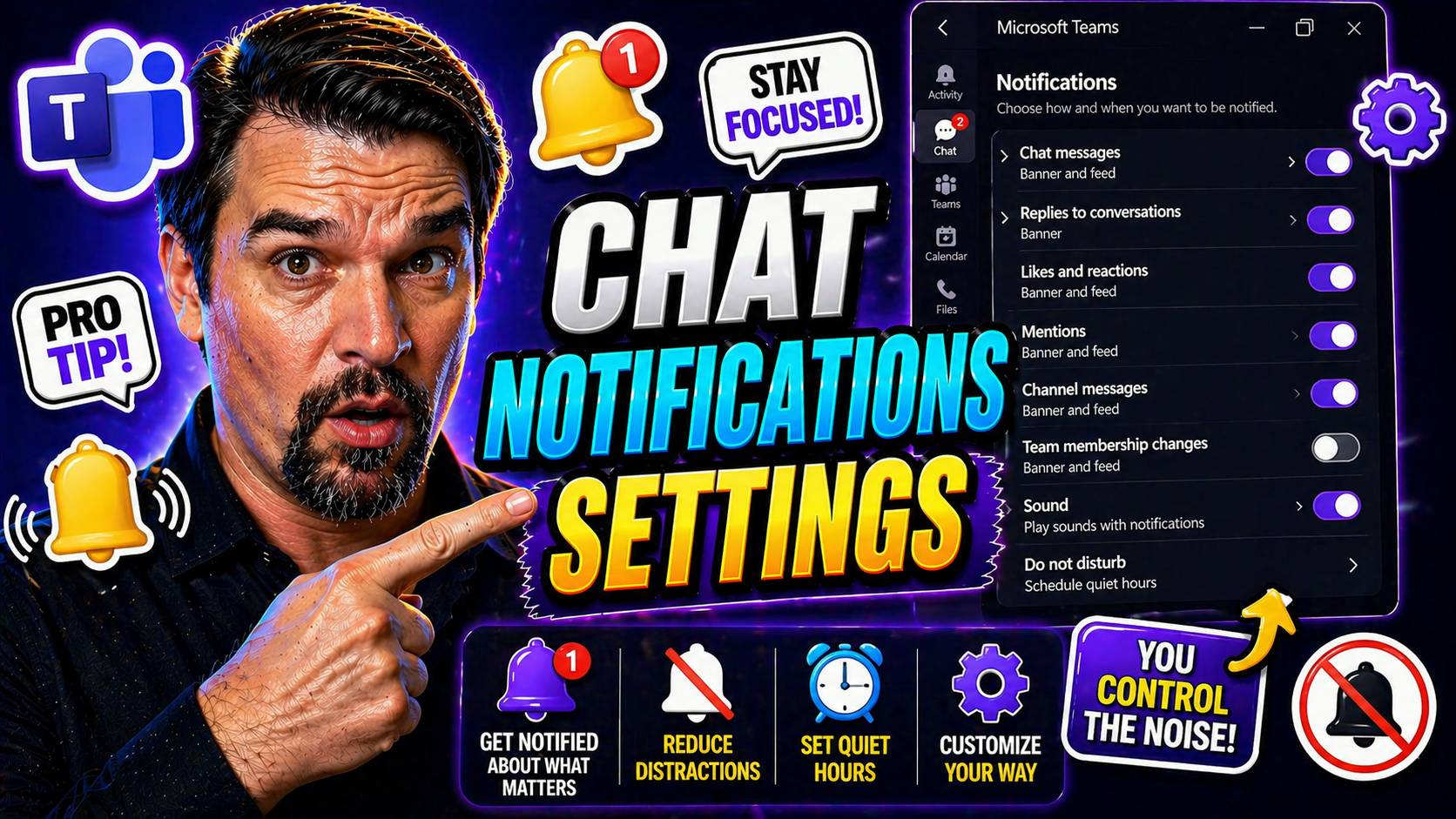
This comprehensive guide is your roadmap to mastering chat notification settings for Google Chat and Microsoft Teams. Whether you’re part of a busy team or just want a bit more peace during your workday, you’ll find practical, step-by-step advice to help you stay informed without getting overwhelmed. From basic toggles to advanced integrations that connect your chat with help desks and CRM tools, every angle is covered.
Both IT professionals and everyday users will find strategies here for customizing alerts, solving notification headaches, and prioritizing what matters most. Whether you’re trying to cut through noise or make sure nothing slips by, use these sections as your cheat sheet for keeping chat communication running smoothly. Dive in—the right settings are just a scroll away.
Google Chat Notifications Full Customization Guide
If Google Chat is part of your daily grind, how you handle notifications can make or break your workflow. The good news is, Google Chat's notification settings give you more control than you might expect. Whether you’re jumping between team spaces, juggling direct messages, or flipping between your phone and computer, you can tweak every ping and pop-up to fit your style.
This section lays out everything you need to know to truly personalize your Google Chat experience. Maybe you want to turn alerts on or off by device, or set different preferences for a particular project space—or maybe you’re just looking for more peace and quiet. The upcoming subsections dig deeper, breaking down exactly how to tune notifications for spaces, DMs, and reactions—plus special tricks for mobile and desktop users.
The real benefit? Once you dial in these options, you’ll notice fewer distractions but still see what matters most—whether that’s a message from your boss or an urgent update in your team’s shared space. Keep reading to learn how to turn Google Chat into a tool that works for you, not against you.
How to Enable or Disable Google Chat Notifications Across Devices
- Enable or disable notifications on the web browser: Open Google Chat through your browser or via Gmail. Click the gear (Settings) icon, then select "Notifications." Here, toggle chat notifications on or off. You can set preferences for all messages, or only get alerted for mentions and direct messages. Make sure your browser also allows notifications—look for any prompts if alerts aren’t appearing.
- Manage notifications on the desktop app: In the standalone Google Chat app, select your profile picture in the top right, then choose "Settings" and "Notifications." Turn notifications on or off globally, or fine-tune by conversation. Desktop apps obey your system’s do-not-disturb or quiet hours too, so check OS-level settings if you’re still getting interrupted after disabling alerts in the app.
- Adjust notification settings on mobile devices: Open the Google Chat app on your Android or iPhone. Tap the hamburger menu (three lines), then "Settings" and your account. Go to "Notifications" to decide if you want all messages, just direct ones, or none at all. You can control whether notifications show as banners, badges, or just in-app. Don’t forget device-level do-not-disturb features—they can override app settings.
- Troubleshoot notification delivery issues: If you’re suddenly missing alerts, double check your device’s notification permissions and make sure "Do Not Disturb" or battery-saving features aren’t blocking Google Chat. Restart the app and ensure it’s updated to the latest version. If all else fails, try toggling notifications off and back on. Most missed notifications come down to a simple permissions glitch or outdated app.
With these steps, you can flip Google Chat alerts on or off by device or situation to match your day—whether you’re heads-down on a project or waiting on something time-sensitive.
Google Chat Customize Notifications for Spaces and 1:1 Conversations
- Set custom notifications for spaces: In any space (formerly known as rooms), click the space name, then select "Notifications." Here, you can choose to get notified for every new message, only threads you follow, or just when someone mentions you. Tailor each space based on its importance—project teams might need high-priority, but a casual watercooler space can stay muted.
- Personalize direct message (1:1) alerts: For one-on-one chats, open the conversation, click the name at the top, and then "Notifications." You can mute or allow normal alerts for individual contacts, which helps if you’re getting too many pings from a chatty teammate or need to be extra responsive to your manager.
- Mute noisy spaces or conversations: If a space or direct message is getting out of hand, just select "Mute." Muted chats still show unread counts, but you won’t get pop-up or sound alerts. You can unmute anytime in the same settings panel.
- Fine-tune thread-level notifications: In larger spaces with lots of sub-threads, you can "follow" specific threads or mute them. This helps you zero in on the conversations that matter most without getting flooded by every reply.
- Unfollow threads you no longer need: If a thread or project wraps up, simply unfollow to stop getting updates and keep your notifications lean. This keeps your focus where it’s most valuable.
Using these granular options helps you prioritize key projects and conversations—no more “all or nothing” approach that makes you either miss the action or get overwhelmed with noise.
Change Sound and Manage Reaction Notifications in Google Chat
- Change chat notification sounds: Head into your settings, and you’ll find an option to select different sounds for alerts—or silence them completely. This is handy if you want a softer tone or none at all.
- Adjust overall notification volume: On desktop, shape the sound using your operating system’s volume controls. On mobile, open the app’s settings and pick "Sound & vibration" to tweak levels per your liking.
- Enable or disable reaction notifications: You can turn off alerts for emoji reactions, so you’re not interrupted every time someone “likes” your message. Find this in the notifications section of the chat settings.
- Sync sound options across devices: Remember, settings might be different for each device—set your preferences on every platform you use for the smoothest experience.
Customizing sounds and reaction notifications limits distractions while still keeping you updated on the action you care about.
Customize Google Chat Notifications for Mobile and Desktop
- Mobile device settings: Open the Google Chat app, tap your profile or the menu, and select "Settings." Here, set your alert preferences—whether you wish to see alerts for all messages, only directs, or not at all. Set push notifications, vibration, banners, and choose if you want notifications to show up on your lock screen.
- Desktop and Gmail integration: On the web, click the gear icon, go to "See all settings," then "Chat and Meet." You can manage desktop notification banners, badges, or decide if you want notifications only for mentions, all messages, or none. Gmail users can adjust chat notifications right within Gmail’s settings, keeping messages and email alerts in one tidy spot.
- Customize per device for flexibility: Each device lets you turn notifications up, down, or off without affecting the others. This is perfect if you want alerts at work but silence after hours on your phone.
- Badge and banner behavior: Set whether you want a notification dot, a pop-up, or just a subtle change in the app icon depending on what suits your working style best.
With these settings, your notifications stay in sync with how and where you actually work—whether you want to keep your phone quiet but your desktop alert, or vice versa.
Microsoft Teams Notification Management Tips
Microsoft Teams is a communication powerhouse, but if you’re not careful, the notifications can swarm your day. Luckily, Teams gives you a robust set of controls to help you filter the noise and focus on what matters. With everything from instant messages and channel conversations to meeting reminders, alerts tailor themselves to your priorities.
This section is about wrangling those Teams alerts so your workflow stays clear. You’ll get an overview on enabling and configuring notifications, distinguishing between channels and meetings, and understanding how Focus Mode or Do Not Disturb will affect what gets through. If you want to dig even deeper, looking at channel structure and governance, resources like this Teams governance guide can help keep your digital space from turning chaotic.
By understanding these notification strategies, you’re putting yourself in the driver’s seat. Ready to command your Teams environment like a pro? The detailed tips in the next subsections will show you exactly how to customize, prioritize, and troubleshoot alerts—making Microsoft Teams work around your focus (not against it).
How to Enable and Configure Microsoft Teams Notifications
In Microsoft Teams, notification settings determine how and when you’re alerted about important activity. By default, Teams enables chat, channel, and meeting notifications, but you can tailor them to best fit your needs.
To activate or customize notifications, open Teams and click your profile picture, then select "Settings" and go to the "Notifications" tab. Here, you’ll see granular settings for chat messages, @mentions, channel activity, meetings, and more. You can specify alert style (banner, email, or feed), pick sounds, and decide which actions prompt a notification.
For desktop users, make sure Windows or macOS notification permissions are enabled for Teams to display alerts; mobile users should check device notification settings for the Teams app, including banners, sounds, and badges. Adjust these to align alerts with your everyday workflow—especially if you work in a remote or hybrid setup that doesn’t tolerate missed communications.
If notifications seem off or missing, check both Teams app settings and your system’s global notification options. Best practices include regularly reviewing these settings and leveraging options like adaptive cards for richer, interactive alerts. For a deeper dive, visit this resource on optimizing Teams notifications and using adaptive cards to enhance your productivity.
Customize Microsoft Teams Channel, Thread, and Meeting Notifications
- Channel notifications: Click the “More options” (three dots) next to a channel. Set notifications to “All activity,” “Mentions and replies,” or turn them off. This lets you follow only the channels that matter most and mute the rest for headspace.
- Thread-specific alerts: Enable notifications for certain threads by following them directly or muting noisy ones. This is handy in busy team channels where you care about only a handful of ongoing discussions.
- Meeting notifications: Teams sends alerts for upcoming meetings, changes, and chat activity during a meeting. Modify these to show as banners or appear only in the activity feed, so your focus stays on track.
- Private vs. shared channels: Get the scoop on which channel type is best for your alerts—and privacy—by reading this private vs. shared channels guide. It breaks down how private channels are secured and how shared channels can help with cross-department collaboration, all without drowning in unnecessary alerts.
Use these tools to turn the Teams noise into useful cues—you’ll be in command, not chaos.
Control Teams Notifications During Focus Mode and Do Not Disturb
Microsoft Teams lets you safeguard your deep work time by enabling Focus Mode or Do Not Disturb (DND). With Focus Mode, all non-urgent notifications pause automatically, syncing with your Outlook or Teams calendar if set up. DND status blocks pop-ups and sounds, though priority contacts can still break through if you allow exceptions.
Your presence status ("Available," "Busy," "Do not disturb") directly affects what alerts you get and when. Configure Teams to respect these statuses, so urgent items still reach you but routine chatter waits until you’re ready. This helps you balance productivity and responsiveness without feeling buried by notifications.
Integrate Chat Notifications From HubSpot and Help Desk Tools
Handling multiple business tools can mean missing out on key updates if your notifications aren’t all in one place. That’s where integrating HubSpot, inboxes, and help desk systems into your chat apps comes in handy. By merging these feeds, you can respond to leads, client issues, or ticket updates right inside Google Chat or Microsoft Teams—with less jumping between tabs.
This section is about making your chats smarter by embedding external notifications. You’ll get the groundwork right here, with detailed steps and best practices in the next subsections. Setting up these integrations streamlines workflows, reduces context-switching, and helps make sure nothing falls through the cracks—whether it’s a sales lead or a customer’s urgent support request.
By configuring these connections, your teams can move faster and stay accountable—everyone sees updates in real time, all in one spot. That means less time digging through emails or logging into extra dashboards, and more time solving real business challenges.
Get HubSpot Notifications in Your Chat Apps
- Connect HubSpot to Google Chat or Teams: Use HubSpot’s app marketplace or integration tools to link HubSpot with your preferred chat platform. Authorize account access so HubSpot notifications can flow into specific chat spaces or DM threads.
- Select activity types for alerts: Choose which notifications you want to see—like new leads, support ticket updates, or pipeline changes. Filter alerts by deal stage or team to stay focused on what’s actionable.
- Route notifications to the right channel: Set rules so high-priority client messages or sales updates land in dedicated spaces, not general chatter. This organization keeps important info from getting lost in the scroll.
- Test and fine-tune the flow: Once integrated, send test events or wait for new activity to confirm alerts are coming through in real time—and not flooding your main feed. Adjust notification rules as your workflow evolves.
These steps put the right HubSpot info in front of the right team members instantly, keeping your CRM and chat tools in sync.
Manage Help Desk and Activity Notifications in Chat
- Route help desk tickets to chat: Integrate tools like Zendesk, Freshdesk, or ServiceNow with Google Chat or Teams for real-time ticket alerts. These can alert you to new tickets, status changes, or SLA breaches without needing to refresh a separate dashboard.
- Control alert timing and content: Set rules for which help desk updates generate chat alerts—so urgent incidents pop up immediately, while lower-priority or bulk updates hit only once or twice a day.
- Integrate other business activity streams: Plug in email, Google Drive sharing activity, or calendar events to centralize notification flows.
- Filter and assign by priority: Use smart filtering to ensure only critical tickets or activities reach team chats, while less urgent ones go to background channels for later review.
Managing these incoming streams in chat keeps your team focused and your workflow humming, even during the busiest times.
Cross-Platform Notification Settings and Troubleshooting
Getting notifications where—and when—you need them can take a little extra setup. With chat tools running on everything from browsers and desktops to phones, it’s easy to hit a snag where a critical alert goes missing or shows up too late. This troubleshooting section helps you iron out the kinks for a reliable, frustration-free experience.
First, you’ll see how to properly update and verify your device and browser notification settings. Permissions, sound levels, and even app-specific features can all impact whether a message actually gets through. Then, you’ll learn quick ways to test and troubleshoot notification delivery so you know your chat is truly “always on.”
With these proactive checks and fixes, you’ll keep business moving as planned, whether you’re in the office or on your phone at the grocery store. Step-by-step, you’ll leave behind missed pings, mysterious silences, and annoying repeat alerts for good.
Update Device and Browser Notification Settings for Chat Apps
- Check browser notification permissions: In Chrome, Edge, or Firefox, click the lock icon near the URL and ensure notifications for your chat app are allowed—not blocked by mistake.
- Update device notification settings: On your phone, open Settings > Notifications and make sure your chat apps have banners, sounds, and badges enabled. Customize individual app preferences as needed.
- Verify sound and volume levels: Double-check your system or phone’s volume isn’t muted. In-app sound toggles should also be on if you want to hear alerts.
- Update your operating system and apps: Outdated software can interfere with notifications. Regularly update your OS and chat apps to squash bugs and keep things running smoothly.
These quick checks help your important messages arrive right on time, every time.
Test and Troubleshoot Chat Notification Delivery
- Use built-in test notification features: Many chat apps have “Send test notification” options under their notification settings to verify alerts are working with current configurations.
- Send a message from another account: Ask a teammate to ping you or send a direct message to check real-time alert delivery.
- Check for unread message counts: If notifications fail, verify if unread badges show up—if not, you may have a deeper app sync issue.
- Restart your app or device: Sometimes, a simple restart refreshes background notification services that get hung up after a long period of use.
- Clear cache and verify permissions again: Clearing app caches and re-enabling permissions often resolves stubborn notification issues, especially after an app update.
Follow these steps and you’ll never be left wondering if you’ve missed a critical update.
Control General Notification Preferences and User Status in Chat Platforms
Keeping notifications under control isn’t just about app-level tweaks—it’s about global, platform-wide preferences that help you stay sane. Maybe you want to mute all chat apps on Friday afternoons. Or show your team you’re on break with a quick status change. These broader controls let you strike that perfect balance between being accessible and keeping your focus locked in.
Across platforms like Google Chat, Microsoft Teams, and others, you’ll find options for muting all chats, tweaking app-wide sounds and banners, and customizing your presence status. These settings make it easy to sync notifications with your work style—whether you want to go dark during deep work or stay open for high-priority updates only.
In the following subsections, you’ll learn how to mute notifications, manage your availability status, and set up app-wide alert preferences. This ensures you don’t just work smarter—you actually enjoy the process a bit more, too.
How to Mute Chat Notifications and Reduce Distractions
- Mute individual chats or spaces: Open the conversation, select "Options" or the chat name, and choose "Mute notifications." That chat will still show new messages, but you won’t hear pings or get pop-ups.
- Set scheduled quiet hours: In Google Chat or Teams, use the Do Not Disturb (DND) mode or your device’s built-in features to schedule no-notification windows—great for planned focus sessions or after-hours breaks.
- Temporarily silence all alerts: Flip on DND or “Mute All” for urgent, short-term focus when you need to get in the zone without interruption.
- Unmute as needed: When you’re ready, just reverse the mute action for specific chats or spaces—easy enough to always stay in control.
Using these methods, you dodge unnecessary interruptions but can easily reconnect when it counts.
Set Presence Status and Profile Preferences in Chat
- Set your status: Mark yourself "Available," "Away," or "Do not disturb" to show coworkers when you’re open or busy. Status icons communicate at a glance.
- Profile images and descriptions: Upload a profile avatar and add a custom status message so teammates know what you’re up to (e.g. "Heads-down on project – ping only for urgent!").
- Impact on notifications: Your presence setting affects which notifications you receive—DND blocks nearly all, but you can allow select contacts or urgent messages to get through.
- Sync presence across devices: Change your status in one place, and it typically updates everywhere for consistent communication.
Managing presence and profile details lets your team know what to expect and reduces the risk of missed (or mishandled) alerts.
Customize General Notifications and App-Wide Options
- Adjust sounds and banners: Pick your preferred mix of alert styles—some folks want badges only, others prefer a banner on screen plus a sound cue.
- App-wide notification settings: In Teams, Chat, or your device, set global rules for all chats (everyone off at once, or on for only high-priority contacts).
- Silent or VIP modes: Enable silent mode for most chats, but set exceptions for your boss or key team members so their messages always break through.
- Unified alert management: Use integrated platforms or third-party tools to align notifications across Google, Microsoft, and other apps with one dashboard.
With these broad options, you can keep notifications from taking over your day while ensuring you’re always available for what matters most.
Advanced Notification Prioritization and Smart Filtering
Once you’ve mastered the basics, it’s time to level up with smarter ways to handle your notifications. Advanced notification management isn’t just about switching things off—it’s about making sure you get the right alerts at exactly the right time. With sender and keyword-based filtering, you never have to worry about missing out on critical info, while still avoiding those “got another meme!” interruptions.
This section covers strategies for prioritizing alerts based on who’s sending them—think managers, clients, or other VIPs—as well as for keyword triggers like “urgent” or “outage.” You’ll also discover how new tools and integrations can automate rules, schedule notification windows, and keep cross-platform teams on the same page, regardless of time zone differences.
If too many notifications are making you want to throw your phone out the window, or important messages are getting buried, these approaches will give you the peace-of-mind and control needed for real productivity. Details in the next section show how easy it is to put the smart into smart notification filtering.
Set Priority Alerts for Important Contacts and Keywords
- Enable priority or VIP contacts: Set rules so messages from managers or key team members always trigger a sound or banner, even when Do Not Disturb is on.
- Customize keyword alerts: Create custom notification rules for words like “urgent,” “asap,” or specific client names—ensuring you catch critical updates.
- Do Not Disturb exceptions: Most chat apps let you add exceptions, so high-priority contacts break through while non-critical alerts stay silent.
- Sync with task or calendar tools: Link keywords or mentions to your to-do apps (like Asana or Todoist) so urgent chats automatically become actionable tasks.
Setting up these techniques helps you stay on top of mission-critical messages—no more missing the things that matter, no matter what your notification settings say.
You Should Also Listen To
If you are researching Microsoft Teams chat notifications, these episodes add practical context on identity security, governance, access control, and Microsoft 365 operations:
- Privileged Identity Management – Simply Explained — Understand just-in-time privilege, approvals, and access reviews.
- Conditional Access – Simply Explained — Learn how context-aware policies protect users and devices.
- Microsoft Defender XDR – Simply Explained — Connect identity signals with detection, investigation, and response.
- Microsoft Teams Governance – The Illusion of Control — See how governance creates ownership and repeatable controls.

Microsoft MVP | Host of M365.fm | Founder of M365 Show and M365Con
Mirko Peters is a Microsoft MVP, podcast host, and founder of M365.fm, M365 Show, and M365Con. His work connects Microsoft practitioners through podcast interviews, livestreams, and community events.
At M365.fm, Mirko hosts conversations with Microsoft MVPs, product experts, architects, and community contributors. Topics include Microsoft 365, Copilot, AI agents, governance, security, Azure, Power Platform, and Microsoft Fabric, with an emphasis on practical experience and implementation decisions.
M365.fm is the podcast and learning platform. M365 Show brings experts together for livestreams, while M365Con provides an online conference setting for community learning.
Official website: Mirko Peters (https://www.mirkopeters.com/). Recognition: Mirko Peters — Microsoft MVP profile (https://mvp.microsoft.com/de-DE/mvp/profile/9b0ca797-db5a-493a-a845-8b9158046cf5). Connect on LinkedIn (https://www.linkedin.com/in/m365showpodcast/).





