
Microsoft Entra PIM Setup Guide
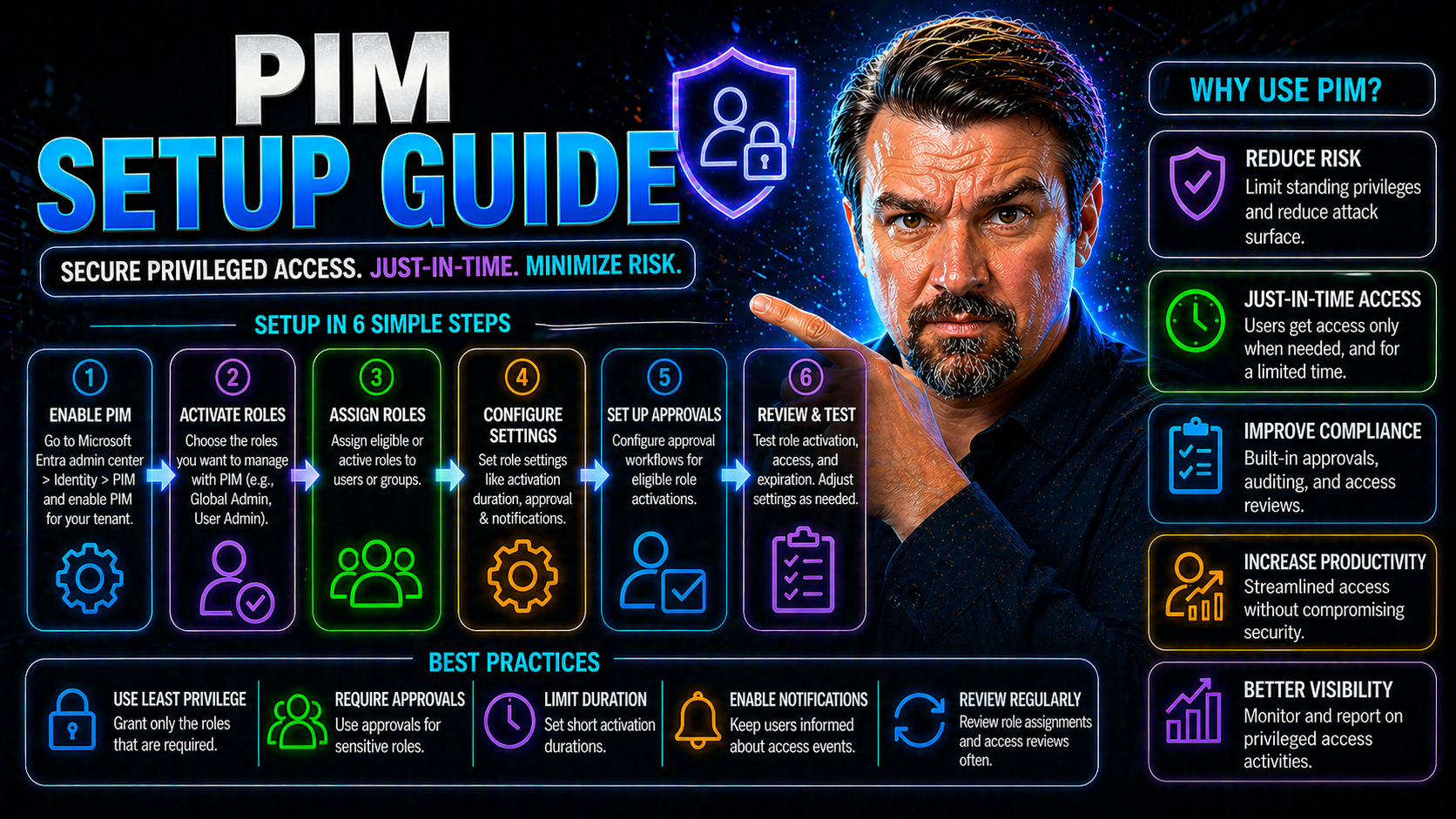
Quick Answer: To set up Microsoft Entra PIM, identify privileged roles, assign accountable owners, make eligible access time-bound where appropriate, define approvals and MFA requirements, configure notifications, and test activation and emergency processes. Begin with high-impact admin roles and review the resulting assignments regularly so privileged access does not become permanent by default.
If you work in IT security or manage Microsoft cloud environments, you know privileged access is where the most risk lives. This guide walks you through the essentials of Privileged Identity Management (PIM) with Microsoft Entra ID, so you can lock down your most critical roles and sensitive resources with confidence.
We'll cover everything from what PIM is and why you need it, to configuring roles, setting up just-in-time (JIT) access, and even automating setups for big teams. Plus, you'll get actionable steps for auditing, compliance, and ironclad governance—no matter if you run 20 users or 20,000. Get ready to ditch privilege creep and surprise admin rights, while making sure approvals flow like clockwork and security teams sleep a little easier.
Understanding Privileged Identity Management and Its Value
Privileged Identity Management, or PIM, is all about controlling who holds the keys to your kingdom in the cloud. With so many attacks targeting admin accounts, it’s risky to let these privileges stand wide open. PIM flips the script—by allowing users to “activate” elevated rights only when necessary, then automatically reverting after the job’s done. That’s called just-in-time (JIT) privileged access.
Standing administrative access—leaving admins with 24/7 rights—creates a big target. Misuse, mistakes, or even a compromised account can turn into a disaster fast. Attackers love to hunt for these always-on privileges. With PIM, you can enforce just-enough-access (JEA), making sure folks only get the exact permissions required and only when they truly need them.
PIM isn’t just about security paranoia; it’s about accountability and reducing accidental damage. By keeping an auditable trail of who elevated, when, and why, you can sleep a lot better at night knowing privilege misuse isn’t happening behind the scenes. For a real-world look at privilege abuse—even with MFA in place—check out this detailed Microsoft 365 breach case, which shows why tight governance and monitoring are non-negotiable in today's threat landscape.
In a nutshell, PIM helps you stay compliant, keep privilege creep in check, and respond fast when security auditors come knocking.
How Microsoft Entra ID Elevates Privileged Access Management
Microsoft Entra ID, formerly known as Azure Active Directory (Azure AD), is much more than just a login system. It’s your identity security command center—acting as the foundation for managing user access, enforcing policies, and keeping those high-powered admin roles under strict watch.
When you turn on PIM in Entra ID, you’re plugging into a unified governance platform. Every role assignment, activation request, and approval is tracked and streamlined through a single, familiar interface—the Azure portal. This means fewer gaps, less confusion, and airtight separation between regular and privileged activities.
Entra ID brings conditional access and multi-factor authentication into the mix, so you can set up automatic checks any time a privileged role is activated. This not only deters attacks but also simplifies compliance and internal audits. Curious about identity as the control plane and why conditional access matters for scalable cloud security? Listen to this podcast episode about Entra ID and conditional access for some practical, real-world strategies.
And for those rolling out enterprise-wide governance, Entra ID integrates with Azure Policy, RBAC, and automated enforcement tools. This forms the backbone of a well-architected cloud security model—see more at Azure Enterprise Governance Strategy—helping organizations avoid chaos and maintain resilient, well-documented controls as they grow.
PIM Implementation Prerequisites and Licensing Requirements
Before you can roll out Privileged Identity Management in your Microsoft environment, it’s crucial to make sure the foundation is set. This isn’t one of those “click and forget” features—you’ll need the right technical building blocks and a few licensing checkboxes ticked to get started.
PIM relies heavily on what tier of Entra ID (Azure AD) your organization holds. For full PIM feature access, including onboarding resources and fine-grained controls, the Azure AD Premium P2 license is a must-have. Just as important is understanding who in your organization needs which licenses, since both users and approvers must be properly covered before they interact with privileged roles.
Another piece of the puzzle: have the right Azure roles lined up for PIM management itself. Certain setup and configuration actions can only be performed by Global Administrators or Privileged Role Administrators, so planning your admin approach early helps avoid frustrating roadblocks later on.
The next section drills into assigning these licenses and making sure everyone who needs access, from end users to access approvers, is equipped to make the most of PIM—without running into permission errors or surprises.
Assigning Licenses to PIM Users and Approvers
- Select Users and Approvers: Identify who needs to request or approve privileged access—these could be IT team members, helpdesk staff, or team leads.
- Go to Azure Portal: Navigate to Azure Active Directory > Licenses > All Products and pick the appropriate Premium P2 license.
- Assign Licenses: Click “Assign,” then add selected users. You can target individuals or whole groups for efficiency.
- Validate Assignment: Check the user’s license overview page to confirm. They’ll now be able to raise or approve PIM requests seamlessly.
Configuring PIM: Role Assignments and Access Models
Now that your licenses and prerequisites are ready, it’s time to jump into the real meat of PIM: configuring role assignments and protecting your sensitive cloud resources. The first thing you’ll tackle is choosing how users get access—whether as eligible (on-demand) or active (always-on) admins—and defining access models that actually fit your team structure.
The heart of PIM is in setting up “eligible” roles, which means folks don’t have standing admin rights, but can request them as needed. This dramatically slashes unnecessary access and helps you prevent “privilege creep” before it starts. You’ll also want to think about which users or groups should receive eligibility, making it easier to manage at scale.
Next, it’s about actually onboarding Azure resources and roles into PIM for robust control and tracking. Each privileged role—think Global Admin, Security Admin, Subscription Owner—is mapped, protected, and governed so you know who’s got the keys (and for how long) at all times. For a deeper dive on why enforced governance and documented role models matter, see the Azure Enterprise Governance Strategy guide.
Ready to get your hands dirty? The following sections break down eligible vs. active assignments, eligibility setup for users and groups, and PIM best practices for onboarding your most critical Azure roles.
Understanding Eligible Versus Active Privileged Role Assignments
Eligible role assignments mean a user can request elevated access when needed, but doesn’t have those privileges 24/7. This is just-in-time (JIT) access in action. Once their task is done, the permissions are stripped away automatically—locking the door behind them.
Active assignments, meanwhile, give users standing privileges. This is risky business, since it leaves your environment open to accidental missteps or exploitation. Security best practices strongly favor eligible assignments to reduce attack surfaces, minimize internal threats, and make policy enforcement and audits much simpler.
Assigning Eligibility to Users and Groups
- Navigate to PIM Roles: Open Microsoft Entra ID in the Azure portal and browse to Privileged Identity Management > Azure AD Roles.
- Select the Target Role: Pick the admin or resource role you want to control (e.g., Global Administrator, User Administrator).
- Assign Users or Groups: Choose “Add assignments” and select either individuals or whole security groups—great for scalable management.
- Set Assignment Type: Mark them as “Eligible” rather than “Active” to follow least privilege principles and keep things auditable.
Protecting Privileged Azure Roles with PIM Role Assignment
- Onboard Resources: Bring your critical Azure roles and subscriptions into PIM to get started, following the onboarding prompts in the portal.
- Assign Eligibility: Only designated users and approved groups get eligible assignments, ensuring time-bound access to sensitive resources.
- Set Activation Policies: Require just-in-time activations with justification fields, approval workflows, or ticket references for extra security.
- Review Security Recommendations: The portal surfaces tips—like using break-glass accounts and reviewing access history—so you’re always audit-ready and a step ahead of privilege misuse.
- For more on maintaining governance at scale, visit the Azure governance best practices guide to keep access models clean and policy drift in check.
Managing PIM Access Requests and Approvals
Once your PIM roles and assignments are in place, the day-to-day workflow of activating, approving, or denying privileged access becomes central to maintaining control. This is where things move from setup to smooth operations, with users requesting elevated rights only when it’s time to act and admins clearly seeing who is asking for what.
Understanding the request and approval process helps keep everything running like a well-oiled machine. Users know exactly how to ask for access—providing reasons, entering ticket numbers, and waiting for the green light. Approvers, meanwhile, get notifications and can review everything in one spot before giving someone the keys (or slamming the door shut if something seems off).
These workflows can also be customized with approval steps, multi-stage sign-offs, and extra questions for especially sensitive roles. You end up with a living audit trail for every privileged assignment—critical for compliance demands and keeping a sharp eye on unusual activity.
The next sections break down both sides of the equation: how users raise access requests and how admins or designated approvers move requests forward or shut them down.
Steps to Raise and Activate a PIM Request
- Sign In: The user logs into the Azure portal using standard credentials.
- Submit Request: Head to PIM, pick the eligible role, and click “Activate.” Fill out required fields (justification, ticket number, duration).
- Approval Workflow: Depending on policies, the request routes to an approver for review—sometimes auto-approval is enabled for low-risk roles.
- Notifications Sent: User gets notified once approved; status updates arrive in real-time.
- Access Granted: Once activated, the user gets heightened privileges for the specified time—then they expire automatically.
How to Approve or Deny Eligible PIM Requests
- Review Request: Approver receives an email or portal alert for pending activation.
- Assess Details: Check the user’s justification, linked ticket number, and requested duration versus policy and recent activity.
- Approve or Deny: Select “Approve” to grant access or “Deny” if something is off—each action is logged for audit purposes.
- Send Feedback: Optionally send a message to the requester explaining decision, especially if extra steps or more info are needed.
Securing User Access and Governance with PIM
It’s not just about who gets privileged access, but also about making sure every activation is under lock and key. Modern attacks can bypass passwords and even MFA, so you need to double down with layered, conditional policies and well-organized groups to reinforce your defenses.
Multi-factor authentication (MFA) becomes your frontline here. Combine it with conditional access so only compliant devices and trusted locations are allowed to approve or activate roles. Group-based management steps in to keep access patterns clean and scalable—so you can manage dozens or thousands of users without drowning in admin work.
Well-structured groups also make it easier to apply and enforce policies at scale, enabling you to adapt as teams expand or projects shift over time. This is especially true as your cloud footprint grows and more users seek elevated rights, either for cloud-native or hybrid (on-premises) tasks.
For a deeper understanding of identity as the control plane and how conditional access sprawl leads to unpredictable risk, check out this detailed Entra ID security podcast. If you work with the Power Platform or have lots of “citizen developers” running around, this governance guide covers best practices for securing those environments, too.
Securing Users Accessing Privileged Roles With MFA and Conditional Access
- Enforce MFA for All Activations: Require users to perform multi-factor authentication every time they activate a privileged role, reducing the risk of compromise if credentials leak.
- Apply Conditional Access: Use conditional access policies based on device compliance, user location, and risk level, so only trusted sessions can activate sensitive roles. Adjust these policies as needed, but always tighten more than you loosen.
- Set Activation Requirements: For extra sensitive roles, demand extra approvals or justification during the activation process—this keeps a lid on privilege misuse.
- Want more on safe, predictable policy design? Dive into inclusive policy baselines and monitoring tips in this guide to conditional access trust issues.
Creating Security Groups for Effective PIM Access Control
- Create Role-Specific Groups: Build dedicated security groups for key privileged roles, so you can grant eligibility or active assignments in bulk.
- Assign with Consistency: Maintain group membership through automation or regular reviews, making access scalable and revocable at a moment’s notice.
- Integrate with Governance: Pair group usage with clear governance models—check out more tips for large teams and safe innovation in this Power Platform security governance guide.
Automating and Auditing PIM for Enhanced Efficiency and Compliance
Once your PIM setup is humming, the next challenge is scaling up—handling hundreds or thousands of privileged users, tracking every role activation, and keeping compliance teams well-fed with simple, accurate reports. Automation and robust auditing are your friends here.
Using PowerShell and Microsoft Graph API, you can script everything from assigning eligibility in bulk to revoking access on schedule. This cuts down admin effort, reduces manual errors, and helps keep your roles and groups up to date as people move in and out of the organization.
Auditing is about more than just checking boxes. You’ll want to capture every activation, approval, and denial event in real time, setting up alerts for anything fishy—unexpected or failed activations, privilege escalations, or deviation from your Conditional Access baselines.
Comprehensive, exportable reports make compliance with SOX, HIPAA, or any major regulation a breeze. If you’re serious about security, learn how to leverage advanced audit logs and monitoring through Microsoft Purview Audit, and stay tuned for new automation options as Microsoft continues to enhance these tools.
Automating PIM Role Assignments With PowerShell
- Bulk Assign Eligibility: Script the addition of large lists of users or groups to eligible roles with AzureAD or Microsoft Graph PowerShell modules, so you don’t have to slog through the portal for each account.
- Schedule Assignments: Automate time-bound assignments that auto-expire for contractors or temporary staff, with start and end dates coded directly in your scripts.
- Audit Changes: Capture every assignment or revocation via script logging. If you run into resource drift or errors, script-driven rollbacks make cleanup simple and fast.
- If you’re looking to set more governance via PowerShell, note that older resources may be offline. Always stay current on the latest automation options and API references as Microsoft continues to enhance support.
Configuring PIM Audit Logs, Alerts, and Compliance Reporting
- Enable PIM Audit Logs: Turn on logging for all PIM activity via the Azure portal or connected security tools—track requests, activations, approvals, denials, and changes in real time.
- Set Up Real-Time Alerts: Configure alerts in Azure Monitor or Microsoft Sentinel for suspicious events, like atypical activations, failed approvals, or privilege elevation outside regular hours.
- Automate Report Generation: Use built-in reporting or integrate with tools like Log Analytics and Microsoft Purview Audit to generate compliance-ready reports for SOX, HIPAA, and other regulatory demands. See hands-on Purview Audit guidance for best practices.
You Should Also Listen To
If you are researching Microsoft Entra PIM setup, these episodes add practical context on identity security, governance, privileged access, and implementation:
- Microsoft Defender XDR – Simply Explained — Connect identity governance with security signals, investigation, and response.
- Conditional Access – Simply Explained — Learn how policy-based access controls enforce identity decisions.
- Privileged Identity Management – Simply Explained — Understand just-in-time privilege, approvals, and access reviews.
- Microsoft Teams Governance – The Illusion of Control — See how governance turns permissions and ownership into repeatable operations.
Microsoft Entra PIM setup checklist
- Define a clear owner and business purpose.
- Start with a small, representative pilot.
- Test the complete user and support journey.
- Document exceptions, review dates, and escalation routes.
Use Microsoft Learn for current configuration guidance.
Frequently asked questions
Why is the expected option unavailable?
Check the signed-in account, licence, client, policy, and permission boundary before changing settings.
🎧 You Should Also Listen To
These episodes provide the next practical learning steps.
Last reviewed: July 2026. Microsoft 365 experiences and policy controls change frequently.

Microsoft MVP | Host of M365.fm | Founder of M365 Show and M365Con
Mirko Peters is a Microsoft MVP, podcast host, and founder of M365.fm, M365 Show, and M365Con. His work connects Microsoft practitioners through podcast interviews, livestreams, and community events.
At M365.fm, Mirko hosts conversations with Microsoft MVPs, product experts, architects, and community contributors. Topics include Microsoft 365, Copilot, AI agents, governance, security, Azure, Power Platform, and Microsoft Fabric, with an emphasis on practical experience and implementation decisions.
M365.fm is the podcast and learning platform. M365 Show brings experts together for livestreams, while M365Con provides an online conference setting for community learning.
Official website: Mirko Peters (https://www.mirkopeters.com/). Recognition: Mirko Peters — Microsoft MVP profile (https://mvp.microsoft.com/de-DE/mvp/profile/9b0ca797-db5a-493a-a845-8b9158046cf5). Connect on LinkedIn (https://www.linkedin.com/in/m365showpodcast/).





