
Comprehensive Guide to Calling Features in Teams
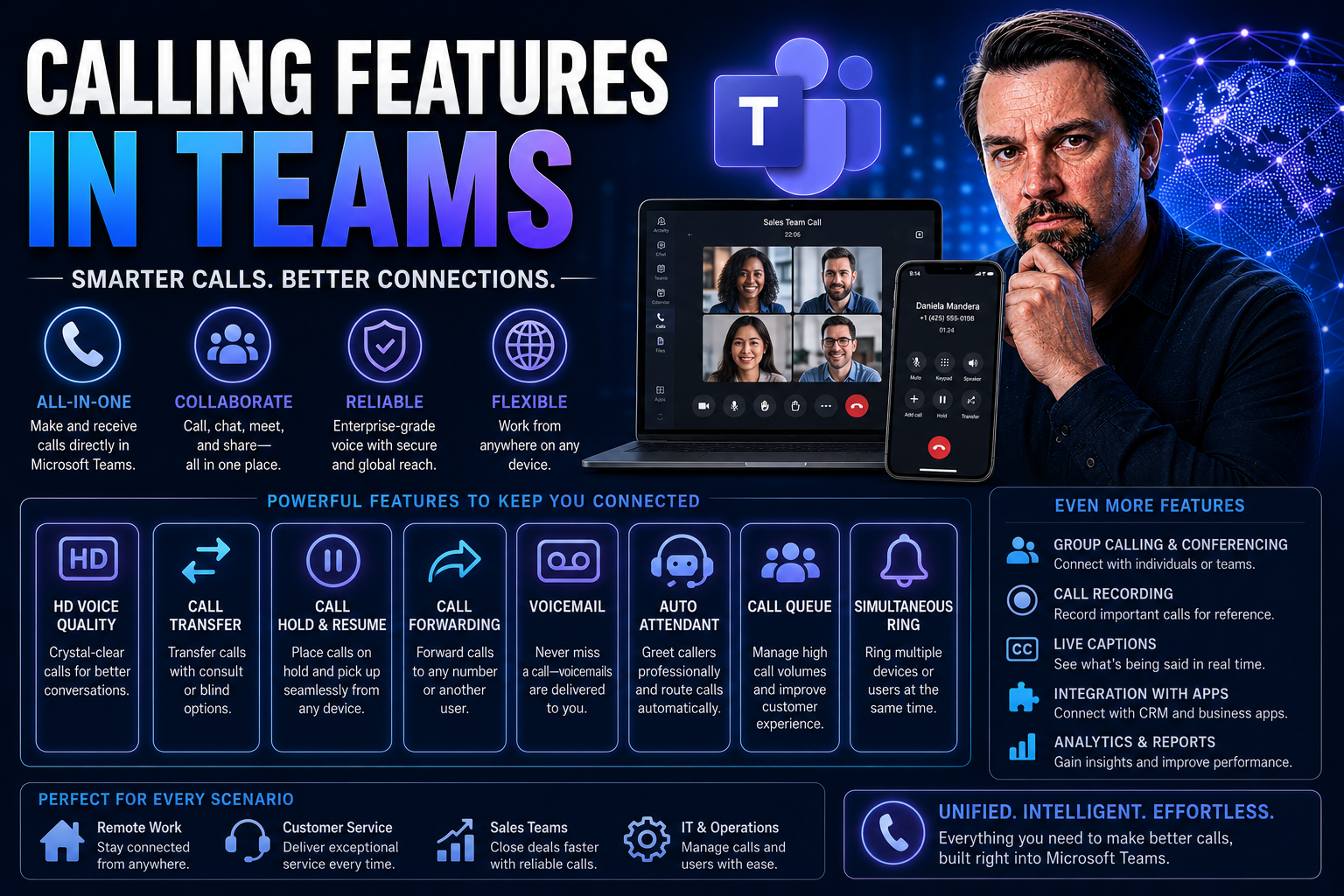
If you're looking for a flexible, modern way to make business calls, Microsoft Teams is ready to handle the job. Teams isn't just about chat and meetings—it's a full-featured phone system for organizations of all sizes. In this guide, you'll learn about getting started with Teams calling, advanced management tools, handling multiple phone lines, and making calls part of your everyday workflow.
Whether you need the basics or want to dive into enterprise-level features, this guide covers it all. We’ll walk you through making your first call, using call control options, group collaboration, emergency support, and even how to monitor and improve call quality. By the end, you’ll have a strong grasp of how Teams transforms phone calls and telephony for the digital workplace.
Getting Started With Calling in Microsoft Teams
New to Microsoft Teams calling? Don’t worry—you don’t have to be a tech wizard to get up and running. Teams is built to bring together calls, chat, and meetings on any device, making it simple for everyday users and seasoned pros alike. At its core, Teams calling lets you connect just as easily from your phone as you would from your laptop or desktop at work.
Once you’re familiar with the Teams layout, you’ll notice it’s straightforward to make or answer calls from anywhere—your desk, your couch, or even across town. The beauty is, no matter your device or where you’re working, your calling experience looks and feels the same. And with a couple of clicks or taps, you can reach colleagues or dial phone numbers just like you would on any standard office phone.
This section will help you feel confident stepping into calling within the Teams app. You’ll get a sense for the basic interface, the flexibility of switching between devices, and the confidence to stay plugged in with coworkers—no matter where you are or what device you’re on. Now let’s break it down, step by step, so you know just where to start.
Make or Answer a Call From Anywhere in Teams
Microsoft Teams lets you make and receive calls wherever you are, on whatever device is handy. Whether it’s your laptop at home, your mobile phone on the train, or the web app in an internet café, you get the same calling experience.
All you need is an internet connection and the Teams app. When someone calls you, you’ll get a notification right in the app—answer or decline with a single tap or click. It’s that easy, and it keeps your workflow smooth even when you aren’t at your desk.
Using the Dial Pad to Call Contacts or Phone Numbers
The built-in dial pad in Microsoft Teams makes calling a breeze. Just open the Calls tab, and you’ll see the dial pad right there waiting for you. You can type in any phone number—landline or mobile—and hit the call button. No fumbling with your personal phone or looking up numbers elsewhere.
This feature works for both internal company extensions and external numbers. Just enter the digits, and Teams handles the rest. The dial pad also lets you quickly redial previous numbers, giving you a familiar experience with a modern twist.
Call a Contact by Name or Number in Microsoft Teams
Reaching someone in your organization or your saved contacts is straightforward in Teams. Just start typing their name into the search bar or call field—Teams will instantly show a list of matches from your contact list or company directory.
Click or tap on their name to start the call—no need to remember extensions or search through address books. You can also enter a phone number directly if you know it, making it easy to reach anyone, inside or outside your company, from the same interface.
Advanced Call Management Features in Teams
When the basic calling just isn’t enough, Microsoft Teams brings in some heavy hitters for handling business calls like a pro. Advanced call management isn’t just about sounding impressive; it keeps teams productive and communications sharp, especially in fast-paced or high-stakes environments.
You’ll find features to help you pause calls smoothly when something comes up, transfer a call without dropping the ball, or let someone else manage your calls entirely. These tools are designed for high performers, executives, team leads, or support professionals who need to juggle multiple responsibilities and make sure no call slips through the cracks.
With these management options, you can maintain a professional tone, ensure privacy during interruptions, and guarantee customers or partners always get connected to the right person. This section introduces all the advanced options you’ll soon be familiar with—and ready to put into practice.
How to Place a Call on Hold and Resume in Teams
In Microsoft Teams, the hold feature lets you temporarily pause a call without hanging up. When you place a call on hold, all participants are muted and the call is put on pause, complete with hold music (if enabled by your admin).
Once you’re ready to return to the call, simply hit the resume button. Everything picks up right where you left off, so conversations stay seamless and professional—even when you need to deal with a quick interruption.
Transfer and Consultative Transfer Options Explained
- Standard Transfer: When you need to transfer a call to another person, the standard transfer lets you send the call directly. You just pick the contact or dial their number. The call is forwarded instantly to the selected recipient without your continued involvement.
- Consultative (Warm) Transfer: Consult transfer gives you a chance to talk to the new recipient before passing the call over. This way, you can explain the situation or make sure they’re ready. Initiate the transfer, select “Consult first,” and Teams lets you speak privately with your colleague before connecting the original caller.
- Secure Forwarding: Both transfer options keep the handoff smooth and secure. The caller’s experience is seamless, and you can ensure sensitive matters or tricky customer situations get handled by the right person.
- Professional Workflow: By choosing between standard and consultative transfers, you’re giving your team flexibility. If speed matters, go direct; if context matters, give your teammate a quick heads up before the call connects. Teams makes both easy.
Delegate Access and Using Multiple Phone Lines
- Call Delegation: Delegation lets you assign others (like executive assistants or support staff) the ability to make and receive calls on your behalf. That way, important calls never go unanswered—even when you’re tied up.
- Shared or Multiple Lines: With Teams, you can manage multiple phone lines at once. This is perfect for executives or busy teams where someone always needs to be available, and calls should be routed flexibly or ring on more than one desk phone or device at a time.
Multi-Line and Call Routing Features in Teams
As organizations grow, juggling more than one phone line becomes standard fare. Microsoft Teams supports this complexity by letting you manage several assigned phone numbers, each with its own role—personal, departmental, or customer service, for example.
This section shines a light on how to keep track of which line is ringing, how to choose a specific line for outbound calls, and how Teams helps you stay organized, even when the call volume ramps up. Get ready to see how Teams makes managing multiple numbers feel smooth and straightforward.
Managing Multiple Phone Lines in Microsoft Teams
- Choosing the Right Line for Outbound Calls: When you have several lines assigned, Teams makes it easy to select which number you want to display when making a call. Simply choose the line from a dropdown before dialing out, so customers and partners always see the right caller ID.
- Returning Calls on the Correct Line: If you missed a call, Teams will show you which phone line was used, so when you return the call, you can use the matching number for a consistent experience.
- Incoming Call Identification: Each incoming call shows which line it’s coming through. This details whether it’s a personal, group, or service number, allowing you to prioritize or route calls quickly.
- Professional Call Management: For professionals balancing multiple departments or projects, this multi-line support saves time and stress, ensuring no calls mix up or slip by unnoticed.
Group and Collaborative Calling Features in Teams
Microsoft Teams is built with collaboration in mind, and that sense of teamwork extends right to its calling features. Not all calls are one-on-one—sometimes you need to pull in a few more folks fast to brainstorm or handle a tricky issue together.
This section reveals how you can start group calls straight from chat, or place a call by simply hovering over a team member’s avatar. Say goodbye to wasted time hunting for phone numbers and hello to instant, in-the-moment connections that help keep projects moving forward.
Start a Group Call Directly From Chat
Teams makes it simple to launch a group call right from any existing chat. Just open the chat window with your group or project team and hit the call (voice or video) button at the top.
This instantly rings all chat participants and pulls everyone together in a live call. No need to schedule a meeting; you can escalate a chat to a real conversation on the spot, keeping your workflow moving and your team connected.
Hover Over a Profile to Quickly Initiate a Call
Microsoft Teams cuts down call setup time with its “hover to call” feature. When you mouse over someone’s profile picture anywhere in Teams, you’ll see quick action icons pop up—including call, chat, or video options.
A single click on the phone icon starts an instant call—no extra searching required. This small touch goes a long way toward making day-to-day communications snappy and productive.
Emergency Calling and Compliance in Microsoft Teams
Every business needs a reliable plan for emergencies, and Microsoft Teams steps up to make sure you’re covered. Teams supports emergency calling—like dialing 911—and uses your location data to properly route the call to the nearest emergency operator.
This functionality matters most for organizations with remote or hybrid teams, where employees may not always be in a central office. Teams also keeps an accurate history of emergency calls, including date and location records—a must-have for compliance and peace of mind.
How Emergency Calling Works With User Location and Date Records
When you make an emergency call in Teams, the system automatically attempts to pinpoint your geographic or physical location. This information helps direct the call to the correct local emergency center.
Teams logs each emergency call with date, time, and reported location—ensuring compliance requirements are met and providing clear records for audits or follow-up reports. This process keeps everyone safer, even when working outside the typical office.
Using Teams as a Calling Professional Solution
Microsoft Teams isn’t just another VOIP tool; it transforms how companies handle phone communications at scale. Teams calling blends voice and video calls, chats, and meetings all in one place, so your users don’t have to juggle separate systems for different needs. From startups to global enterprises, organizations keep coming back to Teams for its reliability, seamless integration, and business-grade features.
Teams can handle work in any field, whether you’re in healthcare, finance, manufacturing, or education. It plays well with the Microsoft 365 suite, too, which lets you unify governance, compliance, and collaboration without extra headaches. This section will help you see why Teams is the front-runner for many businesses ready to leave behind old-school phone systems for something smarter and more agile.
Read on to discover which features set Teams apart, ways to experience Teams calling in action, and where voice or keyboard commands can truly save you time. If you want to dig deeper into confident, secure collaboration and governance in Teams, check out this detailed look at Teams governance as well.
Why Choose Teams Calling for Your Industry or Enterprise
- Scalability: Teams calling grows right alongside your business needs, from 10 users to 10,000.
- Unified Communications: Calls, chat, meetings, and files all live in one secure workspace for easier collaboration.
- Seamless Conferencing: Instant switch between voice and video for smooth teamwork, even across time zones.
- Industry Integration: Healthcare, finance, and manufacturing businesses benefit from advanced compliance, security, and customization—right out the box.
Explore More Teams Calling Options or Request a Demo
Getting a feel for Microsoft Teams calling is as simple as requesting a live demonstration or exploring advanced options in the Teams app. Microsoft and its partners offer guided tours that showcase feature sets tailored to your needs.
For those interested in testing out more capabilities—like call queues, international numbers, or integrations—Teams makes it easy to request demos or dive into hands-on experiences. It’s a practical way for businesses to compare, evaluate, and see what’s most helpful before fully investing in Teams calling.
Control Calls in Teams With Voice or Keyboard Commands
- Voice Commands: Use voice prompts to start, end, or transfer calls—perfect for multitasking or improving accessibility.
- Keyboard Shortcuts: Teams has quick key combinations for answering, muting, or holding calls, giving power users fast, hands-free control.
- Integration with Copilot and Automation: Combine Teams with Microsoft Copilot for even more automation—learn how with this guide to effective Copilot prompts.
Unlocking Analytics and Call Quality Monitoring in Teams
One thing most guides miss? The power of analytics in Microsoft Teams calling. For IT admins and anyone managing larger teams, understanding call quality and troubleshooting issues quickly can make or break your communication strategy.
Teams delivers in-depth reports and dashboards on everything from call success rates to audio quality, making it easier to pinpoint problems like poor connections or dropped calls. These insights help organizations catch performance hiccups before they spread, keep user frustration low, and maintain a high standard for voice calls at scale.
This section introduces how you can get actionable feedback from Teams’ call analytics, interpret those reports, and fix issues fast—so everyone can trust their calls to work, every time.
Interpreting Call Quality Reports and Diagnostics
- Access Call Quality Dashboard: Admins and power users find detailed call analytics in the Teams Admin Center. The dashboard visualizes audio quality, connection stats, and user performance across all calls.
- Identify Key Metrics: Watch for red flags like high jitter, packet loss, or echo—all of which can impact the user experience. The reports break down issues by timeframe, user, or location.
- Use Diagnostics for Troubleshooting: Drill into individual call logs to see connection paths, device types, and error messages. This makes diagnosing and resolving issues much quicker for support teams or IT.
- Improve User Experience: Armed with this real-time data, IT staff can address recurring problems, optimize network performance, and deliver notes or fixes directly to end users for a smoother calling experience.

Microsoft MVP | Host of M365.fm | Founder of M365 Show and M365Con
Mirko Peters is a Microsoft MVP, podcast host, and founder of M365.fm, M365 Show, and M365Con. His work connects Microsoft practitioners through podcast interviews, livestreams, and community events.
At M365.fm, Mirko hosts conversations with Microsoft MVPs, product experts, architects, and community contributors. Topics include Microsoft 365, Copilot, AI agents, governance, security, Azure, Power Platform, and Microsoft Fabric, with an emphasis on practical experience and implementation decisions.
M365.fm is the podcast and learning platform. M365 Show brings experts together for livestreams, while M365Con provides an online conference setting for community learning.
Official website: Mirko Peters (https://www.mirkopeters.com/). Recognition: Mirko Peters — Microsoft MVP profile (https://mvp.microsoft.com/de-DE/mvp/profile/9b0ca797-db5a-493a-a845-8b9158046cf5). Connect on LinkedIn (https://www.linkedin.com/in/m365showpodcast/).




