
Microsoft Entra Groups Guide
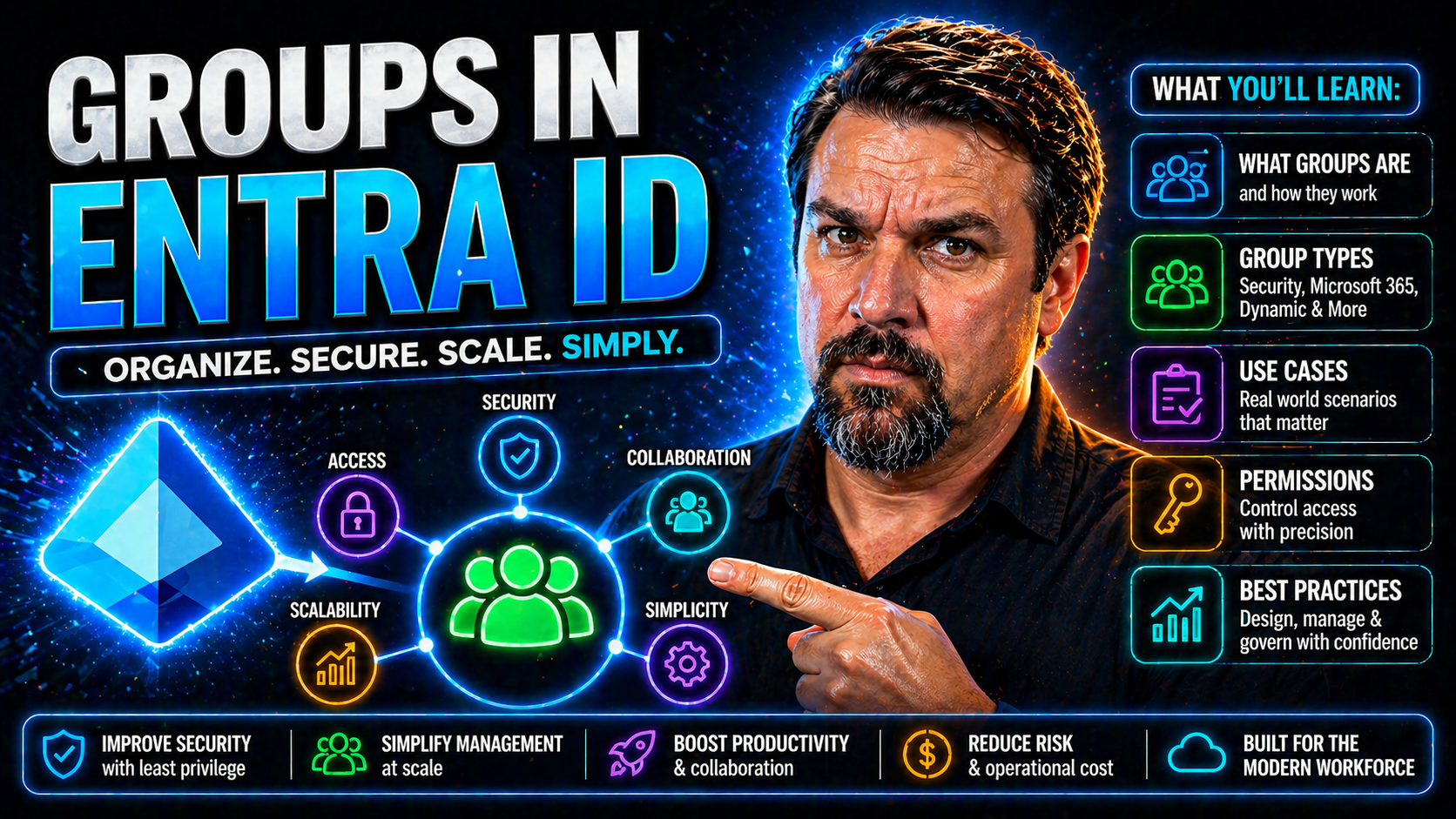
Microsoft Entra ID, formerly known as Azure AD, is the backbone of user identity and access in the Microsoft cloud. If your job involves keeping things secure, running efficient teams, or passing audits, getting groups right in Entra ID is non-negotiable. This guide takes you through every major group type, the management tools that make your day easier, and the best practices that keep your environment tight and compliant.
You’ll learn how different groups handle security, collaboration, and access—plus where dynamic rules and sync with on-premises AD really shine. Expect clear guidance on admin tools, automation, and keeping up with compliance, including ways to monitor, audit, and troubleshoot the rough spots. Whether you work strictly in the cloud or shuffle users across hybrid setups, this resource is your playbook for stronger, smarter group management in Microsoft Entra ID.
Understanding Group Types in Microsoft Entra ID
Before you even think about configuring permissions or onboarding users, you’ve got to pick the right group type in Microsoft Entra ID. Group types set the baseline for how you control access, manage teams, and streamline collaboration. Each group comes with its own strengths, quirks, and purpose—knowing these up front saves you a world of headaches down the road.
At a high level, Entra ID hands you several building blocks: there are security groups for locking things down, Microsoft 365 groups for bringing teams together, dynamic groups that handle membership for you, and synchronized groups that bridge on-premises AD and the cloud. Each has a distinct role in modern identity management, and matching the group to the right use case is foundational for efficient, secure operations.
The next sections break down what each group really does, where it shines (and where it falls short), and how you should be deciding between them. It's not just a tech decision—it's about making your management simpler and your compliance rock-solid. Let’s get clear on your options before you dive into settings and policies.
Entra Groups Microsoft: Comparing Precise Security Groups and M365 Groups for Collaboration
- Security Groups (Entra ID): Access Control Power Tools Designed for precise control of access to apps, resources, or admin functions. Use these when you want to say exactly who gets into what. Great for assigning permissions to Azure resources, enforcing least privilege, and scoping admin roles. Ideal when you’re protecting sensitive data or infrastructure. Admins control membership—users can’t typically add themselves, which helps avoid accidental exposure. Do not create shared mailboxes, Teams, or collaborative spaces. Strictly for access, not for team correspondence or document sharing.
- Microsoft 365 (M365) Groups: Built for Teamwork and Collaboration Create a workspace for collaboration—whenever you make an M365 group, you automatically get a shared mailbox, calendar, SharePoint site, Planner, and the option for a connected Microsoft Teams workspace. Best for dynamic teams or projects that need to share information and documents easily. Supports self-service options, guest access, and user-driven membership changes (if allowed by policy), making onboarding or changing teams smoother. Poor choice for raw access control—avoid using M365 groups just to gate access to non-collaboration workloads.
- When to Use Each—and What to Avoid Use Security Groups for permissions, licensing, and administrative access where precision matters. Avoid for broad team collaboration. Use M365 Groups when your team needs persistent collaboration tools. Don’t use for fine-tuned administrative permission scoping or resource management. Mixing them up leads to confusion and compliance headaches. Pick the right group, and you’re set up for clean, scalable management.
Dynamic Groups and Synchronized Groups Managed Across On-Premises and Cloud
- Dynamic Groups: Membership on Autopilot Set attribute-based rules (like department, location, or job title), and Entra ID manages membership automatically. Users who match the rule get added; lose the attribute, they’re out. No more manual updates when someone switches departments or onboardings ramp up. Perfect for environments where users move around or change roles often. Supports both dynamic user and device groups—critical for applying consistent policies or licenses to constantly-changing populations. Reduces human error and speeds up access—great for organizations chasing “zero-touch” IT for routine tasks.
- Synchronized Groups: Bridging On-Premises AD with Cloud (Hybrid Identity) If your organization still relies on Active Directory on-premises, synchronized groups make sure your group memberships flow into Entra ID cleanly. Azure AD Connect or Cloud Sync keeps group data in lock-step, so cloud-based services reflect on-prem group changes with minimal delay. Enables “single pane of glass” management for hybrid environments—users enjoy seamless access whether a resource lives on-prem or in the cloud. Be aware: manual group changes must occur on-prem; cloud changes won’t sync backward. Attribute conflicts or improper sync settings are common troubleshooting spots.
- Where These Groups Fit into Modern Identity Dynamic groups mean less busywork for IT, especially as organizations scale or restructure. Synchronized groups let hybrid environments keep users productive and secure across platforms. Together, they’re essential tools for scalable, auditable, and automated group management—helping bridge today’s mixed cloud/on-prem realities.
Group Management in Entra ID: Admin Tools and Efficient Interfaces
Getting the group type right is just half the equation—the other half is how you actually manage these groups on a day-to-day basis. Microsoft serves up a suite of native tools to keep administration accessible, but there are also advanced platforms built for larger organizations or those needing that extra bit of control.
This section is all about the admin interfaces and management platforms available to you. Whether you rely on the Azure Portal, the dedicated Microsoft Entra Admin Center, or external solutions like FirstWare IDM-Portal and RealGroup My-IAM, you’ve got options. The right tool can make operations faster, reduce mistakes, and help you scale without drowning in manual work.
The next sections get hands-on: you’ll get step-by-step guidance for the essentials in Microsoft’s own admin portals, then see how specialized third-party platforms can take your group management to the next level. No matter your size, understanding these tools is key to maximizing security and governance across your Microsoft cloud environment.
Managing Groups in the Azure Portal and Microsoft Entra Admin Center
- Accessing Group Management Log into the Azure Portal or the dedicated Microsoft Entra Admin Center. These are the main dashboards for creating and managing groups. Navigating is simple: use the “Groups” blade to see all existing groups, create new ones, or search by name, type, or membership.
- Creating New Groups Select “New group,” choose the type—Security, M365, or Dynamic—and fill in the naming and membership requirements. Set dynamic membership rules (if needed) with clear attribute logic. Test rules with the validation tool before saving.
- Editing, Reviewing, and Deleting Groups Edit group settings like name, description, and membership from the details pane. Always review permissions before making changes to live groups. Owners and members can be managed in just a few clicks. Deletion is equally straightforward, but always double-check dependencies, especially for M365 groups to avoid orphaned resources.
- Best Practices and Built-In Features Leverage overview dashboards to spot access risks or group sprawl. Use built-in auditing and logs to track changes for compliance or troubleshooting. Dynamic group previews let you confirm memberships before going live, reducing surprises and human error.
- Why These Tools Are Essential Microsoft’s portals are intuitive and fully integrated with other M365 and Azure features—perfect for routine group management and access reviews, especially for teams that aren’t ready for advanced automation.
FirstWare IDM-Portal and RealGroup My-IAM: Efficient Group Management Solutions
- FirstWare IDM-Portal: Hands-On Customization and Delegation Offers role-based and delegated group management, making life easier when IT admins can’t own every add or update. Provides fine-tuned control over membership, bulk updates, and detailed lifecycle automation—especially helpful for large or highly regulated environments. Interfaces integrate with Entra ID, ensuring you manage everything from a single, unified dashboard while still keeping advanced workflows flexible.
- RealGroup My-IAM: Practice-Driven for Big Teams Excels at automating recurring maintenance—think onboarding/offboarding, scheduled group reviews, and compliance-driven documentation.Supports custom access flows and business-friendly interfaces for task delegation, reducing pressure on central IT. Useful for organizations with complex approval chains, audit needs, or where groups must constantly adapt to new teams and projects.
- Why Consider Third-Party Management? The more groups, the more you need robust reporting, automation, and error-proof delegation. Native Microsoft tools do a lot, but solutions like IDM-Portal and My-IAM supercharge efficiency and transparency, especially at enterprise scale.
Access Control and Role Assignment in Entra Groups Microsoft
All the careful setup in the world falls apart if users can access things they shouldn’t. Entra ID’s real power comes from tying group membership directly to access and roles. Modern access control isn’t just about flipping a switch—it’s about matching the right responsibilities to the right users, at the right time, every time.
This section unpacks how Entra groups play into broader authorization models. Whether it’s group-based or role-based permissions, attribute-driven conditional access, or Privileged Identity Management (PIM) for those high-stakes tasks, it’s all about boosting security and accountability. Proper group and role assignments don’t just lock things down—they make audits easier, compliance simpler, and guarantee teams can get to what they need without delay.
Up ahead, you’ll see exactly how RBAC, ABAC, and dynamic memberships make life easier for admins and safer for the whole organization. There’s also a look at just-in-time access models that keep privileged usage tight, logging, and always auditable. For deeper dives on risk, policy design, and closing security gaps, check out topics like identity as the control plane and conditional access strategies or improving Conditional Access Policy trust boundaries across your environment. Let’s see how these controls play out in everyday administration.
Group-Based and Role-Based Access Control with RBAC and ABAC Authorization
Group-based access control in Entra ID assigns permissions by adding users to groups, which are then granted access to apps or resources. This streamlines permission management by moving individual rights up to the group level, making large-scale changes more efficient.
Role-based access control (RBAC) assigns roles—bundled sets of permissions—to groups or users. This lets you quickly roll out changes when someone’s responsibilities shift. Attribute-based access control (ABAC) adds an extra layer, using user or resource attributes (like department or job title) to automate and refine permissions even further.
Combining these models enables you to strike the right balance between broad access efficiency and fine-grained security. For more on cleaning up legacy permissions and establishing robust, enforceable access controls, check this episode on the conditional access security loop.
Dynamic Membership and Just-In-Time Access with Privileged Identity Management
Dynamic groups in Entra ID let you automate group membership with attribute-based rules. As user data changes, group memberships update without manual work—saving time and ensuring consistent access controls.
Privileged Identity Management (PIM) elevates this by allowing just-in-time (JIT) assignment of sensitive roles. Users only get privileged access for a set time and all activity is logged. This cuts down on standing admin permissions and supports compliance by establishing a clear audit trail.
Combining dynamic groups with PIM results in lower risk and a more adaptive, responsive IT environment. For guidance on additional security controls—like controlling OAuth consent and mitigating persistence threats—see this explanation of OAuth consent vulnerabilities in Entra ID.
Best Practices for Group Management, Naming Policies, and Automation
Once you’ve nailed down group types and access models, don’t sleep on day-to-day management. Creeping complexity, bad naming, duplicate groups, and forgotten memberships pile up fast. The result? Sloppy audits, accidental exposures, and inefficiency you can’t afford.
This section sets the tone for governance that endures. From naming conventions and lifecycle policies to smart automation and delegation, these best practices turn group management from hassle to habit. With the right prep, you’ll avoid sprawl, stay compliant, and keep your directory running like a tight ship.
The next sections lay out the steps—clear, actionable recommendations for policy design, lifecycle routines, and powering up with automation. You’ll learn how to clear clutter, assign with confidence, and reclaim your team’s bandwidth for the complex stuff. If you need more insights on automating governance (or are curious how others handle PowerShell-driven compliance), you might want to check podcast topics—even if some links redirect to more current conversations.
Naming Conventions, Lifecycle Management, and Governance for Group Management
- Consistent Naming Policies Define a group naming convention—include business unit, purpose, location, or project codes to aid search and auditing. Block creation of ambiguous or duplicate names to reduce confusion and security risk.
- Lifecycle and Expiration Policies Set automatic group expiration—review or retire old groups during offboarding or project completion to avoid access bloat. Regularly review group memberships, especially for sensitive or privileged groups, to support the principle of least privilege.
- Governance and Documentation Keep a documented policy for group creation, review, and deletion—making audits and troubleshooting straightforward. Implement approval workflows for high-impact groups. For more tips or related strategies, you may see updates on governance automation topics.
Advanced Automation and Delegation Tips for Efficient Group Management
- Automation Tools and Scripts Automate group provisioning, lifecycle management, and membership changes using PowerShell, Graph API, or workflow engines. Schedule recurring group reviews and reports to catch anomalies early—freeing up IT for strategic tasks.
- Delegated Administration Delegate group management tasks to trusted team leaders or app owners—reducing IT workload and boosting responsiveness. Apply least privilege delegation, so each manager only handles groups relevant to their scope.
- Responsive and Efficient Operations Combine automation and delegation for a scalable model—manual maintenance becomes the exception, not the rule. Keep eyes open for new scripts or delegated workflow ideas; some of these pop up in community podcasts and discussions, helping you stay ahead.
Synchronization and Hybrid Identity for Groups Synchronized and Managed Across Entra ID
A modern Microsoft ecosystem can't ignore the reality of hybrid identity. If you’ve got on-premises AD groups and cloud services, you already know how important it is to sync group data accurately. Get it wrong and users lose access—or get too much. Get it right and you create a seamless experience without holes in your security.
This section preps you for the nuts and bolts of synchronizing groups using tools like Azure AD Connect or the lighter Cloud Sync agent. But that’s only half the story—there are also best practices for working in hybrid group environments, common trouble spots, and the practical steps to keep everything running smooth between on-prem and cloud.
Managing hybrid group identity is about more than just syncing the data; it’s about addressing conflicts, delays, and governance controls across both worlds. If you want a sense of how enterprise governance measures play a role here, dive into topics like Azure enterprise governance strategies, which highlight RBAC, PIM, and automated enforcement.
Synchronizing On-Premises Groups to the Cloud Using Azure AD Connect and Cloud Sync
- Set Up Azure AD Connect or Cloud Sync Install Azure AD Connect on-premises or deploy the lightweight Cloud Sync agent for simpler scenarios. Select the AD groups you want synchronized; carefully define filtering rules to avoid unwanted exposure or duplication in the cloud.
- Manage Attribute and Membership Mapping Configure attribute mappings in the sync rules to ensure user and group data transfers correctly—watch for mismatches or missing data. Use Azure Portal sync monitoring tools to track status, spot errors, and validate group membership changes post-sync.
- Troubleshooting Basics and Governance Most sync problems trace back to attribute conflicts, duplicate groups, or filtering misconfigurations—delays can also occur due to connectivity issues. Audit your sync logs often and leverage policy-driven governance for consistent enforcement. For broader context on policy and enforcement, see Azure governance strategies.
Managing Hybrid Group Environments and Cloud Integration with On-Premises AD
- Solving Attribute Conflicts and Duplicates Before full deployment, scan for existing group-specific attributes (like mail, display name) that could trigger conflicts in Entra ID. Develop a naming and attribute standard for hybrid groups to avoid mishaps and merge errors down the line.
- Managing Both Cloud-Native and Synchronized Groups Document which groups are synced and which are cloud-only. Avoid assigning overlapping permissions to prevent overprovisioning or confusion. Periodically review memberships, nesting, and group owners to keep compliance sound and eliminate orphaned access paths.
- Ensuring Operational Integrity Across Platform Align change management for both on-prem and cloud environments—keep communication open between hybrid admins to track group deletions and permission changes. Review and enforce governance policies (using tools like RBAC and PIM) for unified control. For real-world policy enforcement ideas, dip into Azure governance strategy guides.
Summary and Frequently Asked Questions About Entra ID Groups
Let’s pull it all together: Entra ID groups are the backbone for managing access and identity in Microsoft cloud environments. You’ve got security groups, Microsoft 365 groups, dynamic groups, and even hybrid setups, each with its unique perks for security and collaboration. Managing these right—naming, lifecycle, access policies, automation—keeps your organization organized, secure, and ready for anything.
Questions come up all the time, like “How do I build a dynamic group?” or “What’s the deal with syncing from on-premises?” Lucky for you, the answers aren’t hard to follow: just a few key steps and some smart troubleshooting when things don’t look right. Whether you’re facing access reviews, compliance audits, or integration with other platforms, using Entra ID groups well makes your job smoother and keeps your environment in check.
You Should Also Listen To
If you are researching Microsoft Entra groups, these episodes add practical context on identity security, governance, privileged access, and implementation:
- Microsoft Defender XDR – Simply Explained — Connect identity governance with security signals, investigation, and response.
- Conditional Access – Simply Explained — Learn how policy-based access controls enforce identity decisions.
- Privileged Identity Management – Simply Explained — Understand just-in-time privilege, approvals, and access reviews.
- Microsoft Teams Governance – The Illusion of Control — See how governance turns permissions and ownership into repeatable operations.

Microsoft MVP | Host of M365.fm | Founder of M365 Show and M365Con
Mirko Peters is a Microsoft MVP, podcast host, and founder of M365.fm, M365 Show, and M365Con. His work connects Microsoft practitioners through podcast interviews, livestreams, and community events.
At M365.fm, Mirko hosts conversations with Microsoft MVPs, product experts, architects, and community contributors. Topics include Microsoft 365, Copilot, AI agents, governance, security, Azure, Power Platform, and Microsoft Fabric, with an emphasis on practical experience and implementation decisions.
M365.fm is the podcast and learning platform. M365 Show brings experts together for livestreams, while M365Con provides an online conference setting for community learning.
Official website: Mirko Peters (https://www.mirkopeters.com/). Recognition: Mirko Peters — Microsoft MVP profile (https://mvp.microsoft.com/de-DE/mvp/profile/9b0ca797-db5a-493a-a845-8b9158046cf5). Connect on LinkedIn (https://www.linkedin.com/in/m365showpodcast/).





