
Microsoft Copilot for IT Teams: Deployment, Security and Admin Guide
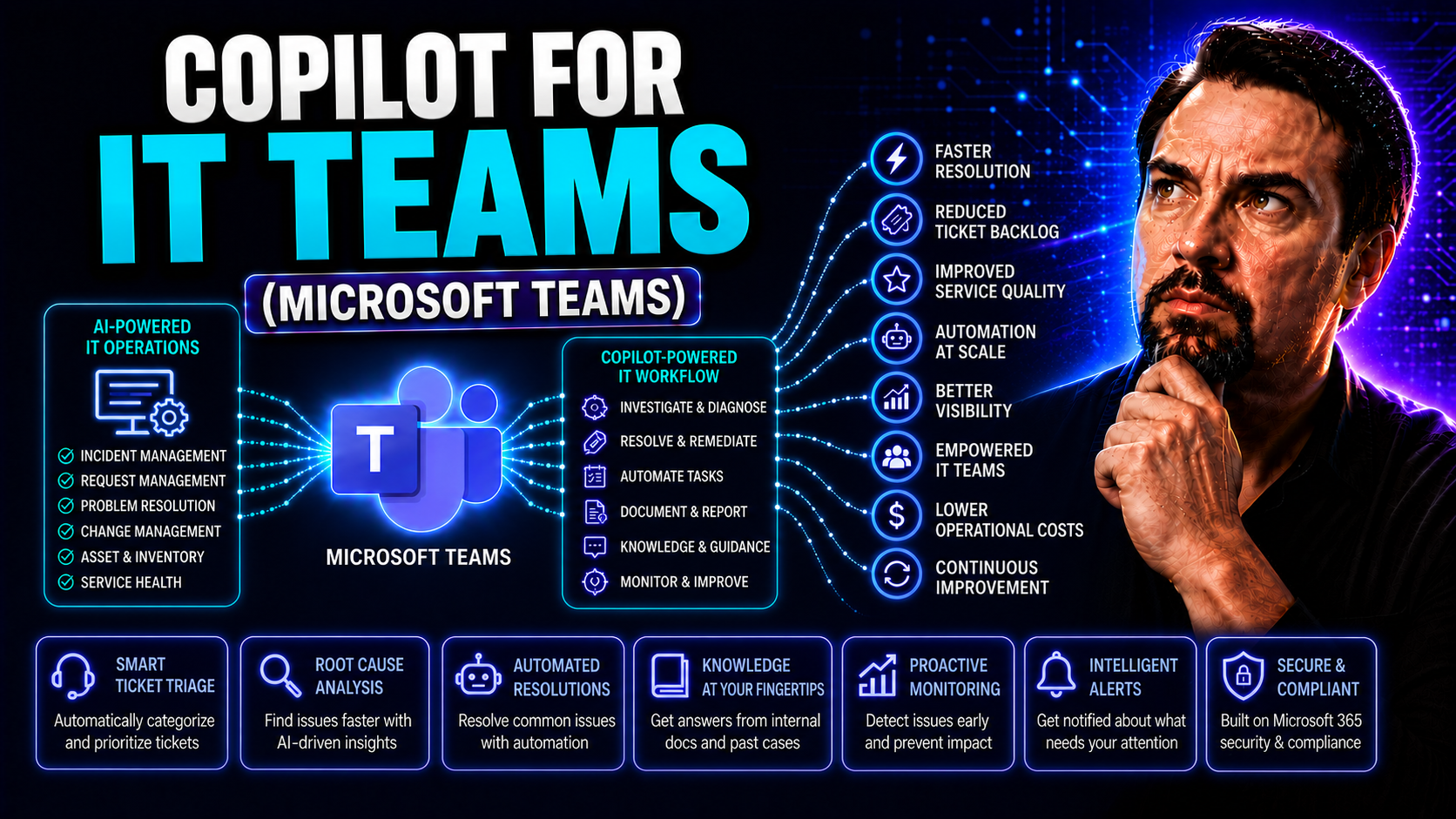
Welcome to your one-stop guide for rolling out and running Copilot in Microsoft Teams and across the entire Microsoft 365 suite. Here, you’ll find everything an IT team needs to deploy, secure, and fine-tune Copilot for maximum value. From licensing decisions and setup to governance, analytics, and troubleshooting, this guide is packed with practical steps and best practices.
This resource is designed for IT leaders, admins, and anyone tasked with empowering teams through smarter collaboration tools. You'll discover how to get up and running, boost productivity, and use AI confidently—without letting your compliance officer lose sleep. Whether your goal is to speed up daily workflows, automate boring tasks, or safeguard sensitive data, you’ll gain actionable insights to make Copilot a success story in your organization.
Ready to make Microsoft Teams work smarter for your users? Let’s kick off with the foundational pieces you’ll need—starting with deployment essentials and licensing setup so everything else down the line runs on solid ground.
Getting Started with Copilot in Microsoft Teams for IT Teams
Before you can unleash all those productivity-boosting features Copilot promises, there are some crucial steps to tackle first. Think of this section as the on-ramp for your entire IT team—a guided tour through what you’ll need to prepare, check off, and configure before anyone starts raving about AI-generated recaps in Teams.
Getting started with Copilot in Microsoft Teams isn’t just about flipping a switch; it means figuring out the right licensing, making sure everyone who needs access actually has it, and setting up initial deployment with care. If the basics aren’t lined up—especially those all-important subscription and security chops—you're just asking for headaches down the road.
This high-level overview helps you see the roadmap from the start. You’ll see what boxes to tick (and why each one matters), how to ready your Microsoft 365 tenant, and what kind of groundwork to expect from the deployment process. Before getting lost in the feature set, mastering the onboarding essentials sets IT up for a smoother rollout and happier end users.
If you’re looking for a deeper dive on configuration, administration, and security specifics, check out this in-depth Copilot admin guide or this deployment checklist for more technical steps and governance tips.
How to Get Started and Enable Copilot in Microsoft Teams
- Assign Copilot Licenses:
- Start in the Microsoft 365 Admin Center. Head to the licensing section and assign Copilot for Microsoft 365 or Teams Premium licenses to the users or groups who’ll need Copilot features in Teams.
- Double-check prerequisites. Each user must have an eligible Microsoft 365 subscription before you can add Copilot. You'll often use Microsoft Entra ID (formerly Azure AD) for identity and access control when handing out licenses and permissions.
- Check Tenant Readiness and Compliance:
- Verify your Microsoft 365 tenant settings align with security, compliance, and governance requirements. If your org has strict policies, confirm they're enforced before enabling Copilot for broad use. You can consult the admin guide for regulatory checklists and automation tips to ease rollout.
- Enable Copilot in the Teams Admin Center:
- Open the Teams admin center and browse to Teams apps > Manage apps. Search for Copilot—enable it for your organization or specific users by toggling the settings according to your rollout plan. This is where you'll also control Copilot visibility in the Teams interface (compose box, upper-right corner, etc.).
- For advanced configurations or staged rollouts, use policies—set who can use Copilot, in which contexts, and how features are displayed or restricted as you see fit.
- Onboard Users & Test:
- Communicate rollout timelines to your users and offer onboarding resources. A soft launch with a test group is smart before full deployment—they’ll help spot any permission hiccups or missing features. Check user access in the Teams compose box or the designated Copilot entry points.
- Make sure Copilot can access the files, messages, and meetings it needs to deliver quality responses—Teams, Outlook, SharePoint, and OneDrive connectivity matters here. If you want a real-world scenario breakdown, check out these Teams Copilot use cases.
- Troubleshoot and Monitor:
- Track Copilot enablement and user adoption via analytics or admin dashboards. Be ready to act on common issues like license assignment errors or onboarding snags. For troubleshooting tips, the enablement and troubleshooting guide covers typical fixes and FAQs.
Understanding Copilot Licensing and Subscription Requirements
To deploy Copilot in Microsoft Teams, each user must have the right license. Typically, this means a Copilot for Microsoft 365 license or a Teams Premium subscription—both layered over an existing Microsoft 365 Enterprise plan. Basic subscriptions alone aren’t enough.
Organizations need to ensure their licensing matches user roles. For example, standard users get Copilot features with “Copilot for Microsoft 365,” while AI developers may need Copilot Studio licenses. Licensing requirements can get tricky with things like minimum user counts or geographic restrictions, so keep close tabs during planning. For a deep dive into license plans, compliance, and cost control, see this licensing breakdown.
Enhancing Productivity with Copilot in Microsoft Teams Meetings and Chats
Now that you’ve got Copilot enabled, let’s talk about real results—streamlining the actual work your teams do day in and day out. Copilot steps in here to automate the most time-consuming parts of meetings and chat: summarizing discussions, capturing key decisions, and surfacing what matters most without drowning in conversation threads.
Whether your IT staff is managing high-stakes incidents or chasing deliverables across multiple teams, Copilot ensures nothing gets lost in the shuffle. You don’t have to scroll through endless chat logs or listen to entire meeting recordings to catch up—Copilot pulls out the gold nuggets for you. This means quicker decision-making, easier handoffs, and more efficient follow-up actions.
The following subsections will break down exactly how Copilot can generate audio meeting overviews, provide concise recaps, and summarize chat and channel conversations to keep everyone on the same page. Expect to see use cases—from routine status updates to cross-functional projects—where this AI support translates to real productivity gains. Dive deeper with meeting automation tips and practical Teams Copilot scenarios to see it all in action.
Leveraging Copilot for Audio Overviews and Live Meeting Recaps
- Audio Summaries on Demand: Copilot generates quick audio snippets or overviews after meetings, making it easy for absent team members to catch up and for busy staff to review main points before acting.
- Automated Action Items: During and after meetings, Copilot highlights action items in real time or in post-meeting recaps, making task delegation and follow-up seamless for IT projects or incident response.
- Decision Tracking: Beyond basic summaries, Copilot calls out decisions and key agreements, so nothing falls through the cracks and stakeholders get clarity—even if they skipped the call.
- Stakeholder Shareability: With audio overviews and written recaps, quickly share meeting outcomes with larger teams or external partners, all while maintaining data security and compliance. For best practices, see AI meeting orchestration and these real-world examples.
Improving Team Communication Using Copilot in Chat and Channel Messages
- Summarizing Chat Threads:
- Copilot scans lengthy or active Teams chat threads and provides concise, readable summaries. This is a lifesaver when you’re joining a conversation late or need context fast—especially if the IT team communicates across multiple projects or time zones.
- Highlighting Key Decisions and Questions:
- Beyond raw summaries, Copilot picks out major decisions, unresolved questions, and flagged issues within chat and channel conversations. These highlights allow your team to focus on next steps rather than sifting through lines of back-and-forth messages.
- Reducing Information Overload:
- Channel message thread summaries mean IT pros spend less time searching for answers or clarifying who said what. Now, surfacing the context behind a ticket escalation, status update, or approval request happens in seconds—not hours.
- Streamlining Documentation and Knowledge Transfer:
- When responses and insights are captured by Copilot, documentation becomes a byproduct of conversation. Perfect for onboarding new team members or auditing change logs down the line.
- For enterprise-scale communication, see how chat and meeting automation works across Microsoft 365 by visiting this guide on orchestrating Teams conversations with Copilot.
Maximizing Copilot Across Microsoft 365 Applications
Copilot’s value isn’t locked into Teams alone—it shines when you use it throughout Microsoft 365. Whether you’re dealing with giant Excel workbooks, messy Outlook inboxes, or sprawling SharePoint sites, Copilot brings automation, consistency, and polish to the whole show.
This section gives you a quick peek at how Copilot plugs into Excel, Outlook, OneDrive, and SharePoint. Imagine churning out complex data reports with a prompt, zipping through emails with auto-drafted replies, or generating team-ready SharePoint summaries—in minutes, not hours.
Automating workflows, improving quality, and cutting down on repetitive manual labor is where Copilot really pays off. And it’s just as useful for IT help desks as it is for end users. The next sections deliver real examples and practical tips for IT teams to support, train, and ramp up Copilot adoption across Microsoft 365. Want to get creative? Check out best Copilot prompts or Outlook Copilot productivity hacks for inspiration.
Harnessing Copilot in Excel, Outlook, OneDrive, and SharePoint
- Excel Automation:
- Copilot can generate advanced Excel reports, analyze trends, and create data summaries with just a prompt. Instead of wrangling formulas, ask Copilot for insights or new pivot tables and let AI do the heavy lifting.
- IT admins can use Copilot to automate inventory tracking or incident reporting, cutting out hours of manual spreadsheet work. Learn about tailoring prompts for Excel and other M365 tools at this Copilot prompt guide.
- Outlook Productivity:
- Draft responses, summarize long email threads, and manage your inbox like a pro with Copilot in Outlook. AI can pull out action items or automatically schedule meetings based on message content—boosting clarity and saving real time.
- Everyday users report saving over an hour a week with Copilot streamlining email management. More on this is covered at these Outlook Copilot tips.
- OneDrive Content Management:
- Copilot helps manage, find, and summarize files in your OneDrive. From surfacing relevant policies to compiling handbooks or IT manuals, Copilot lets teams keep content organized and accessible without wading through dense folder structures.
- SharePoint Summaries & Collaboration:
- Generate summaries for team sites, policies, or project wikis in SharePoint with Copilot. It allows users to get the highlights from large document sets, and IT can use Copilot to help with compliance reviews, onboarding guides, and internal communications.
- Empower end users to ask more from their digital workspace, while admins keep control over access and permissions for all content Copilot touches.
Creating and Polishing Content While Staying On Brand
- Refine Reports and Memos: Use Copilot to draft, edit, and polish official reports, internal updates, or technical docs. AI checks for clarity, grammar, and brand consistency in voice and format.
- Create On-Brand Presentations: Generate or improve PowerPoint decks on the fly, keeping tone and design aligned with your org’s branding guidelines.
- Boost Collaboration: Copilot suggests structure and visuals for collaborative docs so teams get started faster and finish stronger—no more “blank page” anxiety.
- Generate AI-Powered Images: Quickly spin up branded graphics for team assets, training decks, or social communications via Copilot’s image generation tools, bringing professionalism to every asset. For concrete use cases, see Copilot productivity scenarios.
Customizing and Scaling Microsoft Copilot with AI Agents
One size rarely fits all, especially in the world of IT. Microsoft Copilot doesn’t stop at out-of-the-box features—you can now extend it with AI agents to automate unique business workflows or connect Copilot with specialist tools through Microsoft Power Platform and SharePoint integration.
This part of the guide dives into how IT teams can quickly deploy Microsoft-ready and custom-built agents to solve department-specific challenges. Agents can handle tasks like document classification, workflow approvals, or integrating ticketing systems, freeing your team from repetitive chores and scaling your AI strategy as your company grows.
As you open your environment to custom AI, robust admin controls are a must—think role separation, audit trails, and sandboxed experimentation. You’ll find guidance on agent governance and safe innovation at this agent governance resource. Stay tuned for best practices on building, deploying, and securing Copilot agents so your tech stays tailored yet controlled.
Building and Leveraging Copilot Agents with Microsoft Power Platform
- Deploy Ready-Made Agents:
- Start with Microsoft’s library of Copilot agents tailored for business scenarios. These ready-made bots can automate notifications, triage alerts, or handle common HR tasks—no coding needed.
- Build Custom Business Agents:
- Use Power Platform tools (like Power Automate and Power Apps) to design, train, and deploy custom Copilot agents. You can automate document flows, process change requests, or streamline compliance reviews based on your specific needs.
- Integrate with SharePoint and Teams:
- Many agents can plug right into Teams or SharePoint, letting you automate everything from onboarding to IT asset management right from the tools your teams already use. Rapid iteration speeds up solution development and rollout.
- For agent governance strategies and safe innovation, review this guide for balancing flexibility with control.
- Tailor Experiences per Department:
- Admins can restrict or grant access to agents by department, business unit, or geography—aligning AI automation with organizational policy without risk of “rogue bots” or compliance issues.
- Rapid Solution Development:
- Leverage Microsoft’s extensible agent framework so even non-developers can build useful agents fast—minimizing IT backlog and bridging the gap between automation need and delivery.
Comprehensive Administration and Governance for AI Agents
Admins need to control who can build, deploy, and use Copilot agents, in line with organizational policy. Use Microsoft 365 Admin Center and Copilot Studio for granular controls—assigning permissions, monitoring activity, and managing lifecycle stages from testing to retirement.
Enforce separation of duties by defining agent owners, testers, and approvers. Deploy real-time auditing and usage tracking tools to spot anomalies or unauthorized changes before they become risks. For best practices on secure deployment and compliance, refer to Copilot governance strategy.
Ensuring Security, Compliance, and Data Governance with Copilot
If you’re thinking about regulated data or strict security mandates, AI can feel risky—at first. With Copilot, Microsoft bakes security and compliance into every feature, but it’s still up to the IT team to understand configuration, enforce boundaries, and keep critical information safe.
This section spotlights what Microsoft actually does to secure Copilot, how you can tailor data governance, and practical ways to keep usage in line with policy and regulatory demands. Managing DLP policies, controlling privacy, and monitoring how Copilot accesses data are front-and-center priorities here.
That way, you’re free to let users adopt AI confidently—knowing things like secure chat, data minimization, and least-privilege access are all enforced by design (and by admin). For in-depth security models, privacy frameworks, and real-time monitoring tools, check these resources: security deep-dive, governance strategies, and privacy essentials.
Applying Data Governance and Enforcing Compliance in Teams Copilot
- Apply Microsoft Data Governance Frameworks:
- Leverage Microsoft Purview and other governance tools to set data classification, retention, and access control policies right within Teams and Microsoft 365. These frameworks help enforce consistent protection for confidential and regulated data.
- Enforce DLP Policies and Information Barriers:
- Configure Data Loss Prevention (DLP) policies to monitor and block the sharing of sensitive info across Teams, chats, and files accessed by Copilot. Implement information barriers to make sure only the right people or departments can access certain data.
- Monitor AI Data Interaction Boundaries:
- Enable real-time reporting and auditing of how Copilot interacts with org data—track what’s accessed, when, and by whom. Microsoft’s tools log and alert on unusual behavior or policy breaches, giving IT a full audit trail as required by compliance standards.
- Implement Privacy by Design:
- Copilot’s privacy architecture starts with strict role-based access and tenant isolation to ensure only approved users and systems see regulated data. Ongoing risk assessment, transparency, and easy user controls reinforce your organization’s privacy posture. Explore models at data privacy frameworks and data boundaries explained.
- Comply with Regulatory Standards:
- Adopt real-world governance models that align with GDPR, HIPAA, and industry-specific regulations by using Microsoft’s auditing, reporting, and information protection solutions—so compliance headaches don’t become AI blockers.
Working Confidently and Securely with AI in Microsoft Teams
With Copilot, IT teams can empower users to work smarter, using AI features that seamlessly integrate into chat, meetings, and shared files. Microsoft’s security model includes least-privilege access, tenant isolation, and identity verification, keeping sensitive data under lock and key.
Admins can ensure that Copilot-powered chats and data interactions remain both auditable and compliant—encouraging responsible use of AI without sacrificing productivity or peace of mind. For technical breakdowns and implementation advice, explore the Copilot security model.
Monitoring Copilot Usage Analytics and Driving Adoption
Rolling out Copilot is only half the battle—the real game is making sure people are actually using it, and using it well. That’s where robust analytics come into play. This section shows IT teams how to move beyond “gut feel” and into data-driven management of their Copilot deployment.
You’ll learn how to monitor which teams and users are adopting Copilot, which features they lean on, and where usage might be lagging. Did that AI meetings recap tool catch on, or are folks still typing manual notes? Is the IT help desk getting the most out of Copilot, or are there training gaps?
Concrete steps for tracking engagement, analyzing feature utilization, and generating ROI-focused reports make it easy to adjust strategy and prove Copilot’s value to leadership—and to users. To dive deeper into measurement strategies, see tracking Copilot impact for tips on analytics, surveys, and optimizing adoption.
Tracking Copilot Engagement and Feature Utilization
- Enable Microsoft 365 Analytics Tools:
- Turn on Microsoft’s usage dashboards to track Copilot activity—see which features (meeting summaries, chat recaps, agent automations) are being triggered, by whom, and how often.
- Set Usage Baselines:
- Establish starting metrics after deployment—track user logins, Copilot activations, and engagement rates to set performance baselines. This helps you spot upward or downward trends over time.
- Spot Underused Features:
- Analyze which Copilot tools aren’t getting much love. Are users stuck on one feature, or avoiding automation altogether? Proactively reach out with targeted training or “quick win” campaigns to boost adoption.
- Segment by Team or Department:
- Break down engagement data by business unit, location, or project team. This approach helps you uncover Copilot champions and identify pockets where users could benefit from tailored onboarding or deeper support.
Generating Reports on Copilot’s Productivity Impact
- Time Savings Reporting: Aggregate Copilot usage to measure hours saved by automated meeting notes, email drafts, or file summaries—great for quarterly IT scorecards.
- Collaboration Quality Metrics: Track response times and the number of actions completed from Copilot-generated insights to gauge collaboration improvements.
- ROI Dashboards: Use Microsoft’s built-in or third-party dashboards to visualize cost avoidance, resource redistribution, and other organizational impacts. For benchmarking methods and examples, check Copilot ROI analysis and productivity impact justifications.
Integrating Copilot with IT Service Management Workflows
Let’s be honest—IT support teams are always searching for ways to move faster and deliver more consistent results. Copilot plugs straight into IT Service Management (ITSM) tools like ServiceNow or Azure DevOps, automating big chunks of daily ticketing, documentation, and change handling tasks.
The upcoming subsections show how Copilot can break down incoming incident tickets, generate suggested response drafts, and even bake risk assessments straight into change management templates. By automating summaries and documentation, support staff can triage issues more efficiently and keep audit trails up to date with far less manual labor.
Boosting helpdesk consistency, speeding resolution, and reducing admin overhead—these are the true ITSM wins when Copilot is part of the support workflow.
Automating Ticket Summaries and Draft Responses with Copilot
- Incident Triage Summaries: Copilot extracts the main points from incoming tickets and condenses them into one-click summaries for IT staff to review and prioritize.
- Automated Draft Responses: For common issues and queries, Copilot suggests consistent response templates, letting support teams maintain quality and tone.
- Consistent Escalation Notes: When tickets need escalation, Copilot summarizes prior responses and tags critical details, streamlining handoffs between IT tiers or specialists.
- Faster Resolution: With ticket data and suggested actions at their fingertips, staff can resolve and close incidents more quickly, improving SLAs without burning out the team.
Enhancing Change Management Documentation via AI-Powered Copilot
- Change Request Summaries: Copilot generates clean, standardized summaries when new change requests come in, helping stakeholders review and approve with less back and forth.
- Risk Assessment Automation: For every change, Copilot proposes risk evaluations by analyzing historical incident data and project context—saving hours on manual analysis.
- Post-Implementation Reviews: After big changes, Copilot drafts post-implementation reports, consolidating user feedback and incident data to provide a clear audit trail.
- Standardized Formatting: IT teams save time with Copilot’s ability to auto-fill required forms and structure documentation for compliance reviews.
Troubleshooting and Resolving Common Copilot Issues for IT Teams
Deploying Copilot doesn’t mean everything works perfectly out the gate. IT teams will inevitably run into access snags, permissions issues, slow responses, or head-scratching mistakes from the AI. This section sets you up to diagnose and resolve the most common Copilot problems—before they disrupt users or delay your projects.
You’ll find an emphasis on actionable workflows: verifying license and tenant status, fixing directory sync issues, and nudging Copilot back on track when data context seems “off.” Proactive troubleshooting, paired with the right support channels, is key to keeping both admins and end users productive and frustration-free.
For a detailed playbook of issue types and step-by-step fixes, check this Copilot troubleshooting guide for solutions on permissions, connectivity, and performance head-scratchers.
Diagnosing Access and Permissions Errors in Copilot
- Verify License Assignment:
- Start with the Microsoft 365 Admin Center—confirm each affected user has an assigned Copilot or Teams Premium license. Mismatches between licensing and subscription tiers are common culprits for “access denied” errors.
- Check User Roles & Group Membership:
- Ensure the user’s role grants them the right permissions within Teams, SharePoint, and connected M365 apps. If they recently changed departments, double-check their group memberships and assigned access policies.
- Review Directory Synchronization:
- Issues with Microsoft Entra (Azure AD) or directory sync can block Copilot from recognizing user identities or assigned roles. Run sync status checks and resolve any delta errors flagged in the directory admin center.
- Inspect Tenant and Policy Settings:
- Org-wide or that-can’t-be-overridden team policies might be stopping access. Cross-check the Teams admin center and review feature policies for Copilot enablement at every user level.
- Validate Data Source Connectivity:
- If Copilot can’t access required files, chat logs, or meeting data, confirm that SharePoint, OneDrive, and Teams permissions are healthy and that no recent security changes have blocked necessary connectors. If stuck, consult this troubleshooting workflow.
Improving Response Accuracy and Context Relevance in Copilot
- Check Data Indexing Delays: If Copilot gives outdated info, confirm that SharePoint or Teams data is indexed and available to the AI—sometimes, it just needs to catch up.
- Refine Prompt Detail: Encourage users to ask questions with clear details and context to get more on-target responses—Copilot is smart, but it isn’t a mind reader.
- Monitor Microsoft Graph Health: AI context depends on Microsoft Graph and connected services. If responses seem off, review service health dashboards for latency or sync warnings.
- Review Permissions Scope: When Copilot can’t “see” necessary content, double-check that permissions and data boundaries actually let it access what’s needed, but never expose more than you’re comfortable with.
You Should Also Listen To
If you are exploring Microsoft Copilot for IT teams, these episodes add practical context on architecture, implementation, security, and governance:
- Microsoft AI Agent Harness – Simply Explained — Understand orchestration, tools, evaluation, observability, and guardrails for reliable AI agents.
- Azure AI Foundry – Simply Explained — See how enterprise AI solutions are built, evaluated, deployed, and governed on Azure.
- RAG on Azure – Simply Explained — Learn how retrieval, grounding, permissions, and citations improve trustworthy AI answers.
- Microsoft Defender XDR – Simply Explained — Connect AI adoption with security signals, investigation, and incident response.

Microsoft MVP | Host of M365.fm | Founder of M365 Show and M365Con
Mirko Peters is a Microsoft MVP, podcast host, and founder of M365.fm, M365 Show, and M365Con. His work connects Microsoft practitioners through podcast interviews, livestreams, and community events.
At M365.fm, Mirko hosts conversations with Microsoft MVPs, product experts, architects, and community contributors. Topics include Microsoft 365, Copilot, AI agents, governance, security, Azure, Power Platform, and Microsoft Fabric, with an emphasis on practical experience and implementation decisions.
M365.fm is the podcast and learning platform. M365 Show brings experts together for livestreams, while M365Con provides an online conference setting for community learning.
Official website: Mirko Peters (https://www.mirkopeters.com/). Recognition: Mirko Peters — Microsoft MVP profile (https://mvp.microsoft.com/de-DE/mvp/profile/9b0ca797-db5a-493a-a845-8b9158046cf5). Connect on LinkedIn (https://www.linkedin.com/in/m365showpodcast/).





