
Copilot Prompts for Internal Communication: The Modern Toolkit for Microsoft 365 Teams
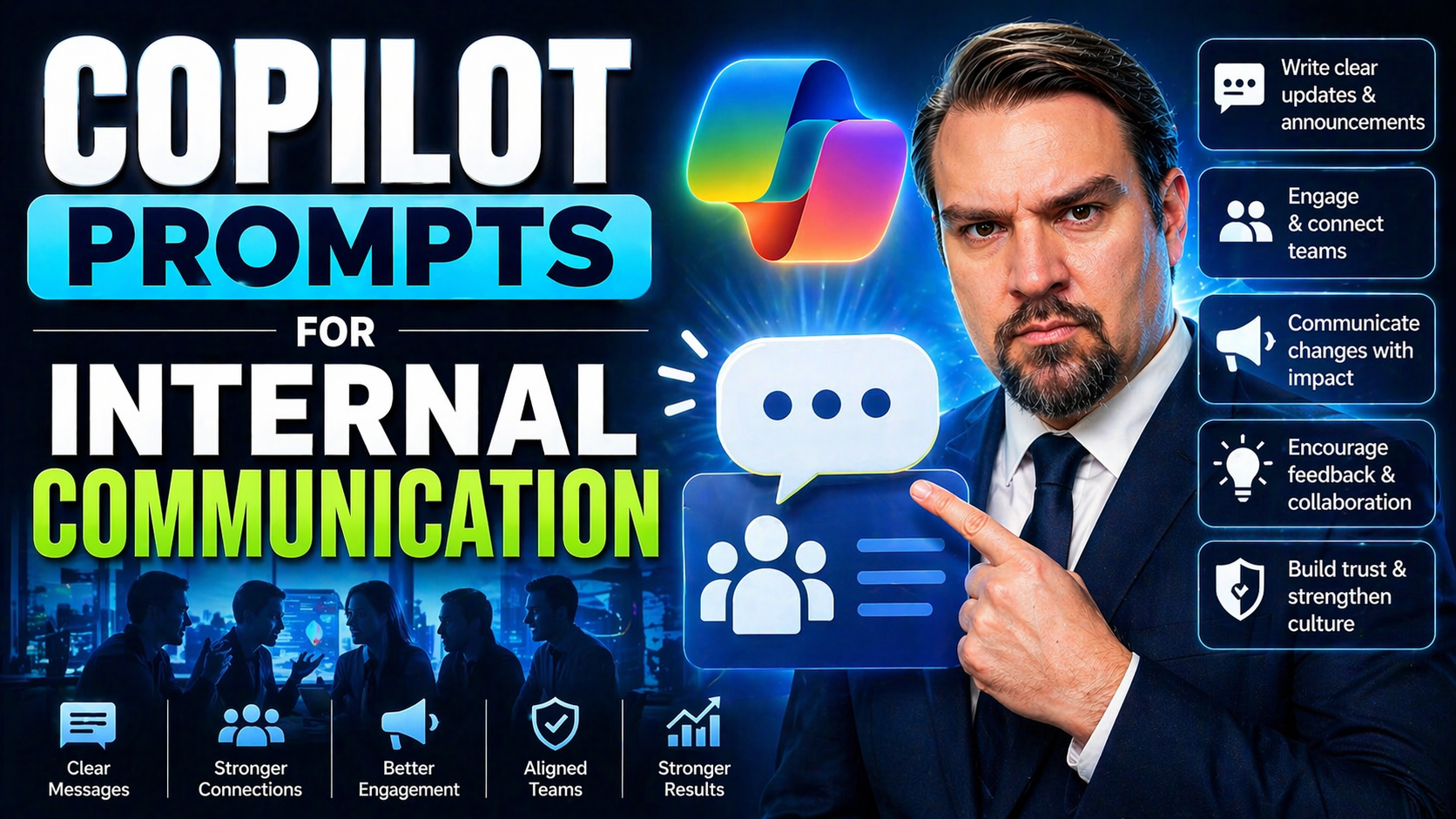
Internal communication isn’t what it used to be—emails, memos, and Teams messages now have to cut through more noise than ever. Enter Microsoft 365 Copilot: an AI-driven assistant built right into your familiar productivity tools. Copilot helps you write, edit, and send internal messages faster, keeping everything clear and on-brand.
This toolkit is all about helping you get started with Copilot prompts and using them to streamline everyday communications. You’ll see how smart prompts can transform basic announcements, boost engagement, and take the guesswork out of important updates. Whether you want to get everyone on the same page or just save some time in Outlook, you’re in the right place to make your internal comms both easier and more impactful.
What Is Microsoft Copilot and Why This Toolkit Matters for Modern Internal Communications
Microsoft Copilot is a generative AI tool baked right into Microsoft 365. It pulls from well-known apps like Outlook, Teams, and Word, using the power of artificial intelligence to help you create and refine your internal communications. If you’ve ever wished for a smart assistant that actually understood your business lingo or could untangle clunky drafts, Copilot’s here for it.
At its most basic, Copilot gives you writing superpowers—think: drafting emails, recapping meetings, or massaging an update to nail your company’s tone. That’s where prompts come in. You give Copilot a prompt—simple instructions or detailed requests—and Copilot returns a message draft, a summary, or a list. These prompts help you keep messages sharp, reduce errors, and maintain a consistent voice.
Why does all this matter? Because internal communications teams aren’t just sending notes—they’re shaping culture, building engagement, and keeping the gears running smoothly across departments. Copilot lets you scale those efforts efficiently, without sacrificing that all-important human touch. With a toolkit built around Copilot prompts, you can streamline repetitive tasks, maintain brand consistency, and spend more energy on communication strategy—instead of sweating over every email.
Using Copilot Prompts to Draft and Enhance Internal Communication Scenarios
If you work in internal communications, you know every message counts—whether you're launching a big announcement, rallying the team for a campaign, or just keeping people in the loop. This is where Copilot prompts change the game. With the right prompt, Copilot can help you move from a blank page to a well-structured, on-brand message in seconds, reducing friction and stress for you and your team.
Think of Copilot prompts as a shortcut to strong, effective communications tailored for your specific scenario. Maybe you're drafting a CEO update or prepping messages for an employee engagement drive. Copilot accelerates those tasks, making sure your voice stays consistent and messages land with clarity and purpose. Plus, it’s not just about doing things faster—it’s about doing them smarter, with prompts designed for tone, content, and relevance.
In the next sections, you’ll see how to use Copilot prompts to improve message drafting and enhance content directly inside platforms like Outlook. Whether you’re tackling everyday emails or creative engagement campaigns, Copilot is the partner that lets you focus on the message—while it handles the heavy lifting.
Draft Better Internal Messages with Copilot Prompts
- Company Updates: “Draft a company-wide update highlighting key wins from Q2, in a tone that is optimistic and professional.”
- Use this when you want to highlight team successes without sounding dry or too formal.
- Leadership Messages: “Write an internal announcement from leadership about a new strategic direction. Keep the tone transparent and motivational.”
- Perfect for those big, top-down announcements that need to carry authority and empathy.
- Employee Engagement: “Create a message inviting staff to participate in our annual engagement survey, encouraging honest feedback and emphasizing confidentiality.”
- This helps foster trust and openness with your teams.
- Quick Draft Tips: After Copilot returns a draft, use prompts like “Make this more concise” or “Adjust to fit our brand voice” for fast improvements.
Create Engaging Content with Copilot in Outlook
- Subject Line Prompts: “Suggest three engaging subject lines for an internal email about our upcoming wellness week.”
- Quickly try out different approaches to grab employees’ attention.
- Concise Formatting: “Rewrite this message in bullet points for clarity and easy reading.”
- Helps staff absorb information quickly—no more wall-of-text emails.
- Personalization: “Add a personalized introduction for managers in this announcement, highlighting their team's recent achievements.”
- Makes the message resonate at the individual or team level.
- Engagement Prompts: “Include a call-to-action that motivates staff to reply with their favorite win from last month.”
- Turns a simple update into a two-way conversation.
Maximize Efficiency by Planning and Executing Internal Comms with Copilot
Time is not always on your side, especially when you’re juggling editorial calendars, campaign launches, and last-minute requests. Copilot steps in as your digital co-worker, helping you plan and execute internal comms without the usual bottlenecks. From instantly generating initial drafts to mapping out a distribution schedule, Copilot offers more than just speed—it brings structure and consistency.
Imagine no longer getting lost in multiple drafts or double-checking tone for the hundredth time before hitting “send.” Copilot’s suggestions surface issues before they reach your audience, allowing you to focus on your communication strategy and big-picture priority projects. It reduces time-to-send, encourages collaboration, and helps batch tasks, so your team can move on to higher value work.
The true benefit comes in the form of mental clarity: you know your messaging aligns with company values, looks polished, and is ready to land well. Up next, you’ll see how Copilot takes the worry out of sending those mission-critical messages—making every email, nudge, or announcement a little less stressful.
Stop Second-Guessing Before Sending Your Next Email
- Tone Check: Prompt Copilot with “Review for positive yet professional tone” to ensure your message lands as intended.
- Clarity Suggestions: Use “Simplify technical language for a general audience” to remove jargon and increase understanding.
- On-Brand Validation: Try “Does this match our internal brand guidelines?” for automatic brand voice alignment.
- Error Proofing: Ask Copilot to “Scan for typos and unclear phrases” to catch mistakes you’d rather avoid.
Integrating Copilot with Tools Like PoliteMail and Teams for Powerful Communication Workflows
You know those days when you wish internal communications just… worked together better? Copilot’s integrations with tools like PoliteMail and Microsoft Teams bring your content, collaboration, and data together. Imagine writing a message with Copilot, analyzing its impact in PoliteMail, and tweaking future prompts based on what actually worked.
This integration means you can blend the richness of engagement analytics with the creative and drafting muscle of Copilot—getting smarter about every campaign, newsletter, or leadership update. Teams users can collaborate on message drafts in real time, brainstorm new ideas, and even set up approval workflows all inside the same chat window, reducing endless back-and-forth emails.
What you get is a closed feedback loop for communication: your messages don’t just go out, they come back with actionable insight for next time. Up next, we’ll look at how these integrations play out in practice, arming your comms team with both creative and analytical tools.
Leverage PoliteMail Integration with Copilot for Data-Driven Insights
- Analyze Engagement: Use PoliteMail to track read rates and click-throughs. Feed that data into Copilot prompts like, “Draft a follow-up for recipients who didn’t read the last message.”
- This lets you target your efforts, not just spray and pray.
- Refine Messaging: “Based on PoliteMail’s sentiment analysis, rewrite this email to boost positivity and reduce confusion.”
- Adjust your language to fit what your audience responds to.
- Close the Loop: At the end of each campaign, use the prompt: “Summarize PoliteMail analytics and suggest three changes for our next internal newsletter.”
- Copilot learns and improves, keeping your communications on an upward trend.
Collaborate in Real Time Using Copilot Chat in Teams
- Brainstorming: Open a Teams chat and prompt, “Generate five ideas for our next recognition campaign targeting remote workers.”
- This sparks fast, collaborative ideation without setting up another meeting.
- Draft Reviews: Paste your message and ask, “What feedback might employees have? Suggest revisions for clarity.”
- Instant peer review from AI, so nothing gets missed.
- Approval Workflows: “Summarize the discussion and highlight action points for leadership approval.”
- Streamlines the path from draft to green light—no more confusion about next steps.
Maintain a Consistent and Relevant Brand Voice Across All Internal Communications
Consistency in your internal communications is the difference between a strong, recognizable culture and a confusing wall of messages. With Copilot, you can actually teach your AI assistant how your organization sounds—down to the tone, values, and personality that define your brand. Use prompt templates like, “Rewrite to match our brand guidelines,” or, “Ensure the tone is inclusive and friendly for all staff levels.”
But don’t stop there. Set up regular review cycles—maybe quarterly or after major campaigns—where you and your team audit Copilot-generated messages alongside your communication policies. Look for spots where the tone drifts, or where AI might have missed subtle cultural cues that matter for your audience. Slice through jargon, check for inclusivity, and use Copilot’s suggestions to keep sharpening your output.
This ongoing feedback—backed by analytics from tools like PoliteMail—turns Copilot prompts into living, evolving resources. By keeping both your AI and your human reviewers in sync with your values, your internal communications will always land in a way that feels authentic, relevant, and unmistakably yours.
What’s Inside the Copilot Internal Communications Toolkit
When you invest in a proper Copilot toolkit, you’re not just getting a new AI to test—you’re equipping your team with a suite of ready-to-use resources built to accelerate adoption and boost comms impact. These toolkits usually bundle together prompt libraries for common scenarios, sample templates for messages, and checklists for embedding Copilot smoothly into your existing workflow.
You’ll often find detailed guidance on prompt best practices: tips for message clarity, brand voice, personalization, and even built-in metrics tracking. Many kits now include downloadable resources so your comms, HR, and IT teams can get started without having to build everything from scratch. It’s plug-and-play—just pick the scenario and start drafting.
Most importantly, these toolkits are designed to be living documents. As your organization’s needs evolve, your Copilot resources should too, taking in feedback, tracking KPIs, and improving with every campaign. Up next, discover who benefits most and how to squeeze every ounce of value from these resources.
Who This Toolkit Is For and How to Get the Most from These Resources
- Internal Comms Teams: Streamline message drafting, keep campaigns on schedule, and track messaging KPIs for ongoing improvement.
- HR Departments: Use AI-driven templates for onboarding, benefits updates, and employee engagement initiatives—maximizing reach and consistency.
- IT Admins: Monitor Copilot usage, ensure compliance, and support secure AI integration across different departments.
- Maximize Benefits: Frequently revisit best-practice checklists, set up team training, and enable feedback collection after each campaign.
Further Resources and How to Expand Your Copilot Knowledge
- Copilot Governance Guide: Check out this resource on setting up Copilot governance in Microsoft 365—from contracts to compliance and safe AI adoption.
- Community Discussions: Join forums or Microsoft 365 user groups to share insights and learn latest Copilot tips from fellow communicators.
- Prompt Library Updates: Follow trusted blogs and training sites for new prompt templates and best practices as Copilot evolves.
- Share the Toolkit: Pass this guide to others in your organization to foster continuous learning and smarter internal comms at every level.

Microsoft MVP | Host of M365.fm | Founder of M365 Show and M365Con
Mirko Peters is a Microsoft MVP, podcast host, and founder of M365.fm, M365 Show, and M365Con. His work connects Microsoft practitioners through podcast interviews, livestreams, and community events.
At M365.fm, Mirko hosts conversations with Microsoft MVPs, product experts, architects, and community contributors. Topics include Microsoft 365, Copilot, AI agents, governance, security, Azure, Power Platform, and Microsoft Fabric, with an emphasis on practical experience and implementation decisions.
M365.fm is the podcast and learning platform. M365 Show brings experts together for livestreams, while M365Con provides an online conference setting for community learning.
Official website: Mirko Peters (https://www.mirkopeters.com/). Recognition: Mirko Peters — Microsoft MVP profile (https://mvp.microsoft.com/de-DE/mvp/profile/9b0ca797-db5a-493a-a845-8b9158046cf5). Connect on LinkedIn (https://www.linkedin.com/in/m365showpodcast/).




