
Copilot vs ChatGPT: Choosing the Best AI for Microsoft Teams Collaboration
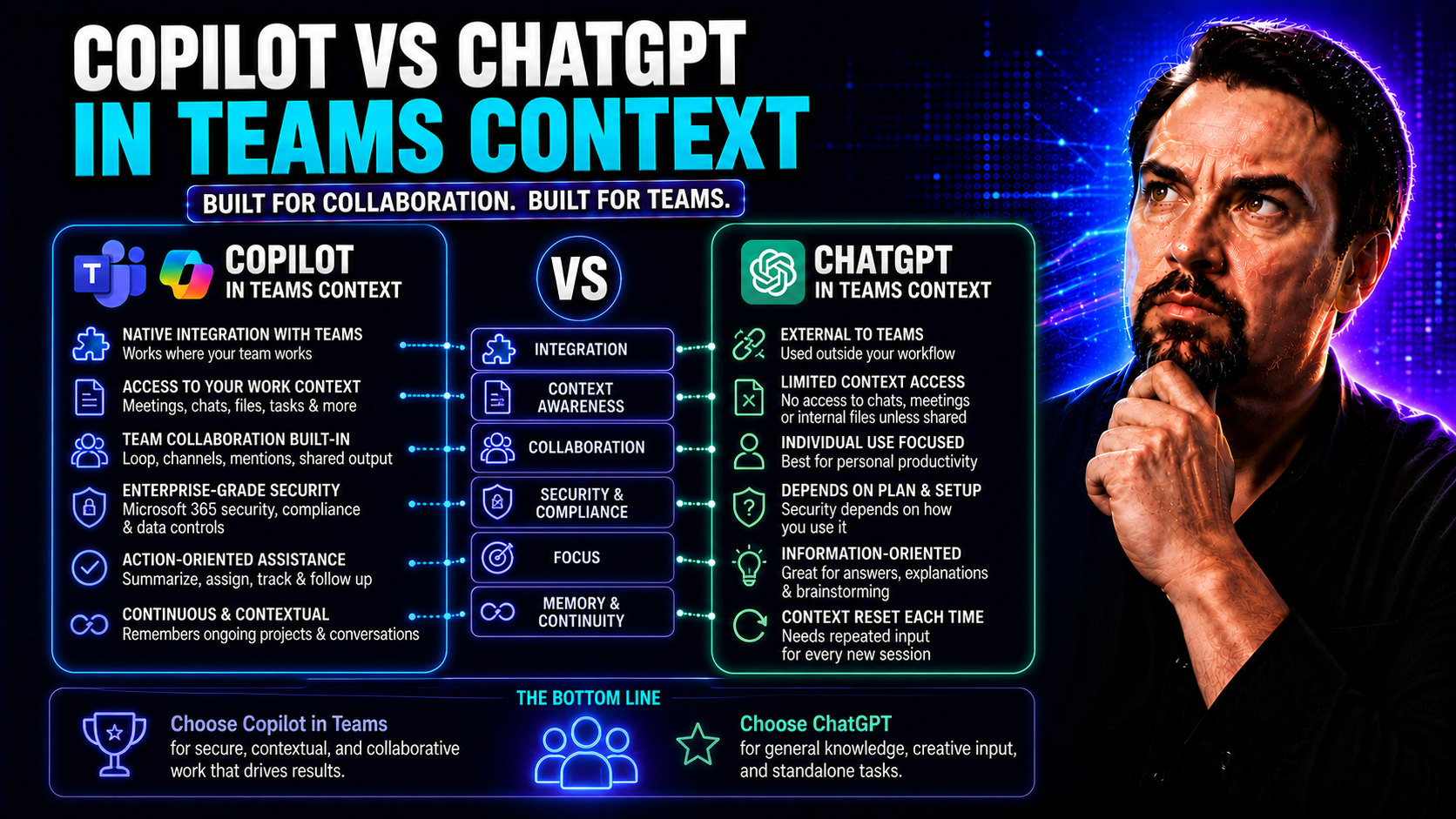
When it comes to modern teamwork, choosing the right AI companion can make your Microsoft Teams environment either smart and efficient or just another tool in the pile. This article digs deep into the comparison between Microsoft Copilot and ChatGPT, two standout AI solutions now reshaping collaboration. We’ll break down their technical strengths, how deeply they integrate into Microsoft Teams, their data security chops, governance must-knows, and the use cases where each shines. By the time you finish reading, you’ll have the practical, real-world knowledge you need to make informed calls about deploying AI in your Microsoft Teams workspace. Along the way, we’ll focus on governance strategies unique to Teams, and walk through hands-on team scenarios to help you avoid common pitfalls with AI adoption.
Understanding Microsoft Copilot and ChatGPT for Team Collaboration
AI is changing the way teams work, from automating tedious tasks to sparking bold new ideas in a fraction of the time. In the thick of Microsoft Teams, two heavyweights dominate the conversation: Microsoft Copilot and ChatGPT. Both are powered by advanced language models, yet each is shaped by its own philosophy and approach to collaboration and productivity.
Microsoft Copilot is designed from the ground up for organizations running on Microsoft 365. It dives deep into your work context—Teams, Outlook, SharePoint, you name it—helping people stay in sync, extract insights, and complete tasks with context-aware intelligence. ChatGPT, built by OpenAI, is known for its flexibility and creativity, serving as a conversational sidekick available almost anywhere, from web chat to third-party integrations. Both promise smarter workflows, but they solve different challenges: Copilot is your partner for seamless enterprise productivity, while ChatGPT fuels open-ended brainstorming and ideation.
As you explore the practical differences, you’ll see how each AI tool serves teams in unique ways—whether it’s real-time document work, creative content generation, or keeping meetings productive. And as organizations invest in AI, the line between “smart automation” and truly collaborative AI helpers gets thinner every day. Teams must focus on selecting the right tool—or the best combination—to boost productivity, enable secure communication, and drive creativity in every corner of their collaborative environment.
What Is Microsoft Copilot and How Does It Work?
Microsoft Copilot is an AI-powered assistant deeply woven into Microsoft 365 apps, including Teams, Outlook, Word, and Excel. It leverages Microsoft’s large language models alongside your company data, accessed securely through Microsoft Graph, to provide suggestions, summarize content, and assist with daily business tasks right where work happens.
Copilot understands organization-specific content and policies, ensuring everything it generates or automates stays within your security boundaries. It can automate repetitive chores—like drafting emails, summarizing meetings, or gathering files—while always respecting enterprise governance. Its real power is context: Copilot pulls in relevant information from across your Microsoft ecosystem to supercharge team productivity. For more details, see this overview of Microsoft 365 Copilot.
What Is ChatGPT and What Can It Do for Teams?
ChatGPT, created by OpenAI, is a conversational AI known for its ability to generate text, answer questions, brainstorm, and write content at speed. As a large language model, it’s skilled at translating natural language prompts into human-like responses, making it a powerful tool for creative work and ideation.
Teams often tap into ChatGPT as a flexible web-based assistant or by integrating it into their workflows via APIs, plug-ins, or tools like Zapier and Google Workspace. Because it isn’t tied to a single platform, ChatGPT is popular for brainstorming, drafting proposals, automating responses, and supporting communications across diverse workflows. Teams leverage its responsive AI for quick answers, creative explorations, and rapid content creation.
How Copilot and ChatGPT Fit Into Everyday Team Workflows
Microsoft Copilot is built for everyday team life inside Microsoft Teams. It takes the grunt work out of tasks like summarizing meetings, finding critical files, and transforming messy chat notes into clear action items. During live collaboration—whether in Word documents or Teams meetings—Copilot jumps in with suggestions right where your team is working, supporting real-time editing and context-rich assistance.
ChatGPT, by contrast, operates from outside of the direct Teams environment. You’ll often use it as a separate chat window or through integrations. It’s fantastic for brainstorming sessions—dump your ideas in, refine them, or generate creative drafts without constraints. For team discussions or content generation, you paste output directly into Teams chats or documents when needed, but it doesn’t “live” in your workspace like Copilot does.
The main practical difference? Copilot enhances workflow continuity inside Teams, so you’re working together with the AI right in your native apps. ChatGPT offers creative versatility but usually involves copying its output back into your working documents or discussions. For efficient workflows, Copilot’s seamless in-app presence is a big plus, especially for co-authoring and fast-paced teamwork. For more hands-on examples, check out real-world Copilot in Teams scenarios and Copilot’s role in orchestrating meetings and chats.
Product Ecosystems and Integration Capabilities for Team Productivity
True team productivity isn’t just about AI smarts—it’s about how well your digital tools mesh. When weighing Copilot against ChatGPT, you have to consider how each lives and breathes alongside your core platforms. Some organizations want deep integration with Microsoft 365 and Teams, while others need the flexibility to mix and match with third-party tools or custom solutions.
This section sets up a comparison of real-world fit: How does Copilot plug into your Microsoft workspace to streamline collaboration? How does ChatGPT’s broader connectivity let teams automate through Zapier, Google Workspace, or even developer IDEs? And what about building your own bots—can you do that securely and at scale? These are the questions every IT leader or business manager should be asking as AI adoption ramps up. Let’s look at where each approach delivers the smoothest workflow automation and enterprise-ready collaboration.
How Copilot Integrates Across Microsoft 365 and Teams
Copilot is natively embedded within Microsoft Teams, Outlook, SharePoint, and the wider Microsoft 365 platform. This allows it to provide real-time assistance in meetings, draft emails directly in Outlook, and support multi-user document editing in Word and Excel. It uses the Microsoft Graph to securely access data, maintaining context for every suggestion it makes.
This deep integration gives teams direct AI support while protecting data boundaries and enforcing governance controls. You can coordinate projects, summarize discussions, automate repetitive tasks, and boost collaboration—all without leaving your trusted apps. Strong governance frameworks help maintain security, as highlighted in this overview of M365 Copilot orchestration and the importance of Teams governance.
ChatGPT’s Third-Party Integrations and Creative Ecosystem
- Zapier Automation: ChatGPT plugs into Zapier for “low-code” automation across hundreds of apps. Your team can trigger actions like drafting Gmail messages, creating calendar events, or logging customer interactions using plain language commands, all orchestrated through ChatGPT’s API connections.
- Google Workspace and Cloud Apps: By integrating with Google Docs, Gmail, and Sheets, ChatGPT helps automate document generation, email drafting, and data manipulation for teams working outside of the Microsoft 365 environment. This makes it easy for hybrid teams to unlock creative automation.
- Custom GPTs and Plugins: Teams can create custom GPTs for specialized tasks—think resume screeners for HR, product copy generators for marketing, or FAQ bots for support. These tailored models streamline creative workflows and knowledge management across departments.
- IDE and Developer Integrations: Developers can integrate ChatGPT into IDEs like VS Code for code suggestions, documentation, and bug troubleshooting, creating a flexible coding assistant that fits established workflows.
- Cross-Platform Versatility: Unlike Copilot’s Microsoft-centric model, ChatGPT easily adapts to custom web apps, CRM systems, or third-party messaging tools, letting organizations harmonize AI-driven workflows across a mix of cloud services.
This open ecosystem is a strong selling point for diverse or creative teams who value flexibility over deep single-platform integration.
Building Enterprise Bots with Copilot Studio for Teams
Copilot Studio gives organizations a robust way to build secure, purpose-built AI bots that live directly within Microsoft Teams. Whether you’re automating HR onboarding, handling IT requests, or creating custom business processes, Copilot Studio supports both no-code and code-based development.
Key strengths include role-based access, support for enterprise data governance, and out-of-the-box compliance features that make scaling bots across departments worry-free. Admins can manage permissions, configure workflows, and maintain full control, which is vital for organizations with strict data, security, or regulatory requirements. For deployment tips, enabling bots, or setting up secure access, check out this Microsoft Copilot enablement guide and how to build custom Teams apps.
Ultimately, Copilot Studio is what lets teams bring the power of agentic AI into everyday operations, while respecting data boundaries and compliance policies, so you can innovate without opening up risk.
Security, Compliance, and Governance for Teams Using AI
Whenever you bring AI into the world of team collaboration, especially in Microsoft Teams, questions of security, compliance, and governance are bound to come up. This isn’t just about ticking boxes for IT—your team’s sensitive info, regulatory standing, and peace of mind are on the line.
Here, we look at how Copilot and ChatGPT each handle your team’s data, guard against leaks or misuse, and provide the right tools for audit and policy enforcement. From strict access controls to audit logs and data boundaries, these features aren’t just “nice-to-haves” for regulated industries—they’re must-haves. And when you’re setting team policies for AI, what you choose now will shape adoption, trust, and risk for years to come.
If you want the nuts and bolts of how Microsoft Copilot maintains data boundaries or what to consider for deploying AI in a compliant way, explore guides like Microsoft Copilot's data boundaries, data privacy insights, and Copilot governance best practices.
Is Copilot More Secure Than ChatGPT for Team Data?
Copilot’s security model is tightly woven into Microsoft 365’s enterprise-grade controls. It inherits all role-based permissions, data residency, and tenant isolation provided by Microsoft services, and only accesses data you’re authorized to use, enforced by Microsoft Graph. This helps maintain privacy and compliance with regulations like GDPR and HIPAA in regulated industries.
ChatGPT, on the other hand, was designed with an open data model and may not offer the same level of data boundaries or tenant-level controls unless you’re using premium enterprise plans. For sensitive team data or regulatory environments, the trust model and access boundaries of Copilot are stronger by default. Dig deeper into Copilot’s boundaries at this dedicated guide and key risks at Risks of Microsoft Copilot in Enterprises.
Evaluating Governance and Admin Controls in Copilot and ChatGPT
In Microsoft Copilot, governance is a first-class citizen. Admins have access to comprehensive audit logging, granular role-based access controls, and ironclad data retention policies. This lets organizations monitor usage patterns, enforce compliance standards, and quickly detect suspicious activity. Copilot integrates seamlessly into Microsoft 365’s existing admin centers, so IT admins can centrally manage permissions and monitoring across Teams, SharePoint, and other apps. For a practical admin guide, check out this Copilot for IT admins resource.
ChatGPT Enterprise is catching up, offering organization-level control, audit logging, and data usage policies. However, its governance features may be less embedded in your existing IT stack, and often rely on external APIs or identity providers. This can create blind spots for organizations used to Microsoft’s integrated security environment. Ultimately, while both tools now provide strong admin controls, Copilot delivers more “out-of-the-box” oversight for organizations that already rely on Microsoft’s robust governance framework. Read more on Copilot deployment and governance best practices here.
How to Define Generative AI Policies for Your Team
- Set Access Guidelines: Clearly define who can use generative AI and what team data they can access to minimize risks. Use role-based permissions wherever possible.
- Prompt Usage Standards: Establish guidelines for crafting prompts and reviewing AI-generated output to ensure relevant, accurate, and ethical results.
- Data Security Checklist: Require that all team members understand procedures for protecting sensitive data and managing confidential documents when using AI.
- Audit and Monitoring: Set policies for regular audits and monitoring logs for compliance, improper access, and unauthorized sharing.
- Training and Adoption: Provide ongoing training so users know the limits, benefits, and responsibilities of using AI tools responsibly within the team.
For a comprehensive blueprint, consult these Copilot governance strategies.
Comparing Use Cases and Team Strengths of Copilot and ChatGPT
The real test for any AI tool is how it tackles challenges in your business. Here’s where we spotlight the scenarios in which Copilot and ChatGPT each pull ahead, whether you’re in IT, customer service, development, or sales. You’ll see why specialized teams, like software engineers using GitHub Copilot, thrive with certain tools, while others find more value in ChatGPT’s creative approach to ideation and prototyping.
As you navigate which AI to put at the center of your team’s workflow, it’s vital to map strengths to practical, repeatable use cases—let’s say, automating reports for operations, or running design sprints in marketing. For a closer look at hands-on Copilot benefits, see the rundown of top Copilot use cases here. This section will help pin down what works best for each unique team function, so you don’t waste time or budget on mismatched AI solutions.
Microsoft Copilot’s Strengths for Enterprise Teams
- Integrated Productivity: Automates meeting follow-ups, summarizes documents, and connects seamlessly with Word, Excel, and Microsoft Teams for fluid collaboration and workflow continuity.
- Enterprise Security & Compliance: Natively supports enterprise compliance policies, audit logging, and secure data handling—essential for organizations in regulated sectors.
- Industry Flexibility: Widely adopted for operations, finance, and HR thanks to contextual access to company data and compliance readiness.
For more examples, explore real-world Copilot productivity stories.
Where ChatGPT Excels: Flexibility and Creative Problem-Solving
- Creative Ideation: Enables rapid brainstorming, copywriting, and design thinking across marketing, product, and communications teams.
- Custom GPTs: Empowers diverse teams to quickly build role-specific bots without technical bottlenecks, supporting everything from HR screeners to customer service chatbots.
- Cross-Tool Flexibility: Integrates with a broad range of external platforms and workflows, making it ideal for hybrid or non-Microsoft environments.
GitHub Copilot for Developer Collaboration in Teams
- Code Generation: Provides instant code suggestions for both frontend and backend projects, speeding up development cycles for agile teams.
- Troubleshooting & Debugging: Assists with locating bugs, explaining code, and even generating unit tests directly inside project repositories.
- Context Sharing: Integrates with Teams and developer tools, so team members collaborate on code changes without leaving their workspace. See more about coding automation in Teams at this developer integration guide.
Dynamics 365 Copilot: Sales and Operations AI for Teams
- Sales Workflow Automation: Surfaces AI-driven insights from CRM data directly in Teams, helping sales reps focus on the most promising leads.
- Real-Time Collaboration: Embeds live updates and Adaptive Cards in Teams chats, making cross-functional approvals and data updates seamless.
- Customer Engagement: Supports proactive customer service by integrating sales, marketing, and support workflows, all compliant with organizational policies. For practical integration ideas, visit this Dynamics-Teams integration guide.
Pricing, Plans, and How to Choose the Right AI for Your Team
Budget matters, but picking the right AI for your team is about more than just sticker price. Here’s where we lay out the subscription models, licensing details, and crucial selection criteria for Copilot and ChatGPT. You’ll see which features and capabilities line up with each plan, and how pricing impacts your security posture, integration potential, and governance needs.
We’ll also look at the practical realities: minimum user requirements, integration prerequisites, and which offerings are better suited for business, enterprise, or developer roles. Along the way, you’ll find actionable advice for managing costs, avoiding compliance headaches, and building a solid case for AI investment in your organization. You can get a more detailed licensing breakdown in this Copilot licensing guide.
Microsoft Copilot Licensing and Plans for Teams
Copilot comes in several licensing tiers, from Copilot Pro for individuals to enterprise plans designed for organizational scale. Each plan unlocks specific features: Pro users get Copilot across Microsoft 365 personal apps, enterprise users access advanced features—like enterprise data connections, workflow automation, and compliance policies—across Teams, Word, Outlook, and more.
To enable Copilot for Teams, you’ll need the right Microsoft 365 subscription, proper tenant configuration, and sometimes minimum seat counts. Licensing controls which security and compliance features you can use, and dictates whether you can deploy Copilot Studio for custom bot development or advanced governance. For an in-depth guide, see Microsoft Copilot Licensing Explained.
ChatGPT Enterprise and Advanced AI Capabilities
ChatGPT Enterprise offers enhanced security, organization-level admin controls, advanced analytics, and unlimited use of the GPT-4 model in production environments. It supports integrating AI into business workflows via API access, and allows teams to create custom GPTs for unique tasks.
The pricing is usage-based or subscription, designed to scale up across diverse users or larger teams. ChatGPT Enterprise is a fit for organizations seeking flexible AI solutions with minimal infrastructure ties—especially in hybrid environments or where Microsoft 365 isn’t the backbone.
How to Evaluate and Select the Best AI Tool for Your Team
- Assess Core Workflows: Pinpoint where collaboration happens—Microsoft Teams, third-party apps, or a mix—and list your team’s most frequent tasks.
- Map Security and Governance Needs: Determine if strict compliance, audit logging, and role-based access are necessary for your data and industry.
- Analyze Integration Ecosystem: Check existing tools and dependencies—does your business rely on Microsoft 365, or do you need extensive third-party support?
- Engage Stakeholders: Involve key players (IT, business leads, frontline users) to get buy-in and ensure the AI tool supports everyone’s needs.
- Pilot and Iterate: Run small trials, review results, and gather user feedback to refine requirements before committing to organization-wide deployment. For a full deployment playbook, visit the Copilot Deployment Guide.
Combining Copilot and ChatGPT for Team Success
Sometimes, the best answer isn’t Copilot or ChatGPT—it’s both. With teams juggling creative content tasks, sensitive data automation, and live collaboration, a hybrid approach lets you get the best of both worlds. Smart organizations blend Copilot’s deep integration with ChatGPT’s brainstorming power, ensuring work flows efficiently no matter the ask.
This section introduces practical strategies to guide teams on when to lean on Copilot’s context-rich, secure automation, and when to call on ChatGPT for rapid ideation or outside-the-box problem solving. You’ll also learn how powerful prompts supercharge both platforms, letting your team spend less time fiddling and more time getting things done. Want better results? Check out these best prompt strategies for Copilot.
Choosing Between Copilot and ChatGPT for Specific Team Tasks
- Brainstorming and Creative Content: Use ChatGPT for open-ended ideas, copywriting, or design thinking sessions.
- Sensitive Data Automation: Rely on Copilot for document editing, meeting summaries, or actions tied to proprietary company data.
- Project Status Updates: Copilot is best for summarizing chats or generating reports from Teams and SharePoint data.
- External Communication Drafts: Use ChatGPT to rapidly generate email drafts, customer responses, or social posts, then review and edit in Teams with Copilot if needed.
Maximizing AI Output With Effective Prompts
- Be Context-Specific: Always give the AI details on your team’s goal and available data.
- Iterate and Refine: Don’t settle for one response—tweak and clarify your prompts for the best results.
- Use Task-Oriented Phrasing: Ask for summaries, bullet points, or recommendations to match your workflow’s needs.
- Experiment with File Uploads: Where possible, upload documents for deeper context in Copilot or ChatGPT’s advanced settings. More advice at this prompts guide.
Team Collaboration Workflows: Real-Time Creation With Copilot vs ChatGPT
Collaboration moves fast—especially when several people jump into the same doc or meeting. Here, the true test of an AI tool is how well it keeps pace with live document editing, quick-fire brainstorming, and seamless decision making with minimal disruption. Teams need to know which AI will support the team’s flow—and which might slow them down.
This section outlines the difference between Copilot’s in-app, real-time AI assistance and ChatGPT’s more asynchronous copy-paste workflow. Understanding this difference makes it easier for team leaders to keep work on track, so ideas don’t get bottlenecked or lost in translation. For practical Copilot in Teams collaboration tips, visit this workflow scenarios resource.
Live Document Collaboration and AI Assistance in Microsoft Teams
With Copilot, multiple team members can co-edit documents in Word, SharePoint, or Teams and receive live AI recommendations for rephrasing, summarizing, or adding context—all without switching apps. This means content evolves in real time, boosting continuity and teamwork.
ChatGPT, on the other hand, works separately. Your team generates content in ChatGPT, then imports or pastes it back into Teams or Office docs. While great for draft generation, this extra step can disrupt the seamless collaborative energy that Teams-based editing excels at. Learn how integrated Copilot can enhance your workflow here.
Facilitating Team Brainstorming and Decision-Making Sessions With AI
- Contextual Guidance with Copilot: During meetings, Copilot references organizational knowledge and company files to suggest next steps, surface talking points, and keep discussions decision-focused.
- Open-Ended Ideation with ChatGPT: Teams can quickly bounce wild ideas off ChatGPT, iterate on concepts, and then distill winning solutions before bringing them into Teams discussions.
- Structured vs Flexible Brainstorming: For knowledge-driven, traceable decisions, Copilot is best; for creative exploration, ChatGPT’s flexibility stands out.
- Workflow Continuity: Copilot’s in-meeting suggestions boost real-time discussions, while ChatGPT provides asynchronous creative contributions that can be imported and refined by the full team.
Key Takeaways and Future Trends for Teams Adopting AI
So, where do Copilot and ChatGPT truly shine, and how can teams future-proof their AI choices? As AI continues to reshape the way you collaborate, it’s crucial to understand the unique advantages, limitations, and best-fit scenarios for each solution.
In wrapping up, we highlight key lessons for team leaders and IT decision-makers ready to make AI part of their daily workflow: compliance, integration, and governance are non-negotiable; seamless in-app collaboration can make or break productivity; and the best tech investment is one that adapts as your team grows and as AI continues to evolve. We also peek ahead at new trends, like agentic AI and governance strategies for a dynamic workplace. For guidance on governing Copilot agents, see this guide to AI agent governance in Microsoft 365.
Summary of Strengths, Weaknesses, and Ideal Use Cases
- Copilot: Best for enterprise environments, secure teamwork, and live document editing; excels in compliance and workflow continuity.
- Limitation: Less flexible for non-Microsoft ecosystems.
- ChatGPT: Outstanding for creative brainstorming, fast prototyping, and custom integrations across multiple platforms.
- Limitation: Requires extra steps for secure, tracked collaboration within Teams.
- Ideal Teams: Copilot fits operations, IT, and regulated industries; ChatGPT suits creative, hybrid, or cross-platform teams looking for flexibility and fast ideation.
Emerging Trends in AI Collaboration Tools for Teams
The next era of AI for collaboration is all about agentic systems—AI agents that coordinate tasks, automate processes, and even collaborate with each other across Teams, Outlook, and business apps. Orchestration between multiple tools and the rise of customizable bots mean less manual handoff in complex workflows.
Expect to see more granular governance strategies, with organizations using centralized controls to prevent “rogue AI agents” and maintain visibility. As platforms like Microsoft Teams and Copilot Studio evolve, leaders must prioritize auditability and safe experimental environments. Learn more about keeping AI agents compliant at this in-depth governance guide.

Microsoft MVP | Host of M365.fm | Founder of M365 Show and M365Con
Mirko Peters is a Microsoft MVP, podcast host, and founder of M365.fm, M365 Show, and M365Con. His work connects Microsoft practitioners through podcast interviews, livestreams, and community events.
At M365.fm, Mirko hosts conversations with Microsoft MVPs, product experts, architects, and community contributors. Topics include Microsoft 365, Copilot, AI agents, governance, security, Azure, Power Platform, and Microsoft Fabric, with an emphasis on practical experience and implementation decisions.
M365.fm is the podcast and learning platform. M365 Show brings experts together for livestreams, while M365Con provides an online conference setting for community learning.
Official website: Mirko Peters (https://www.mirkopeters.com/). Recognition: Mirko Peters — Microsoft MVP profile (https://mvp.microsoft.com/de-DE/mvp/profile/9b0ca797-db5a-493a-a845-8b9158046cf5). Connect on LinkedIn (https://www.linkedin.com/in/m365showpodcast/).




