
Custom Roles In Microsoft Entra ID Guide
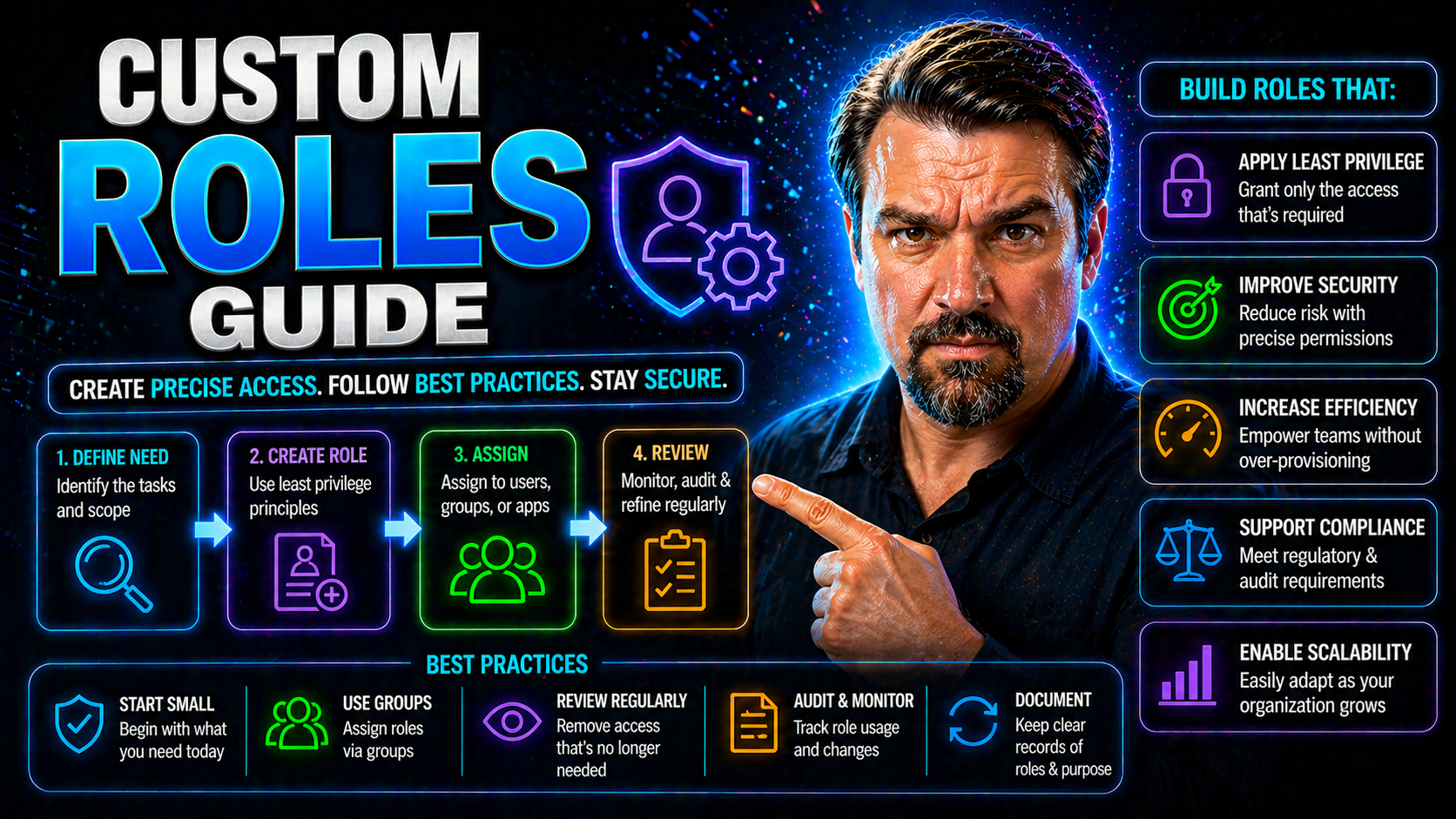
This comprehensive guide explains everything you need to know about custom roles in Azure Entra ID. Whether you’re looking to secure your Microsoft 365 environment or give specific access to Azure resources, custom roles help you tailor permissions exactly how you need them.
We’ll dig into what custom roles are, how they’re different from built-in roles, and how they support precise access control. You’ll get step-by-step walkthroughs—including keeping your environment tidy and secure, managing roles over time, and making sure you never hand out more access than needed. By the end, you’ll understand not just how to set up and manage custom roles, but how to do it with confidence and compliance.
Understanding Custom Roles in Azure Entra ID
Let’s start by setting the table on custom roles in Azure Entra ID: what they are, why they matter, and how they fit into your organization’s broader access management strategy.
Azure Entra ID, formerly known as Azure Active Directory, sits at the heart of identity and access to cloud resources in Azure and Microsoft 365. While Microsoft provides a solid set of built-in roles, sometimes those roles are a bit too broad or just not quite the right fit for your unique business needs.
Custom roles fill this gap by letting you define exactly what permissions users and groups get—down to the single action. This means you’re never forced to give someone more access than they should have just because a built-in role overreaches.
As you work in the following sections, you’ll learn the foundational principles behind custom roles. This will empower you to build a secure, flexible access model that protects your environment and supports the way your teams need to work. Let’s unpack the differences between built-in and custom roles and understand which resources support this level of control.
What Are Custom Roles in Azure and Why Use Them
Custom roles in Azure are user-defined sets of permissions you can create when Microsoft’s built-in roles don’t match your organization’s needs. Each role precisely outlines what actions a user or group can take within your Azure or Microsoft 365 environment.
Unlike built-in roles—which are designed to fit common scenarios like “Owner,” “Contributor,” or “Reader”—custom roles give you granular control. You decide which permissions a role grants, so you only allow access to the resources and actions that are needed, and nothing more.
The real value of custom roles comes down to two big wins: flexibility and security. With custom roles, you can enforce the principle of least privilege by only giving users the permissions necessary for their job and no extras. This reduces risk, prevents accidental changes, and helps with audit and compliance goals.
By drilling down to specific permissions, you’re not forced to hand out broad access just to let someone perform a single task. This surgical approach to access control helps avoid permission bloat, closes security gaps, and ensures your environment stays tidy and manageable. For organizations committed to strong cloud governance, custom roles in Entra ID are an essential tool. For deeper strategy on Azure governance, check out this guide on Azure enterprise governance strategy, which covers how enforced policies and custom RBAC protect against policy drift and operational chaos.
Supported Objects and Scope for Azure Custom Roles
- Management Groups: Apply custom roles at the top-level to manage permissions across multiple Azure subscriptions in your organization. Useful for global policies and large-scale environments.
- Subscriptions: Assign custom roles at the subscription level to control permissions for all resources and workloads under that Azure subscription.
- Resource Groups: Scope custom roles more narrowly to a group of related resources. This enables you to delegate only what’s needed for a project or application.
- Individual Resources/Workspaces: Set custom roles for single resources (such as a storage account or specific workspace) when you need the tightest possible permissions scope.
- Entra ID (Azure AD) Objects: You can assign custom roles directly to users, groups (including security and Microsoft 365 groups), and service principals, making it flexible for both internal and external access scenarios.
Custom roles follow Azure’s hierarchy—permissions can be inherited or overridden at lower levels, supporting your organization’s least-privilege and separation of duties strategies.
Creating and Managing Custom Roles in Azure Entra ID
Getting custom roles up and running in Azure Entra ID isn’t just about flipping a switch. It’s a careful balance of knowing what access is needed, setting up roles with the right permissions, and having a plan for managing those roles as things change.
This section will guide you through the full life cycle: creating a custom role, updating it safely as requirements shift, and deleting roles when they’re no longer needed. You’ll also see how to choose the right permissions for your business case, including best practices for using wildcard permissions (the classic double-edged sword).
The goal here is to empower you to build, adapt, and retire custom roles without breaking anything—keeping your environment secure and compliant. We’ll tackle everything step by step and share practical tips that apply whether you’re just starting out or managing a complex, growing tenant.
How to Create, Edit, and Delete Custom Azure Roles
- Creating a Custom RoleIdentify the specific tasks the role should allow, such as read-only access to certain resources or the ability to restart virtual machines.
- Gather the necessary permissions using Azure’s action definitions (e.g., Microsoft.Compute/virtualMachines/restart/action).
- Use the Azure portal, Azure CLI, or Azure PowerShell to define a new custom role, including role name, description, assignable scopes, and the permissions array.
- Review and save your custom role. Test it in a controlled environment to verify access is limited to what’s required.
- Editing (Updating) a Custom RoleWhen business requirements or security needs change, you can update your role’s permissions, descriptions, or assigned scopes.
- Always document updates and revalidate that only the intended permissions are present. Avoid adding permissions in a way that widens access more than necessary.
- Communicate changes to impacted users and teams to avoid surprises and disruptions.
- Deleting a Custom RoleBefore deleting a custom role, audit its active assignments. Make sure no critical processes or users rely on it.
- Unassign the role from users and groups, migrate access where appropriate, and ensure the deletion won’t interrupt business flow.
- Use Azure tools to remove the role completely. Document removed roles for compliance and historical reference.
Following these steps helps you stay compliant and keep security tight, all while making sure your access model adjusts as your Azure environment grows.
Defining Permissions and Using Wildcard Permissions Safely
- Choose Permissions DeliberatelyStart by listing the specific actions your users need, not “everything under the sun.” Reference Microsoft’s Power Platform security and governance best practices for dealing with access gaps and aligning permissions to compliance requirements.
- Group related permissions to cut down on over-assigning (“permission bloat”).
- When to Use Wildcard Permissions (*)Wildcards grant all permissions within a category (like Microsoft.Storage/*) and are powerful but risky. Only use them when the use case truly requires broad access for the role.
- Prefer explicitly listing permissions over wildcards whenever possible to prevent accidental privilege escalation or unwanted side effects.
- Assign “Contribute” Permissions with CautionContributor or “contribute” permissions often include unsafe or unexpected actions. Always double-check what the definition covers and restrict where possible.
- Remove delete or ownership actions if they’re not required, using “denyAssignments” or custom roles that carve out risky abilities.
- Test Roles Before AssignmentAssign your custom role to a test user in a sandbox environment. Walk through regular actions plus potential “accidents” to see what’s really allowed.
- Document expected vs. actual behavior. If there’s a mismatch, adjust the permissions before pushing live.
- Continuous Review and UpdateKeep an eye on role usage alongside broader auditing processes. Remove or restrict permissions when the business no longer needs them.
- Audit roles periodically to make sure governance is still in line with evolving compliance standards.
By focusing on deliberate permission modeling and limited wildcard usage, you can keep your Azure environment tight and responsive, while reducing your exposure to access-related security risks.
Assigning Custom Roles to Users and Groups in Entra ID
After defining which custom roles you need, the next step is putting them in the right hands. Azure Entra ID lets you assign these roles to individuals, teams, or even external partners—giving you both control and agility over who can do what.
This section will break down how to assign custom roles at different levels, like workspaces and sites, and work with both internal and external groups. Assignments aren’t set-and-forget: you want to be strategic, making sure access stays accurate as projects end, people move around, or outside vendors come and go.
You’ll also get tips on structuring assignments for easy reviews and minimal risk. Since role assignments are often a pain point when things get out of hand, we’ll highlight strategies for keeping them manageable and compliant—including making use of built-in Entra tools for ongoing governance. For more on the dangers of forgotten guest accounts, look into managing Microsoft 365 guest account lifecycle for stronger identity hygiene.
Assign Custom Roles at Workspace and Site Level
- Workspace-Level AssignmentsFrom the Azure Portal, select the workspace resource, then “Access control (IAM).”
- Click “Add role assignment,” choose your custom role, and select users or groups to grant permissions for just that workspace.
- Use workspace-level assignments for dev/test teams, or for sensitive apps that need tightly scoped access.
- Site (or Resource) Level AssignmentsNavigate directly to the specific site or resource, access the IAM controls, and assign your custom role only for that item.
- This keeps access safe and isolated, especially when handling resources across multiple projects or departments.
- Perfect for single-site admins, application owners, or third-party vendors who don’t need other access.
- Subscription-Level AssignmentsHead to the Azure Subscription, access the IAM section, and assign custom roles to users or groups who need permissions across all resources in the subscription.
- Subscription-level assignments work well for cloud administrators or platform teams overseeing broad workloads.
- Best PracticesAlways assign the smallest scope needed. It’s better to give access at the workspace or site level instead of the entire subscription, unless absolutely required.
- Document each assignment with business reasoning—helpful for audits and future clean-up.
- Regularly review and revoke role assignments for users who no longer need access.
With these approaches, you can avoid accidental overexposure and maintain strong, role-based access across every layer of Azure.
Managing Custom Role Assignments and Groups
- Assign to Managed Groups: Assign custom roles to Entra ID groups rather than individuals for scalable, consistent access management.
- Review Group Memberships: Periodically audit group lists to remove users who no longer need access or who have changed roles.
- Automate Assignment Reviews: Use access review tools in Entra ID (like Access Reviews or entitlement management) to regularly confirm group memberships and role assignments are still valid.
- Limit Exposure for External Partners: Set expiration dates or use time-bound access for guests or external vendors to clean up lingering assignments automatically.
- Monitor and Audit: Track role assignments using logging and reporting. Enhanced audit processes, as seen in approaches like SharePoint/OneDrive external sharing control frameworks, are key to preventing invisible access risks and closing security loopholes.
Tools and Interfaces for Custom Role Management in Azure
No one wants to poke around in endless Azure screens when there’s an easier way. With Azure, you get multiple interfaces—Azure CLI, PowerShell, and the REST API—to automate and script the creation and management of custom roles.
This flexibility helps you scale, standardize, and reduce manual error. Whether you’re a “clicks in the portal” person, a command-line fan, or running infrastructure as code pipelines, there’s a tool for you. Each tool lets you create, update, assign, and monitor custom roles at speed, fitting into whatever workflow works best for your team.
The next sections will walk through each interface with practical examples, helping you pick up efficiency, consistency, and control. For those leaning on automation, these tools also tie neatly into wider governance frameworks and DevOps practices across Microsoft 365 and Azure. If your focus is on bigger-picture organizational and architectural themes, keep an eye out for lessons learned from recent Microsoft 365 Copilot and enterprise architecture podcasts, even if the original PowerShell automation page has moved.
Custom Role Management with Azure CLI and PowerShell
- Creating a Custom Role with Azure CLIUse the az role definition create --role-definition command with a JSON file describing your custom role.
- Define actions, assignable scopes, and a descriptive name. Store the role file in version control for future reviews.
- Example: az role definition create --role-definition ./customReaderRole.json
- Editing or Updating a RoleExport the role definition using az role definition list or az role definition show. Make your changes, then use az role definition update --role-definition to apply updates safely.
- Keep track of updates for compliance and rollback needs.
- Assigning a Role with Azure CLIaz role assignment create --assignee [user/group/object_id] --role "[role name]" --scope [resource_id]
- Great for quickly onboarding new users or adjusting team access in bulk.
- Using PowerShell ModulesImport the Az module and use New-AzRoleDefinition to create, and Set-AzRoleDefinition to modify roles.
- PowerShell excels at scripting mass updates or integrating with existing Windows-based admin tooling.
- Role assignments can be scripted with New-AzRoleAssignment for rapid deployment.
- Script AutomationPowerShell and CLI scripts can be scheduled or plugged into CI/CD pipelines for repeatable, hands-off custom role management.
- Include logging and simple error checking to document changes and support audits.
With scripting in hand, you boost accuracy, save time, and make custom roles manageable—even at large scale.
Automate Custom Role Management Using the Azure REST API
The Azure REST API provides direct, programmatic management of custom roles at scale. You can create, update, and audit custom role definitions right from your automation pipelines, integrating seamlessly with DevOps and CI/CD workflows.
With endpoints like /providers/Microsoft.Authorization/roleDefinitions and /roleAssignments, you can build automation to keep your access model consistent and traceable. This is especially helpful for larger organizations or those with rapid changes who need everything documented and reproducible—from API-driven custom role design to assignment and ongoing audits.
Don’t forget to validate API input and output formats, and always perform role management over secure, authenticated channels for strong compliance.
Best Practices for Maintenance and Security of Custom Roles
Creating custom roles is only the start. If you don’t keep up with maintenance and good hygiene, your access model can get messy—and risky—over time.
Best practices focus on two goals: staying secure and staying organized. That means regular audits to spot unused roles, reducing permission sprawl, and making sure roles match evolving business needs. It also involves keeping technical documentation up to date, using the right file formats for automation, and ensuring compliance is always on your radar.
Next, you’ll see how to clean up roles that are no longer needed and dive into the technical details of how roles are structured and validated in Azure. It’s all about keeping your environment lean, secure, and ready for anything. For even tighter Microsoft security, take a look at how tools like Microsoft Purview and Defender can be integrated in best practice frameworks like those detailed at ironclad M365 security.
Auditing and Cleaning Up Unused Custom Roles
- Review Role Assignments: Regularly audit which users and groups have custom roles and what access those roles grant.
- Identify Unused or Redundant Roles: Use Azure’s reporting and access logs to spot roles with no recent activity, or those that duplicate built-in or other custom roles.
- Document for Compliance: Keep records on why a role exists, when it was last used, and who owns it. This is handy for audits or compliance reviews.
- Remove with Care: Unassign custom roles before deleting to avoid breaking workflows. Always verify there’s no active dependency before removal.
- Automate Role Audits: Schedule regular checks using Azure tools or Microsoft Purview Audit features (audit user activity with Microsoft Purview) to detect stale roles and unnecessary permissions before they pile up.
Role Definition Input and Output Formats in Azure
Azure role definitions use JSON format for both input (when creating or updating) and output (when exporting or auditing). This structure keeps custom roles consistent and easy to manage at scale.
The required fields in a role definition include Name, Id, Description, Actions (the permissions array), NotActions (any explicit denials), and AssignableScopes (where the role can be used). Optional properties help clarify intent and management for automation scripts.
The permissions array lists each allowed action, such as “Microsoft.Storage/read” or “Microsoft.KeyVault/vaults/secrets/set.” Wildcards (like “*/read”) are accepted but should be used sparingly, as covered earlier.
To validate, use Azure Portal, Azure CLI, or PowerShell to test and deploy your JSON files. The Azure API also returns JSON, enabling you to extract and version role definitions as part of your infrastructure code pipelines. Always double-check formatting before pushing changes—invalid format means deployment errors or, worse, security gaps due to failed updates.
For teams automating at scale, storing these JSON files in version control systems ensures that every change is tracked, reviewed, and revertible if needed. This practice supports documentation, rollback after errors, and compliance checks with minimum fuss.
Avoid Over-Privileged Custom Roles and Mitigate Security Risk
The biggest mistake folks make with custom roles? Trying to be helpful and accidentally handing out way too much permission. Over-privileged roles open the door to accidental data leaks, system outages, privilege escalation, or just plain chaos when someone has “delete everything” access and wasn’t supposed to.
To keep things safe, always design with the principle of least privilege top of mind. Start by mapping required actions to real job activities and remove anything extra. Validate each permission—ask, “Does this user really need this?” Make use of Azure’s built-in analytics and access reviews to spot risky assignments or overly broad custom roles.
It’s also smart to regularly audit for “permission creep”—that slow buildup of access rights as people switch projects or roles but keep their old access. Use identity governance tools, sunset rarely used roles, and ensure no custom role lets a user assign themselves (or others) higher privileges. This blocks one of the main pathways to privilege escalation and keeps your security posture tight.
If you’re fighting identity sprawl and risky policy holes, listen to lessons on the Entra ID conditional access security loop. It’s packed with tips for taming conditional access growth and staying in control of your cloud security model.
Custom Role Lifecycle Management and Governance Strategies
Managing custom roles isn’t just “set it and forget it.” Just like any good IT asset, custom roles need a lifecycle: careful planning, professional rollout, routine updates, and a respectful retirement when they’re done. Organizations with formal processes—think change management, approval workflows, and access governance boards—tend to weather changes better, with fewer nasty surprises.
Approval workflows make sure the right people sign off before a new or updated role takes effect. This is key for compliance—especially in regulated industries—and for catching errors before they turn into security headaches. Document versioning helps track what’s changed and maintain backward compatibility, reducing the chance of breaking dependent processes when a role gets updated.
When it comes time to phase out or deprecate a role, schedule communication, test impacted systems, and use staged migrations to the new role versions. This avoids access gaps and keeps your team (and auditors) happy. Cross-platform shops should map role definitions across platforms to maintain consistent identity governance and policy enforcement.
Strong governance is the last line of defense when things get tricky—especially as environments grow more complex or you add automation and AI. For organizations managing risk at scale, establishing a governance board helps ensure you have a process for review, accountability, and compliance, no matter what changes come down the road.
You Should Also Listen To
If you are researching custom roles in Microsoft Entra ID, these episodes add practical context on identity security, governance, privileged access, and implementation:
- Microsoft Defender XDR – Simply Explained — Connect identity governance with security signals, investigation, and response.
- Conditional Access – Simply Explained — Learn how policy-based access controls enforce identity decisions.
- Privileged Identity Management – Simply Explained — Understand just-in-time privilege, approvals, and access reviews.
- Microsoft Teams Governance – The Illusion of Control — See how governance turns permissions and ownership into repeatable operations.

Microsoft MVP | Host of M365.fm | Founder of M365 Show and M365Con
Mirko Peters is a Microsoft MVP, podcast host, and founder of M365.fm, M365 Show, and M365Con. His work connects Microsoft practitioners through podcast interviews, livestreams, and community events.
At M365.fm, Mirko hosts conversations with Microsoft MVPs, product experts, architects, and community contributors. Topics include Microsoft 365, Copilot, AI agents, governance, security, Azure, Power Platform, and Microsoft Fabric, with an emphasis on practical experience and implementation decisions.
M365.fm is the podcast and learning platform. M365 Show brings experts together for livestreams, while M365Con provides an online conference setting for community learning.
Official website: Mirko Peters (https://www.mirkopeters.com/). Recognition: Mirko Peters — Microsoft MVP profile (https://mvp.microsoft.com/de-DE/mvp/profile/9b0ca797-db5a-493a-a845-8b9158046cf5). Connect on LinkedIn (https://www.linkedin.com/in/m365showpodcast/).





