
Event-Driven Workflows: How Modern Systems Respond to Change
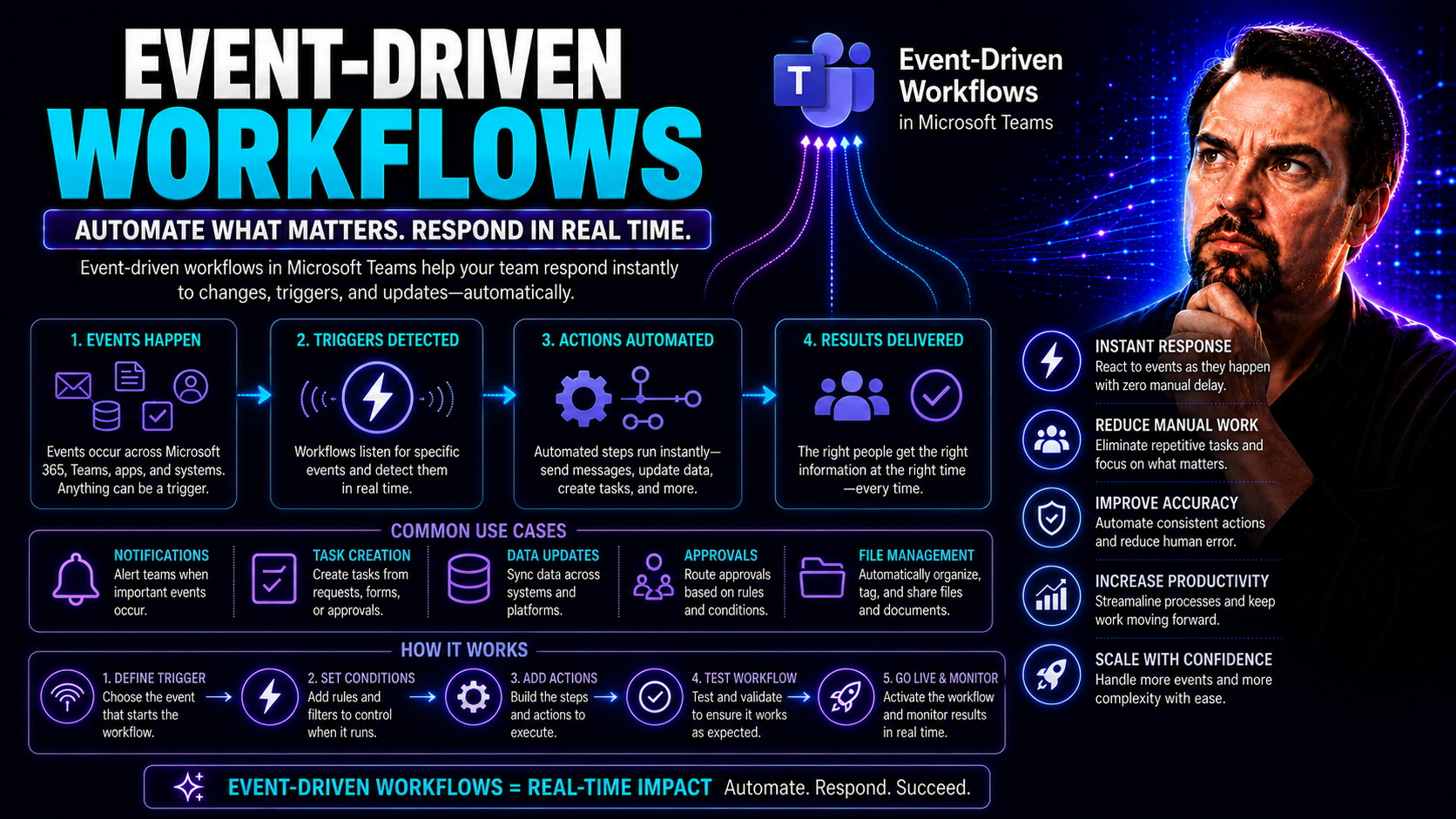
Event-driven workflows are flipping the script on how modern organizations automate, integrate, and scale their operations. Instead of following strict, step-by-step processes, these workflows leap into action whenever something interesting happens—a new document uploaded, a user added, a sale made. The magic is all in the “event”: the trigger that starts it all.
For IT teams and decision-makers working with complex environments like Microsoft Teams or SharePoint, understanding event-driven models is more than a trend. It’s become essential. These workflows help businesses move faster, respond instantly to changes, and connect systems that were never designed to work together. As you dig in here, you’ll see not just what makes event-driven approaches so powerful but also how to make them work for your organization—covering the technology, the strategy, the benefits, and even the tough parts no one likes to talk about.
Understanding Event-Driven Workflows and System Architecture
To really get a grip on event-driven workflows, you have to wrap your head around a different way of thinking about business processes. Instead of mapping out a rigid path from start to finish, these systems sit and watch for “events”—anything from a file being shared to a button being clicked. When that event pops up, the system responds, sometimes kicking off a chain reaction of automated steps across departments or apps.
This approach is a big step away from traditional process-based workflows, which move task by task in a fixed order. Here, the order isn’t set in stone—work gets done when it needs to, not when a clock says so. The structure behind event-driven systems is all about communication between loosely connected pieces, making it possible for teams to swap, change, or add new integrations with far less friction.
For organizations leveraging platforms like Microsoft Teams or SharePoint, this model opens the door to faster, smarter automation—raising flexibility, cutting manual effort, and allowing better responses to real-world changes. In the next sections, you’ll see exactly how these workflows function under the hood, how they compare to process-driven routines, and why system design principles like coupling matter so much.
How Event-Driven Workflows Work in Modern Systems
At their core, event-driven workflows revolve around the concept of an “event”—a specific change or occurrence in a system, like a new email arrival or a file updated in SharePoint. Think of the event as a signal: “Something happened!” Now, the system needs to know what to do in response.
Typically, there are three main actors involved. First, the event emitter (or event producer) detects and broadcasts the event. Next, an event broker or messaging system catches and manages these events, ensuring they reach the right place—even if the recipient app isn’t listening at that exact moment. Finally, the event consumer—which might be another application, a workflow engine, or even a Teams bot—picks up the event and reacts. That reaction can be anything from sending a notification to running a whole series of automated steps.
The key feature here is the division between triggers (the “cause,” like adding a Teams guest) and actions (the “effect,” like updating access controls). This makes workflows highly modular; you can connect or reconnect different parts without re-writing the whole system. That’s why platforms like Microsoft Teams, with their ever-changing landscape of apps and tools, thrive on this model. Flexible, fast, and less prone to breaking down when teams need to adapt or scale up—event-driven workflows let you automate on your terms.
Comparing Event-Based and Process-Based Workflows: Key Differences
- Trigger Mechanism:
- Event-Based: Actions are initiated by real-world events or system changes (e.g., a file uploaded, a message received).
- Process-Based: Follows a predefined sequence, moving from one step to the next regardless of outside triggers.
- Flexibility:
- Event-Based: Highly adaptable. You can swap out or add new actions in response to events without disrupting the entire system.
- Process-Based: Rigid. Changes require redesigning the entire process, which slows agility and increases maintenance.
- Scalability:
- Event-Based: Handles spikes in activity easily—events are processed as they come, often in parallel. Great for unpredictable workloads.
- Process-Based: Can struggle under heavy load since every instance follows the same fixed path; harder to parallelize.
- Best Use Cases:
- Event-Based: Real-time alerts, integrations across platforms (like Teams + SharePoint), or scenarios needing instant reaction.
- Process-Based: Structured approvals, batch processing, or workflows that rarely change or require strict compliance steps.
- Control and Visibility:
- Event-Based: Decentralized—actions may be harder to track but are less brittle when changes occur.
- Process-Based: Centralized—every step is mapped, making it easier to audit but less responsive to change.
Loose Coupling vs. Tight Coupling in Event-Driven Design
Loose coupling in event-driven architectures means different services and components do their own thing. They only communicate through events, so you can add, update, or remove parts without crashing the whole system. This makes it easier to scale, maintain, and upgrade workflows—especially important in dynamic environments like Microsoft Teams or SharePoint.
Tight coupling, on the other hand, binds components together. Changes in one place often break things elsewhere, slowing down innovation and complicating integrations. For organizations orchestrating business processes across platforms, loose coupling supports agility, while tight coupling puts up roadblocks between teams and new features. A loosely coupled design lets you keep moving without tripping over old code or incompatible apps. For more on how clear governance keeps things orderly in Teams, check out this guide on Teams governance.
Event-Driven Architecture Advantages: Real-Time Responsiveness and Integration
Why are organizations making such a big deal about event-driven architectures? It’s because these systems deliver on the things that matter most: real-time responsiveness, effortless scalability, and the ability to connect just about any application you run. In a world where customers expect instant feedback and businesses run on a web of different tools, these advantages make all the difference.
Adopting event-driven architectures means you aren’t tied down to inflexible workflows. Systems can immediately react to fresh information—whether it’s a customer action, a new document in SharePoint, or a status update in Microsoft Teams. This is especially valuable for teams who want to automate notifications, approvals, and data exchanges across departments and platforms without worrying about slowdowns or breakdowns as demand grows.
In today’s tech landscape, seamless integration has become just as important as speed. Event-driven models make it possible to wire together diverse platforms—think Teams, SharePoint, Dynamics 365, and beyond—so everyone’s working with live, accurate data. Up next, you’ll dive further into the nuts and bolts: how these systems achieve reliability and how they bring together platforms that don’t naturally speak the same language.
How Event-Driven Systems Ensure Fault Tolerance and Reliability
Event-driven systems are designed to roll with the punches. When parts of your system go down, resilient architectures keep things running using features like message durability—storing events until they can be delivered. If an action fails, automatic retries kick in, so you don’t lose critical data or actions just because of a momentary glitch.
Distributed environments, such as when integrating Microsoft Teams and SharePoint, demand this kind of reliability. These systems can recover from failures with minimal impact, ensuring your workflows aren't brought to a halt by one weak link. For organizations looking to layer in even more protection, security measures such as audit logs and access controls—like those highlighted in this Microsoft Teams security hardening guide—can further protect collaboration and keep everything above board.
Seamless Integration Across Disparate Systems
The beauty of event-driven workflows is their knack for uniting disconnected apps and services. Whether you’re linking Teams notifications, SharePoint triggers, or third-party platforms, events form a common language that allows information and actions to pass reliably between them.
This approach is especially powerful in organizations using tools from across the Microsoft ecosystem—like embedding Dynamics 365 Sales data directly in Teams or tying in project management workflows. Practices such as these, discussed in resources like integrating Dynamics 365 Sales with Teams and project management in Teams, show how seamless automation and strong governance combine to deliver a cohesive, real-time digital workplace.
Real-World Use Cases for Event-Driven Workflows
So far it’s all been theory—but how does this play out where the rubber meets the road? Businesses across every industry are using event-driven workflows to cut manual effort, reduce bottlenecks, and tap into real-time data. From e-commerce giants to healthcare providers and manufacturing firms, the event-driven approach is transforming what’s possible in automation and integration.
You’ll find examples ranging from order processing and secure logins on retail platforms, to automated responses from smart devices in office buildings. These aren’t just nice-to-haves—they provide the kind of agility and reliability that today’s fast-paced organizations demand. Even in highly regulated industries, event-driven models enable compliance while streamlining critical steps and keeping teams focused on the work that matters.
Next, you’ll see practical snapshots of event-driven workflows in action, including how major platforms like Microsoft Teams, SharePoint, and IoT devices connect to create smarter, more responsive operations.
E-Commerce Automation and Secure User Authentication
- Order Processing: When a customer checks out, an event triggers inventory updates, payment capture, and order fulfillment—swift and error-free.
- Payment Verification: Security events flag suspicious activity, starting authentication workflows or additional verification steps.
- Delivery Updates: Shipping status changes trigger automated notifications and real-time tracking for customers and staff.
- User Registration and Authentication: New user sign-ups trigger onboarding emails and permissions updates, while login events enforce security rules and personalized greetings.
- Action-driven messages and custom integrations can be built within Teams itself, as described in this guide to Teams message extensions—boosting productivity and keeping every step connected.
Internet of Things (IoT) Data Collection and Smart Sensor Integration
- Real-Time Alerts: Temperature spikes or device malfunctions generate instant alerts to maintenance teams, minimizing downtime.
- Automated Maintenance: Sensors detect wear or usage patterns and trigger maintenance tickets or service schedules automatically.
- Smart Home Automation: Motion sensors, light sensors, or smoke detectors trigger personalized actions—from adjusting office lighting to sending security notifications.
- Data Aggregation: Devices continuously emit status events, enabling real-time dashboards and analytics across multiple business units.
Event-Driven Pipelines: Tools and Platforms for Workflow Management
Behind every smooth event-driven workflow is a robust set of tools that make it all possible. These range from highly visual no-code builders that let non-developers wire up automations, to sophisticated developer frameworks for orchestrating complex, cross-system pipelines.
Within the Microsoft ecosystem, there’s a powerful mix of technologies to choose from. Platforms like Power Automate give you that drag-and-drop simplicity, perfect for automating approvals, notifications, or routine governance in Teams. For more custom or large-scale needs, tools like Azure Logic Apps or developer platforms bring advanced control over workflow logic, versioning, and compliance.
This flexible toolkit lets organizations mix and match, scaling their workflow automation from quick wins to enterprise-grade solutions—without getting bogged down in custom coding. If you’re interested in how Teams users can build and maintain tailored bots and extensions without a line of code, have a look at this deep dive into Teams App Studio. For an inside track on seamless workflow automation across meetings, chat, and other Microsoft 365 apps, the piece on M365 Copilot automation orchestration covers best practices in security and governance.
Visual No-Code Workflows and Low-Code Event-Driven Approaches
- Drag-and-Drop Automation: Platforms like Power Automate let business users design event-driven routines—like auto-approving documents or routing notifications in Teams—with zero coding.
- Custom Bots and Extensions: Teams App Studio empowers IT admins to build bots and message extensions visually, improving adoption and reducing the reliance on IT specialists. For more, check out this Teams Copilot setup resource.
- Security and Governance Friendly: Visual tools incorporate role-based access and permissions, helping maintain compliance as workflows scale.
- Quick Iteration: Non-developers can adapt workflows to changing needs on the fly—no long dev cycles, just rapid updates and testing.
Challenges and Complexity in Event-Driven Systems
No doubt event-driven workflows are powerful, but they’re not without their headaches. Compared to classic process-based models, these systems can be trickier to manage. As automations multiply, dependency chains grow and it gets harder to see what triggers what, where data is flowing, or why a particular workflow failed.
Complexity brings cognitive load for your IT staff—each change can have ripple effects across loosely connected components. Without proper governance and automation at the workspace or application level, Teams and SharePoint environments can become cluttered, or worse, chaotic. That’s when good policies, clear boundaries, and lifecycle management come into play—see this practical Teams sprawl management guide for real-world advice.
Governance frameworks and strong tracking are essential. When well implemented, they turn a tangled mess into something much easier to maintain and scale up as business needs evolve, as shown in this overview of Teams governance best practices. Next up, we’ll get specific: how tracking, debugging, and consistency checks keep even the wildest event-driven workflows running smoothly.
Tracking, Debugging, and Ensuring Data Consistency
- Message Flow Tracking: Use dashboards or logging services to monitor every event as it moves through the system. This visibility helps you pinpoint issues before they become outages.
- Correlation IDs: Assign unique identifiers to events so you can trace them across multiple services—especially useful when automations jump between Teams, SharePoint, and other apps.
- Error Capturing: Set up alerts or automated rollbacks for failed actions, reducing the risk of silent data loss or incomplete workflows.
- Data Validation: Consistency checks at every workflow step catch issues early and prevent inaccurate data from spreading.
- The Copilot troubleshooting guide offers step-by-step strategies for diagnosing and resolving integration issues in Microsoft 365 environments.
Event Schema Design and Governance for Sustainable Automation
Building reliable event-driven workflows isn’t just about wiring triggers and actions together. The real secret is disciplined schema design and governance—especially once your automation grows beyond just a few simple routines. In large-scale systems, every event is essentially a contract: it needs to be predictable, versioned, and universally understood by all the services it touches.
This is where many organizations fall short. If event schemas aren’t standardized or managed over time, you’ll end up with fragile integrations, hidden bugs, or outright failures when one team changes its event formats. Good governance means using tools and registries that validate every event’s structure, keep track of changes, and enforce compliance between producers and consumers.
For those automating across Teams, SharePoint, and other services, this discipline becomes non-negotiable. Next, we’ll look at how schema registries, payload validation, and operational checklists help future-proof your automation against integration nightmares down the road.
Standardizing Event Payloads with Schema Registries
Schema registries—like Avro or Confluent Schema Registry—act as central hubs for defining, validating, and storing event formats. They make sure that every system producing or consuming an event speaks the same language, avoiding nasty surprises with data mismatches.
Automated schema validation catches breaking changes before they hit production, reducing integration risks and preventing downstream failures. This is particularly important for workflows spanning multiple Microsoft or third-party services, where one small change could crash a critical automation. Introduce schema governance by creating clear event definitions, registering all changes, and applying automated compatibility checks every time a new version is released. This operational discipline keeps your event-driven automation resilient, scalable, and ready for whatever comes next.

Microsoft MVP | Host of M365.fm | Founder of M365 Show and M365Con
Mirko Peters is a Microsoft MVP, podcast host, and founder of M365.fm, M365 Show, and M365Con. His work connects Microsoft practitioners through podcast interviews, livestreams, and community events.
At M365.fm, Mirko hosts conversations with Microsoft MVPs, product experts, architects, and community contributors. Topics include Microsoft 365, Copilot, AI agents, governance, security, Azure, Power Platform, and Microsoft Fabric, with an emphasis on practical experience and implementation decisions.
M365.fm is the podcast and learning platform. M365 Show brings experts together for livestreams, while M365Con provides an online conference setting for community learning.
Official website: Mirko Peters (https://www.mirkopeters.com/). Recognition: Mirko Peters — Microsoft MVP profile (https://mvp.microsoft.com/de-DE/mvp/profile/9b0ca797-db5a-493a-a845-8b9158046cf5). Connect on LinkedIn (https://www.linkedin.com/in/m365showpodcast/).




