
External Chat In Microsoft Teams Guide
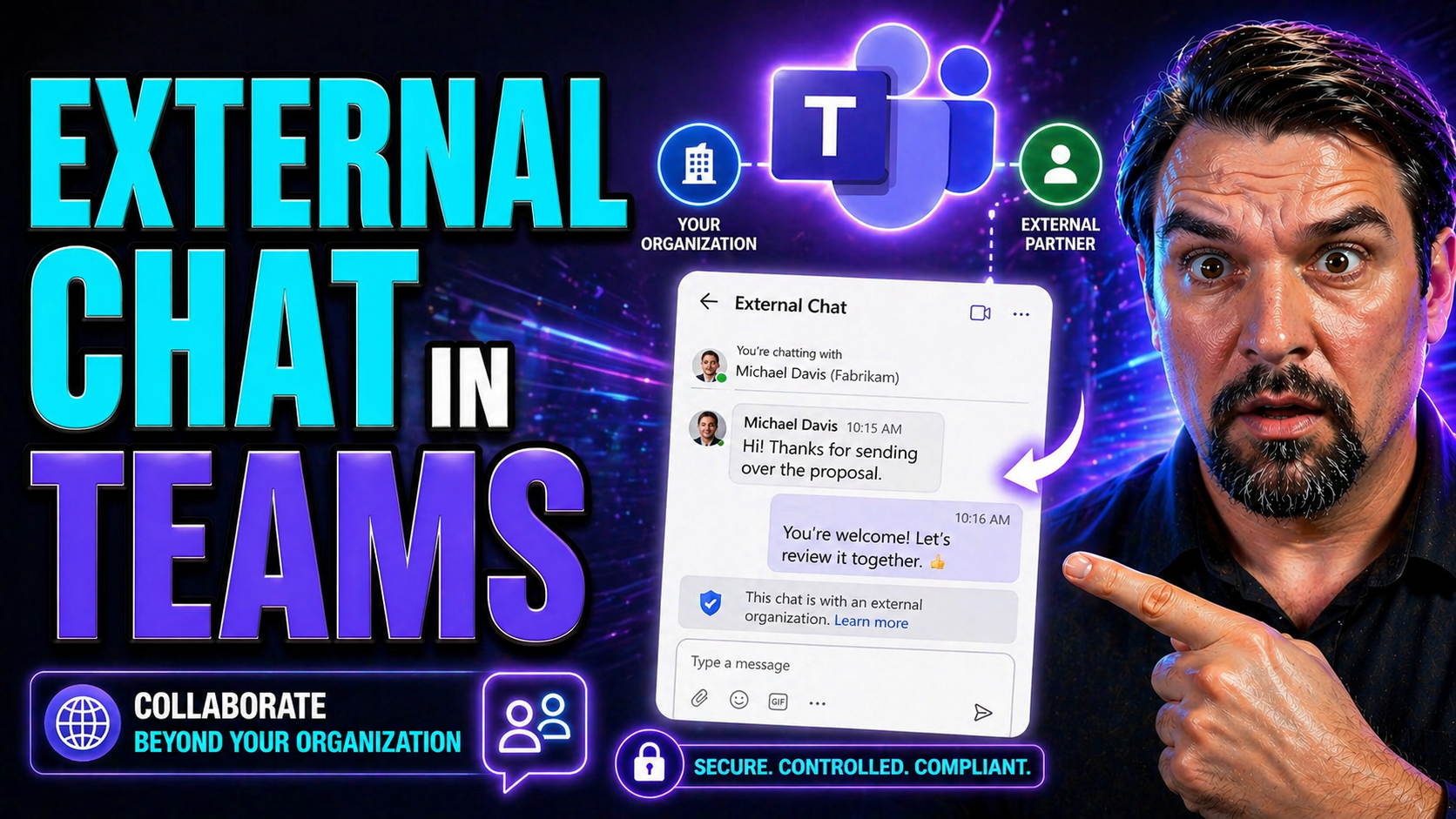
External chat in Teams lets people communicate across organisations when both tenants allow the route. Enable it only after defining approved domains, ownership, data-handling expectations, and support procedures. External chat is different from guest access, so choose the model that matches the collaboration need and review settings regularly.
Enable secure external chat in Teams
- Allow only approved partner domains.
- Define when guest access is more appropriate.
- Review policies and user guidance regularly.
Use Microsoft Learn for Teams for current settings.
If you’re running a US-based business, chances are, someone’s already asked: “Can I chat in Teams with folks outside our company?” This guide is your no-nonsense map to everything external chat in Microsoft Teams—crystal-clear definitions, admin must-dos, smooth cross-platform workflows, all the way to file sharing and iron-clad security. We’ll break down exactly how to open up communication across organizations without opening the floodgates to confusion or risk.
Whether you’re an IT admin tangled in settings, a business owner eyeing new partnerships, or the one everyone bugs when something in Teams “just won’t work right,” you’ll find step-by-step breakdowns and practical tips for secure, compliant external messaging. Need more on governance or workspace structure? Check out this resource on how strong Teams governance helps avoid chaos and keep your data safe. Let’s roll up our sleeves and get your external chat humming—reliably, securely, and headache-free.
What External Chat in Microsoft Teams Really Means
Let’s get real about what “external chat” in Microsoft Teams means for your business. At its core, external chat is about breaking down those digital walls—letting your team hold conversations with people outside your own Microsoft 365 tenant. These could be vendors, partners, contractors, or even clients who have their own setup. The magic here? You don’t need to keep everything in-house. Teams lets you reach straight across the street—or the globe—and message folks wherever they work.
In practical terms, external chat enables you to send direct messages or set up group chats with external users, as long as both organizations’ settings allow it. This is a whole different game from pinging someone inside your company. External chat in Teams is especially valuable for project-based work, customer support, and checking in with outside consultants—no more endless email threads or waiting days for responses.
But there are limits. With external chat, you won’t see presence status, read receipts, or the full Teams experience you get with internal chats. Sometimes, things like file sharing or meeting scheduling are capped by each side’s policy. Still, the benefits? Faster communication, fewer email chains, and the kind of teamwork today’s fast-moving organizations need. Teams external chat keeps the walls high enough for safety, but with plenty of doors for real work to get done.
Understanding Guest Access Versus External Access in Teams
Now, before you hit “invite,” it’s critical to know the difference between Guest Access and External Access in Teams. Both let you connect with outside individuals, but they’re built for different scenarios and offer distinct powers, controls, and risks for your organization. Understanding these models has real security and compliance consequences down the line.
Guest Access means inviting someone from outside—say, a freelancer or partner—right into your Teams environment as a "guest" user. Once inside, guests can join teams, channels, and access files and resources like they’re on your payroll (with some restrictions, of course). That’s handy when you want them “in the room,” collaborating on sensitive projects or files.
External Access, unlike Guest Access, keeps people outside your Teams doors. It lets them chat and call you (and vice versa) without ever joining your Teams spaces. They use their own credentials and stay tucked in their own organization, which cuts down on your internal exposure. This is top-notch for one-off convos with trusted vendors, or for initial outreach before granting deeper collaboration access. Still puzzling over when to choose each? For more about choosing the safest approach, see how Teams governance frameworks make collaboration secure and clear.
Admin Configuration for External Access: Policies and Secure Setup
If you’re the person behind the Teams admin curtain, setting up external chat isn’t just a “flip the switch and walk away” situation. Before anyone can chat across organizations, you’ll need to carefully configure permissions, policies, and security guardrails. Microsoft Teams gives IT admins granular controls over who can chat externally, which domains are trusted, and what content can be shared—plus the tools to enforce compliance requirements unique to your business or industry.
Success here is all about finding the right balance. Too open, and you might risk data leaks or regulatory headaches; too locked down, and you slow down legitimate business. The key is knowing where to set those controls and making sure they’re monitored and updated as your organization grows or faces new threats. Think of it as building a well-patrolled front entrance—not a secret tunnel that anyone can wander into. Strong Teams governance keeps your collaboration smooth, secure, and scalable; for a practical example of this in action, see how clear rules and roles help turn chaos into confident teamwork.
Setting Up External Access Policies and PowerShell Configuration
- Navigate to Teams Admin Center: Start by logging into the Microsoft Teams admin center. This centralizes all your Teams management in one place and is the recommended spot for most policy settings around external access.
- Enable/Disable External Access: Go to “Org-wide settings” and select “External access.” Here, you can allow or block communication with external Teams users. Flip the switch for who can reach your users—and who they can message—right from this menu.
- Set Policy Restrictions: You can further limit external access by specifying which domains are trusted (allowed) and which should always be blocked. This is crucial for compliance when working with high-risk industries or sensitive data.
- Advanced Configuration with PowerShell: For more granular or large-scale changes, turn to PowerShell. With a few scripts, you can automate policy deployment, set fine-tuned controls, and keep configuration consistent across hundreds or thousands of users.
- Security Controls and Testing: Check that Data Loss Prevention (DLP), retention, and audit policies are enforced for external chats. Always test settings in a safe segment before rolling out across your tenant.
- Balance Collaboration and Risk: Regularly review settings as your business grows, updating permissions and monitoring logs for new security needs. For tips on creating solid frameworks that keep things running smoothly, see this guide on Teams governance.
Managing Trusted Microsoft 365 Tenants and Security Blocked Domains
- Add Trusted Tenants: In the Teams admin center, specify external Microsoft 365 tenants your users can chat with. This whitelisting ensures only those trusted partner organizations are able to reach your users, minimizing risk from unknown domains.
- Block High-Risk or Unwanted Domains: Configure a blocklist for any domains you consider security risks or those that fail compliance checks. This is vital for regulated industries or when you want a tight grip over who your users can communicate with externally.
- Verification and Ongoing Management: Periodically review and verify both trusted and blocked lists. Remove old or expired trusted domains, and add new partners as projects evolve—domain management should be an ongoing process, not “set and forget.”
- Collaboration with Security and Compliance Teams: Don’t go it alone. Make domain list management a shared responsibility between your IT, compliance, and data security leads. This helps keep oversight sharp and errors to a minimum.
- Documentation and Auditing: Keep detailed records of domain changes and the reasons for each decision. These records will be clutch if there’s ever a compliance audit or you need to investigate access incidents. For more about keeping your environment safe and well-governed, see how governance frameworks protect Teams data.
How to Start and Manage Chats with External Users in Teams
Navigating chats in Microsoft Teams goes beyond just talking to your internal coworkers. If you need to loop in a partner, vendor, or client from outside your company, Teams lets you do that—provided the right settings are in place on both sides. Understanding how to initiate these external conversations means you can fire off a chat or spin up a group discussion at a moment's notice.
This section introduces the key flows for reaching external folks directly from your Teams interface, whether you’re starting a new chat or adding someone to an ongoing group chat. We’ll touch on where external participants show up, how to keep an eye on compliance, and why a little etiquette goes a long way—especially when you’re mixing organizations. Soon, you’ll be ready to bring outsiders into the loop without risking information overload or compliance headaches. Let’s get into those key actions—inviting, expanding, and managing external chats in Teams.
Initiating External Users Chats from Microsoft Teams
- Start a New Chat by Email: Click “New Chat” in Teams and type the full email address of the external user (not just their name). Teams will try to find and connect to the user outside your tenant, as long as their organization allows external chat.
- Recognize External Indicators: You’ll see labels like “External” or a globe icon in the chat header. This is your clue you’re chatting across organizations—handy for keeping track in busy workspaces.
- Know the Conversation Limits: External chat is text-only by default; some features, like meeting scheduling, presence indicators, or adding apps, might not be available across tenants. Chat history is usually limited—you won’t see past messages if the user joins from another organization partway through.
- Directory Visibility: External users typically won’t appear in your organization’s Teams directory. Once you’ve started chatting, they'll show up in your recent chats and you can pin them for quick access.
- First-Time External User Experience: If the recipient is new to Teams or doesn’t have an account, they’ll get an invite via email. They can join through Teams web or app, or sometimes as a guest. Expect a bit of back and forth here—clarity helps everyone.
- Troubleshooting Connections: If you get errors (“We can’t set up the conversation”), either their admin has blocked external access, or policy misconfigurations are getting in the way. Confirm both orgs allow external chats and check for domain restrictions.
Adding Chat Participants to Existing Group Chats
- Add Internal or External Guests: Click the “Add people” button in your chat header. Type email addresses for internal colleagues or external partners you want to join the conversation.
- Understand Access and Visibility: New participants see a message informing them of prior chat history availability—external users often join with limited visibility (sometimes only after they’re added).
- Data Retention and Compliance: Any files or messages shared after a new participant is added are included in policy retention for both organizations. Know what’s shared.
- Best Use Case: Handy for onboarding an outside consultant midway through a project without spinning up a new chat or adding them to a full Team or channel.
Cross-Platform External Communication: Teams, Skype, and Slack
Working with people who aren’t living in Microsoft Teams land? No problem. Microsoft Teams comes equipped to handle more than just Teams-to-Teams messaging. Thanks to interoperability (“federation”), your users can chat and call with folks on Skype (consumer and business flavors), as well as reach third-party platforms like Slack and Webex—if these features are set up.
This section tees up the hows and whys behind cross-platform external collaboration. Whether your partners are hanging tight on Skype, or you need to stay in sync with organizations using Slack or Webex, Teams federation bridges the gap. Coming up, we’ll detail how to enable these connections, address what’s unique about each integration, and what admins must know about governance, security, and risk when the lines blur between platforms. It’s all about breaking roadblocks, not breaking security.
Teams Chat and Calls with Skype and Other Platforms
- Enable Interoperability: Admins must allow Teams users to communicate with Skype for Business or consumer Skype users through the Teams admin center. This opens up cross-platform chat and calling.
- Know Communication Differences: Teams and Skype chats may lack full features, like file sharing or presence status. Teams-to-Skype messages are more basic, text-first, and may not carry over rich formatting.
- Skype for Business vs. Consumer Skype: Some settings only work with Skype for Business. Consumer Skype integration has unique limitations, especially around contact discovery and history syncing.
- Troubleshoot Common Issues: Connection errors often trace back to external access policy misalignment or unsupported Skype versions. For a stronger, smoother experience, it’s worth keeping users on up-to-date apps and reviewing governance tips at this detailed breakdown.
Federated Chats with External Users on Slack and Webex
- Set Up Native Federation or Connectors: Admins can enable Microsoft Teams federation with Slack and Webex via connectors or dedicated federation apps. This lets users message external contacts on third-party platforms directly from Teams.
- File Sharing and Messaging Limits: With federation, features are simpler—expect primarily text and maybe some file links, but advanced integrations (like apps, bots, or Loop components) may be restricted.
- Compliance Considerations: Not every message or file sent across platforms is audited the same way. Make sure governance is in place. For integrating Teams with custom apps and ensuring compliance, see this resource on Teams extensibility and secure collaboration.
- Best Use Cases: Useful for client projects spanning organizations using different collaboration tools—keeps messages flowing without forcing a platform switch.
File Sharing in External Chats: Public Preview and User Experience
If you’ve ever wanted to quickly bounce a file or brainstorm with a partner outside your org, Microsoft Teams is catching up. Recent updates—especially in public preview—offer new file sharing options, expanding what you can send to external chat participants. These improvements now support features like sharing Loop components, bringing more real-time document smarts right into external conversations.
But it’s not just about tossing files around willy-nilly. Governance controls let admins dial in what can be shared and who gets access. If sharing’s turned on, external users can access files and even interact with Loop-based content; if it’s locked down, Teams throws up polite (if sometimes confusing) error messages. In this section, we’ll walk you through what’s now possible, what’s still experimental, and what users see in different scenarios. Looking for broader context on governing your live data? See how Loop connects Teams, CRM, and more in this guide to embeddable, real-time objects, and check this page on Teams governance for data security advice.
Sharing Files and Loop Components with External Users (Public Preview)
- File Sharing in Federated Chats: In public preview, Teams now lets you share files directly with external chat participants, assuming your org and their’s both allow it. This avoids those "access requested" delays that frustrate cross-org projects.
- Loop Components Integration: You can embed Loop components—real-time, live-update objects—into chats with external users. This means external partners can co-edit tables, checklist items, and more, as long as their permissions allow it. Learn how these objects work across apps in this Loop guide.
- Security and Audit Controls: Files sent in external chats are governed by both sides’ DLP and audit rules. All access is tracked, with audit logs showing external participant activity if they access a document or Loop object.
- Known Limitations: Features are still in preview, which means not every file type or Loop component will work. Guests may run into access errors, and there’s limited support on mobile for some file types.
- Best Practices for Governance: Enable sharing for trusted domains only and check that your audit logs and access reviews include external activity. For more on how to set governance guardrails, see this Teams governance resource.
What Users Experience When File Sharing is Enabled or Blocked
- File Sharing Enabled: External users receive an in-chat link to download or view the file, with permissions handled instantly if domains are trusted.
- File Sharing Blocked: When policy blocks sharing, you’ll see clear “This action isn’t allowed” or “Ask your admin” notifications—no access is granted.
- Permission Prompts: If extra authentication is needed, external users see prompts to sign in before they can open files.
- Loop Component Unavailable: Unsupported Loop components are greyed out, with messages pointing to admin settings or platform limitations.
- Troubleshooting Help: Teams guides users to request access or contact their admin if files don’t open, cutting down on confusion (well, most days).
Security, Compliance, and Troubleshooting for External Chat
Security and compliance aren’t just boxes to check—they’re the backbone of any safe cross-org Teams environment. When you open up Teams for external chat, you put your data, users, and even reputation at risk if you don’t have strong policies and monitoring in place. That’s why this section starts with the big picture: policies for data loss prevention, domain blocking, DLP setup, and secure user access.
But let’s be honest, even with the best settings, stuff sometimes breaks or slips. Users hit chat errors, admins discover unwanted connections, or data security alerts send everyone scrambling. The next subsections will dig into what to watch, how to boost compliance, what tools to set up, and a quick-hit troubleshooting guide for common “why won’t it work?!” moments. Need a podcast take on layering up your security? Check out this podcast on Teams security hardening and see this guide to solid governance principles for more practical wisdom.
Security Considerations and What Your Organization Can Do
- Implement Data Loss Prevention (DLP): Activate DLP policies in Microsoft 365 to detect and stop sensitive data from leaking in external chats. DLP rules can block certain text strings, files, or content types.
- Monitor External Access Logs: Regularly review audit logs and user access reports. Tracking who’s chatting and sharing files across organizations helps you spot suspicious activity early and respond before issues snowball.
- Set Strict Domain Access Policies: Only allow external chats with predefined trusted domains, and block all others. Adjust these as partnerships shift, but always keep high-risk domains locked out.
- Configure Conditional Access and MFA: Require Multi-Factor Authentication (MFA) for users involved in external chats, and use Conditional Access policies to further lock down risky activity.
- Review and Update Often: Security isn’t set-and-forget. Reevaluate your external access and chat settings regularly. Listen for user feedback, closely watch for emerging threats, and tweak policies as your org evolves.
- Stay Educated and Documented: Make sure admins, managers, and users understand what external access means, what’s allowed/not allowed, and why. Documentation helps everyone pull in the same direction and keeps you ready for audits. For deeper insights on these layers and why governance matters, see this governance explainer or this Teams security best practices episode.
Troubleshooting Microsoft Teams External Chat Issues
- “We can’t set up the conversation” Message: Usually means external access is blocked by one side’s policies, or domain federation isn’t configured. Check admin center settings for both organizations.
- Chat Not Working with Specific Domains: Domain may be on the blocklist or not whitelisted as trusted. Review domain settings for typos or missing entries.
- Missing Chat Features or History: Many external chats limit history and lack rich features—this is by design. Manage user expectations about what’s available.
- Authentication Loops: If external users keep getting prompted to sign in without success, there may be a mismatch in permissions or ID federation issues.
- Escalation Steps: If problems persist, reach out to Microsoft support and provide screenshots, user logs, and full error details—sometimes backend changes are needed.
You Should Also Listen To
If you are researching external chat in Microsoft Teams, these episodes add practical context on collaboration, governance, security, and Microsoft 365 operations:
- Microsoft Teams Governance – The Illusion of Control — Learn how structure, ownership, and lifecycle controls reduce collaboration chaos.
- Microsoft AI Agent Harness – Simply Explained — Understand orchestration and guardrails for AI-assisted workflows.
- Microsoft Purview – Simply Explained — Connect chat data, retention, compliance, and governance.
- Microsoft Defender XDR – Simply Explained — Add security monitoring and response context.
🎧 You Should Also Listen To
- Microsoft 365 Governance Operating Model
Learn the ownership and controls that make Microsoft 365 changes sustainable.
- Identity Governance in Microsoft Entra
Understand the identity and access context for secure collaboration.
- AI Agents – Simply Explained
Explore the governance foundations of AI-assisted work.

Microsoft MVP | Host of M365.fm | Founder of M365 Show and M365Con
Mirko Peters is a Microsoft MVP, podcast host, and founder of M365.fm, M365 Show, and M365Con. His work connects Microsoft practitioners through podcast interviews, livestreams, and community events.
At M365.fm, Mirko hosts conversations with Microsoft MVPs, product experts, architects, and community contributors. Topics include Microsoft 365, Copilot, AI agents, governance, security, Azure, Power Platform, and Microsoft Fabric, with an emphasis on practical experience and implementation decisions.
M365.fm is the podcast and learning platform. M365 Show brings experts together for livestreams, while M365Con provides an online conference setting for community learning.
Official website: Mirko Peters (https://www.mirkopeters.com/). Recognition: Mirko Peters — Microsoft MVP profile (https://mvp.microsoft.com/de-DE/mvp/profile/9b0ca797-db5a-493a-a845-8b9158046cf5). Connect on LinkedIn (https://www.linkedin.com/in/m365showpodcast/).





