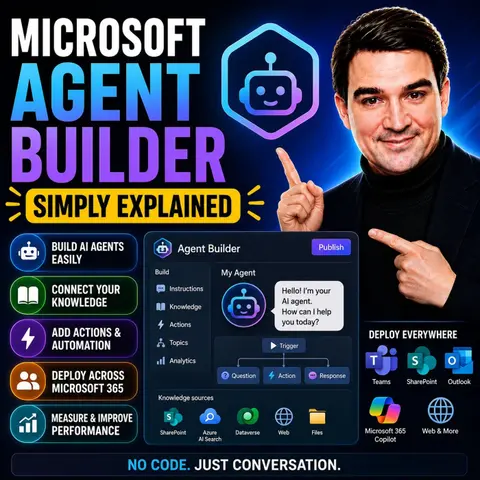
Getting Started with Microsoft Agent Builder: A No-Code Guide for Everyone
Welcome back to the podcast companion blog! In today's post, we are diving deep into one of the most exciting shifts happening across the digital workplace: the rise of no-code artificial intelligence. If you have ever wanted to build your own custom AI assistants to handle repetitive business processes, answer customer questions, or onboard new employees without writing a single line of code, you are in the right place. Microsoft Agent Builder is changing the game, making powerful automation accessible to everyone from frontline workers to seasoned IT administrators.
To fully grasp how this technology fits into your daily routine and broader organizational ecosystem, make sure you listen to our companion podcast episode, Microsoft Agent Builder — Simply Explained. In that episode, we break down everything you need to know about where this tool fits, the underlying architecture, and the crucial governance choices your team needs to consider.
What Is Agent Builder?
Overview of Microsoft Agent Builder
Microsoft Agent Builder is a powerful tool designed to help you create personalized AI agents that enhance workflows and boost productivity. This no-code solution allows you to develop custom virtual assistants directly from Microsoft 365 Copilot. You can easily build agents that perform various tasks, such as providing onboarding assistance or offering coaching tailored to your organization's standards.
Here are some key purposes of Microsoft Agent Builder:
- Create custom AI agents without needing technical expertise.
- Simplify the process of building agents directly from Copilot Business Chat.
- Customize agents further using Copilot Studio for advanced functionalities.
Key Features of Agent Builder
Microsoft Agent Builder stands out due to its unique features that differentiate it from similar platforms. Here’s a closer look at what makes it special:
| Feature | Description |
|---|---|
| MAI Models | These models enhance complex task handling by supporting structured output generation and tool-calling. |
| Long-context handling | This feature allows for large context windows, making it suitable for tasks like contract analysis. |
| Scout Agent | An AI agent that autonomously operates a browser to achieve user-defined goals, such as research. |
| Integration with Microsoft 365 | Seamlessly pulls data from web pages and interacts with SaaS applications without human input. |
Additionally, Agent Builder incorporates advanced technologies that enhance its capabilities:
| Feature/Technology | Description |
|---|---|
| Conversational capabilities | Design agents that respond to natural language prompts, guiding workflows and completing tasks. |
| Autonomous capabilities | Build agents that manage tasks autonomously, planning and escalating work items as needed. |
| Pre-built agents and templates | Access ready-to-use agents or customize templates based on business needs. |
| Voice capabilities | Create voice-based agents powered by generative AI for quicker user assistance. |
With these features, Microsoft Agent Builder empowers you to create effective AI agents that can streamline various business processes.
How Agent Builder Works
Describe and Configure Tabs
Microsoft Agent Builder features a user-friendly interface designed for non-technical users. The platform simplifies the configuration of AI assistants through its intuitive tabs: Describe and Configure.
- In the Describe tab, you articulate the purpose of your AI agent using everyday language. This allows you to define what tasks the agent should perform, such as answering HR questions or assisting with onboarding.
- The Configure tab enables you to customize the agent further. You can adjust its behavior, appearance, and interaction style without needing to write any code. This no-code environment makes it easy for anyone to create and customize AI agents.
To create an agent, follow these steps:
- Select an agent to manage from the Agent Registry.
- Click on the Users tab in the agent details pane.
- Choose Installed to to assign users who will have the agent pre-installed. Options include:
- Just me
- Entire organization
- Specific users/groups
- Select Available to to determine which users can install and use the agent. Options include:
- No users in the organization can install
- All users in the organization can install
- Specific users/groups can install
- Click Update to save these settings.
The Details tab provides comprehensive information about the agent's intended purpose, including its description, instructions, publish status, and availability. This information is essential for assessing the agent's capabilities.
Connecting to Knowledge Sources
Connecting your AI agent to various knowledge sources significantly enhances its performance. Microsoft Agent Builder allows you to integrate multiple data sources, ensuring your agent provides accurate and relevant information. Here are some of the knowledge sources you can connect:
| Knowledge Source | Description |
|---|---|
| Word, Excel, PowerPoint, Text, PDF | Supports retrieval of information from common document formats. |
| OneNote pages | Accesses a vast amount of information stored in OneNote notebooks. |
| SharePoint Sites | Retrieves data from SharePoint folders and files. |
| Teams chats | Utilizes information from group chats, channels, and meeting chats. |
| E-mails from Outlook | Integrates email data for comprehensive responses. |
| Websites | Allows access to external information sources. |
| People | References live directory information for accurate organizational queries. |
| Custom Connectors | Enables integration with enterprise-specific tools like ServiceNow and DevOps. |
By connecting these sources, your AI agents can deliver precise answers and streamline workflows effectively. This capability ensures that your agents remain relevant and useful in various business scenarios.
Benefits of Microsoft Agent Builder
Quick Development Process
Microsoft Agent Builder significantly accelerates the development of AI agents. You can create functional assistants in a fraction of the time compared to traditional coding methods. This no-code solution allows you to focus on your ideas rather than getting bogged down in technical details.
Consider the following comparison of development processes:
| Aspect | Traditional Coding Methods | Microsoft Agent Builder |
|---|---|---|
| Requirements Translation | Manual, time-consuming process | Automated, rapid generation of service blueprints |
| Debugging | Manual debugging, often slow | Proactive debugging with transparent decision-making |
| Pull Request Handling | Manual review and iteration | Automated PR creation and task management |
With Microsoft Agent Builder, you can deploy a functional AI assistant in as little as one afternoon. For example, an HR team can create a policy assistant that handles over 200 queries daily, reducing HR email volume by 40%. This rapid deployment enhances productivity and allows you to address business needs swiftly.
Customization and Templates
Customization is another key advantage of Microsoft Agent Builder. You can tailor your AI agents to meet specific business requirements using pre-built templates. These templates provide a solid foundation, allowing you to modify them quickly instead of starting from scratch.
Here are some popular templates available in Microsoft Agent Builder:
| Template Name | Purpose |
|---|---|
| Career Coach | Assists users in career development |
| Researcher | Aids in gathering and analyzing information |
| Analyst | Provides insights and data analysis |
To customize a template, follow these steps:
- Select a template that closely matches your needs.
- Integrate your own knowledge sources.
- Modify the instructions and suggested prompts as necessary.
Templates in Microsoft Agent Builder streamline the setup process. They enable you to develop operational agents quickly, promoting teamwork and efficiency across your organization. By leveraging these low-code development tools, you can enhance collaboration and ensure that your AI agents align with your business goals.
Getting Started with Agent Builder
Setting Up Your Environment
To begin using Microsoft Agent Builder, you need to set up your environment properly. Follow these essential requirements to ensure a smooth start:
| Requirement | Description |
|---|---|
| Licensing | Necessary for using Microsoft Agent Builder. |
| Governance | Essential for managing the deployment and use. |
| IT Department Involvement | Required for proper setup and integration. |
| Setup Duration | Not a quick process; requires more than five minutes. |
Once you have met these requirements, you can proceed to create your first AI assistant.
Creating Your First AI Assistant
Creating an agent with Microsoft Agent Builder is straightforward. Follow these steps to get started:
- Intro to AI Agents and Agent Use Cases: Familiarize yourself with the different types of AI agents and their applications in your organization.
- Exploring AI Frameworks: Understand the frameworks that support AI agent development.
- Understanding AI Agentic Design Patterns: Learn about design patterns that help structure your AI agents effectively.
- Tool Use Design Pattern: Identify the tools your agent will use to perform tasks.
- Agentic RAG (Retrieval-Augmented Generation): Implement retrieval-augmented generation techniques to enhance your agent's responses.
- Building Trustworthy AI Agents: Focus on creating agents that users can trust.
- Planning Design Pattern: Develop a plan for your agent's functionality and user interactions.
- Multi-Agent Design Pattern: Consider how multiple agents can work together to achieve complex tasks.
- Metacognition Design Pattern: Incorporate metacognitive strategies to improve your agent's learning capabilities.
- AI Agents in Production: Prepare your agent for deployment and real-world use.
As you create your first AI assistant, avoid common mistakes. Start with strict guardrails and loosen them gradually. Document each rule clearly to ensure your team understands the agent's purpose. Regularly evaluate the agent's performance to ensure it meets its goals. Track key metrics like task completion rates and user satisfaction to identify areas for improvement.
For further learning, consider these resources:
- Bootcamps: In-depth bootcamps take you from novice to mastery in less than a week.
- Learn With The Nerds: A free virtual series covering various data analytics and cloud topics.
- In A Day Workshops: Pragmatic Works manages and updates content for these Microsoft workshops.
- Resources: Includes Cheat Sheets, Ready-made Agents, Prag Guides, Downloads, Blog, and Career Guides.
- Start Learning: Access a free trial for learning resources.
- Microsoft 365 Agent Builder — Simply Explained: Offers templates for quick setup, allowing users to customize agents without needing extensive technical knowledge.
With these steps and resources, you can confidently embark on your journey of creating AI agents that enhance your business processes.
Common Use Cases for Agent Builder
Customer Support Automation
Microsoft Agent Builder plays a vital role in automating customer support. You can create AI agents that handle common inquiries, which significantly improves efficiency. Here are some key applications:
- Automate responses to frequent questions like order status, billing inquiries, and password resets.
- Enable self-service options through conversational chatbots and voice IVR systems.
- Route customer interactions based on intent, priority, or customer data.
- Assist agents with real-time suggestions, summaries, and next best actions.
- Generate and maintain knowledge articles from resolved interactions.
- Monitor conversation quality for compliance and coaching purposes.
- Personalize customer interactions using historical data and context.
- Scale support operations during peak times without increasing staff.
By implementing these features, you can enhance response times and customer satisfaction. Microsoft Copilot provides real-time AI assistance, helping resolve issues faster. Automating routine tasks allows your customer service agents to focus on delivering high-quality service. Self-service options reduce the number of calls needing agent intervention, leading to quicker resolutions. This results in lower resolution times, increased agent productivity, and higher customer satisfaction rates.
HR and Onboarding Assistance
In the realm of HR, Microsoft Agent Builder streamlines onboarding processes and enhances employee lifecycle management. You can automate the gathering of onboarding details, which reduces the time HR managers spend on manual tasks. Here are some specific uses:
- Create customizable agents that provide instant access to HR policies and procedures.
- Answer common queries about benefits and policies, allowing employees to self-serve.
- Integrate various HR functions, making it easier to manage recruitment, onboarding, and retention.
The tool also improves internal knowledge management for HR departments. It automates policy management and enhances access to information, making it easier for employees to find and understand company policies. For instance, HR teams can create policy agents that provide instant answers to employee inquiries. An example is Poly, an HR agent for Microsoft Teams, which allows employees to get answers without leaving their workspace. The integration with SharePoint helps identify key document elements, enhancing the management of critical policy documents.
By leveraging Microsoft Agent Builder in HR, you can improve employee experience and satisfaction while reducing the workload on HR teams.
Troubleshooting Agent Builder
Common Issues and Solutions
When using Microsoft Agent Builder, you may encounter some common issues. Understanding these problems can help you resolve them quickly. Here are the most frequently reported issues:
- Errors related to agent generation
- Capacity limits affecting performance
- Authentication problems leading to failures
For example, you might experience a situation where a custom agent that worked reliably for a few days starts failing with a generic "Oops, something happened" error after expanding from single-user testing to approximately 20 concurrent users.
To troubleshoot these issues, follow these steps:
- Review changes in Conditional Access, DLP/data policies, or network/firewall rules.
- Verify Teams/Copilot app availability settings.
- Open a support ticket with detailed diagnostics.
By taking these actions, you can often resolve the issues you face with your AI agents.
Additional Resources
If you need further assistance, several community forums and third-party resources can provide valuable help. Here are some useful links:
- Agent not visible in M365 Copilot | Microsoft Community Hub
- Microsoft Agent Store: The Rise of AI Agents in Business
These resources can connect you with other users who may have faced similar challenges. Engaging with the community can provide insights and solutions that enhance your experience with Microsoft Agent Builder.
FAQ
What is Microsoft Agent Builder?
Microsoft Agent Builder is a no-code tool that allows you to create AI agents easily. You can design personalized agents using natural language, streamlining various business processes.
Do I need coding skills to use Agent Builder?
No, you do not need any coding skills. Microsoft Agent Builder is designed for users without technical expertise, making AI assistant creation accessible to everyone.
Can I customize my AI assistant?
Yes, you can customize your AI assistant using the Configure tab. You can adjust its behavior, appearance, and knowledge sources to fit your specific needs.
What types of knowledge sources can I connect?
You can connect various knowledge sources, including SharePoint sites, OneDrive documents, Teams conversations, and Outlook emails. This integration ensures your agent provides accurate and relevant information.
How quickly can I create an AI assistant?
You can create a functional AI assistant in just a few hours. The no-code environment allows you to focus on your ideas rather than technical details.
Are there templates available for creating agents?
Yes, Microsoft Agent Builder offers pre-built templates for common business scenarios. You can customize these templates to suit your specific requirements.
How does Agent Builder enhance productivity?
Agent Builder automates routine tasks, allowing you to focus on more critical business activities. This efficiency leads to improved workflows and better collaboration within your team.
Where can I find additional resources for learning?
You can access various resources, including bootcamps, workshops, and online tutorials. These materials help you deepen your understanding of Microsoft Agent Builder and its capabilities.
🎧 Listen to this episode
Want a practical explanation of Microsoft Agent Builder? This episode breaks down the topic in clear language and shows why it matters for Microsoft 365, Azure, Power Platform, security, AI, and modern work.
Listen to this episode if you want to:
- Understand the key concepts behind Microsoft Agent Builder
- See how it fits into the wider Microsoft technology ecosystem
- Learn where it can create practical value for your organization
You may also enjoy these related M365 FM episodes:
- Agent-to-Agent (A2A) Communication - Simply Explained
- Microsoft AI Agent Harness - Simply Explained
- Microsoft Entra Agent ID: Secure Identity for AI Agents
- Multi-Agent AI with Microsoft Copilot and SharePoint – Reshmee Auckloo [MVP]
- Microsoft AI Agent Runtimes: Beyond Enterprise Chatbots
Discover more practical Microsoft conversations on M365 FM.
Last reviewed: July 2026.
Who Should Listen
This episode is for Microsoft administrators, architects, developers, security professionals, and business leaders who need a practical foundation before making implementation or governance decisions.
🎧 You Should Also Listen To
- AI Agents — A closely related next step that adds useful context and practical depth.
- Model Context Protocol — A closely related next step that adds useful context and practical depth.
- Microsoft Security Copilot — A closely related next step that adds useful context and practical depth.

Microsoft MVP | Host of M365.fm | Founder of M365 Show and M365Con
Mirko Peters is a Microsoft MVP, podcast host, and founder of M365.fm, M365 Show, and M365Con. His work connects Microsoft practitioners through podcast interviews, livestreams, and community events.
At M365.fm, Mirko hosts conversations with Microsoft MVPs, product experts, architects, and community contributors. Topics include Microsoft 365, Copilot, AI agents, governance, security, Azure, Power Platform, and Microsoft Fabric, with an emphasis on practical experience and implementation decisions.
M365.fm is the podcast and learning platform. M365 Show brings experts together for livestreams, while M365Con provides an online conference setting for community learning.
Official website: Mirko Peters (https://www.mirkopeters.com/). Recognition: Mirko Peters — Microsoft MVP profile (https://mvp.microsoft.com/de-DE/mvp/profile/9b0ca797-db5a-493a-a845-8b9158046cf5). Connect on LinkedIn (https://www.linkedin.com/in/m365showpodcast/).
Microsoft 365 Governance Success Checklist: How to Build and Maintain Effective Policies