
Guest Users In Microsoft 365 Guide
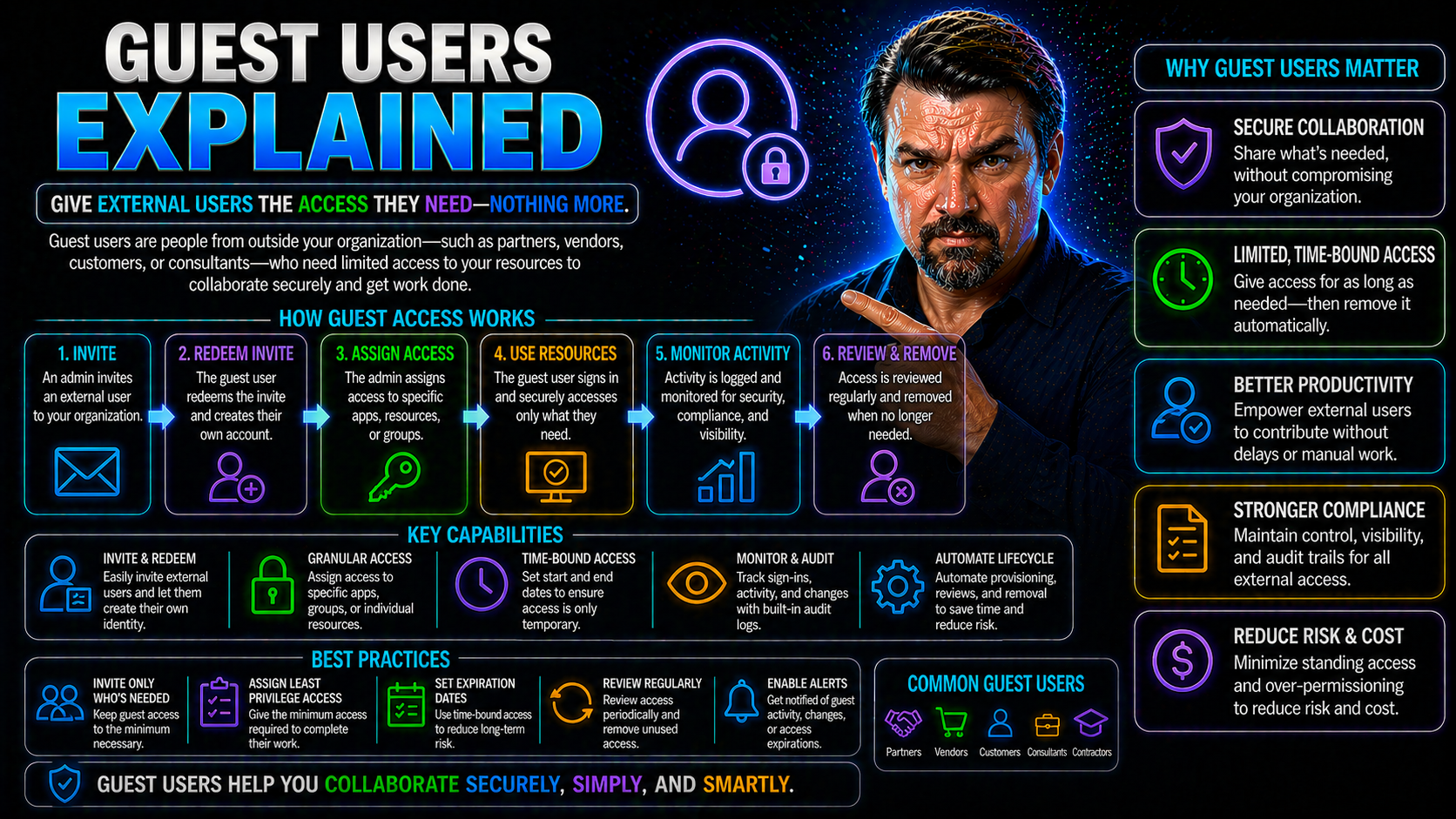
Microsoft 365 guest users requires a clear business scenario, approved access and data boundaries, and accountable ownership. Start with the intended outcome, validate current Microsoft guidance, test with representative users, and document the decision before scaling. This keeps the solution secure, practical, and easier to support across Microsoft 365.
Microsoft 365 guest users: practical checklist
- Define the scenario, owner, and expected outcome.
- Validate permissions, security, policy, and user impact.
- Test with a pilot and document support and review decisions.
Use Microsoft Learn for current guidance.
Last reviewed: July 2026.
Guest users are the key to unlocking secure, flexible collaboration in Microsoft 365 and Entra ID—without letting your organization swing wide open to risk. In today’s hybrid workplace, teaming up with vendors, partners, or clients is routine, but granting external access has to be done smart and safe. Guest accounts give you that middle ground: outsiders who can join the fold for specific tasks, while keeping your data and compliance guardrails firmly up.
Understanding guest user management is essential for any modern IT team. Go too open, and you invite trouble; too strict, and you kill productivity. Smart organizations master both the technical setup and the ongoing oversight that keeps collaboration productive—a balance of access and accountability. This guide lays out what a guest is, how they work in Microsoft 365, and how governance, security, and automation all play a role in managing these digital "visitors" responsibly.
What Is a Guest Account and Why Does It Matter for Microsoft 365?
A guest account in Microsoft 365 is a user profile created for someone outside your organization—a person who isn’t on your payroll, but needs to work with your team. Think clients reviewing docs, contractors joining Teams meetings, or partners sharing project files. Unlike internal “member” users who have full rights, guest accounts are built to give outsiders only what’s necessary for collaboration inside your Microsoft 365 environment.
These guest identities live in your Entra ID (formerly Azure AD), allowing you to manage and monitor external access through the same security and compliance tooling you use for your local users. But don’t let the name fool you; guests might have limited default permissions, but with the right settings, they can co-author documents, join Teams channels, or even participate in approval workflows—depending on what you allow.
Why care? Because guest accounts blur the lines between what’s “inside” and “outside” your digital walls. Letting too many guests roam freely can create security and compliance chaos, especially if their access lingers after the project ends. Over time, those forgotten guest accounts can become back doors for data breaches, compliance violations, or plain old operational headaches. For a deeper dive into lifecycle pitfalls, check out this guide to hidden dangers of M365 guest accounts.
Ultimately, managing guest users is about extending your organization without overextending your risk—making oversight and lifecycle controls non-negotiable for any serious Microsoft 365 deployment.
Why Guest Creation Matters in Your Microsoft 365 Tenant
Keeping tabs on how and when guest accounts are created in your tenant isn’t just paperwork—it’s your first line of defense against security holes, shadow IT, and compliance headaches. If anyone can spin up guest access through unchecked sharing, you run the risk of oversharing sensitive files, breaking compliance rules, or creating an ever-widening attack surface.
Without strong guest provisioning controls, it’s easy for shadow IT and rogue external access to slip through the cracks. If you’re worried about hidden apps or unmanaged sharing outside IT’s watchful eye, you’ll want to look at these practical governance strategies for cleaning up shadow IT in Microsoft 365. Setting up approvals and tracking guest creation sets the tone for ongoing security and responsible digital collaboration across your organization.
How Guest Users Are Created in Microsoft 365 and Entra ID
Guest users can enter your Microsoft 365 environment through two major routes: intentionally, by direct invitation via Entra ID; or automatically, when someone inside your company shares files and folders with an outsider using SharePoint or OneDrive. Both pathways land these external users into your tenant directory, but the process and control look very different.
The intentional path is typically led by IT or project owners who want to keep things tight—external collaborators get added after review, with clear access boundaries set from the start. In contrast, the automatic path is more organic (and sometimes messier): end users share documents or sites and, behind the scenes, Microsoft 365 creates a guest account for the recipient so they can access the shared material.
Each approach comes with its own security and operational demands. Admin-driven invites let you set access limits, audit trails, and controls right away. Automatic creation through sharing, however, can sometimes lead to an unchecked sprawl of guest accounts if not managed carefully, requiring IT to step in later with cleanup or review. Next, we’ll break down exactly how each method works, and what you need to watch out for in practice.
Intentional Path: Inviting Guest Users from Entra ID
- Access Entra ID Portal: Start by signing into the Microsoft Entra ID admin center. This is where guest user management lives.
- Navigate to "Users" → "New guest user": Click into the "Users" blade and select “New guest user.” Here you’ll fill out the basic info for the external collaborator—think name, email, and any custom notes.
- Fill out Invitation Details: Add the guest’s email address and tailor the invitation message if needed. Decide if you want to assign the user to specific groups or teams at this stage.
- Customize Access and Policies: Before hitting send, you can define exactly which resources the guest user can touch—this could include Teams channels, SharePoint sites, or even specific files.
- Send Invitation & Track Acceptance: Once submitted, Microsoft 365 sends a secure invite. The guest must accept and validate their identity, at which point they’re provisioned as a guest in your directory.
- Monitor and Audit Guest Access: The beauty of this method is control—you get a clear audit trail and can attach conditional access, review, and offboarding policies. It fits right into disciplined identity workflows, especially for regulated orgs. For deeper strategies to tame "identity debt" and avoid sprawl, check out this practical podcast episode on conditional access in Entra ID.
This controlled process aligns with best practices for minimizing risk and keeps your compliance team happy, ensuring every guest arrival is tracked and governed from day one.
Automatic Guest Creation Through SharePoint and OneDrive Sharing
- File/Folder Sharing Triggers Guest Creation: When a user inside your organization shares a document or folder externally—whether from SharePoint, a shared library, or OneDrive—Microsoft 365 tries to deliver it securely. If the recipient’s email isn’t already known, a new guest user profile is spun up in your Entra ID.
- Recipient Receives Secure Link and Signs In: The external individual gets a time-limited invitation with a secure link. After verifying their identity (usually via one-time passcode or a social sign-in), they’re mapped to a new guest account behind the scenes.
- Guest Profile Is Created in Entra ID: Entra ID now carries a new guest identity tied to that external user, often with minimal restrictions at first. Unless policies are in place, that guest may reappear in access logs and audit trails across various workspaces as sharing expands.
- Potential for Oversharing and Sprawl: This route is super convenient—but it can get away from you fast if users aren’t trained or admins haven’t set the right limits. Too much unchecked sharing means more backdoors and potential data leakage. For a smart approach to catching risky sharing activity before disaster, see these strategies for controlling external sharing in Microsoft 365.
- Mitigation Requires Both Tools and Policy: Administrators should automate auditing and set up layered alerts for new guest creations, and clarify when and how SharePoint or OneDrive can be used for collaboration, avoiding the classic sprawl and governance headaches covered in this governance breakdown of SharePoint vs Dataverse.
Automatic guest creation balances efficiency and security—but only if you keep a steady hand on the wheel.
Configuring External Collaboration Settings in Entra ID
- Access External Collaboration Settings: Go to the Entra ID portal, then under "External Identities," pick "External collaboration settings." Here’s where you define who gets to invite guests, and what restrictions apply.
- Set Organizational Guest Access Policies: You can fine-tune whether only admins, specific users, or all members have the power to add guests. It’s wise to restrict broad invite rights unless you’ve built in review processes.
- Configure Collaboration Restrictions and Consent: Decide what guest users can do once inside. Limit their group memberships, control access to directory data, and require admin-approved consent when apps request guest access.
- Enforce MFA, Terms of Use, or Compliance Steps: You can trigger additional hurdles like multi-factor authentication or require that guests accept your organization’s terms of use at first login—blocking known problem areas before they start.
- Apply Downstream to Microsoft 365 Services: These Entra ID settings ripple out to Teams, SharePoint, OneDrive, and Power Platform. Changes here help contain wild guest access across your whole stack, not just identity levels.
Pro tip: lock down OAuth consent and admin workflows to protect against stealthy, persistent attacks like those covered in this deep dive on Entra ID consent attacks. The right config shields your ecosystem—while letting business run at full speed.
Implement Entitlement Management for Controlled Guest Access
Entitlement management in Entra ID is your ticket to clean, policy-driven control over guests. Instead of ad-hoc, manual approvals, you create "access packages"—bundled sets of permissions, resources, and group memberships that guests can request for a defined purpose.
Each package has settings for automatic expiration, requiring guests to re-request access once their time is up. You can require multi-layer approvals, assign different decision-makers, and even validate the business justification for each guest before anything gets provisioned.
This policy-driven model dramatically reduces oversharing and keeps your audit trails squeaky clean. Entitlement management is especially effective for recurring collaborator scenarios—think partner ecosystems, sensitive project teams, or regulated data rooms. With this approach, you don’t just hand out keys; you check IDs, log it all, and ensure the doors re-lock on a timer.
Want to see how policy-based provisioning ties into DLP and overall Microsoft 365 security? Don’t miss these three hidden DLP moves for hybrid environments, which detail how sharing policies, connector management, and lifecycle control ensure your environment isn’t a revolving door of uncontrolled access. With entitlement management, you’re always a step ahead of the mess.
Schedule Regular Access Reviews for Guest Accounts
- Set up recurring access reviews: Use built-in Microsoft 365 or Entra ID features to regularly audit which guest accounts have access to what, and ensure approvals are still justified.
- Automate review reminders: Push reminders to resource owners or managers so reviews actually happen on schedule—not just “when there’s time.” Automation keeps you honest.
- Revoke unused or expired access: Remove guest access if accounts haven’t logged in or collaborated recently. Limited access means less to worry about.
- Document everything for compliance: Keep an audit record of reviews and actions for auditors and forensics. For best-practice logging and detailed audit coverage, see this Purview Audit guide.
These simple habits make least-privilege collaboration a living reality—not just a checkbox.
Securing Guest Accounts with Identity and Access Controls
Letting outsiders into your digital house is always a risk, but if you shore up the doors with modern identity and access controls, the payoff is worth it. Microsoft 365 puts powerful tools in your hands: conditional access policies, strong authentication, and routine review processes—each turning open doors into managed, monitored portals.
This next set of sections digs into how you put those tools to use, from enforcing granular guest sign-in requirements to standardizing secure onboarding and offboarding. You’ll see why a little up-front effort goes a long way in preventing privilege creep, data breaches, or those "how did this guest get access to everything?" moments.
We’ll explore how to spot the hidden cracks—like privilege escalation or stale accounts that attackers love to exploit—and show you which controls and policies will make your Microsoft 365 setup resilient, even when business pressure says “just collaborate faster.”
For those who want to dig deeper into trust boundaries and attack techniques before going further, check out this real-world discussion on conditional access pitfalls or this Microsoft 365 attack chain breakdown that illustrates why identity controls matter more than ever.
Use Conditional Access Policies for Secure Guest User Access
- Require Multi-Factor Authentication (MFA): Make MFA non-negotiable for all guest users, especially if they access sensitive files or apps. This takes away easy wins from attackers and sets the same expectation for external and internal users.
- Restrict by Device Compliance and Location: Limit guest access to compliant devices or known locations. This could be as tight as “only from trusted work laptops” or “no access from banned countries.”
- Set Just-in-Time or Time-Limited Access: Use policies to enforce that guest users only get in during set project periods or must reauthenticate after short windows—great for stopping “stick around forever” accounts.
- Develop an Inclusive Policy Baseline: Don’t leaveroom for accidental oversharing or wide-open doors. Build a strong, inclusive policy stack with minimal exceptions. A phased rollout and continuous monitoring are key, as explored in this deep dive on policy trust issues.
- Maintain a Policy Review Loop: Track exceptions, clear out old rules, and loop back to fix “identity debt” or policy sprawl. A healthy review cycle keeps enforcement sharp. For strategies on lifecycle management, listen to this podcast exploring conditional access remediation and enforcement in Entra ID.
Conditional access is your real-time shield against compromise, but only if you build, test, and update with discipline.
Set Secure Guest Onboarding and Offboarding Processes
- Run an approval workflow: Don’t let just anyone invite guests—enforce business justification and manager approval before onboarding.
- Validate identity and access: Require external users to verify identity and accept usage terms before granting access to sensitive data.
- Track and document guest onboarding: Log who approved access, what was granted, and for how long, to ensure transparency and for auditing.
- Automate offboarding steps: As soon as a project wraps, remove or expire guest accounts—preferably through automated scripts or lifecycle management tools.
Following this checklist helps maintain the principle of least privilege while avoiding the sprawl or "zombie guests" that can haunt your tenant long after a collaboration ends.
Are Guest Accounts Secure? Risks and Privilege Escalation Explained
Let’s keep it straight: guest accounts are neither “safe” nor “dangerous” by default—they’re only as secure as the controls you wrap around them. But they do bring some unique risks to watch out for in any Microsoft 365 setup.
The big one is privilege escalation. If guests are given more access than they need, or if group memberships aren’t kept in check, they can sometimes cross the line from “just visiting” to “in the vault.” It’s easy for oversharing to slip by if access reviews aren’t routine, turning innocent collaboration into a full-blown compliance headache.
Another hidden hazard is lateral movement. Attackers love forgotten guest accounts—they can sometimes abuse these to pivot across teams, harvest data, or sidestep policies meant for your main crew. The longer a guest sticks around unmonitored, the more risk piles up.
For real-world stories on the hidden security dangers of lingering guest users (plus strategies for lifecycle, expiration, and review), don’t miss this comprehensive breakdown. Compliance plays a part, too: versioning gaps or audit log blind spots can make it hard to spot overshared or misused data, as explained in this insight on true Microsoft 365 compliance drift.
Bottom line: protecting your Microsoft 365 tenant against guest account risk is an ongoing process, not a set-and-forget task. Strong policies, smart automation, and regular reviews are what make the difference.
Automate Guest Monitoring and Reporting in Microsoft 365
- Use built-in guest activity reports: Microsoft 365 offers out-of-the-box reporting for external users—see who’s active, what’s being accessed, and spot risky behaviors without manual digging.
- Set up alerting and SIEM integration: Configure alerts for unusual guest activity, such as sign-ins from strange locations or access to sensitive SharePoint sites. Integrate with SIEM tools or Microsoft Sentinel for centralized oversight.
- Leverage automation and third-party solutions: Tools like CoreView automate monitoring at scale—triggering workflows, kicking off reviews, or flagging policy violations for follow-up.
- Audit comprehensively with Purview: Go deeper with Microsoft Purview Audit for full forensic logging across all M365 workloads. Learn more about audit tiers and advanced monitoring in this detailed Purview Audit guide.
Automating guest monitoring delivers both continuous compliance and peace of mind across even the busiest environments.
How to Identify and Remove Inactive Guest Users
- Run scripts or use built-in reports: Use PowerShell or Entra ID reports to spot guest accounts with no recent activity or sign-in events.
- Leverage audit logs for access reviews: Pull audit data to find out exactly when a guest last touched a resource—so you’re not guessing who’s still “in the building.”
- Automate removal with workflows: Use policy-based automation to expire accounts after set periods of inactivity or upon project completion.
- Coordinate between governance and IT: This isn’t a one-person job—compliance leads and administrators should sync up to ensure all forgotten guests are removed fast.
- Adopt a “zero leftover” mindset: Stale accounts expand your risk—clean them out as aggressively as you do with non-human workload identities, as discussed in this primer on managing identities in Microsoft Entra.
Stay sharp: the faster you clear out inactive guests, the less chance you leave for breaches or governance headaches.
You Should Also Listen To
If you are researching guest users in Microsoft 365, these episodes add practical context on architecture, security, governance, and implementation:
- Microsoft AI Agent Harness – Simply Explained — Understand orchestration, guardrails, evaluation, and reliable AI workflows.
- Microsoft Defender XDR – Simply Explained — Connect identity and AI decisions with security monitoring and response.
- Microsoft Teams Governance – The Illusion of Control — Learn how governance, ownership, and policy reduce operational risk.
- Azure Virtual Network – Simply Explained — Understand the architecture context behind cloud connectivity.
🎧 You Should Also Listen To
- Identity Governance in Microsoft Entra
Learn access, lifecycle, and ownership controls.
- Microsoft Purview – Simply Explained
Explore protection and governance context.
- Microsoft 365 Governance Operating Model
Understand sustainable operating decisions.
Microsoft 365 guest users checklist, facts, benefits, and trade-offs
- Define owners, groups, sensitivity, sharing scope, and review cadence.
- Test internal, guest, inherited, direct, and link-based access.
- Document exceptions and verify audit and review evidence.
Definition: Microsoft 365 guest users is the structured management of access so people can collaborate without receiving unnecessary permissions.
Pros: stronger control, clearer ownership, and easier audits. Cons: ongoing review effort, lifecycle complexity, and dependency on accurate ownership.
Surprising facts about Microsoft 365 guest users
Indirect group membership and sharing links can create broader access than the site structure appears to show.
Common mistakes people make about Microsoft 365 guest users
Teams often rely on direct permissions, leave former owners in place, and treat external sharing as a one-time decision.
Key benefits of Microsoft 365 guest users
A disciplined model improves security, collaboration clarity, audit readiness, and operational continuity.
Frequently asked questions
What are Microsoft 365 guest users?
Guest users are external identities invited to collaborate in a Microsoft 365 tenant under the permissions, sharing settings, and governance controls assigned to them.
How should permissions be structured?
Define business roles and access levels first, then map them to groups and site or team ownership.
Why are groups better than direct permissions?
Groups simplify review, reduce drift, and make it easier to remove or change access consistently.
How often should access be reviewed?
Use a regular review cadence based on sensitivity, risk, and business change, with evidence retained.
What are common governance mistakes?
Common mistakes include direct permissions everywhere, unclear owners, open links, and no lifecycle process.
How should external sharing be controlled?
Use approved sharing settings, expiration, access reviews, labels, DLP, and clear external-collaboration rules.
How should site owners be assigned?
Assign accountable owners with a backup, support path, and scheduled review responsibility.
How do sensitivity labels help?
Labels can signal sensitivity and apply protection or handling rules where configured.
How does least privilege apply?
Grant only the access needed for the task and remove it when the business need ends.
What should be documented?
Record scope, owner, groups, sharing settings, exceptions, approvals, tests, and review dates.
How should exceptions be handled?
Require an owner, business reason, compensating control, expiry, and approval for each exception.
How can stale access be found?
Use access reviews, group membership reports, sharing reports, audit logs, and owner confirmation.
How should guests be reviewed?
Apply lifecycle rules, sponsor ownership, periodic review, and prompt removal when collaboration ends.
What are the main security benefits?
The benefits are clearer accountability, reduced exposure, better auditability, and more predictable collaboration.
What are the main limitations?
Legacy structures, poor ownership, third-party integrations, and user resistance can limit results.
How should a permissions pilot work?
Start with representative sites and teams, measurable controls, and a support owner before scaling.
How can owners be trained?
Teach owners how inheritance, sharing, groups, labels, and access reviews work in practice.
How should inheritance be used?
Use inheritance deliberately and break it only when the business case and owner are documented.
How do Teams and SharePoint permissions relate?
Teams collaboration can expose SharePoint content, so permissions and sharing must be considered together.
How should confidential content be protected?
Use classification, encryption, DLP, restricted sharing, and owner-led review for sensitive material.
What is a surprising fact?
Permissions often look correct while indirect group membership or sharing links create broader access than expected.
How should alerts and audits be used?
Use auditing and alerts to identify changes, unusual sharing, and high-risk access patterns.
How can permission sprawl be reduced?
Use naming standards, group ownership, access packages where suitable, and lifecycle automation.
What happens when an owner leaves?
Transfer ownership, review access, and document the handover instead of leaving the site unmanaged.
How should access requests be managed?
Use a clear request, approval, fulfillment, and review process with separation of duties.
How should sharing links be governed?
Review link scope, expiration, anonymous access, and recipient identity before sharing.
How can governance scale?
Standardize patterns, automate repeatable reviews, and keep ownership close to the business.
How should a failed review be handled?
Isolate the affected site or group, correct access, preserve evidence, and repeat the review.
What is the safest rollout pattern?
Use a bounded pilot, verify access, expand in waves, and pause if review or support demand is too high.
Where can current Microsoft guidance be checked?
Use current Microsoft Learn and product documentation for tenant and workload-specific controls.

Microsoft MVP | Host of M365.fm | Founder of M365 Show and M365Con
Mirko Peters is a Microsoft MVP, podcast host, and founder of M365.fm, M365 Show, and M365Con. His work connects Microsoft practitioners through podcast interviews, livestreams, and community events.
At M365.fm, Mirko hosts conversations with Microsoft MVPs, product experts, architects, and community contributors. Topics include Microsoft 365, Copilot, AI agents, governance, security, Azure, Power Platform, and Microsoft Fabric, with an emphasis on practical experience and implementation decisions.
M365.fm is the podcast and learning platform. M365 Show brings experts together for livestreams, while M365Con provides an online conference setting for community learning.
Official website: Mirko Peters (https://www.mirkopeters.com/). Recognition: Mirko Peters — Microsoft MVP profile (https://mvp.microsoft.com/de-DE/mvp/profile/9b0ca797-db5a-493a-a845-8b9158046cf5). Connect on LinkedIn (https://www.linkedin.com/in/m365showpodcast/).





