How Microsoft Teams Phone Works: Complete Guide
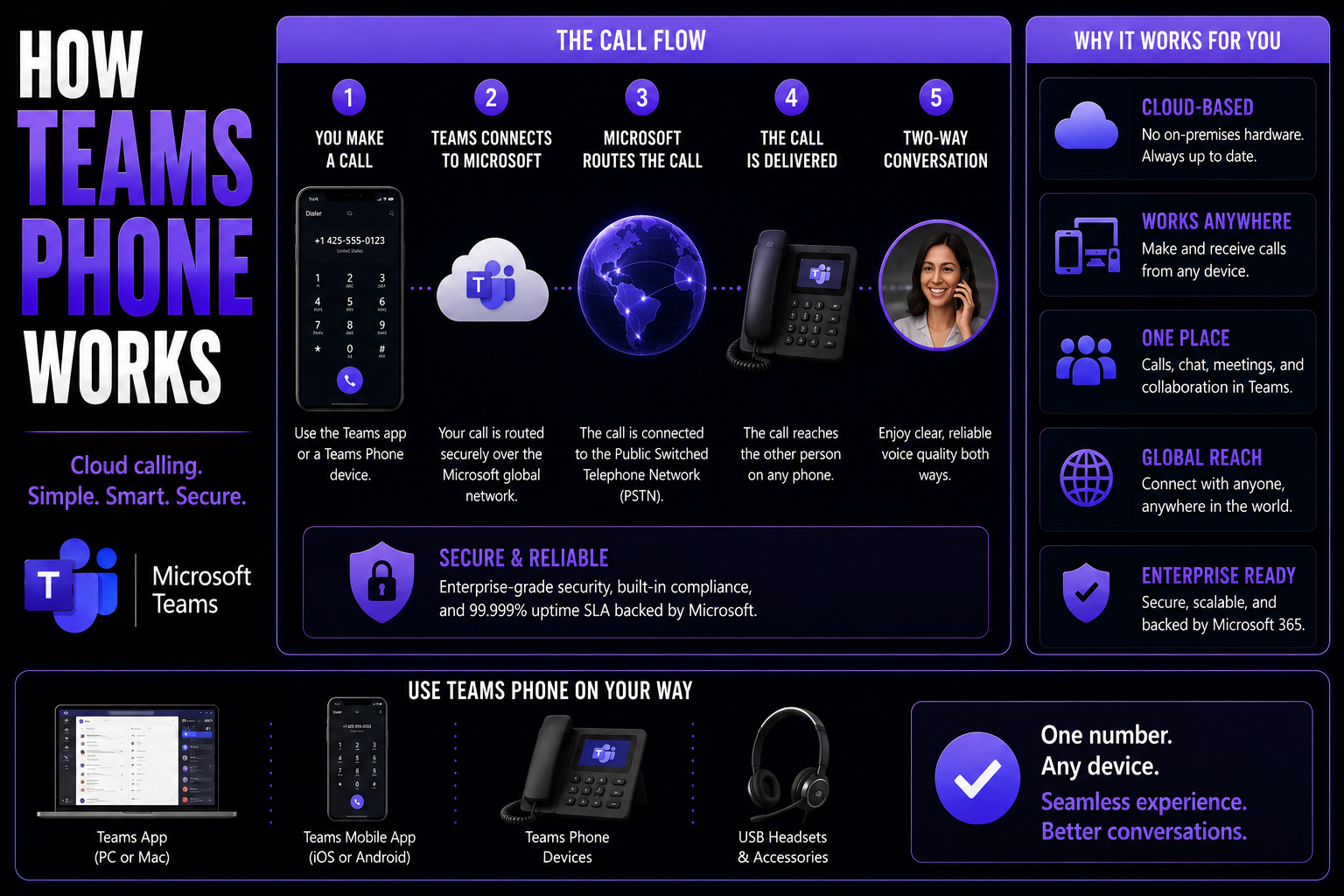
Microsoft Teams Phone is changing how organizations communicate, blending cloud-based calling right into your everyday Teams experience. This guide is perfect for IT leaders and business decision-makers looking to upgrade from old-school phone systems to something more flexible, scalable, and ready for the hybrid workplace. You'll get a clear view of core Teams Phone functions, how to plan and set things up, what you’ll need for licensing and hardware, and how to sidestep common budgeting headaches.
We cover every step—from choosing how you want your phone lines to connect, to rolling Teams Phone out for your users and tapping into advanced features for enterprise calling. Plus, you'll find guidance on keeping call quality reliable, meeting compliance needs, and supporting mobile or hybrid teams. If cloud telephony sounds intimidating, don’t worry; by the end of this guide, the whole "Teams Phone" picture will make sense, and you’ll be ready to act with confidence in your communications strategy.
Understanding Microsoft Teams Phone and Its Core Functionality
Today’s organizations need more than just a phone line—they need a unified way for people to call, chat, meet, and get work done anywhere. At the center of that shift sits Microsoft Teams Phone, a cloud-based telephony system woven straight into Microsoft Teams. Instead of juggling multiple communication apps or struggling to support aging desk phones, organizations are jumping to Teams Phone for everything from straightforward business calls to complex workflows and customer support.
What makes Teams Phone stand out is how it merges voice with collaboration features you likely already use in Teams—instant messaging, meetings, file sharing, and more. It means no more switching between apps or losing track of conversations. As businesses move towards remote and hybrid setups, Microsoft Teams Phone offers a single, scalable platform for every type of call, whether it's a quick check-in with a co-worker or a vendor call that reaches across continents.
In the sections ahead, you’ll get a solid foundation for what Teams Phone is, how it works as part of the bigger Microsoft ecosystem, and what makes it a game-changer for modern workplaces. We’ll break down the basics, outline voice features, and show you how everything connects for a smooth call experience—all before we dive into the setup and deployment journey.
What Is Microsoft Teams Phone and How Does Teams Telephony Work?
Microsoft Teams Phone is a cloud-based phone system built right into the Teams app that many businesses are already using. It lets you make, receive, and transfer calls both inside and outside your organization, without needing a separate desk phone or old-school PBX hardware. Think of it as your business phone service hosted on Microsoft’s secure, reliable infrastructure—meaning all you need is an internet connection and a Teams-enabled device.
With Teams Phone, voice calls work using VoIP (Voice over Internet Protocol), which is a fancy way of saying your calls travel over the internet instead of old copper lines. For calls to external phone numbers—like your vendors, customers, or grandma’s landline—Teams Phone connects to the PSTN (Public Switched Telephone Network), so you can dial worldwide. Meanwhile, internal calls stay fully digital within Teams, offering high-quality voice and integration with chat and meetings.
You can route calls, create voicemail boxes, and even set up call queues or auto-attendants to make sure nobody gets left hanging. Whether your users are at their desks, using mobile devices, or working remotely, Teams Phone brings everyone to the same table—or call. The result: one unified system handling all your business telephony needs, fully managed in the cloud by Microsoft and tied directly into your collaboration workflow.
Teams Voice Functionality and Overview of Calling Features
- Call Basics (Hold, Transfer, Forward): Teams Phone lets users place a call on hold, transfer it to another colleague, or forward calls to mobile numbers or voicemail with a click. This ensures calls get where they need to go without dropped connections.
- Voicemail and Call History: Every user gets a personal voicemail box with messages transcribed and sent directly to their Outlook inbox. Call history is accessible right in Teams, making it easy to track missed calls and return them fast.
- Call Queues and Auto Attendants: Manage high call volumes with call queues that distribute inbound calls among staff, and set up auto attendants with custom greetings and menu options to direct callers without live intervention.
- Direct Routing and PSTN Access: Place and receive calls to any landline or mobile phone by connecting Teams Phone to the PSTN. Direct Routing enables integration with your existing telephony provider, while Microsoft Calling Plans provide numbers through cloud subscriptions.
- Collaboration and Compliance Tools: Merge calls into Teams meetings, escalate one-on-one calls, and record calls for compliance. Integration with Teams presence status and chat keeps everything organized, while call controls meet industry regulations.
- Calling on Behalf: Assistants or team members can place and receive calls on behalf of executives or colleagues, streamlining executive workflows without compromising security.
Integration With Microsoft 365 and Office 365
Teams Phone is designed to work hand-in-hand with Microsoft 365 and Office 365, making the most of security, administration, and productivity tools you might already have in place. All your Teams calls, meetings, and chats are managed under the same umbrella, giving you tight integration with Outlook for scheduling, SharePoint for document management, and OneDrive for cloud storage.
This unified approach ensures calls are secure, easy to manage, and fit right into collaboration processes familiar to your users. For organizations already running Microsoft Teams governance and security controls across their workspace, Teams Phone keeps your communication streamlined and compliant across the board.
Deployment Methods and Infrastructure Options for Teams Phone
Rolling out Teams Phone isn’t a one-size-fits-all situation. Microsoft gives you a few key options—Calling Plans, Operator Connect, and Direct Routing—so you can match your business needs, budget, and technical environment. Choosing the right deployment model shapes how your users make and receive phone calls, how much control you keep over your numbers, and how much work it’ll take to migrate from traditional phone systems.
This section introduces these deployment options and highlights why picking the right model matters for long-term flexibility, compliance, and cost. Once you’ve chosen your path, you’ll need to understand how to assign the proper Teams Phone licenses to your users and what to look for in Teams-certified devices. The next few sections will break down each method, licensing workflow, and hardware requirement, helping you build a deployment plan tailored to your unique organization.
Comparing Deployment Methods and PSTN Connectivity Options
- Calling Plans (Microsoft-provided): Microsoft acts as your phone carrier, providing phone numbers and PSTN access through a monthly subscription. Pros: Simple setup, minimal infrastructure, great for organizations not tied to an existing carrier. Cons: Limited to countries where Microsoft offers service; may cost more long-term for heavy call volumes.
- Operator Connect: Lets you bring your preferred telecom provider into Teams via certified Operator Connect partners. Pros: Keep your current numbers and carrier while simplifying setup; carrier handles PSTN integration and support. Cons: Limited choice of telecom partners by region; may impact flexibility for advanced call routing needs.
- Direct Routing: Connects Teams to practically any telecom provider via Session Border Controllers (SBCs). Pros: Max control and flexibility; keep legacy numbers, integrate with onsite equipment, and support complex call flows. Cons: Higher initial complexity, requires more IT expertise, must maintain or partner for SBCs and infrastructure.
Your final choice comes down to how much you want to manage yourself, what you need in terms of compliance, and whether you need to support current or legacy telephony. Each model affects how you add numbers, route calls, and maintain control as your company scales.
Assigning Licenses for Teams Phone Users
- Microsoft 365 E5: Includes Teams Phone capability built-in; ideal for organizations already licensed for E5 who need voice features out of the box.
- Add-on Teams Phone License: Purchased separately for users on lower license tiers (like E3/A3), enabling telephony without upgrading your entire tenant.
- Admin Assignment Steps: Use the Microsoft 365 Admin Center to assign Teams Phone (and any needed Calling Plan) licenses to chosen users. Make sure every user needing a phone number or PSTN call access is covered.
Using Teams-Certified Phones and Devices
- Desk Phones: Teams-certified IP phones by vendors like Yealink, Poly, or AudioCodes deliver reliable call quality and easy login with your Teams account.
- Headsets and Speakerphones: Certified USB and Bluetooth headsets guarantee best-in-class audio, noise cancellation, and tight Teams integration.
- Room Devices: Meeting room equipment (like Teams Rooms consoles and conference phones) make group collaboration smooth, secure, and compliant—meeting even strict industry standards.
Step-by-Step Guide to Deploying Microsoft Teams Phone
Ready to go from planning to reality? This section walks you through every major phase of deploying Teams Phone in your organization—without getting lost in the weeds. By breaking the journey into manageable chunks, you’ll get a logical roadmap that covers picking a deployment model, assigning licenses, setting up phone numbers, and ensuring compliance with emergency call regulations.
Each step builds on the last, so whether you’re new to Teams Phone or migrating from a legacy system, you’ll avoid common pitfalls. There’s practical advice for both IT teams handling the technical work and business leaders overseeing the change. If you want to see examples of another organized rollout, check out how to streamline project setup in Teams in this step-by-step governance guide. Now, let’s break down the process of turning on business telephony in Teams—so you’re ready for everything from local extension dialing to company-level call routing.
Choosing a Deployment Method and Assigning Licenses
- Pick Your Deployment: Decide between Calling Plans, Operator Connect, or Direct Routing based on compliance, carrier needs, and technical resources.
- Assign Licenses Early: Make sure all users who need calling features have the right Teams Phone and Calling Plan (if needed) assigned in the Admin Center before enabling numbers.
- Review Compliance: Double-check licensing coverage and regional dial plan eligibility before moving to setup.
Configuring Emergency Locations and Enhanced 911 (E911)
- Set Physical Locations: Define specific addresses for office, branch, and remote user locations to ensure emergency responders get accurate info.
- Enable E911: Configure Enhanced 911 features so that emergency calls automatically transmit location data in compliance with U.S. regulations.
- Test Emergency Call Routing: Simulate and validate E911 call flows to verify accurate information is delivered to dispatchers.
Assigning Phone Numbers and Setting Up Call Queues & Auto Attendants
- Add and Assign Numbers: Use the Teams admin center to buy, port, or request numbers, then allocate them to users and service accounts.
- Port Existing Lines: Migrate old numbers by submitting porting requests to keep the same external identity for your business.
- Set Up Call Queues: Configure hunt groups to route incoming calls to the next available staff—perfect for sales and support teams handling high call volumes.
- Configure Auto Attendants: Build menus and business hour rules so callers get greetings, self-serve information, or automatic routing to the right department.
- Test and Adjust: Place test calls to confirm routing, voicemail, and caller experience work as planned.
Testing and Finalizing Your Teams Phone Deployment
- Test Call Flows: Validate internal and external calling, auto attendants, and call queues for each user type and use case.
- Check E911 Performance: Simulate emergency calls to confirm correct address transmission.
- Gather Feedback: Collect input from users to identify any issues and refine call routing or device configuration before full rollout.
Analyzing Teams Phone Calling Plans, Costs, and Hidden Fees
Figuring out the real cost of Teams Phone takes more than glancing at licensing prices in a Microsoft catalog. This section kicks off a thorough look at the financial side of Teams telephony—helping you avoid sticker shock and hidden “gotchas” that pop up during or after deployment. We’ll help you make sense of monthly calling plan fees, international rates, and what might cause costs to creep up over time.
Both IT and finance teams need a clear breakdown to weigh Teams Phone against traditional phone systems or other cloud solutions. The next few sections will walk you through the numbers, uncover often-forgotten costs like device upgrades and training, and give you budgeting tools for a realistic implementation. If saving money and planning for the long haul matter to you, you’ll want to pay close attention to what comes next.
Monthly Cost Comparison of Calling Plans for Business
- Microsoft Calling Plans: Charged per user, typically $8–$24 monthly depending on domestic-only or international calling. Includes number assignment, voicemail, and PSTN access, with predictability in budgeting but can get expensive for high call volume businesses.
- Operator Connect: Carrier charges apply based on negotiated contract; often slightly cheaper than Microsoft’s plans for large deployments. Allows for integrating existing negotiated rates and keeping some on-premises support.
- Direct Routing: Largest upfront investment due to required Session Border Controllers and potential consulting, but supports mixing carriers, competitive call rates, and savings at scale. Good fit for global or complex voice estates.
- International Rates: Pay-as-you-go separate charge for global calls on every plan, so review call patterns and negotiate bulk discounts if your teams dial internationally.
Hidden Costs to Watch Out for in Teams Phone Implementation
- User Training: Time and resources needed to bring employees up to speed on new calling features and interfaces.
- Hardware Upgrades: Potential need for Teams-compatible handsets, headsets, or conference room devices.
- Consulting and Migration: Extra help for planning, porting numbers, or customizing workflows, especially if moving from traditional PBX systems.
- Ongoing IT Support: Additional costs for maintaining configuration, updates, security, and troubleshooting after go-live.
Advanced Features and Enterprise Use Cases for Teams Phone
Once you’ve got your phones ringing, things don’t have to stop at just making everyday calls. Teams Phone is packed with advanced features and deep integration potential that can turn it from a basic business phone into a productivity powerhouse. For technology leaders and IT strategists, this section sets the stage for making Teams Phone work even harder across your business—whether you want to automate call flows, connect it to customer databases, or extend its functionality for niche industry scenarios.
You’ll also get a taste of how Teams Phone solves persistent challenges in call centers, highly regulated industries, and complex, distributed organizations. Plus, you’ll see how to blend cloud telephony with your existing PBX systems or build custom workflows using Teams APIs and bots. For developers and innovators, check out more on extending Teams meetings with apps and bots here, or discover how Teams message extensions save time and boost adoption at this link. Let’s open the door to what’s possible beyond dial tone.
Advanced Calling Tools and API Integrations for Teams Phone
- Call Analytics and Reporting: Teams Phone includes detailed dashboards for tracking call quality, usage, and troubleshooting issues down to the individual user or department level. IT can use these insights to fine-tune performance and spot trends.
- CRM and Contact Center Integrations: Plug Teams Phone into your customer relationship management system (like Dynamics 365 or Salesforce) and route calls, display customer data, or even launch calls with one click from CRM dashboards.
- Teams Graph API and Bots: Developers can automate repetitive tasks, trigger alerts, manage voicemails, or build intelligent call routing using Microsoft Graph APIs and Teams bots—tying communications right into business logic. Learn more about extending meetings with apps and automation in this deep dive.
- Message Extensions and Business Apps: Empower users with Teams message extensions that integrate with third-party tools or internal workflows, reducing context switching and streamlining decisions. Explore productivity hacks in this guide.
- Compliance Call Recording: Automatic or on-demand call recording meets regulatory requirements and integrates with Microsoft Purview for long-term compliance and audit.
Real-World Use Cases: Solving the Biggest Headaches with Teams Phone
- Contact Centers: Streamline inbound and outbound call management by integrating Teams with CRM and automating ticket creation for support calls.
- Remote and Hybrid Teams: Give distributed employees unified access to calling, chat, and meetings, no matter what device or location they’re in.
- Project Management: Use Teams Phone alongside project tools like Planner and Power Automate for instant connectivity and hands-off task tracking. Get more ideas in this practical project command center guide.
- Highly Regulated Industries: Built-in compliance recording, audit trails, and admin controls satisfy legal and industry-specific requirements for reliable voice communications.
Integrating Teams Phone With Existing PBX Systems
- Hybrid PBX Integration: Coexist Teams Phone with legacy PBX systems using Direct Routing, SIP trunks, or enterprise session border controllers, ideal for phased migrations.
- Phased Cutover: Gradually port users or departments to Teams while keeping critical numbers active on the old system until you’re ready to flip the switch.
- On-Premises Integration: Keep legacy analog devices (like fax machines or overhead paging) functional by bridging them via certified Teams gateway hardware.
Microsoft Teams Phone User Experience in Daily Workflows
Let’s get real: Even the fanciest phone system is useless if folks hate using it. This section shines a light on what it’s actually like for your users to handle business calls in Teams—whether they’re in the office, working remote, leading teams, or out in the field. Here’s where you’ll see how Teams Phone fits into the flow of everyday work, giving context to things like chat, presence, and notifications all in one intuitive app.
We’ll also look closely at how Teams keeps voice features accessible for everyone, including users who need screen readers, live captions, or specialty devices. If you want broad adoption and high satisfaction (not to mention, compliance with accessibility standards), these details matter. The next pair of sections breaks down what “a day in the life” looks like on Teams Phone—along with the inclusive features that keep everyone part of the conversation.
How Teams Phone Fits Into Everyday Work Routines
- Integrated Calls and Collaboration: Make and answer calls right within Teams—from chat, calendar, mobile app, or desktop—without missing messages, files, or meeting invites. This keeps everything in one timeline for smoother multitasking.
- Presence and Status Management: Teams automatically updates your status when on a call, in a meeting, or away, making it easy for colleagues to know the best way to reach you and avoid interrupting important conversations.
- Role-Based Workflows: Sales teams enjoy one-click “click-to-dial” from contacts or CRM, while support staff can escalate customer chats to voice calls and create tickets seamlessly. Executives get delegated call management, so assistants can screen or redirect calls on their behalf.
- Remote and Hybrid Flexibility: Move from desk to mobile in seconds, maintain call continuity, and switch devices without dropping the conversation. Whether you’re in-office or off-site, everything stays accessible.
- Project Collaboration: Tie calls directly into project workspaces, assign follow-up tasks via Power Automate, and keep track of progress—all in Teams. Explore more ways to boost project productivity here.
Accessibility and Inclusivity Features in Teams Phone
- Live Captions: Real-time closed captions make spoken conversations accessible for users with hearing loss or processing challenges.
- Screen Reader Support: Optimized navigation and read-out-loud features help visually impaired users efficiently handle calls and voicemails.
- Keyboard Navigation and Contrast: Keyboard shortcuts and high-contrast themes ease use for those with mobility or visual impairments.
- Hearing Aid Compatibility: Certified headsets and devices ensure Teams Phone works with a variety of assistive hearing technologies.
Call Quality Management and Network Optimization in Teams Phone
It doesn’t matter how many features you enable—if call quality is spotty, users notice fast. This section zooms in on how to plan, monitor, and optimize your network setup for flawless Teams Phone performance. You’ll see how IT can calculate bandwidth needs, prioritize voice traffic, and set up the right firewall rules to support reliable, crystal-clear calls wherever users log in.
You’ll also discover why real-time analytics and call quality monitoring matter for proactive management. Even with the best setup, you’ll need to keep an eye out for lag, echo, or dropped calls and respond before they impact productivity. Let’s walk through the essentials of keeping calls steady and support teams happy after your Teams Phone deployment.
Network Requirements and Bandwidth Planning for Teams Calling
- Bandwidth Calculation: Estimate 100 kbps (up/down) per active call. Factor in the maximum expected concurrent calls per site or user group.
- QoS (Quality of Service) Configuration: Prioritize voice packets over data traffic using QoS tagging to avoid audio dropouts during peak network usage.
- Firewall Rules: Open recommended ports for Teams voice traffic. Whitelist Teams endpoints to allow smooth call setup and media flow.
- Network Assessment Tools: Use Microsoft’s network planner or third-party tools to identify bottlenecks and simulate real-world call loads before launch.
- Reliability Best Practices: For remote or mobile users, encourage use of wired or reliable Wi-Fi connections, and provide guidance for cellular/Wi-Fi handover.
Monitoring and Troubleshooting Teams Phone Call Quality
- Built-in Call Analytics: Teams Admin Center offers real-time reports and historic performance insights for tracking calls and diagnosing issues across the organization.
- Call Quality Dashboard: Pinpoint trouble spots—such as latency, jitter, echo, or frequent dropped calls—at the department or user level.
- Step-by-Step Troubleshooting: Use Teams diagnostic tools to isolate call issues, check endpoint connections, and escalate to support if network or hardware fixes are needed.
Hybrid Workforce and Mobility Features in Teams Phone
You want your phone system to go anywhere your people do. Teams Phone is built for mobility, letting users manage business calls across desktop, mobile, and meeting room devices—without the old “drop the call and redial” headaches. This section focuses on real-life mobility workflows for today’s hybrid workforce.
We’ll see how device handoff keeps calls live when you switch between devices, and why the Teams mobile app is essential for supporting employees on the go. For companies using new workplace tools like Microsoft Places to coordinate office resources and hybrid scheduling, Teams Phone integrates right alongside to make communication smooth and location-aware. Learn how Microsoft Places upgrades hybrid work on this page, and see how Teams Phone fits into making your workforce as flexible as it needs to be.
Seamless Device Switching and Call Handoff With Teams Phone
- Active Call Transfer: Move an ongoing call from desktop to mobile (or vice versa) with a single tap, keeping the conversation uninterrupted.
- Hybrid Meeting Support: Join a scheduled call on one device and add another—like bringing your mobile in for video while sharing content from your laptop.
- Hot-Desking and Shared Spaces: Sign in to any certified Teams phone in a shared workspace and pick up calls from your own extension.
Using the Teams Mobile App for Business Calls on the Go
- Business Number Calling: Make and receive business calls from your mobile, showing your work number not your personal line for privacy.
- Cellular and Wi-Fi Flexibility: Switch between cellular and Wi-Fi depending on signal strength for the best call quality—great for employees on the move or in patchy service areas.
- Background Calling: Keep calls active in the background, letting you reference messages or files in Teams while talking.
- Mobile-Only Workflow Support: Teams Phone mobile app includes full voicemail, call transfer, and call history so remote employees stay connected and productive away from their desk.
Frequently Asked Questions About Microsoft Teams Phone
Questions about Teams Phone pop up fast, whether you’re considering a switch or already deep into deployment. This section is your rapid-fire FAQ on pricing, features, quirks, and technical must-knows for business voice calling in Microsoft Teams. From “Is Teams Phone free?” to “How does call quality stack up?” and “What about integrating with other devices?”—we cut through the jargon to deliver direct answers.
Here, you’ll also find clarity on licensing, device options, and when the jump from Teams chat/meetings to full-blown telephony makes sense for your users. If you run into more technical questions down the road, you’ll find links pointing to Microsoft docs or specialist podcasts for a deeper dive.
Is Microsoft Teams Phone Free, and Other Essential FAQs
- Is Teams Phone free? No—Teams itself is included in most Microsoft 365 plans, but PSTN calling, number assignment, and business telephony require a Teams Phone license (or Microsoft 365 E5) and may incur extra costs for calling plans or carriers.
- What’s the difference between Teams and Teams Phone? Standard Teams provides chat, meetings, and internal calls via Teams-to-Teams. Teams Phone adds dial tone, voicemail, PSTN access, and phone numbers for calling outside your organization.
- How is Teams Phone call quality? Teams uses VoIP over cloud infrastructure, with high call quality on stable internet and proper network configuration. Built-in monitoring tools help address issues quickly.
- Will my current devices work? Teams-certified phones, headsets, and room devices offer guaranteed compatibility. Some legacy hardware may work with Direct Routing or require certified gateways.
- Who should use Teams Phone? Any business seeking to unify calls, chat, and meetings in one platform—especially hybrid or remote teams and companies aiming to sunset legacy PBX systems.
Is Teams Phone the Right Choice for Your Business?
Teams Phone fits businesses that want unified communications, cloud-based flexibility, and streamlined call management without the hassle of traditional phone systems. It’s a strong match for organizations already relying on Microsoft 365 and seeking to reduce complexity, control costs, or enable hybrid work.
Still, it’s not for everyone—organizations tied to niche PBX features or specialized hardware may need a hybrid approach. Evaluate your call volume, existing infrastructure, regulatory needs, and user workflows before deciding. When the key criteria line up, Teams Phone delivers reliable value and the confidence to modernize telephony at your own pace.
Next Steps: How to Get Started With Microsoft Teams Phone
- Request a Demo: Contact your Microsoft representative or a certified partner to schedule a live walkthrough of Teams Phone capabilities.
- Start a Pilot: Assign Teams Phone licenses to a select user group and run a controlled test, identifying user needs and network gaps before scaling.
- Engage with a Provider: Reach out to telecom and integration partners for migration guidance, Direct Routing setup, or compliance consulting.
- Review Security and Compliance Needs: Brush up on Teams governance and security best practices using resources like this security podcast to ensure your communications are protected from day one.
- Stay Informed: Bookmark Microsoft’s Teams roadmap and product blogs to keep up with new Teams Phone releases, features, and performance tips.
You Should Also Listen To
If you are researching how Microsoft Teams Phone works, these episodes add practical context on architecture, operations, security, and governance:
- Microsoft AI Agent Harness – Simply Explained — Learn orchestration and guardrails.
- Azure AI Foundry – Simply Explained — Understand enterprise AI delivery.
- Microsoft Defender XDR – Simply Explained — Add security context.

Microsoft MVP | Host of M365.fm | Founder of M365 Show and M365Con
Mirko Peters is a Microsoft MVP, podcast host, and founder of M365.fm, M365 Show, and M365Con. His work connects Microsoft practitioners through podcast interviews, livestreams, and community events.
At M365.fm, Mirko hosts conversations with Microsoft MVPs, product experts, architects, and community contributors. Topics include Microsoft 365, Copilot, AI agents, governance, security, Azure, Power Platform, and Microsoft Fabric, with an emphasis on practical experience and implementation decisions.
M365.fm is the podcast and learning platform. M365 Show brings experts together for livestreams, while M365Con provides an online conference setting for community learning.
Official website: Mirko Peters (https://www.mirkopeters.com/). Recognition: Mirko Peters — Microsoft MVP profile (https://mvp.microsoft.com/de-DE/mvp/profile/9b0ca797-db5a-493a-a845-8b9158046cf5). Connect on LinkedIn (https://www.linkedin.com/in/m365showpodcast/).